
Write a Seedance 2.5 prompt as a production brief. Define the finished shot, give every reference a job, order the actions that depend on each other, direct the camera, and specify what the viewer should hear.
What should a Seedance 2.5 prompt include?
Include the decisions you will use to judge the finished video. Most prompts need a subject, an action, a scene, camera direction, and sound. Add references, time blocks, and preservation instructions when the shot depends on them.
| Prompt element | What it controls | When to include it |
|---|---|---|
| Result | The job of the finished clip | Always |
| Subject and scene | Who or what appears, and where | Text must invent them |
| Reference roles | Which asset controls each detail | Images, video, audio, or clay renders are attached |
| Action and timing | What changes and in what order | The shot contains dependent actions |
| Camera | Framing, angle, movement, and final position | The viewer’s relationship to the action matters |
| Audio | Dialogue, effects, ambience, and music | Sound contributes to the result |
| Preservation | Identity, design, layout, motion, or accepted footage | Continuity matters |
A useful first sentence defines the result:
A 12-second product film in which an unbranded brushed-steel bottle turns slowly on a dark stone table, ending on a stable front-facing frame with quiet studio ambience.
Expand that sentence where you need control. Describe the action in visible terms. Add a camera move when it changes how the action reads. Name the lighting or visual style when it affects the intended look. Detailed prompts narrow the range of acceptable results. Shorter prompts leave more decisions to the model.
Keep generation settings aligned with the brief. On Nuzza, duration, resolution, aspect ratio, and visibility have dedicated controls. A 12-second timeline belongs with a 12-second duration setting. For interface steps, use the Seedance 2.5 walkthrough.
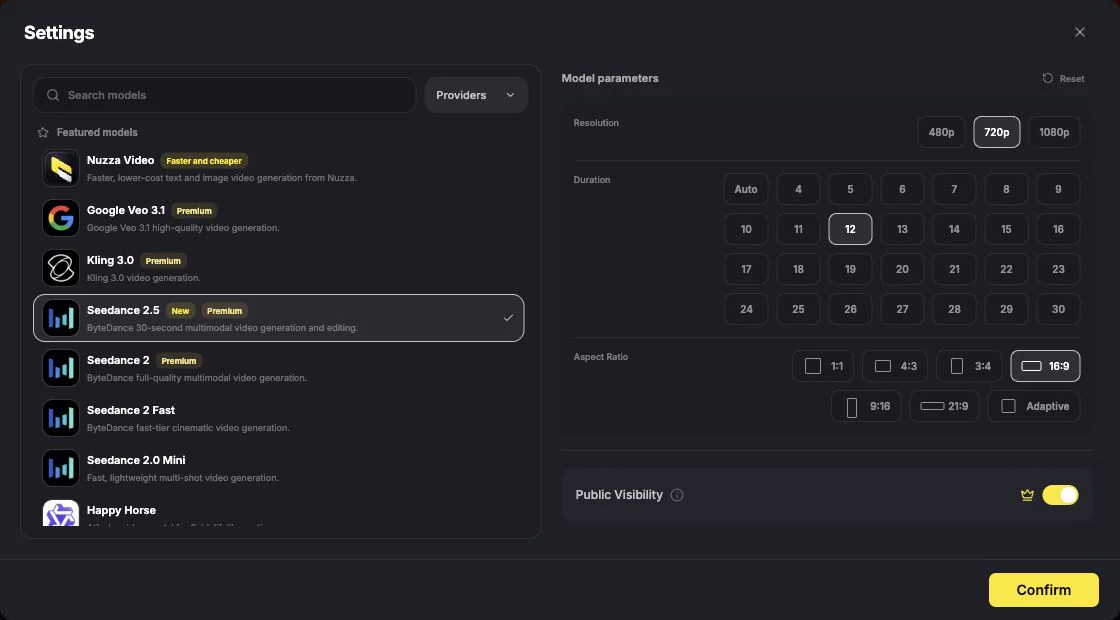
Set duration, resolution, aspect ratio, and visibility in the interface, then use the prompt to direct what happens inside that container.
Fill only the fields the shot needs:
Create [finished result].

Subject and scene: [details the model must invent].
References: [asset] controls [specific job].
Action and timing: [ordered visible beats].
Camera: [framing, movement, and ending position].
Audio: [dialogue, effects, ambience, or music].
Preserve: [identity, design, motion, layout, or accepted details].
How should the prompt change with the input?
The input decides how much work the text must do. Text-to-video builds the visual world. An image already supplies appearance and composition. Mixed references split control across several assets. An existing video supplies most of the shot and leaves the prompt to define the edit.
| Starting input | What the prompt should emphasize |
|---|---|
| Text only | Subject, scene, action, camera, style, and sound |
| One image | Subject motion, scene motion, camera behavior, and ending state |
| Start and end frames | The transition, action path, pacing, and camera behavior |
| Mixed references | A separate job for every referenced asset |
| Existing video | The target change and the details that must remain |
Nuzza exposes these starting points in the Create Video menu.
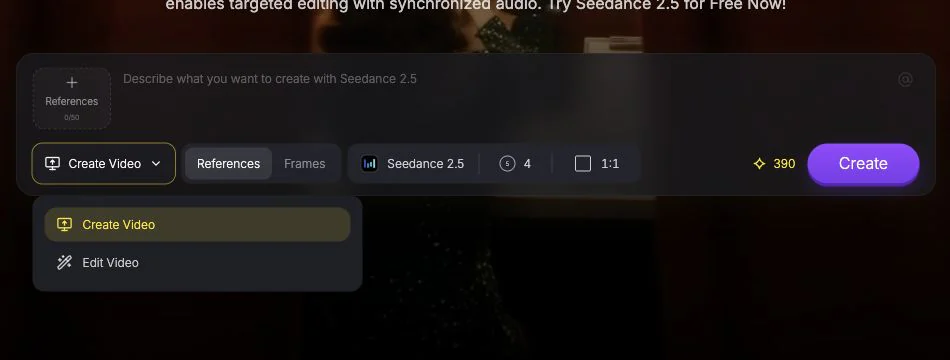
Choose the input mode from the material that must control the shot. The selection changes what the prompt still needs to describe.
Text-to-video builds the shot
Text-to-video needs enough information to establish the subject and its setting. Keep the action plausible for the selected duration.
A medium-wide shot of an unbranded brushed-steel bottle on a dark stone table in a quiet studio. The bottle turns slowly clockwise as a narrow highlight travels across the metal. The camera pushes gently toward the product and settles into a centered front view. Soft overhead light, restrained reflections, quiet room tone, no music.Image-to-video spends more words on motion
An image already carries the subject’s appearance, composition, colors, lighting, and starting pose. Use the text for what changes next.
The bottle turns slowly clockwise. A narrow highlight moves across the metal while the camera pushes in gently, then settles into a stable front-facing frame. Quiet studio ambience, no music.Mixed references divide responsibility
Assign one job to each reference. One image can control the bottle silhouette, another can control a cap detail, a video can control camera motion, and an audio clip can control ambience.
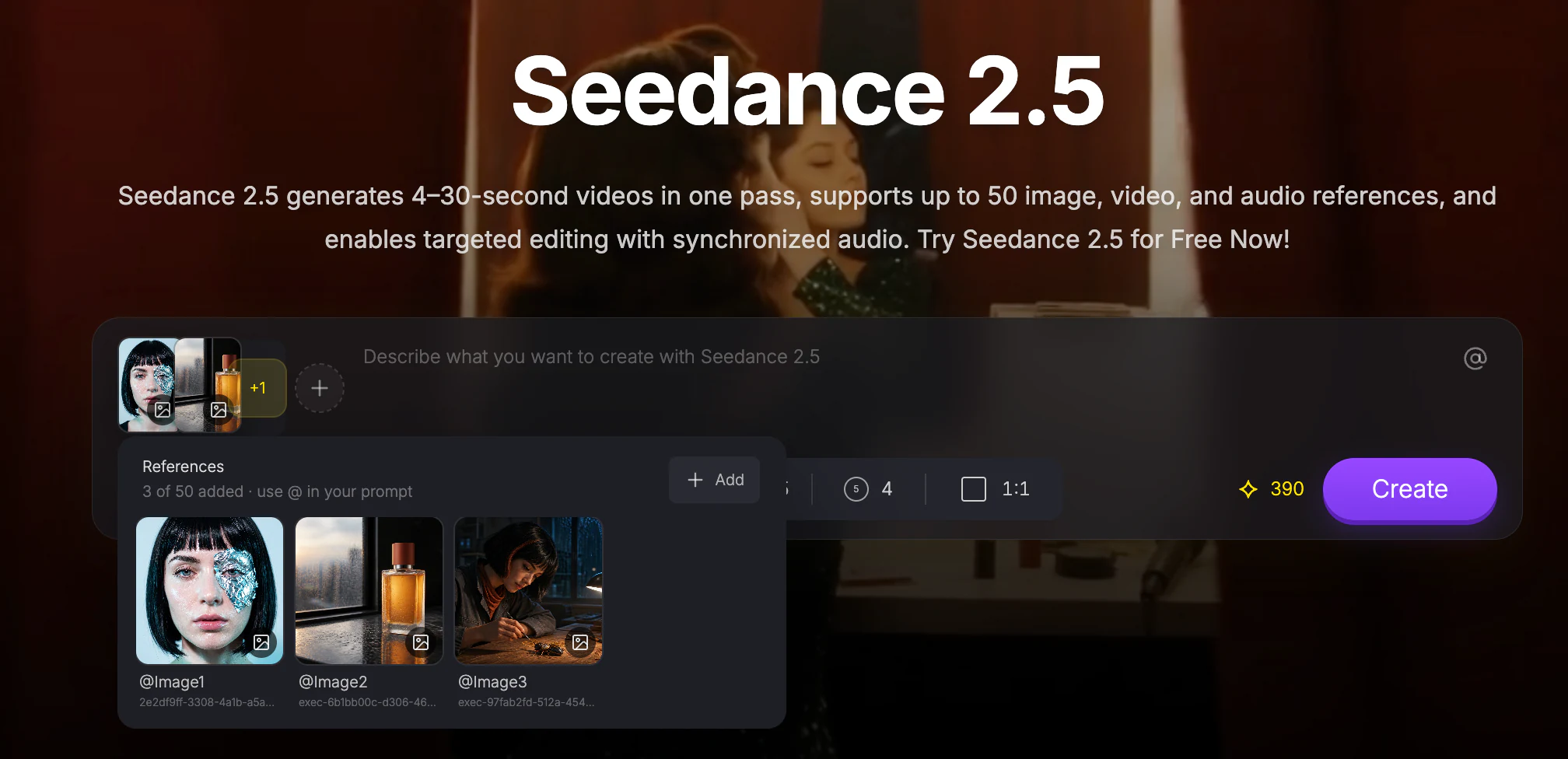
Attached assets receive reference numbers. Use those numbers beside the instruction each asset should control.
Create a 12-second product film.

Use @Image 1 for the bottle silhouette and brushed-steel finish. Use @Image 2 for the cap, handle, and side seam. Follow the slow clockwise camera path in @Video 1. Use the quiet room tone from @Audio 1 without adding music.

0-3s: hold a medium-wide view of the bottle on a dark stone table.
3-9s: complete the slow clockwise orbit while a narrow highlight moves across the metal.
9-12s: settle into a stable front-facing hero frame.

Preserve the bottle proportions, cap, handle, side seam, and material throughout.
Type @ in the Nuzza prompt field to select an attached reference beside its instruction.
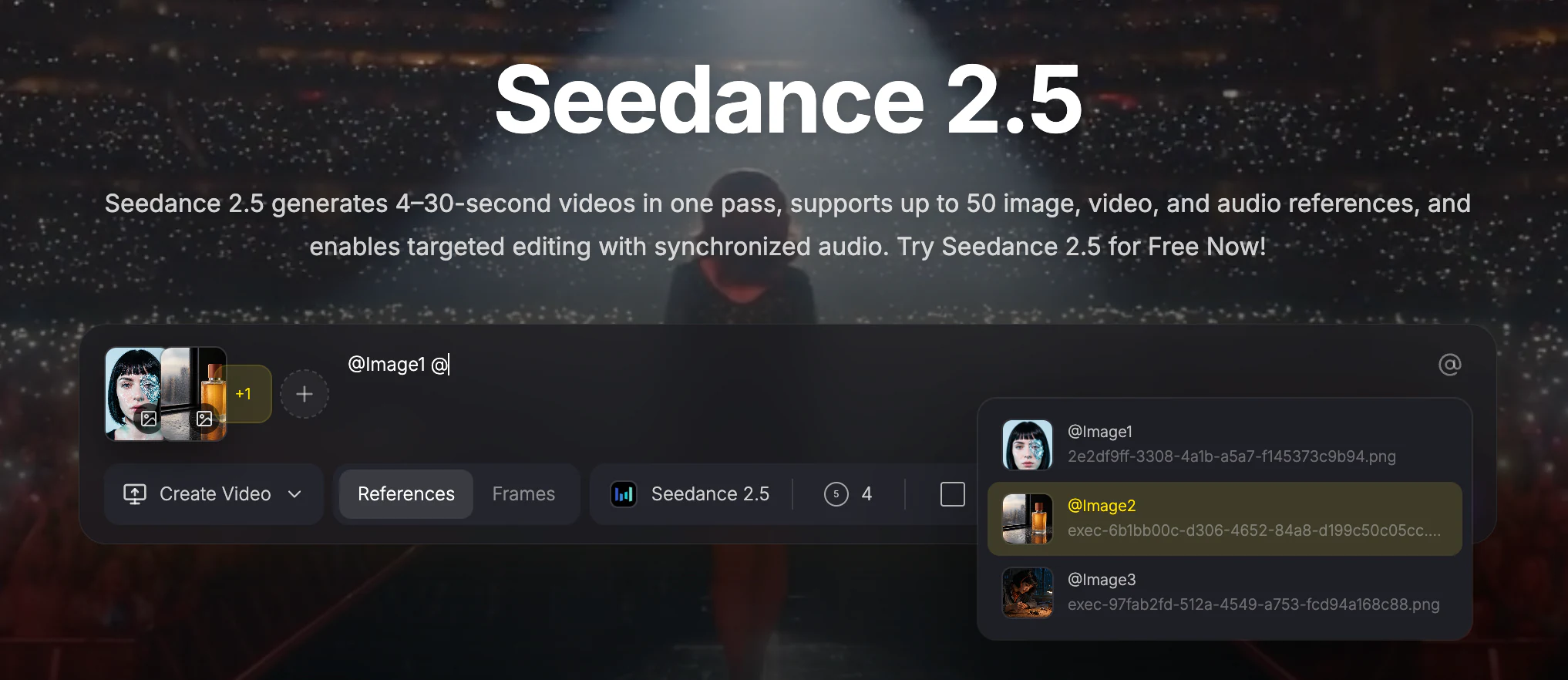
Insert a numbered reference where its role is defined instead of leaving the model to infer why the asset was uploaded.
Remove references that compete for the same detail. If two images show different cap designs, keep the stronger source or state which image controls the cap.
Video editing defines the change
An existing video already supplies timing, performance, composition, and camera behavior. State the target change first, then protect the accepted parts of the source.
Edit @Video 1. Replace the studio wall with a softly lit concrete backdrop. Keep the bottle, turntable motion, camera path, timing, reflections, and room tone unchanged.How do you organize a 30-second Seedance 2.5 prompt?
Use time blocks when the order matters. A simple continuous action can stay in prose. A scene with a setup, a main action, and a final reveal benefits from a timeline.
Seedance 2.5 supports timestamp-level control. Give each time block one visible job.
| Time | Job in the shot |
|---|---|
| 0-5s | Establish the subject, place, and starting camera position |
| 6-15s | Perform the main action |
| 16-24s | Introduce the second action or change the camera relationship |
| 25-30s | Resolve the action and hold the final frame |
Create a 30-second single-take scene inside a quiet rehearsal studio.

0-5s: begin in a medium-wide shot behind the dancer as she prepares beside a sunlit window.
6-15s: she steps into the center of the room and begins a slow contemporary turn. The camera tracks left at walking speed.
16-24s: two musicians enter the background and begin playing softly. The camera arcs toward the dancer's front without cutting.
25-30s: she completes the turn, faces the camera, and becomes still. The camera settles into a medium shot and holds for the final two seconds.

Footsteps, cloth movement, and quiet live percussion. No added score. Keep the scene continuous and the dancer's clothing consistent.
Choose the shot structure deliberately:
- Use single continuous take when uninterrupted performance and spatial continuity matter.
- Use multi-shot sequence when the viewer needs separate angles or locations.
- Use explicit shot blocks when every cut needs its own subject, action, and framing.
- Use a natural occlusion when a continuous camera move must hide a transition.
Longer duration creates room for a complete action. It does not create room for unlimited ideas. Split unrelated locations, transformations, and camera styles into separate generations.
How do you direct camera, motion, and audio clearly?
Describe camera, motion, and audio as parts of the same event. The subject performs an action, the environment reacts, the camera decides how the viewer sees it, and sound confirms what happened.
Turn intent into visible action
Concrete verbs give the model an observable target. Words such as “hopeful,” “premium,” or “energetic” become useful after the prompt explains how that quality appears.
| General intent | Visible direction |
|---|---|
| The character feels hopeful | She raises her head, exhales, and begins to smile |
| The scene becomes energetic | The dancers enter from both sides as the fabric lifts in the wind |
| The product looks premium | A narrow highlight travels across the metal as the camera moves closer |
| The ending feels calm | The subject becomes still and the camera holds the final frame |
Name what moves
Separate three kinds of motion when the shot contains all of them:
- Subject motion: the dancer turns and extends one arm.
- Scene motion: the curtains lift gently behind her.
- Camera motion: a stabilized camera tracks left and arcs toward her front.
For several subjects, use names, positions, or roles: “the woman on the left steps forward; the man on the right remains still.”
Give the camera a path and an ending
Build the camera instruction from framing, angle, movement, and behavior. “A stabilized camera tracks backward in a medium shot, then settles into a close-up” defines both the path and the final frame. Add lens or focus terms only when they change the intended image.
Assign every sound
Separate dialogue, delivery, sound effects, ambience, and music. Pair every line with a speaker, especially in scenes with several people.
The woman at the window says quietly, "We still have time."
The man by the door pauses, then replies in a tired voice, "Not as much as you think."
Rain taps against the glass. A distant train passes outside. No background music.
Keep spoken material proportional to the clip. Clear speaker, line, and delivery assignments help native-audio video models match each line to the right character. Keep dialogue, ambience, and camera direction in the same timed scene.
How do you improve a Seedance 2.5 prompt that misses the brief?
Name the failed requirement before rewriting the prompt. Then revise the part that controls it.
| Result problem | First revision |
|---|---|
| Identity or product design drifts | Remove conflicting references or name the controlling source |
| Actions occur in the wrong order | Add two or three time blocks |
| The action never finishes | Simplify the action or reserve time for the ending |
| Camera moves too quickly | Name the movement speed and ending position |
| The frame feels static | Add one visible subject or scene movement |
| Dialogue belongs to the wrong person | Pair each line with a named or positioned subject |
| Unwanted music appears | State the intended ambience and remove music |
| A narrow edit changes too much | State the one change first, then protect accepted details |
Review the complete video in the same order as the prompt: subject, action, timing, camera, audio, and final frame.
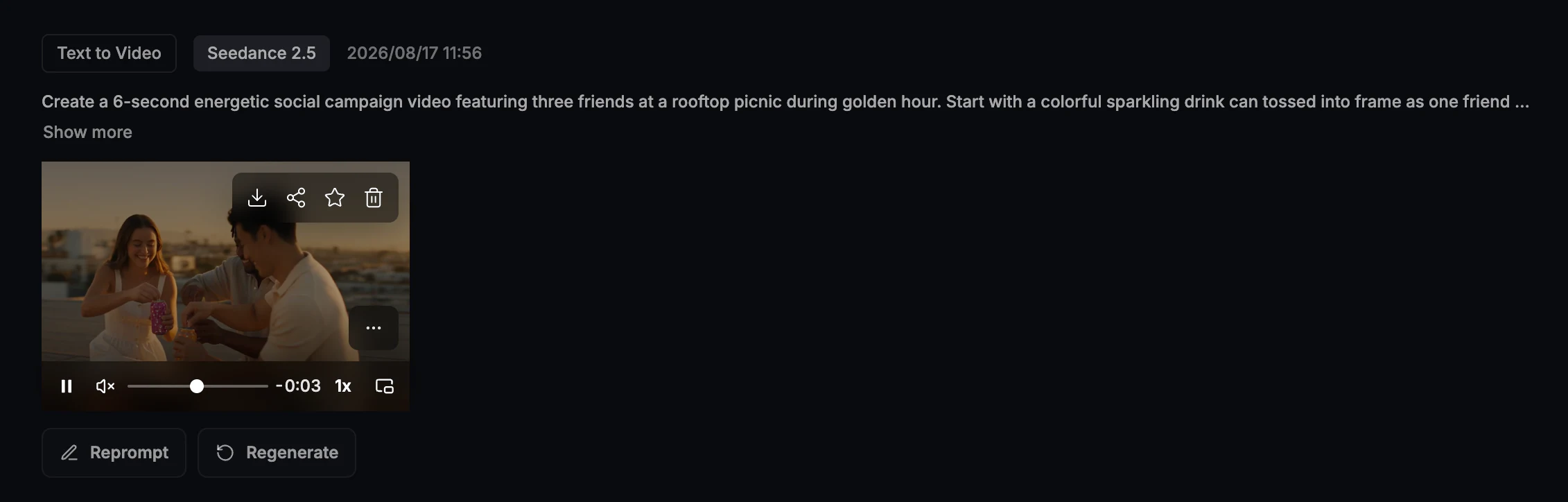
Keep the prompt beside the playable result and trace each visible problem back to the instruction that controls it.
Use a controlled revision loop:
- Play the complete result and name the failed requirement.
- Find the sentence, reference, setting, or time block responsible for it.
- Change one variable.
- Keep the other references and settings constant.
- Compare complete clips.
Start with essential motion and add one detail at a time. This makes the effect of each revision easier to see.
Write preservation instructions before narrow exclusions:
Keep the bottle shape, turntable motion, camera path, timing, reflections, and room tone unchanged. Replace only the wall behind the product with softly lit concrete. No logos, subtitles, extra products, or music.Regenerate when the performance, timing, or camera plan is wrong. Use the Seedance 2.5 Video Edit workflow when one contained detail needs to change.
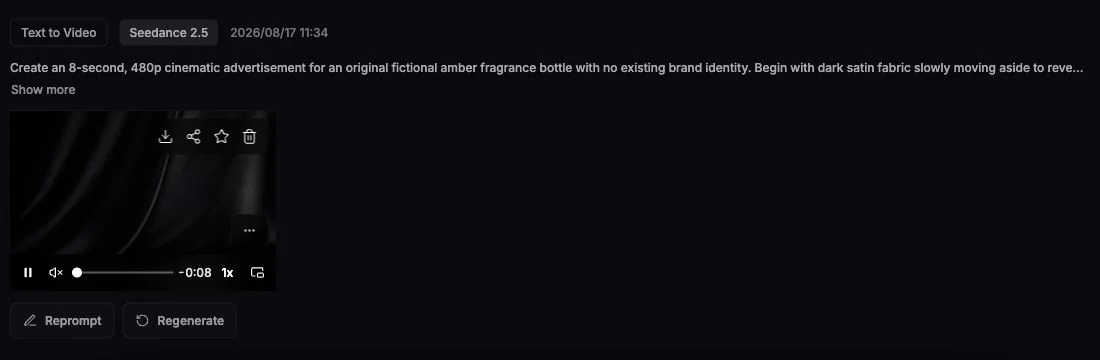
Use Reprompt or Regenerate when the full shot needs another pass. Move to Video Edit when the accepted clip needs one contained change.
Key takeaways
- Start with the finished shot.
- Let the input decide what the text must supply.
- Give every reference one job.
- Use timestamps when action order matters.
- Direct subject motion, scene motion, camera, and sound separately.
- Revise the instruction responsible for the failed result.
Open the Seedance 2.5 workspace when the next shot is ready to direct.
Sources
- ByteDance Seed: One-take Creation, Flexible Referencing: Introducing Seedance 2.5. Official source for 30-second storytelling, assigned multimodal references, timestamp control, camera direction, audio, extension, and editing. Published July 31, 2026.
- ByteDance Seed: Seedance 2.5 model overview. Official model source for generation, referencing, extension, editing, and production controls. Accessed August 17, 2026.
- OpenAI: Sora 2 Prompting Guide. Official source for shot structure, action beats, cinematography, sound, prompt detail, and iteration. Updated March 2026.
- Google Cloud: The ultimate prompting guide for Veo 3.1. Official source for prompt anatomy, cinematography, audio, references, and timestamp prompting. Published October 15, 2025.
- Kling AI: Text-to-Video Prompt Guide. Official source for subject, movement, scene, camera language, lighting, atmosphere, and prompt simplicity. Published November 24, 2025.
- Kling AI: VIDEO 3.0 Model User Guide. Official source for multi-shot prompting, reference elements, timed long takes, speaker assignment, and native audio. Published February 6, 2026.
- Runway: Gen-4 Video Prompting Guide. Official source for image-to-video motion prompting, physical actions, and one-variable iteration. Accessed August 17, 2026.
- Adobe: Writing effective text prompts for video generation. Official source for prompt structure, action verbs, camera vocabulary, temporal details, and iterative refinement. Accessed August 17, 2026.
- Luma: Ray 3.2 Prompting, Outputs & Controls. Official source for input-dependent video editing and preservation guidance. Accessed August 17, 2026.
Turn your next video brief into a Seedance 2.5 prompt
Try Seedance 2.5