
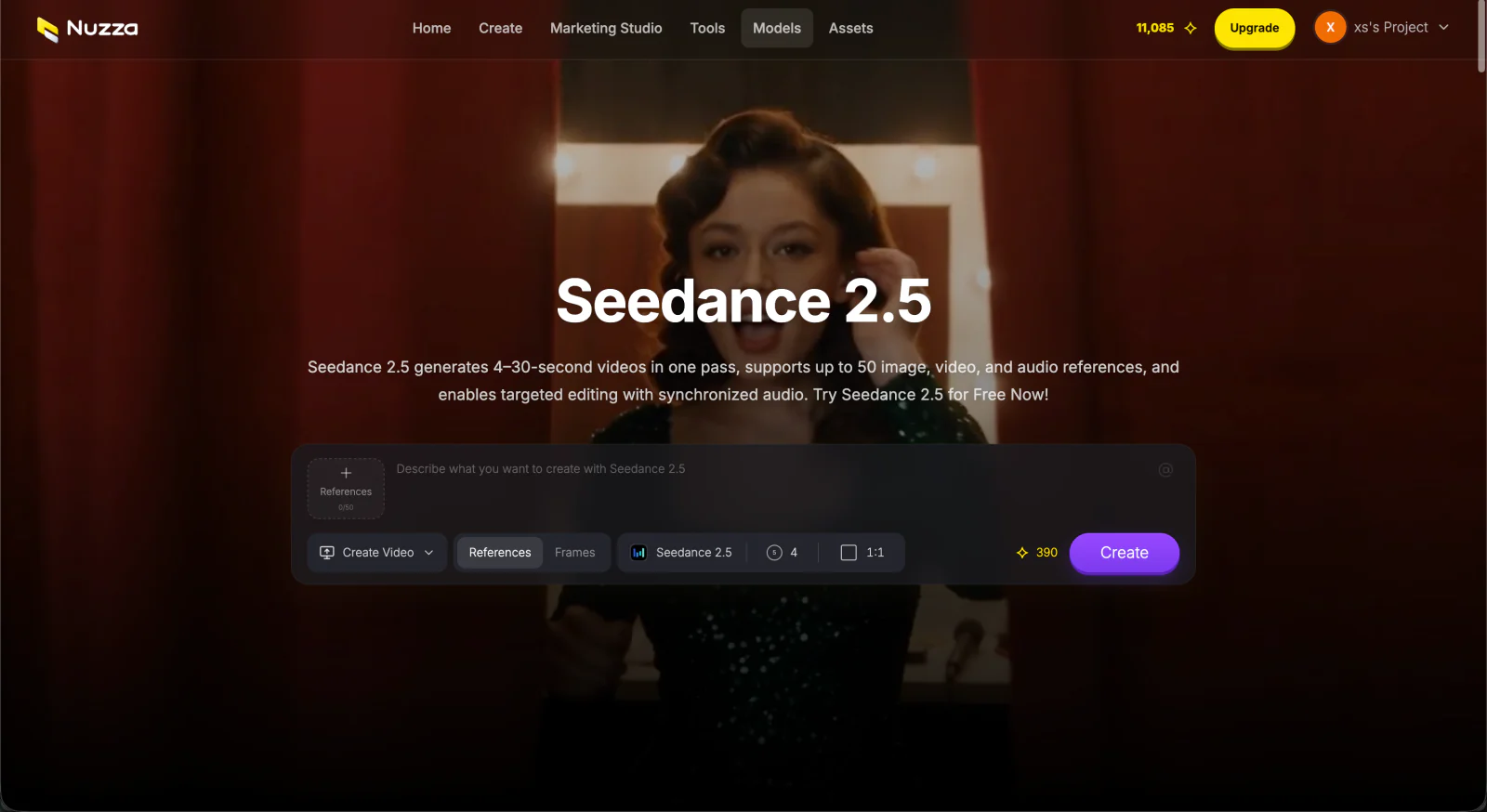

Seedance 2.5 is easiest to control when you treat one generation as a small production brief. Lock the finished shot first. Let your existing material choose the input mode, give every reference a job, direct time and camera movement, choose the delivery settings, then generate and inspect the complete clip.
This walkthrough uses the Seedance 2.5 reference workflow because it shows the model’s broadest input setup. The same sequence also works for text-to-video and image-to-video with fewer uploaded assets.
ByteDance describes Seedance 2.5 as an audio-video generation model built for clips up to 30 seconds, reference control, and editing. Those capabilities are documented on the official Seedance 2.5 model page. The controls below refer to Nuzza as checked on August 17, 2026.
Before you start: prepare one clear shot
Decide on one small video that is easy to judge. This guide uses a 12-second product reveal for an unbranded brushed-steel bottle.
Prepare four assets:
| Asset | Job in the video |
|---|---|
| Front-view bottle image | Product shape and finish |
| Side-detail bottle image | Cap, handle, and material details |
| Short orbiting-camera video | Camera direction and speed |
| Quiet studio ambience clip | Background sound reference |
A reference earns its place only when it controls something visible or audible. One product, one main action, one camera move, and one setting are enough for this brief.
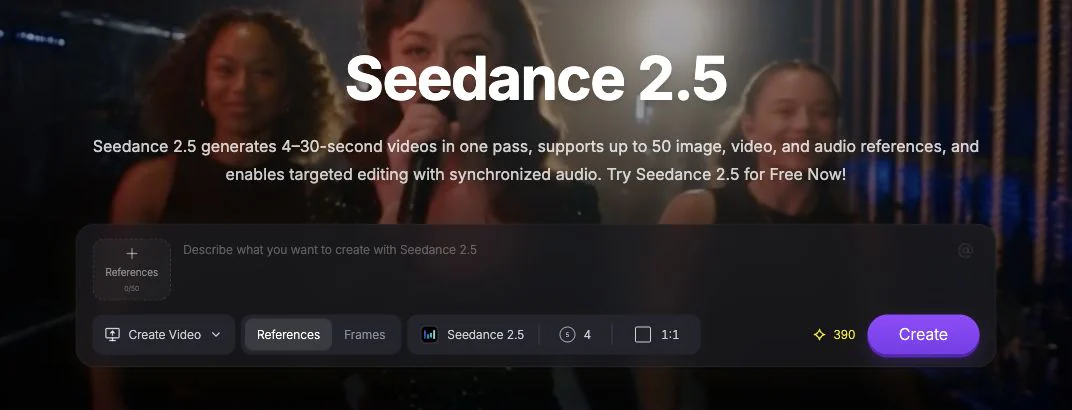
The empty Seedance 2.5 workspace in Nuzza before references, a prompt, or output settings are added.
Step 1: lock the result before opening settings
Write the intended result in one sentence before opening settings:
A 12-second horizontal product video in which a brushed-steel bottle rotates slowly on a dark stone table, ending on a clean front-facing hero frame with quiet studio ambience.
Do not open the composer until the sentence states the subject, action, duration, frame, ending, and audio direction. If it contains several unrelated actions, split the idea into separate shots.
Step 2: let the source material choose the workflow
Choose the mode from the material you already have:
| Starting material | Nuzza workflow | Use it when |
|---|---|---|
| Prompt only | Text to video | The subject and look can be invented from text |
| One source image | Image to video | A specific image should become the opening visual |
| Start and end frames | Frames | The clip must move between two known images |
| Images, video, or audio references | Reference to video | Several assets control identity, style, motion, or sound |
| An existing video | Video Edit | Most of the source clip should remain intact |
Use References for this walkthrough. It lets the product images control appearance, the video control camera movement, and the audio clip guide ambience.
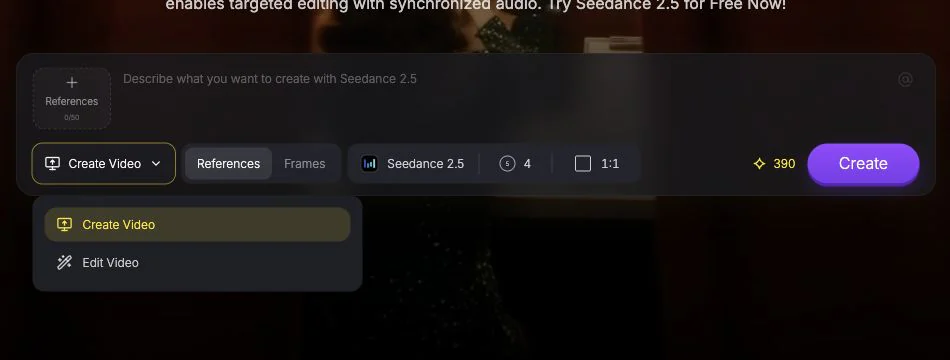
Start from Create Video, then choose References when images, video, and audio need separate jobs in the same brief.
Step 3: give every reference one job
Nuzza currently accepts up to 30 images, 10 videos, and 10 audio files in the Seedance 2.5 reference workflow, with a combined limit of 50 files. That is capacity, not a target.
Upload the four prepared assets and give each one a single job:
| Reference | Instruction |
|---|---|
| Bottle front | Preserve the overall silhouette, label-free front, and brushed-steel finish |
| Bottle detail | Preserve the cap, handle, and side seam |
| Orbit video | Follow its slow clockwise camera movement |
| Ambience audio | Use its quiet room tone without adding music |
This division of labor also appears in ChatCut’s Seedance practitioner guide on X: the prompt assigns separate jobs to image, video, and audio assets instead of asking the model to infer their purpose. The post covers Seedance 2.0, so its upload limits are historical; its reference-assignment method is the relevant part here.
Remove an asset if you cannot state what it controls. Two images that disagree about product shape or lighting make the brief harder to follow. The 50-file limit is headroom for complex productions, not a checklist to fill.
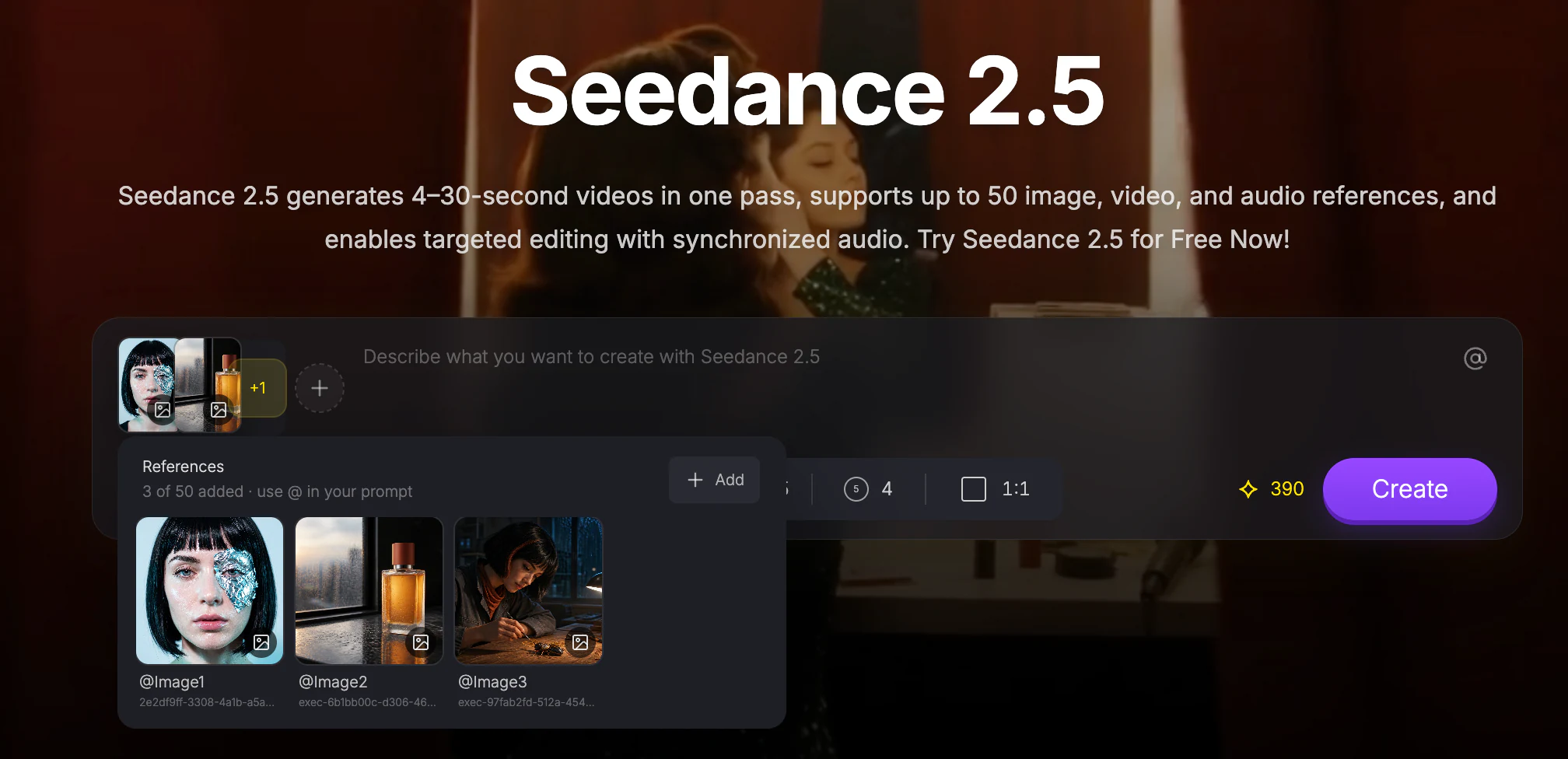
Nuzza displays each attached asset as a numbered reference and keeps the current count visible. This interface example uses three images; add the tutorial’s video and audio references through the same References panel.
Step 4: direct time, camera, and sound
A useful prompt tells Seedance 2.5 what changes over time. OpenArt’s Seedance 2.5 prompt guide reaches the same practical conclusion: describe the scene rather than only the subject, use references for fixed appearances, and direct the camera and audio explicitly.
Use this order:
Subject and identity
Action and timing
Camera movement
Scene and lighting
Reference roles
Audio
Details that must not change
For the bottle example:
Create a 12-second 16:9 product video for the brushed-steel bottle in the reference images. 0-3 seconds: begin with a medium-wide view of the bottle standing on a dark stone table under one soft overhead light. 3-9 seconds: follow the motion reference for a slow clockwise camera orbit while a narrow highlight moves across the metal. 9-12 seconds: settle into a stable front-facing hero frame. Preserve the bottle silhouette, cap, handle, side seam, and brushed-steel material from the image references. Use the supplied quiet studio ambience. No music, people, logos, subtitles, extra products, or sudden cuts.
Spend the most words on what moves and when it moves. Let the reference images carry the product appearance. End with the details that must survive the full shot.
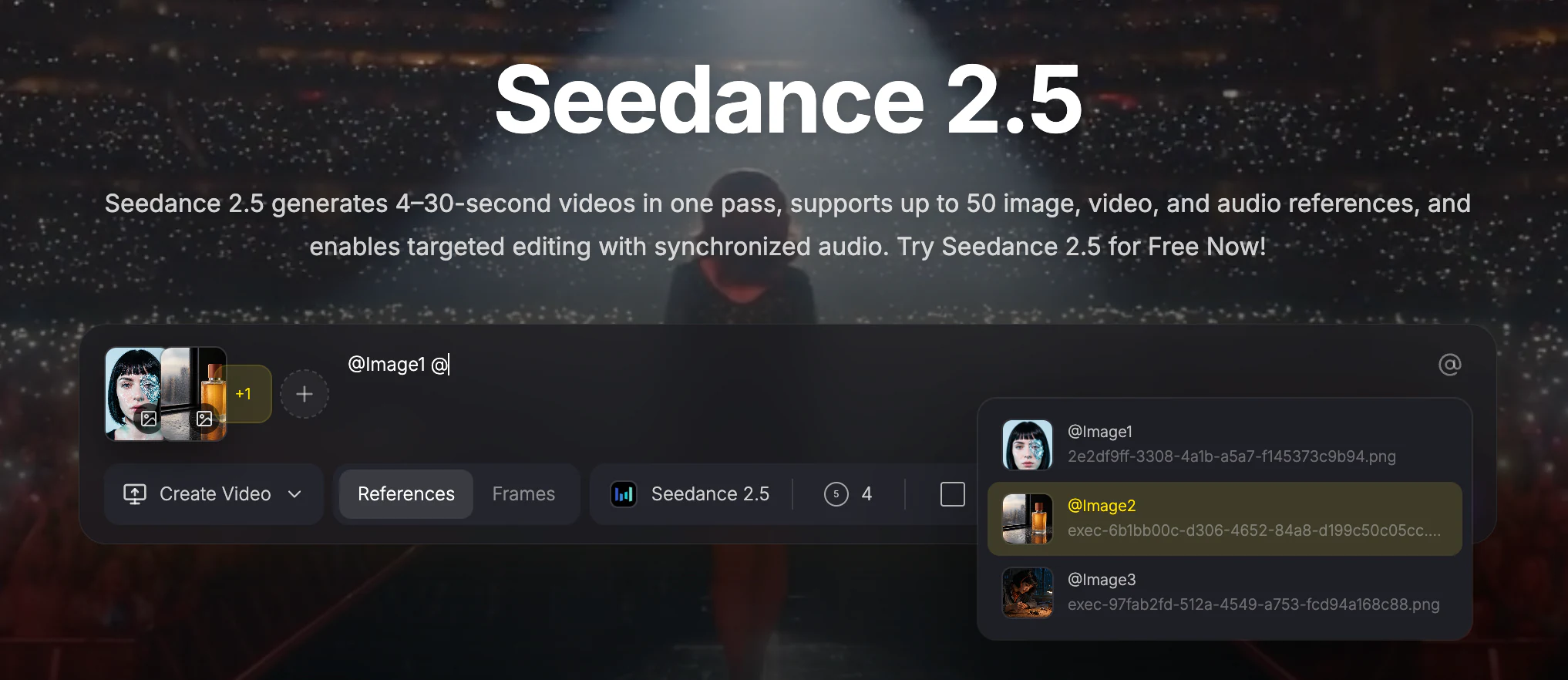
Type @ in the prompt to open the attached-reference selector, then insert the numbered asset beside the instruction it should control.
Step 5: set the output for its destination
Open Settings after the brief is ready. Nuzza currently exposes:
- 4 to 30 seconds, plus Auto;
- 480p, 720p, and 1080p;
- Adaptive, 21:9, 16:9, 4:3, 1:1, 3:4, and 9:16 aspect ratios.
For this walkthrough choose 12 seconds, 720p, and 16:9. The video is intended for a horizontal product page, and 12 seconds gives the orbit enough time to finish without stretching a simple action. Before submitting, also check the Public Visibility control.
Longer is not automatically better. Use the shortest duration that contains the action and ending you described.
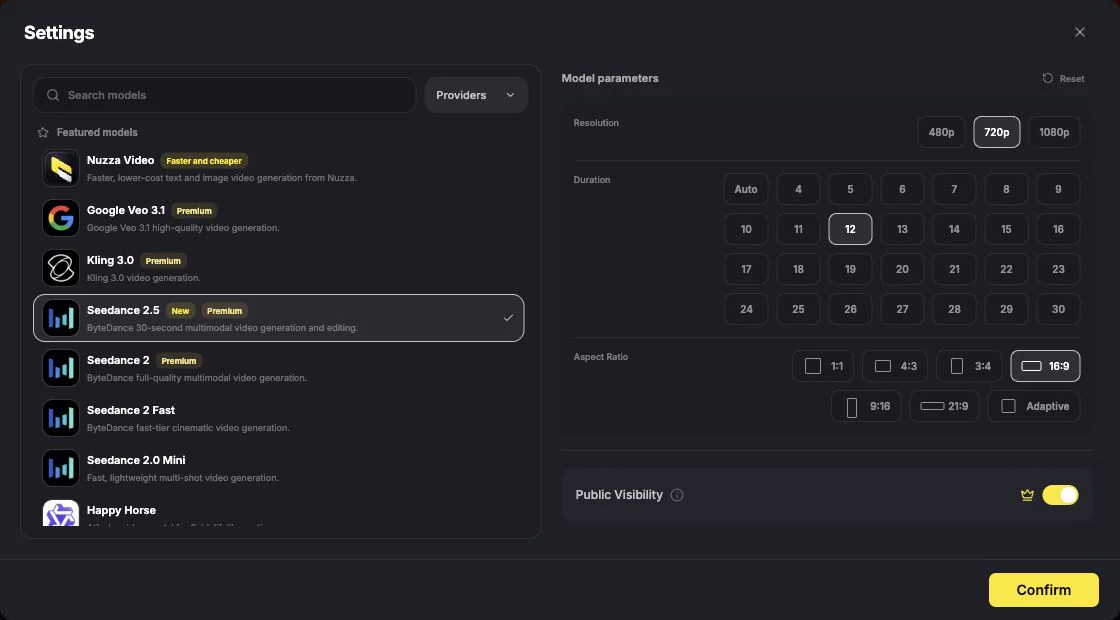
The walkthrough uses Seedance 2.5 at 720p, 12 seconds, and 16:9, with Public Visibility checked before confirmation.
Step 6: run a final preflight, then create
Return to the composer and review three things before selecting Create:
- The model is Seedance 2.5.
- The four references are still attached.
- The visible Credit quote matches the settings you selected.
Submit once. The task enters the generation queue and the result appears in Nuzza when it is ready.
Step 7: judge the clip against the brief
Play the complete clip before judging a still frame. Review it in the same order as the prompt:
| Check | What to look for |
|---|---|
| Product identity | Shape, cap, handle, seam, and material remain stable |
| Action | The camera completes the requested orbit |
| Timing | The setup, orbit, and hero frame fit their planned beats |
| Camera | Movement is smooth and ends in a stable position |
| Audio | Ambience fits the scene and no unwanted music appears |
| Clean frame | No logos, subtitles, extra products, or people |
If every row passes, move to the final edit or export decision. If one requirement is missing, identify the instruction or reference responsible before changing the brief.
The result view below comes from a completed six-second Seedance 2.5 text-to-video task. It is a real example of the review screen, but it is not the 12-second reference-led bottle brief used in the walkthrough above.
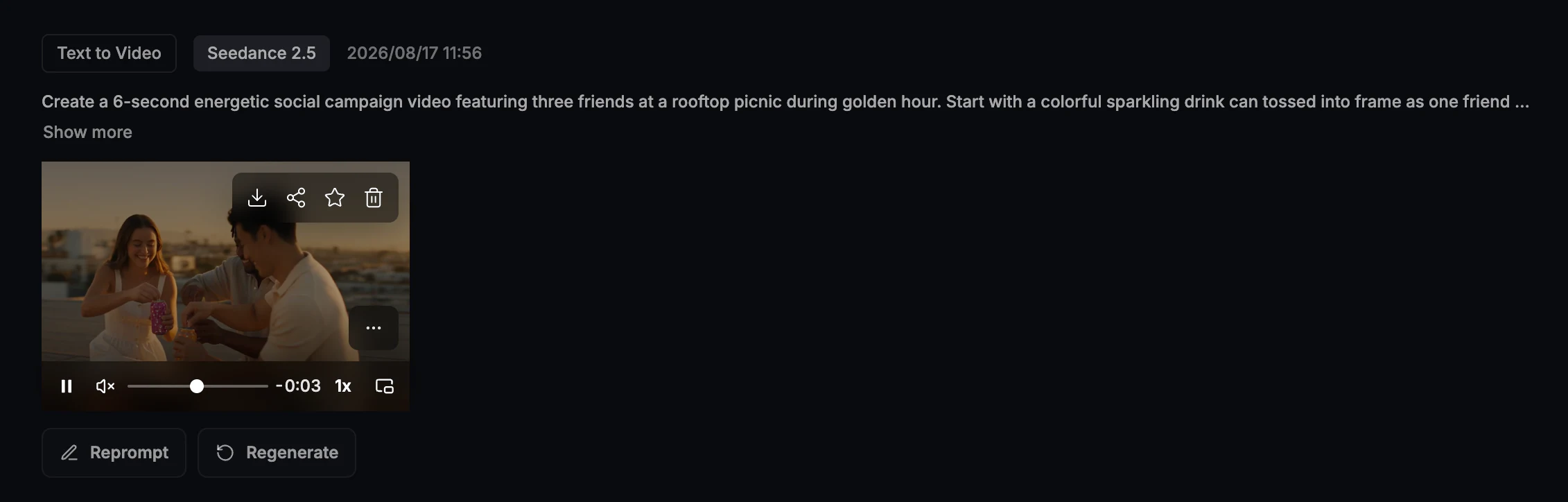
A completed Seedance 2.5 task keeps the original prompt beside the playable result. Review the whole clip before choosing Reprompt or Regenerate.
Step 8: refine one variable when needed
When the clip needs an adjustment, change the prompt, one reference, or one setting. Do not change all three together because you will lose the connection between the instruction and the result.
Use the requirement that needs adjustment to choose the next move:
| Problem | First change to try |
|---|---|
| Product shape drifts | Remove conflicting images or strengthen the preservation sentence |
| Orbit is too fast | Slow the camera instruction or use a clearer motion reference |
| Final frame never settles | Reserve more time for the last beat |
| Extra objects appear | Name the allowed objects and tighten the negative constraint |
| Audio is distracting | Simplify the audio direction or replace the audio reference |
Generate the revised version with the same duration, resolution, and aspect ratio. Compare complete clips, not only their best frames.
Step 9: choose regeneration, Video Edit, or export
If the full shot needs a new performance, camera move, or timing plan, return to generation. If the shot is accepted and only one contained detail needs to change, open the Seedance 2.5 Video Edit workflow with the source clip and a narrow instruction.
When the clip is ready, download it from its result or asset view. Keep the prompt, references, settings, and accepted output together so the workflow can be reproduced later.
For a longer independent walkthrough, Theoretically Media’s Seedance 2.5 masterclass follows a short film from reference images through prompting, generation, editing, and upscaling. It is a creator workflow rather than an official benchmark, and the video description contains affiliate links.
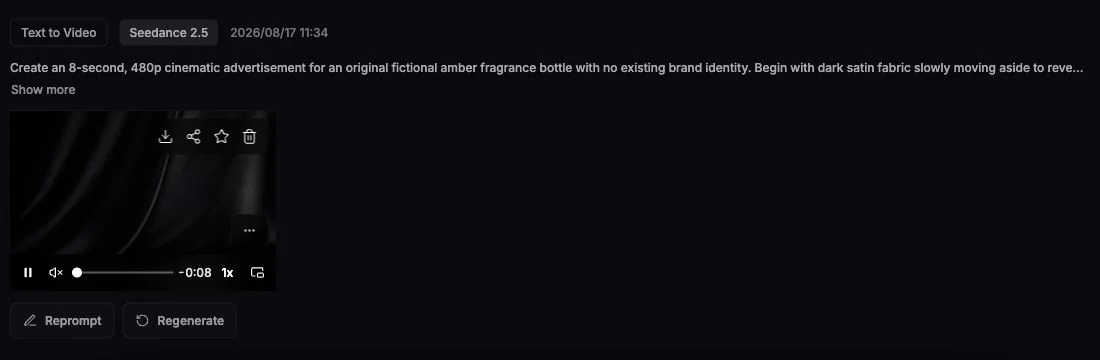
An existing Seedance 2.5 result demonstrates the available result actions. Use the same controls to download an accepted clip, or choose Reprompt or Regenerate when the full shot needs another pass.
Frequently asked questions
Do I need references to use Seedance 2.5?
No. Use text-to-video when the model can invent the subject and setting. Use image, frames, references, or video editing when an existing asset must control part of the result.
How many references should I add?
Add only the references with a named job. Nuzza supports up to 50 combined files in the reference workflow, but a smaller coherent set is easier to direct than a large contradictory one.
What duration should I choose?
Use the shortest duration that fits the complete action. Start with a shorter controlled test before spending more time and Credits on a 20- or 30-second version.
Does Seedance 2.5 support 4K in Nuzza?
Nuzza currently exposes 480p, 720p, and 1080p for Seedance 2.5. Dreamina advertises different Seedance 2.5 output options on its official product page. The Seedance 2.5 vs Seedance 2.0 comparison explains why resolution must be attributed to the hosting product.
Can I edit an existing video with Seedance 2.5?
Yes. Nuzza exposes a dedicated Video Edit workflow. Use it when the source clip is mostly accepted and the requested change is narrower than a full regeneration.
Sources
- ByteDance Seed: Seedance 2.5 model overview. Official model source for 30-second generation, extension, reference understanding, editing, and production controls. Accessed August 17, 2026.
- Nuzza: Seedance 2.5 model workspace. Platform source for the input workflows, reference limits, duration, resolution, aspect ratios, and Video Edit availability described in this guide. Checked August 17, 2026.
- Dreamina: Seedance 2.5 AI Video Generator. Official product source used only for Dreamina-specific availability and output settings. Accessed August 17, 2026.
- ChatCut on X: Seedance multimodal prompt guide. Practitioner source for assigning explicit roles to image, video, and audio references. Published April 8, 2026. Its platform limits describe Seedance 2.0, not current Nuzza settings.
- OpenArt: Seedance 2.5 prompt guide. Third-party platform guide covering scene descriptions, mixed references, camera direction, timed scenes, and audio guidance. Published June 28, 2026.
- Theoretically Media: Seedance 2.5 Masterclass & Early Review. Independent creator workflow covering references, prompting, generation, editing, and upscaling. Published August 5, 2026; description contains affiliate links.
Create your first Seedance 2.5 video in Nuzza
Try Seedance 2.5