
AI Video Editor
Transform existing videos with plain-language directions for subjects, scenes, backgrounds, framing, and visual style. Try the AI Video Editor for free now!
All-in-One Free AI Video Editor
Editing support differs from generation support. Compare source-video input, prompt control, audio handling, duration, resolution, and preservation before choosing.
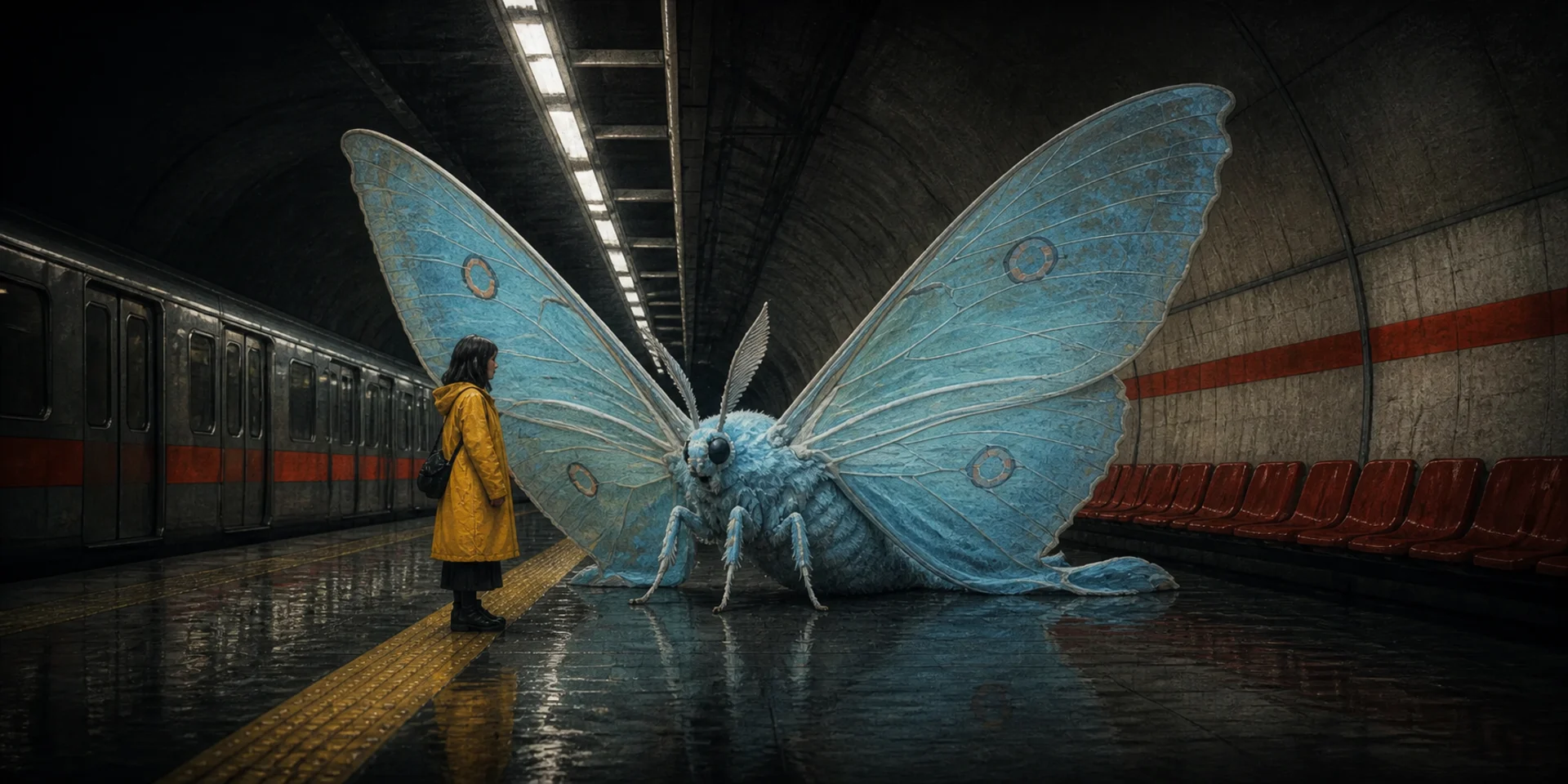

Describe the edit instead of rebuilding the video
Use prompt-based transformation for creative changes, then move to focused tools when the job is strictly technical or localized.
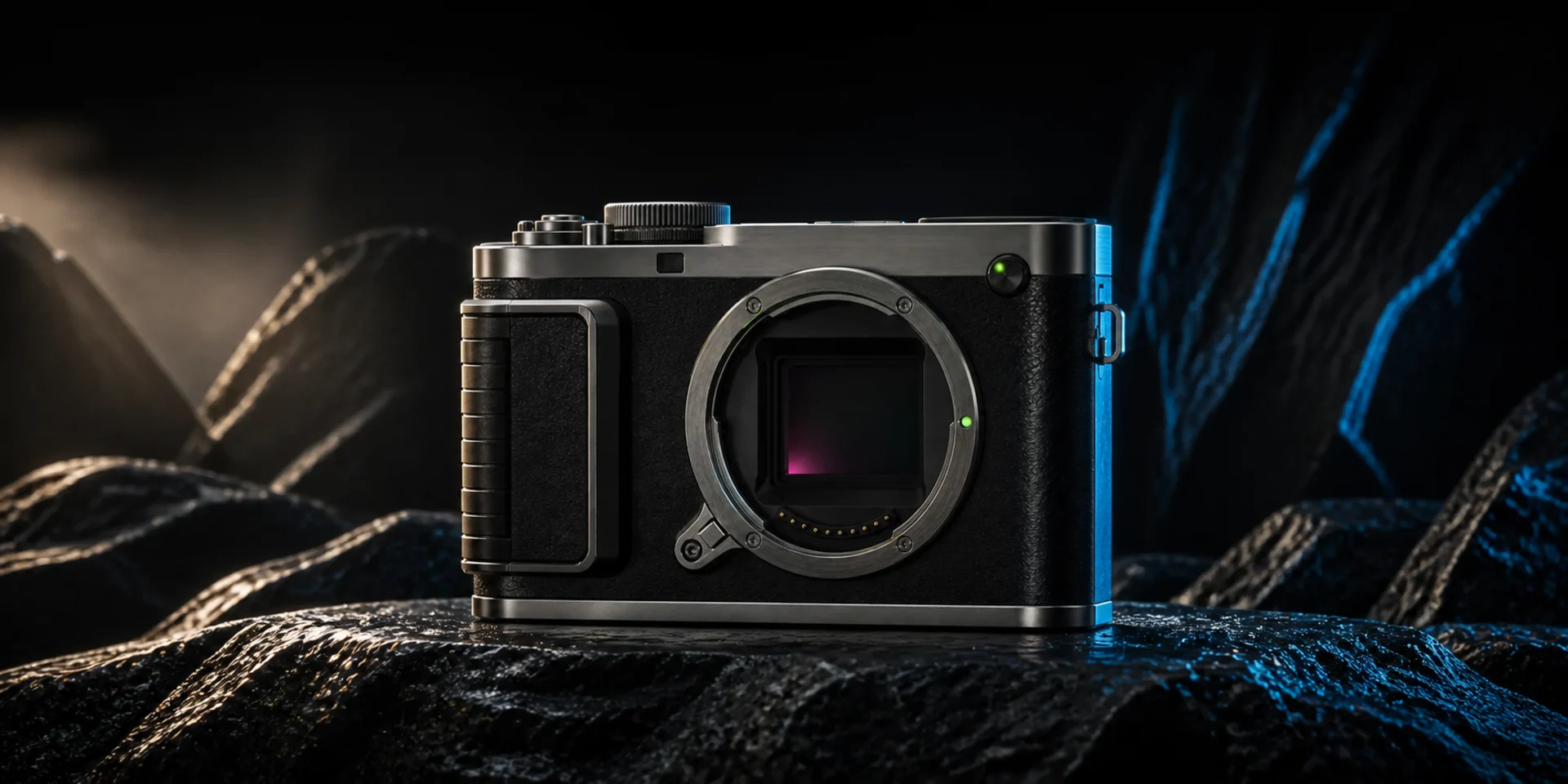
Prompt-based Transformation

Video Background Removal

Video Reframe
Video Extend

Video Enhance
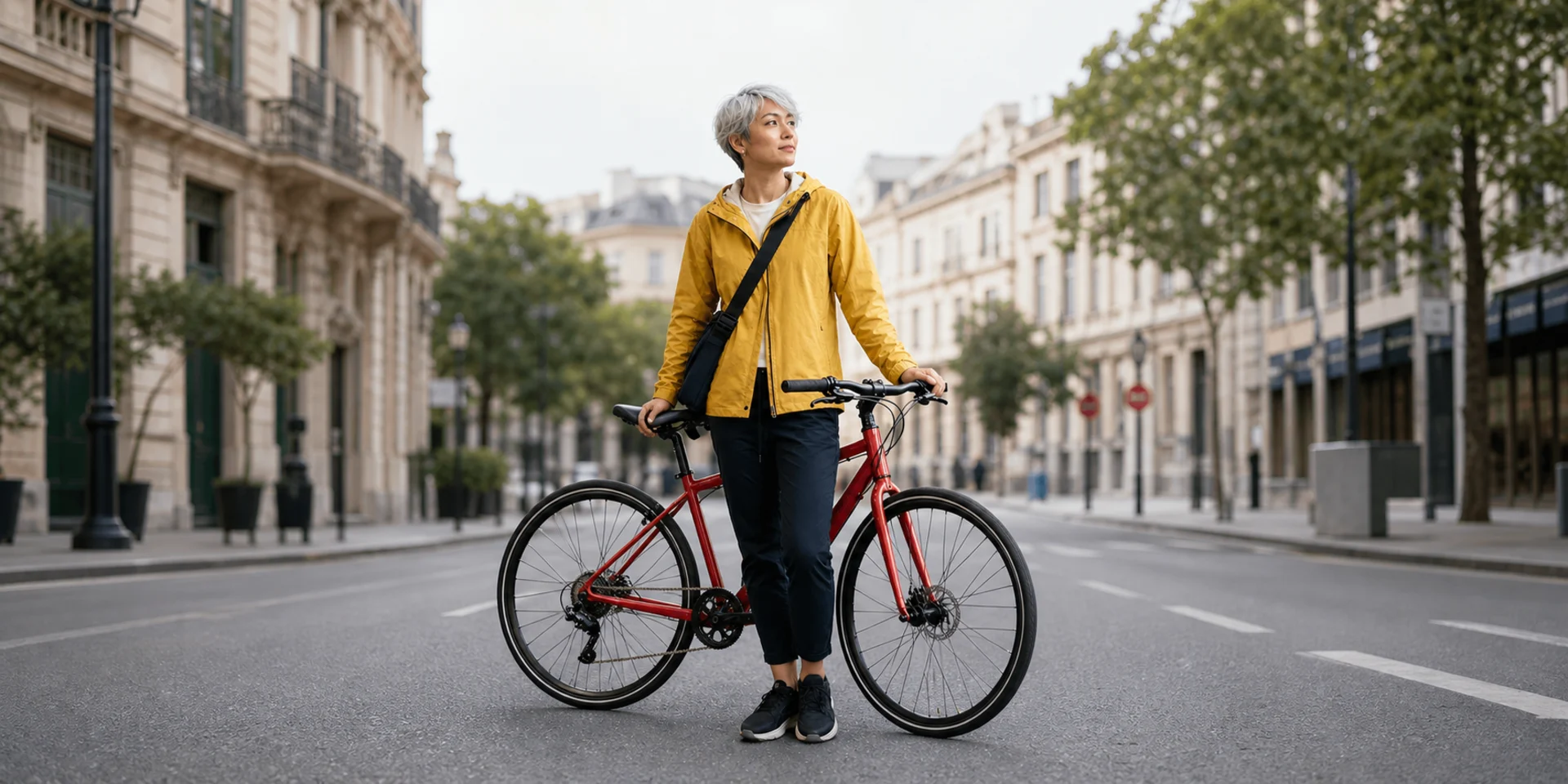
Video Lip Sync
Edit Video with One Clear Instruction
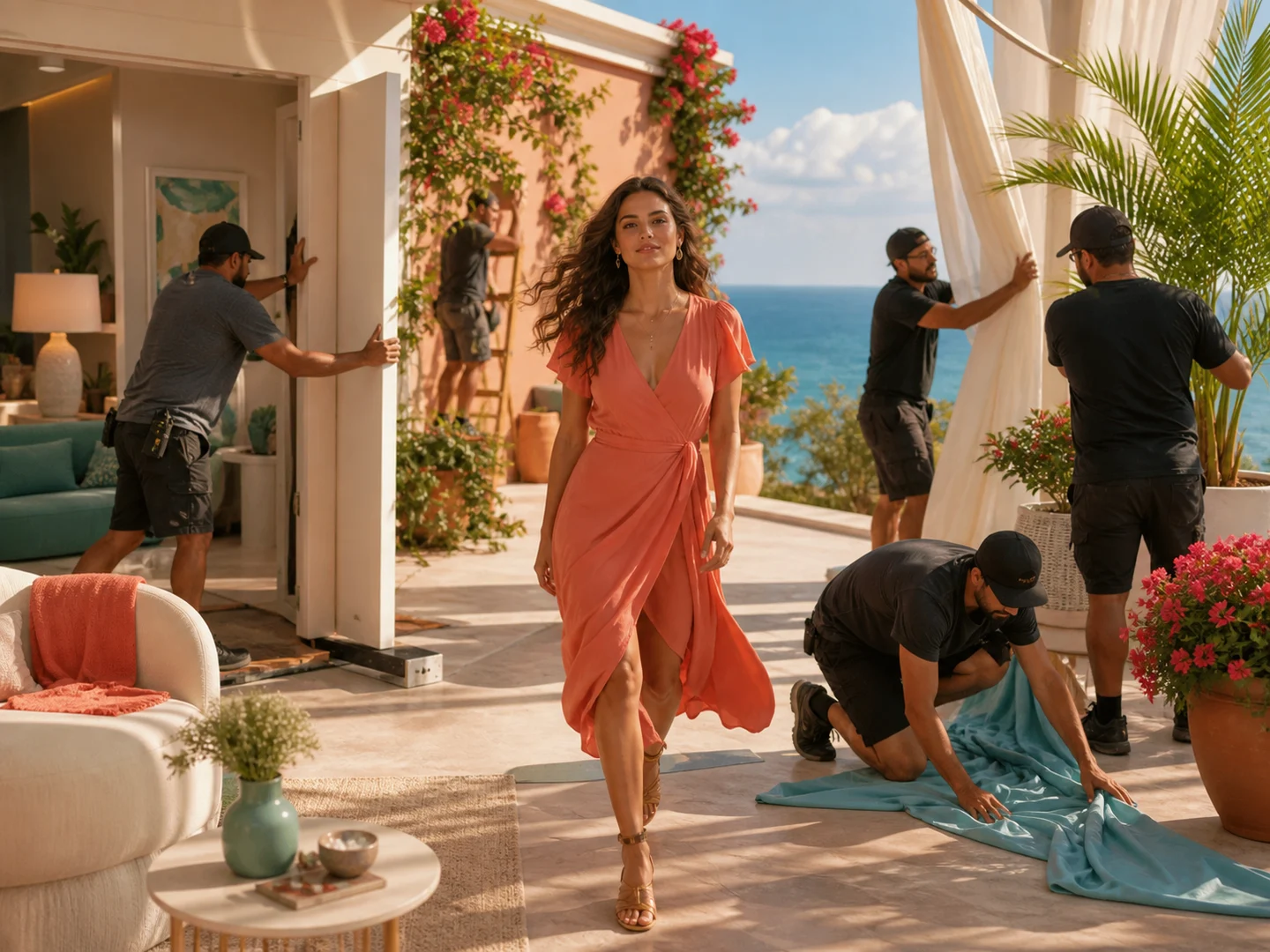
Transform the complete scene
Change environment, time of day, material, atmosphere, or art direction while keeping the source action as the temporal anchor.
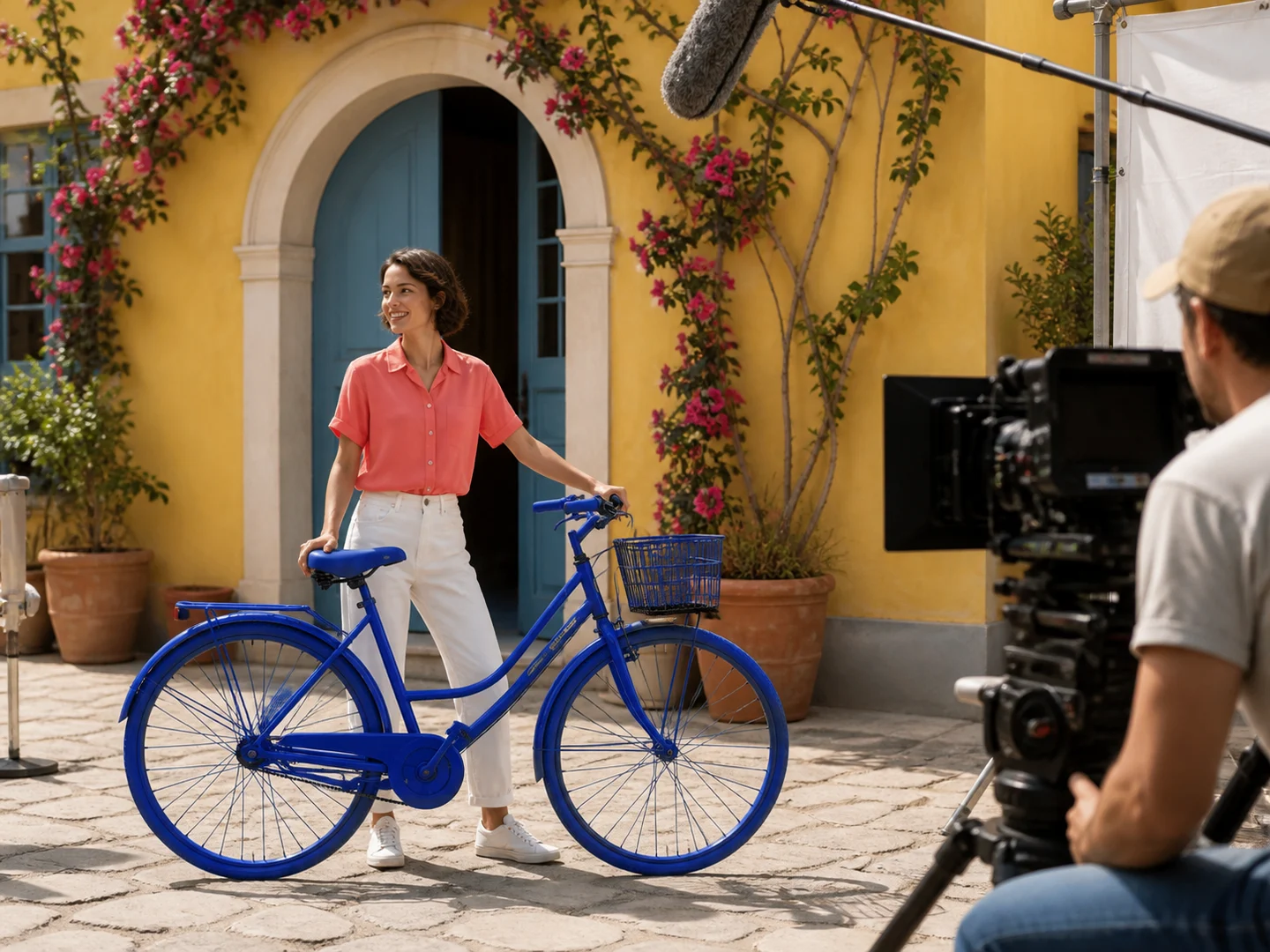
Change a subject or object
Describe the exact subject-level transformation and identify the appearance, pose, timing, or interaction that should remain stable.
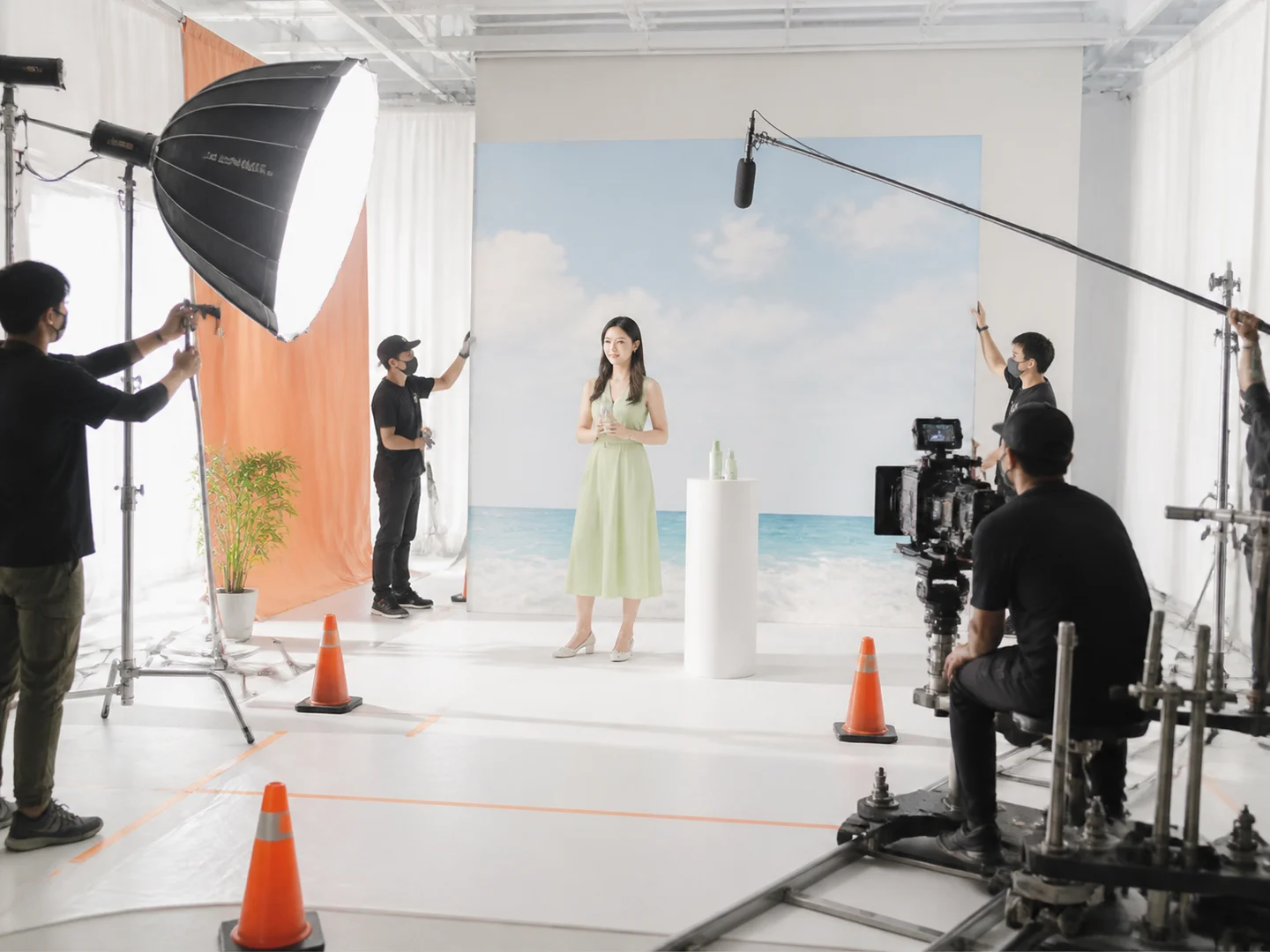
Protect the parts that already work
State which people, products, camera moves, cuts, text, or audio must remain untouched instead of describing only the change.
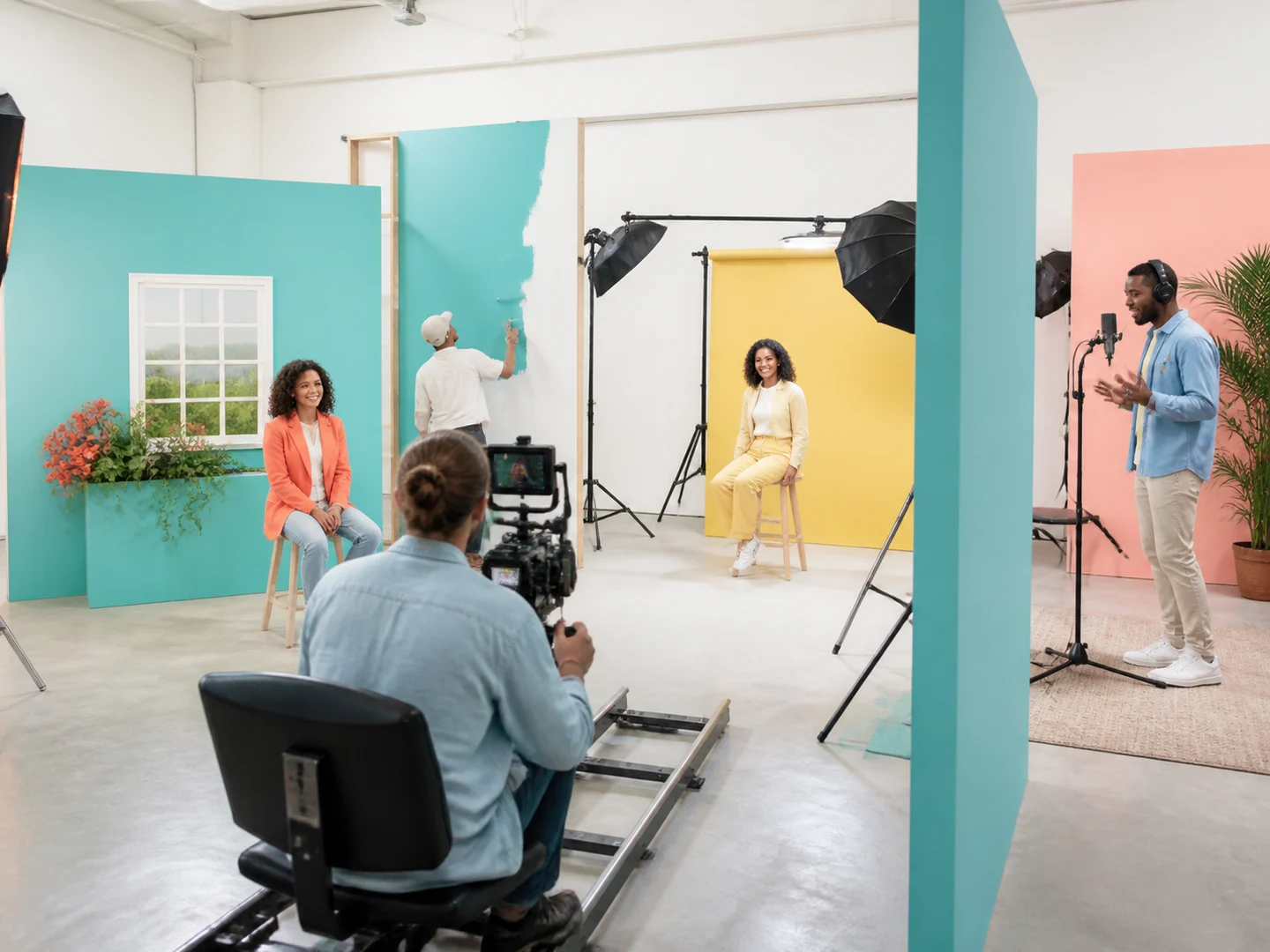
Use focused tools for focused jobs
Switch to reframe, extend, enhance, background removal, or lip sync when a dedicated workflow offers clearer controls.

Review the whole timeline
Check continuity before and after the edited moment, not just one attractive frame from the result.
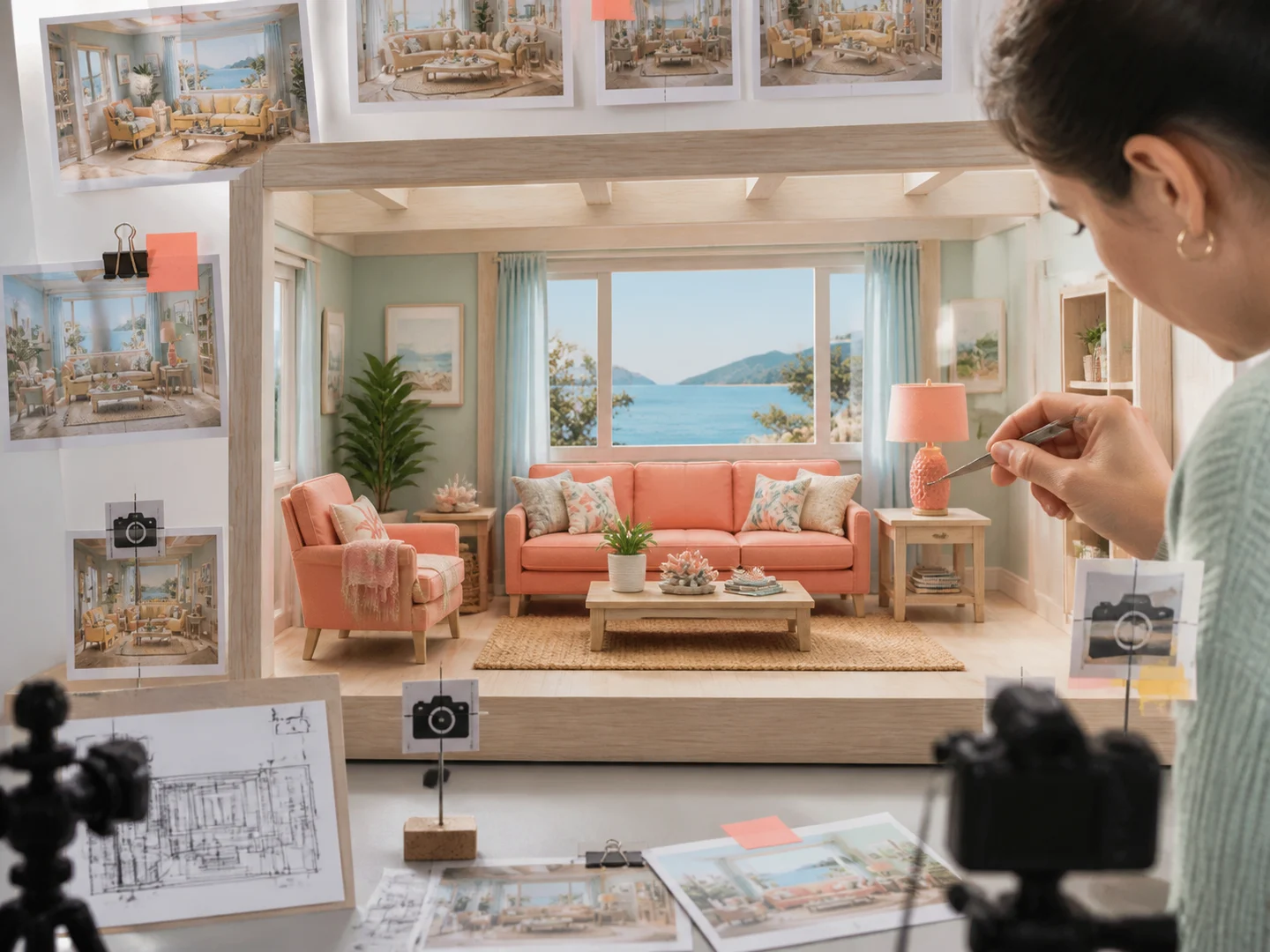
Iterate from a bounded request
Make one coherent transformation per pass so the next revision can target a specific failure without resetting the entire creative direction.
How to Edit a Video with AI
Upload the source clip
Choose a supported video with the action, framing, and timing you want to use as the editing anchor.
Describe the change and boundaries
Explain what should change, where it happens, and which subjects, motion, camera, text, or audio should stay stable.
Choose a model and review
Select a compatible video-editing model, submit the task, then watch the full result for continuity and unintended changes.
AI Video Editing for Creative and Commercial Work
AI Video Editor or Reference to Video?
| Feature / Model | AI Video Editor | Reference to Video |
|---|---|---|
| Source timeline anchor | Begin from an existing clip whose timing and motion matter. | Use references to influence identity, product form, style, motion, or sound. |
| Change instructions | Describe what should be transformed and what should remain stable. | Create a different scene instead of preserving the source timeline. |
| Full-result review | Evaluate continuity across the complete edited video. | Combine separate visual or audio anchors when a model supports them. |
Frequently Asked Questions About AI Video Editing
What is an AI Video Editor?
An AI Video Editor interprets a source video and a written instruction to transform the scene, subject, background, framing, style, or atmosphere while preserving requested parts of the original clip.
How is prompt-based editing different from a timeline editor?
A timeline editor gives direct control over cuts, layers, effects, and keyframes. Prompt-based editing asks a model to generate a transformed result from the source clip and a natural-language direction.
What should an AI video editing prompt include?
Name the target change, where it occurs, how strong it should be, and the people, objects, motion, camera, timing, text, and audio that must remain unchanged.
Can AI edit only part of a video?
The available edit boundary depends on the model and workflow. When precise time ranges or masks are not exposed, write one bounded transformation and review the full output for unintended changes.
Can I change the background or style?
Yes. Prompt-based editing can target environment, palette, lighting, material, or visual treatment. Use the dedicated background-removal tool when the goal is specifically to isolate the subject.
Can I extend, reframe, or enhance a video here?
Those tasks have dedicated pages with controls designed for continuation, aspect-ratio adaptation, and quality improvement. The category grid links directly to each focused workflow.
Which video formats and limits are supported?
The upload control and selected model define the accepted formats, duration, dimensions, and file limits shown for the current workflow.
Is the AI Video Editor free?
The page is free to browse. Running an edit requires Credits, and the current quote is shown before submission.
Do I need an account?
You can read the page without signing in. Persistent uploads, task submission, status tracking, and saved results require a Nuzza account.