AI Video Reframe
AI Video Reframe: Adapt One Clip to New Aspect Ratios
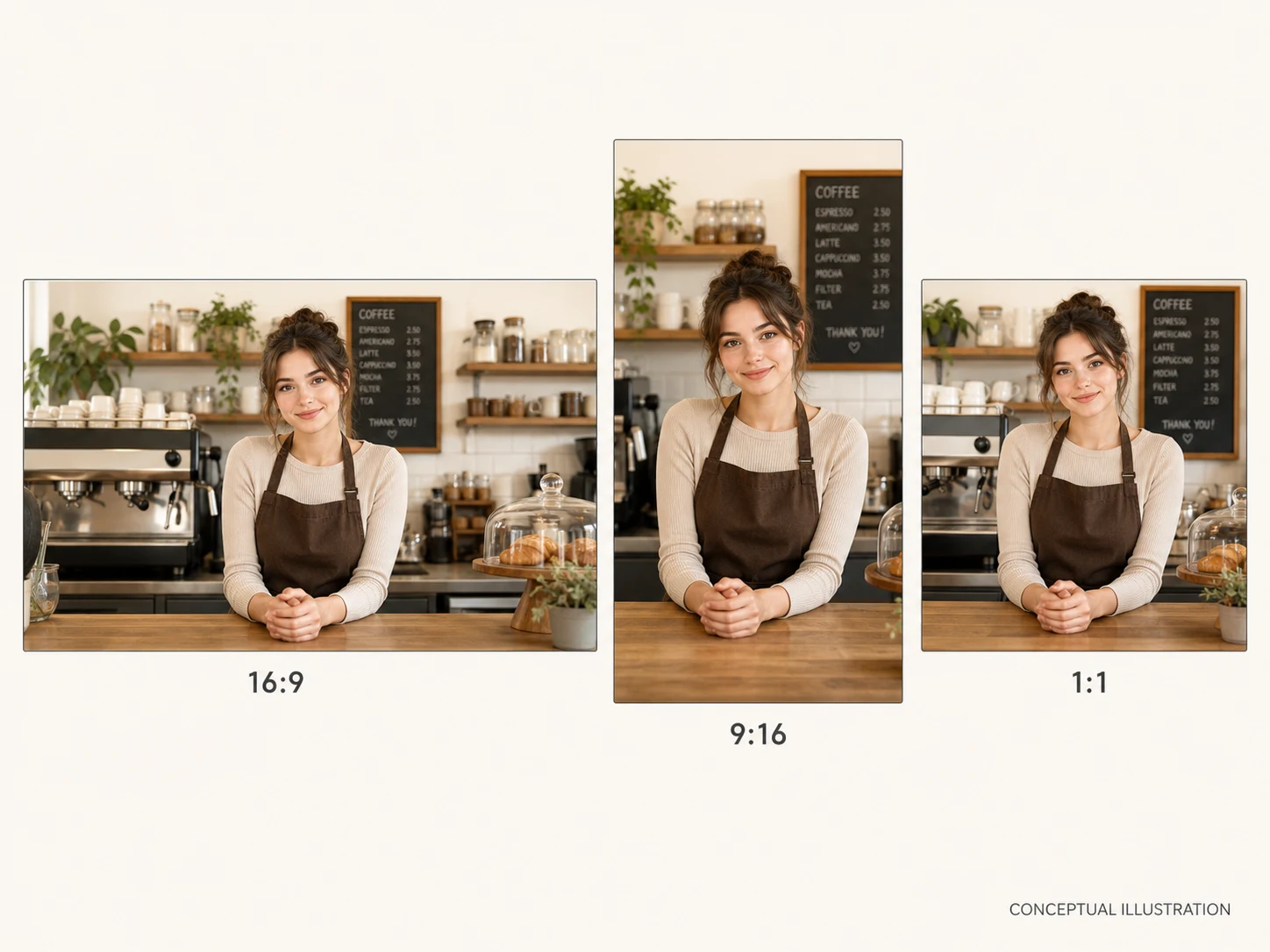
Reframe a source video for portrait, square, or wider layouts while keeping the moving subject and composition under review.
How Does the Current AI Video Reframe Workflow Frame a Clip?
Choose a Frame for a Moving Subject
A cooking, demo, or presenter clip can have one person moving through a wide source composition. Select a model and a supported tall or wide target ratio, then inspect how the generated canvas follows the source. The conceptual subject-area image is not a completed Fal result and does not guarantee every motion or edge will be preserved.

Review a Team Scene Before Choosing a Tighter Format
A product demonstration or panel can place several people and supporting objects across a broad source. Choose a compatible target ratio, then check the resulting video for generated edges and subject placement. The conceptual frame image is not a guarantee that every person stays visible.
Plan One Placement at a Time
A source might be useful for a 16:9 player, 9:16 mobile placement, or 1:1 post, but this task creates one selected target ratio per request. Keep the intended channel and source composition in mind when choosing a model and ratio, then inspect any finalized MP4 before a new edit. The page does not expose batch exports or a manual crop window.
How to Use AI Video Reframe
Upload one supported source
Sign in and select one MP4 or MOV file up to 200 MB and 30 seconds for the task.
Set the model and target ratio
Choose Nuzza Reframe 1.0 or Luma Ray 3.2 Max, then select one supported ratio; no manual crop window is part of this task.
Confirm and inspect the result
Review the duration-aware Credit quote, submit the task, and check any finalized MP4 for the composition you need.
When Is an AI Video Reframe Task Useful?
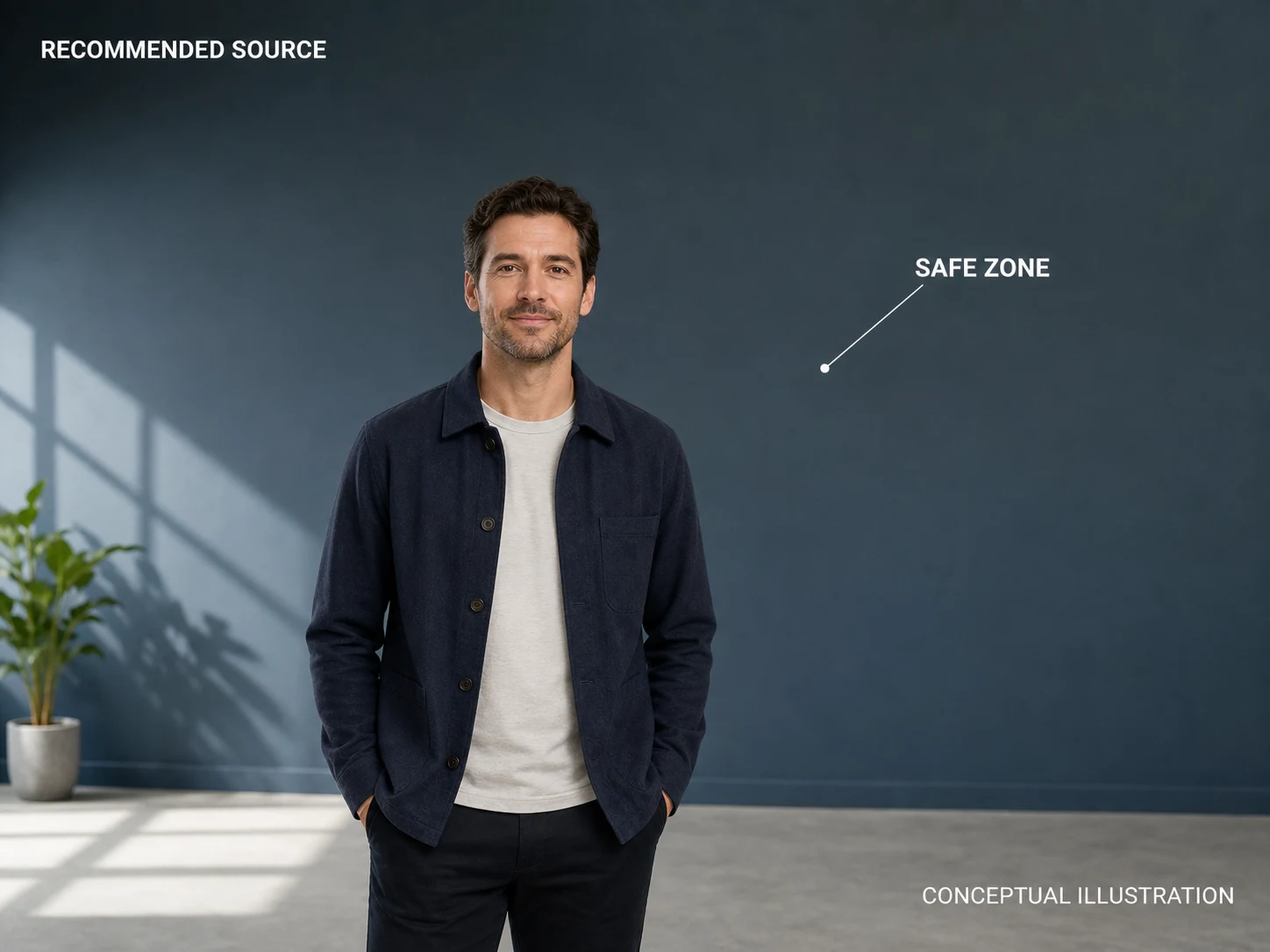
Plan a vertical review of a presenter clip
Use a single-person source with visible space around the subject when you need to evaluate a 9:16 or 3:4 framing choice before placing a talking-head clip in a tall layout.
Choose a new shape for a hands-on demonstration
Use a broad demo source when the presenter, hands, and product need inspection in a different frame; generative reframing can extend the scene but does not provide a manual subject lock.
Review a new frame for a shared scene
Use a multi-person or wide room source when you want to assess one target ratio, then inspect the finished MP4 for competing subjects and generated surrounding areas.
Nuzza vs. Top AI Video Reframe Tools
| Feature / Model | Nuzza | Adobe Premiere Auto Reframe | CapCut Auto Reframe | OpusClip AI Reframe |
|---|---|---|---|---|
| Reframe Options | Two Luma tiers with up to 6 generated ratios | Auto-track clips or sequences with preset or custom ratios | Aspect ratio, stabilization, and camera movement speed | 16:9, 9:16, or 1:1 with prompt and manual adjustment |
| Cost | Free with included credits | Paid subscription | Free | Free trial or Pro plan |
| Best For | Expanding the canvas instead of cropping the source | Multi-clip reframing inside a professional timeline | Fast TikTok, Reels, and YouTube resizing | Keeping speakers and key subjects centered |
FAQs about AI Video Reframe
What is Nuzza's AI Video Reframe?
AI Video Reframe is a source-video workflow for creating a new target aspect ratio. The workspace shows the compatible ratios and quality controls for the selected processing option.
What is the best AI video reframing tool?
The best AI video reframing tool depends on the source and target composition. Nuzza's AI Video Reframe is a strong choice for a focused workflow with selectable aspect-ratio and quality controls.
Is Nuzza's AI Video Reframe free to use?
The page is free to browse. Running a task requires Credits, and the current cost is shown before you submit.
What can I use Nuzza's AI Video Reframe for?
Nuzza's AI Video Reframe is useful for creator talking head, product or desk demo, and team presentation. Use a single-person source with visible space around the subject when you need to evaluate a 9:16 or 3:4 framing choice before placing a talking-head clip in a tall layout.
What inputs does Nuzza's AI Video Reframe support?
AI Video Reframe starts from one supported source video. Choose a compatible target aspect ratio and one of the visible quality tiers; review any prompt field, format limit, and duration-based quote shown in the workspace before submission.
Do I need to sign in to use Nuzza's AI Video Reframe?
You can browse this page without signing in. Submitting a generation, storing persistent inputs, checking task status, and saving a finalized result require a Nuzza account.
What should I check in the video result?
No such guarantee is made by this page. Inspect the output for subject placement, crop edges, padding, audio, motion, and quality before publishing or reusing it; crowded edges and competing subjects are especially worth reviewing.
Can I change video aspect ratio to portrait, square, or ultrawide?
Yes. Choose one of the compatible target ratios shown in the workspace, then inspect the completed composition before using it.
How do I choose a reframing option?
Compare the resolution, compatible ratios, expected processing time, and current cost shown in the workspace. Choose the option that matches your intended output.