AI Background Remover


AI Background Remover: Isolate Products for Flexible Layouts
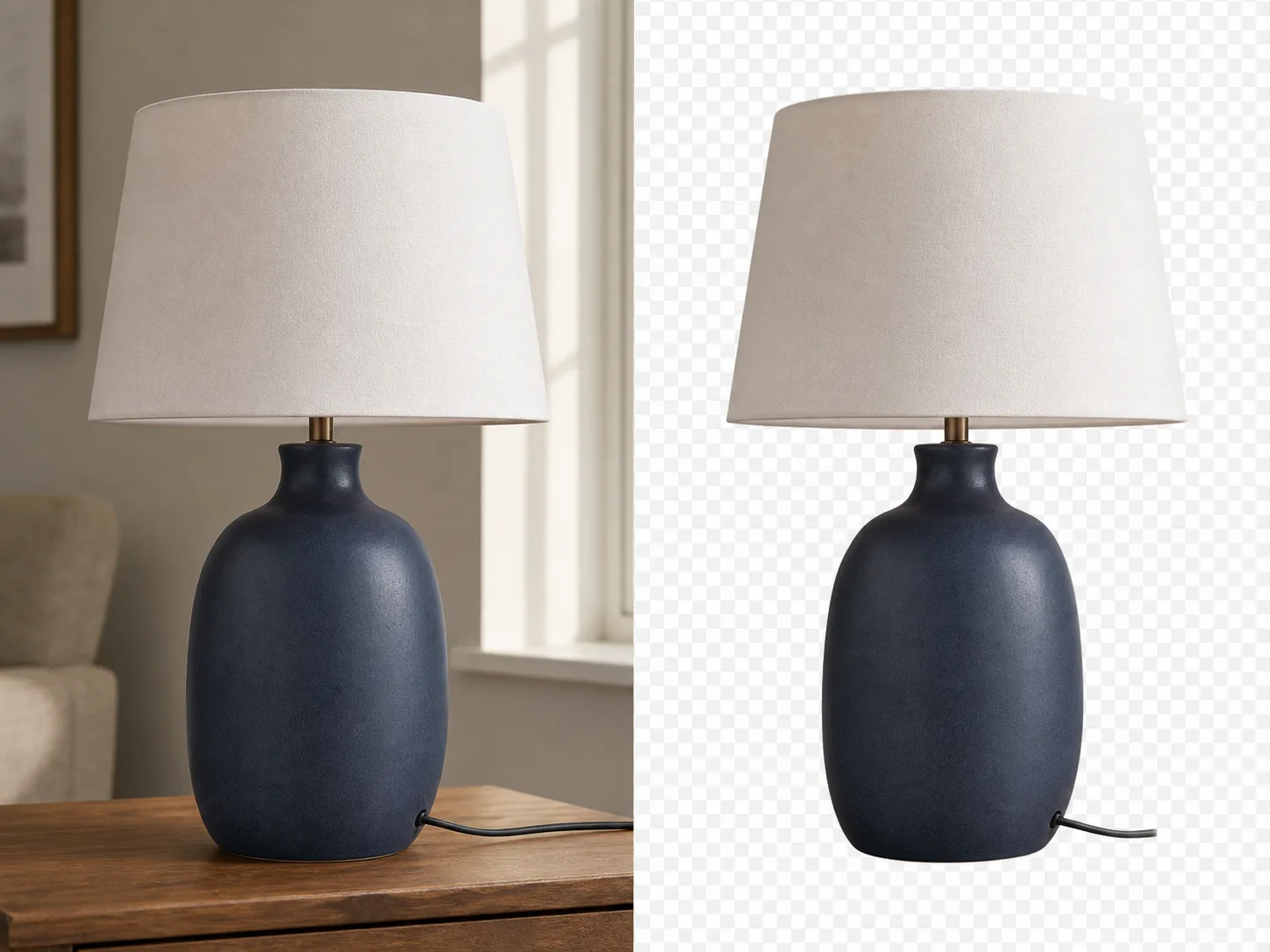
Remove a tabletop, shelf, studio wall, or room from a product image so the item can be tested against a different layout.
What Can You Isolate with the AI Background Remover?
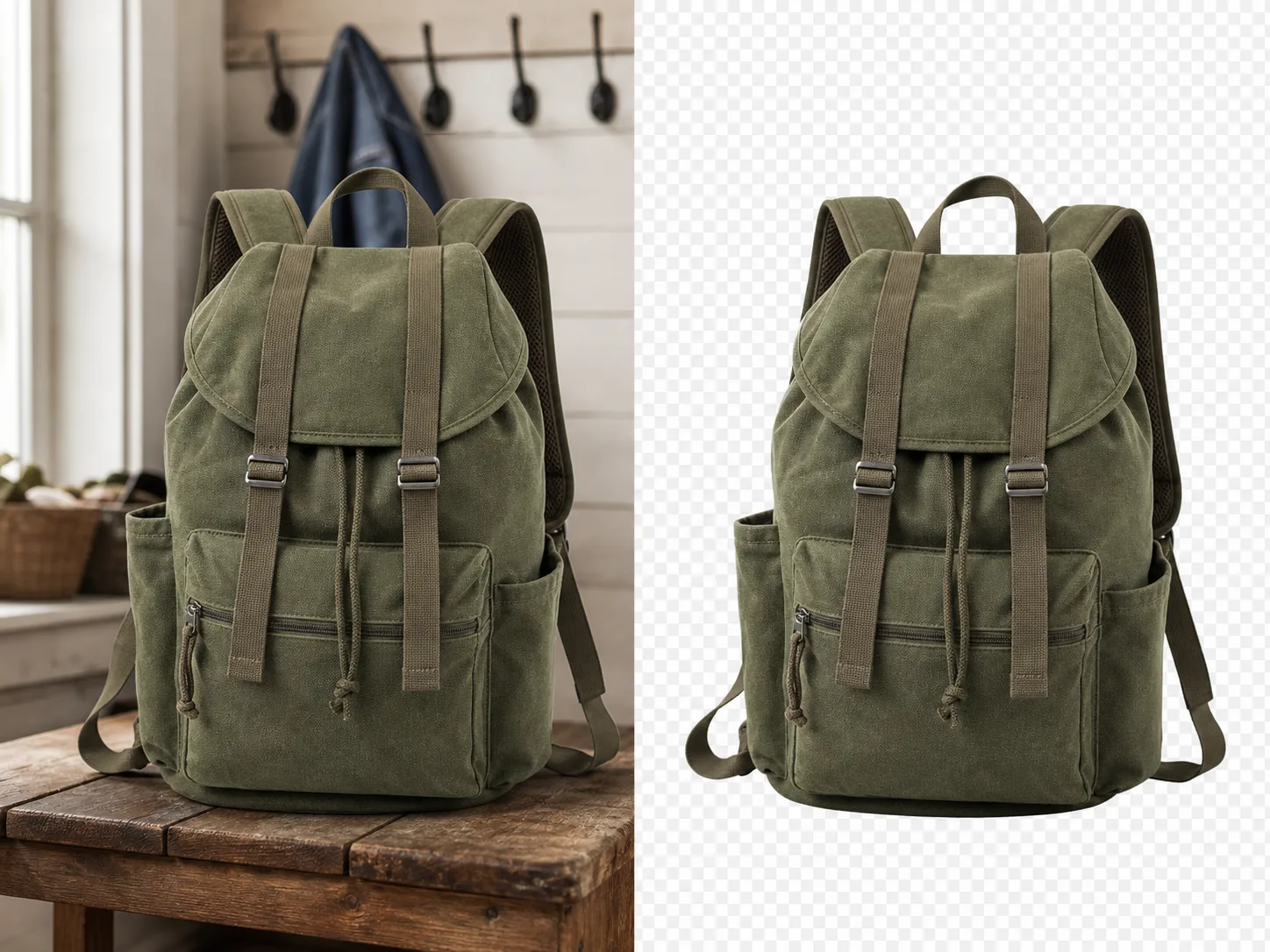
Isolate Products for Flexible Layouts
Remove a tabletop, shelf, studio wall, or room from a product image so the item can be tested against a different layout. Bags, shoes, appliances, and packaging often have recognizable outer edges, but straps, handles, holes, and shadows still require inspection. Compare the cutout with the source to confirm that hardware, stitching, labels, and silhouette remain intact before it enters a product page or advertisement.
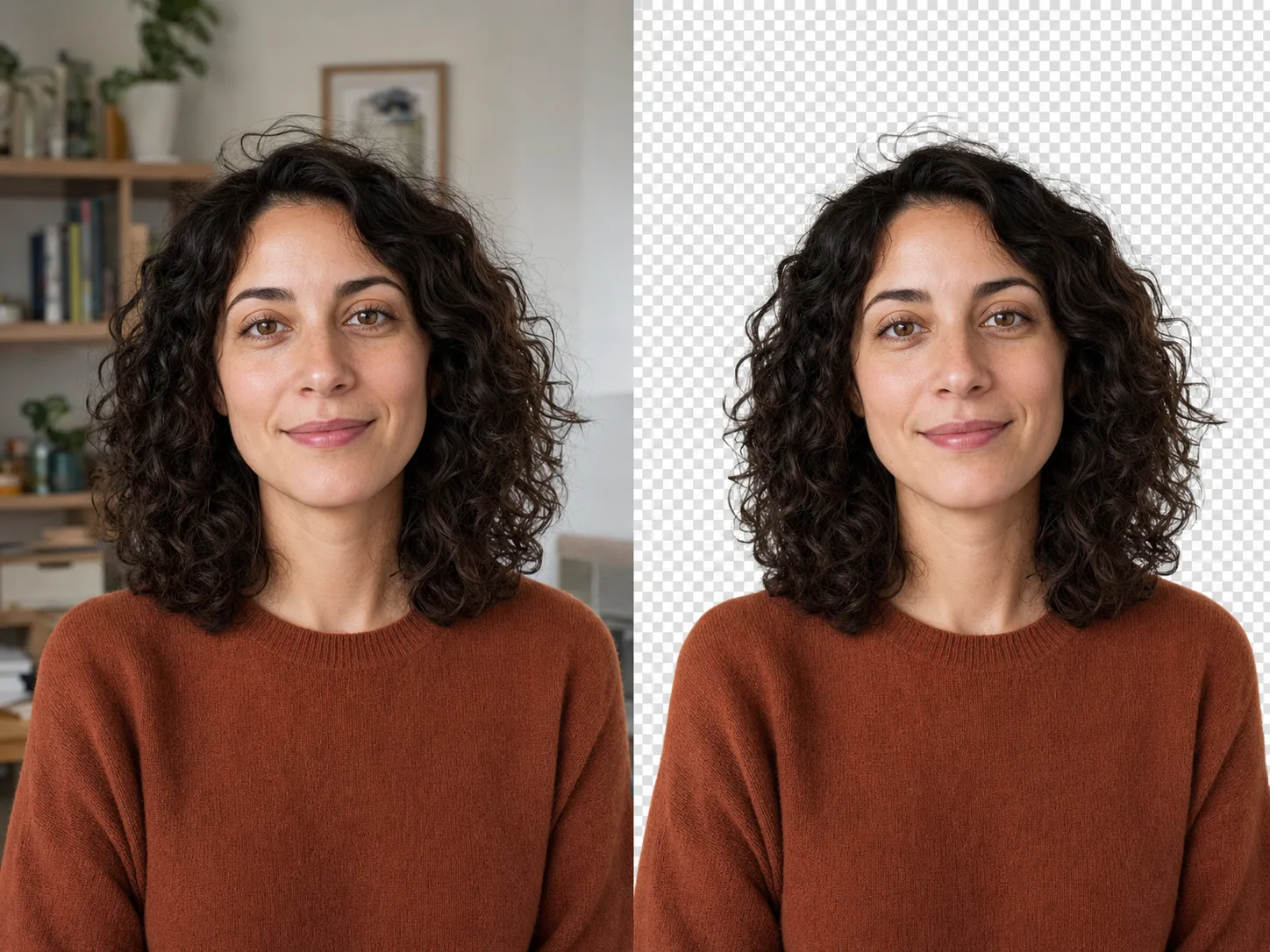
Preserve Portrait Hair and Clothing Edges
Create a portrait layer for a profile, presentation, campaign draft, or new background treatment. Curly hair, flyaways, loose fabric, and translucent details are useful stress tests because their edges are not simple solid curves. Review the face and body for unintended changes, then zoom into hair and shoulders for clipped strands, pale halos, or traces of the original room.
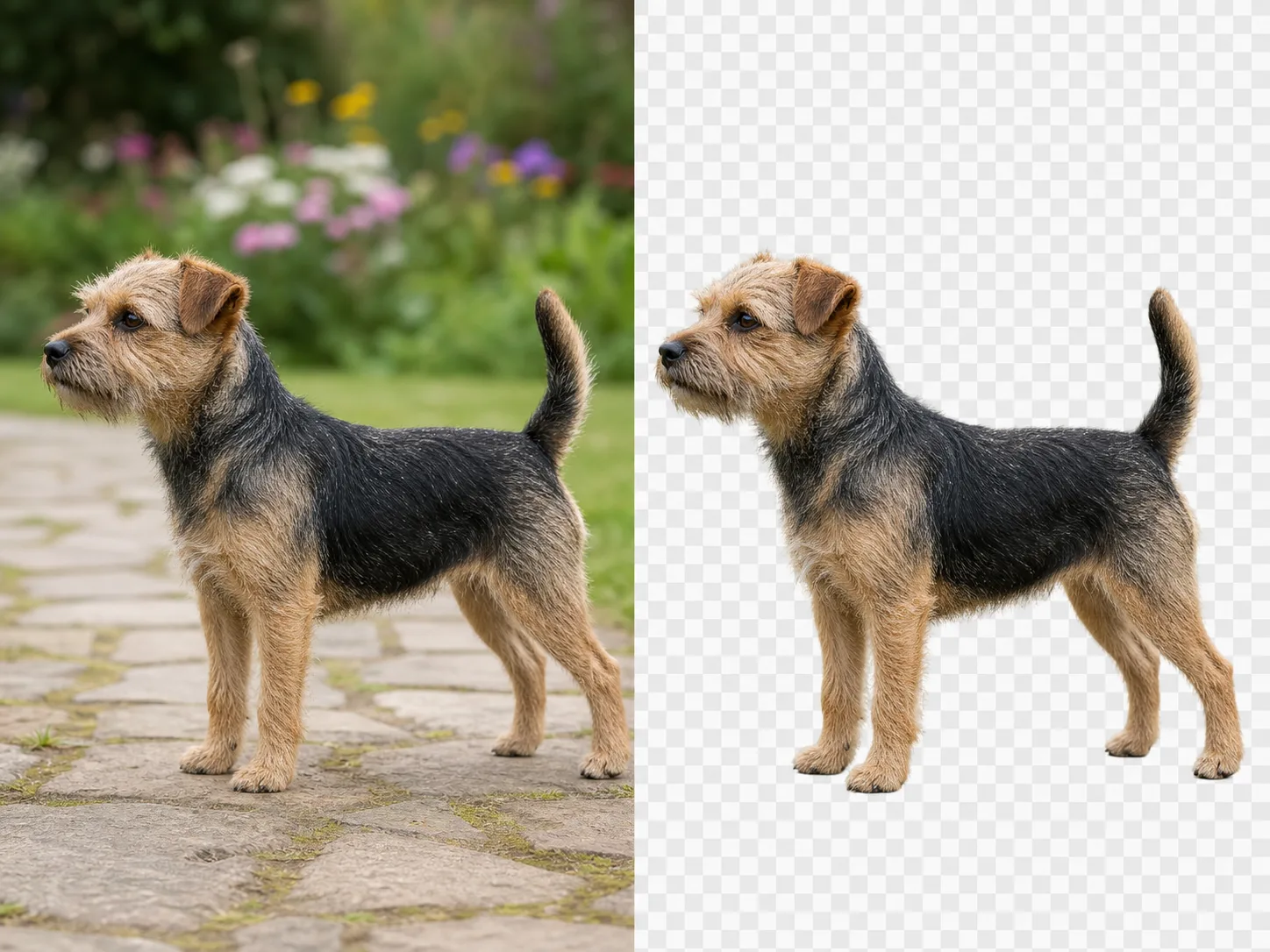
Separate Pets with Fine Fur
Turn a pet photo into a reusable subject for a card, social graphic, shelter profile, or playful composite. Fine fur can blend into grass, furniture, or soft-focus scenery, so the automatic matte may need closer review than a solid object. Check whiskers, ears, paws, tail, and the transition between dark and light fur before using the cutout on a contrasting background.
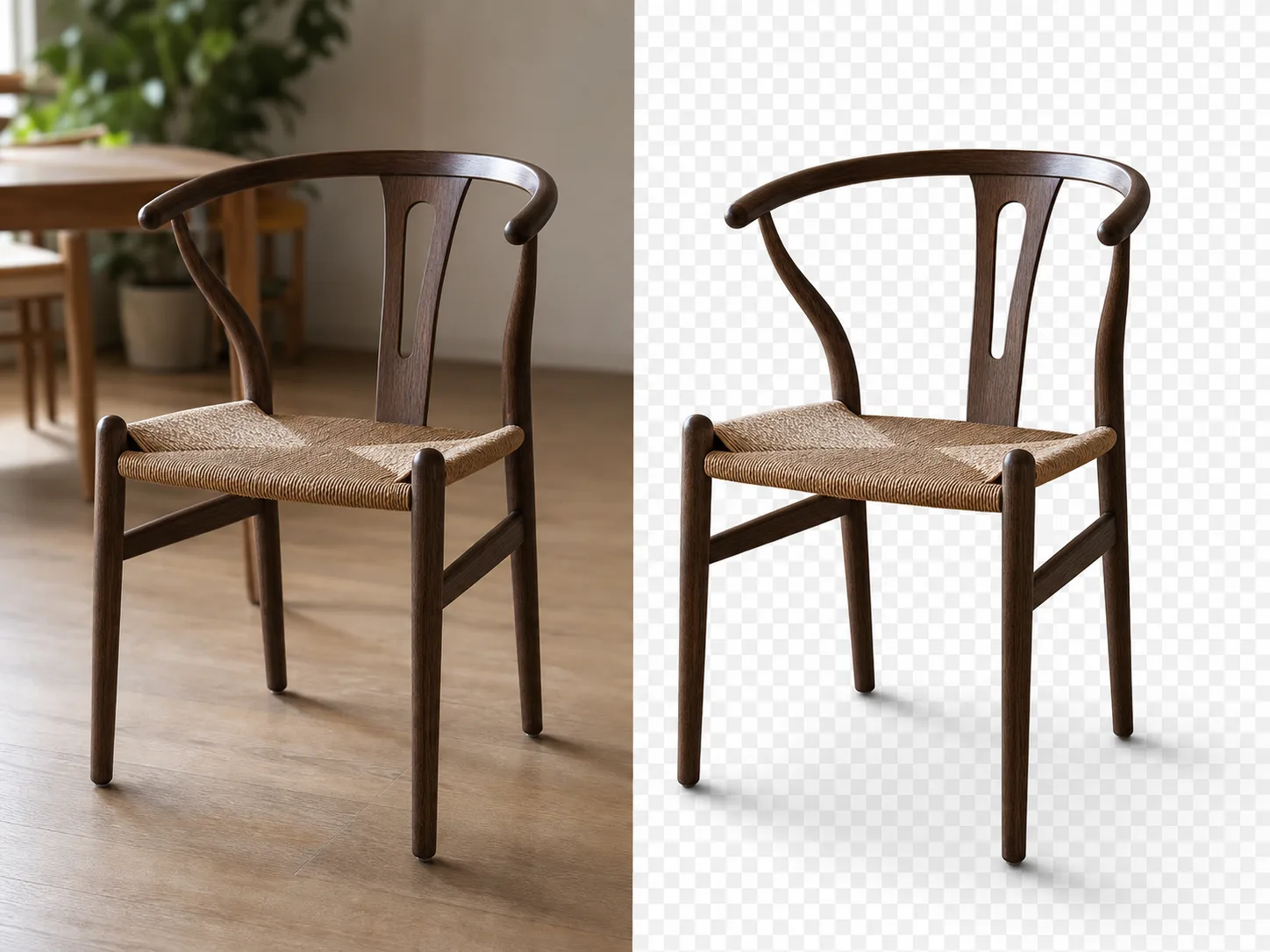
Keep Open Spaces in Furniture and Objects
Remove a room while preserving holes and gaps inside chairs, bicycles, plants, tools, and other open-frame objects. These internal spaces must become transparent without erasing the surrounding structure. Inspect chair backs, handles, spokes, frames, and overlapping parts individually; an intact outer silhouette can still hide background residue inside the subject.
How to Use the AI Background Remover
Upload One Supported Image
Choose a JPG, PNG, or WebP image up to 10 MB. Use the best-focused version available, keep the complete subject inside the frame, and prefer a source where important edges are distinguishable from the background.
Submit the Automatic Removal
Sign in if the workspace asks you to, confirm the 15-Credit Nuzza, 15-Credit Ideogram, or 20-Credit Pixelcut server quote, and start the queued task. This route performs automatic background removal without a text prompt, brush, or mask.
Inspect and Download the PNG
Review the finalized result at full size. Check hair, fur, spokes, cables, handles, holes, reflections, shadows, and transparent gaps for clipping, halos, or residue, then download the result if it fits the intended use.
Where Can You Use a Background-Removed Image?
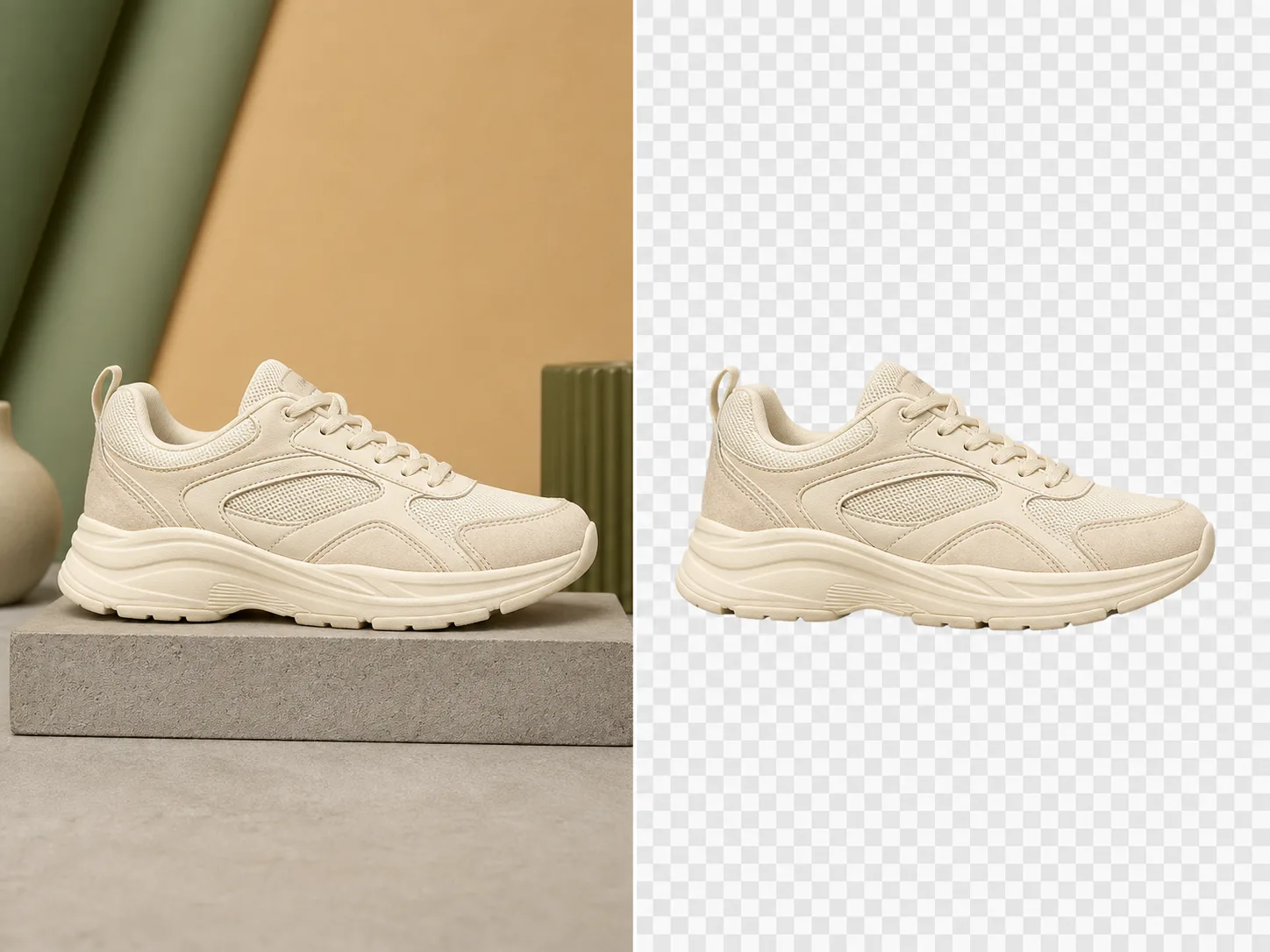
Prepare a product cutout for adaptable catalog layouts.
Isolate a shoe, bag, accessory, or packaged item when the same approved product needs to appear on multiple page colors or campaign compositions. Keep the original as a reference and verify the exact silhouette, sole, straps, labels, color, and contact shadow. The cutout supports layout work; it does not confirm that the product representation meets a marketplace's image policy.
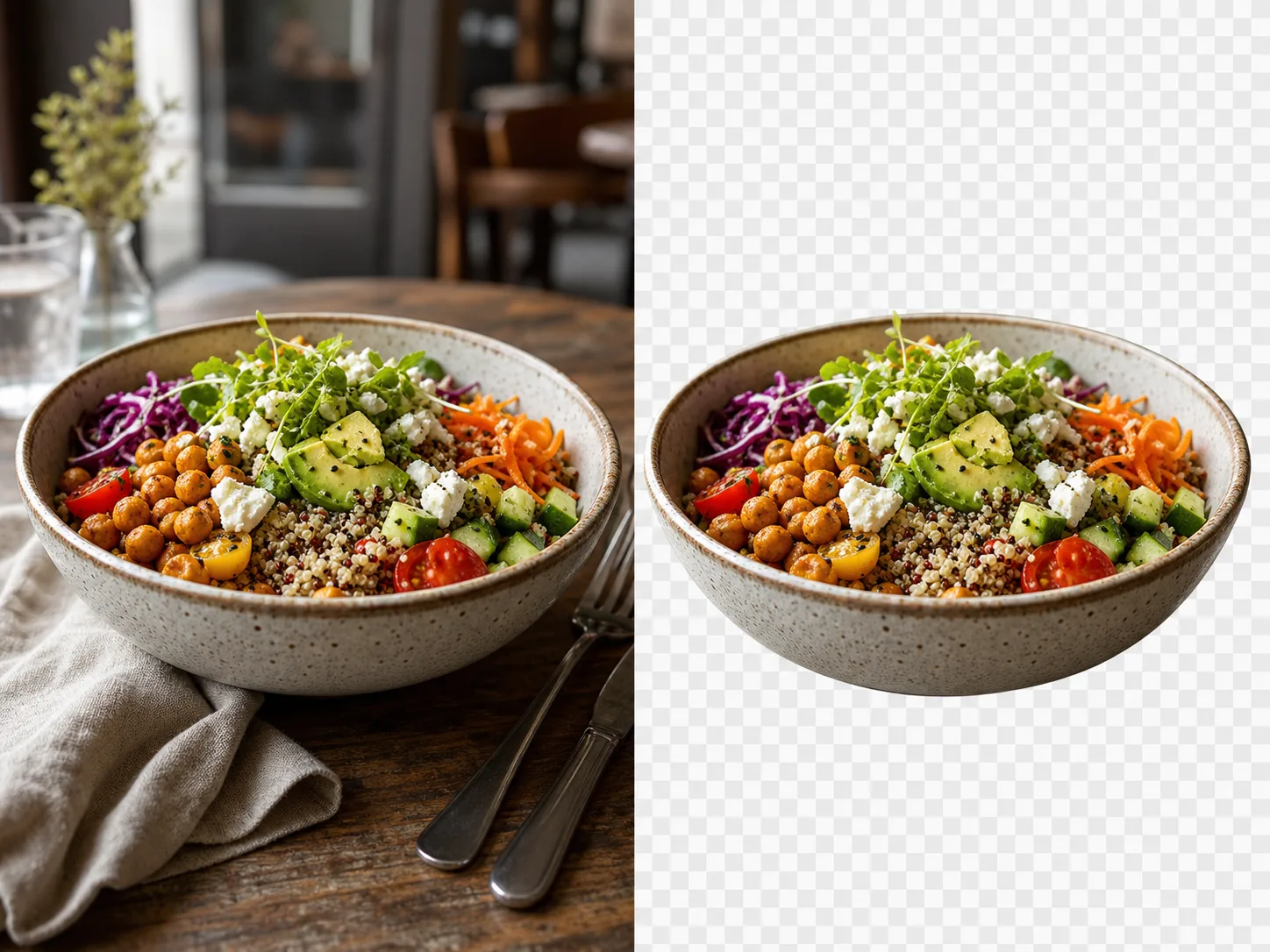
Separate a plated dish for menu and promotion drafts.
Remove a cafe table or restaurant setting so a bowl, plate, or packaged food can be placed in a menu card, delivery graphic, or seasonal promotion. Food edges often include herbs, crumbs, steam, glass, and irregular rims, so compare the output closely with the source. Preserve truthful portions and ingredients rather than treating removal as permission to change the dish.
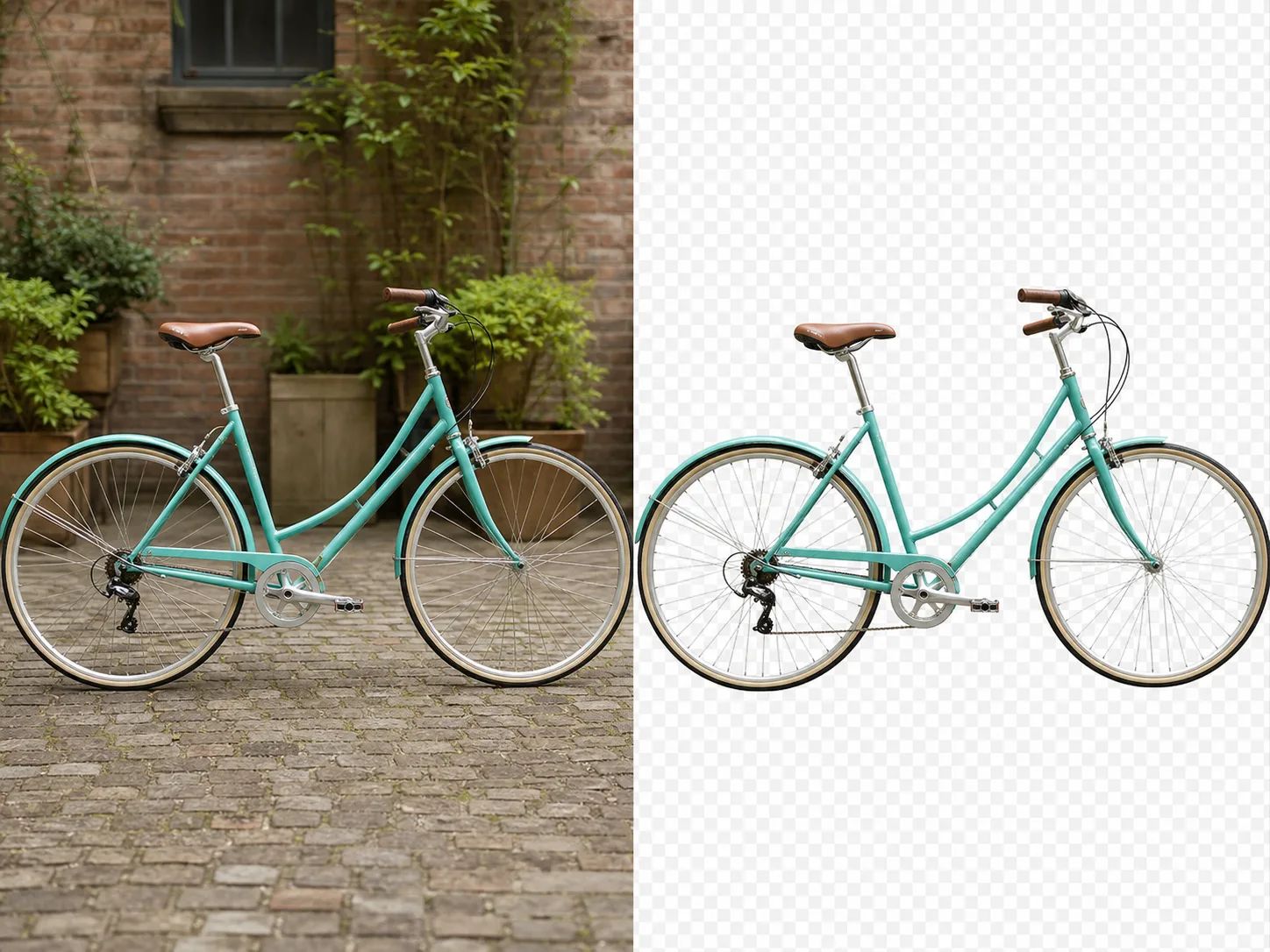
Create a subject layer for pages, slides, and visual explanations.
Use a transparent object to build a landing-page composition, presentation slide, comparison graphic, or editorial layout without showing the original surroundings. Thin bicycle spokes and brake cables illustrate why result review matters: a clean outer frame is not enough if internal lines disappear. Test the asset on both light and dark backgrounds before publishing.
Nuzza vs. Top Background Removers
| Feature / Model | Nuzza | remove.bg | Photoroom | Adobe Express |
|---|---|---|---|---|
| Removal Options | 3 selectable AI removal models | Automatic removal, API, and batch tools | Automatic removal and batch product editing | Automatic removal plus design editing |
| Cost | Free with included credits | Free preview; credits or subscription | Free trial or paid plan | Free background remover |
| Best For | Best multi-model browser choice | API and high-volume automation | E-commerce product batches | Cutouts inside design projects |
FAQs about AI Background Remover
What is Nuzza's AI Background Remover?
It processes one supported image with the option selected in the workspace. The tool estimates the foreground subject, removes the surrounding background, and presents a transparent result for inspection and download.
What is the best AI background remover?
The best AI background remover depends on the source image and the edge control you need. Nuzza's AI Background Remover is a strong choice for creating an automatic cutout that you can inspect before downloading.
Is Nuzza's AI Background Remover free to use?
The page is free to browse. Running a task requires Credits, and the current cost is shown before you submit.
What can I use Nuzza's AI Background Remover for?
Nuzza's AI Background Remover is useful for ecommerce, food and menus, and web and presentations. Isolate a shoe, bag, accessory, or packaged item when the same approved product needs to appear on multiple page colors or campaign compositions. Keep the original as a reference and verify the exact silhouette, sole, straps, labels, color, and contact shadow. The cutout supports layout work; it does not confirm that the product representation meets a marketplace's image policy.
What inputs does Nuzza's AI Background Remover support?
You can upload one JPG, PNG, or WebP image up to 10 MB. If an upload is rejected, check the file's actual format and size rather than changing only its filename extension.
Do I need to sign in to use Nuzza's AI Background Remover?
Submission requires a Nuzza generation session.
What should I check in the image result?
Compare the result with the source or prompt at full size. Check faces, text, product geometry, repeated patterns, edges, and any detail the AI may have reconstructed.
Does the result have a transparent background?
The configured operation returns a background-removed PNG intended for transparent reuse. Open the download in an application that displays alpha transparency, and test it over more than one background color to reveal halos or leftover pixels.
Is background removal performed only on my device?
No. On submission, the image is stored at a stable Nuzza CDN URL and sent to the selected provider for processing. This page does not claim on-device processing or a specific Provider-retention period.