
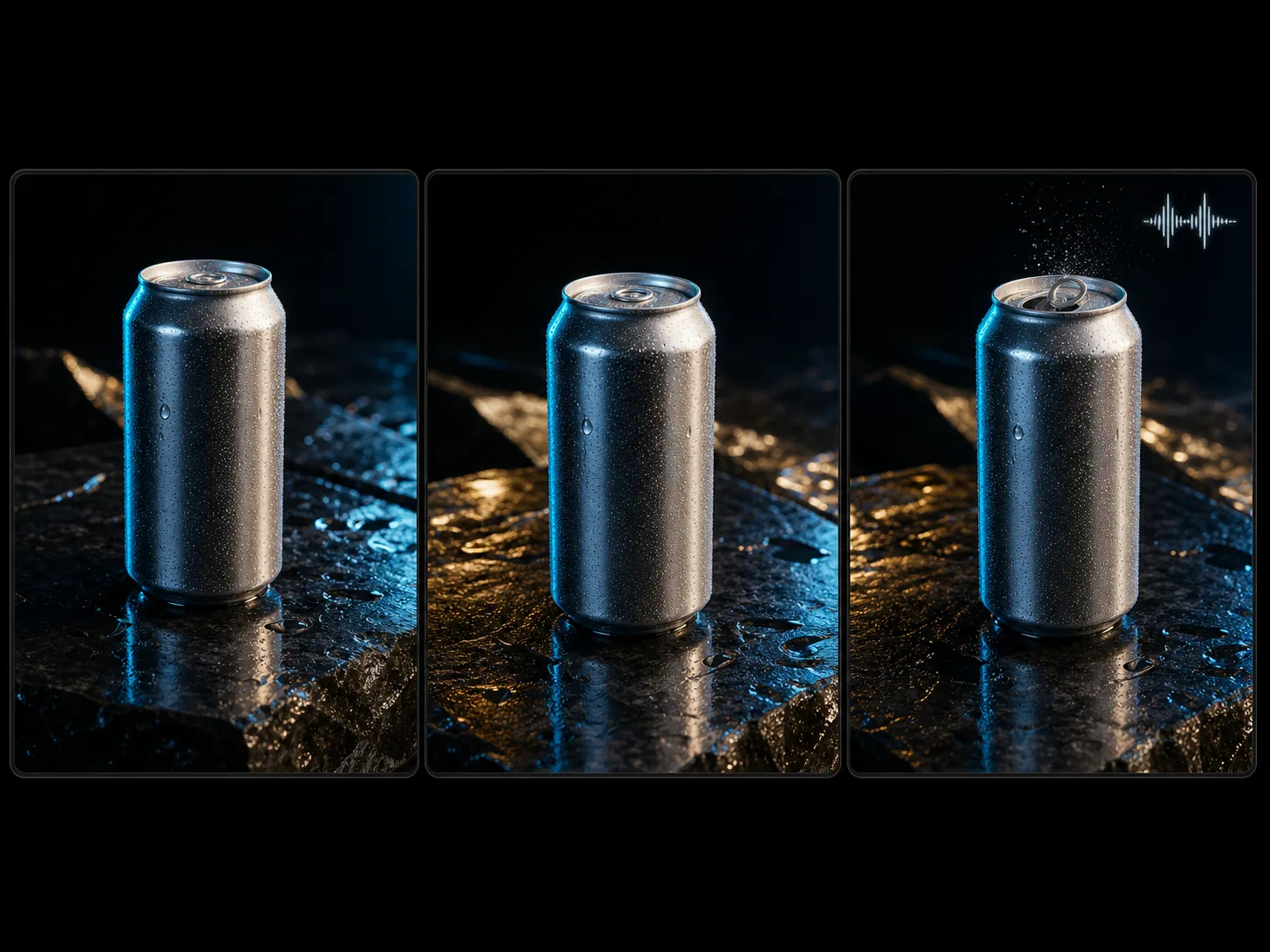
Google Veo 3.1 Fast
Google Veo 3.1 Fast is the speed-oriented tier in Google's Veo 3.1 family, built for standard production workflows that still need high-quality video and native audio. Nuzza supports text, start-image, and first-and-last-frame generation with duration, framing, resolution, and audio controls.
Why Creators Choose Google Veo 3.1 Fast?
Iterate Faster on Production Video
Use Google's faster Veo 3.1 tier when a team needs more creative attempts before choosing a direction. It is positioned for standard production workflows while retaining high-quality generation and the family's native audio capability.
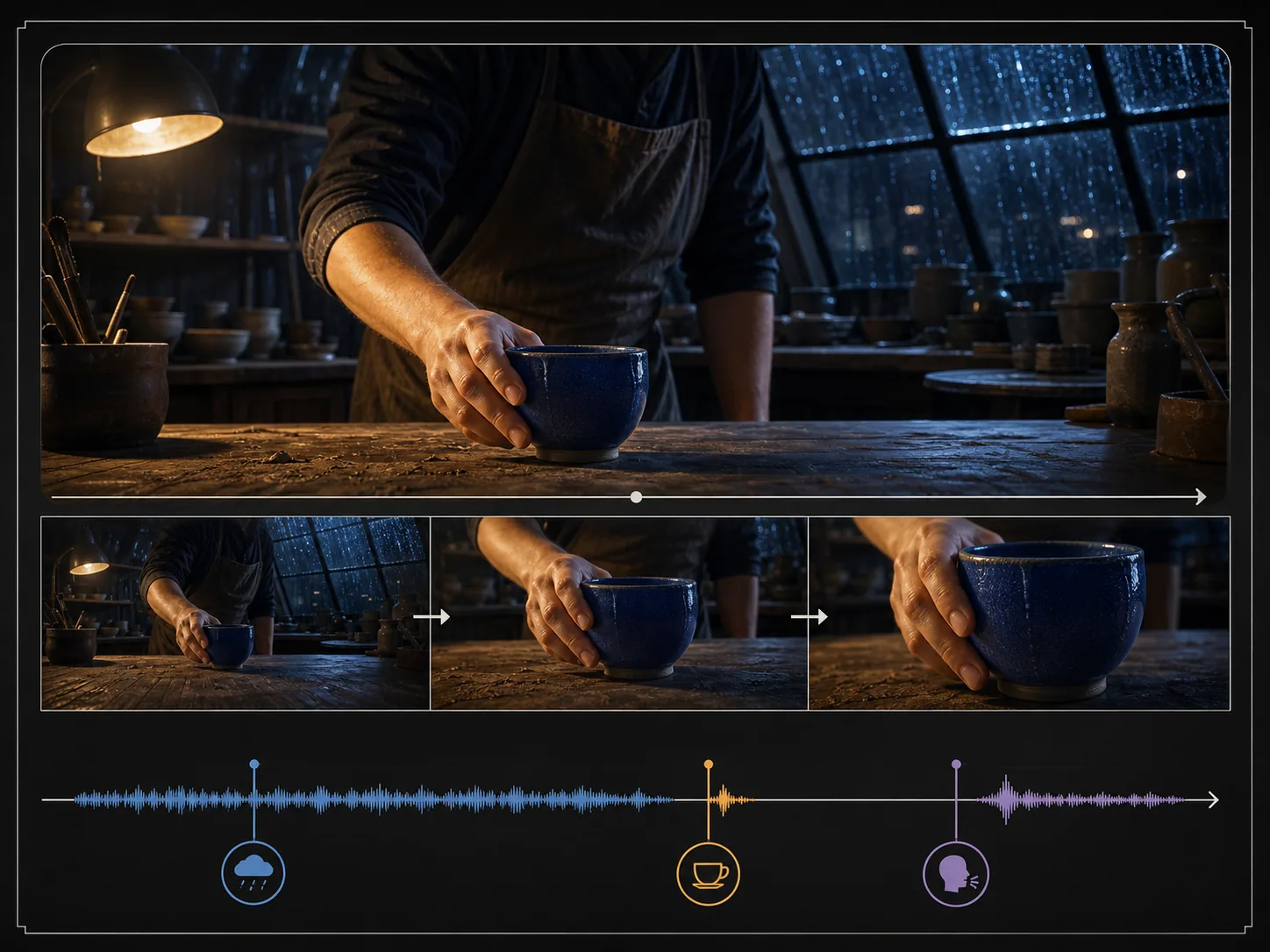
Generate Native Sound with the Scene
Describe dialogue, ambience, music, and timed effects alongside the visible action. Veo 3.1 Fast generates audio with the video, allowing picture, timing, and synchronization to be reviewed in one result.
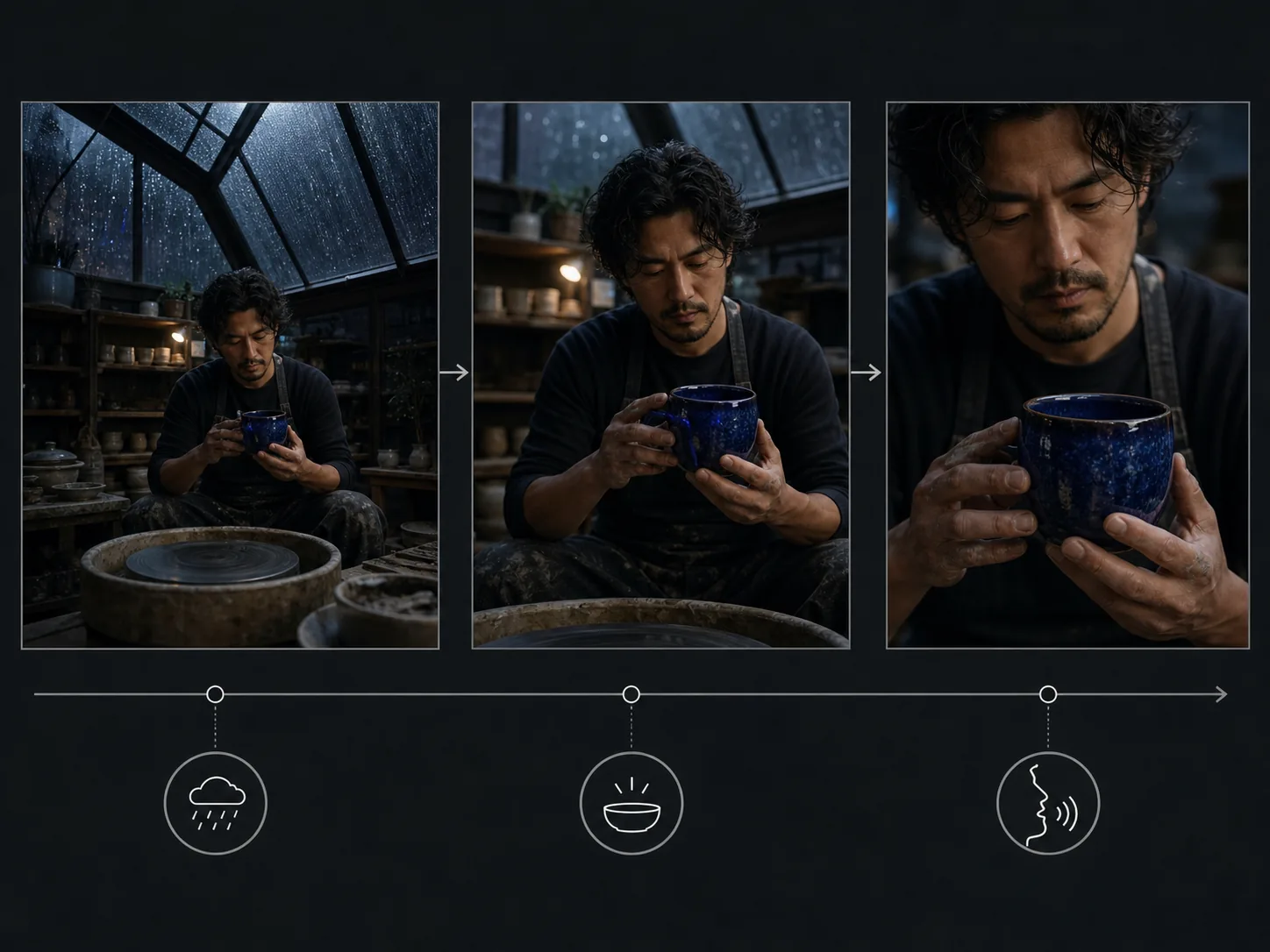
Turn Text into a Directed Shot
Write the subject, action, environment, framing, camera movement, light, and timing as one connected brief. This prompt-led mode is useful when the composition does not need to inherit an existing image.
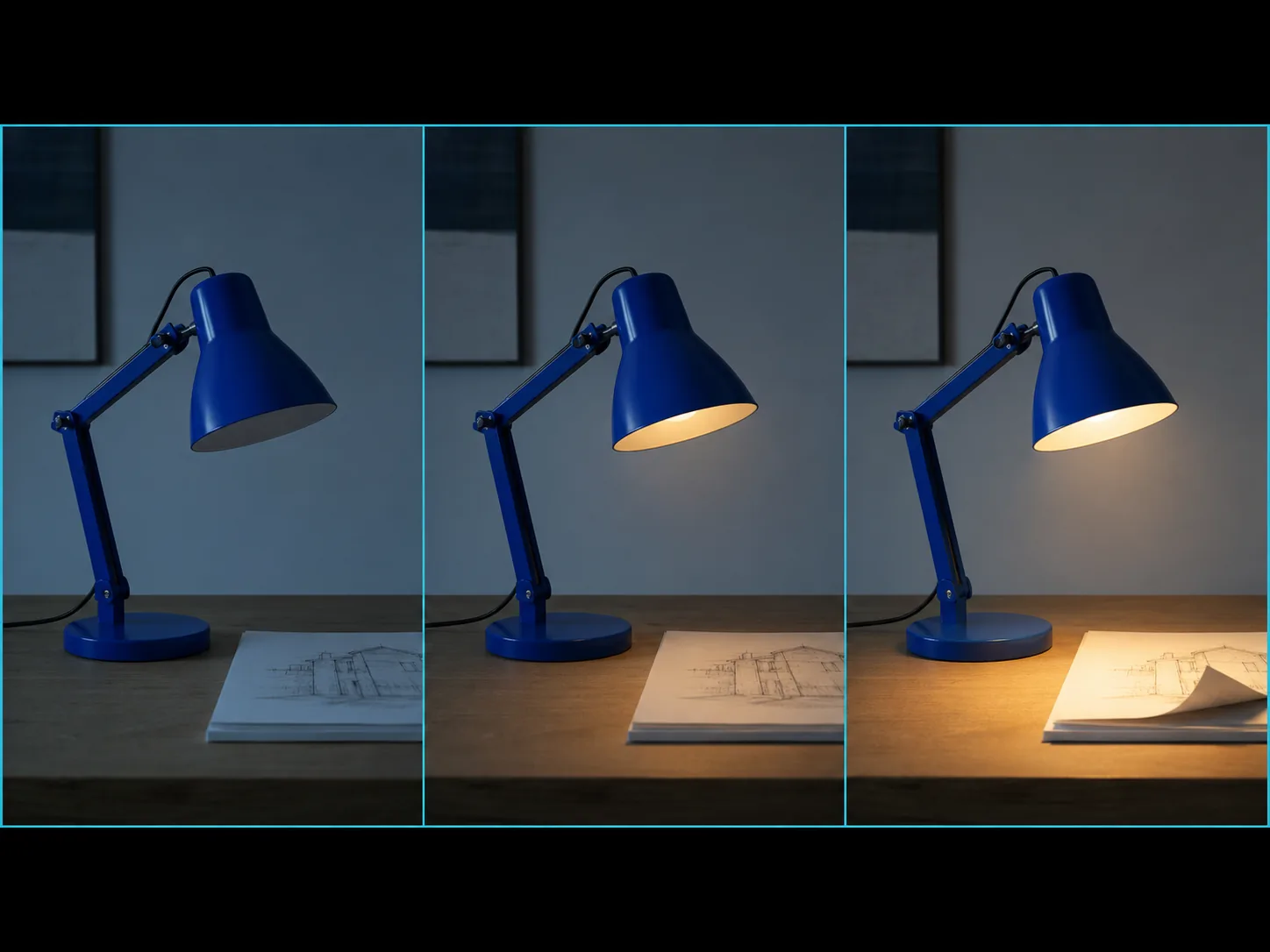
Animate One Approved Start Image
Upload a source image to anchor the opening subject, product, palette, or scene. Describe the intended movement and the details that should remain stable while Veo 3.1 Fast develops the shot.
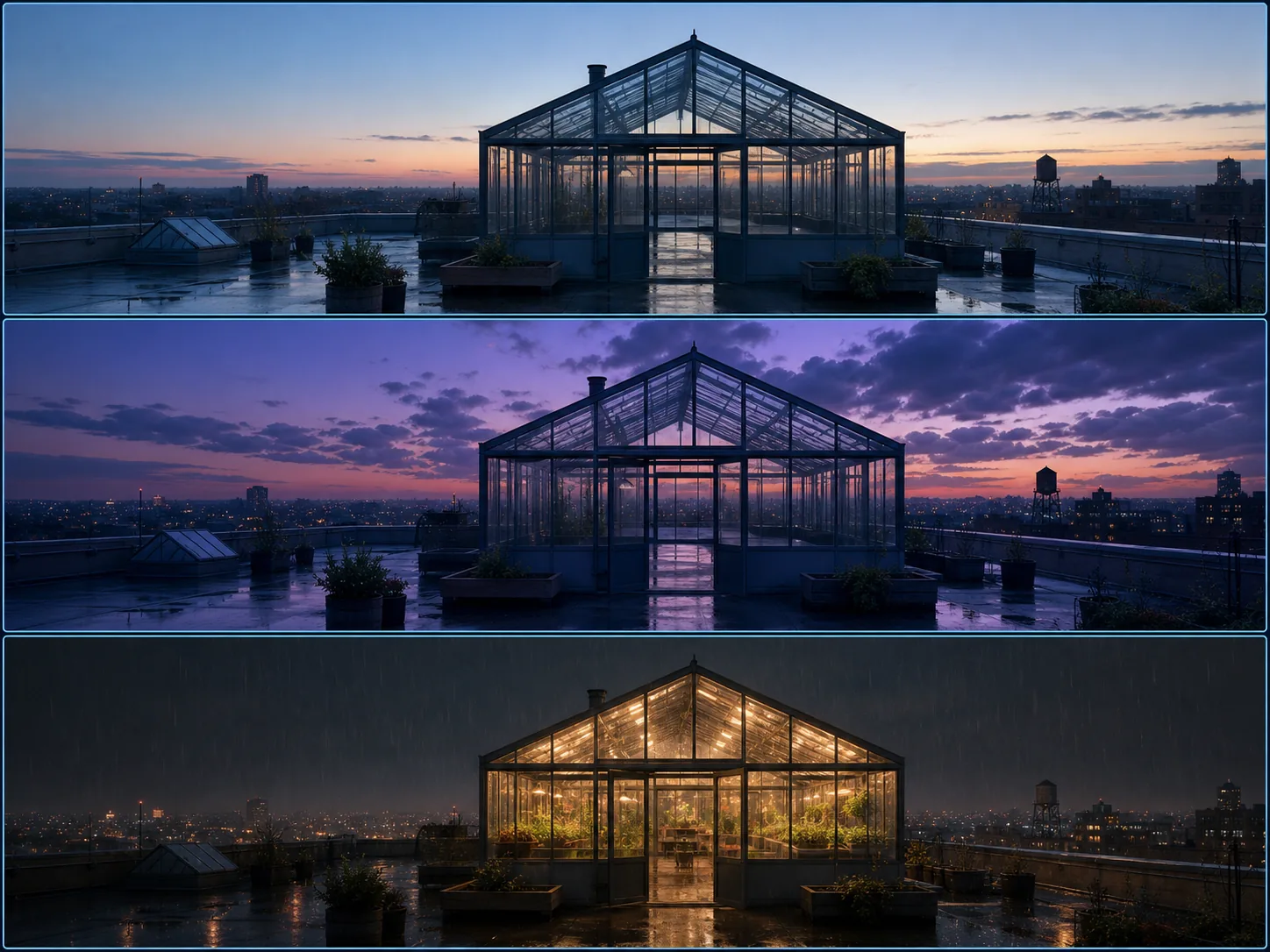
Connect Two Designed Endpoint Frames
Provide compatible first and last images when the opening and closing compositions are already known. The model generates the transition between them, supporting concise reveals and controlled scene changes.
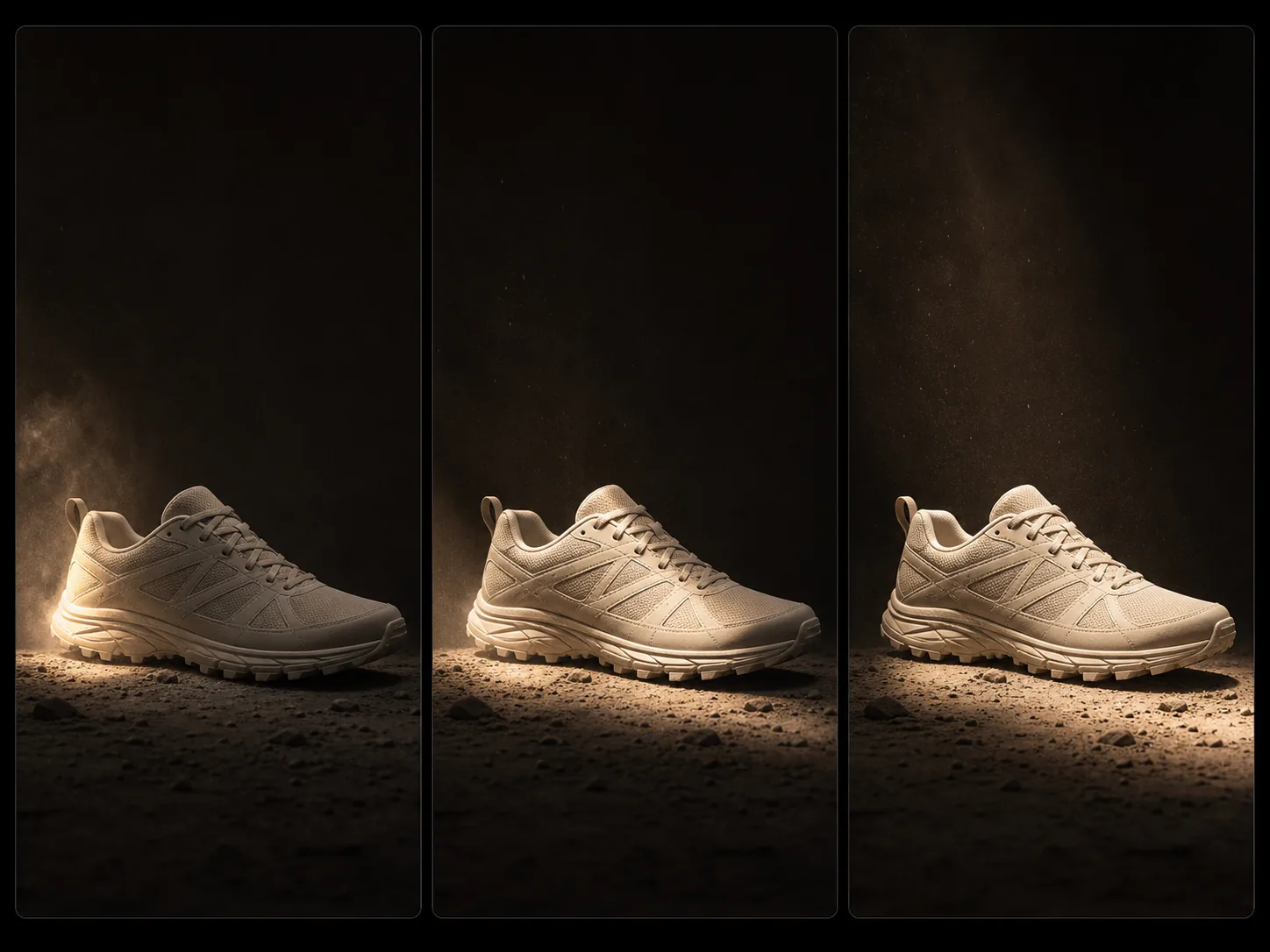
Choose Output up to 4K
Select 720p or 1080p for routine review and 4K when the current Nuzza workflow needs more delivery detail. Match the resolution to the intended edit, approval, and publishing destination.
What Is Google Veo 3.1 Fast Built For?
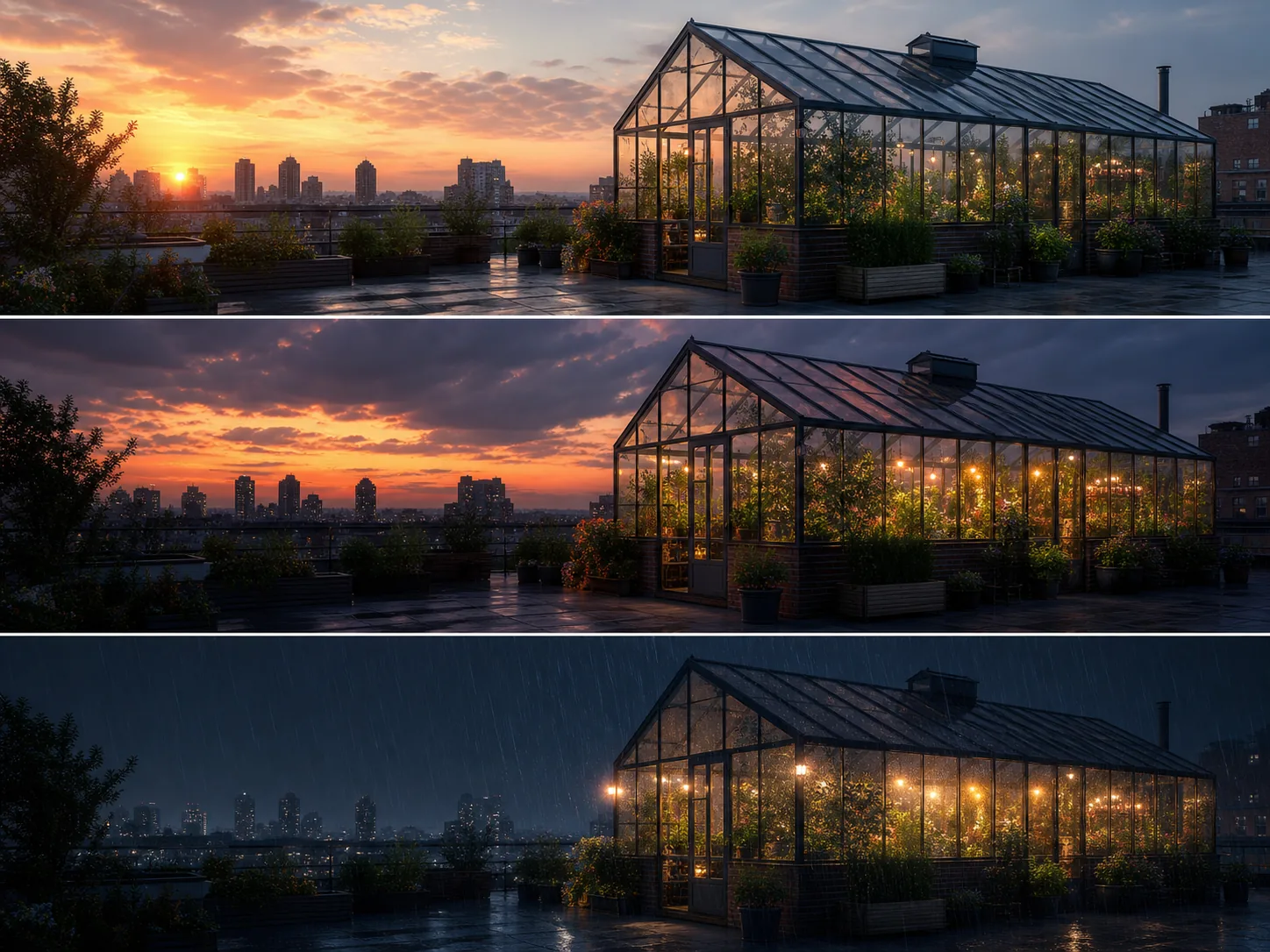
Campaign concept iteration. Generate and compare short advertising, product, and launch concepts when teams need several directed options before choosing a final production route.
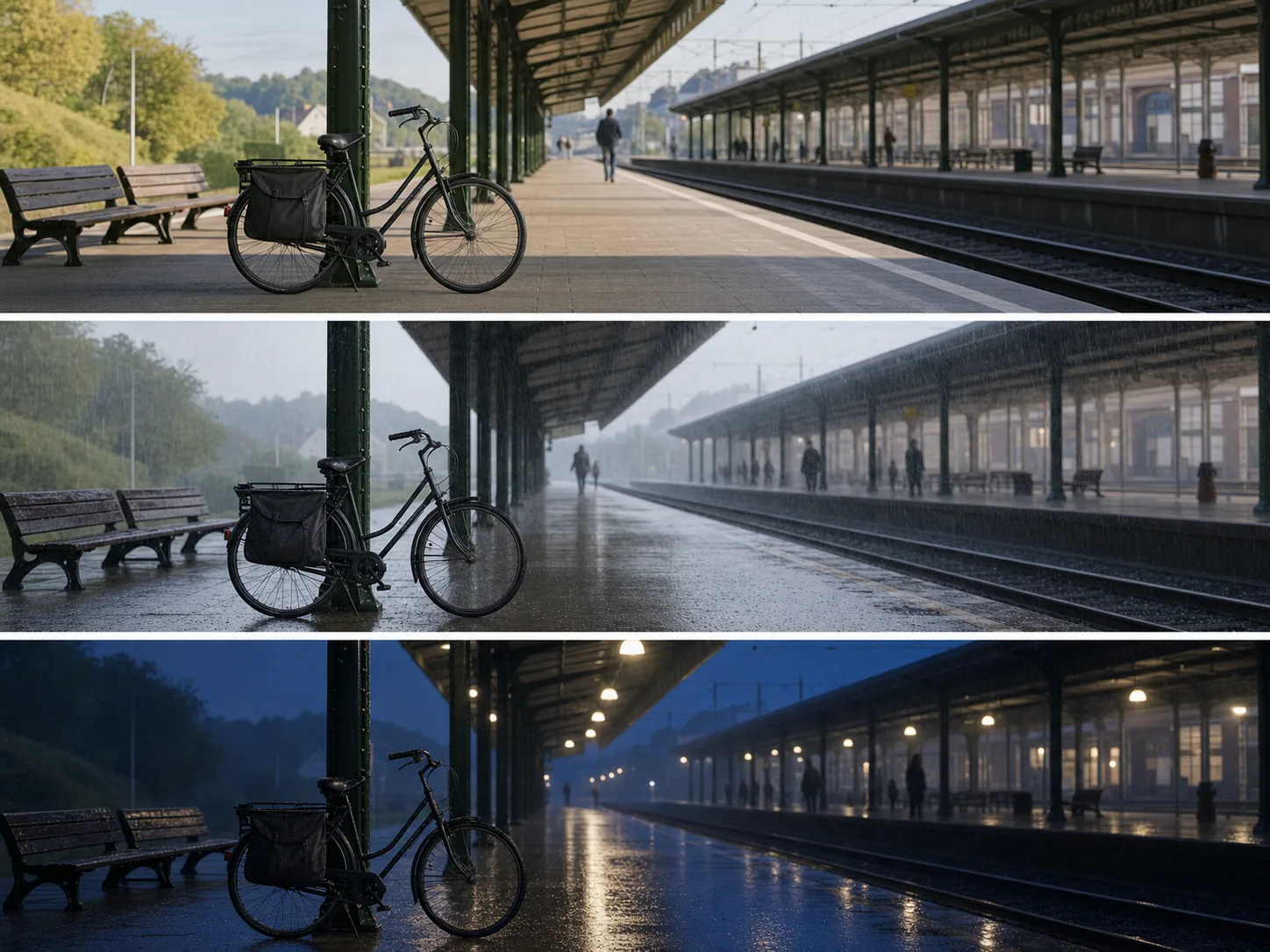
Storyboards and previsualization. Explore camera moves, transitions, dialogue beats, ambience, and scene timing before investing in live-action, animation, or longer editorial production.
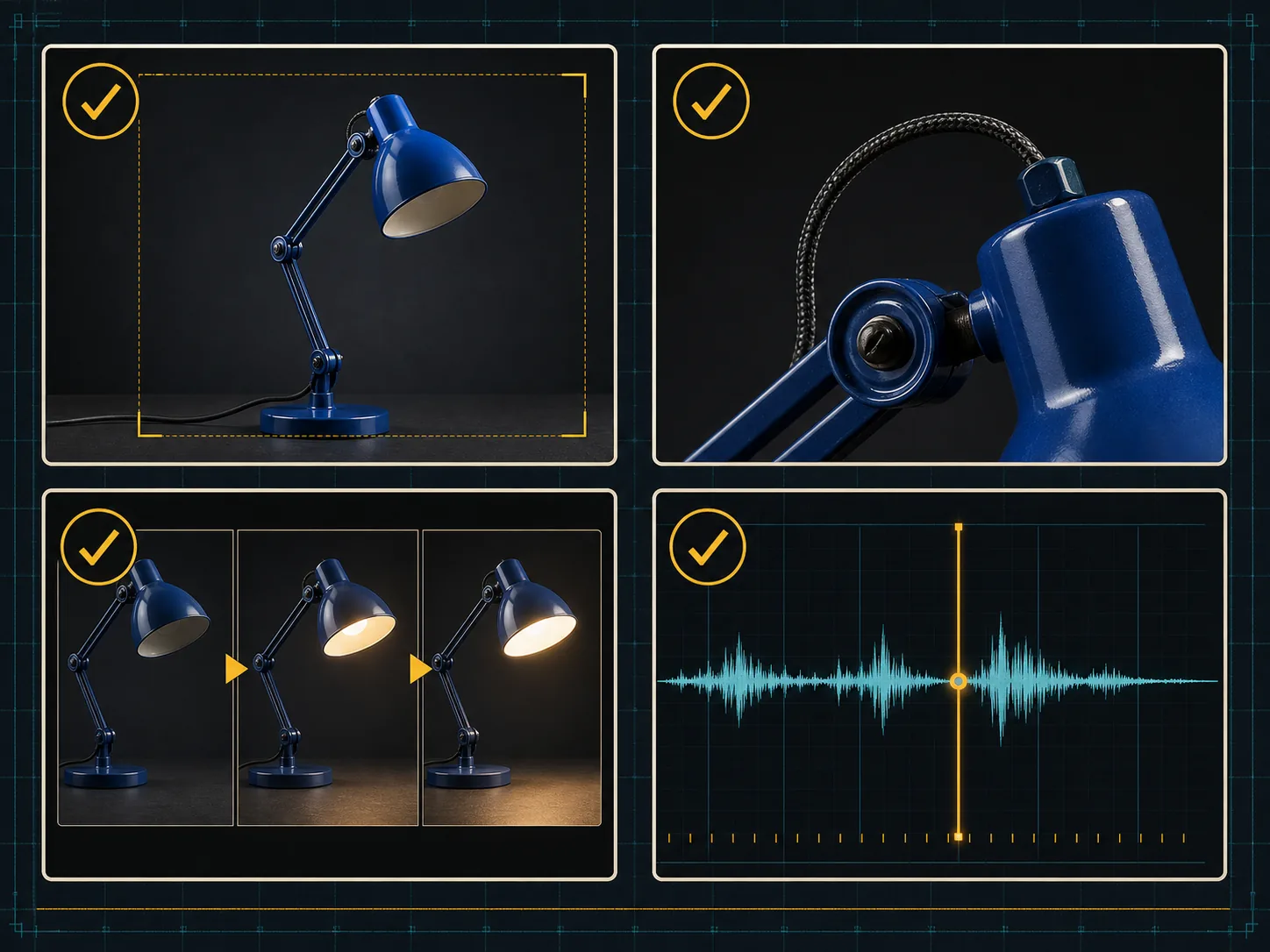
Social and content production. Build compact landscape or portrait clips for feeds, teasers, explainers, and recurring content pipelines where iteration speed and native audio both matter.
How to Use Google Veo 3.1 Fast on Nuzza AI For Free
Try Google Veo 3.1 Fast for Free NowChoose Text or Image Guidance
Start with a prompt, one opening image, or a compatible first-and-last-frame pair based on how much of the composition is already decided.
Describe the Timed Scene
Define subject action, camera behavior, lighting, dialogue, ambience, and effects, then select duration, aspect ratio, resolution, and audio.
Generate, Compare, and Refine
Inspect motion, continuity, crop, details, speech, and synchronization, then change one important variable when creating the next version.
Google Veo 3.1 Fast vs. Veo 3.1 vs. Veo 3.1 Lite
| Feature / Model | Google Veo 3.1 Fast | Google Veo 3.1 | Google Veo 3.1 Lite |
|---|---|---|---|
| Best Fit | Frequent production iteration with strong fidelity, control, and native audio. | Final cinematic concepts where maximum visual fidelity is the priority. | Scaled pipelines, drafts, and cost-sensitive batches of short video. |
| Max Duration | Nuzza offers four, six, or eight seconds per generation. | Nuzza offers four, six, or eight seconds per generation. | Nuzza offers four, six, or eight seconds per generation. |
| Max Resolution | Nuzza offers 720p, 1080p, and 4K output choices. | Nuzza offers 720p, 1080p, and 4K output choices. | Nuzza offers 720p and 1080p output choices. |
| Reference Inputs | Use one start image or a first-and-last-frame pair. | Use one start image or a first-and-last-frame pair. | Use one start image or a first-and-last-frame pair. |
| Audio | Native dialogue, ambience, music, and effects can accompany the scene. | Native dialogue, ambience, music, and effects can accompany the scene. | Google confirms native audio across all three Veo 3.1 tiers. |
| Video Editing | The current Nuzza page focuses on generation, not source-video editing. | The current Nuzza page focuses on generation, not source-video editing. | The current Nuzza page focuses on generation, not source-video editing. |
FAQs about Google Veo 3.1 Fast
What is Google Veo 3.1 Fast?
Google Veo 3.1 Fast is the faster production tier in Google's Veo 3.1 video model family. Google positions it for standard production workflows that need faster generation while maintaining high quality. The family supports native audio generation. Google Veo 3.1 Fast is available on Nuzza.
How is Google Veo 3.1 Fast different from Veo 3.1?
Veo 3.1 prioritizes visual fidelity for final production cuts. Veo 3.1 Fast prioritizes faster generation for standard production work, making it the more practical tier for repeated iteration.
What reference inputs does Google Veo 3.1 Fast support on Nuzza?
You can start from one image or provide first and last frames to define both ends of a transition. Text-only generation is also available when you want the model to establish the composition.
What resolution and duration does Google Veo 3.1 Fast support on Nuzza?
Nuzza currently offers four, six, or eight seconds and 720p, 1080p, or 4K output. Use lower resolutions for routine iteration and choose the final setting for the intended delivery.
Can Google Veo 3.1 Fast keep a character consistent?
Image guidance can help anchor a character, product, or environment, and the Veo 3.1 family is designed for stronger consistency. Review identity, wardrobe, props, anatomy, and continuity across every frame.
Does Google Veo 3.1 Fast generate sound?
Yes. Google states that every Veo 3.1 family tier includes native audio generation. Review speech, effects, ambience, music, and synchronization before publishing.
What aspect ratios does Google Veo 3.1 Fast support on Nuzza?
Text-led generation offers 16:9 and 9:16. Image-led modes can also use Auto to inherit the staged frame's orientation.
Can I use Google Veo 3.1 Fast for free on Nuzza?
Yes. Nuzza offers free Credits for new users to try Google Veo 3.1 Fast. Once your free Credits are used up, you will need to subscribe to a paid plan to continue.
Create with Google Veo 3.1 Fast
Create 4–8 second Google Veo 3.1 Fast videos from text, a start image, or endpoint frames. Choose up to 4K output with native audio.
Try Google Veo 3.1 Fast