AI Image Inpaint
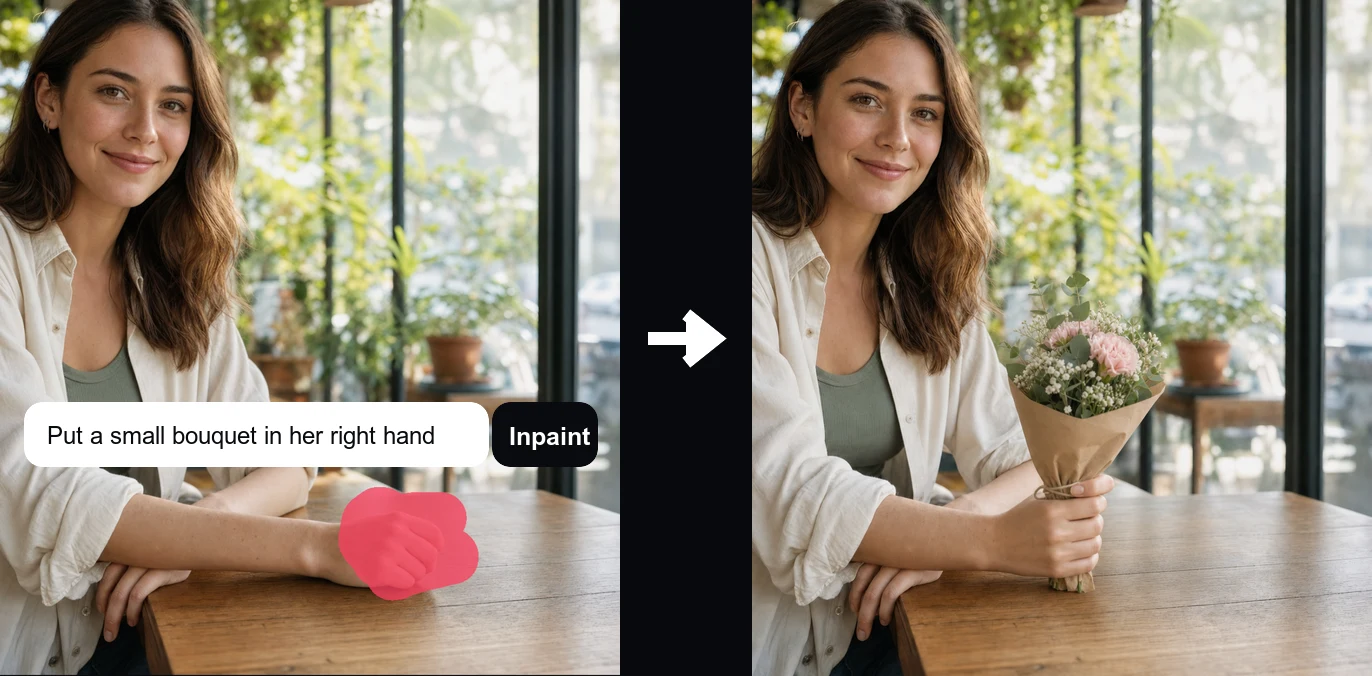
AI Image Inpaint: Replace a Product Detail Without Rebuilding the Whole Photo
Paint a specific accessory, trim, color block, or material and describe the replacement you want to explore.
What Can You Redraw with AI Image Inpaint?
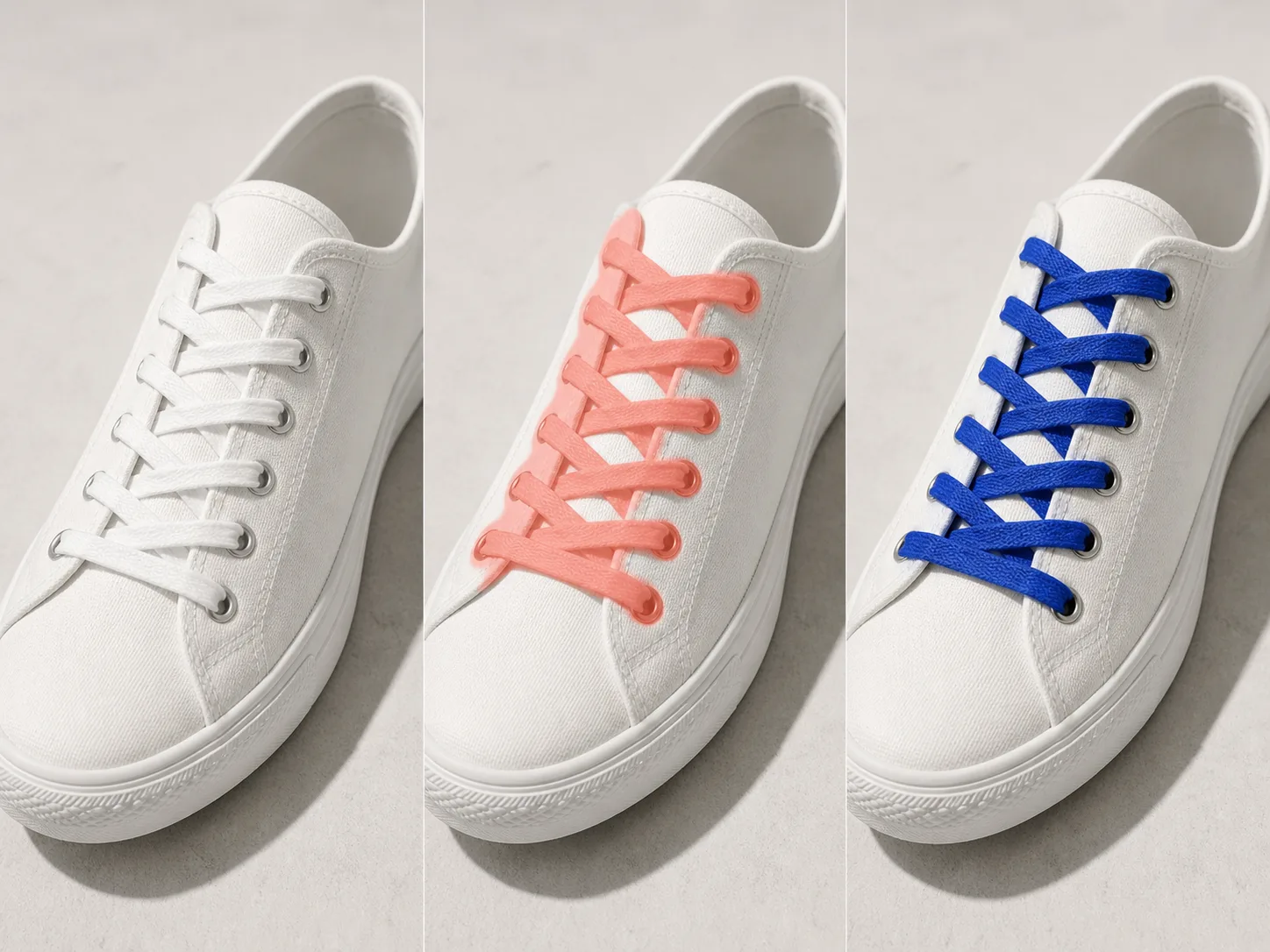
Replace a Product Detail Without Rebuilding the Whole Photo
Paint a specific accessory, trim, color block, or material and describe the replacement you want to explore. A tight selection around sneaker laces, for example, leaves the model useful evidence about the shoe, eyelets, studio floor, and light. Check whether the new material follows the original attachment points and whether nearby stitching or shadows shifted at the boundary.
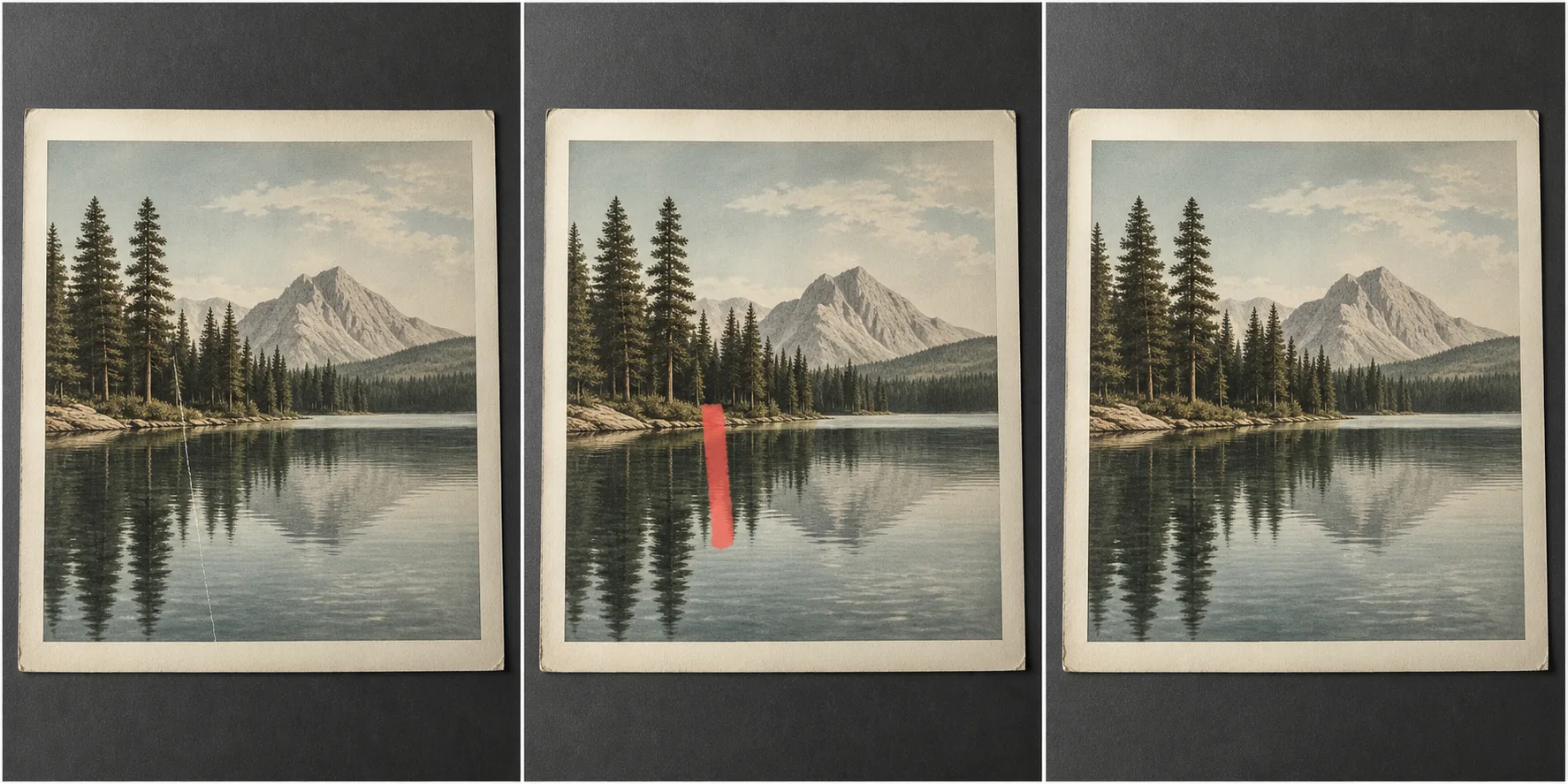
Reconstruct a Narrow Damaged Area in a Fictional Photo
Cover a scratch, crease, scan artifact, or missing strip and let the model infer a continuation from the visible scene. Keep the mask narrow enough to preserve trustworthy texture on both sides, but wide enough to include the complete damaged edge. Inpainting can create a plausible repair; it does not certify historical accuracy or recover pixels that no longer exist.
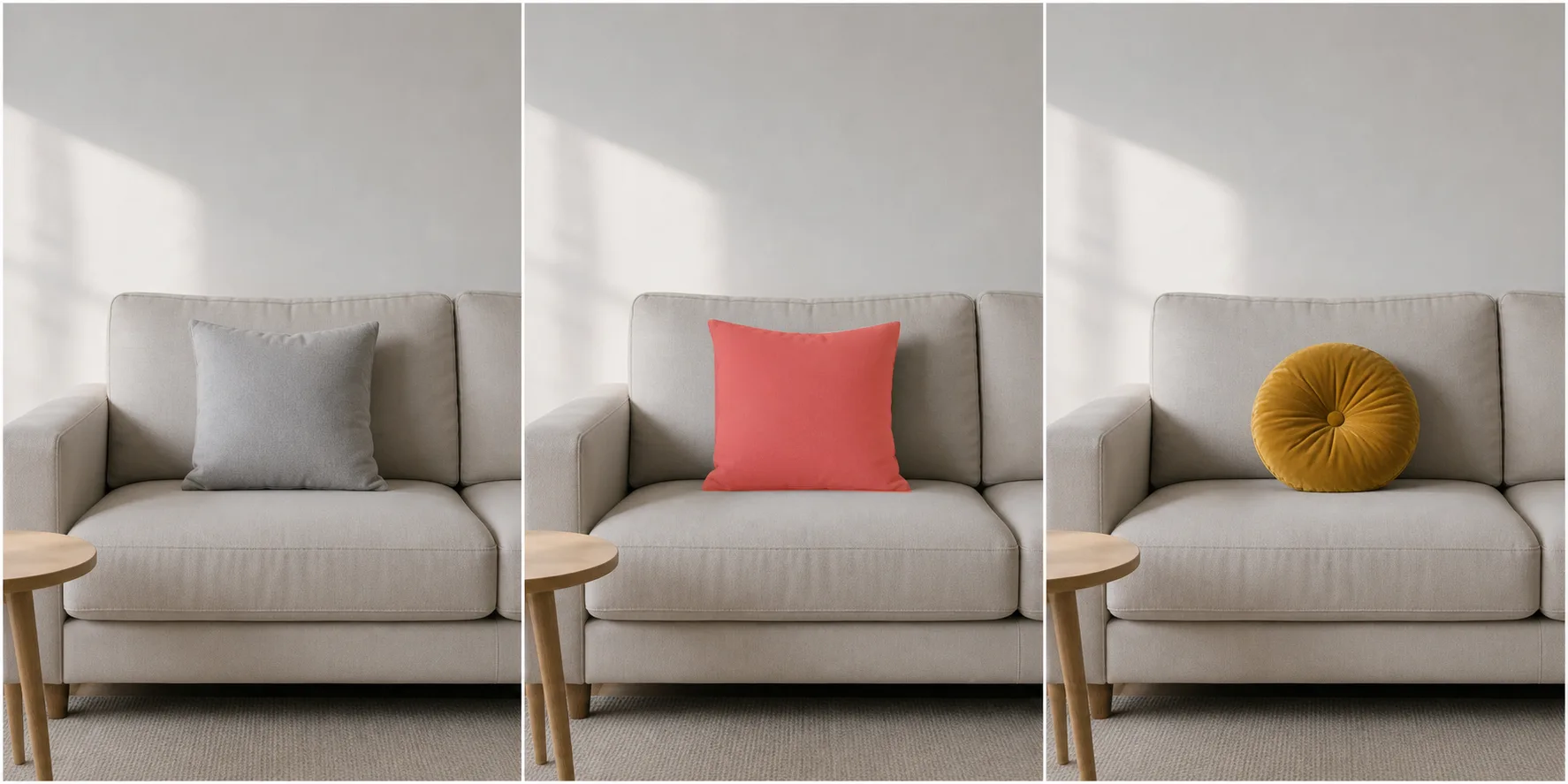
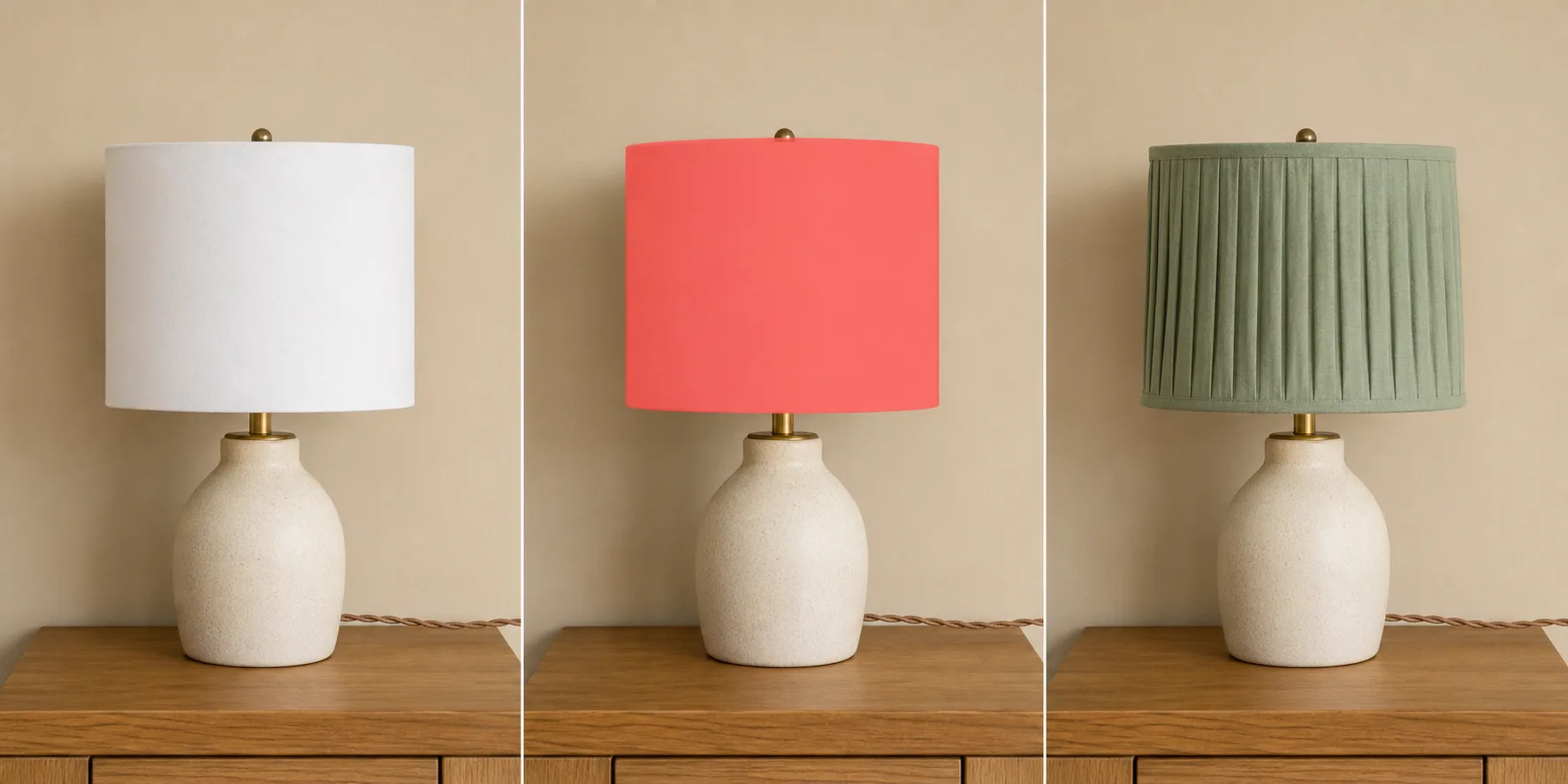
Explore One Interior Accent While Keeping the Room Recognizable
Mask one pillow, lamp, vase, or other local furnishing and prompt a different shape, color, or material. The visible room gives the model scale, direction of light, and neighboring surfaces to work with. Use the result for visual exploration, then inspect contact shadows, perspective, fabric intersections, and any scene detail close to the painted area.
How to Use AI Image Inpaint
Upload One Clear Source Image
Choose one JPG, PNG, or WebP image up to 10 MB. Start with a sharp source that shows enough context around the intended edit for the model to understand surfaces, perspective, light, and nearby structure.
Paint a Complete but Controlled Mask
Use Erase mode to cover the full area that may change. Adjust the brush between 12 and 120 px, using a smaller brush near detailed edges and a larger one for broad interiors. Undo or Redo strokes until the mask includes the target without spreading unnecessarily across useful context.
Add a Prompt, Submit, and Compare
Describe a concrete replacement such as “a muted green pleated fabric shade.” Choose the model and its available controls, sign in when asked, review the 40-Credit Nuzza, 75-Credit Ideogram, or 270-Credit GPT Image 2 quote, submit the queued task, and compare the result with the source at the generated boundary before download.
Where Can Local Inpainting Help?
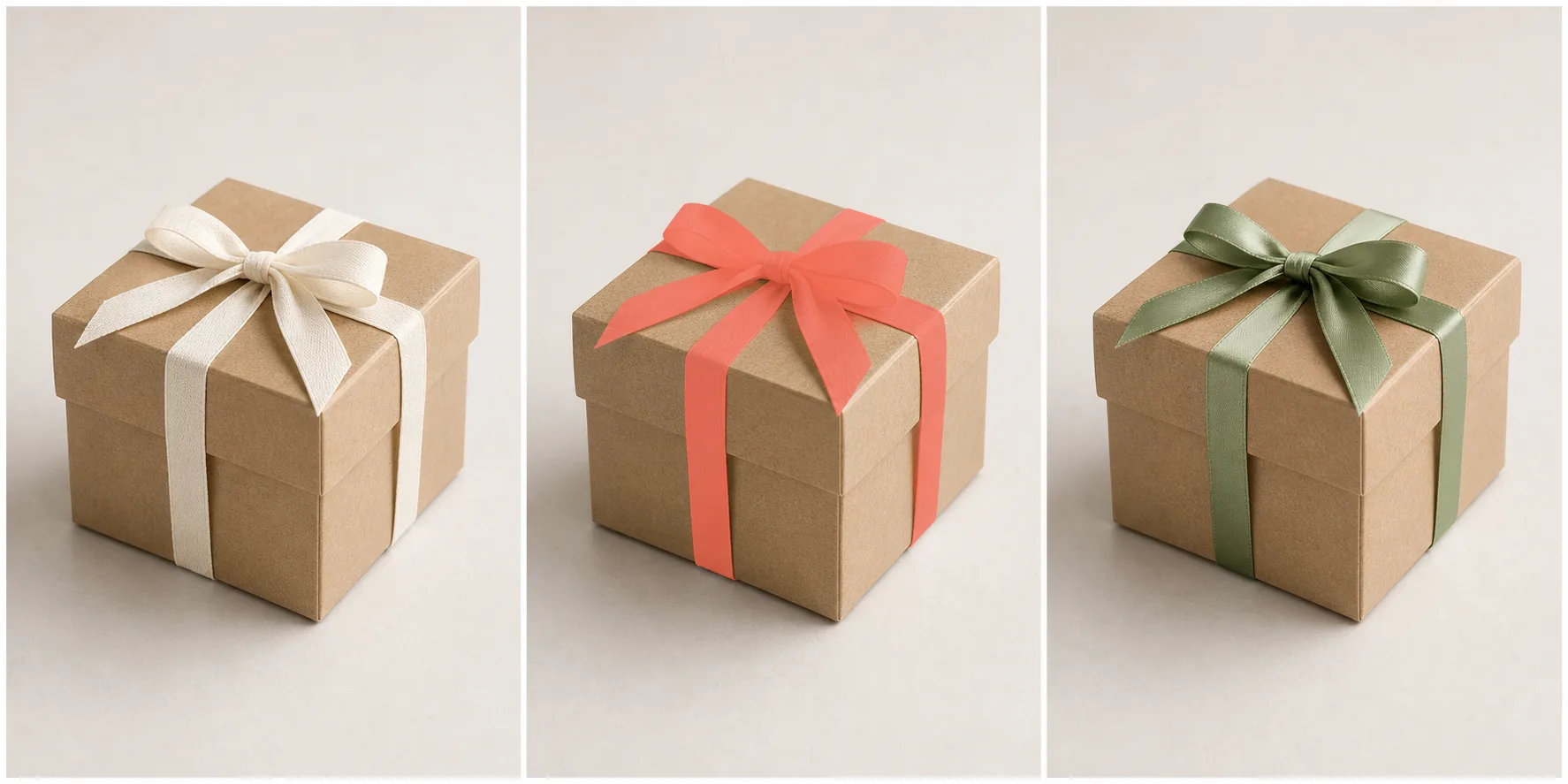
Explore a Styling Variant on an Unbranded Product Setup.
Mask one removable styling detail such as a ribbon, bow, tag shape, or background prop and prompt a new color or material. This can help compare visual directions without regenerating the entire composition. Protect the real product silhouette and verify that generated concepts do not misrepresent the item a customer would receive.
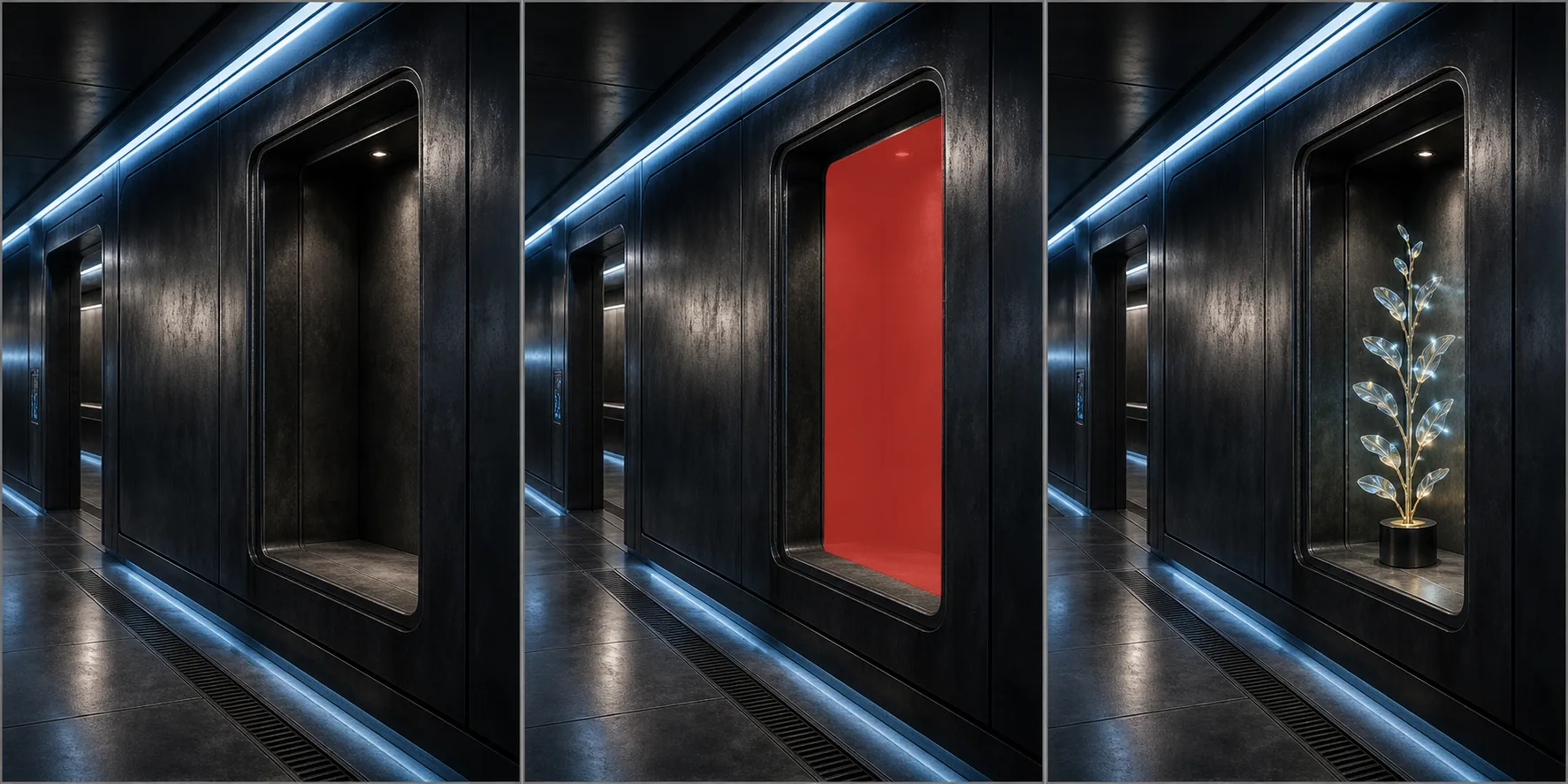
Add One Fictional Element to an Existing Scene Idea.
Paint an empty alcove, patch of ground, or section of sky and describe one new visual idea. Local inpainting lets a concept artist test a prop or environmental accent while keeping the wider scene recognizable for comparison. Treat the output as a generated proposal and check perspective, scale, light spill, and contact with nearby geometry.
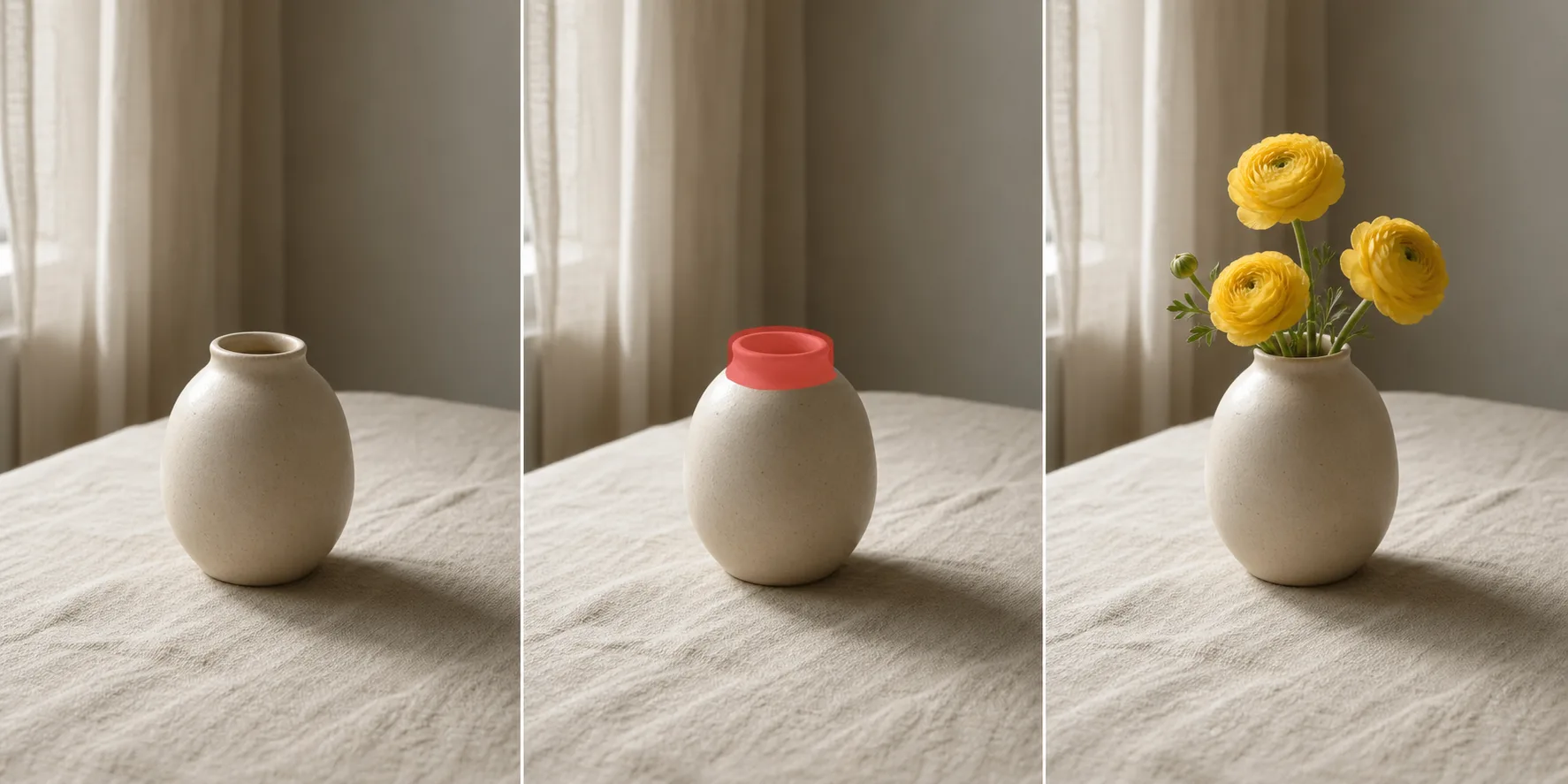
Add a Small Decorative Detail to a Photo You Control.
Mask the opening of an empty vase, a clear area on a tabletop, or another well-bounded space and prompt a modest addition. Keeping the requested object local gives the model visible references for surface, shadow, and scale. Review how stems, reflections, and shadows meet the original scene instead of assuming the addition is exact.
Nuzza vs. Top AI Inpainting Tools
| Feature / Model | Nuzza | Adobe Photoshop | Canva Magic Edit | Pixelcut AI Replace |
|---|---|---|---|---|
| Editing Options | Manual mask with 3 selectable edit models | Selection tools, model picker, and editable layers | Brush or click selection with prompt editing | Brush an area, prompt a replacement, and export |
| Cost | Free with included credits | Free trial or subscription | Canva Pro | Free plan or Pro |
| Best For | Focused multi-model browser inpainting | Layered professional composites | Edits inside social and design projects | Quick object swaps for product photos |
FAQs about AI Image Inpaint
What is Nuzza's AI Image Inpaint?
It is a local image-editing process that generates content inside a selected mask. The source provides surrounding context, and a required prompt describes what should appear in the painted region.
What is the best AI image inpainting tool?
The best AI image inpainting tool depends on the input, intended result, budget, and controls you need. Nuzza's AI Image Inpaint is a strong choice when you want a manual mask plus a required prompt for one local generated fill.
Is Nuzza's AI Image Inpaint free to use?
The page is free to browse. Running a task requires Credits, and the current cost is shown before you submit.
What can I use Nuzza's AI Image Inpaint for?
Nuzza's AI Image Inpaint is useful for ecommerce concepts, concept art, and personal still lifes. Mask one removable styling detail such as a ribbon, bow, tag shape, or background prop and prompt a new color or material. This can help compare visual directions without regenerating the entire composition. Protect the real product silhouette and verify that generated concepts do not misrepresent the item a customer would receive.
What inputs does Nuzza's AI Image Inpaint support?
You can upload one JPG, PNG, or WebP source image up to 10 MB for each task.
Do I need to sign in to use Nuzza's AI Image Inpaint?
You can prepare the upload, mask, prompt, and model first, but task submission requires sign-in.
What should I check in the image result?
Compare the result with the source or prompt at full size. Check faces, text, product geometry, repeated patterns, edges, and any detail the AI may have reconstructed.
How can I control the inpainting mask?
The editor provides Erase mode, a brush size from 12 to 120 px, Undo, and Redo. The inpaint stage stays at 100% zoom and does not expose Move, zoom, or Clear Mask controls, so choose the brush size carefully around detailed boundaries.
How is inpainting different from object removal or outpainting?
Inpainting redraws a selected interior region and can use a prompt to add or replace content. The dedicated object remover has no replacement prompt and is focused on cleanup, while outpainting extends content beyond the original canvas boundary.