
Wan 2.6
Wan 2.6 creates short videos from text, one opening frame, or one to three reference videos with workflow-specific framing, timing, and audio controls. Try Wan 2.6 on Nuzza by choosing the input path that matches your source material.
What Can You Control with Wan 2.6?
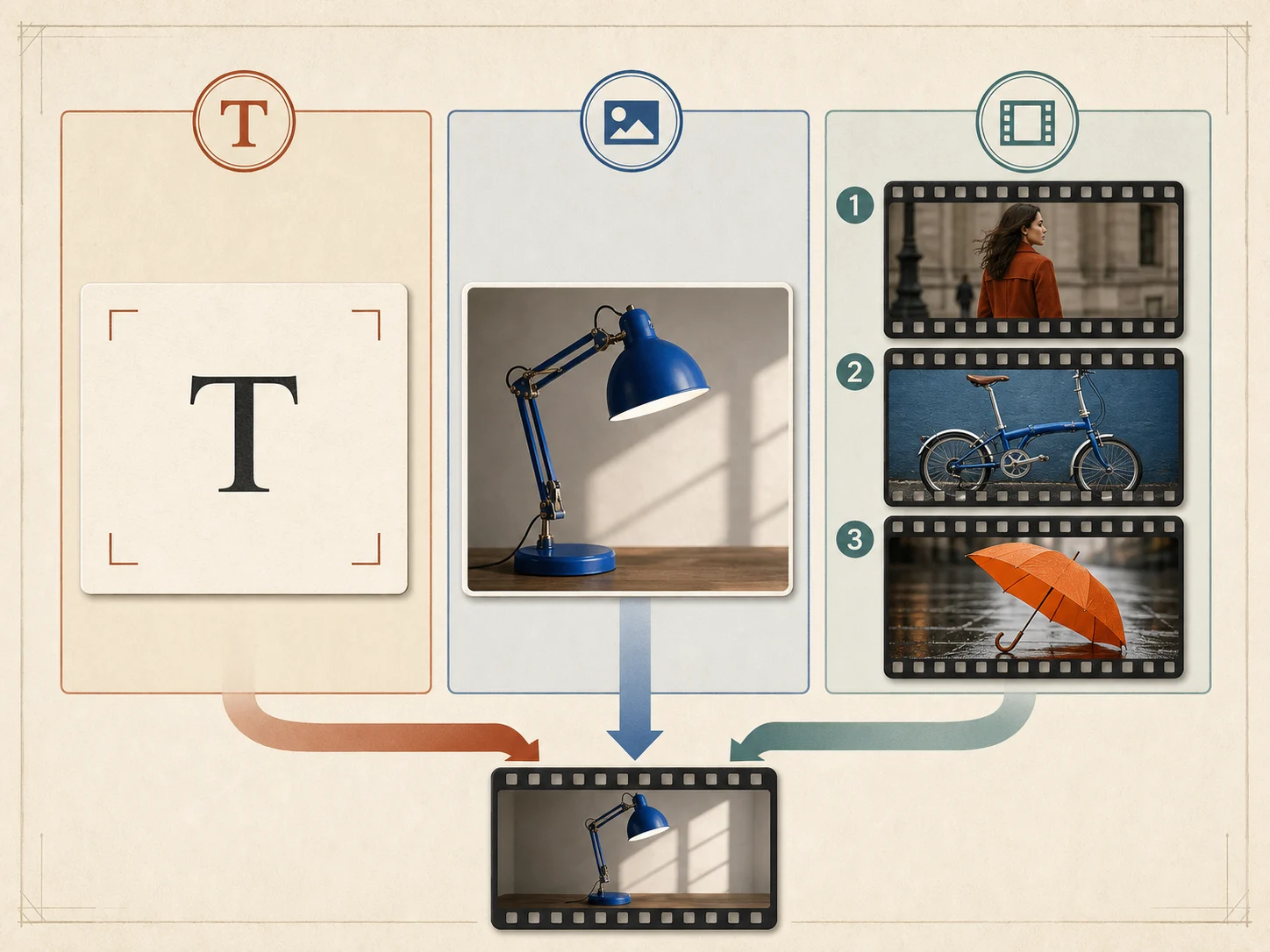
Start from Text, One Image, or Video References
Use a prompt alone when the scene is still an idea. Add exactly one image when the opening composition should anchor the clip. Choose reference to video when one to three short video sources should guide a subject, prop, movement, camera behavior, or environment. Assigning one clear role to each source gives you a more reviewable brief than adding references without explaining what they contribute.
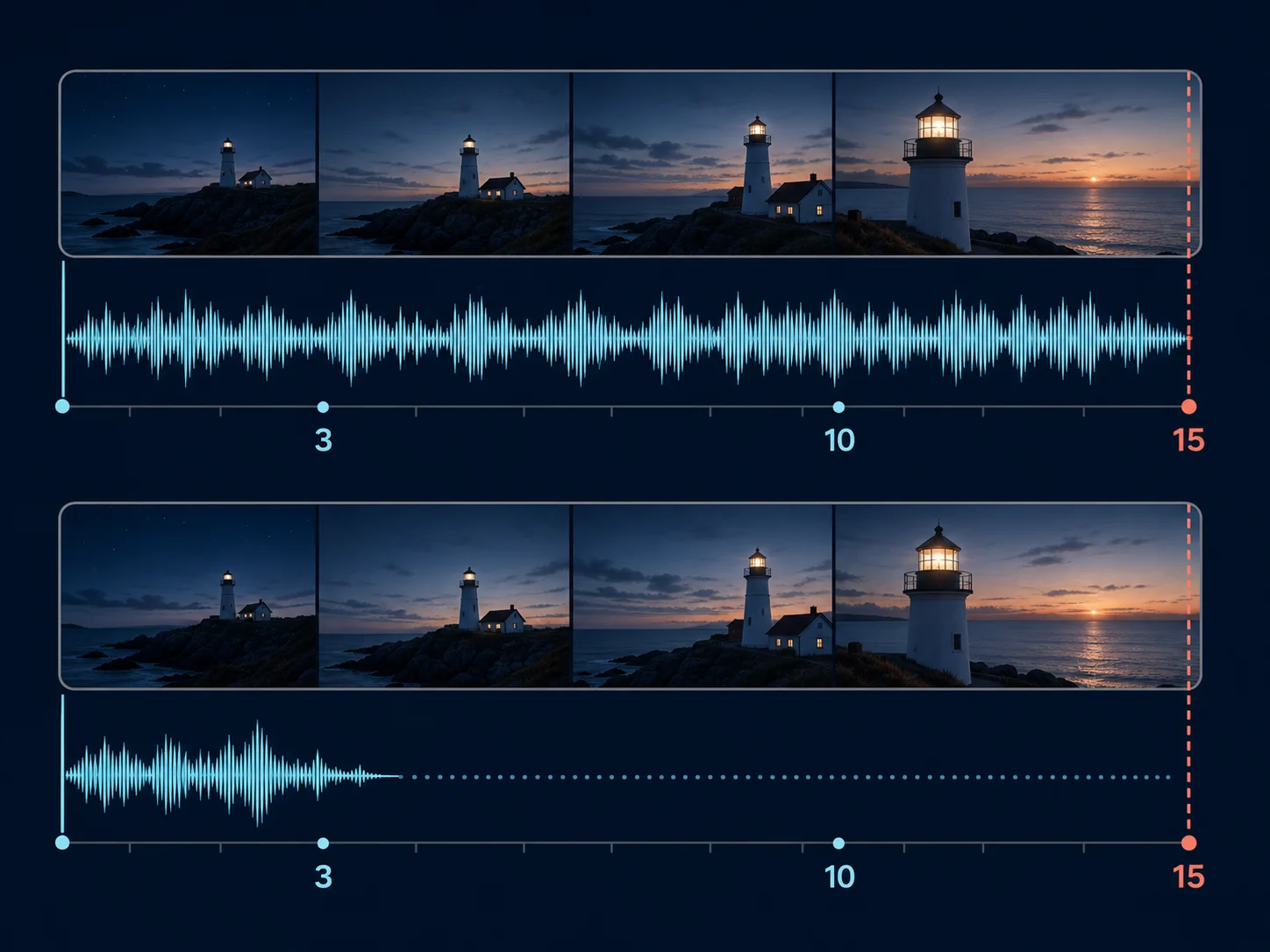
Plan Background Audio Against the Clip Timeline
Text-to-video and image-to-video requests can use a public WAV or MP3 URL between 3 and 30 seconds and no larger than 15 MB. If the audio runs longer than the selected clip, the excess is truncated. If it ends sooner, the rest of the video is silent. This is supplied background audio, not a promise that Wan 2.6 generates dialogue, speech, music, or exact lip synchronization.
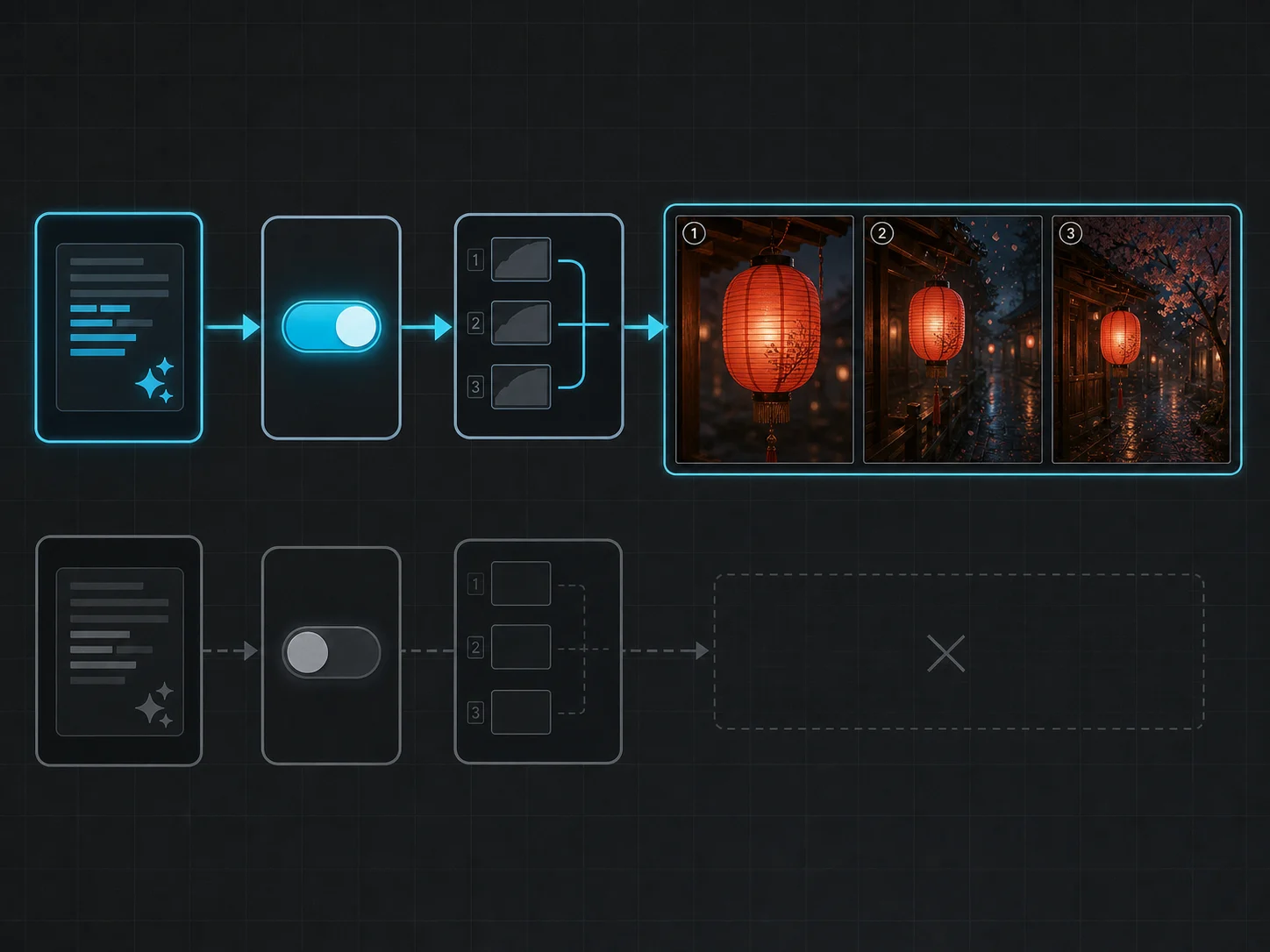
Use Prompt Expansion Before Multi-Shot Planning
Prompt expansion helps elaborate a concise request, while the multi-shot option asks the workflow to segment that direction into a sequence. In the current composer, multi-shot is active only when prompt expansion is enabled. Write the intended order—opening, development, and closing beat—so the expansion has a coherent timeline to work from instead of a list of unrelated events.
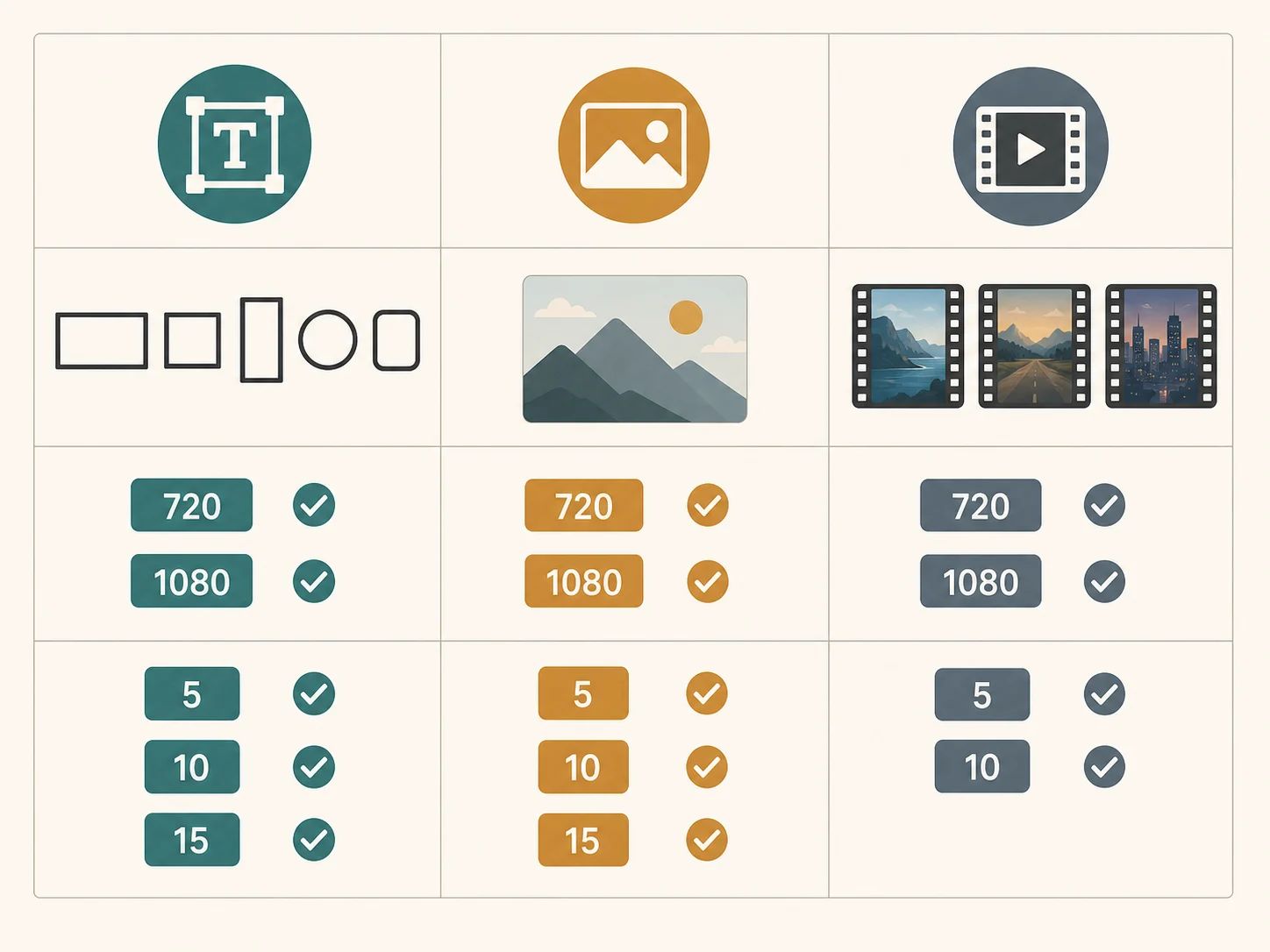
Match Duration and Framing to the Workflow
All three modes offer 720p and 1080p. Text and image requests support 5, 10, or 15 seconds, while reference-to-video supports 5 or 10 seconds. Text and reference modes offer 16:9, 9:16, 1:1, 4:3, and 3:4 framing. Image mode does not expose a separate aspect-ratio control, so prepare the opening frame in the composition you want to carry into the motion study.
Practical Ways to Use Wan 2.6
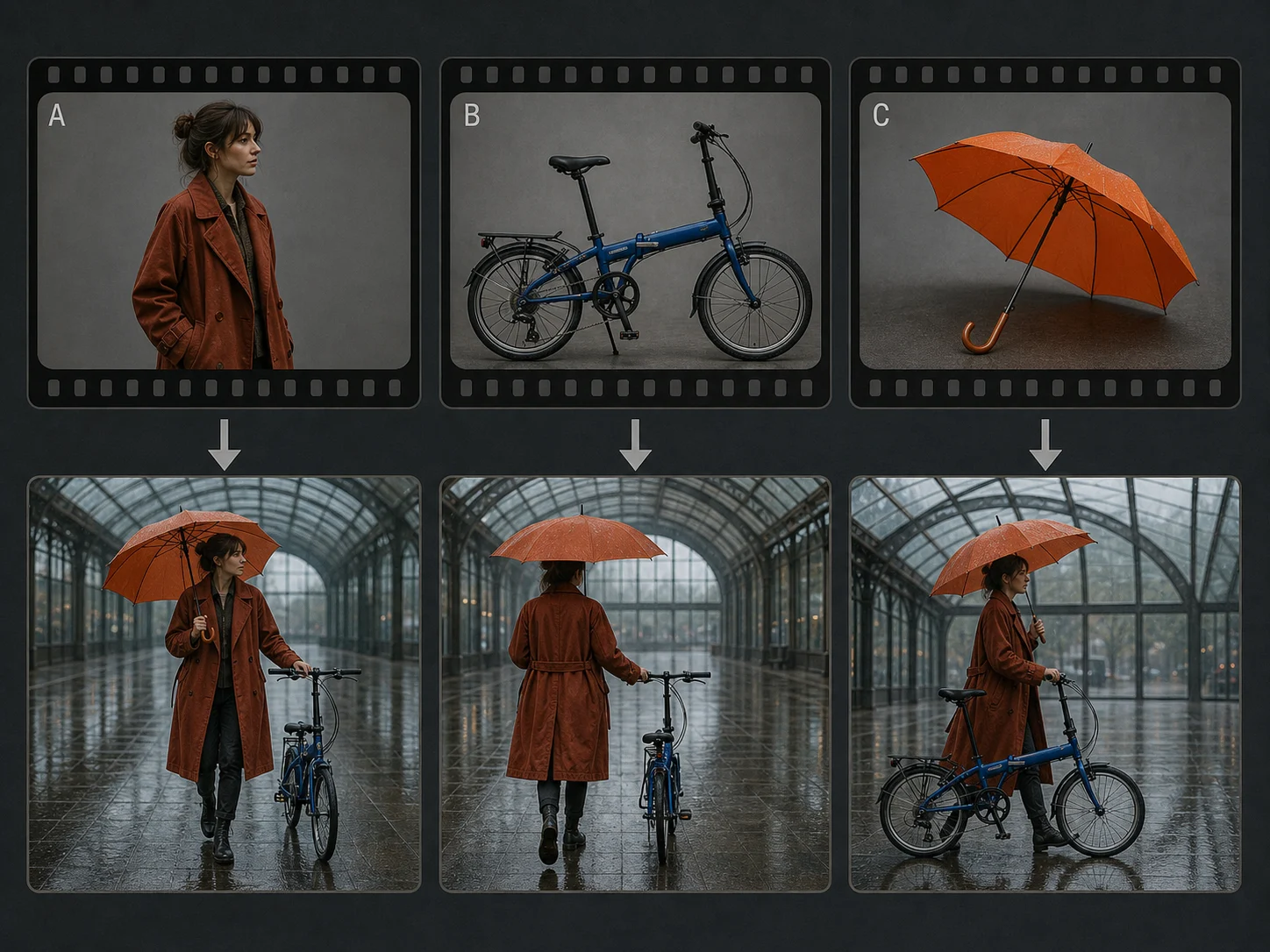
Re-Stage Clear Reference Roles in a New Scene
Use one to three single-subject video references to communicate separate roles, such as a person, prop, and recurring accessory, then describe an original setting where those roles meet. The prompt should say which reference guides which element and what motion belongs in the target scene. Treat the result as a creative interpretation to review, not a guarantee of exact identity, geometry, or movement transfer.
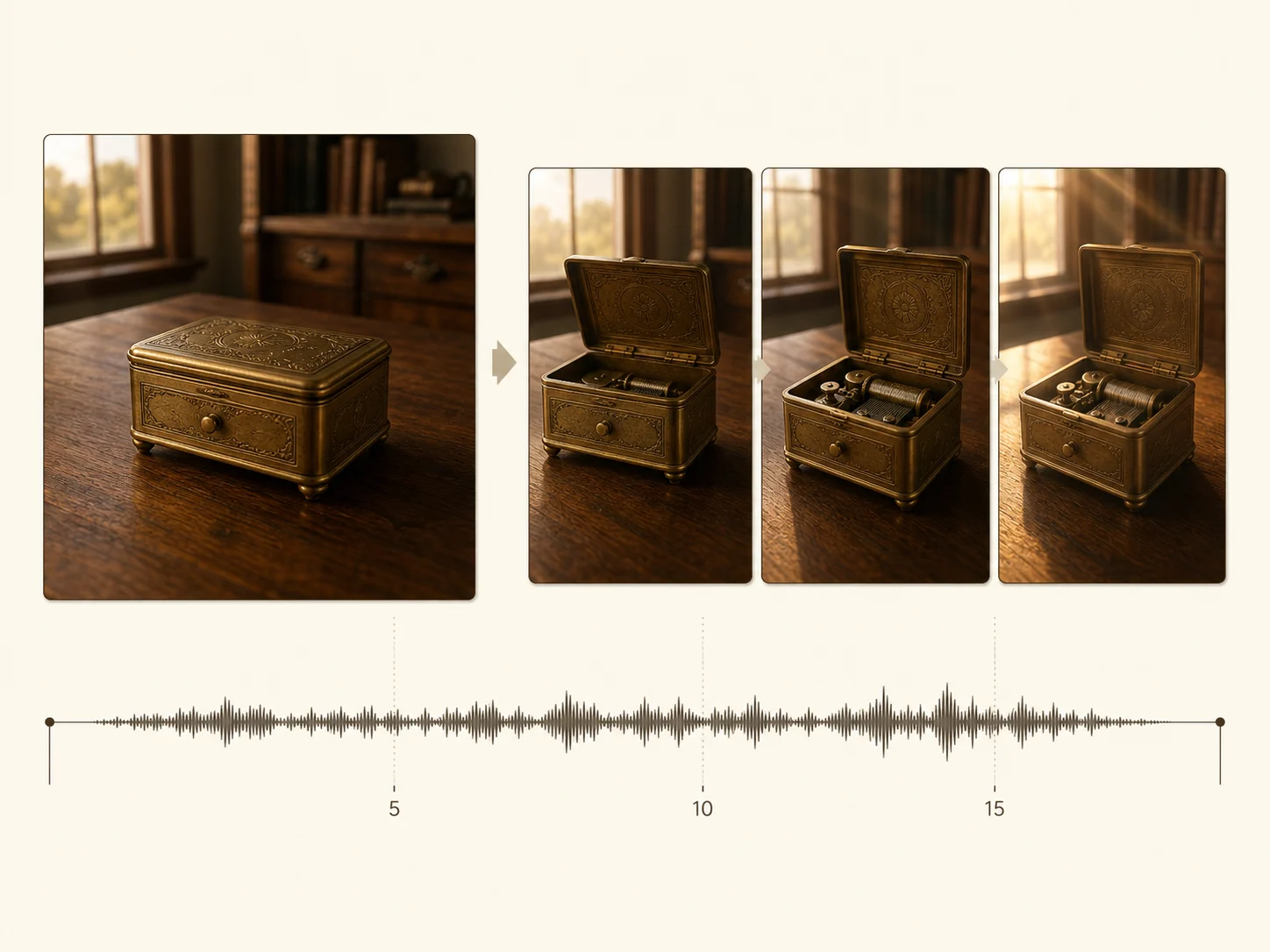
Turn One Opening Frame into a Short Audio-Guided Beat
Begin with one approved still, outline a compact sequence, and use supplied background audio to support its rhythm. A 5-, 10-, or 15-second image-to-video request can work as a previsualization for an object reveal, environment change, or quiet narrative moment. Keep the frame identity and shot plan specific, then review whether the motion and audio timing support the intended edit.
How to Use Wan 2.6
Choose the Workflow That Matches Your Source
Start with Text when you have only a written direction, Image when one approved opening frame should anchor the scene, or Reference when one to three videos should guide distinct visual or motion roles. Do not add a reference merely because the field is available; each source should solve a specific direction problem.
Write the Prompt and Add Mode-Specific Inputs
Describe the subject, setting, action, camera behavior, lighting, and shot order in plain language. Add the single opening image or video references required by the selected mode. For text or image mode, you may also provide an accessible WAV or MP3 URL and plan its length against the chosen clip duration.
Configure, Submit, and Review the Result
Select the available resolution, duration, and framing controls, then decide whether prompt expansion, multi-shot planning, a negative prompt, or a seed supports the request. Submit the queued job and inspect the completed clip for motion, framing, source-role clarity, shot continuity, and audio length before using it downstream.
Wan 2.6 vs Seedance 2 vs Kling 3.0
| Feature / Model | Wan 2.6 | Seedance 2 | Kling 3.0 |
|---|---|---|---|
| Best for | Short clips built from text, one opening image, or one to three video references with mode-specific controls. | Reference-heavy projects that need mixed image/video guidance, start and end frames, or a wider requested output range. | Text- or frame-led clips that benefit from explicit prompt segments and shot-type controls. |
| Nuzza workflows | Text to video, image to video, and reference to video. | Text, image, multi-reference, and start-and-end-frame video. | Text to video, image to video, and start-and-end-frame video. |
| Reference strategy | Exactly one start image in image mode or one to three video references in the dedicated reference mode. | Its dedicated reference workflow accepts up to nine images and three videos. | Uses opening or opening-and-ending frames rather than a Wan-style one-to-three-video-reference mode. |
| Duration and resolution | 720p or 1080p; 5, 10, or 15 seconds for text/image and 5 or 10 seconds for reference video. | Auto or 4–15 seconds, with 480p, 720p, 1080p, and 4K choices exposed in Nuzza. | Exposes 3–15-second requests with landscape, vertical, or square framing in the current mapping. |
| Audio approach | Public WAV or MP3 background-audio URL in text and image modes, with explicit trim or trailing-silence behavior. | A generated-audio toggle is exposed; imported audio references are not part of the current Nuzza workflow. | Uses its own native-audio control rather than Wan 2.6's supplied public audio URL. |
| Choose it when | You want a dedicated video-reference path or need to time supplied background audio against a text- or image-led clip. | Mixed visual references, first/last-frame direction, or the broader resolution and framing matrix matter most. | Separate prompt segments, shot-type direction, or start/end-frame control is more useful than video-reference input. |
FAQs about Wan 2.6
What is Wan 2.6?
Wan 2.6 is a Wan AI video model exposed in Nuzza through text-to-video, image-to-video, and reference-to-video workflows. This page describes the controls currently mapped for Wan 2.6 without making claims about every capability available from the upstream provider.
What is the best AI video generator?
The best AI video generator depends on the input, intended result, budget, and controls you need. Wan 2.6's Nuzza workflow is a strong choice because it is built around a video-reference and supplied-audio workflow.
Is Wan 2.6 free to use?
The page is free to browse. Running a task requires Credits, and the current cost is shown before you submit.
What can I use Wan 2.6 for?
Wan 2.6 is useful for reference-led restaging and frame-led story beat. Use one to three single-subject video references to communicate separate roles, such as a person, prop, and recurring accessory, then describe an original setting where those roles meet. The prompt should say which reference guides which element and what motion belongs in the target scene. Treat the result as a creative interpretation to review, not a guarantee of exact identity, geometry, or movement transfer.
What inputs does Wan 2.6 support?
Every workflow requires a prompt. Text mode needs no visual source, image mode requires exactly one start image, and reference mode accepts one to three video references. The current reference-to-video workflow does not accept image references, so use image mode when a still frame is your starting material.
Do I need to sign in to use Wan 2.6?
You can browse this page without signing in. Submitting a generation, storing persistent inputs, checking task status, and saving a finalized result require a Nuzza account.
What should I check in the video result?
No. References and specific prompts can guide appearance, roles, motion, and scene continuity, but they do not guarantee exact identity or geometry in every frame. Supplied background audio also does not prove generated speech or lip synchronization. Review the finished clip and revise one variable at a time when continuity or timing drifts.
Can Wan 2.6 generate or use audio?
Nuzza currently supports supplied background audio in text and image modes through a publicly accessible WAV or MP3 URL. That field is not exposed in reference-to-video mode. This does not establish native generated speech, music, sound effects, lip sync, or dialogue generation, so the page makes no promise about those capabilities.
Which durations, aspect ratios, and resolutions are available?
Text mode offers 5, 10, or 15 seconds, 720p or 1080p, and 16:9, 9:16, 1:1, 4:3, or 3:4. Image mode offers the same durations and resolutions without a separate ratio selector. Reference mode offers 5 or 10 seconds, both resolutions, and the five ratio choices.
Create Videos with Wan 2.6
Use Wan 2.6 for text-to-video, image-to-video, or reference-to-video projects, then set the controls available for that workflow.
Try Wan 2.6