AI Image Upscaler


AI Image Upscaler: Clarify Product Edges and Surface Texture
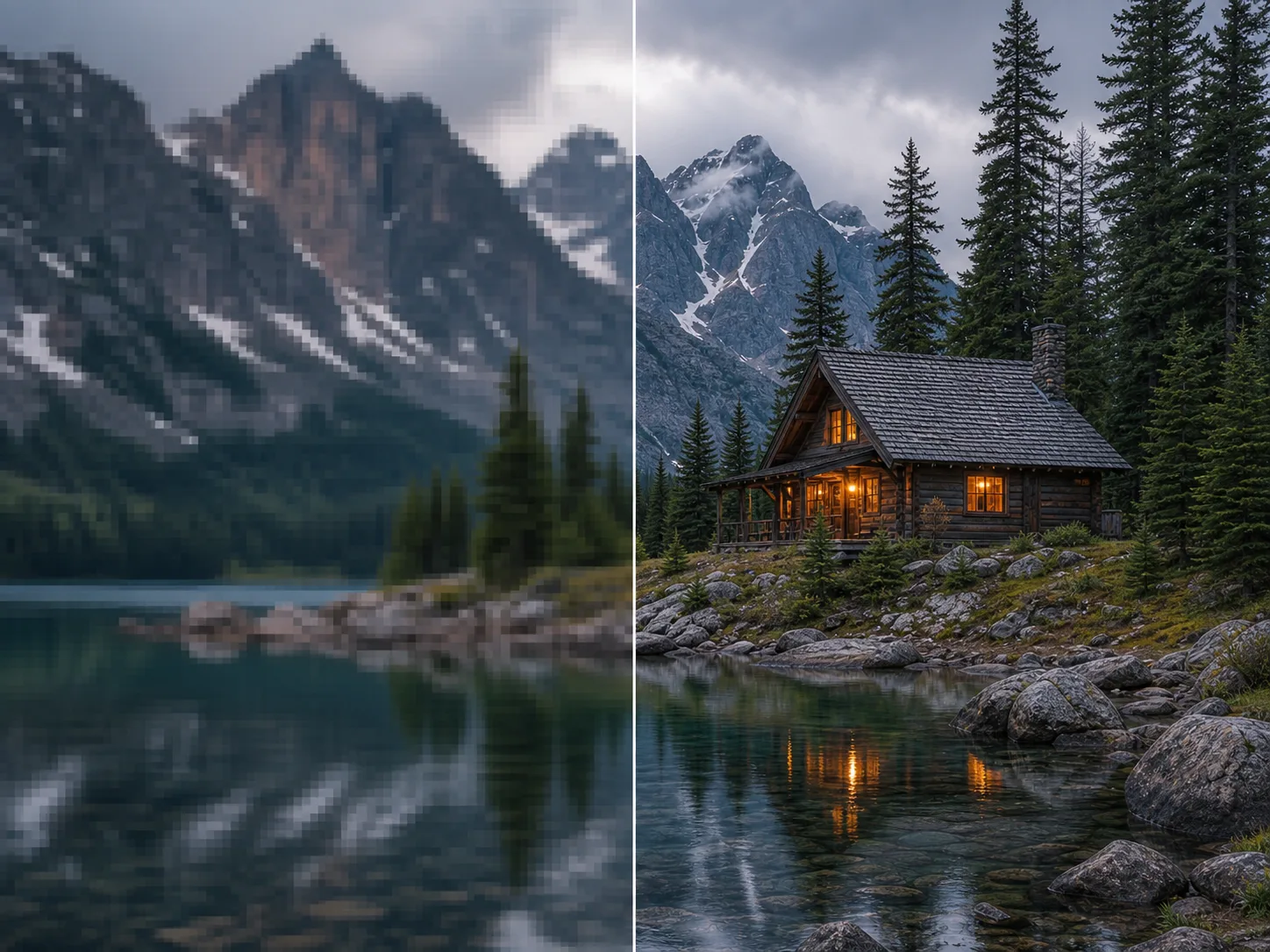
Enlarge a product photo when a small source makes stitching, mesh, ceramic grain, hardware, or packaging edges look soft.
Upscale Images with Controls You Can Verify
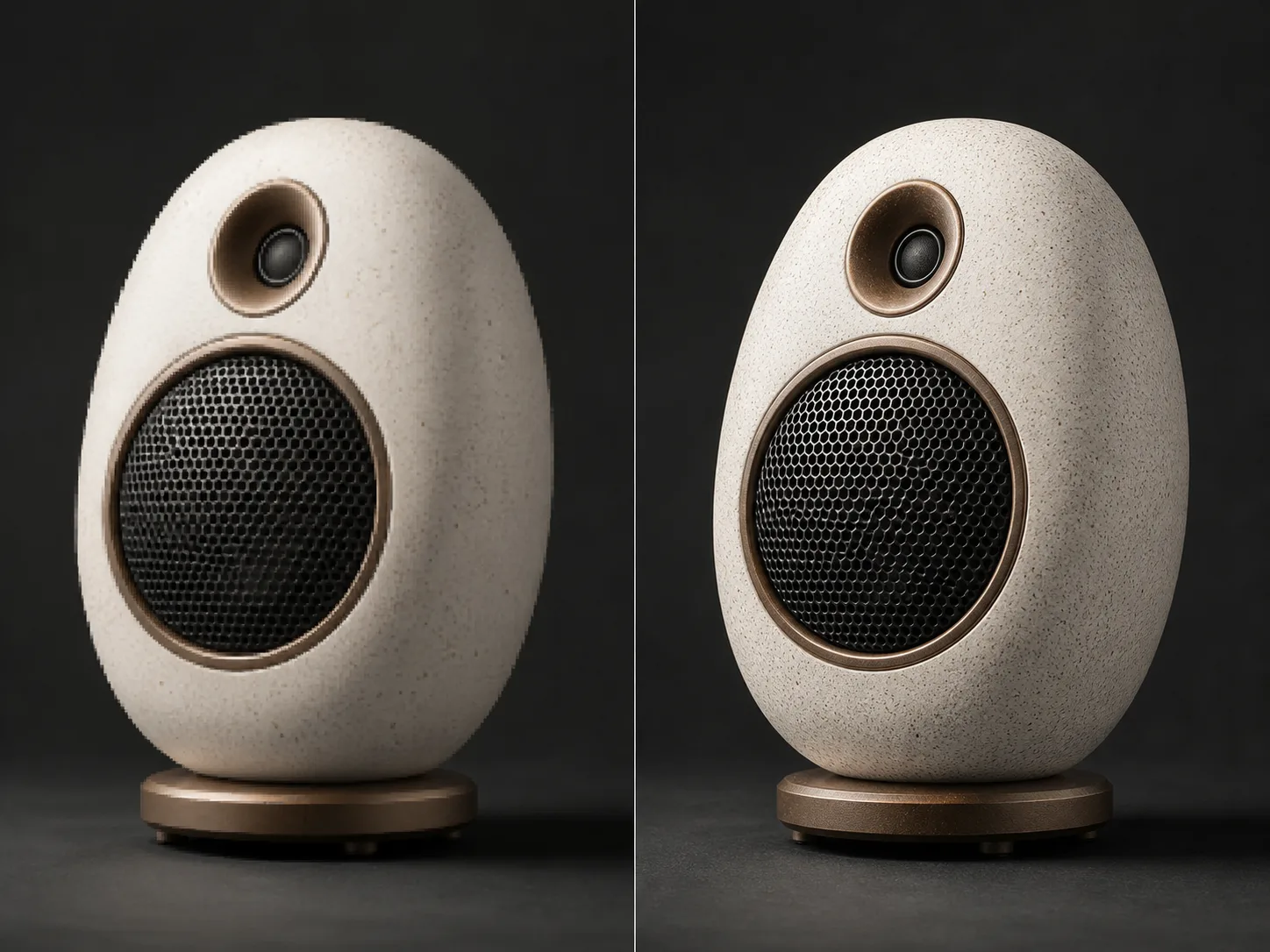
Choose 1×, 2×, 3×, or 4× Output
Select the smallest enlargement that fits the intended placement instead of forcing every image into the same scale.
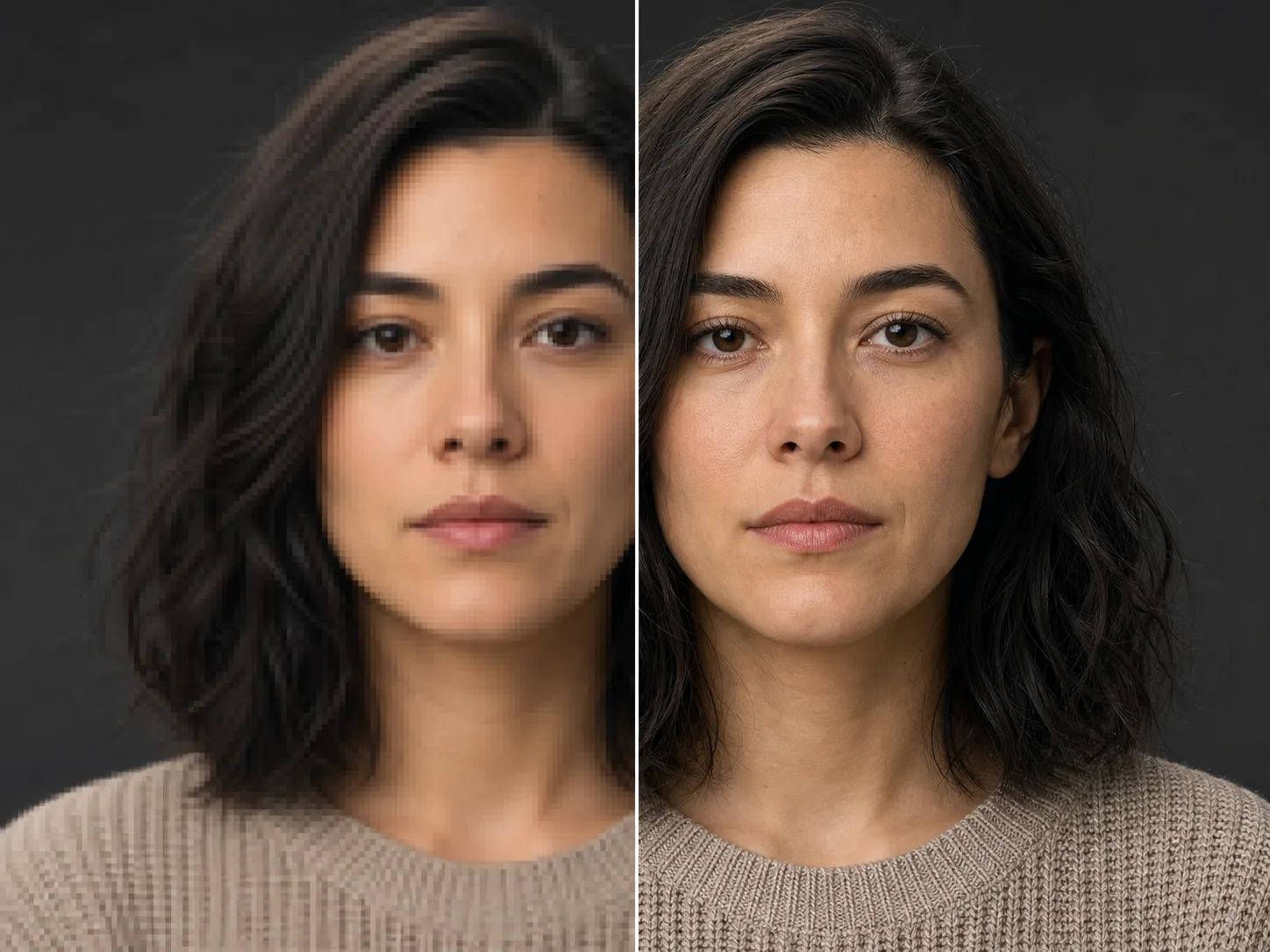
Improve Detail Beyond a Basic Resize
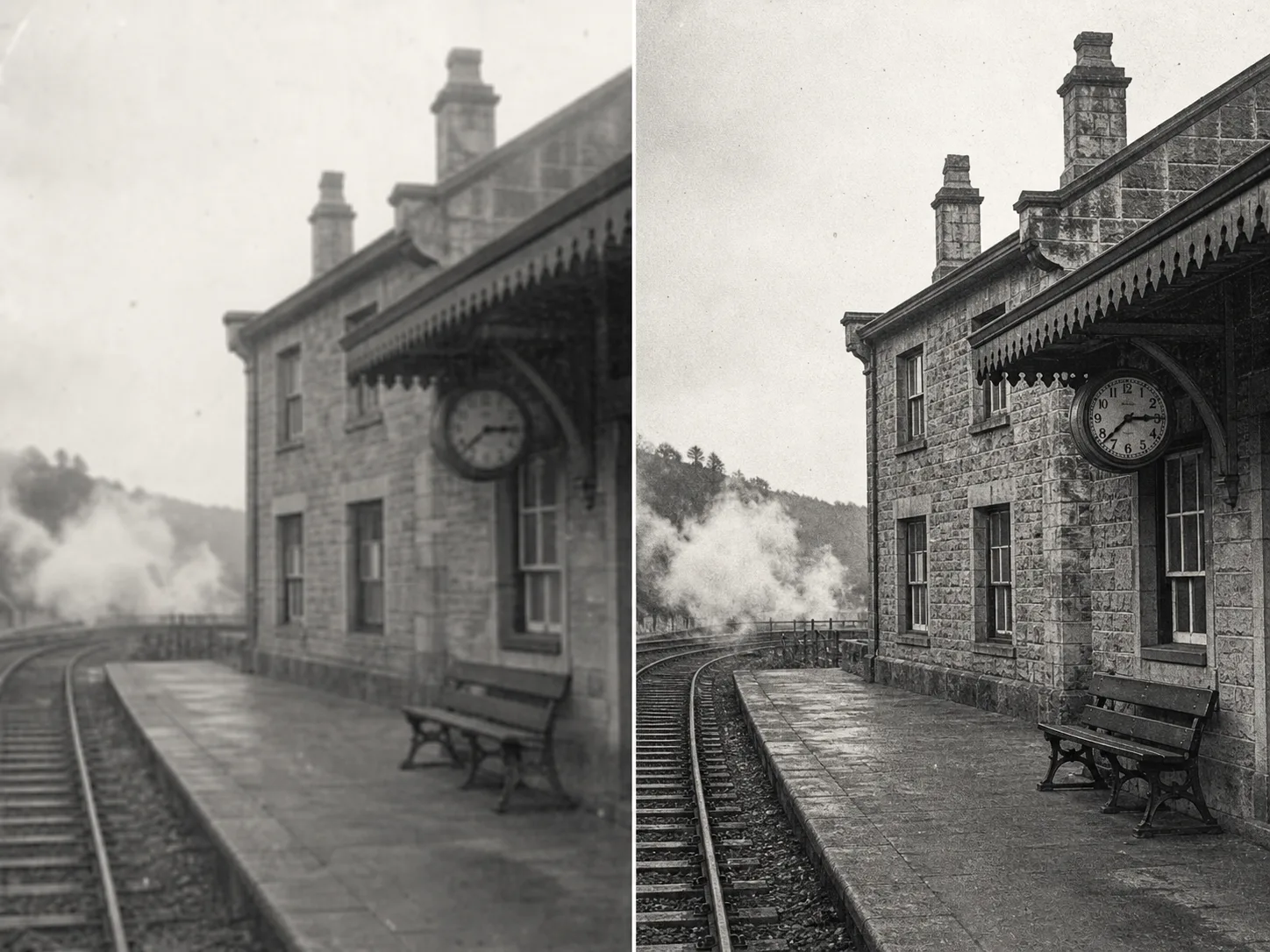
Use AI-assisted upscaling to create a larger result with clearer edges and more readable texture, then compare interpreted detail with the source.
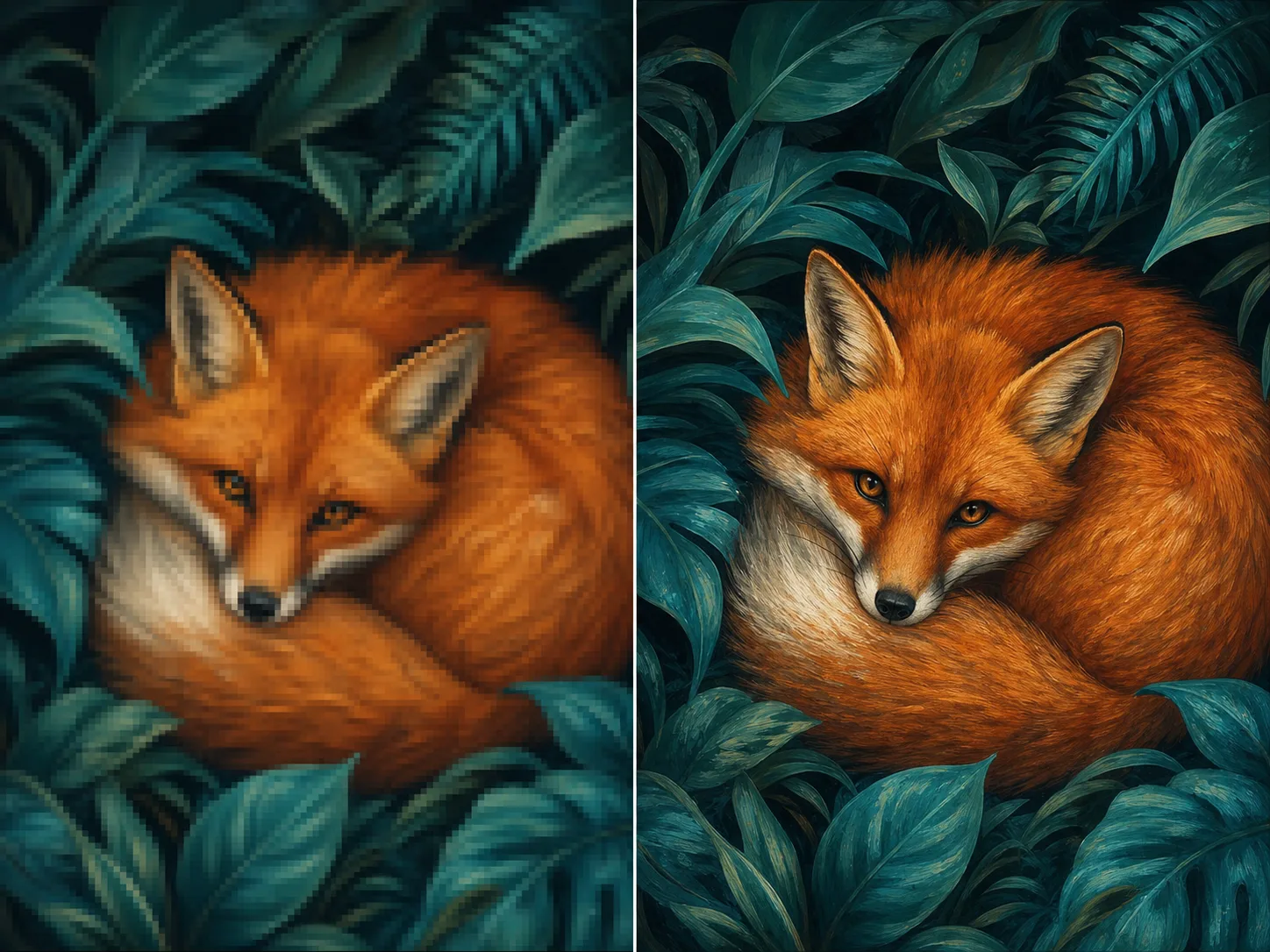
Upscale Photos and Raster Artwork
Work from supported product photos, portraits, older scans, illustrations, and digital artwork while checking the details that matter for each source type.
Review the Result Before Downloading
Inspect faces, text, product geometry, repeated patterns, and edge artifacts in the finalized result before deciding whether to use it.
How to Use the AI Image Upscaler
Upload a Supported Source
Choose one JPG, PNG, or WebP image up to 10 MB. Start with the least compressed, best-focused version you have because blur and block artifacts can limit the result.
Choose 1×, 2×, 3×, or 4×
Select the model and scale that match the intended placement. Sign in if needed, confirm the 15-Credit Nuzza or 100-Credit Topaz server quote, and submit the queued task.
Inspect Before You Download
Review the finalized image at full size. Compare faces, text, product geometry, repeated patterns, and edge halos with the source, then download only the version that fits your use.
Built for Images That Need a Larger, More Usable Version
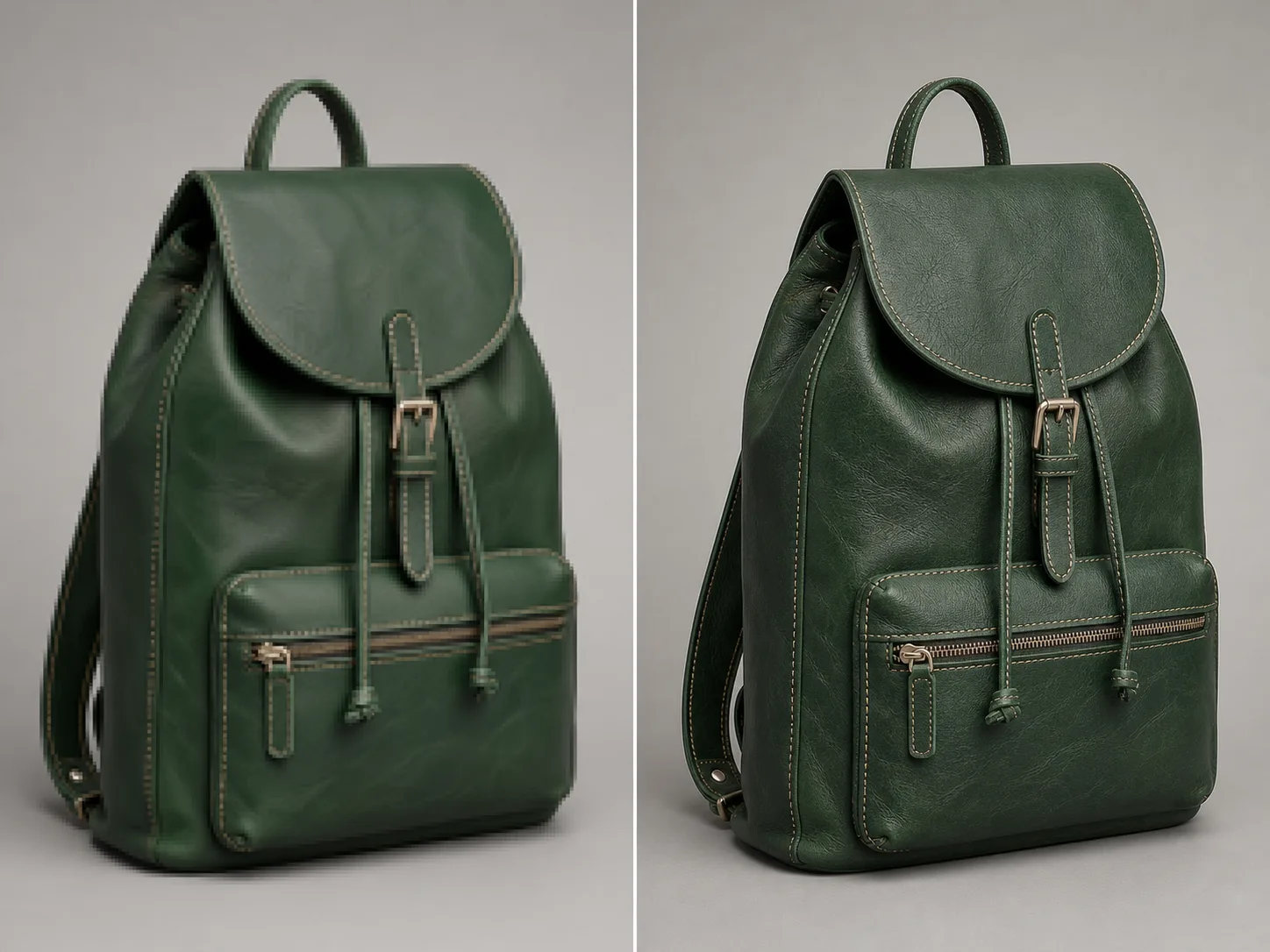
Ecommerce Product Images
Enlarge an approved product photo for detail views, marketplace crops, or responsive layouts, then verify labels, seams, color, and geometry against the upload.
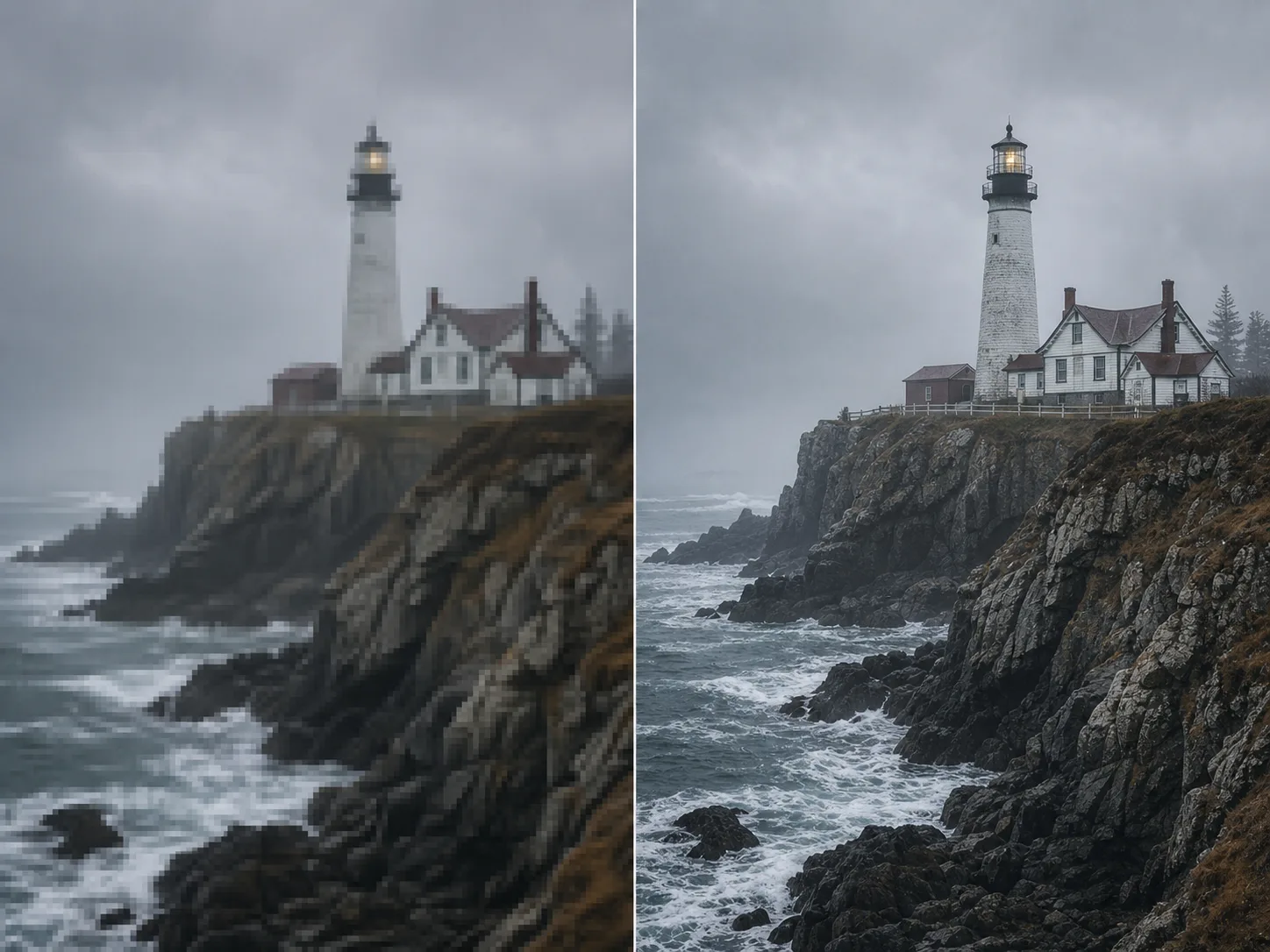
Print and Presentation Preparation
Create more pixels before testing a modest print, poster, slide, or display size, then confirm dimensions and production requirements separately.
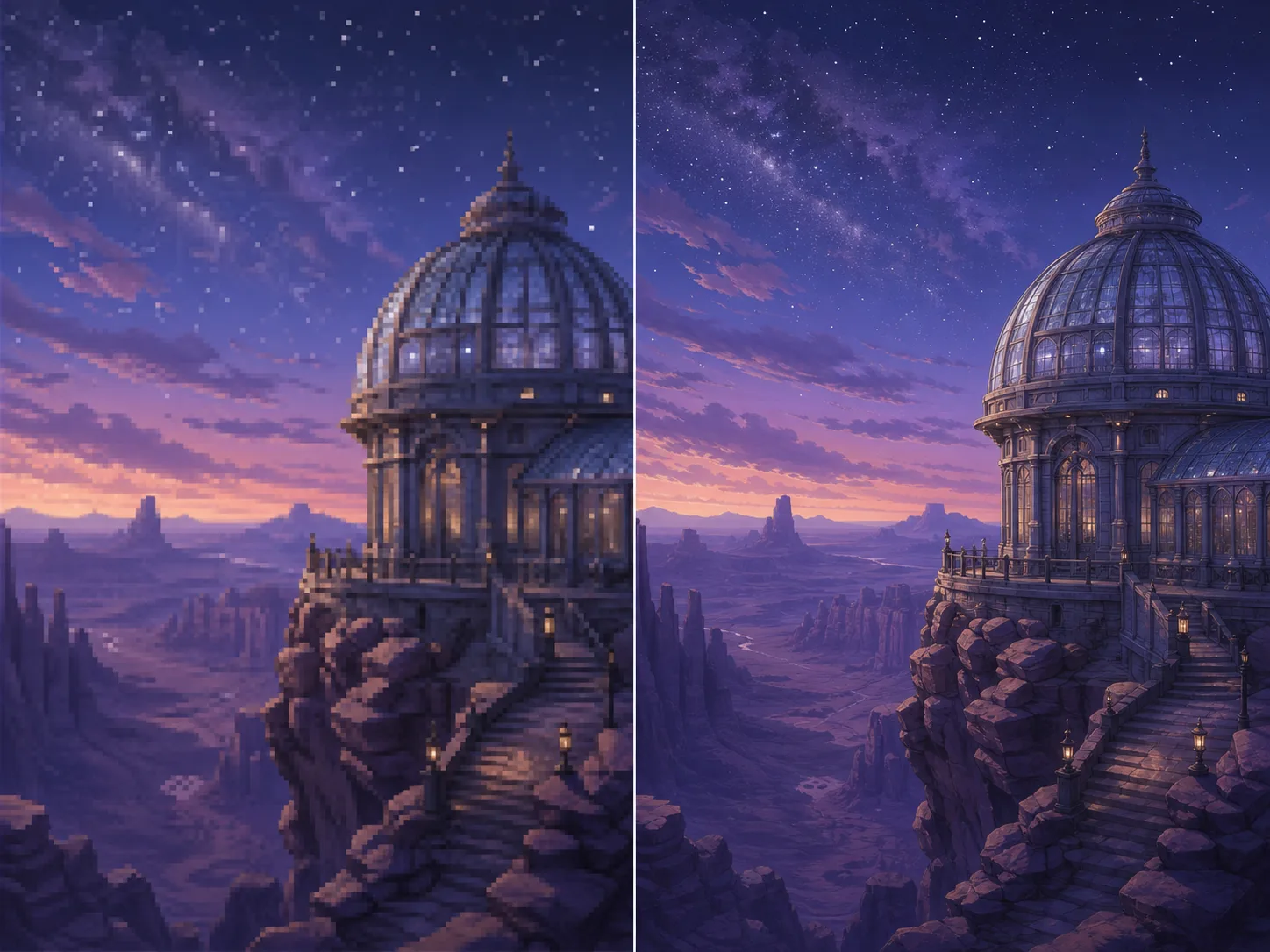
Digital Art and Illustration
Enlarge raster illustrations, concept art, and scanned artwork for bigger digital placements while checking line weight, palette boundaries, and intended texture.
Portraits and Older Scans
Make a portrait or archival scan easier to inspect at a larger size while treating the result as an interpreted working copy, not proof of missing detail or historical restoration.
Nuzza vs. Top AI Upscalers
| Feature / Model | Nuzza | Topaz Gigapixel | Let's Enhance | Upscayl |
|---|---|---|---|---|
| Scale | 1×–4×; 10 MB max | Up to 6×; 32,000 px max | Up to 16×; 512 MP max | 4× AI; larger resize available |
| Cost | Free with included credits | Paid plan | Credits or subscription | Free |
| Best For | Best two-engine browser choice | Pro photos and large exports | Print and e-commerce batches | Free local processing |
FAQs about AI Image Upscaler
What is Nuzza's AI Image Upscaler?
It is an online tool that enlarges one supported image by 1× to 4× while using AI to estimate clearer edges and texture. The source remains the reference, so inspect the finalized result before downloading or using reconstructed details.
What is the best AI image upscaler?
The best AI image upscaler depends on the source, target size, and amount of control you need. Nuzza's AI Image Upscaler is a strong choice for flexible enlargement with a result you can inspect before downloading.
Is Nuzza's AI Image Upscaler free to use?
The page is free to browse. Running a task requires Credits, and the current cost is shown before you submit.
What can I use Nuzza's AI Image Upscaler for?
Common uses include enlarging small product photos, portraits, raster artwork, older scans, presentation graphics, social posts, and images for modest print layouts. It works best when the source is already recognizable and you can compare the result with the original for accuracy.
What inputs does Nuzza's AI Image Upscaler support?
You can upload one JPG, PNG, or WebP image up to 10 MB. If a file is rejected, check both its actual format and size rather than changing only the filename extension.
Do I need to sign in to use Nuzza's AI Image Upscaler?
Yes. Submitting the upscale requires a Nuzza generation session. If you are not signed in, the workspace opens the sign-in flow before it creates the task.
What should I check in the image result?
Compare the output with the source at full size. Focus on faces, text, logos, product geometry, repeated patterns, architecture, thin lines, texture, edge halos, and any area where the original was blurred or compressed.
Can I upscale an image by 2× or 4×?
Yes. The workspace provides 1×, 2×, 3×, and 4× options. Choose the smallest scale that meets the intended placement, because a larger multiplier also makes source blur, compression, and reconstructed details easier to see.
Where can I see the current upscale cost?
The workspace shows the current Credit cost before you submit. The amount can vary with the selected processing option and settings.