AI Image Uncrop
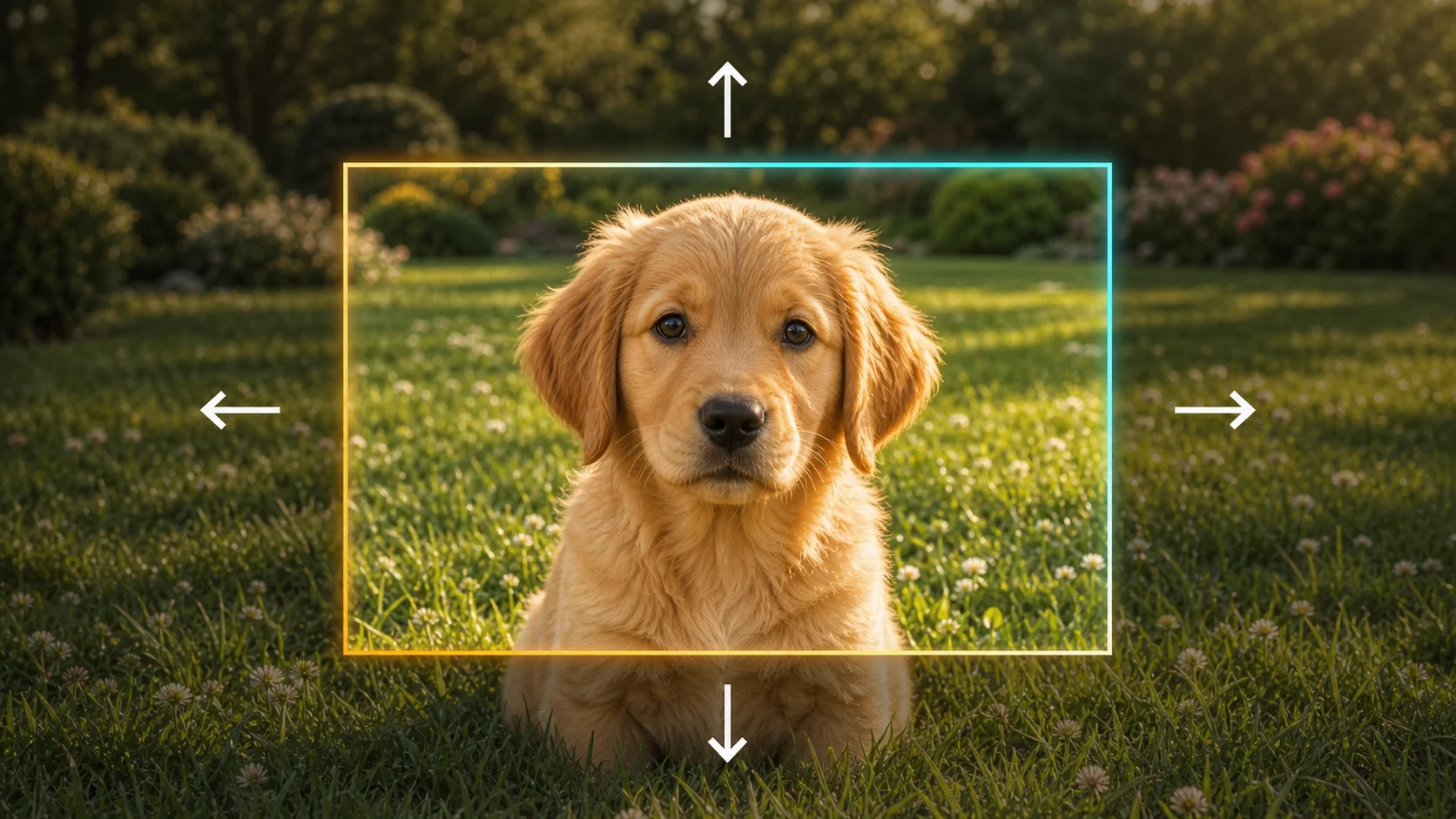
AI Image Uncrop: Expand a Product Background for a Wider Layout
A tightly framed product can leave no room for a banner crop, headline, or supporting design.
What Can You Do with AI Image Uncrop?
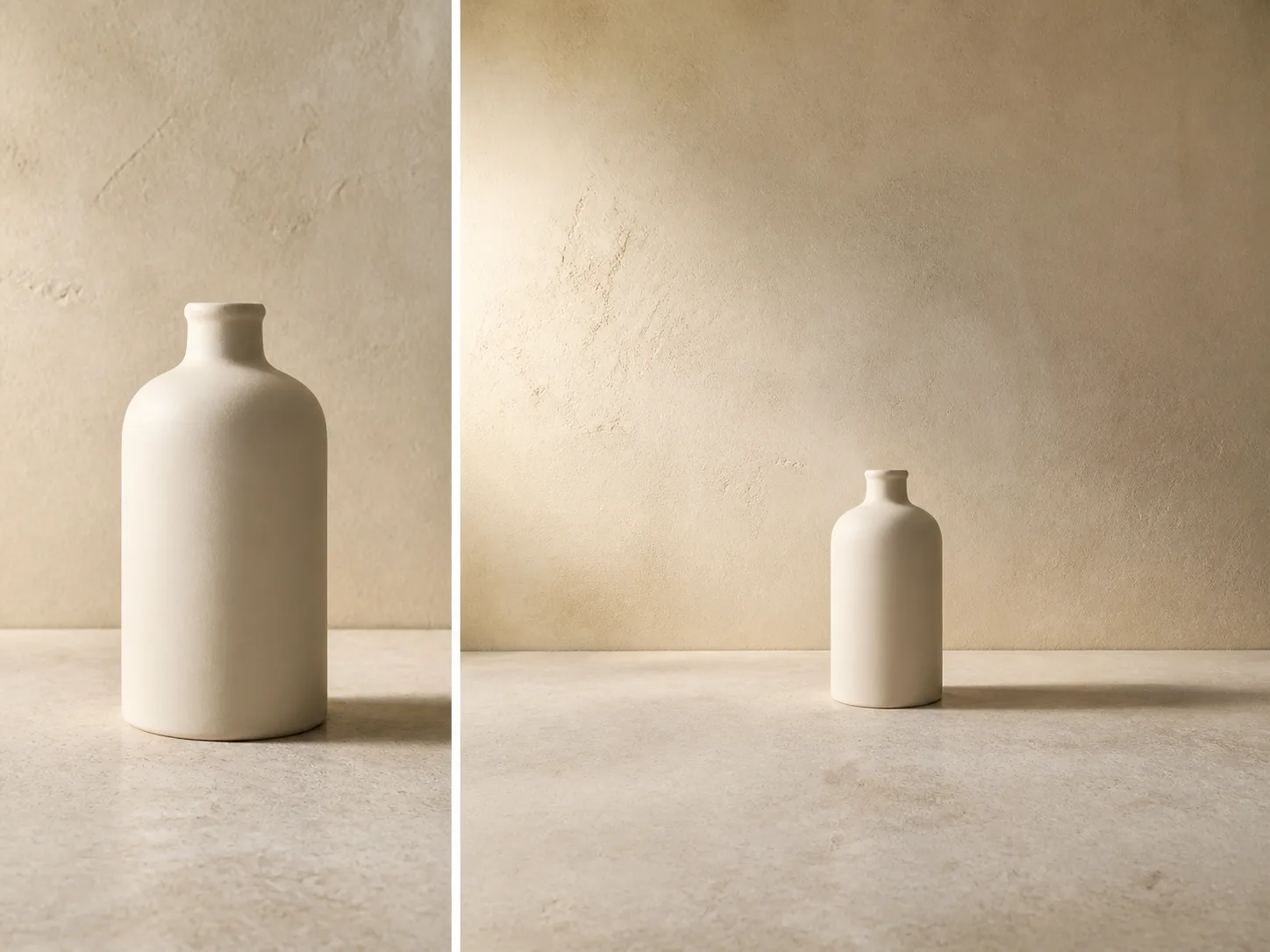
Expand a Product Background for a Wider Layout
A tightly framed product can leave no room for a banner crop, headline, or supporting design. Choose a wider target ratio and let the operation generate additional backdrop around the centered source instead of enlarging the product itself. Inspect the silhouette, surface detail, contact shadow, floor line, and backdrop texture because even a background-focused extension can alter how the composition reads.
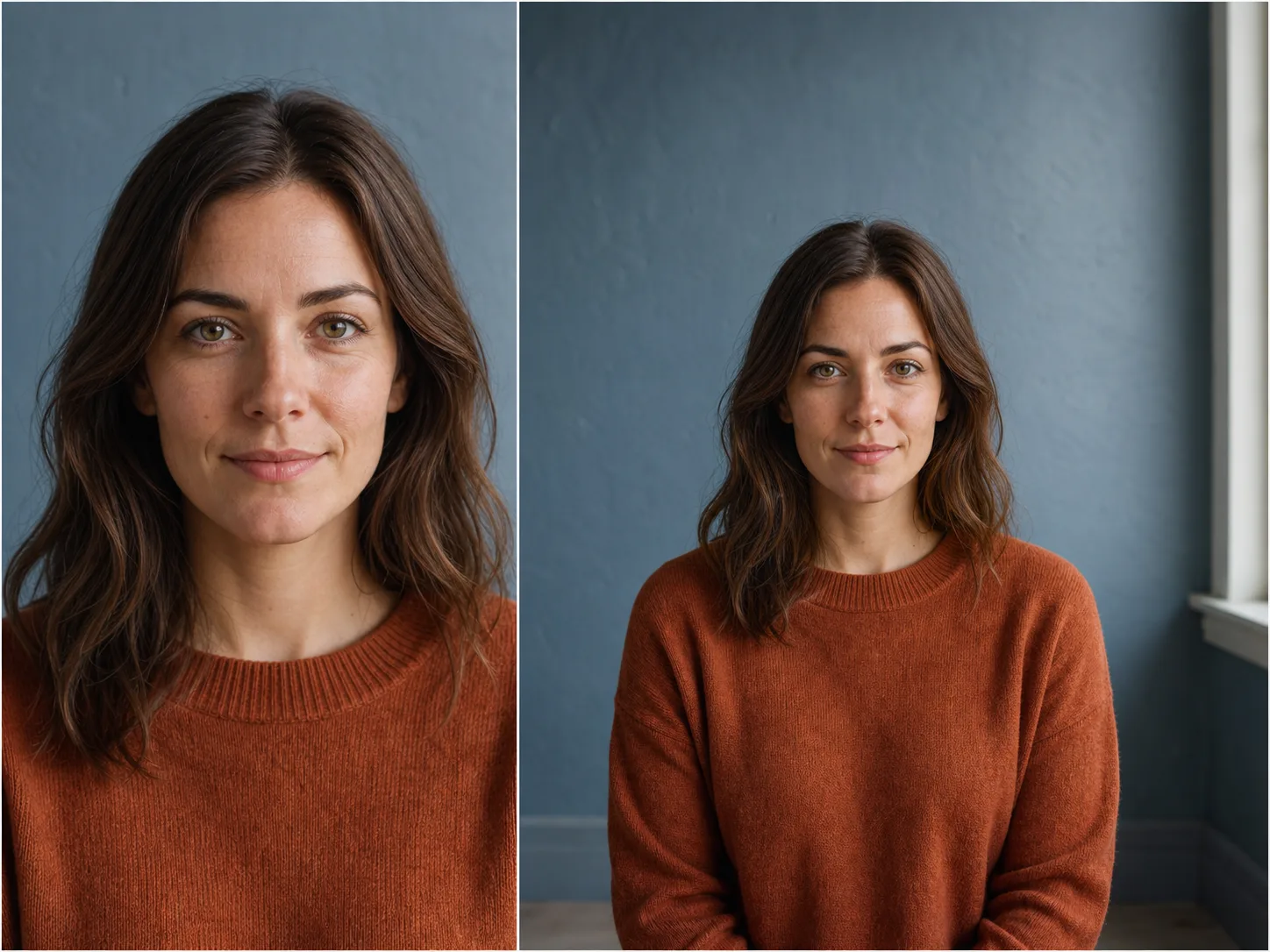
Give a Tight Portrait More Breathing Room
Convert a close portrait into a wider composition when hair, shoulders, or background sit too close to the border. The source gives the model face, clothing, light, and wall context, while the added canvas creates more visual space around the person. Check identity, hair strands, shoulder shape, fabric, window geometry, and skin tone rather than assuming every subject detail will remain exact.
Add Sky and Foreground to a Wide Landscape
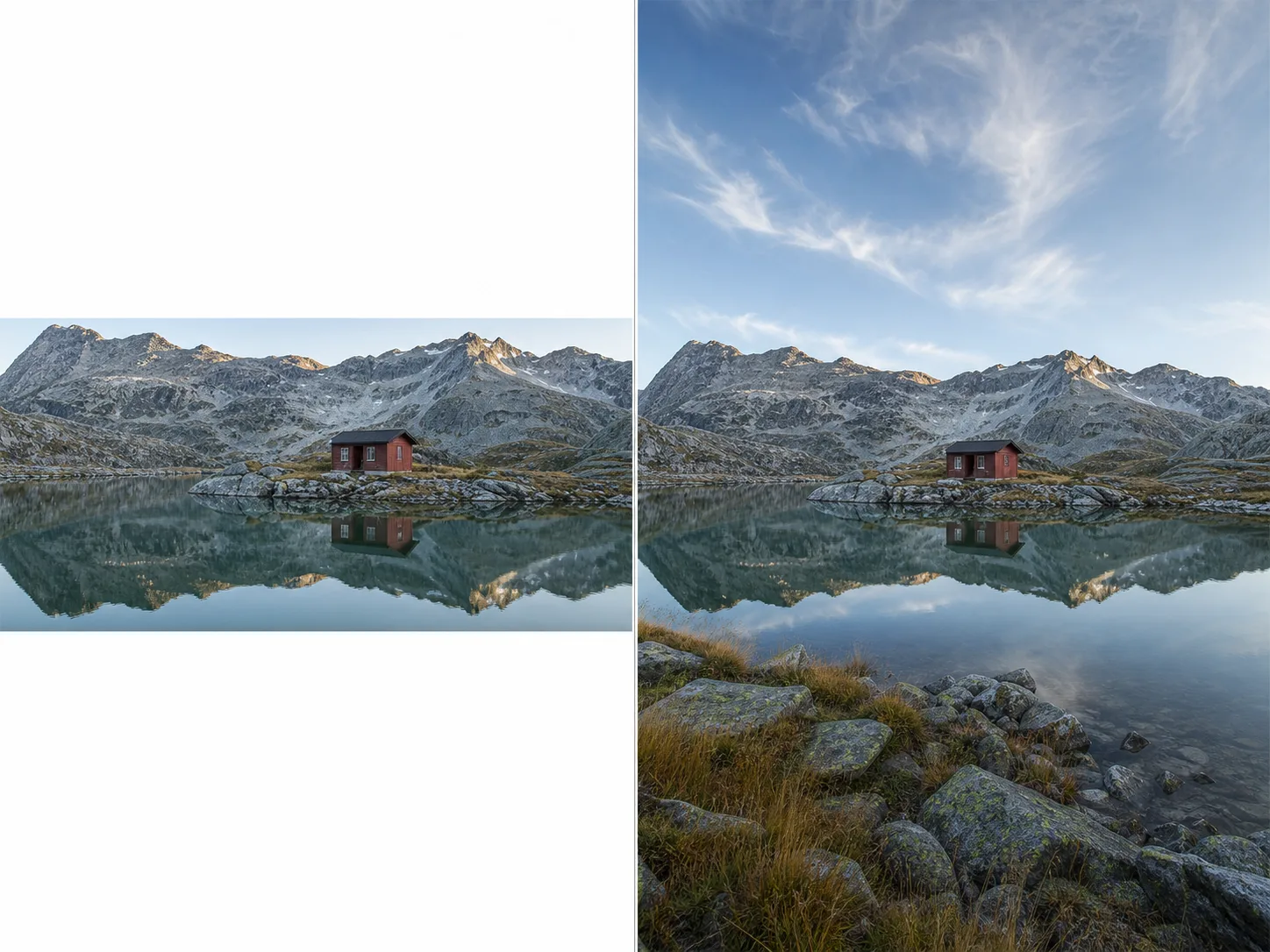
A panoramic source can be too short for a portrait or cover layout even when the central scene is strong. Select a taller ratio so the operation extends sky above and foreground below the existing landscape. Horizon alignment, reflections, mountain contours, clouds, rocks, and vegetation all need to continue across the new boundary, making a moderate first expansion easier to assess than an extreme jump.
Describe What Should Continue Beyond the Border
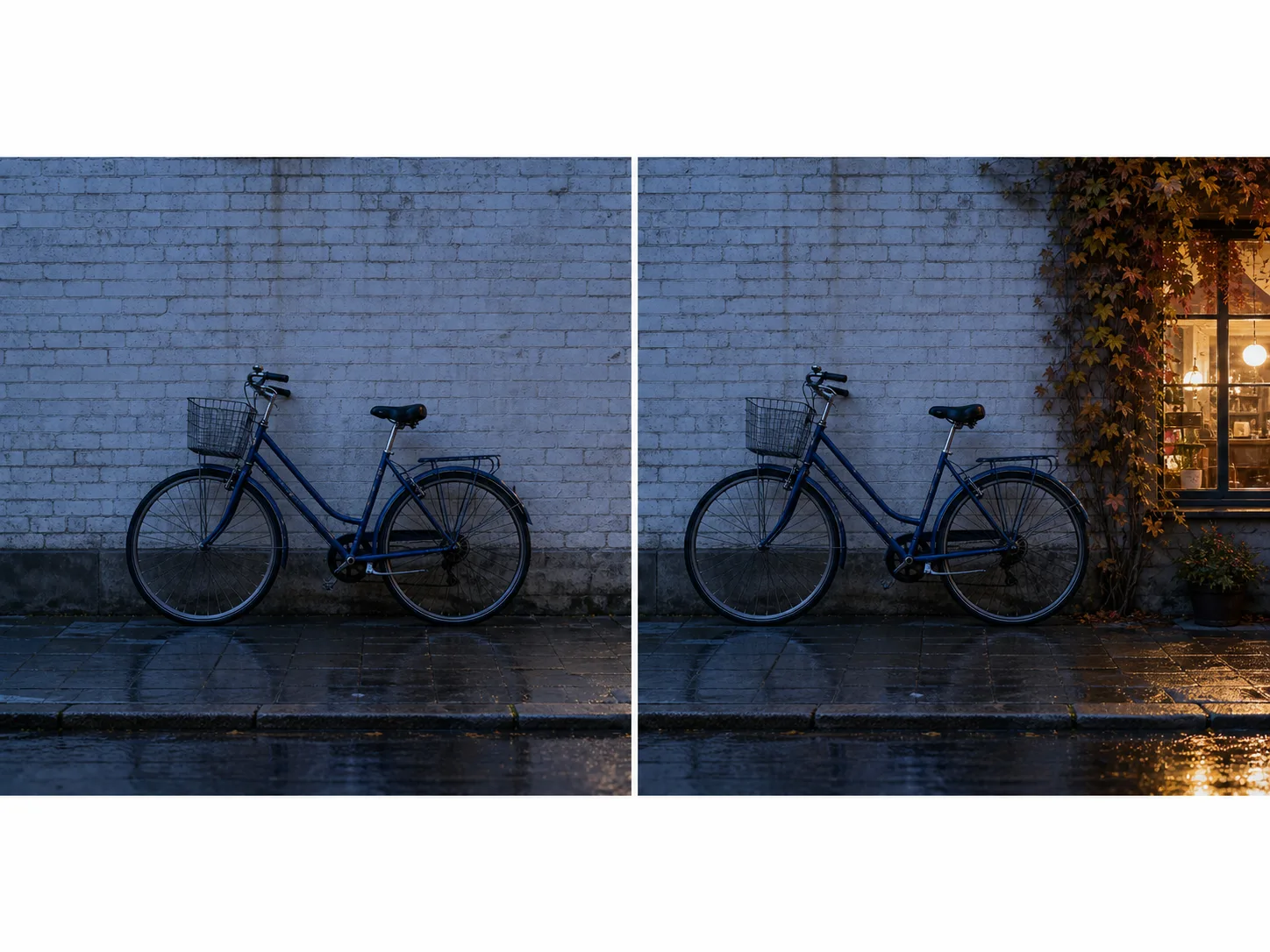
Leave the prompt empty when visible context is enough, or add a concise scene instruction when the new area needs a particular environmental cue. A prompt such as “continue the ivy and warm shop-window glow” can influence the generated outer canvas without requesting a full-image edit. Keep the instruction focused on surroundings, then verify that the source subject, boundary lighting, perspective, and reflections still connect.
How to Uncrop an Image with AI
Upload One Clear Source Image
Choose one JPG, PNG, or WebP image up to 10 MB. Use a sharp source with visible background near the edges so the model has useful evidence for color, texture, lighting, perspective, and continuous lines.
Choose the Target Ratio and Expansion
Select 1:1, 3:4, 4:3, 9:16, 16:9, 2:3, or 3:2. Set Canvas expansion from 5% to 50%, and use the preview to see whether the centered source will gain horizontal or vertical space.
Add Optional Guidance, Submit, and Compare
Describe only the surroundings you want the new canvas to contain, or leave the prompt empty for a context-led attempt. Sign in when asked, confirm the 45-Credit Nuzza, 80-Credit FLUX.2 Pro, or 50-Credit Bria quote, submit the queued task, and compare subjects, lines, light, texture, and reflections across every generated edge before downloading.
Where Can AI Image Uncropping Help?
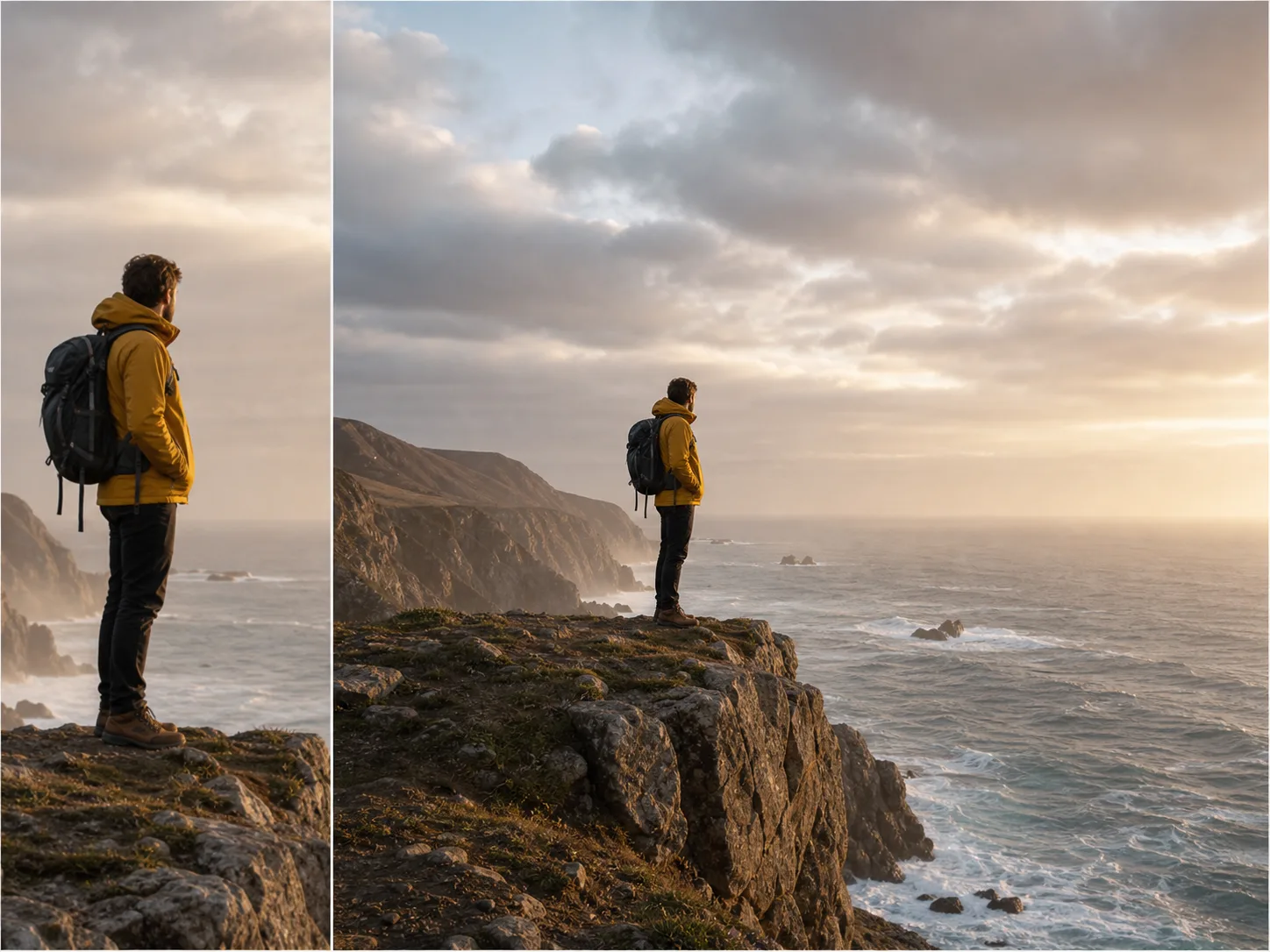
Rebalance a tightly framed viewpoint without trimming the destination.
Extend ocean, sky, rock, or landscape around a traveler when the original crop places the person against an edge. A wider canvas can create breathing room while retaining the central memory, but the generated coastline and terrain are proposals rather than documentary evidence. Check the horizon, body outline, backpack straps, rock structure, and direction of light before sharing the result as an edited image.
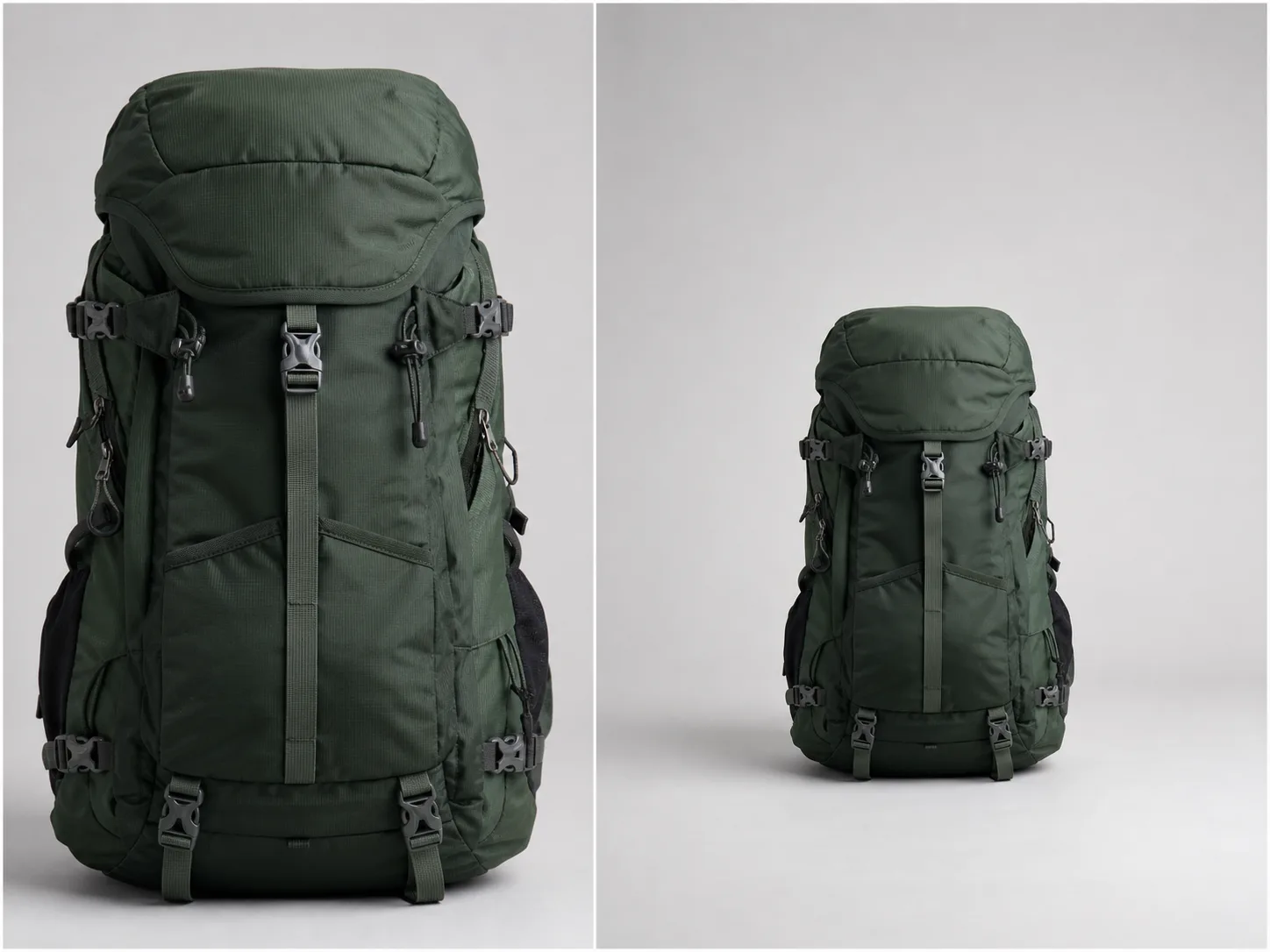
Create more backdrop around an unbranded product for a banner draft.
Turn a tight product crop into a wider composition by generating neutral studio background outside the source. The added space can help test a store header, category banner, or campaign layout without stretching the product. Preserve an honest representation of the real item and inspect straps, seams, buckles, fabric, silhouette, and contact shadow before using the draft in customer-facing material.
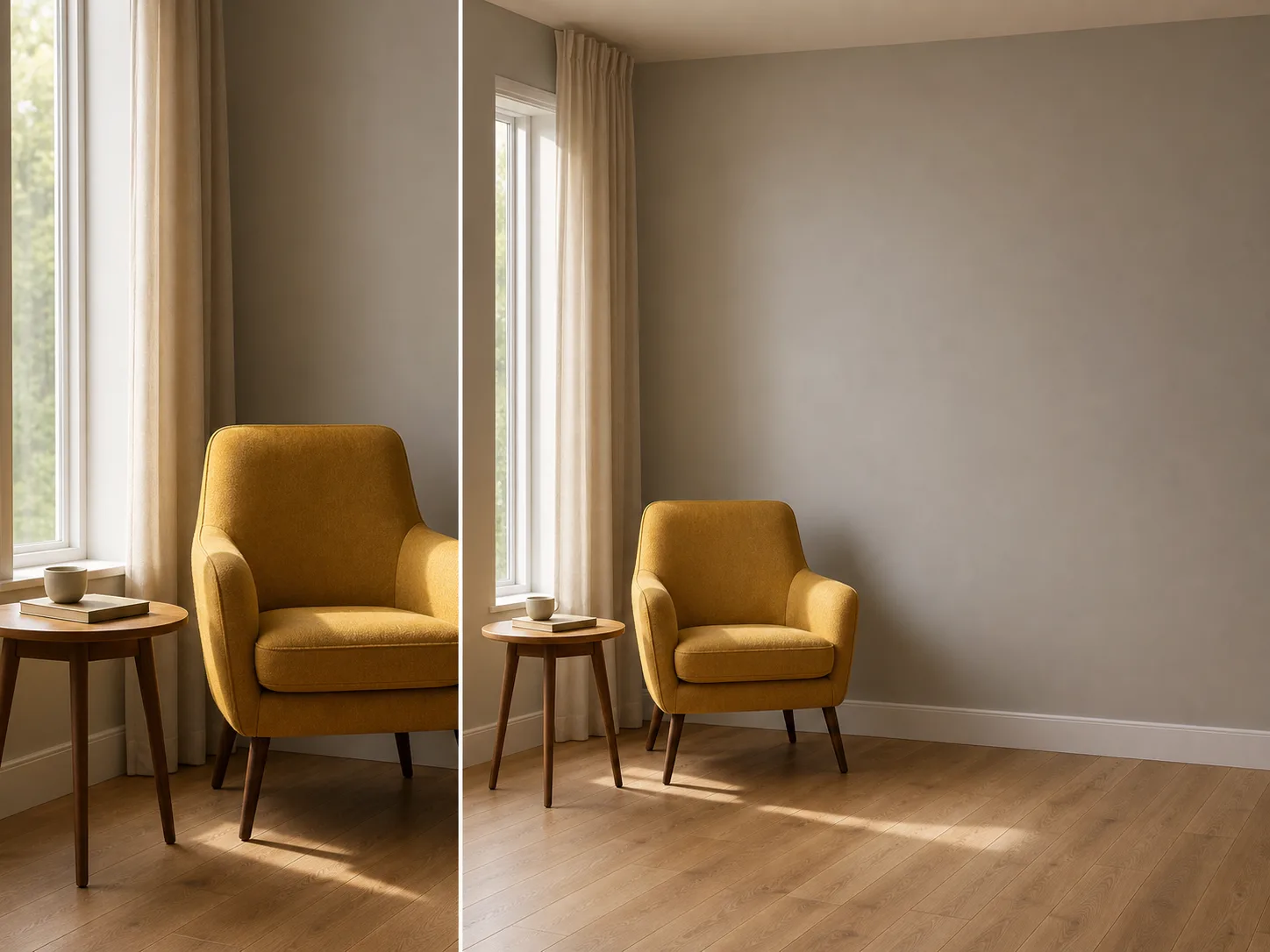
Add layout space around a reading nook while keeping the source arrangement visible.
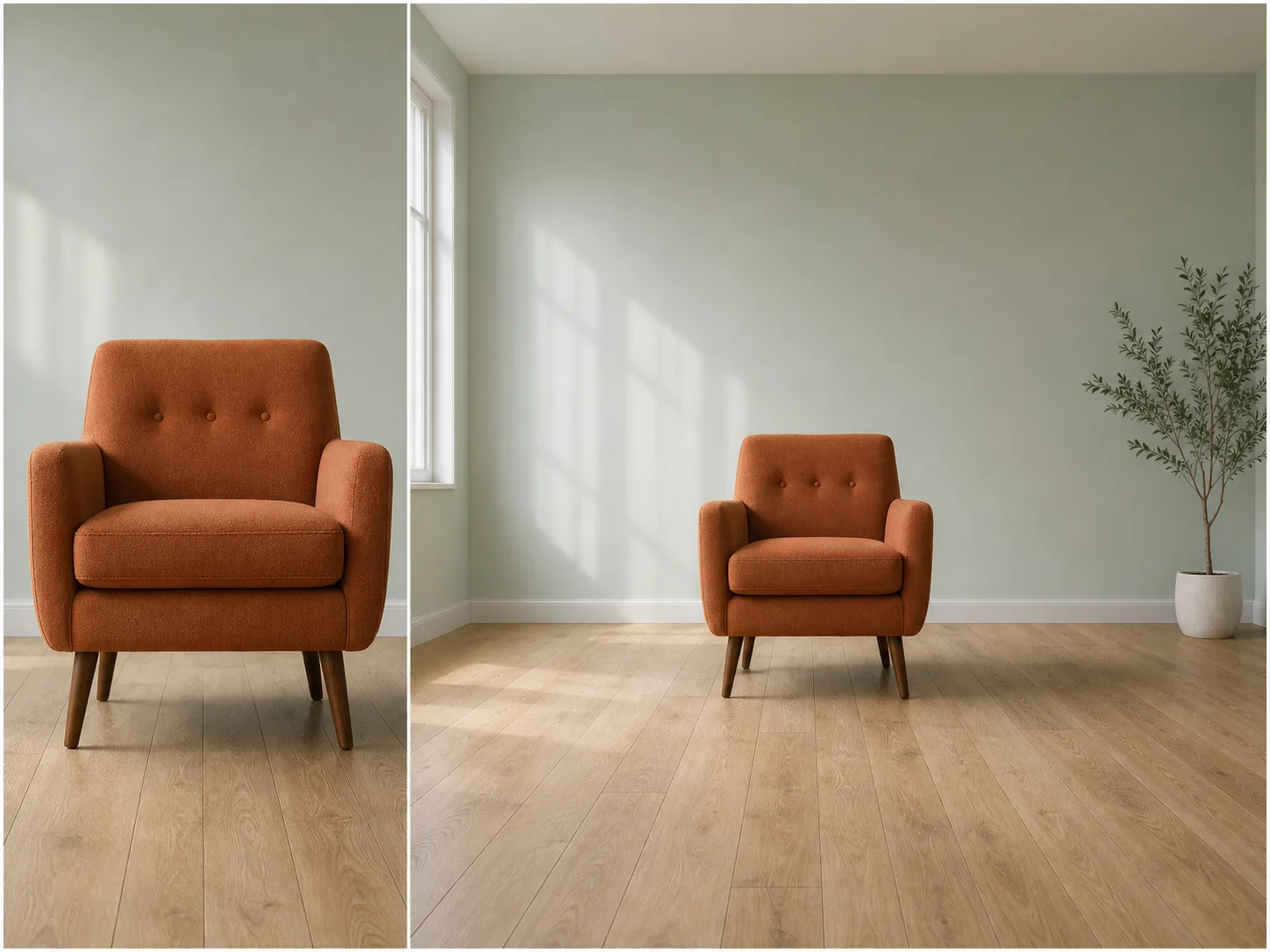
Extend a wall, curtain, floor, or empty corner when an interior crop does not fit a presentation or mood-board frame. The source can guide material and lighting continuity, while the new canvas gives the composition more room. Treat the generated space as a visual proposal, not evidence of the real room, and inspect baseboards, floorboard direction, window edges, furniture scale, and shadows.
Nuzza vs. Top AI Image Uncroppers
| Feature / Model | Nuzza | Adobe Express Uncrop | Clipdrop Uncrop | Pixelcut Uncrop |
|---|---|---|---|---|
| Expansion Options | 3 models with ratio and model-specific controls | Preset sizes with 3 generated variations | Choose a new image format and generate | Preset ratios or canvas extension in any direction |
| Cost | Free with included credits | Premium plan with free trial | Free plan or Pro | Free plan or Pro |
| Best For | Flexible multi-model browser outpainting | Social designs that need a new format | Quick preset-format uncropping | Mobile-friendly directional expansion |
FAQs about AI Image Uncrop
What is Nuzza's AI Image Uncrop?
AI image uncropping expands a canvas beyond its current borders and generates new surroundings from the visible source context. It is also called outpainting, generative expansion, or using an AI image uncropper. The new area is a plausible proposal, not recovered camera data.
What is the best AI image uncrop tool?
The best AI image uncrop tool depends on the source image and the frame you need to create. Nuzza's AI Image Uncrop is a strong choice for centered, aspect-ratio-based outpainting with results you can inspect before use.
Is Nuzza's AI Image Uncrop free to use?
The page is free to browse. Running a task requires Credits, and the current cost is shown before you submit.
What can I use Nuzza's AI Image Uncrop for?
Nuzza's AI Image Uncrop is useful for travel photos, ecommerce layouts, and interior presentations. Extend ocean, sky, rock, or landscape around a traveler when the original crop places the person against an edge. A wider canvas can create breathing room while retaining the central memory, but the generated coastline and terrain are proposals rather than documentary evidence. Check the horizon, body outline, backpack straps, rock structure, and direction of light before sharing the result as an edited image.
What inputs does Nuzza's AI Image Uncrop support?
You can upload one JPG, PNG, or WebP source image up to 10 MB for each task.
Do I need to sign in to use Nuzza's AI Image Uncrop?
You can prepare the upload, ratio, expansion, and prompt first, but submission requires sign-in.
What should I check in the image result?
The source guides the outpainting task, but this page does not promise pixel locking or exact recovery of content beyond the frame. Inspect subjects, faces, hands, text, logos, reflections, straight lines, repeated texture, lighting, and every transition into the generated area before keeping the result.
Which aspect ratios can I use?
The workspace offers 1:1, 3:4, 4:3, 9:16, 16:9, 2:3, and 3:2 presets. The preview shows the centered source within the selected target ratio.
Are uncrop results publicly discoverable, and can I process a batch?
Pro and Ultra users can turn off Public Visibility to keep a result out of Explore and public Inspiration. The result still uses a directly accessible CDN URL, so this is unlisted rather than file-level private. This route handles one source image and one output per task; it does not provide batch upload.