AI Text Remover


AI Text Remover: Clear Writing While Rebuilding the Background
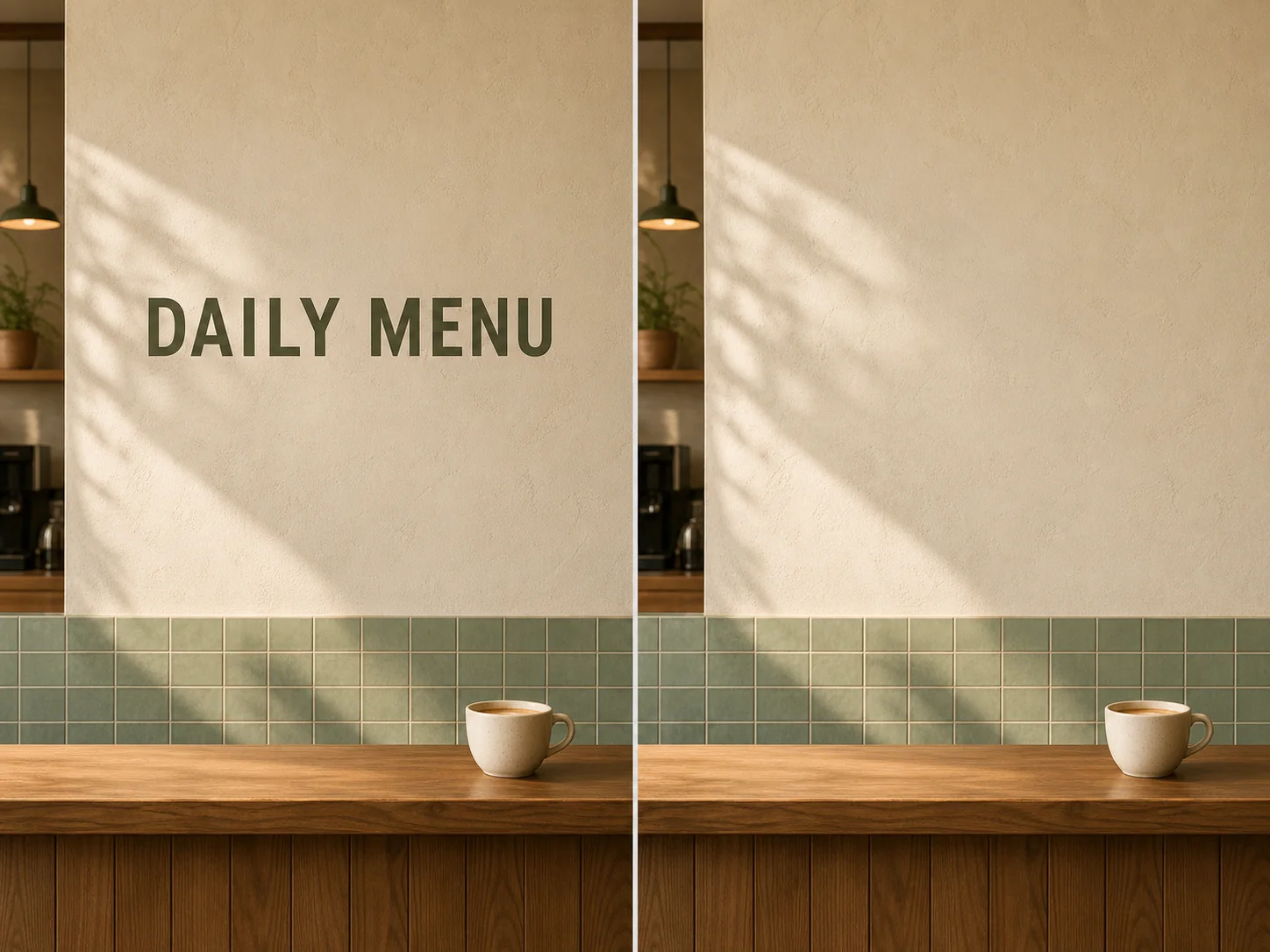
Brush over unwanted lettering and let the tool estimate the color or texture behind it, then inspect the reconstructed area at full size.
What Can an AI Text Remover Reconstruct?
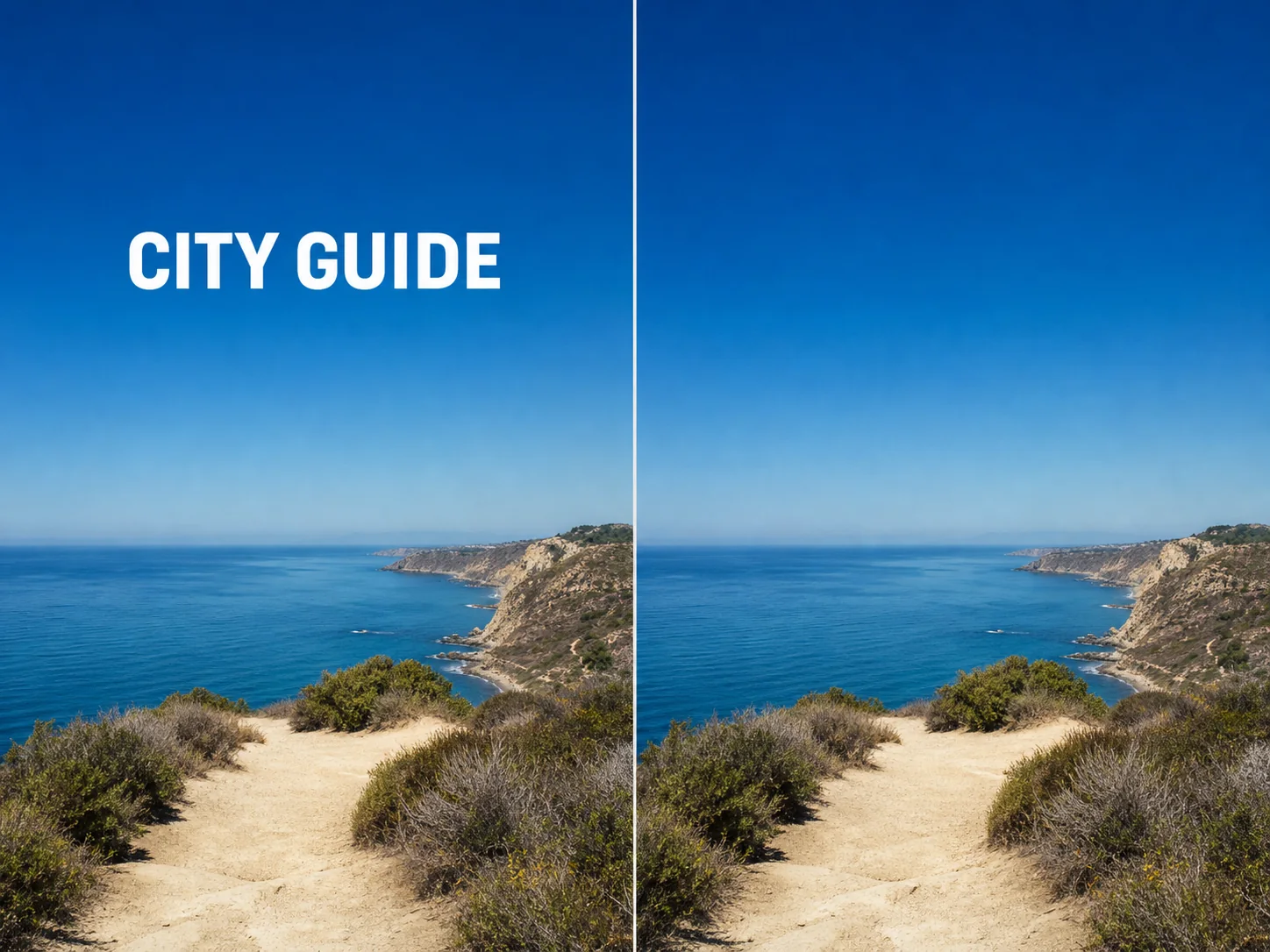
Clear a Temporary Caption from a Simple Scene
Remove a short caption laid over open sky, a plain wall, or another broad surface when you control the source image. Paint a compact mask across the complete lettering so the model can estimate the color or texture behind it. Inspect letter-shaped halos, softened gradients, and any nearby subject edge, because even a simple background is reconstructed rather than recovered from hidden original pixels.
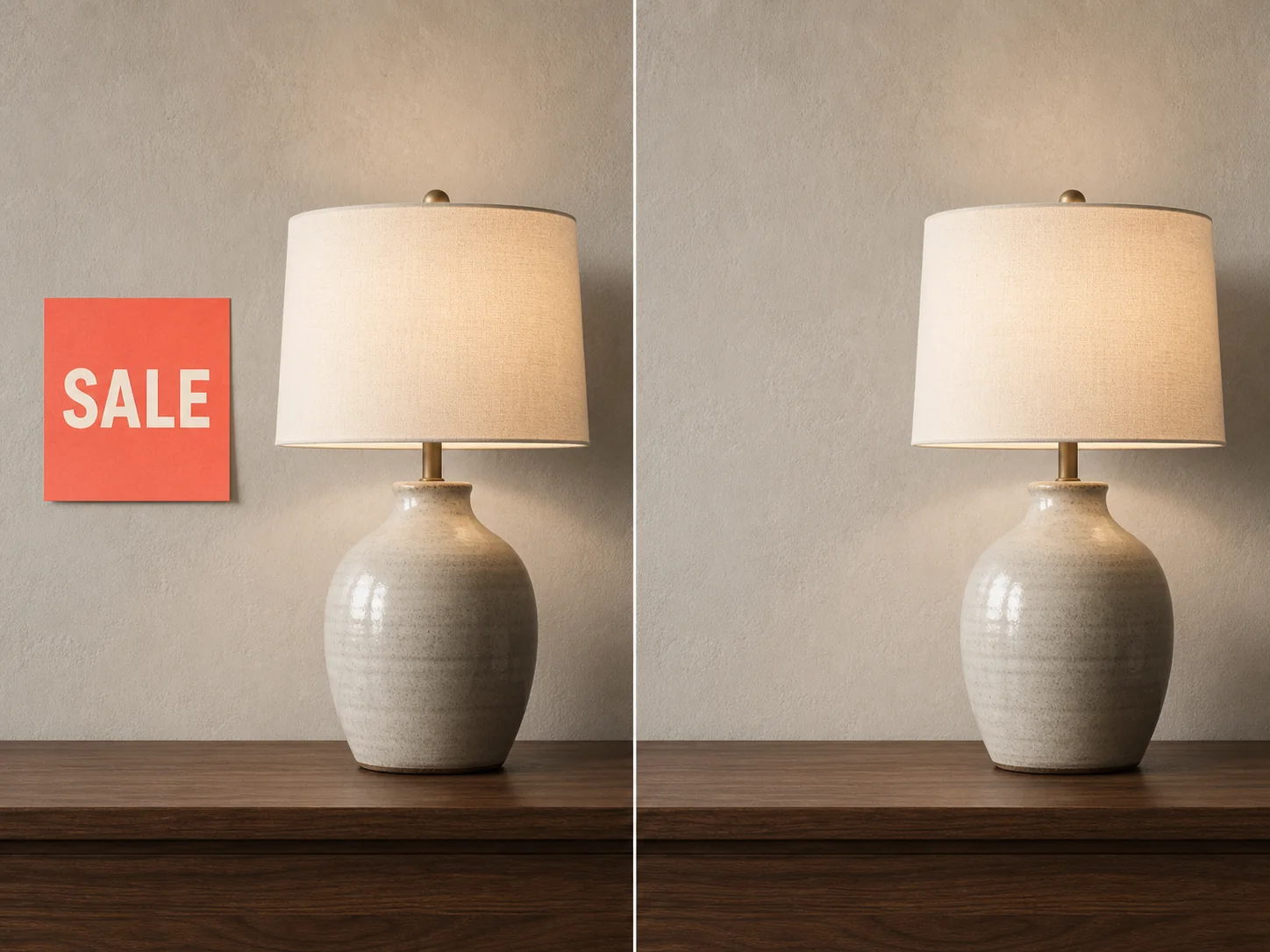
Remove Outdated Words from an Authorized Product Scene
Clean a temporary price note, internal draft label, or obsolete campaign overlay from a product image your team owns. The operation processes visible writing across the complete frame, so start from a version where brand names, package instructions, and required labels do not need to remain. Review product edges, material grain, reflections, and cast shadows so the generated fill does not change what the item appears to be.
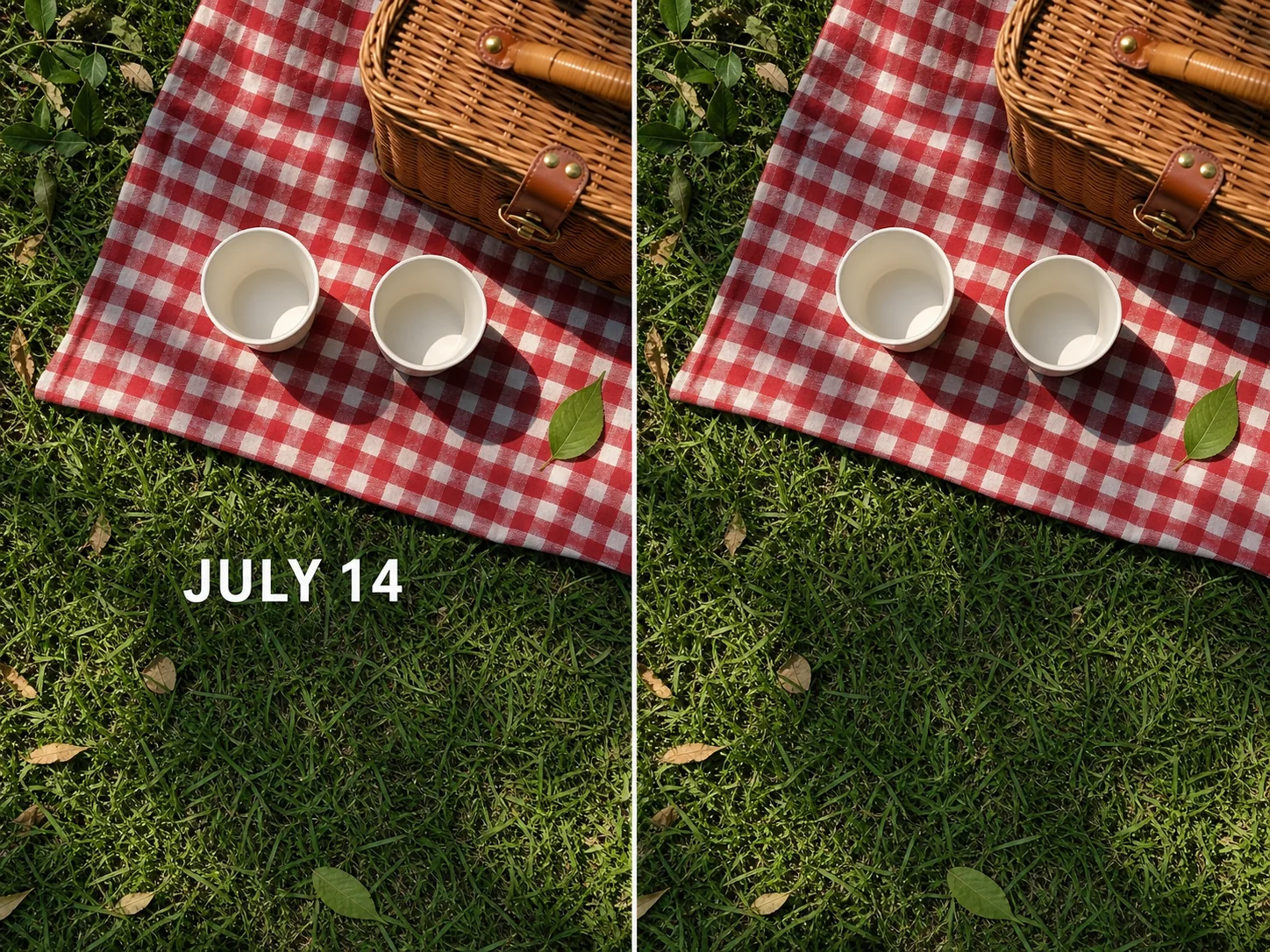
Clean a Date Caption from a Personal Photo You Control
Remove a date caption or event note from your own exported photo when the underlying scene is still visible around the text. Fine texture such as grass, fabric, hair, or gravel gives the model a harder reconstruction problem than flat sky or plaster. Compare the repaired region with nearby pattern direction and lighting, and keep the original file because this tool creates a new estimate rather than restoring an archival source.
How to Use the AI Text Remover
Choose One Supported Source
Upload one JPG, PNG, or WebP image no larger than 10 MB. Use a source you own or are authorized to modify, and keep an untouched original outside the workspace.
Paint Every Letter You Want Removed
Use the brush to cover the unwanted writing and its antialiased edges. Leave required labels, signs, names, and intentional typography outside the mask.
Review the Quote and the Reconstruction
Choose a model, sign in when asked, and review its 50, 100, or 270-Credit quote before submission. If provider execution completes, compare the result with the source for missed letters, changed details, texture repetition, soft patches, edge breaks, and altered shadows.
Where Can Image Text Removal Help?
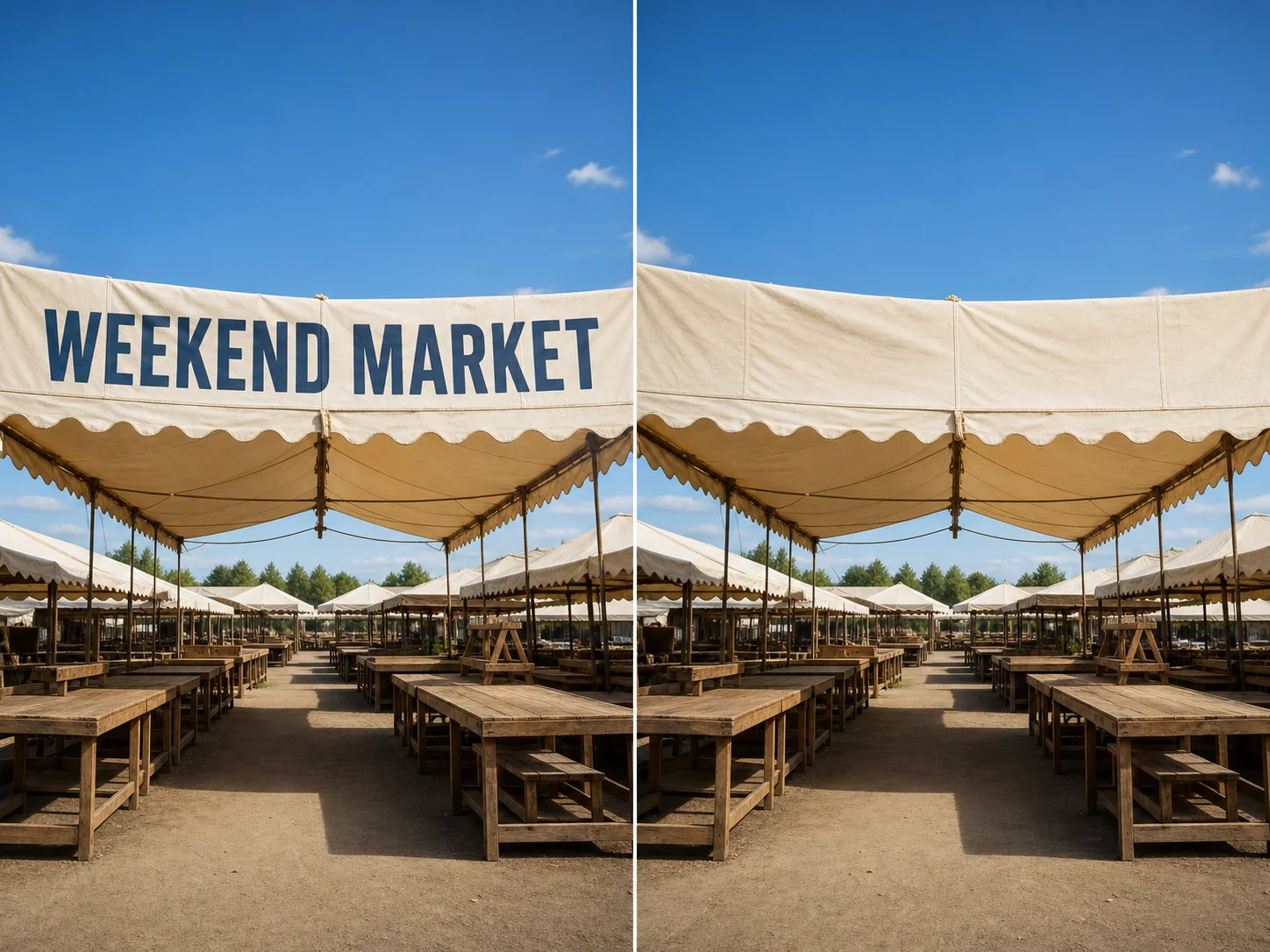
Refresh a Visual After Temporary Campaign Copy Expires.
Remove a seasonal headline or internal draft message from an image your organization controls, then use the reconstructed base only after checking that products, people, and brand-critical details remain accurate. This can recover visual flexibility without cropping away the original composition, but it is not a substitute for keeping the layered design source.
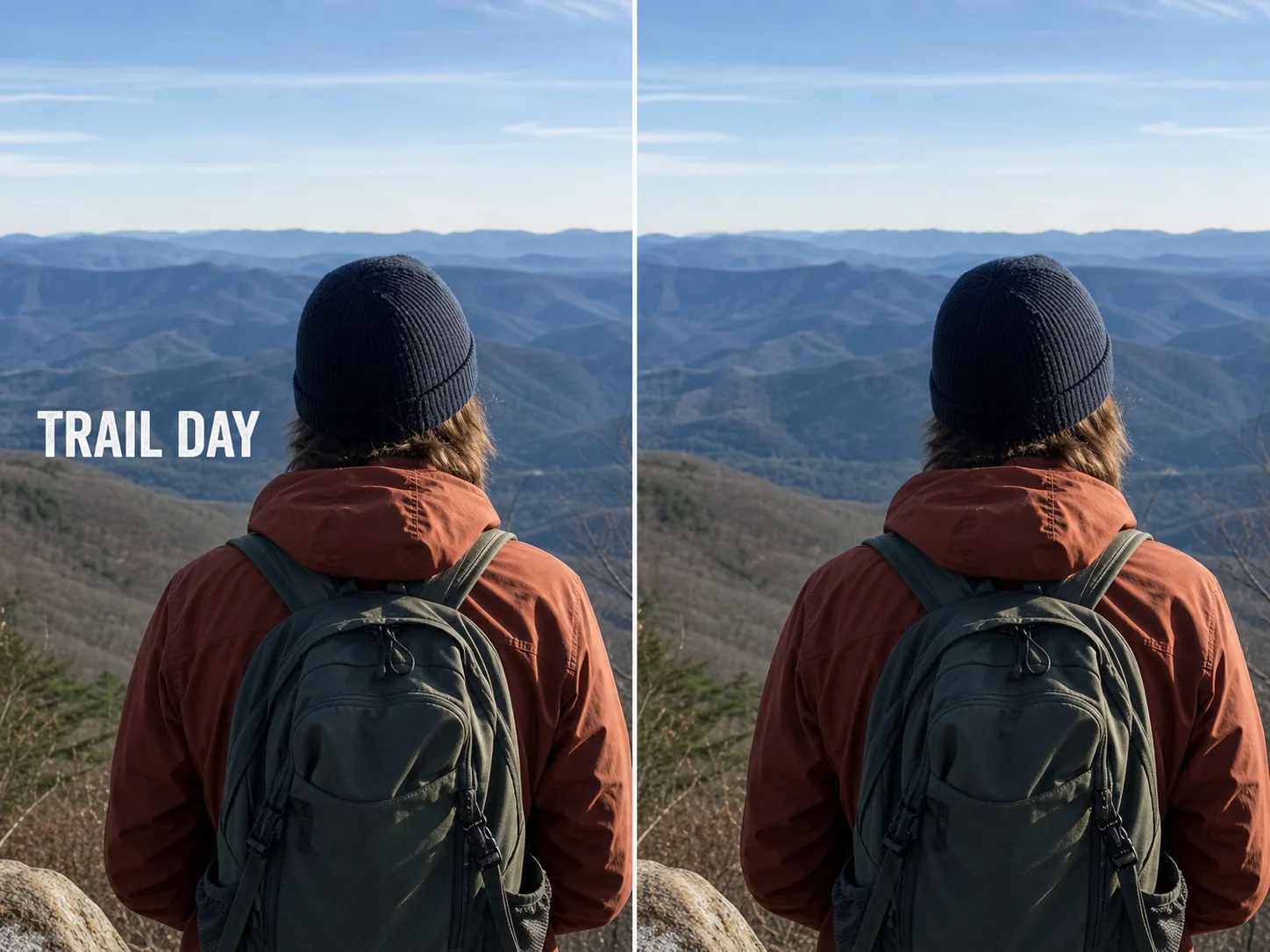
Clean an Added Caption from Your Own Saved Photo.
Remove an app-added caption, date line, or draft annotation from an image you created when the original clean export is unavailable. A compact hand-painted selection limits the intended edit region, while a side-by-side review helps catch changes to skin, hair, fabric, railings, foliage, or other detail crossing the lettering.
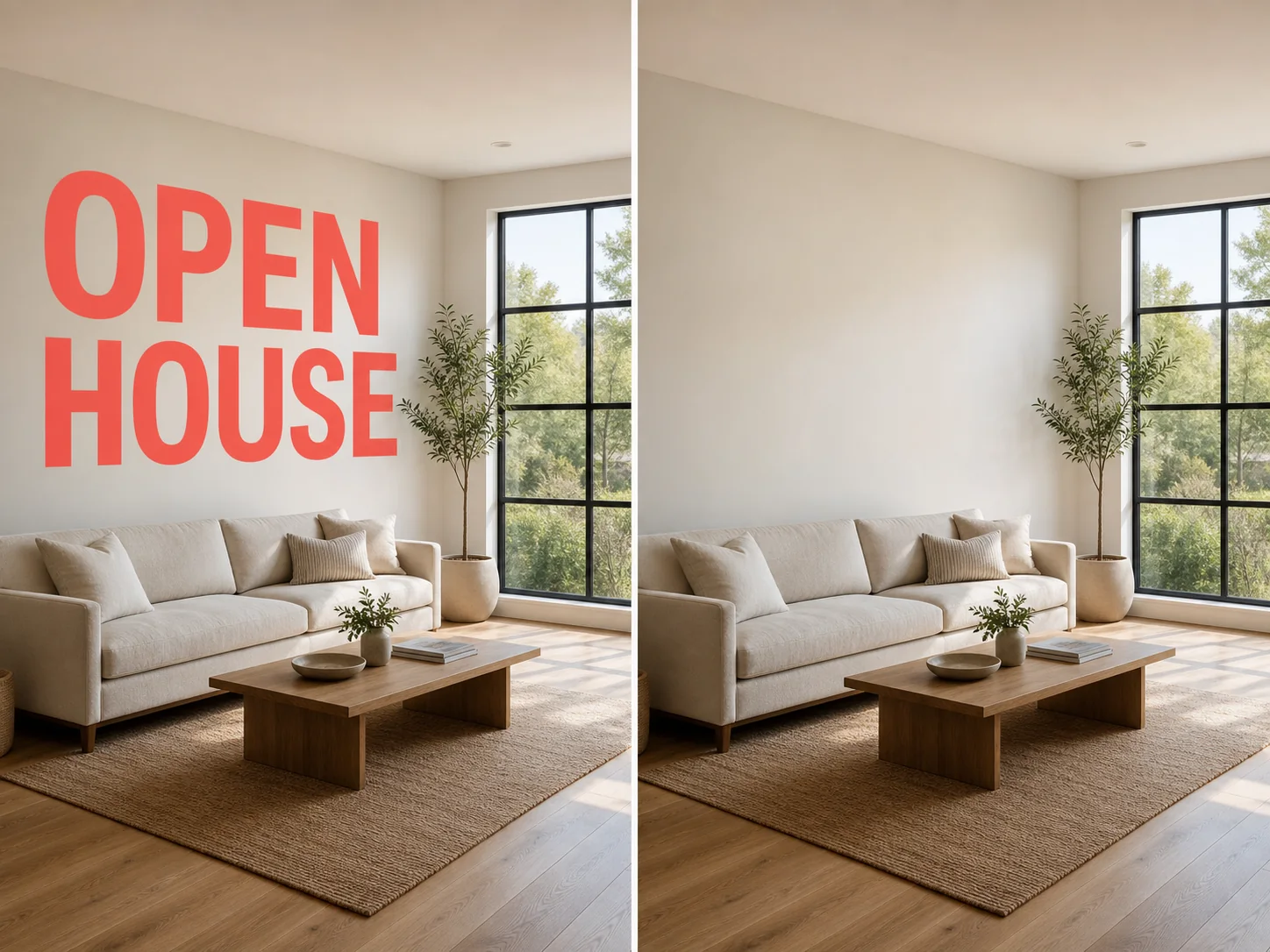
Remove an Outdated Open-House Overlay from a Property Photo.
Clean a temporary OPEN HOUSE overlay from property media you own or are contracted to edit while retaining the full room or exterior frame. Carefully inspect window lines, brick, flooring, trim, and repeated materials; reconstructed pixels must not be treated as evidence of a property's exact condition or used to conceal defects or required disclosures.
Nuzza vs. Top AI Text Removers
| Feature / Model | Nuzza | Pixelcut Text Remover | Fotor Text Remover | Clipdrop Text Remover |
|---|---|---|---|---|
| Removal Options | Manual mask with Nuzza Remove, Nano Banana 2, or GPT Image 2. | Highlight unwanted text for AI reconstruction. | Automatic text detection or brush-selected removal. | Automatically detects and removes all visible text. |
| Cost | Free with included credits | Free HD download | Free credits; paid plans available | Free standard resolution; Pro for HD |
| Best For | Controlled multi-model text cleanup | Fast text removal on web or mobile | Automatic cleanup plus further photo editing | One-click cleanup without manual selection |
FAQs about AI Text Remover
What is Nuzza's AI Text Remover?
An AI text remover edits image pixels: it identifies visible writing, removes those regions, and estimates what the background could look like behind them. It is not an OCR transcript service and cannot recover exact hidden original pixels.
What is the best AI text remover?
The best AI text remover depends on the input, intended result, budget, and controls you need. Nuzza's AI Text Remover is a strong choice for brush-selected text removal plus generated surface reconstruction.
Is Nuzza's AI Text Remover free to use?
The page is free to browse. Running a task requires Credits, and the current cost is shown before you submit.
What can I use Nuzza's AI Text Remover for?
Nuzza's AI Text Remover is useful for owned campaign drafts, personal photo exports, and authorized property media. Remove a seasonal headline or internal draft message from an image your organization controls, then use the reconstructed base only after checking that products, people, and brand-critical details remain accurate. This can recover visual flexibility without cropping away the original composition, but it is not a substitute for keeping the layered design source.
What inputs does Nuzza's AI Text Remover support?
The tool accepts one JPG, PNG, or WebP image up to 10 MB per task. The available output is determined by the processing option selected in the workspace.
Do I need to sign in to use Nuzza's AI Text Remover?
You can select and preview a source before authentication, but task submission requires a signed-in account.
What should I check in the image result?
No exact restoration is guaranteed. The operation generates a plausible continuation from visible context, so unique art, faces, reflections, product detail, straight lines, and repeating patterns may change or show artifacts. Compare the result with the source at full size.
Does this text remover from image require a mask or prompt?
A brush mask is required, but a written prompt is not. Paint over the lettering you want removed, then review the generated reconstruction at full size.
Can I use AI text remover to erase watermarks, signatures, or ownership information?
Use the tool only on images you own or are authorized to modify, and do not remove watermarks, signatures, copyright notices, provenance marks, or other ownership information without the rights holder's permission. The workflow does not determine whether an edit is lawful or allowed by a platform, contract, or license.