
LTX 2.3
LTX 2.3 is a joint audio-video model from Lightricks with stronger picture quality, sound quality, and prompt adherence than earlier LTX-2 releases. Nuzza connects text-to-video and start-image workflows with delivery controls for duration, framing, resolution, frame rate, and generated audio.
Why Creators Choose LTX 2.3?
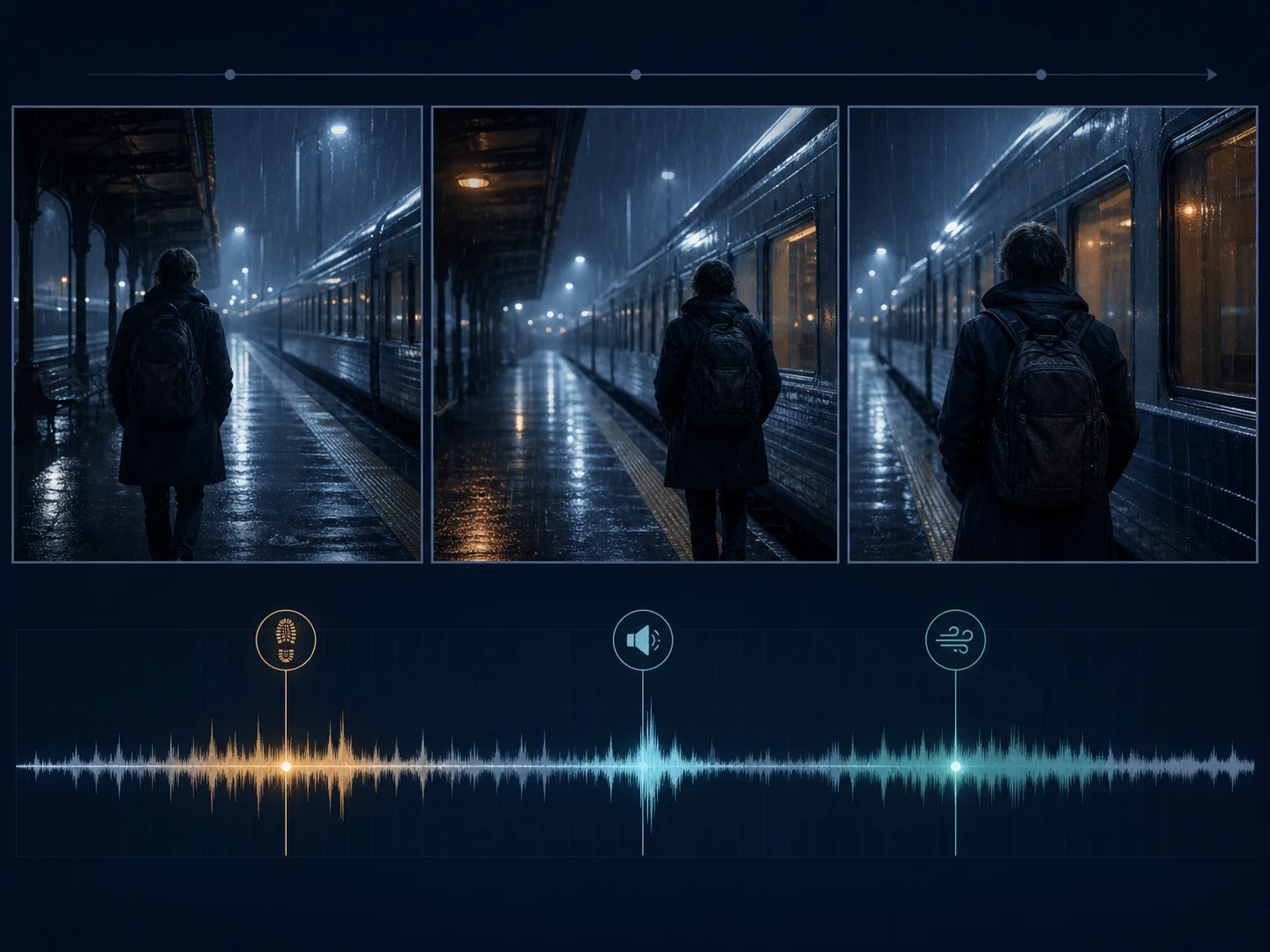
Generate Synchronized Video and Audio Together
Describe visible action together with dialogue, ambience, music, or effects in one prompt. LTX 2.3 generates picture and sound as parts of the same model output, although every result still needs a full synchronization and clarity review.
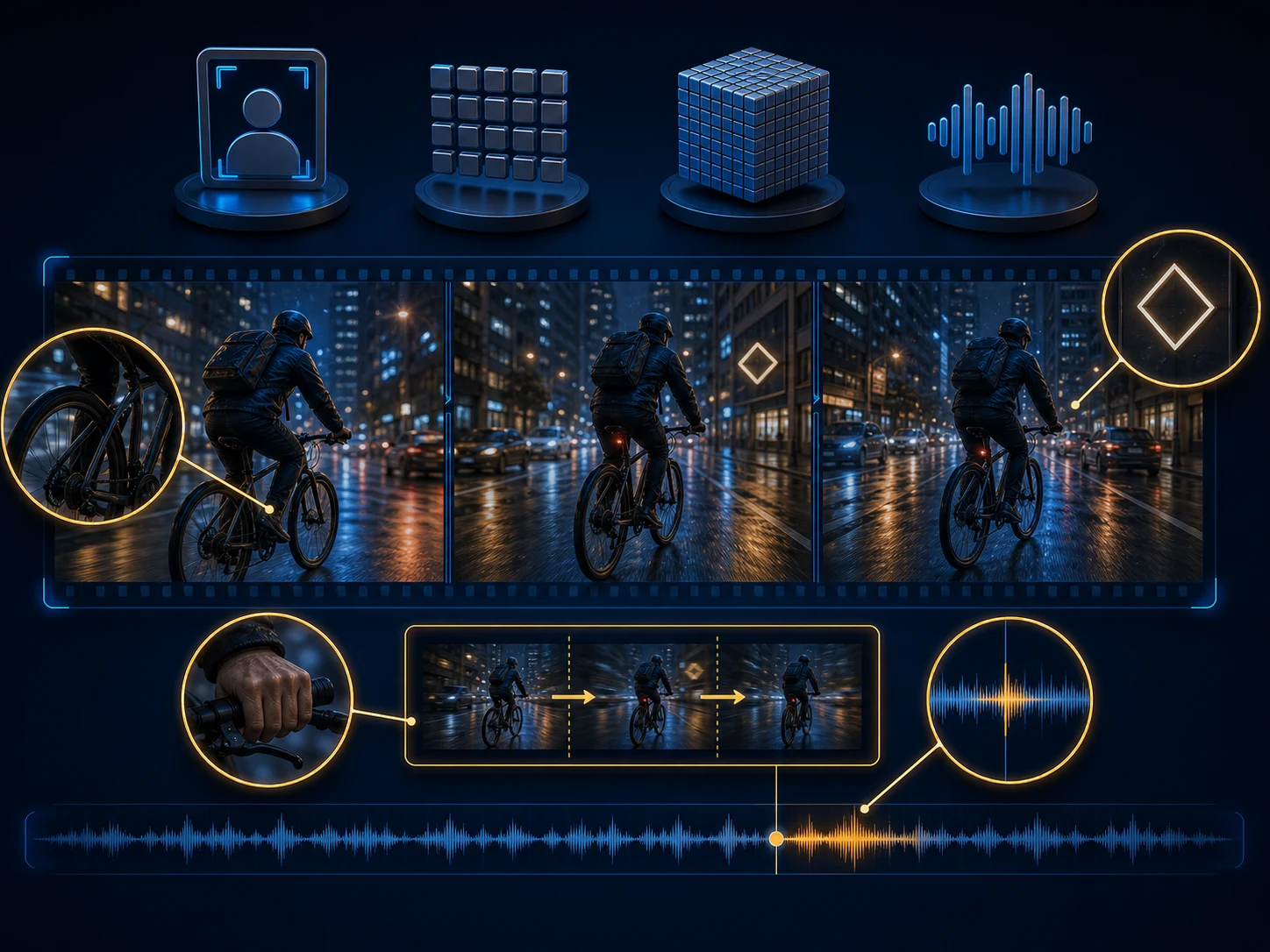
Start from Text or One Opening Image
Build a scene from a written brief, or upload one image when the opening composition already matters. In image-to-video mode, state what should move and which subject, lighting, and framing details should remain recognizable.
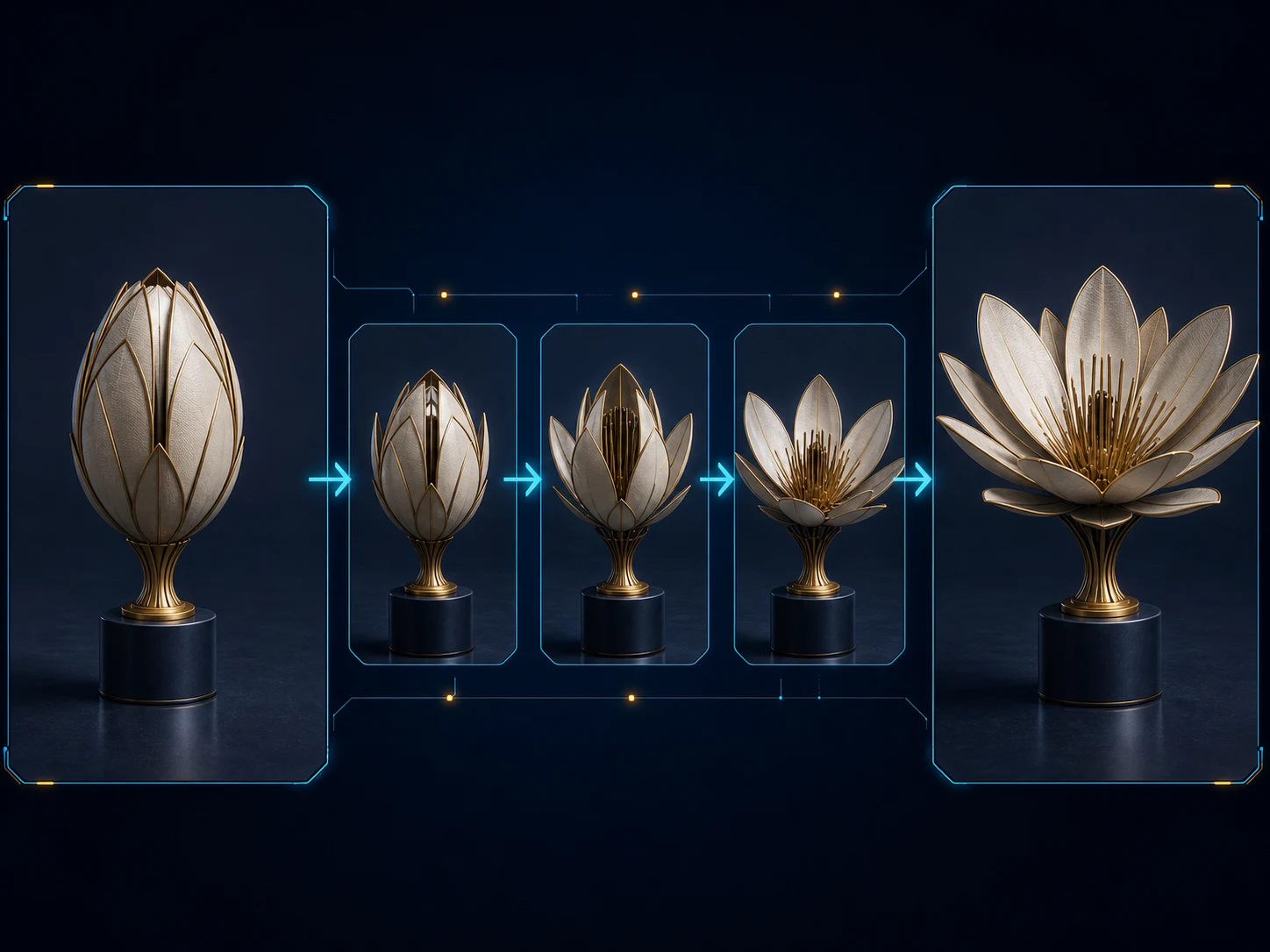
Guide the Destination with an End Frame
Add an optional end-image URL when both the opening and destination compositions matter. Compatible viewpoint, scale, lighting, and geometry give LTX 2.3 a clearer transition to solve without guaranteeing frame-exact interpolation.
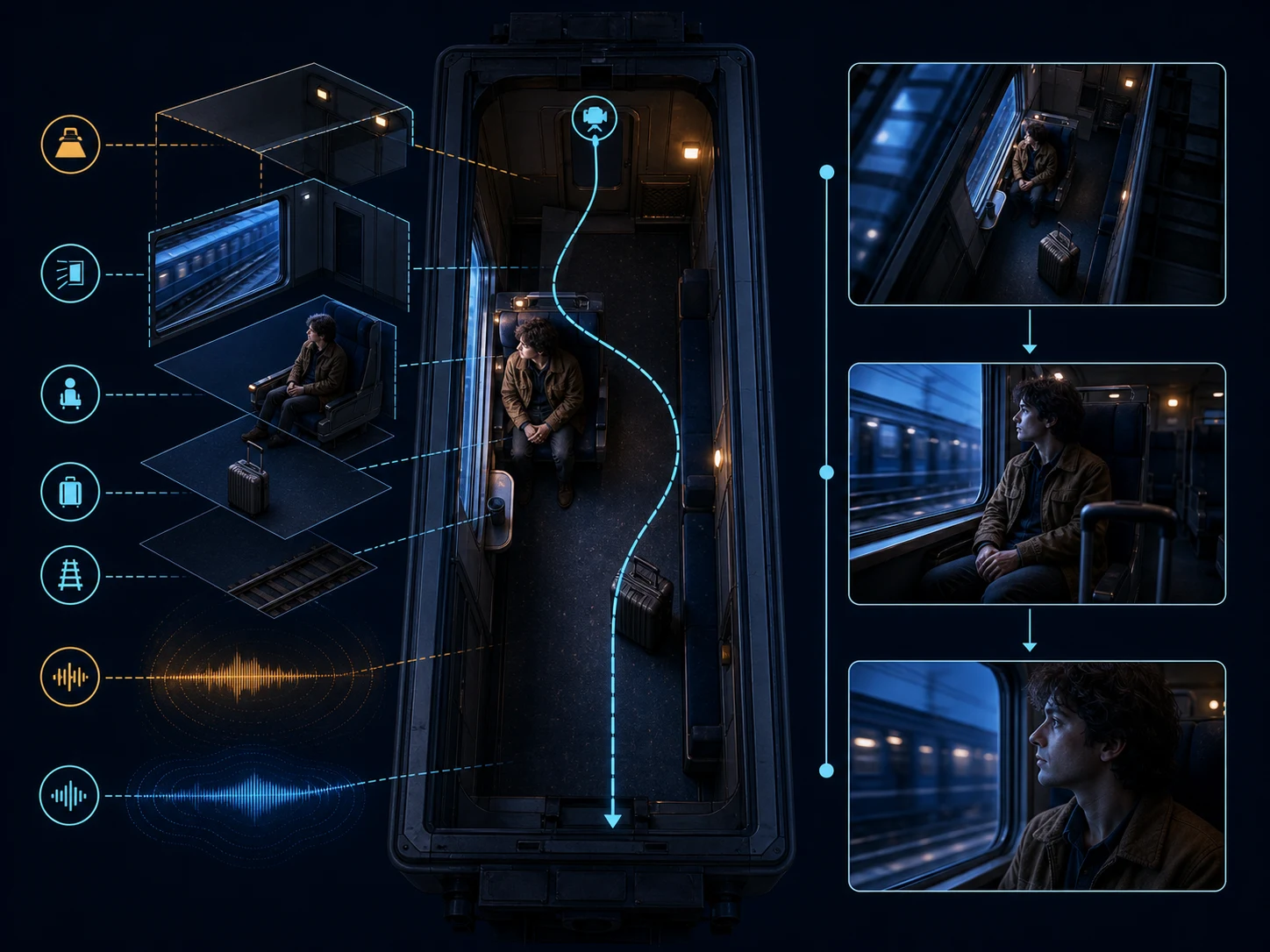
Follow More Detailed Creative Instructions
Lightricks describes LTX 2.3 as improving prompt adherence over LTX-2. Organize the subject, action, environment, camera, light, and sound in viewing order so each requested relationship is easier to evaluate.
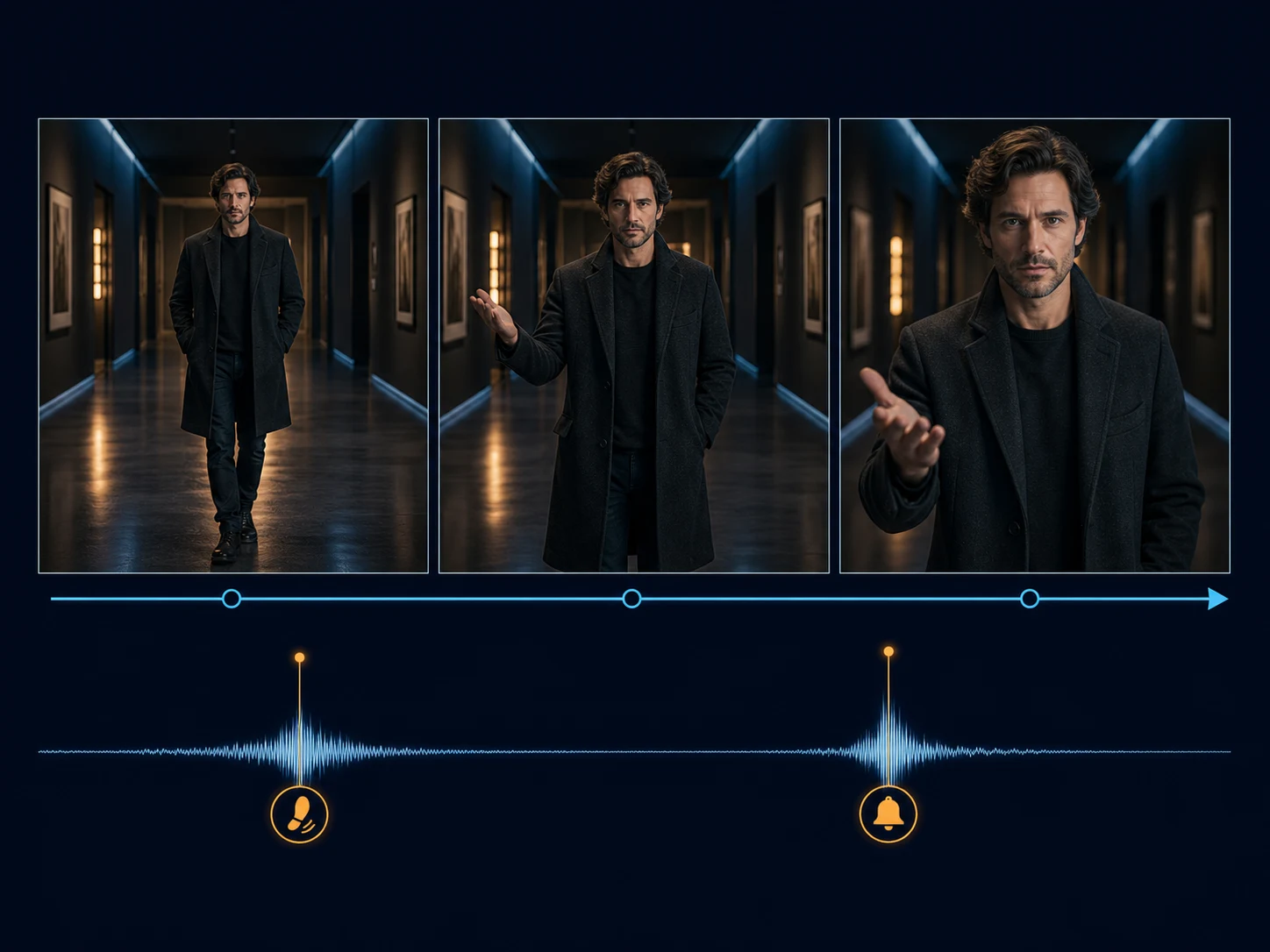
Render Cleaner Picture and Sound
The 2.3 update targets higher visual and audio quality while preserving the joint audiovisual foundation. Use focused actions and short spoken lines, then inspect motion, anatomy, texture, pronunciation, and background sound before publishing.
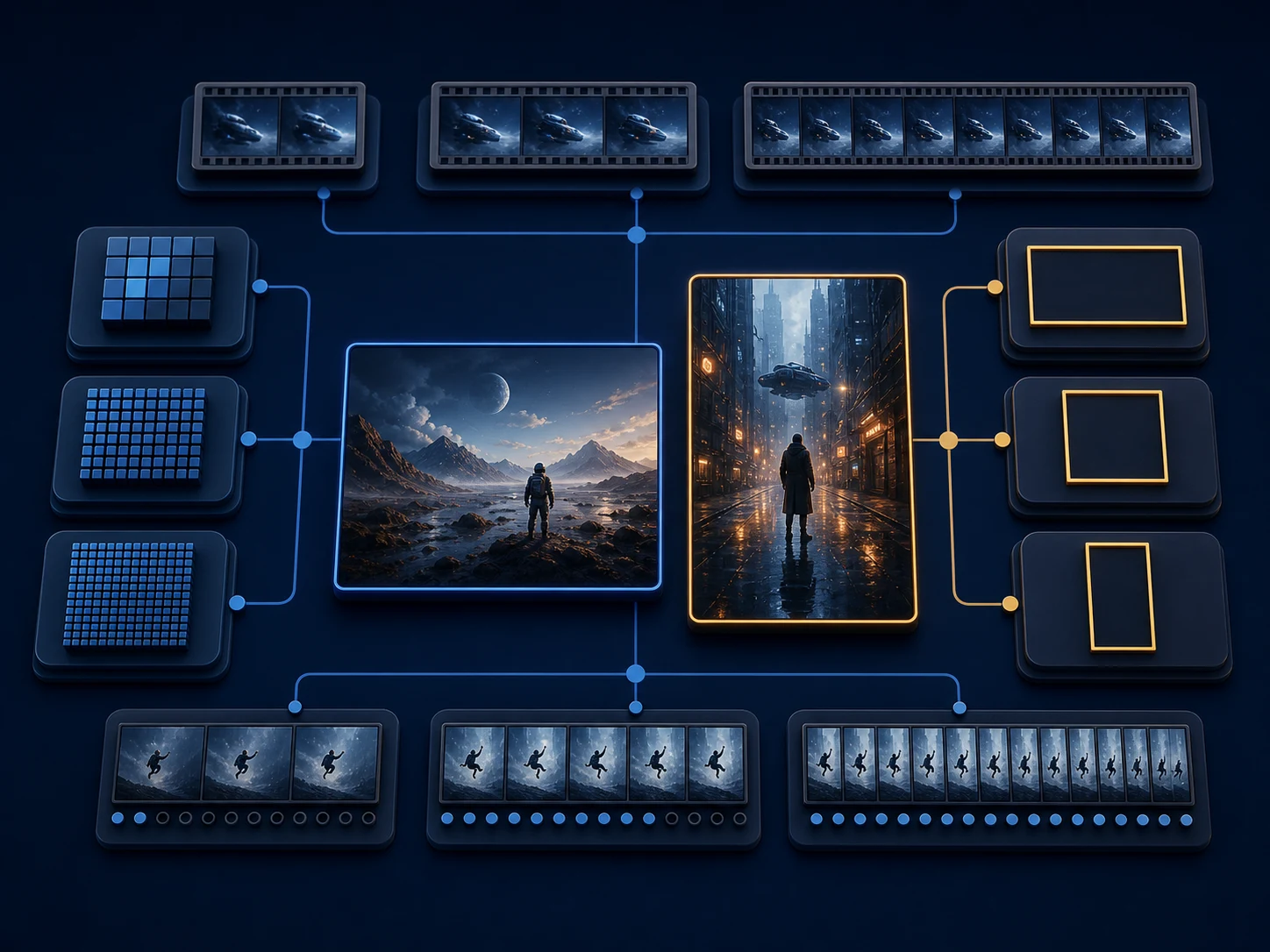
Choose High-Resolution and High-Frame-Rate Output
Nuzza exposes 1080p, 1440p, or 2160p output and 24, 25, 48, or 50 FPS for the current LTX 2.3 workflows. Match resolution, frame rate, duration, and framing to the delivery channel instead of assuming the largest setting fixes creative errors.
What Is LTX 2.3 Built For?
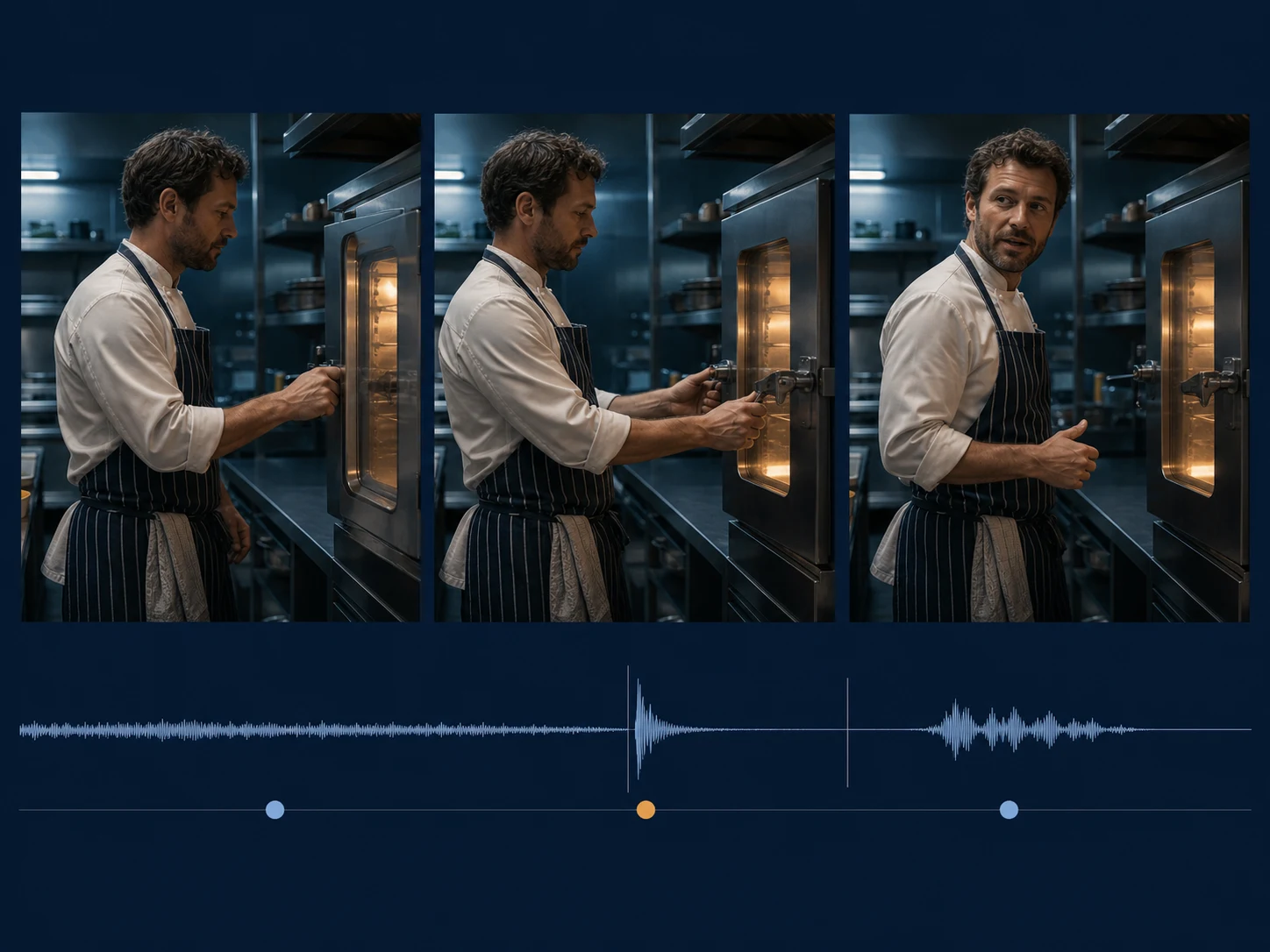
Audiovisual storyboards. Previsualize one short dramatic or commercial beat with camera direction, dialogue, ambience, and effects planned together before a larger production commitment.
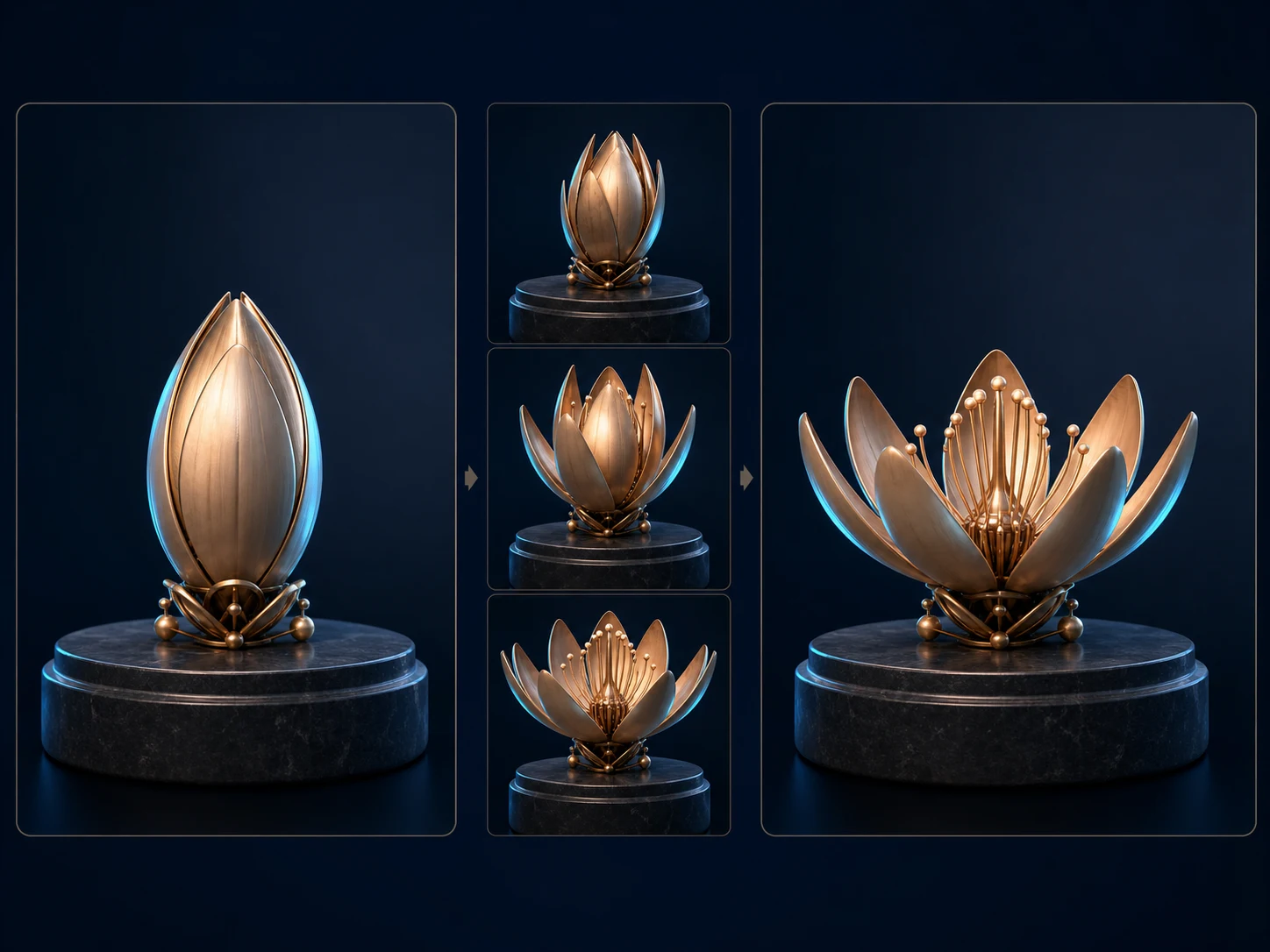
Designed transitions. Connect compatible opening and destination compositions for product reveals, pose changes, scene transformations, or visual handoffs that need a defined endpoint.
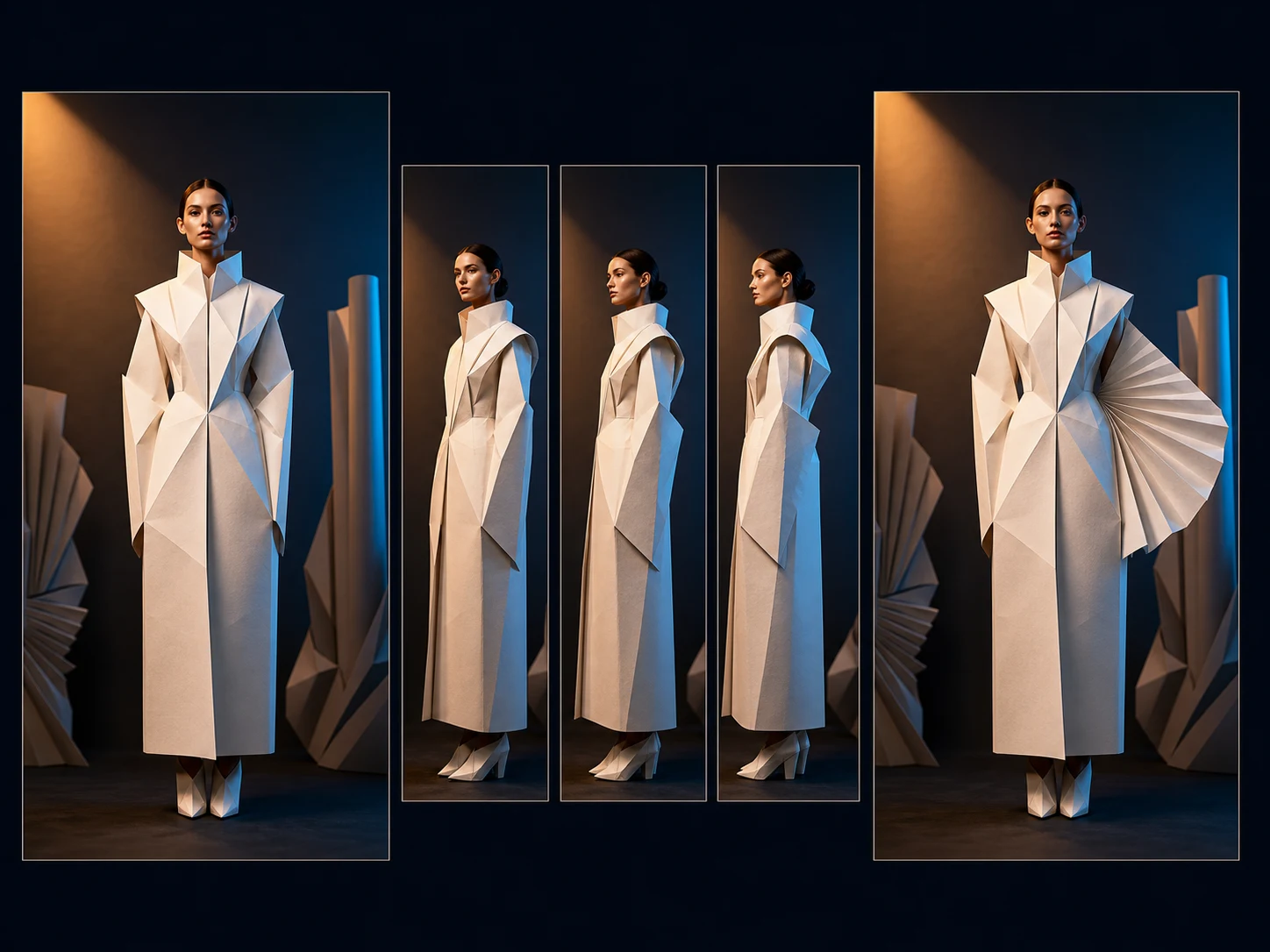
High-resolution campaign clips. Prepare short landscape or portrait campaign scenes with generated sound, then choose a resolution and frame rate that match social, web, or presentation delivery.
How to Use LTX 2.3 on Nuzza AI For Free
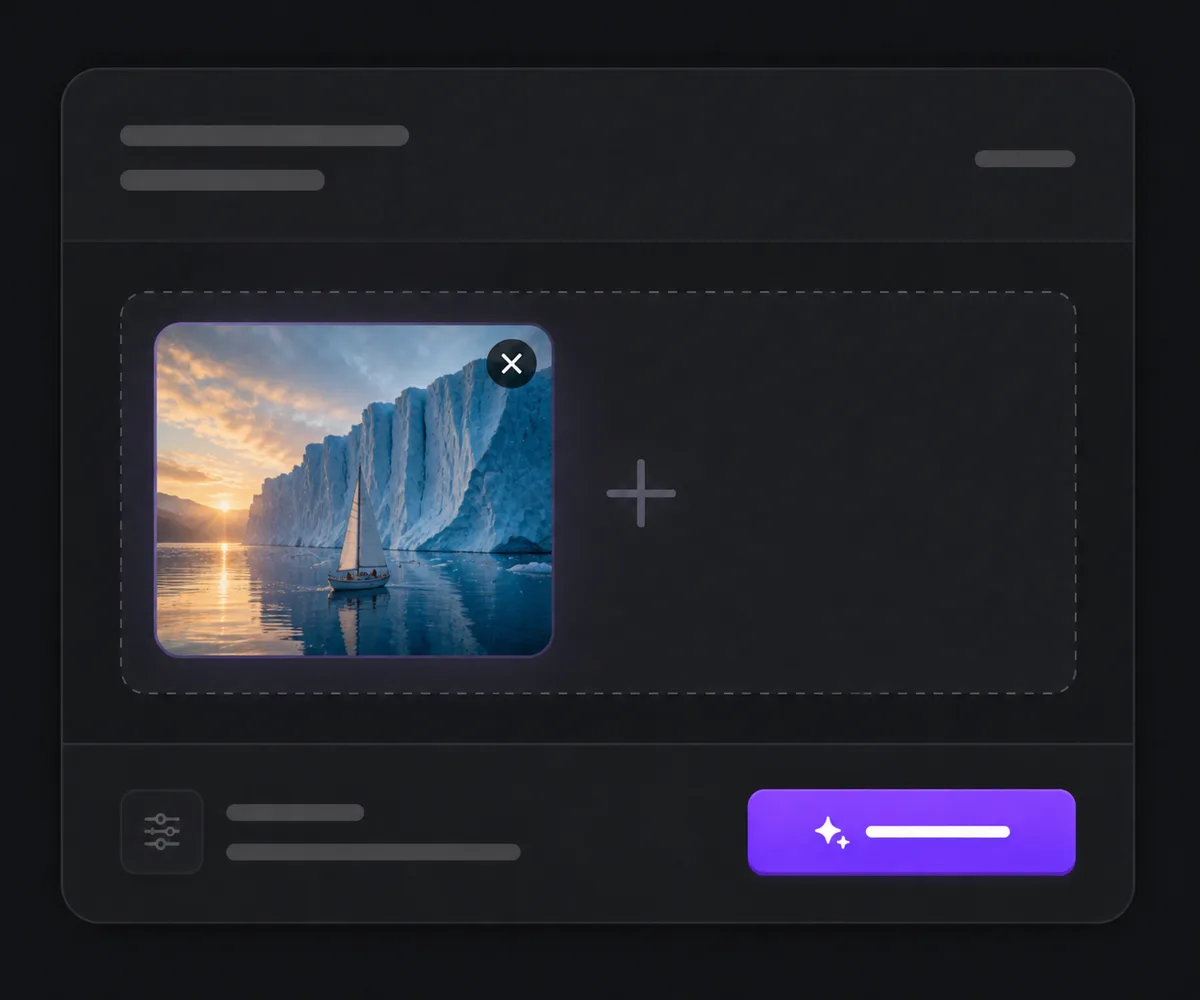
Choose Text or a Start Image
Select LTX 2.3, then begin with a written scene or upload one image to anchor the opening composition.
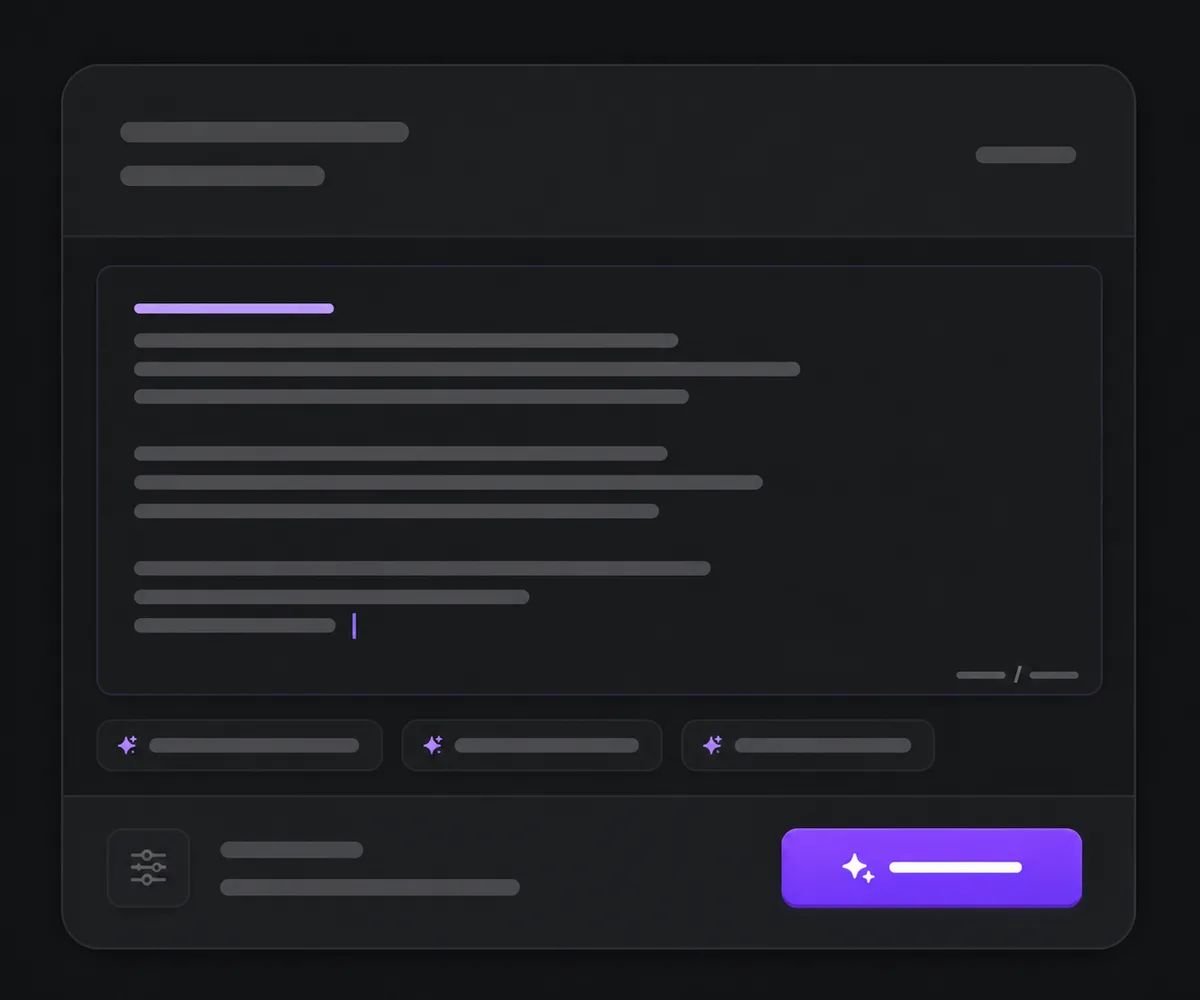
Direct the Shot and Its Format
Describe action, camera, light, dialogue, ambience, and effects, then choose duration, ratio, resolution, frame rate, audio, and an optional end-image URL.
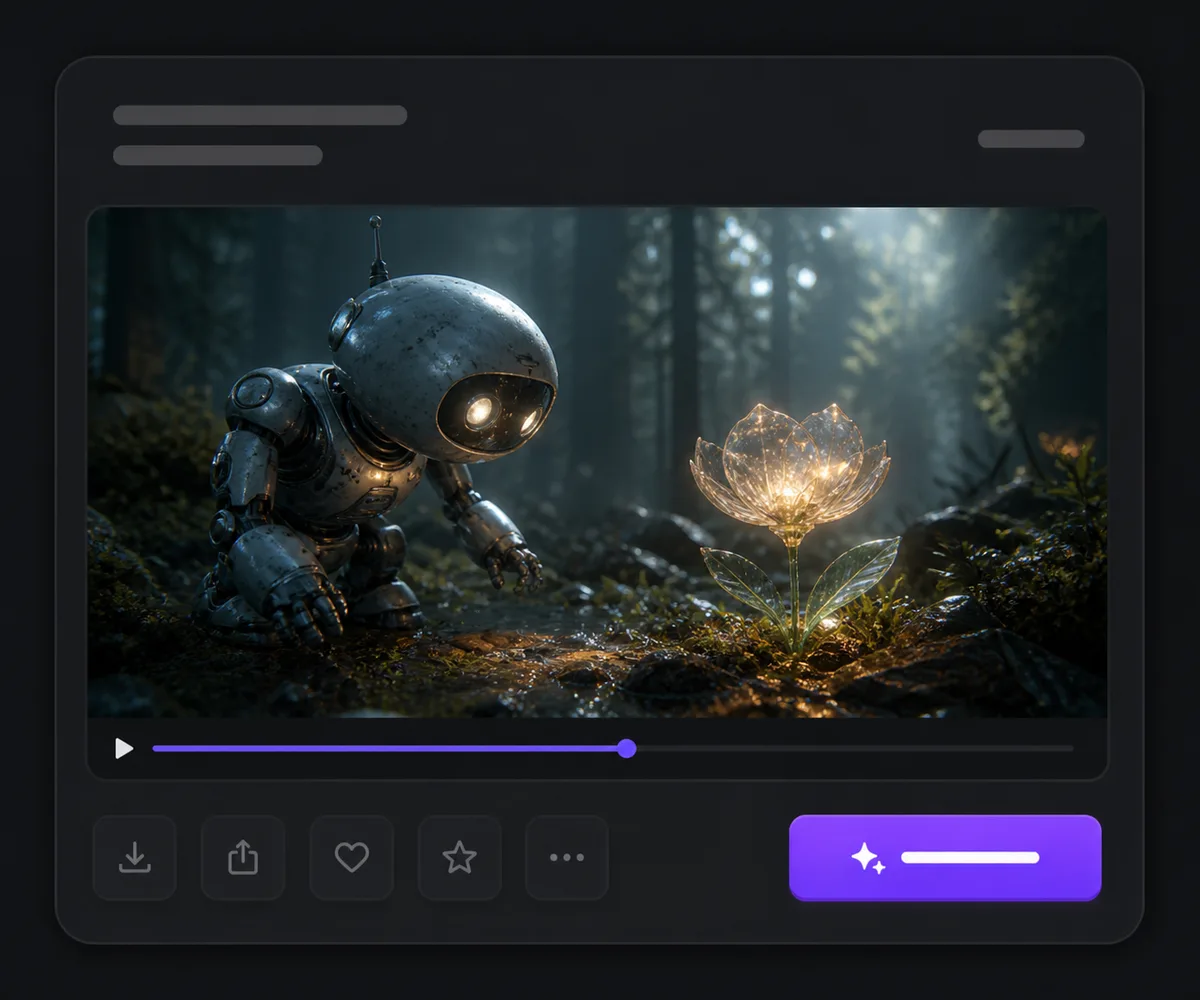
Generate and Review the Whole Clip
Inspect picture quality, motion, crop, endpoint behavior, speech, ambience, effects, and synchronization before downloading or revising one variable.
LTX 2.3 vs LTX-2.5 vs Google Veo 3.1
| Feature / Model | LTX 2.3 | LTX-2.5 | Google Veo 3.1 |
|---|---|---|---|
| Best Fit | Audiovisual shots that need flexible resolution and frame-rate delivery. | Newer LTX workflows focused on cleaner motion and production flexibility. | Short Google audiovisual shots where seed or 4K selection matters. |
| Starting Inputs | Text or one start image, with an optional end-image URL in image mode. | Text or one start image in Nuzza, with broader official pipelines outside the composer. | Text, one start image, or matched first and last frames. |
| Duration | 6, 8, or 10 seconds in the current Nuzza workflows. | 6, 8, or 10 seconds in the current Nuzza workflows. | 4, 6, or 8 seconds in Nuzza. |
| Resolution | 1080p, 1440p, or 2160p with four frame-rate choices. | Up to 1080p in the connected Nuzza Pro workflows. | 720p, 1080p, or 4K choices in the current mapping. |
| Audio | Generated audio can be included with text- or image-led video. | Generates synchronized video and audio together. | Generated-audio control is available. |
FAQs about LTX 2.3
What is LTX 2.3?
LTX 2.3 is Lightricks' open-weights update to the LTX-2 joint audio-video model. It improves picture quality, sound quality, and prompt adherence while supporting synchronized audiovisual generation.
Is LTX 2.3 free to use?
Yes. Nuzza offers free Credits for new users to try LTX 2.3. Once your free Credits are used up, you will need to subscribe to a paid plan to continue.
Can LTX 2.3 generate audio?
Yes. The current Nuzza text- and image-led workflows expose a Generate Audio control, but dialogue, effects, ambience, and synchronization still need review.
Can I animate an image with LTX 2.3?
Yes. Upload one opening image and describe the motion, camera, and sound. You can also provide an optional end-image URL to guide the destination composition.
What resolution does LTX 2.3 support on Nuzza?
The current Nuzza workflows expose 1080p, 1440p, and 2160p output, with 24, 25, 48, or 50 FPS.
How long can LTX 2.3 videos be on Nuzza?
The current duration choices are 6, 8, and 10 seconds.
Is LTX 2.3 open source?
Lightricks publishes open model weights and code for LTX-2.3. Availability of a local pipeline does not change the controls or credit requirements of Nuzza's hosted workflow.
What should I check before publishing an LTX 2.3 video?
Review the entire clip for motion, anatomy, framing, fine detail, endpoint behavior, speech clarity, sound balance, and audiovisual synchronization.
Can I use LTX 2.3 videos commercially?
Commercial use depends on your rights in the prompts, images, voices, brands, and outputs, plus the applicable Nuzza and model-license terms. Review those terms for your project before publication.
Direct the Picture and Sound as One Scene
Choose LTX 2.3, describe the action, camera, dialogue, ambience, and effects in sequence, then review the complete audiovisual clip.
Try LTX 2.3 for Free Now