
Seedance 2
Seedance 2.0 is ByteDance's unified multimodal audio-video model for text, image, video, and audio guidance. It combines complex-motion rendering, reference-led control, multi-shot generation, and synchronized stereo audio in clips up to 15 seconds.
Why Creators Choose Seedance 2.0?
Combine 9 Images, 3 Videos, and 3 Audio Clips
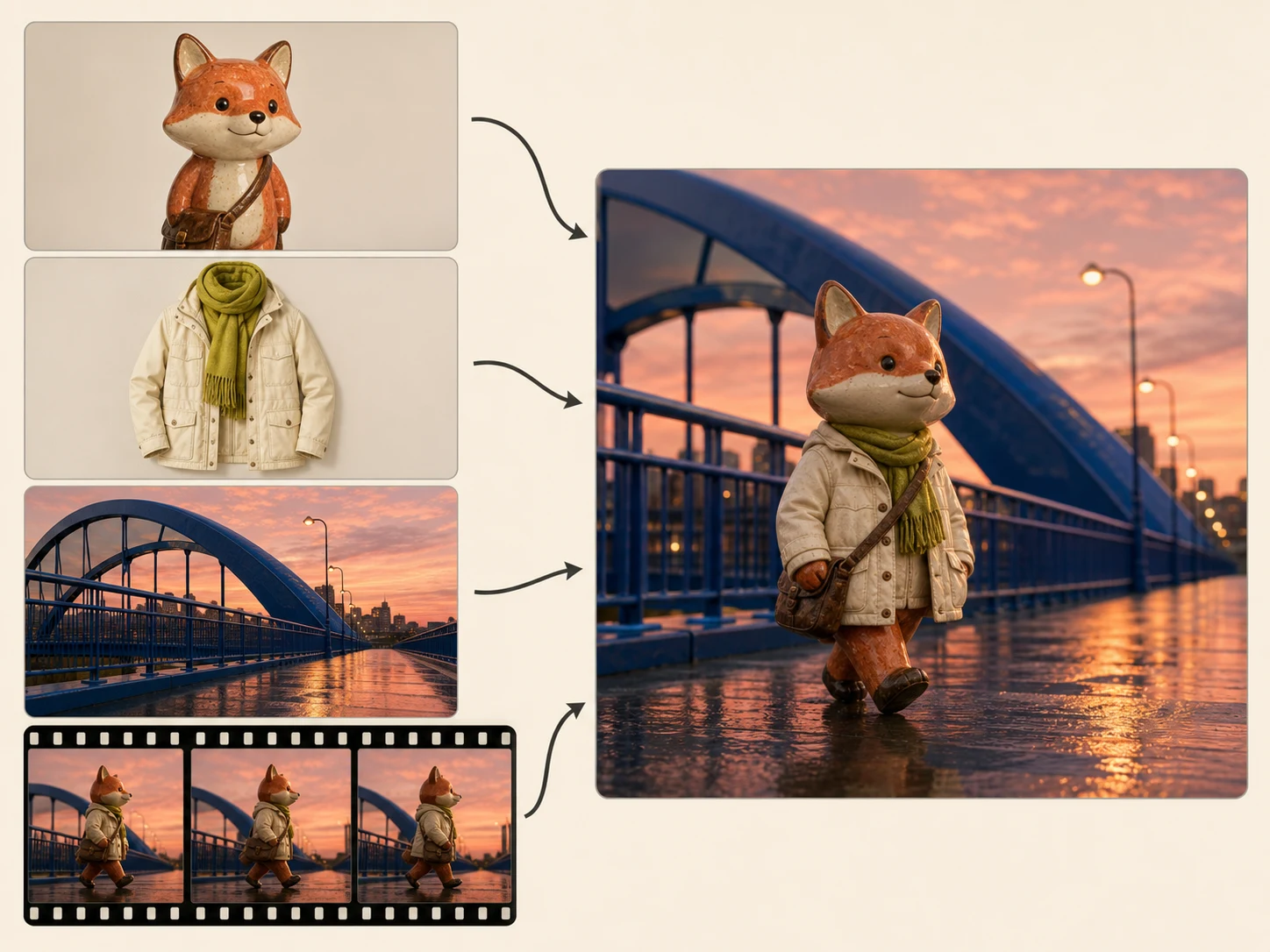
Guide one generation with up to nine images, three video clips, three audio clips, and natural-language instructions. Assign each reference a role in composition, character, motion, camera, effects, or sound.
Render Complex Motion and Interactions
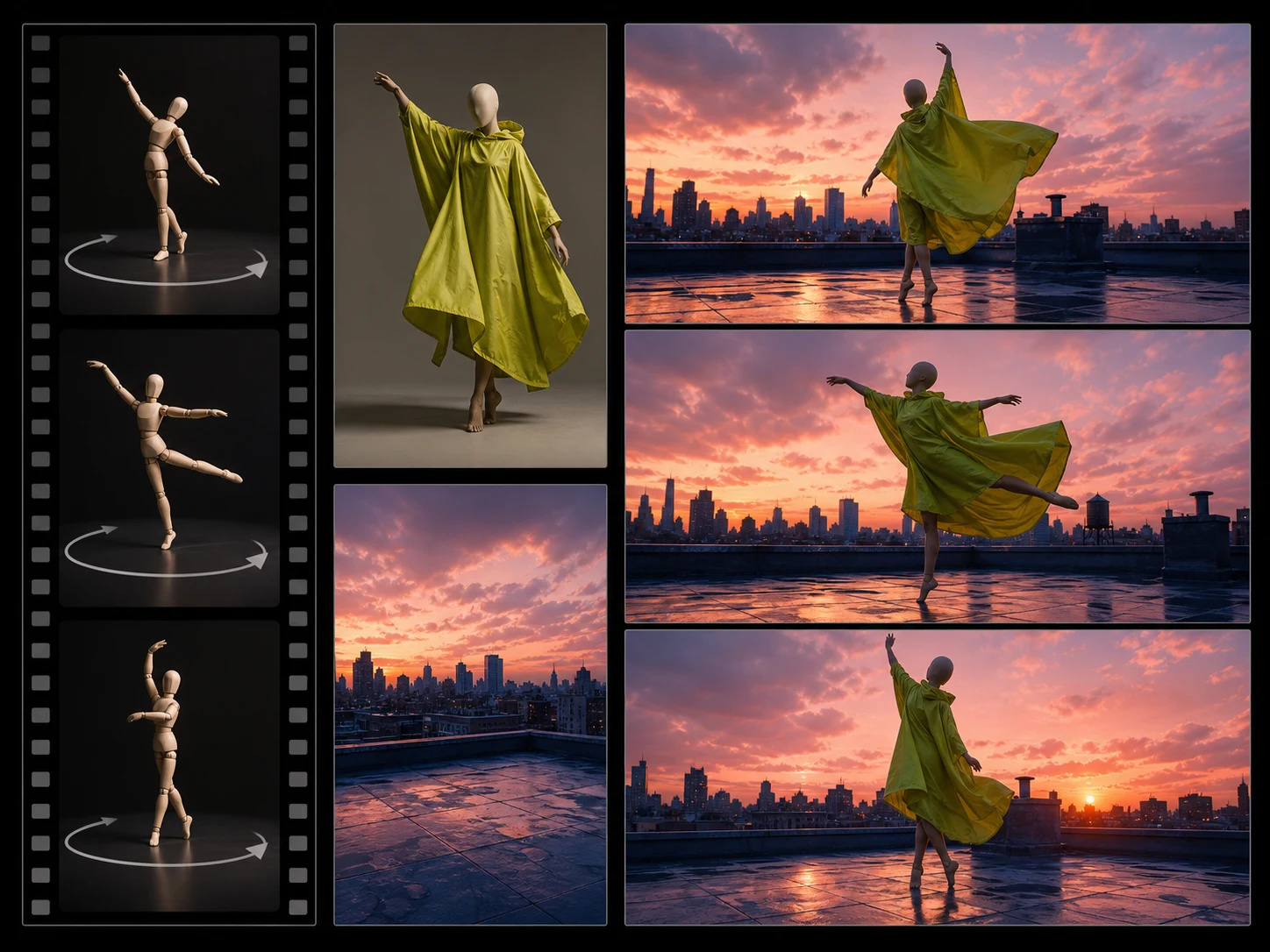
Describe several subjects interacting through demanding movement, contact, and changes in momentum. Seedance 2.0 was trained to improve motion stability and physical plausibility in scenes that earlier models often struggled to resolve.
Create 15-Second Multi-Shot Stories
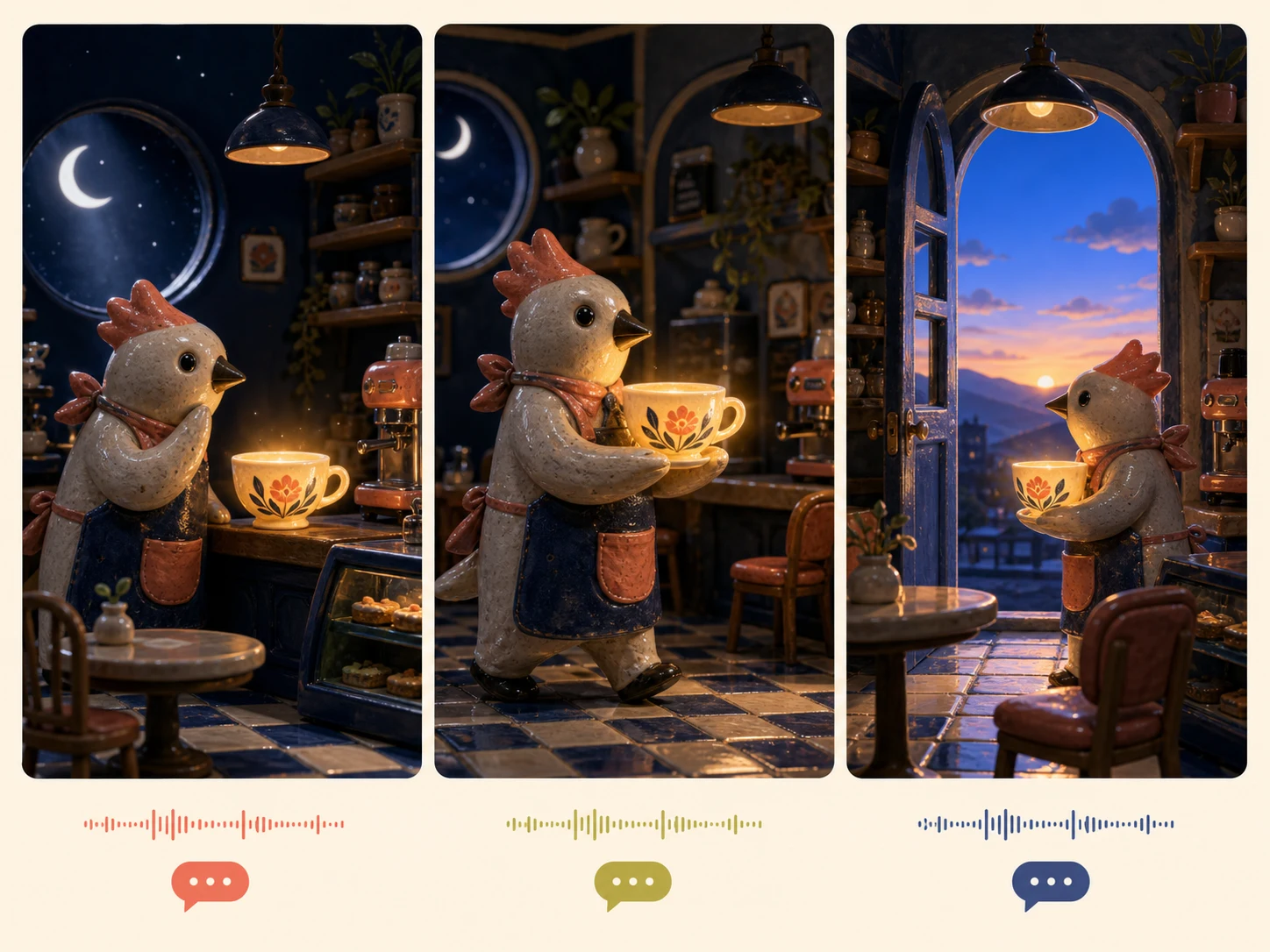
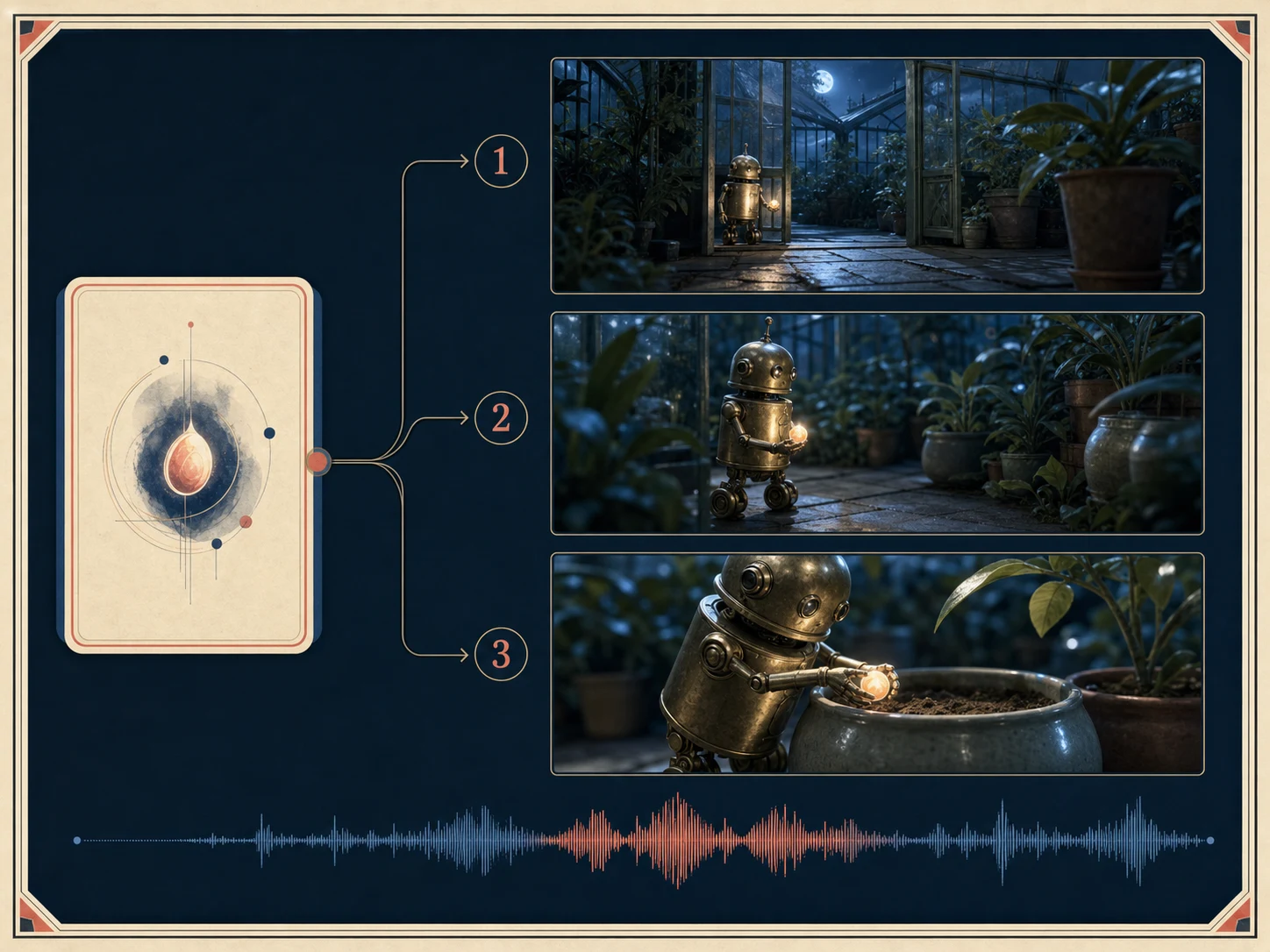
Build a short sequence with planned shot changes, camera language, and connected action in one generation. The model supports up to 15 seconds of multi-shot audio-video output for more complete narrative beats.
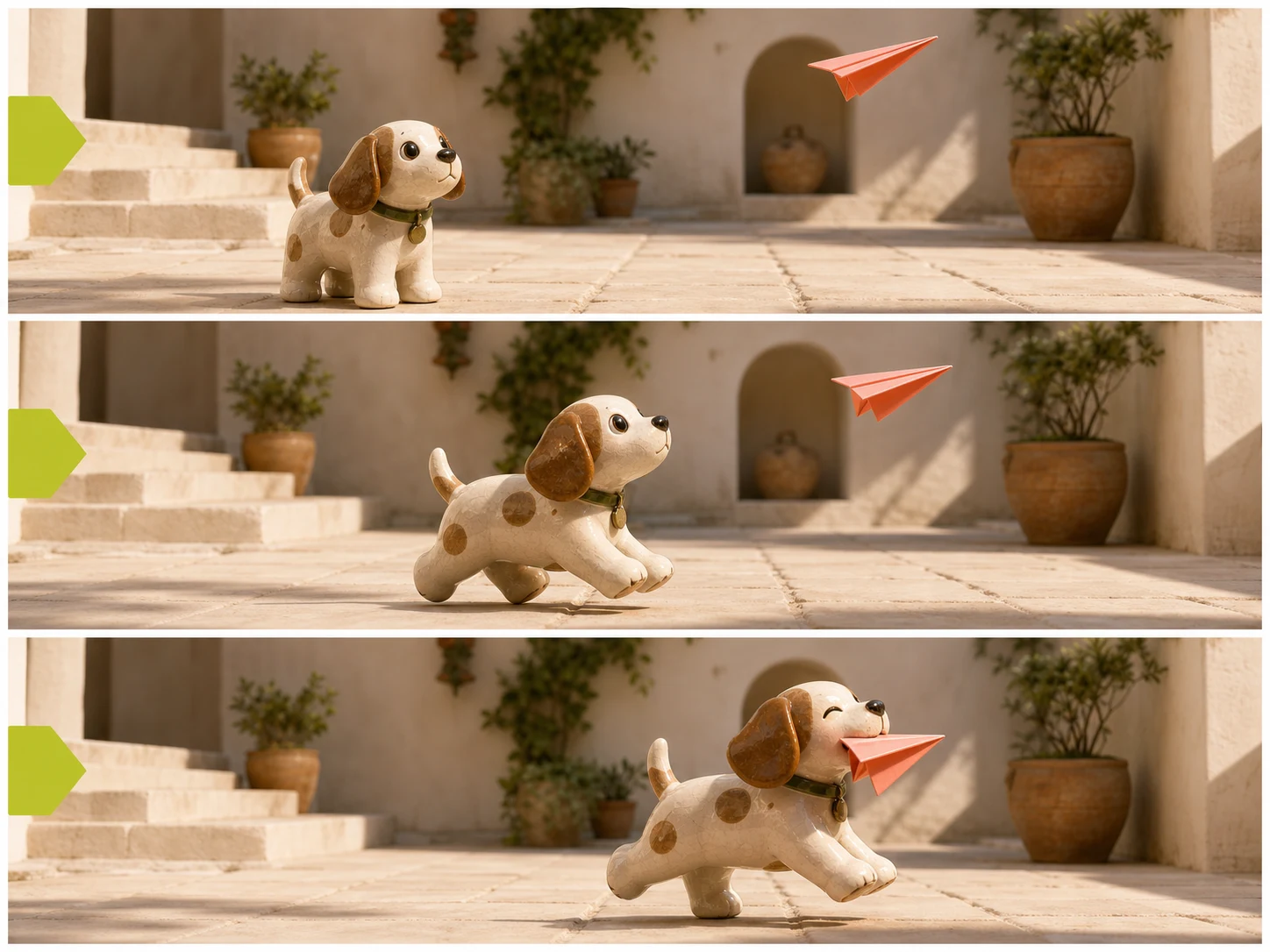
Generate Synchronized Stereo Audio
Direct dialogue, voiceover, background music, ambience, and effects together with the visuals. Seedance 2.0 supports dual-channel audio and aligns multiple sound layers with the rhythm of the scene.
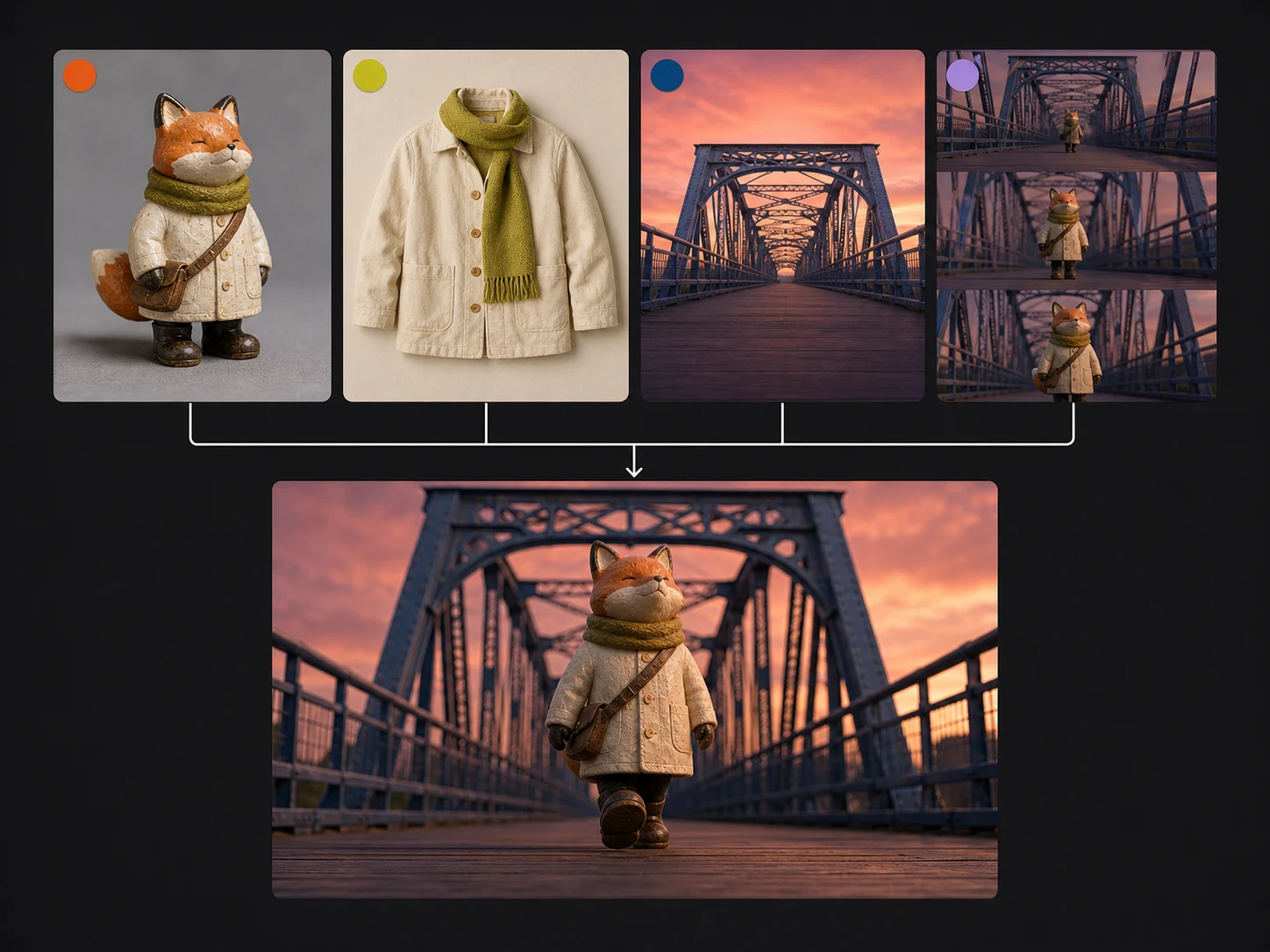
Reference Composition, Motion, Camera, and Sound
Use different media to define how the result should look, move, cut, and sound. The model can interpret reference composition, motion rhythm, camera language, visual effects, and audio characteristics within one brief.
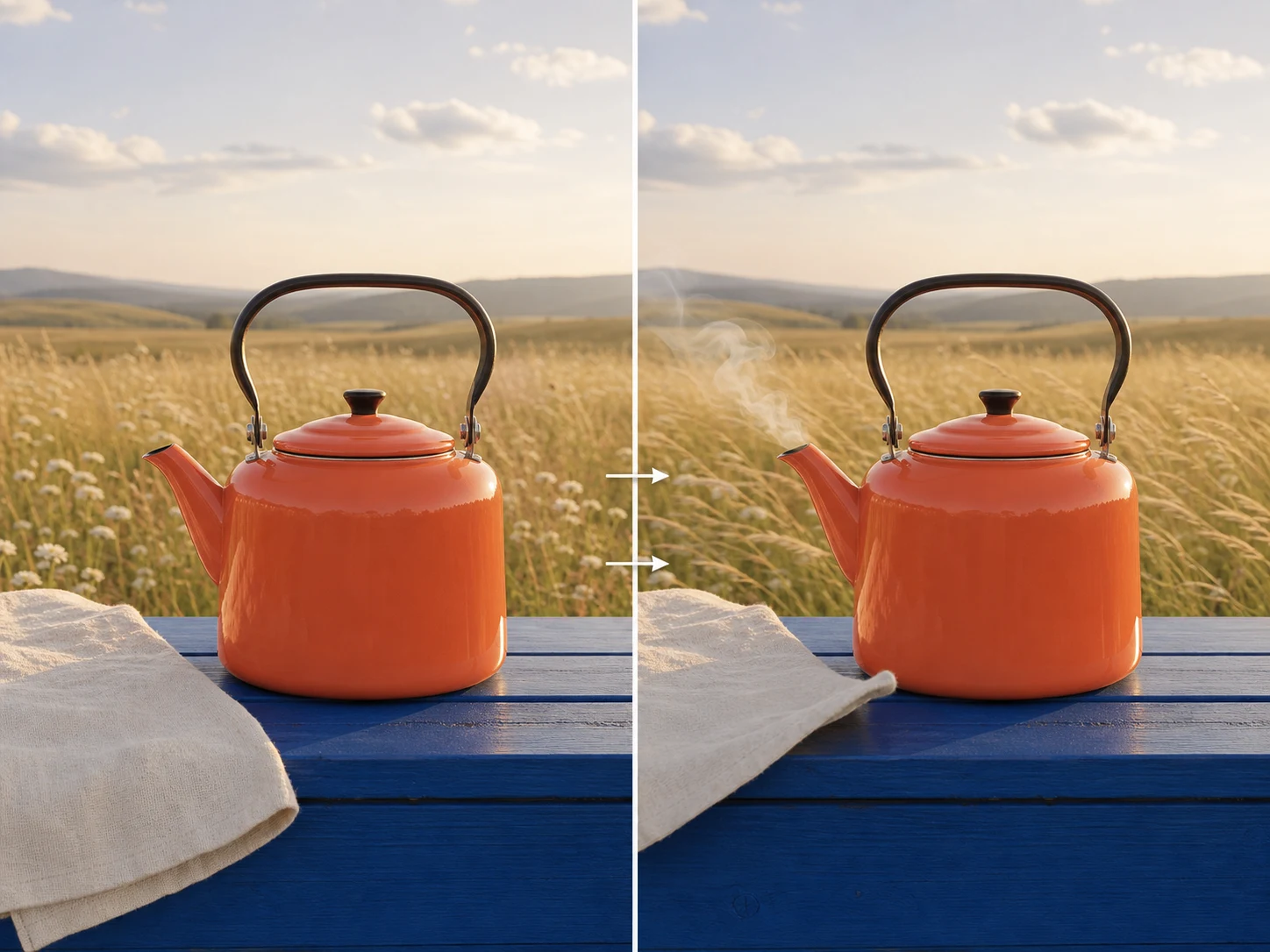
Follow Detailed Direction across a Story
Describe characters, actions, camera plans, scene order, and preservation requirements in natural language. Seedance 2.0 improves instruction following and consistency across complex stories, while final outputs still need continuity review.
What Is Seedance 2.0 Built For?
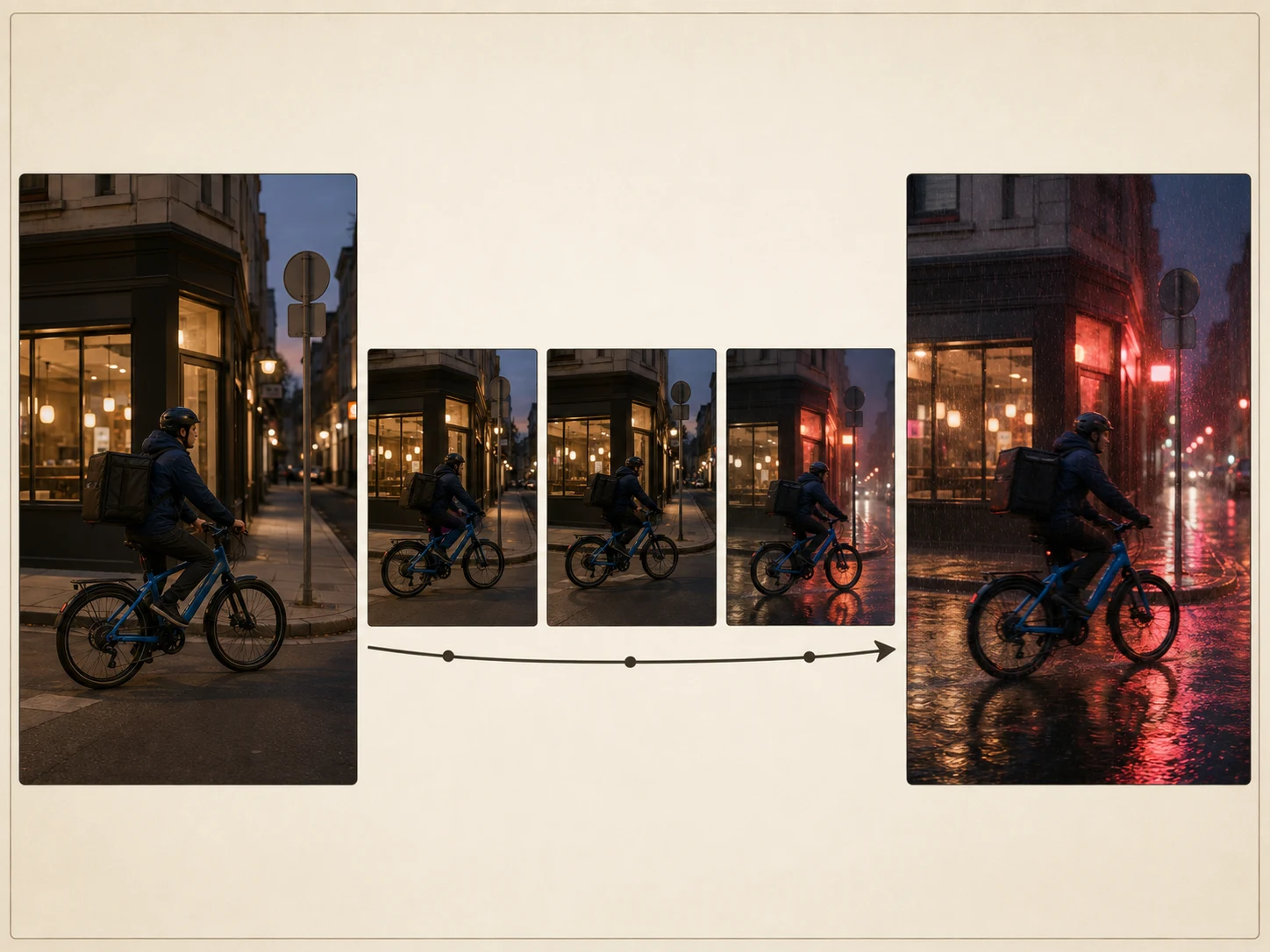
Film and narrative production. Previsualize character interactions, multi-shot scenes, camera plans, dialogue, ambience, and effects with richer reference direction than text alone can provide.
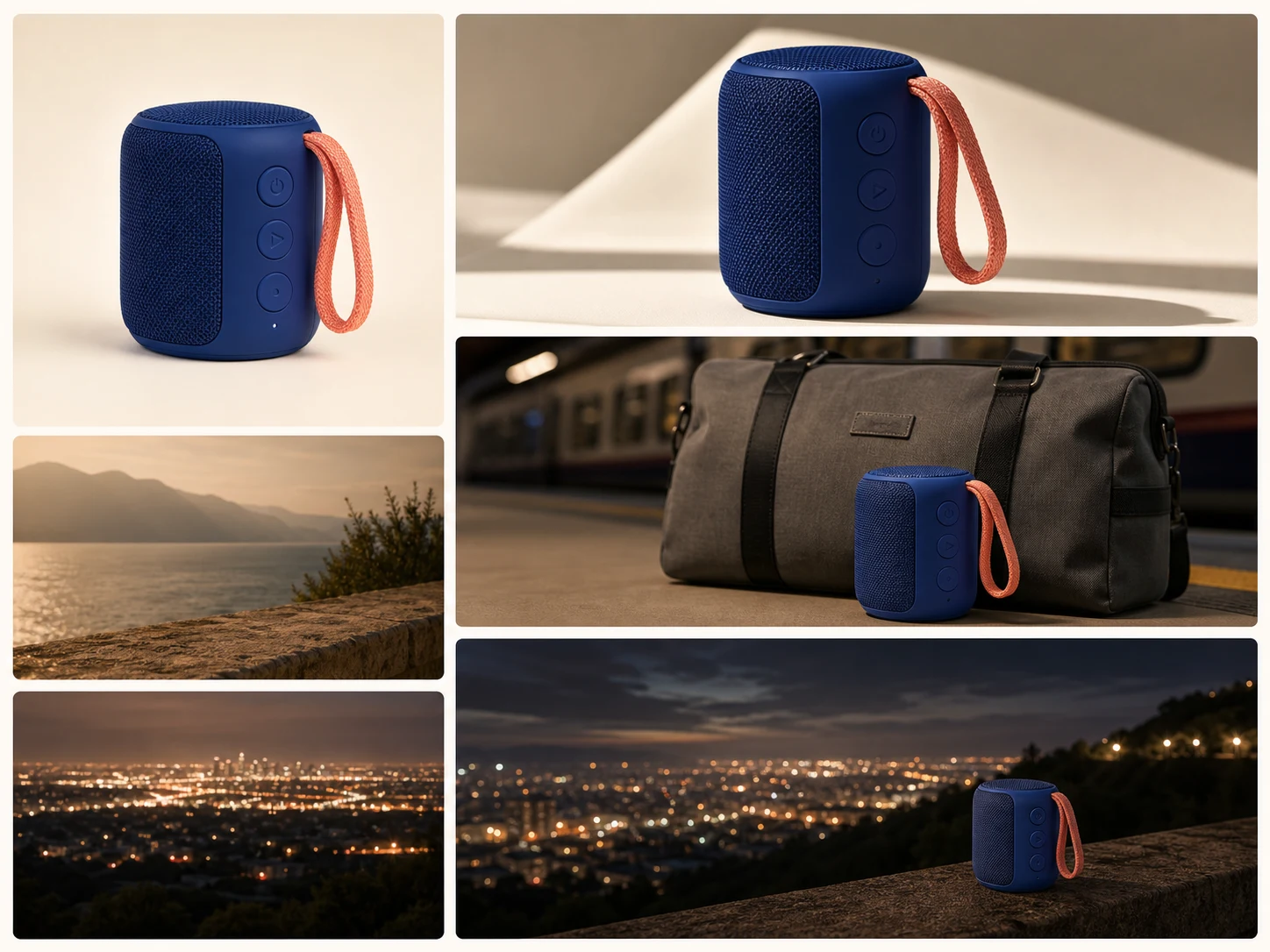
Advertising and e-commerce. Combine product, character, setting, motion, and audio references to build campaign concepts, product stories, and short commercial sequences with repeatable direction.
Social and creator storytelling. Generate complete short-form story beats with multiple shots, native sound, recurring subjects, and flexible landscape, square, portrait, or ultrawide composition.
How to Use Seedance 2.0 on Nuzza AI For Free
Try Seedance 2.0 for Free NowChoose a Generation Workflow
Start from text, one image, first and last frames, or a mixed set of image, video, and audio references.
Assign Every Reference a Role
Describe which material controls identity, composition, motion, camera, effects, or sound, then set duration, ratio, resolution, and audio.
Generate and Review the Whole Sequence
Inspect subject identity, complex contact, shot transitions, story order, dialogue, effects, and audio-video synchronization before refining.
Seedance 2.0 vs. Seedance 2.0 Fast vs. Seedance 2.0 Mini
| Feature / Model | Seedance 2.0 | Seedance 2.0 Fast | Seedance 2.0 Mini |
|---|---|---|---|
| Best Fit | Complex motion, reference-heavy stories, and higher-fidelity production attempts. | Fast reference-led iteration and frequent audio-video production attempts. | Drafts, batch production, and cost-sensitive short-form content pipelines. |
| Max Duration | Nuzza offers Auto or four through fifteen seconds. | Nuzza offers Auto or four through fifteen seconds. | Nuzza offers Auto or four through fifteen seconds. |
| Max Resolution | Nuzza currently lists 480p, 720p, 1080p, and 4K. | Nuzza currently offers 480p and 720p output. | Nuzza currently offers 480p and 720p output. |
| Reference Inputs | Up to nine images, three videos, and three audio clips. | Up to nine images, three videos, and three audio clips. | Up to nine images, three videos, and three audio clips. |
| Audio | Native dual-channel audio can include voice, music, ambience, and effects. | Native audio generation is available in the current workflow. | Native audio generation is available in the current workflow. |
| Video Editing | The official model supports editing; this Nuzza page currently exposes generation workflows. | The current Nuzza page focuses on generation, not source-video editing. | The current Nuzza page focuses on generation, not source-video editing. |
FAQs about Seedance 2.0
What is Seedance 2.0?
Seedance 2.0 is ByteDance's unified multimodal audio-video generation model. It accepts text, images, videos, and audio as guidance. It supports complex motion, multimodal references, multi-shot output up to 15 seconds, and synchronized stereo sound. Seedance 2.0 is available on Nuzza.
What is new in Seedance 2.0 compared with Seedance 1.5?
ByteDance reports a substantial upgrade in physical accuracy, visual realism, controllability, and usability for complex interactions. Seedance 2.0 also expands mixed-modality references and supports video editing and extension in the official capability set.
What reference inputs does Seedance 2.0 support?
The official model accepts text, image, video, and audio together. Its documented limit is up to nine images, three video clips, and three audio clips plus natural-language instructions.
What resolution and duration does Seedance 2.0 support?
ByteDance documents native 480p and 720p output for four to fifteen seconds. Nuzza's current selector also lists 1080p and 4K choices, which should be treated as integration output options rather than additional native-resolution claims.
Can Seedance 2.0 keep the same character across scenes?
The model is designed for stronger subject consistency and can reference character appearance, voice, actions, and style. ByteDance still notes room for improvement in multi-subject consistency, so review every shot transition and interaction.
Does Seedance 2.0 generate sound?
Yes. Seedance 2.0 generates dual-channel audio with background music, ambience, sound effects, and character voiceovers aligned to the visual rhythm.
What aspect ratios does Seedance 2.0 support on Nuzza?
Nuzza offers Auto, 21:9, 16:9, 4:3, 1:1, 3:4, and 9:16. Choose the destination format before describing composition and camera movement.
Can I use Seedance 2.0 for free on Nuzza?
Yes. Nuzza offers free Credits for new users to try Seedance 2.0. Once your free Credits are used up, you will need to subscribe to a paid plan to continue.
Create with Seedance 2
Create 4–15 second Seedance 2.0 videos from text, images, video, or audio references. Direct multi-shot motion with native stereo sound.
Try Seedance 2