Nano Banana
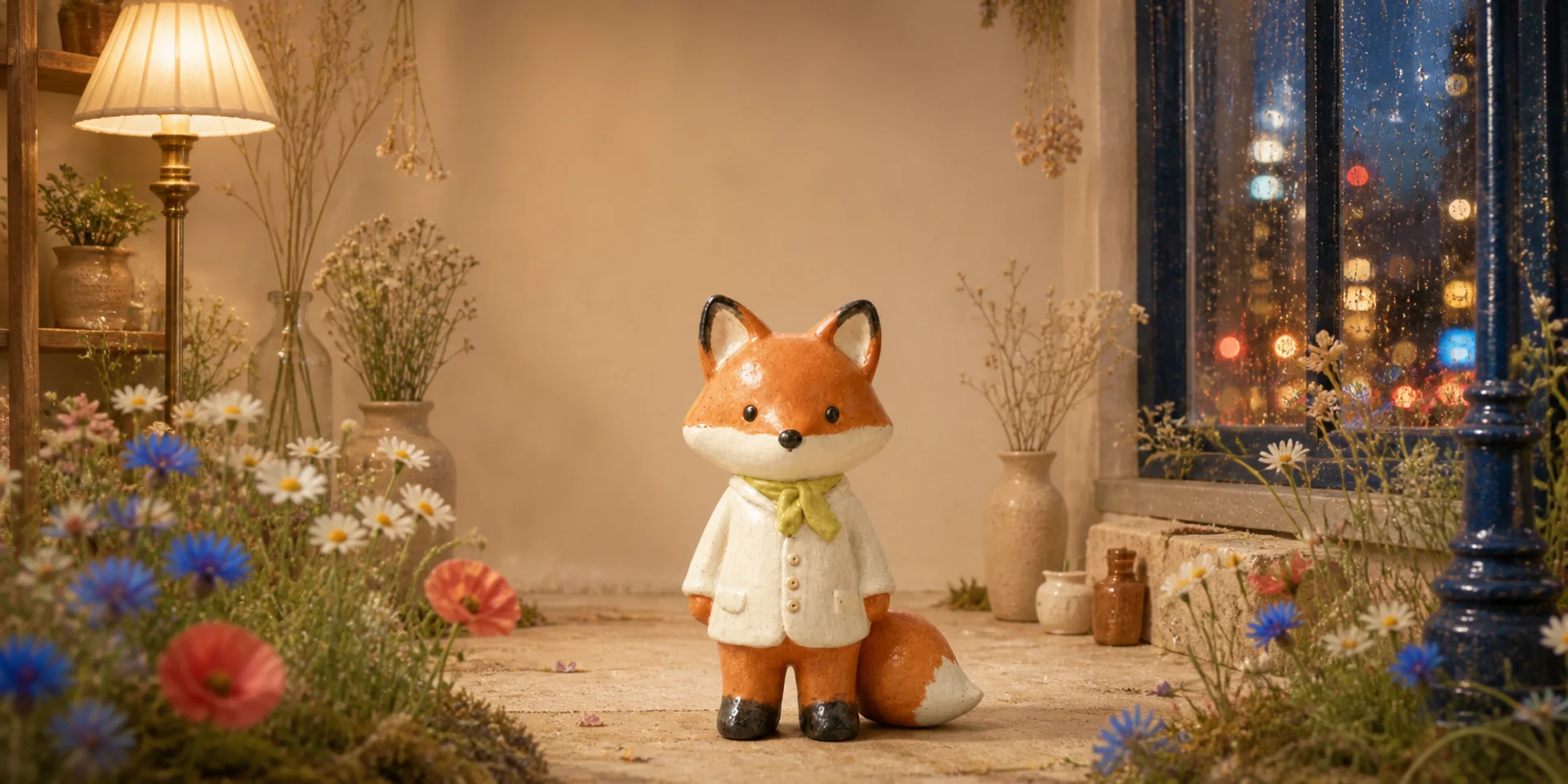
The original Nano Banana model combines prompt-led generation with conversational image editing. Use it on Nuzza for recognizable subjects, blended scenes, focused revisions, and efficient 1K output.
Why Creators Choose Nano Banana?
Create and Edit with Native Text-and-Image Context
Start from a written brief, an existing image, or both together. Native multimodal context lets generation and editing share one conversational workflow instead of separate tools.
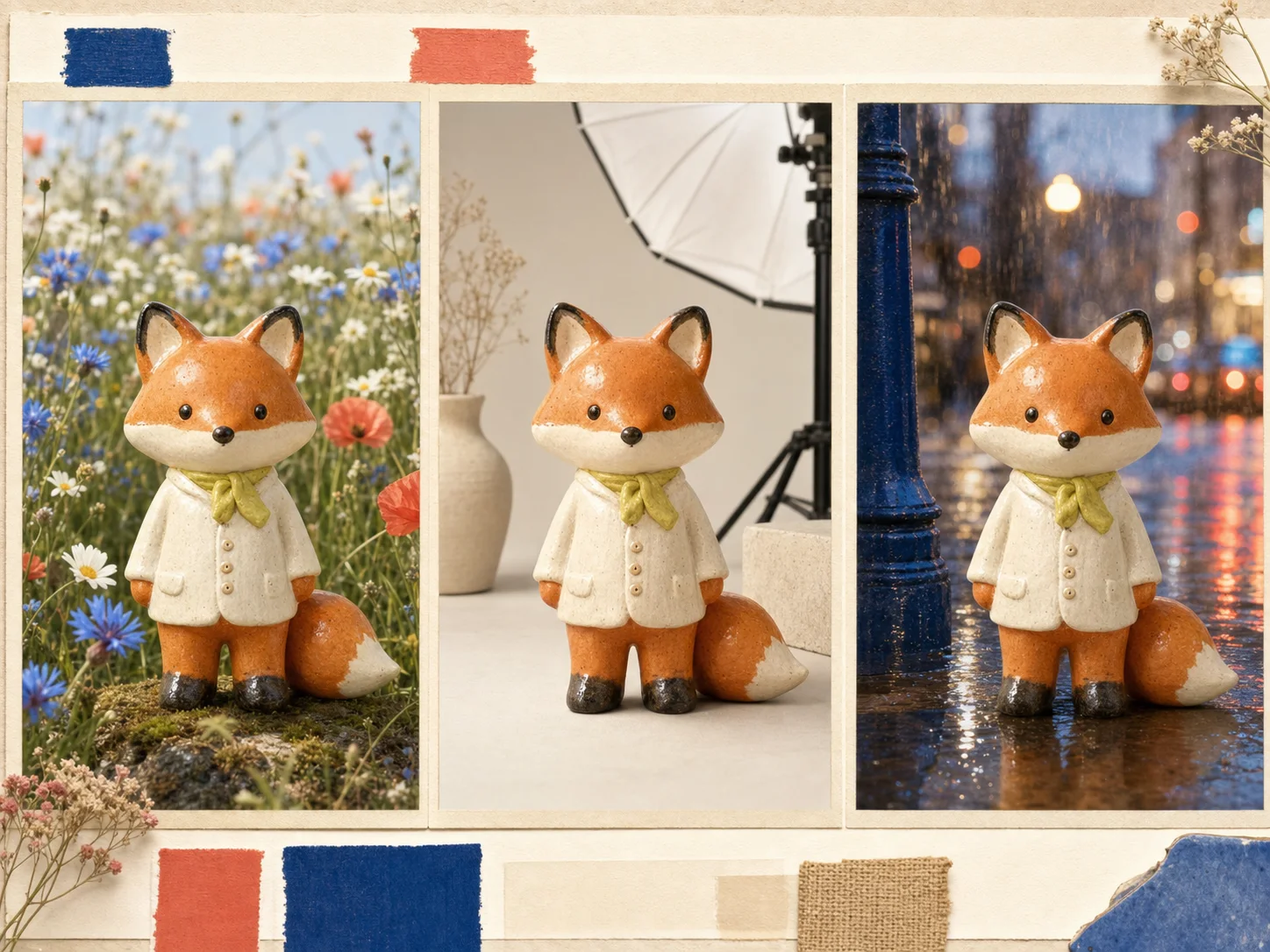
Keep People and Pets Recognizable
Change a setting, activity, or visual treatment while preserving a recurring person or pet. Likeness consistency is strong, but every face and identity cue still needs review.
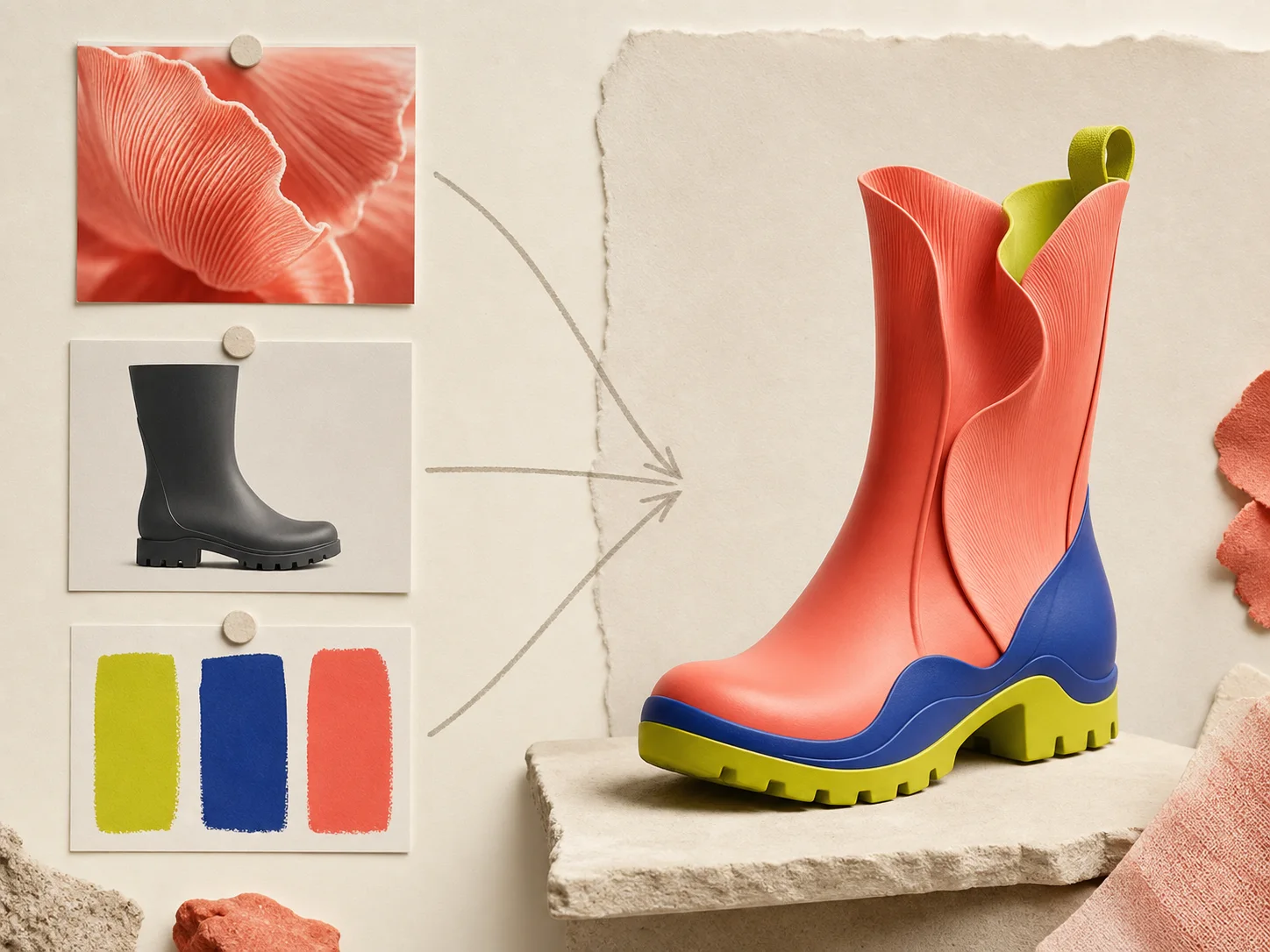
Blend Multiple Photos into One Scene
Combine separate subjects, products, props, or environments in a coherent composition. State each image's role and describe perspective and lighting so the blend feels intentional.
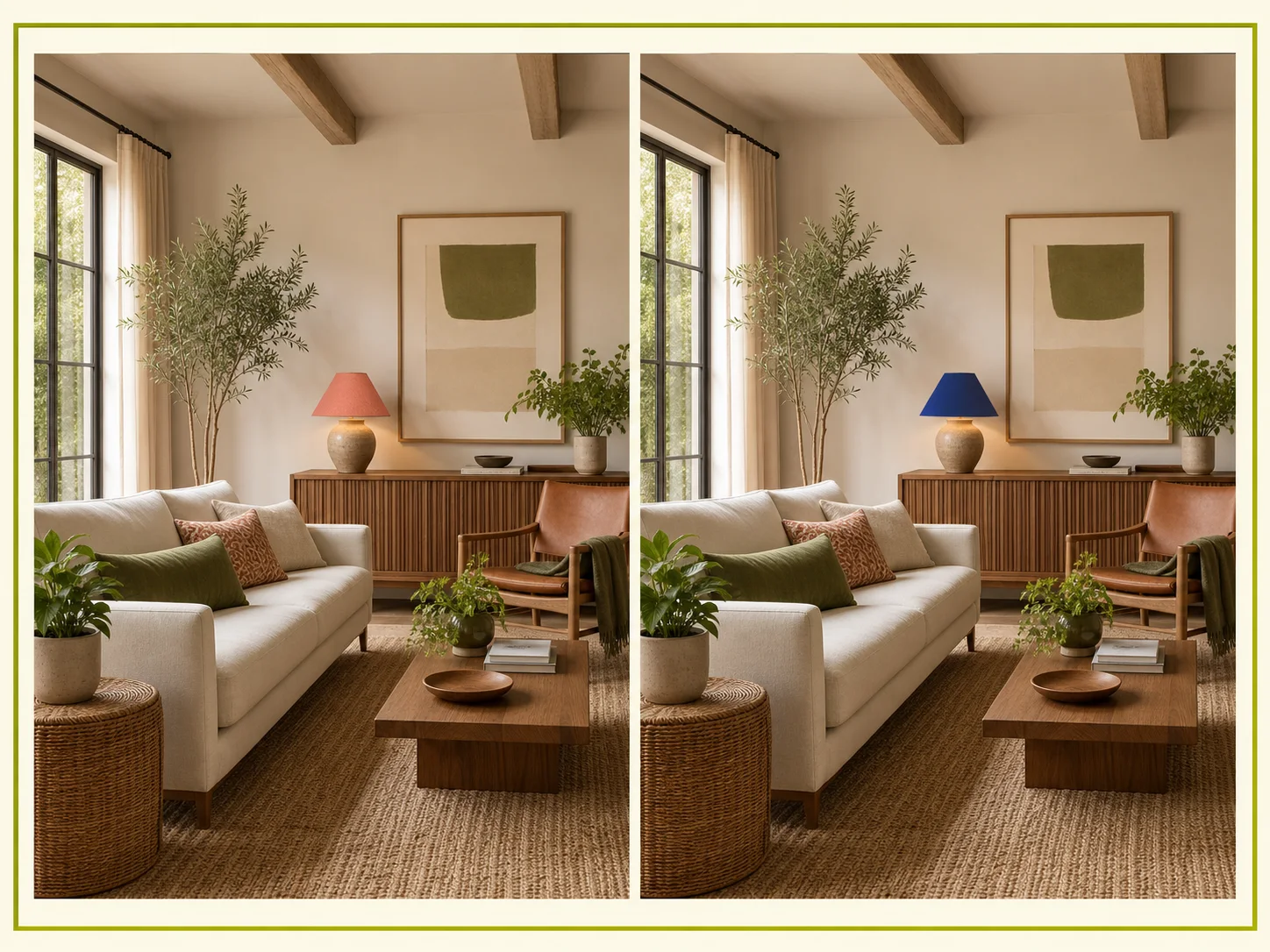
Refine Specific Parts across Multiple Turns
Continue the conversation to revise one area without rebuilding the entire image. Name the target change and repeat the untouched details that must remain stable.
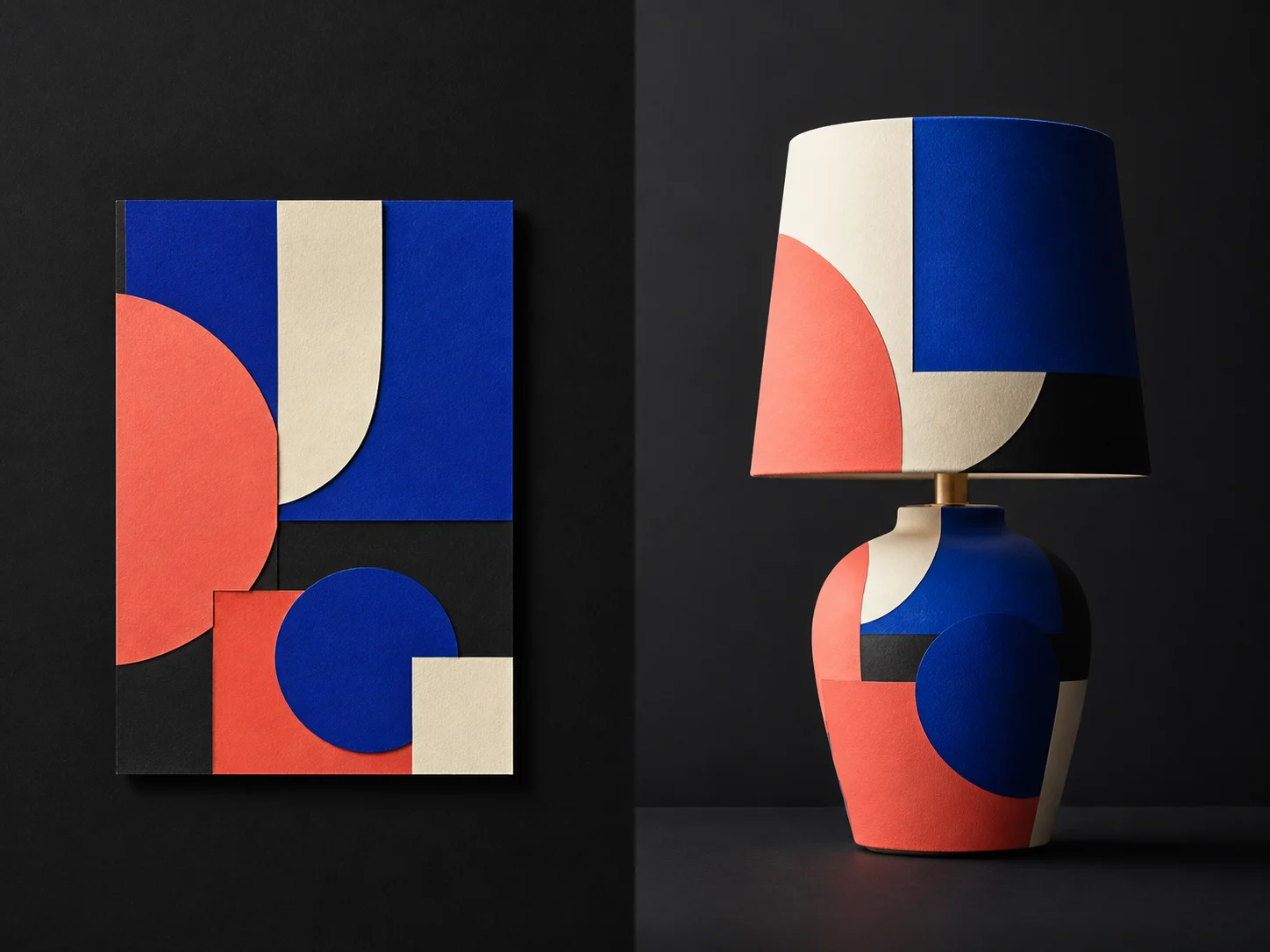
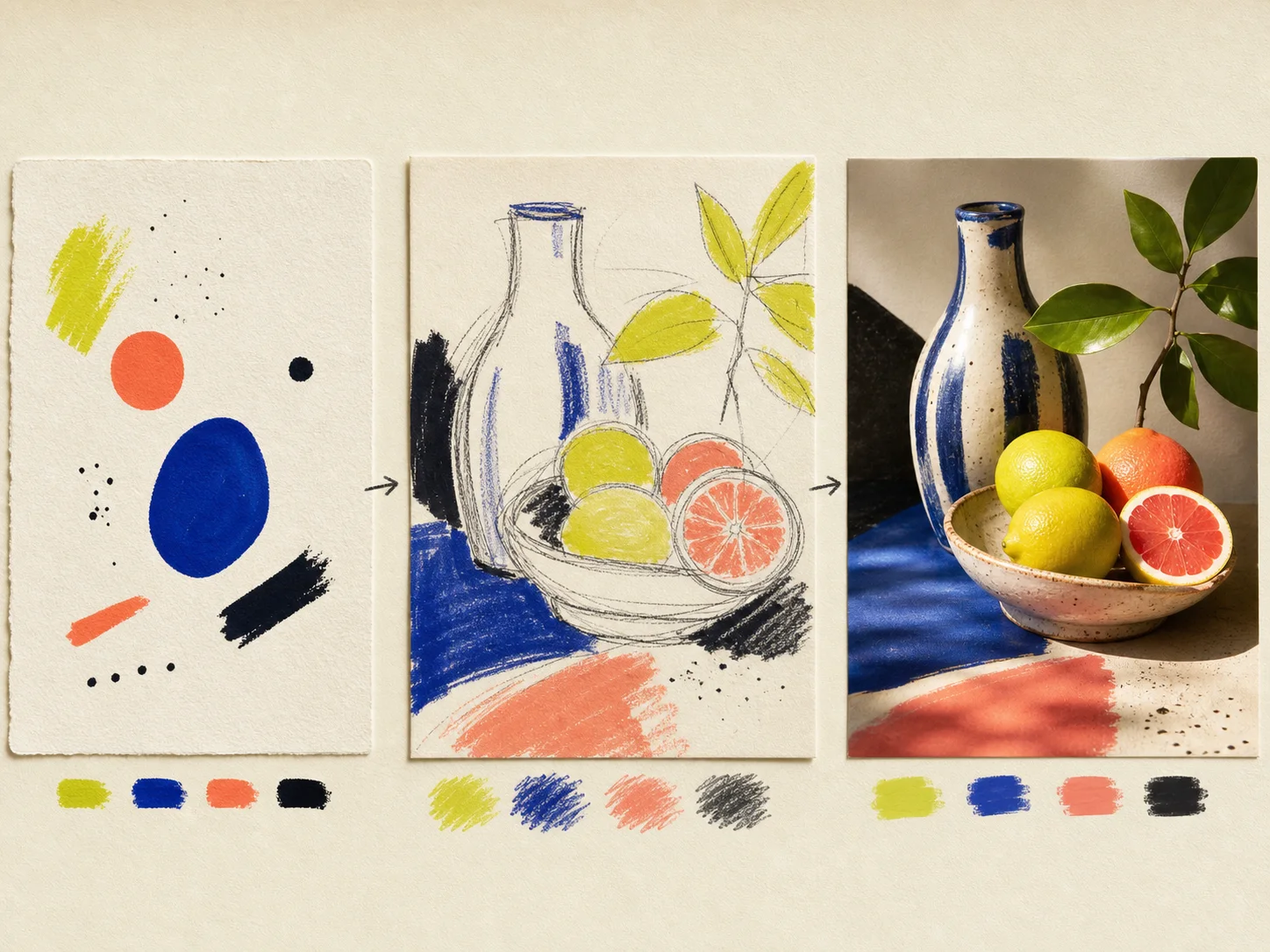
Apply One Image's Style to Another Object
Use a reference artwork to transform another object's visual language. Preserve the object's shape while describing which colors, textures, and graphic qualities should transfer.
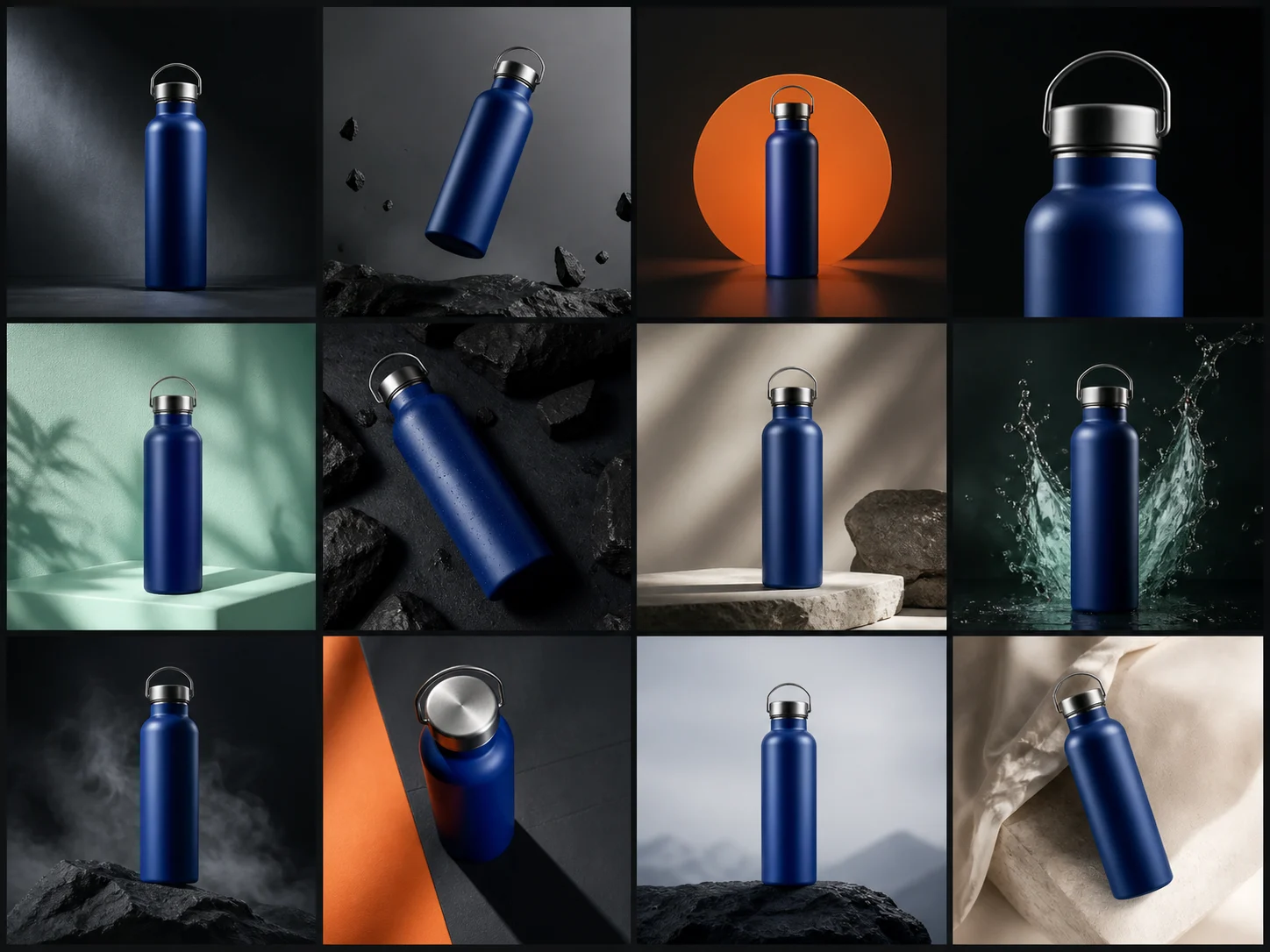
Generate 1K Images for High-Volume Work
Produce coordinated 1K drafts for frequent creative decisions and campaign exploration. Use the original model when efficient iteration matters more than the later family's higher-resolution controls.
What Is Nano Banana Built For?
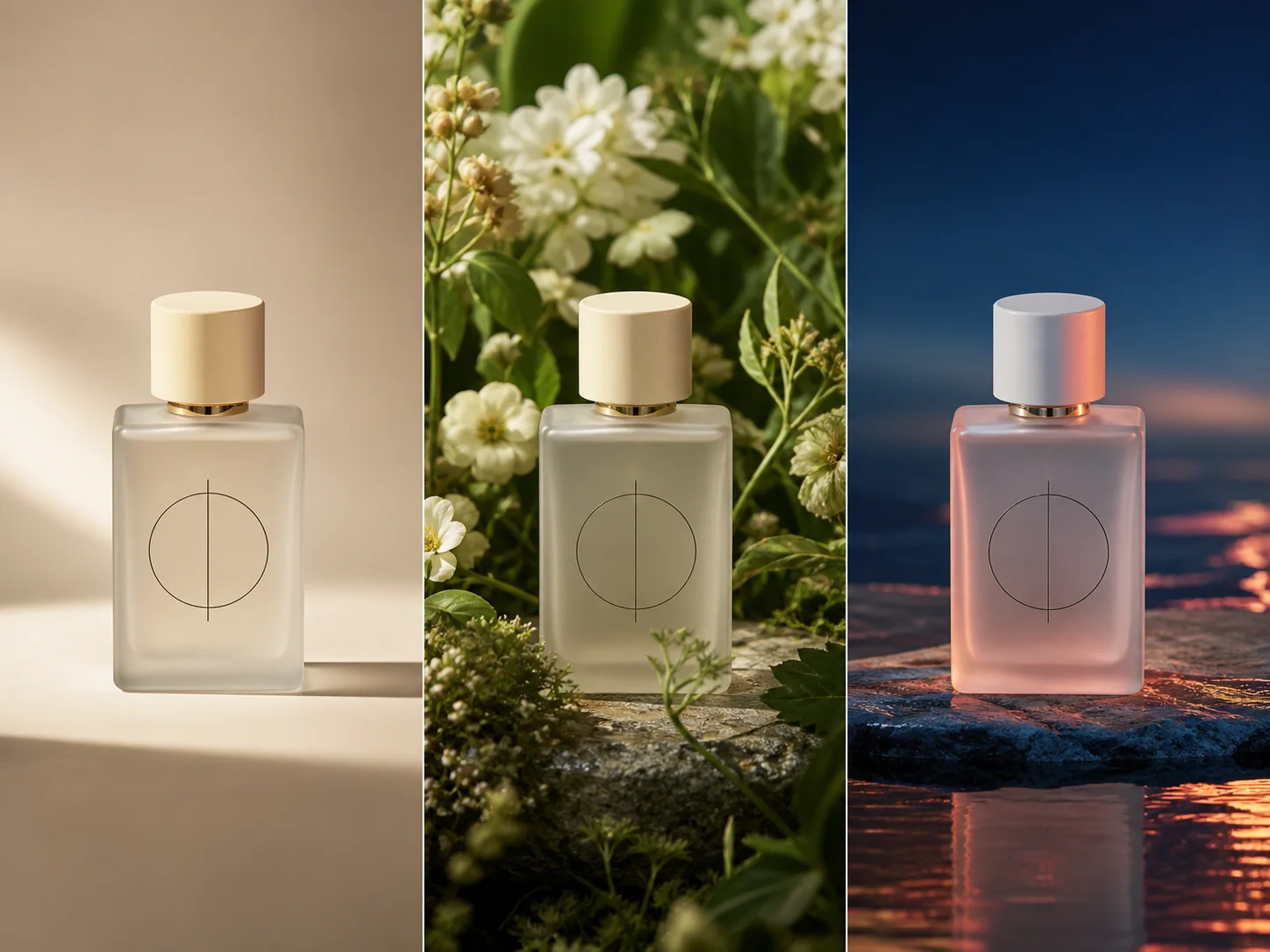
Product recontextualization. Place an existing product into new campaign environments while preserving its recognizable shape, surface details, and proportions across each visual direction.
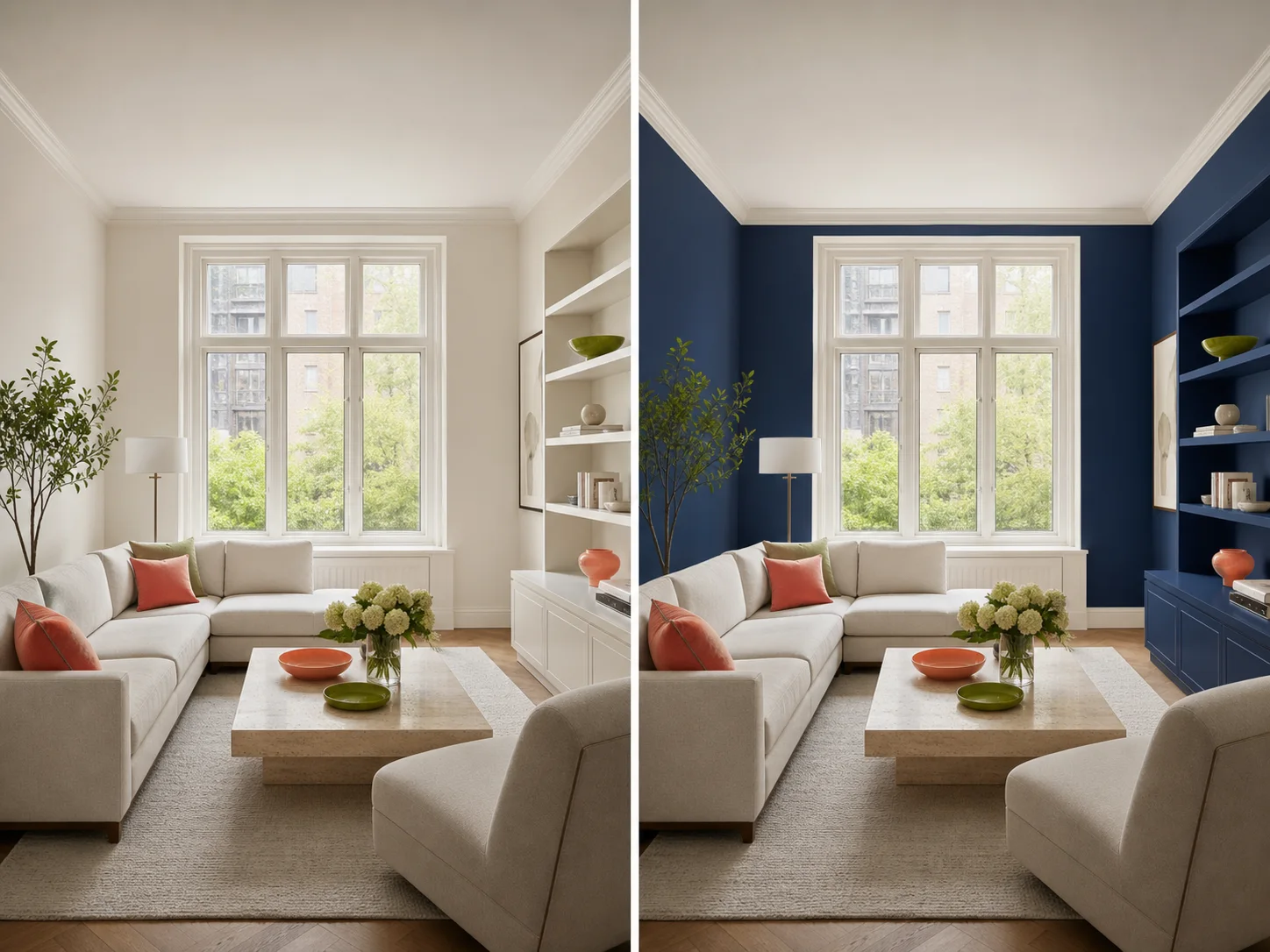
Interior previews. Test furniture, color, material, or decor changes in an existing room while keeping the camera, architecture, and untouched objects stable.
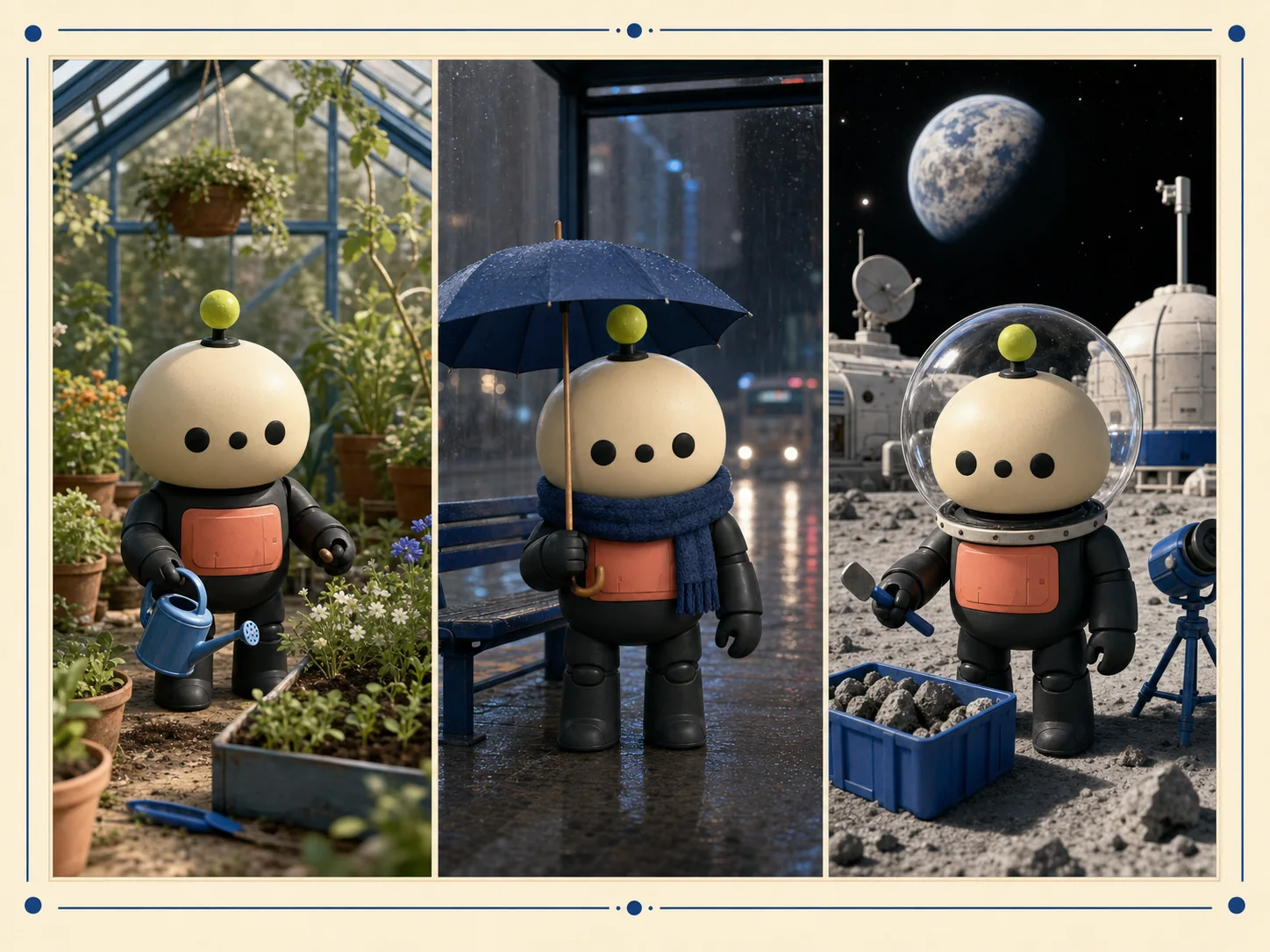
Character storyboards. Explore a recurring person or pet across new scenes and actions while checking facial identity, clothing cues, scale, and continuity frame by frame.
How to Use Nano Banana on Nuzza AI For Free
Choose Generate or Edit
Write a prompt for a new visual, or upload images for a guided edit or composition.
Describe Change and Preservation
Name the requested result, reference roles, and every identity or layout detail that must remain unchanged.
Review and Refine
Generate up to four results, inspect faces and geometry, then continue with one focused revision at a time.
Nano Banana vs. Nano Banana 2 vs. GPT Image 2
| Feature / Model | Nano Banana | Nano Banana 2 | GPT Image 2 |
|---|---|---|---|
| Best Fit | Conversational edits, recognizable subjects, photo blending, and style transfer. | General generation, editing, text, references, and flexible formats. | Detailed general briefs, text-aware concepts, and high-fidelity edits. |
| Resolution | Efficient 1K-class output suits frequent creative iteration. | Extends output from 0.5K through 4K. | Offers flexible sizes with selectable quality controls. |
| Editing | Refines targeted details through continuing natural-language instructions. | Adds broader controls for iterative creation and finishing. | Supports detailed prompt-led changes and reference preservation. |
| Reference Workflow | Combines images while preserving defined subjects and visual cues. | Handles more structured roles across complex reference sets. | Accepts structured sources for identity, composition, and style. |
| Choose When | Choose it for a simple original Nano Banana workflow. | Choose it for broader formats and resolution options. | Choose it for explicit quality and size controls. |
FAQs about Nano Banana
What is Nano Banana?
Nano Banana is the public name for Google's Gemini 2.5 Flash Image model, built for native image generation and conversational editing.
Is Nano Banana free to use?
Yes. Nuzza offers free Credits for new users to try Nano Banana. Once your free Credits are used up, you will need to subscribe to a paid plan to continue.
Can Nano Banana edit existing images?
Yes. Upload an image, describe a focused change, and identify every subject or scene detail that should remain unchanged.
Can Nano Banana keep a person consistent?
Google highlights likeness consistency for people and pets, but identity details and faces should still be checked in every result.
Can Nano Banana combine multiple images?
Yes. It can blend subjects and visual details from multiple photos into one scene when each source has a clear role.
Does Nano Banana support style transfer?
Yes. Google demonstrates transferring the visual style of one image onto an object from another image.
What resolution does Nano Banana produce?
Google documents the original Gemini 2.5 Flash Image model as a 1K-class image workflow.
How many results can Nuzza generate at once?
Nuzza lets you request one to four Nano Banana results, making it easier to compare several directions from one brief.
Create and Edit Images with Nano Banana
Use conversational image editing, recurring subjects, multi-photo composition, and style transfer in one workflow.
Try Nano Banana