
Kling 3.0
Kling 3.0 is Kuaishou's video model for multi-shot storytelling, reference continuity, native audio, and more expressive cinematic direction. Nuzza connects text, start-image, and first-and-last-frame workflows without treating separate Kling 3.0 Omni capabilities as part of this page.
Why Creators Choose Kling 3.0?
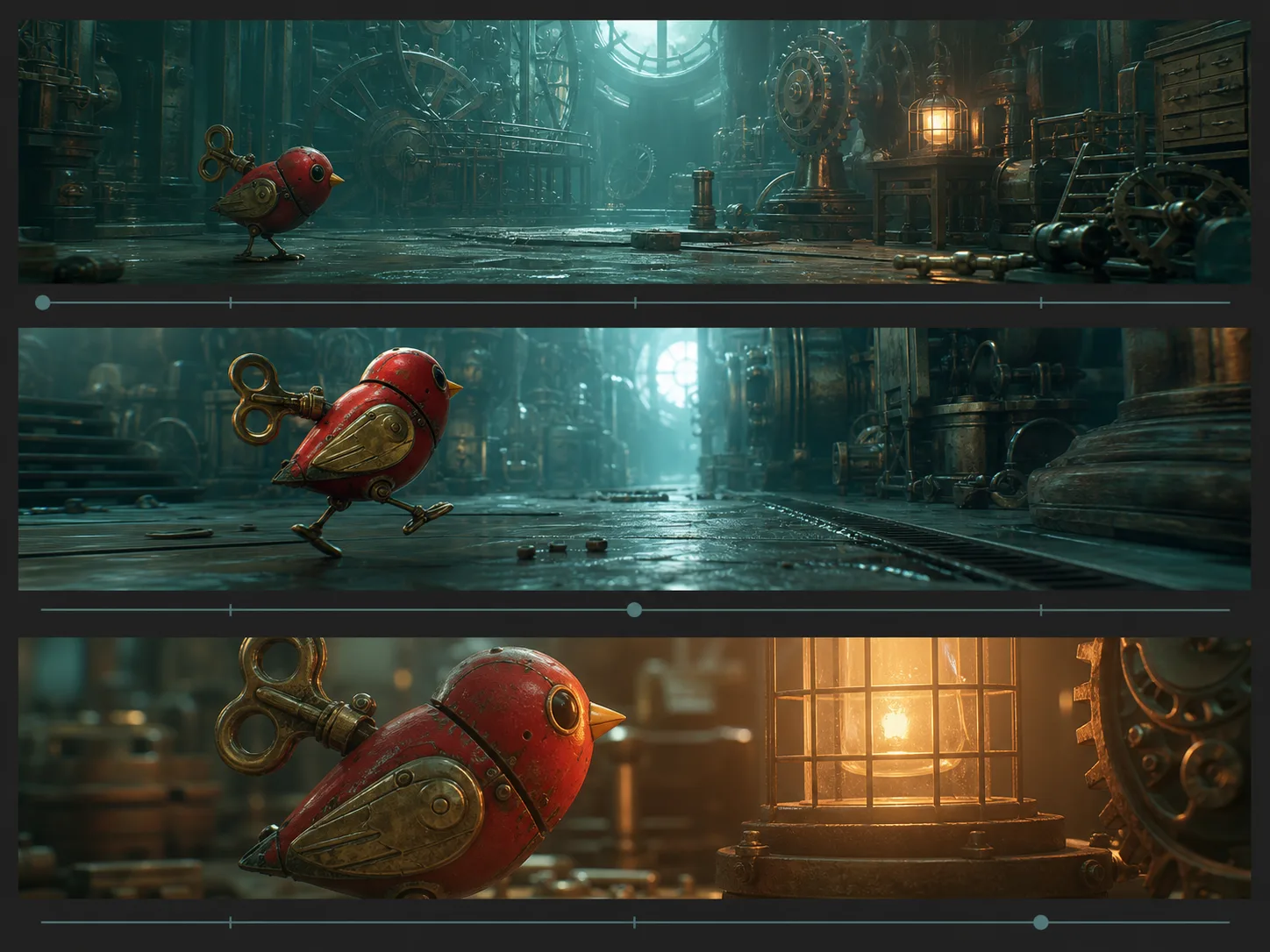
Build a Multi-Shot Sequence in One Generation
Break a short story into ordered shot prompts with their own actions and durations. Kling 3.0 can change angle and composition across the sequence while the full result still needs review for continuity, pacing, and transition logic.
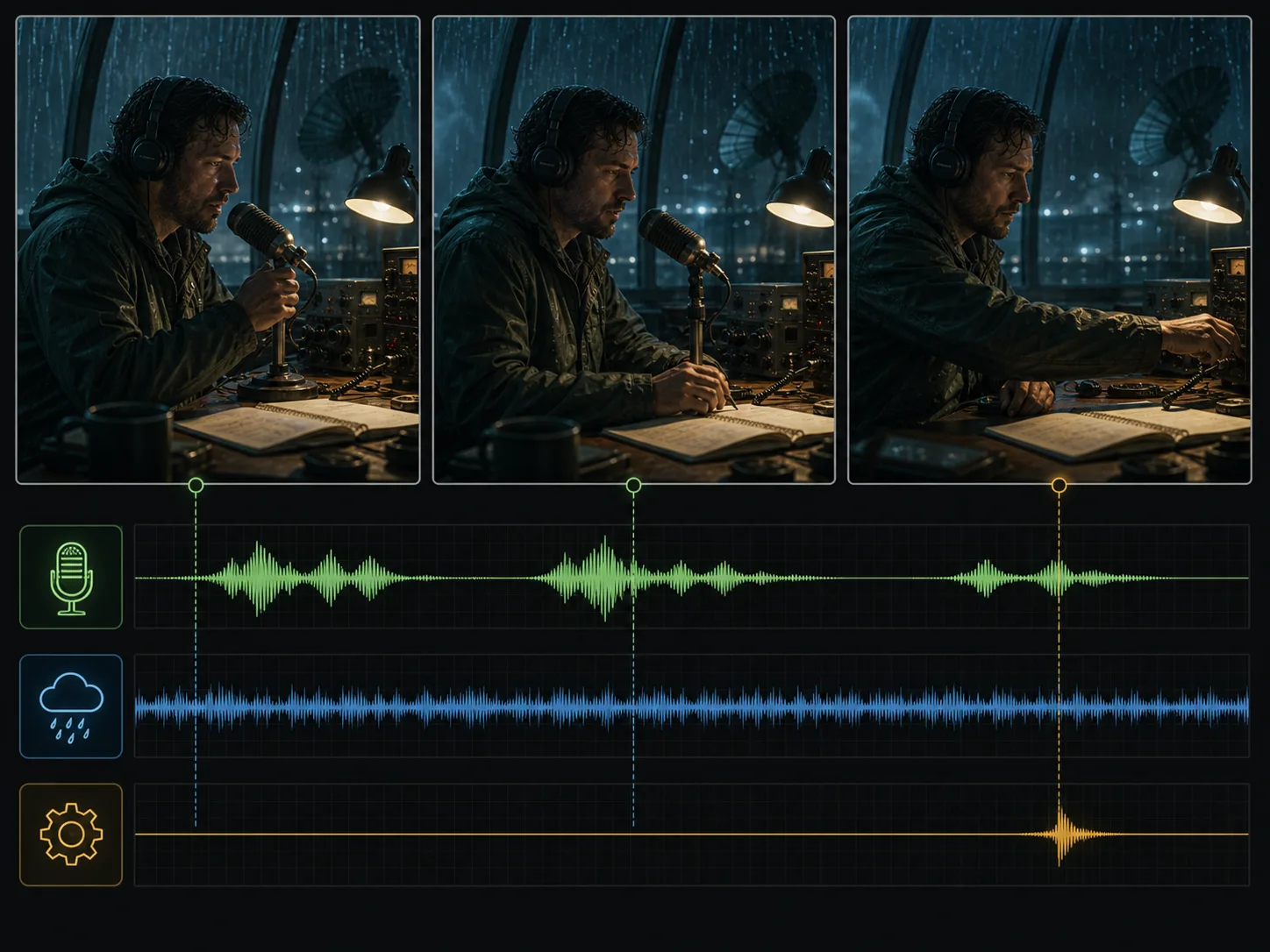
Generate Picture and Sound Together
Include dialogue, ambience, or effects beside the visible events they should support. The current Nuzza control documents Chinese and English voice output, so pronunciation, translation behavior, lip movement, timing, and balance should be checked before use.
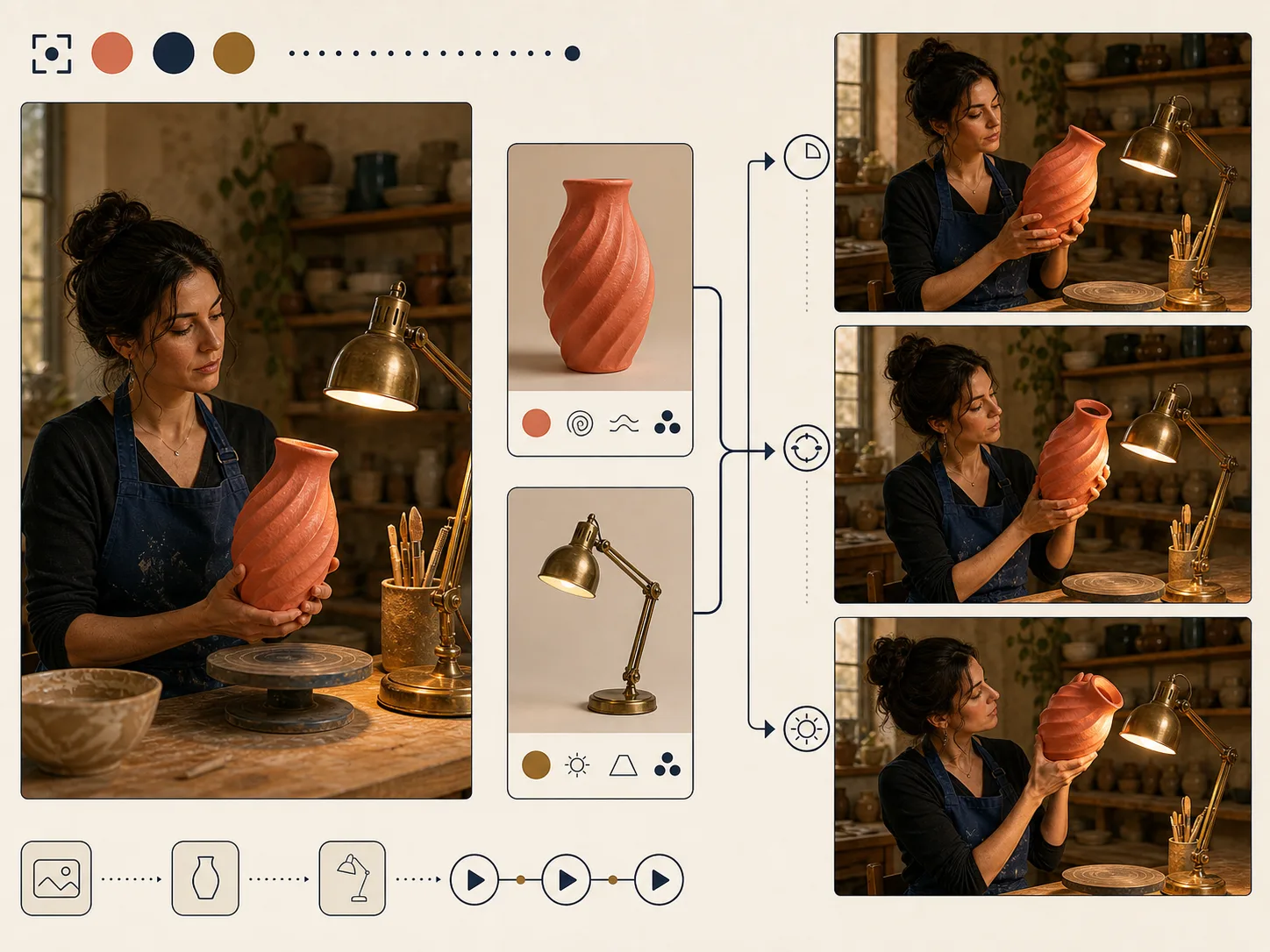
Start from Text or an Approved Image
Create an open scene from text, or upload one image when the opening composition and subject design already matter. In image mode, describe the motion that should develop and the visible identity, wardrobe, prop, and lighting details that should remain recognizable.
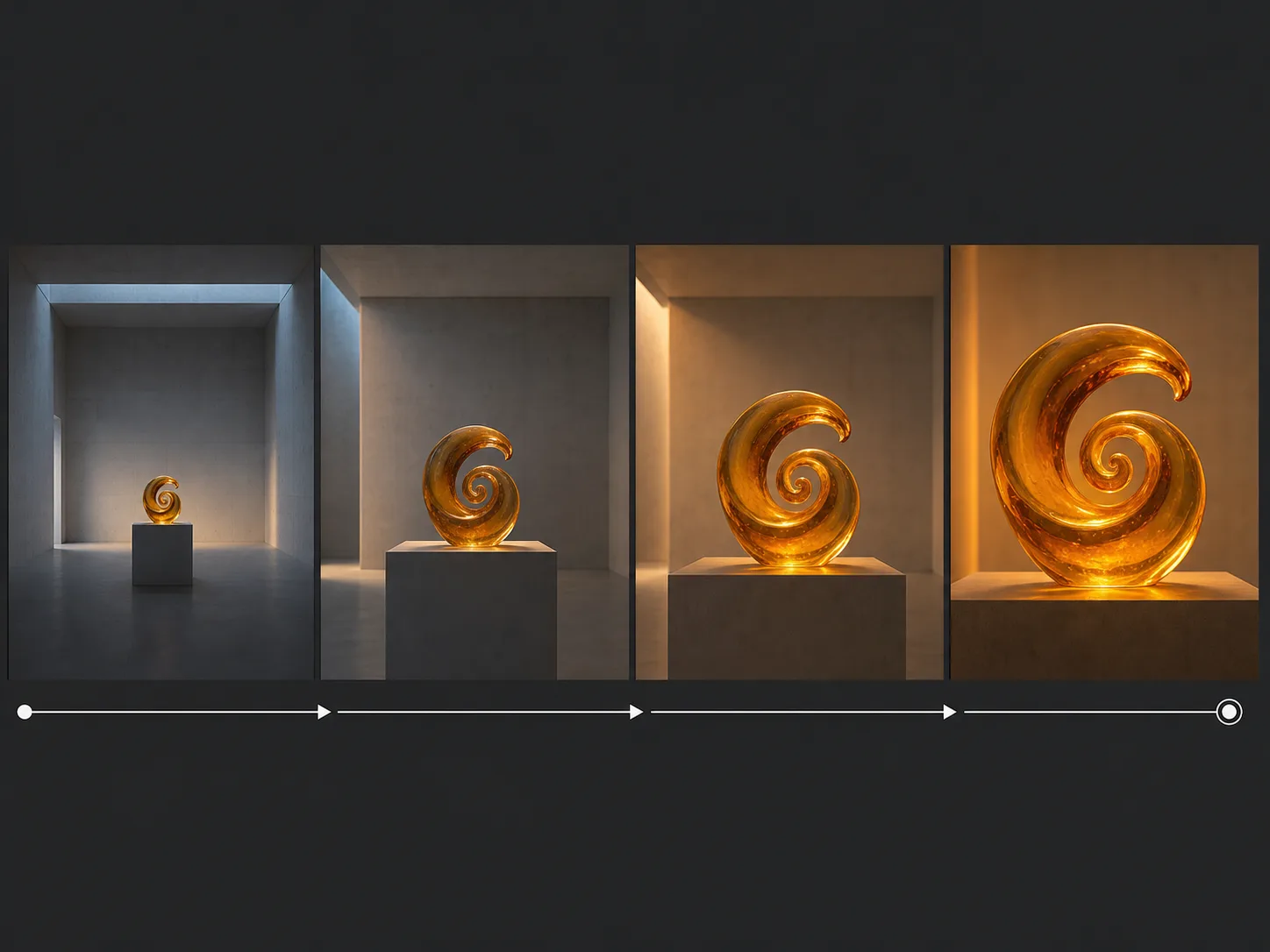
Connect First and Last Frames
Provide two ordered images when both endpoints are important to the idea. Compatible scale, camera axis, lighting, and subject geometry give Kling 3.0 a clearer path for a reveal, pose change, or environmental transformation.
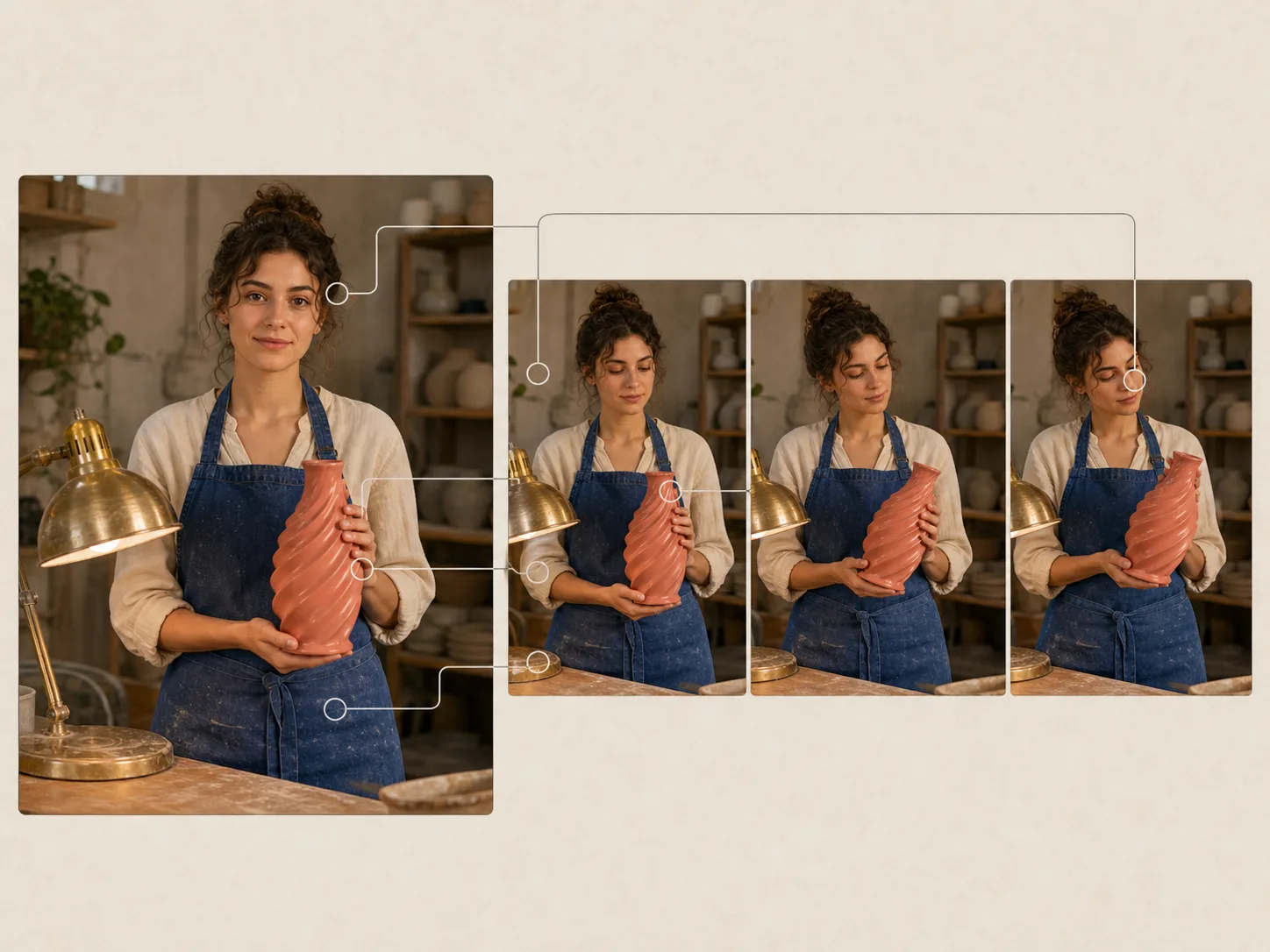
Carry Element Guidance into Image-Led Shots
The connected image workflows can use structured element guidance to clarify which visible people or objects matter. Treat those elements as generation references rather than a guaranteed identity library, and compare every important detail with the source.
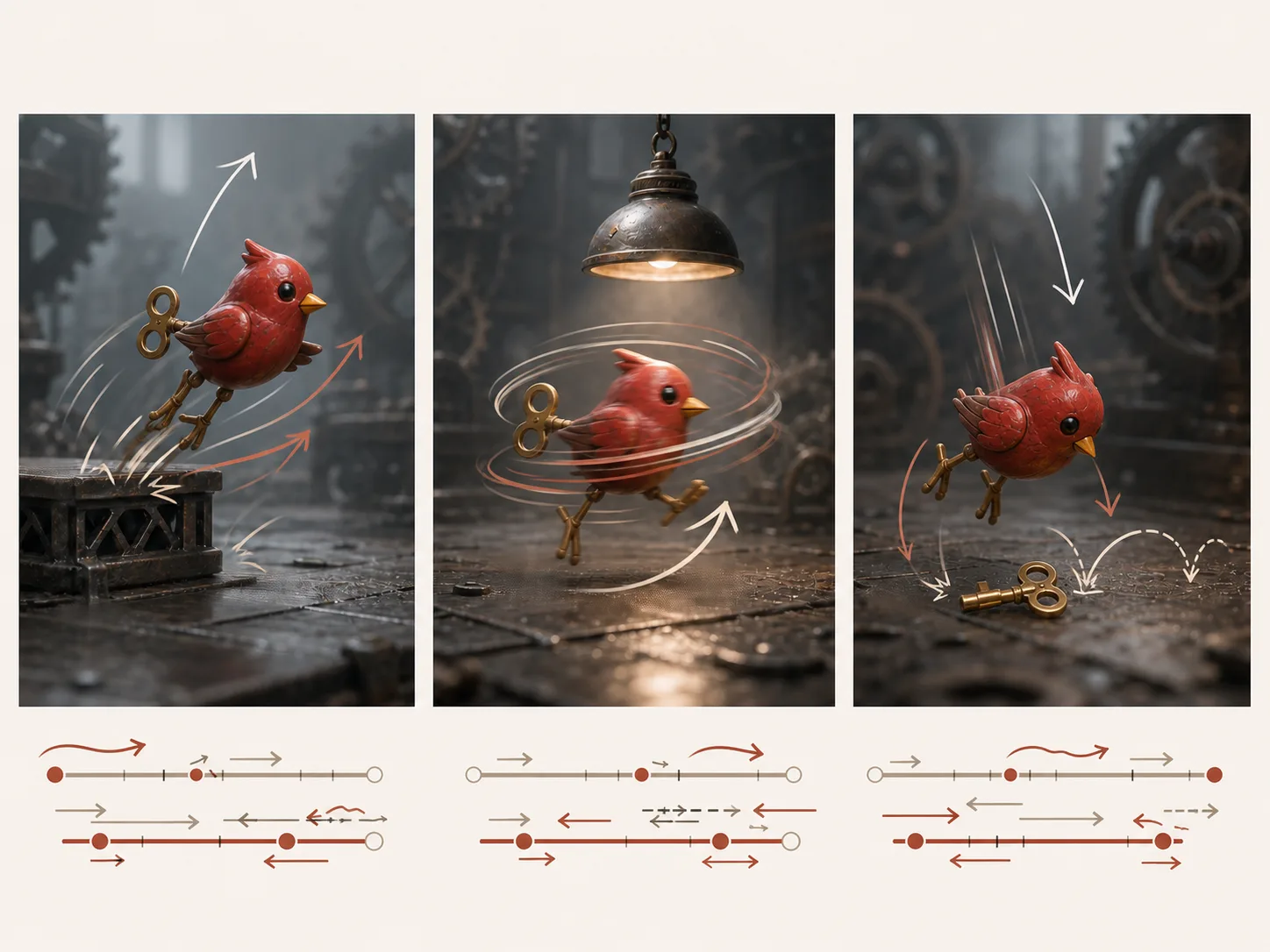
Direct Clips from 3 to 15 Seconds
Choose any whole-second duration from 3 through 15, then keep the requested action and shot count realistic for that window. Text mode also offers landscape, portrait, or square framing, while image-led modes follow the supplied visual geometry.
What Is Kling 3.0 Built For?
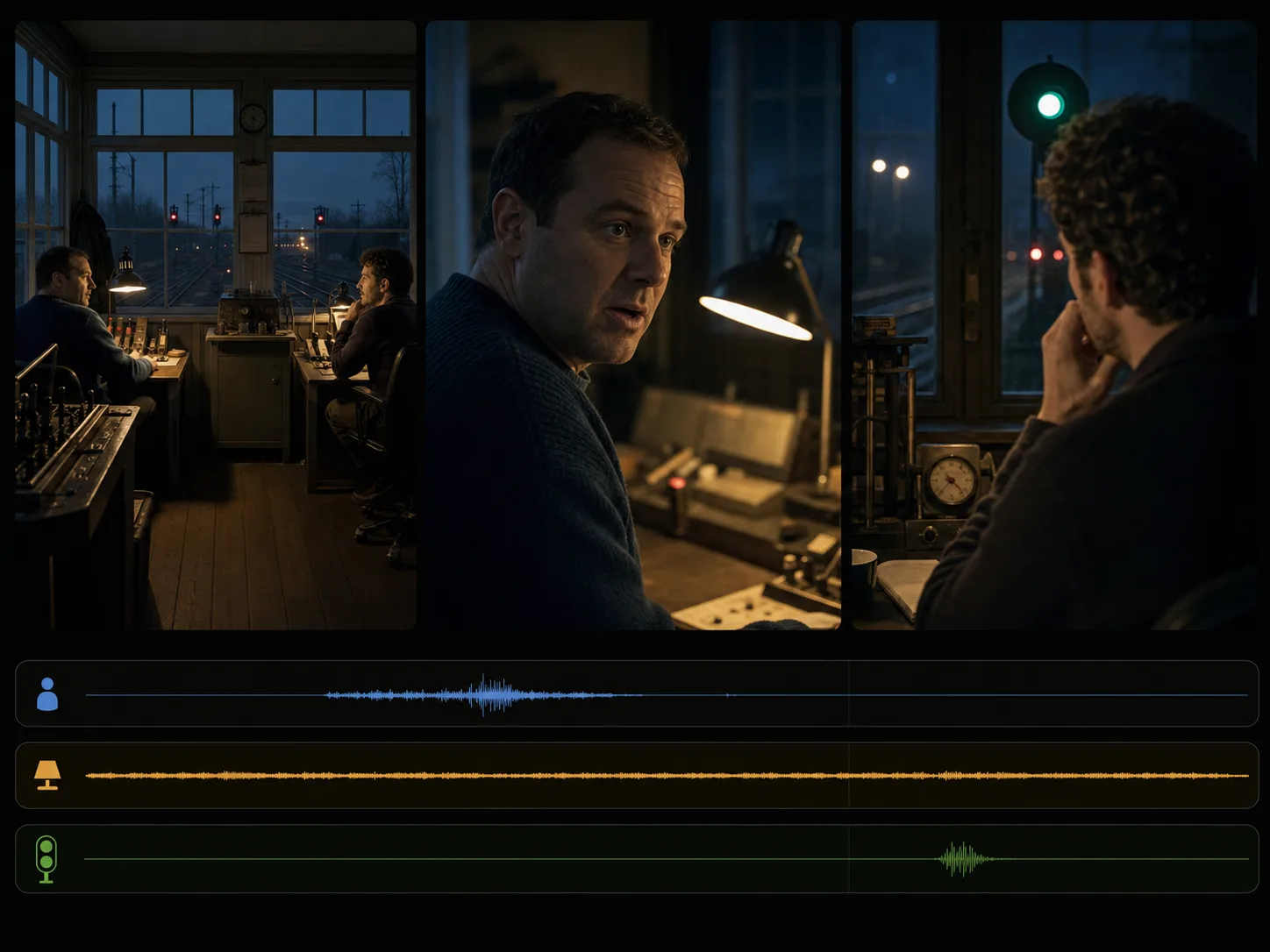
Short narrative sequences. Stage an establishing view, action beat, and reaction or reveal as a connected sequence with planned camera changes and timing.
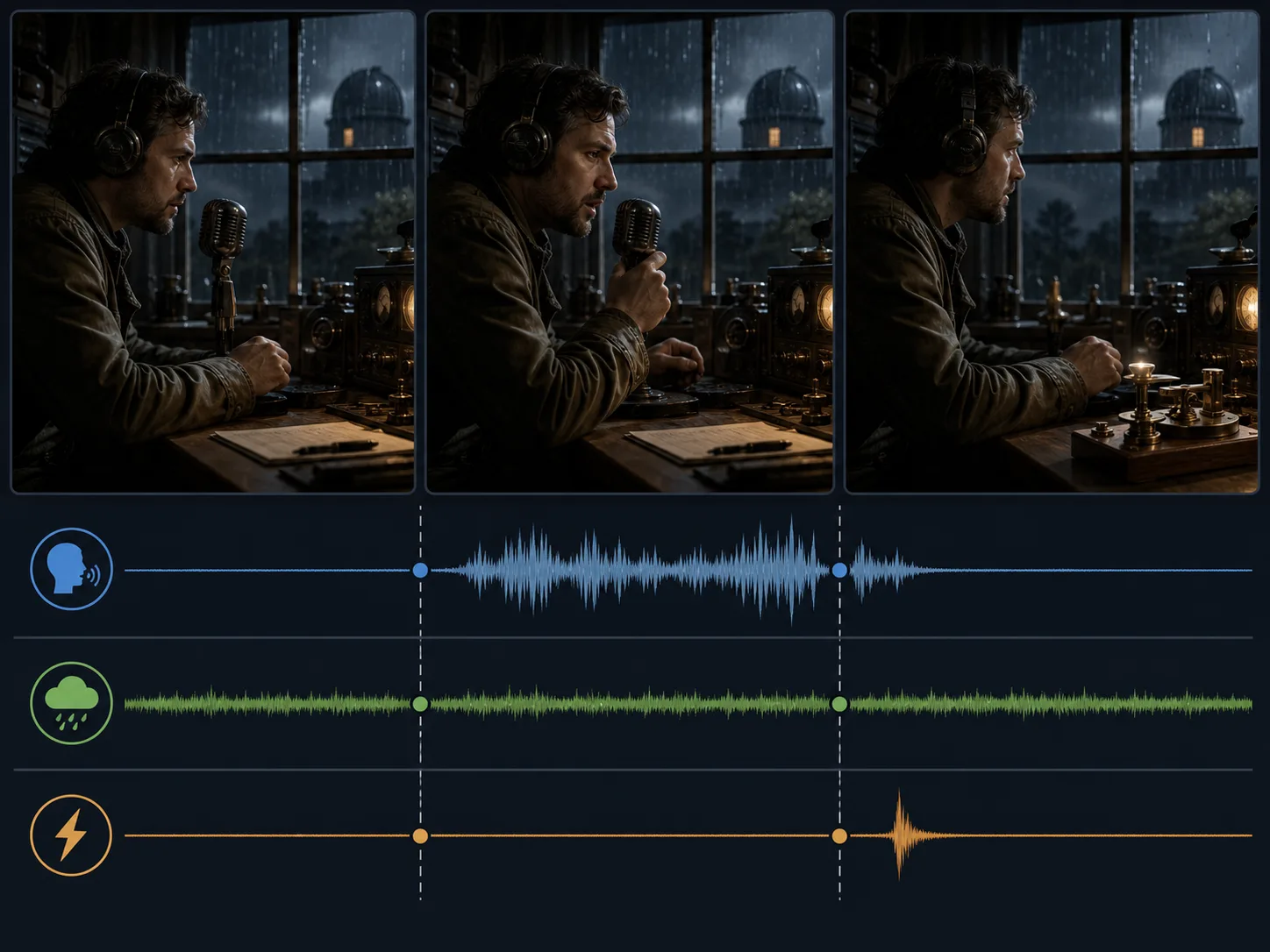
Dialogue previsualization. Test a compact exchange with named speakers, short lines, reactions, ambience, and shot-reverse-shot structure before live production.
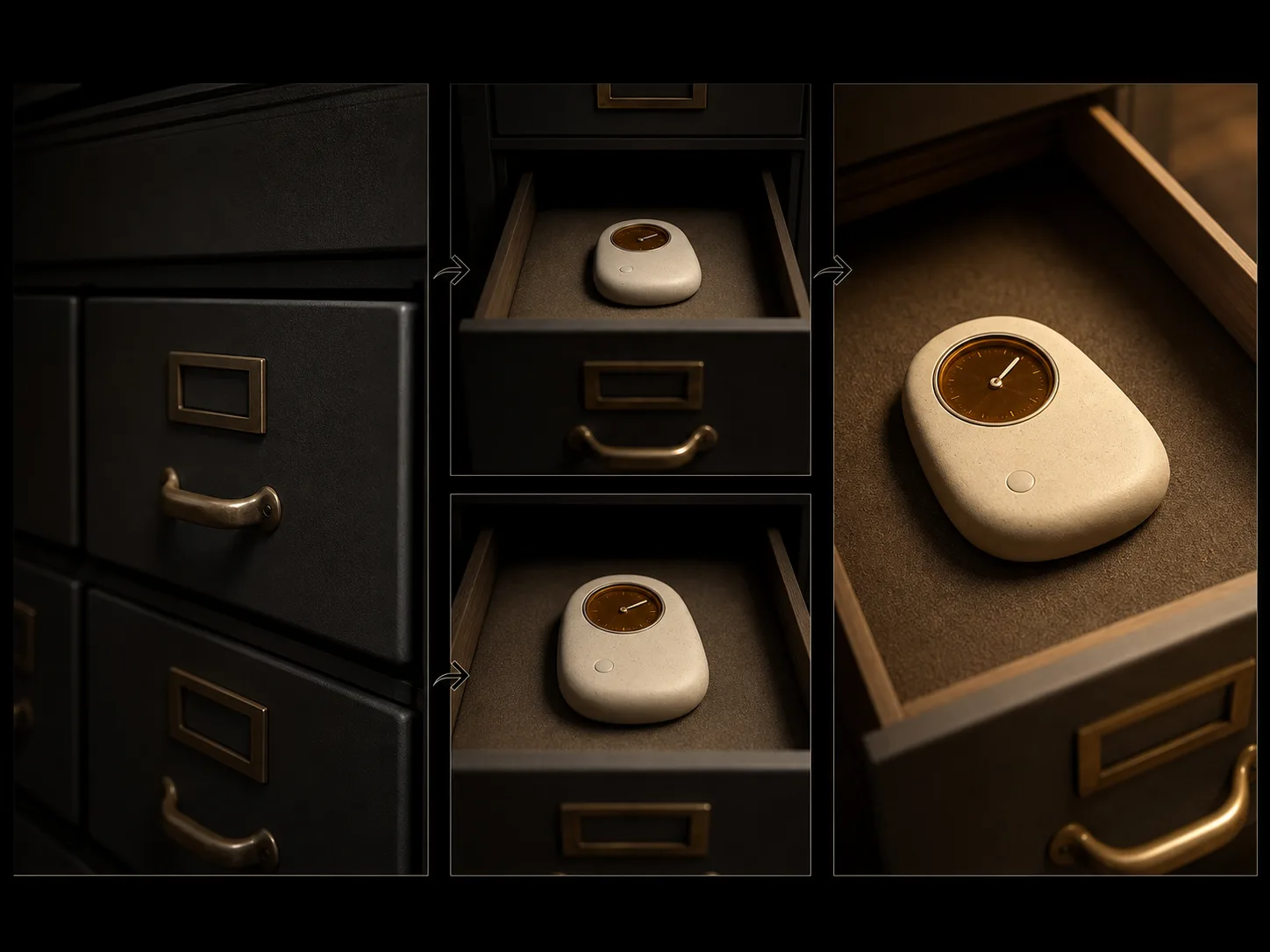
Designed endpoint reveals. Guide a product, set, sculpture, character, or environment from a compatible opening frame toward a defined final composition.
How to Use Kling 3.0 on Nuzza AI For Free
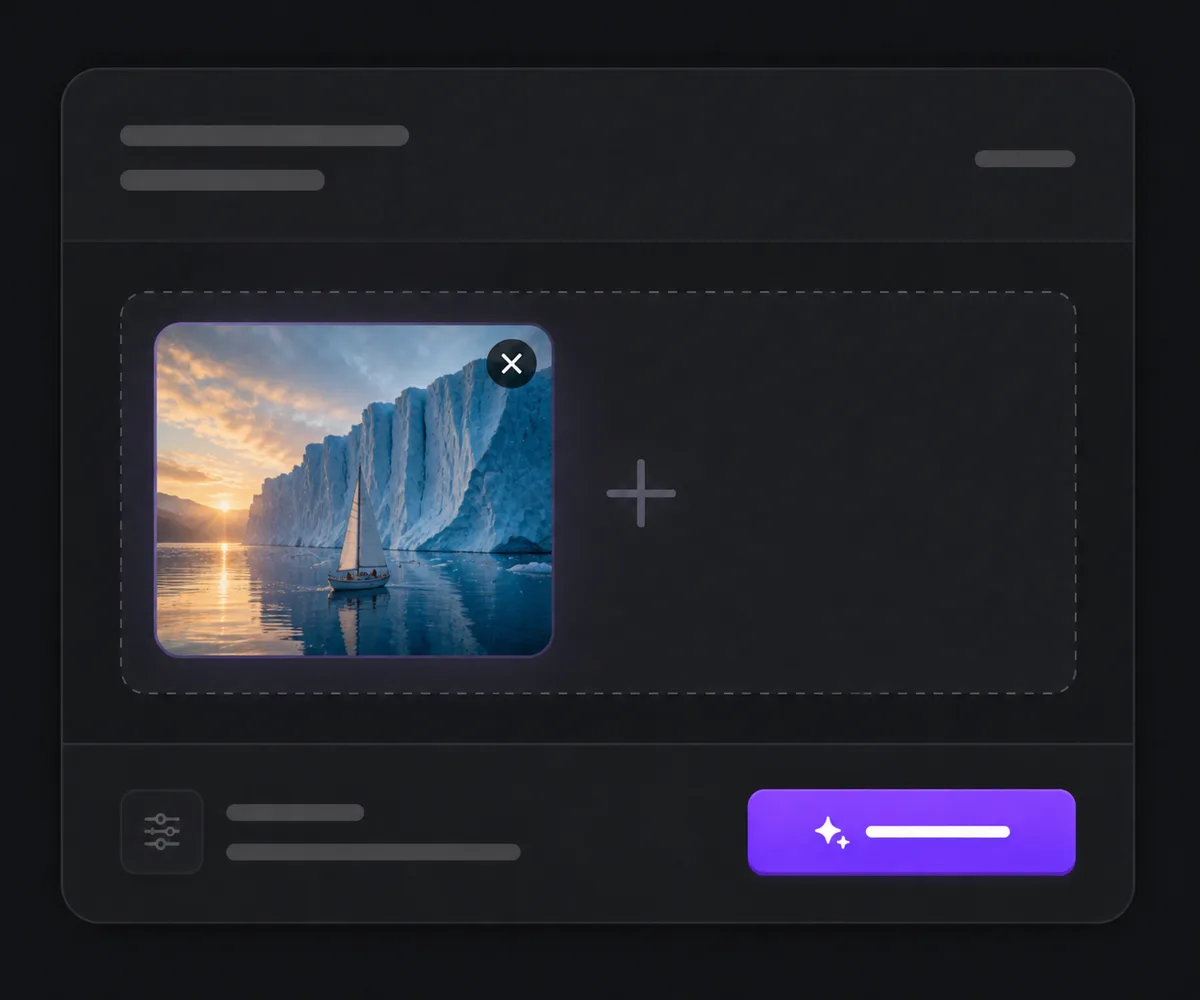
Choose Text, a Start Image, or Two Endpoint Frames
Match the workflow to the material you already have and the amount of compositional control the shot needs.
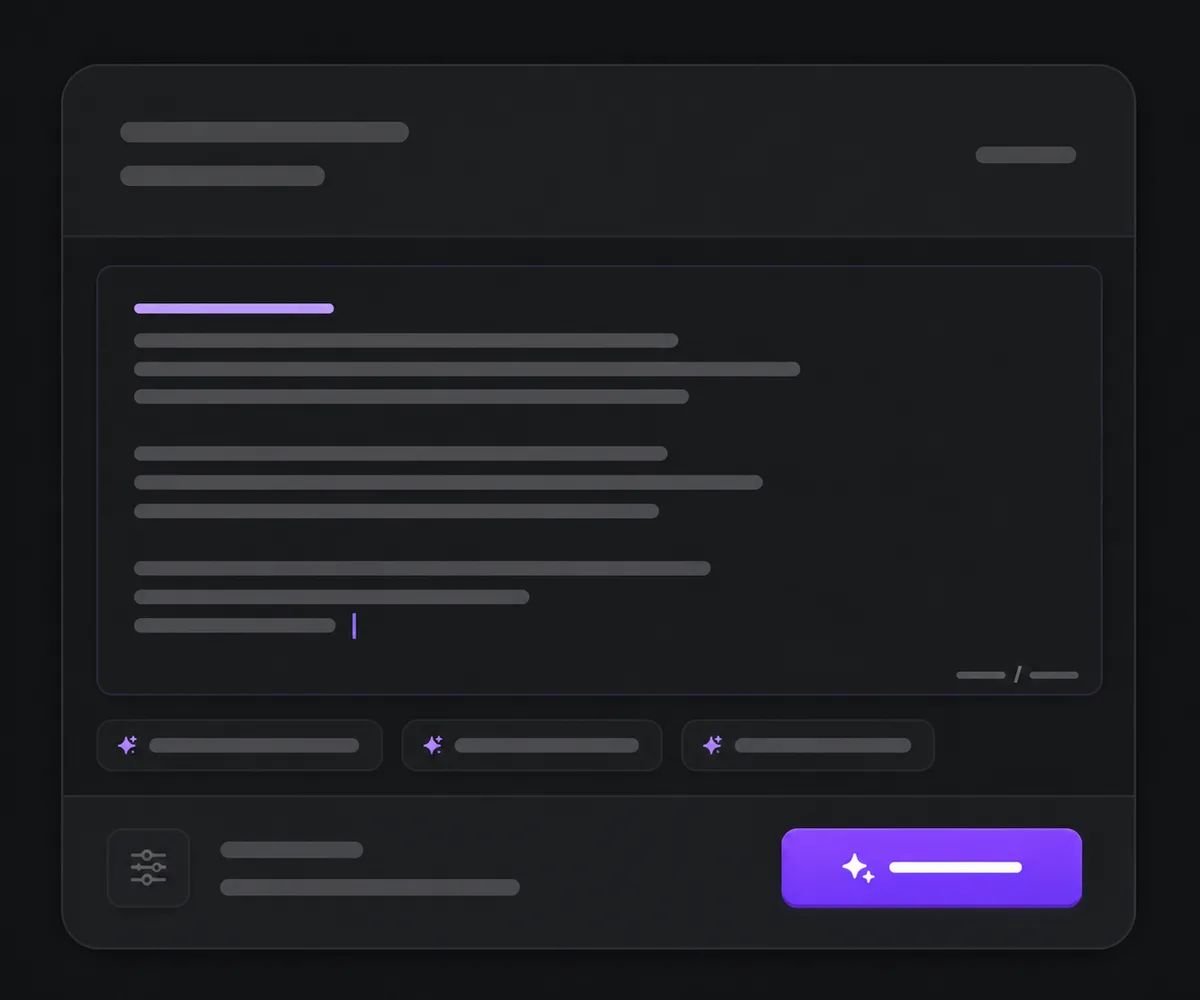
Plan the Shots, Camera, and Sound
Write one focused prompt or ordered shot segments, then set duration, framing, audio, shot type, and advanced guidance where available.
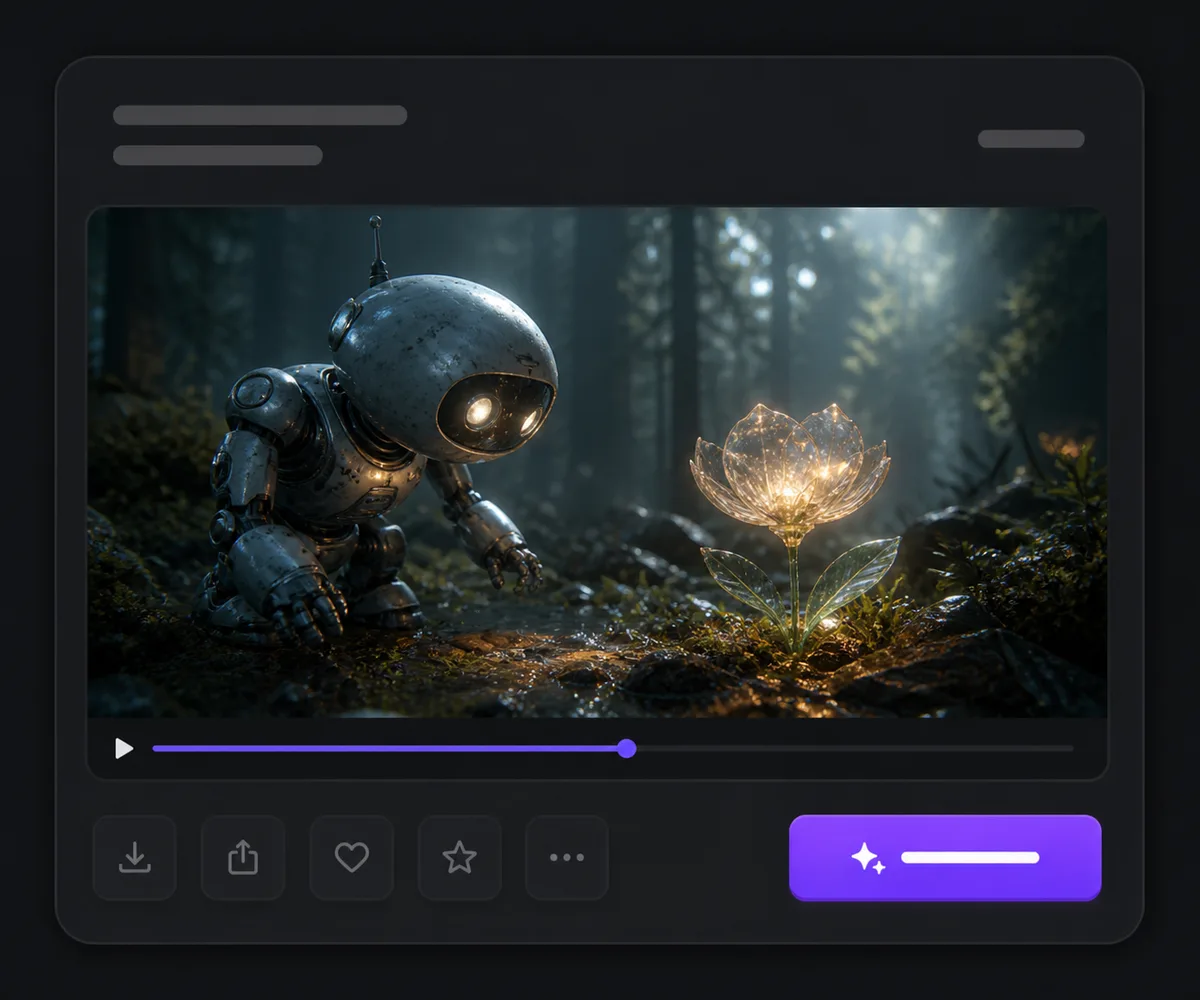
Generate and Review Every Beat
Check subject continuity, physical motion, cut logic, endpoints, dialogue, ambience, and synchronization across the complete result.
Kling 3.0 vs Kling 3.0 Turbo vs Google Veo 3.1
| Feature / Model | Kling 3.0 | Kling 3.0 Turbo | Google Veo 3.1 |
|---|---|---|---|
| Best Fit | Multi-shot audiovisual stories and endpoint-controlled transitions. | Faster text- or start-image iteration with timed multi-prompt direction. | Short audiovisual clips where seed or 4K selection matters. |
| Starting Inputs | Text, one start image, or first and last frames. | Text or one start image in the current Nuzza mapping. | Text, one start image, or first and last frames. |
| Duration | 3–15 seconds. | 3–15 seconds. | 4, 6, or 8 seconds. |
| Shot Direction | Multi-prompt plus customized or intelligent shot planning. | Up to six timed prompt entries; fewer exposed controls than Kling 3.0. | Prompt-led rather than Kling-style timed multi-prompt planning. |
| Audio | Generated-audio control is exposed in the current workflow. | Native audio belongs to the model tier, but Nuzza does not expose an audio toggle here. | Generated-audio control is exposed. |
FAQs about Kling 3.0
What is Kling 3.0?
Kling 3.0 is Kuaishou's video-generation family for multi-shot storytelling, reference consistency, native audio, and cinematic direction. This page covers Nuzza's connected Kling 3.0 operations, not every separate Omni capability.
Is Kling 3.0 free to use?
Yes. Nuzza offers free Credits for new users to try Kling 3.0. Once your free Credits are used up, you will need to subscribe to a paid plan to continue.
What inputs does Kling 3.0 support on Nuzza?
You can start from text, animate one opening image, or provide first and last frames for an endpoint-guided transition.
How long can Kling 3.0 videos be?
The current Nuzza workflows offer every whole-second duration from 3 through 15 seconds.
Can Kling 3.0 make multi-shot videos?
Yes. Multi Prompt can define ordered shot segments, and the full workflow also exposes customized or intelligent shot planning.
Does Kling 3.0 generate audio?
Yes. Nuzza exposes a generated-audio control for the connected Kling 3.0 workflows. Review speech, translation behavior, lip motion, ambience, effects, and synchronization.
Is Kling 3.0 the same as Kling 3.0 Omni?
No. Kling 3.0 is a family with separate variants. Capabilities specifically announced for Omni, such as its broader reference system, should not automatically be assumed for this connected model entry.
What aspect ratios can I choose?
Text-to-video offers 16:9, 9:16, and 1:1. Image-led workflows follow the supplied image geometry rather than exposing the same separate ratio selector.
What should I check before publishing?
Review the whole sequence for identity, motion, shot order, timing, endpoint behavior, text, dialogue, ambience, effects, and audiovisual synchronization.
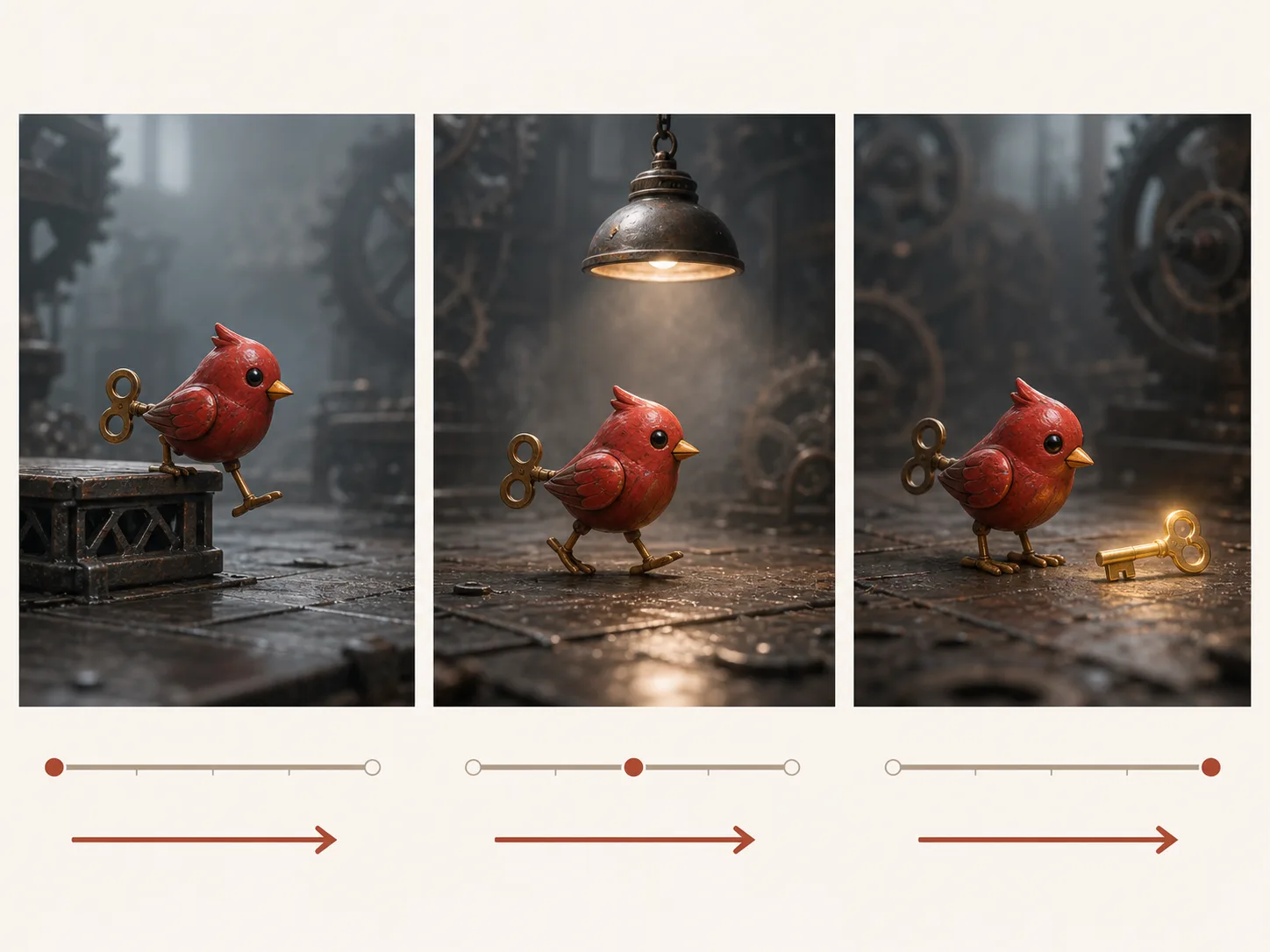
Turn a Short Brief into a Directed Sequence
Choose Kling 3.0, plan the shot order, camera, action, and sound, then generate a compact sequence with explicit timing.
Try Kling 3.0 for Free Now