AI Image Enhancer


AI Image Enhancer: Balance Low-Light Photos Without Flattening the Scene
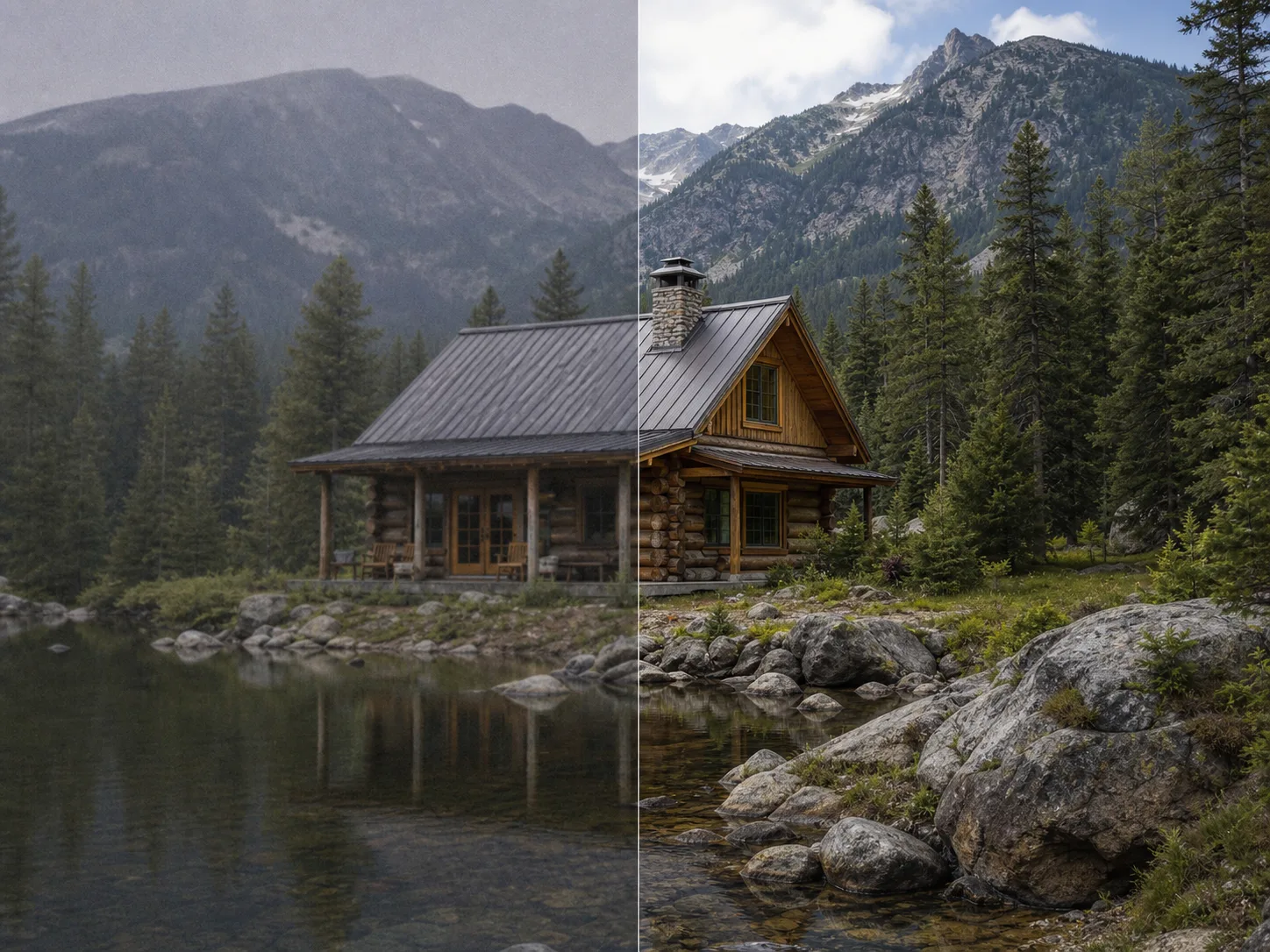
A useful enhancement pass can make shadow information easier to inspect while reducing distracting color noise and protecting bright lamps or reflections.
What Should an AI Image Enhancer Improve?
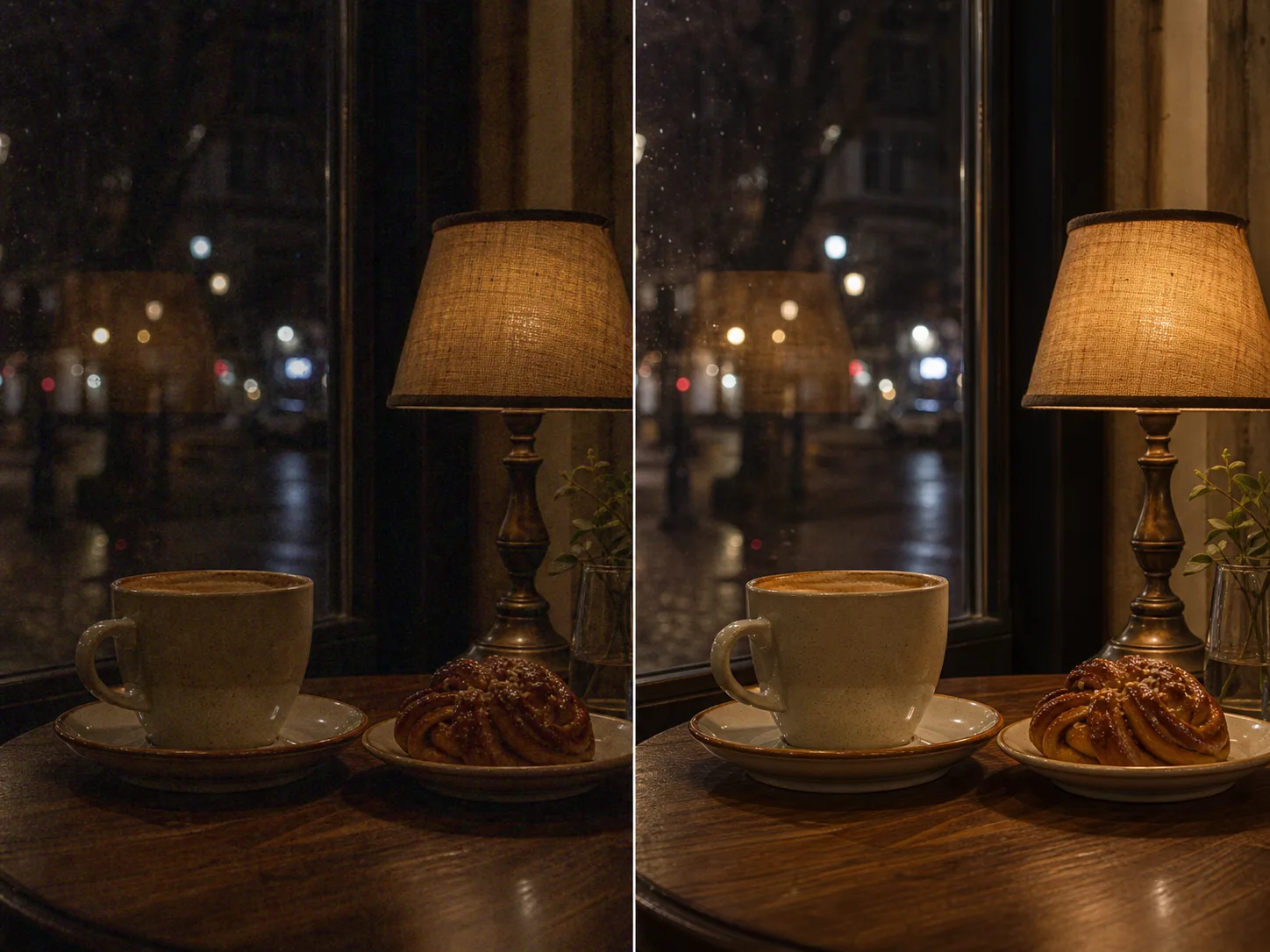
Balance Low-Light Photos Without Flattening the Scene
A useful enhancement pass can make shadow information easier to inspect while reducing distracting color noise and protecting bright lamps or reflections. The goal is not to turn night into day. Compare the result with the source for clipped highlights, crushed blacks, smeared fine texture, and an unwanted shift in mood. If exposure intent matters, a manual editor with separate shadow, highlight, white-balance, and noise controls offers more direction than this automatic operation.
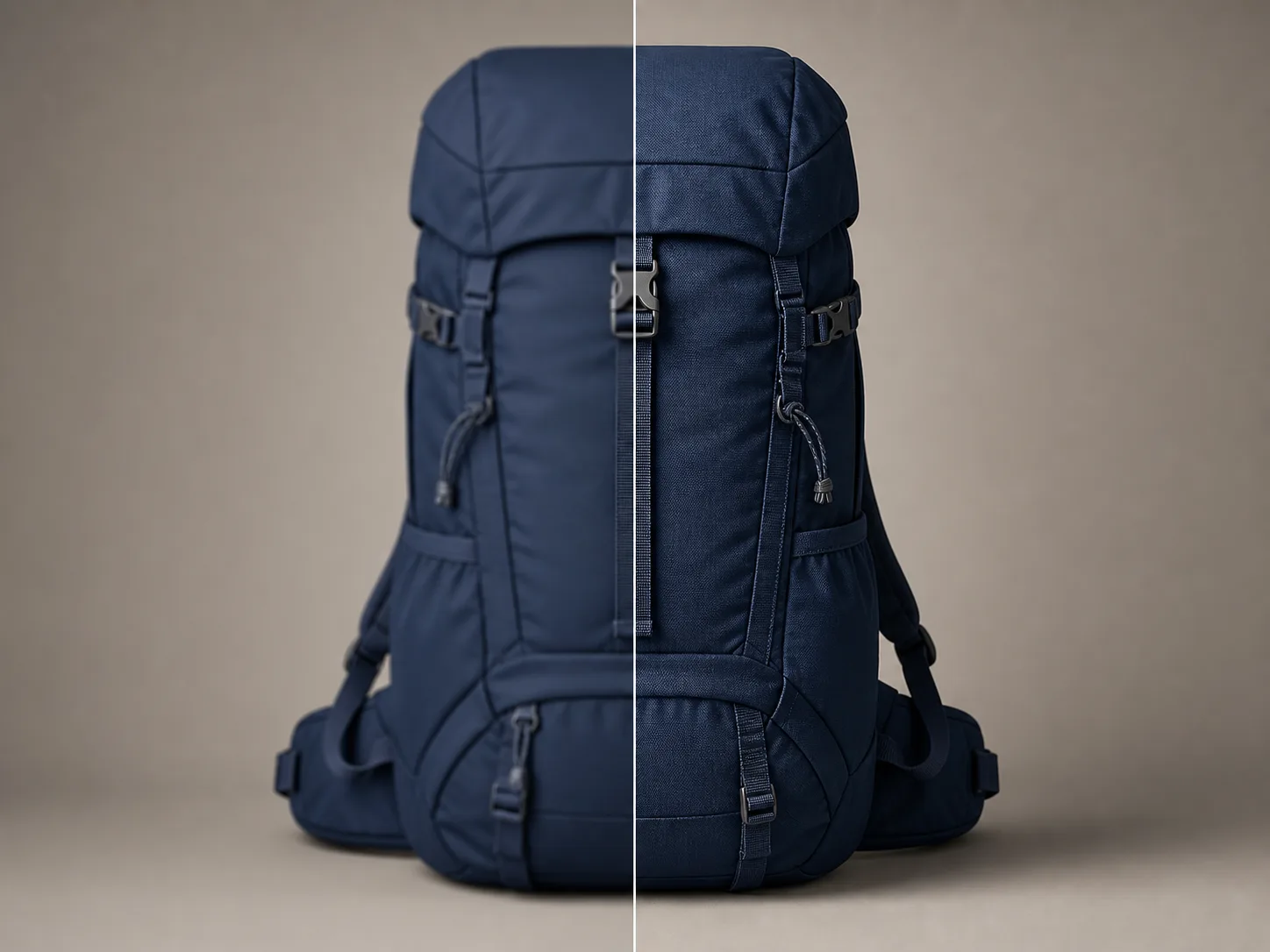
Make Product Texture Easier to Inspect
Soft marketplace images can hide stitching, woven fabric, zipper teeth, ceramic grain, or clean hardware edges. Enhancement may make those structures more legible, but it must not redesign the product. Verify the silhouette, pocket layout, fasteners, material, color, printed details, and every repeated pattern against the approved source. For ecommerce, a plausible invented seam is still inaccurate product information.
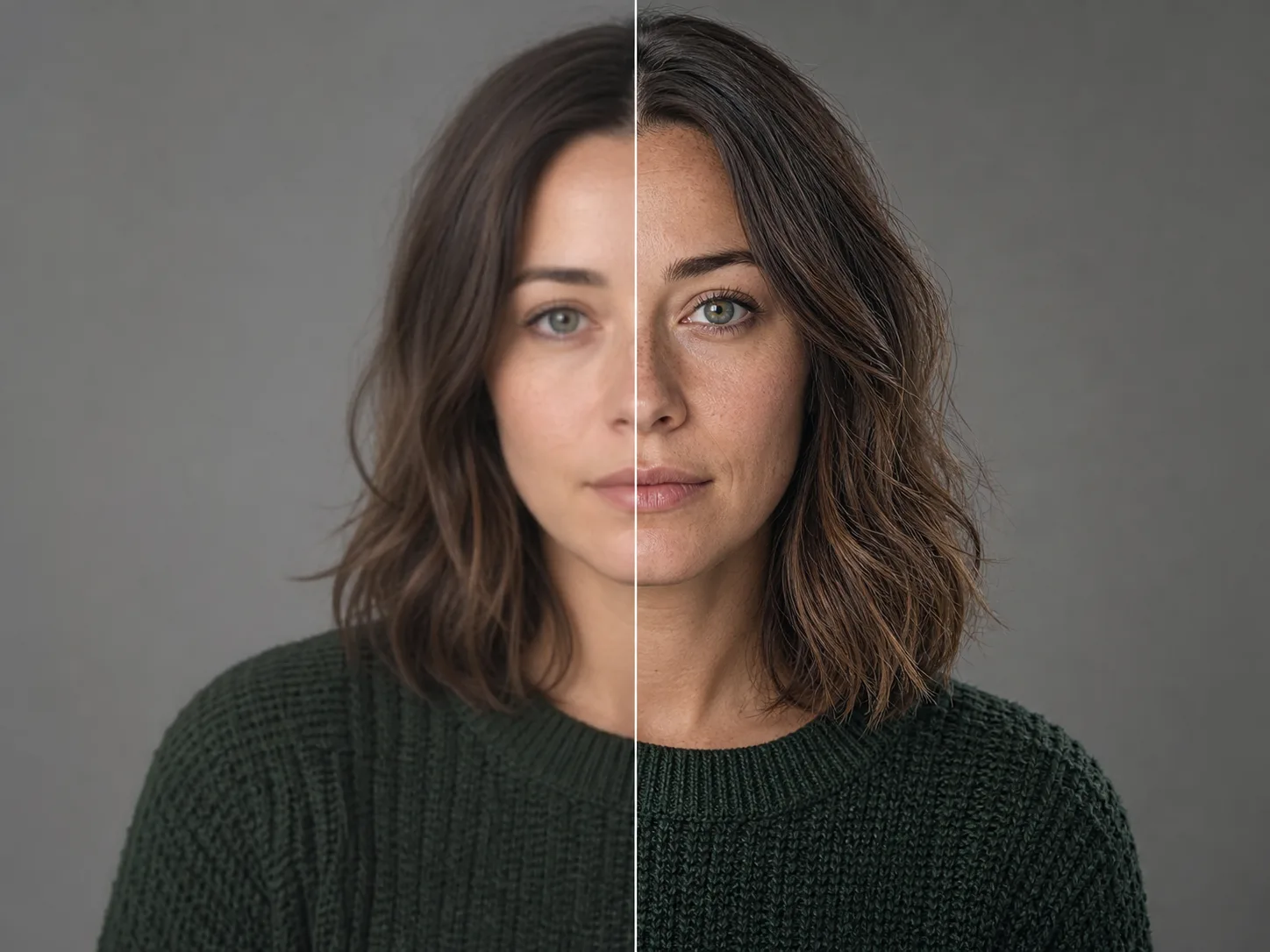
Clarify Portrait Detail While Protecting Identity
Portrait enhancement is most reliable when it preserves facial proportions, expression, skin texture, hairline, clothing, and lighting. Inspect eyes, teeth, glasses, jewelry, flyaway hair, and patterned fabric at full size. A smoother or sharper face is not automatically a more accurate face, and any change to identity-defining geometry should be rejected. Keep the original available for direct comparison and consent-sensitive review.
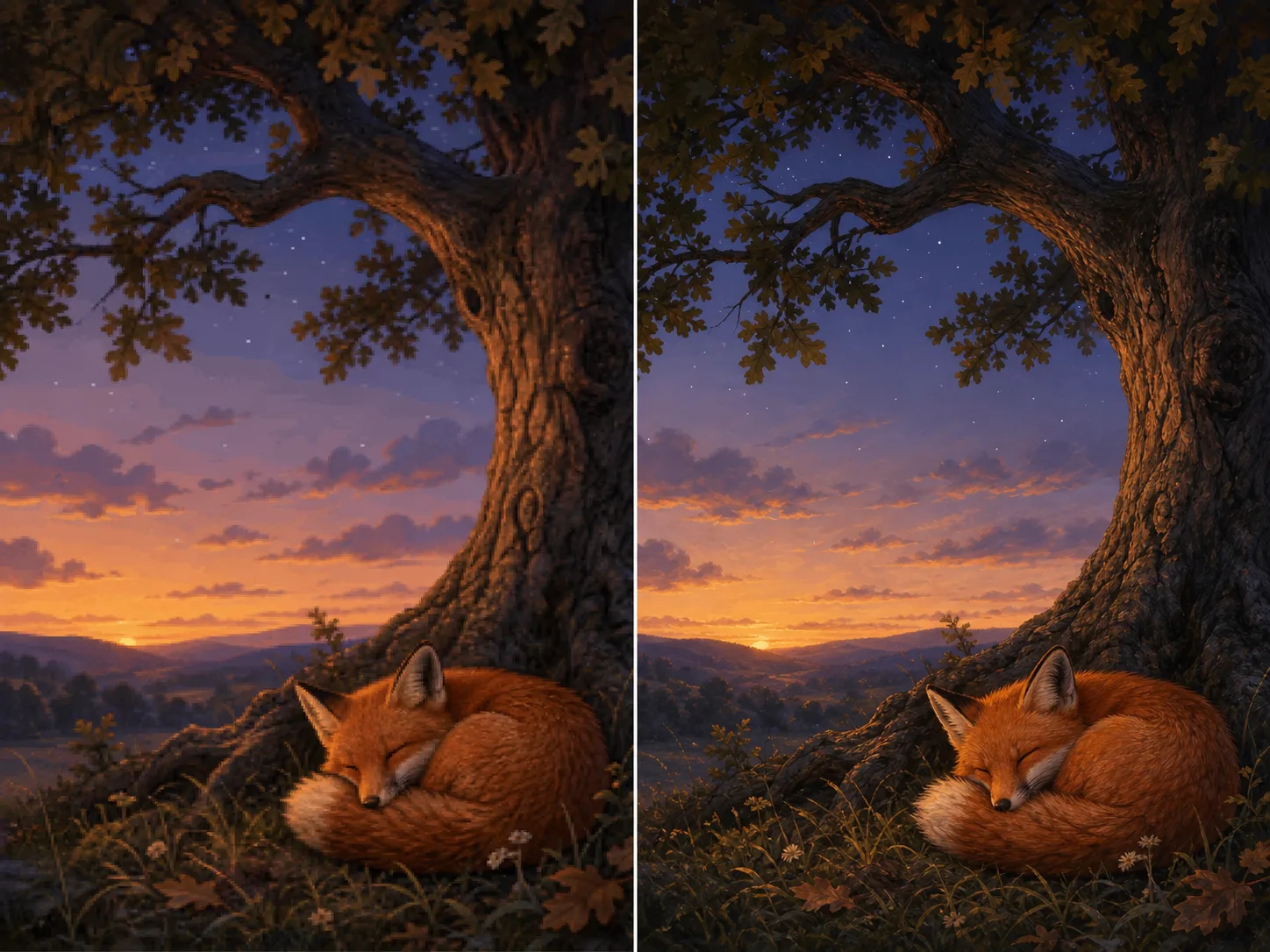
Clean Raster Art Without Erasing Its Style
Digital paintings and scanned illustrations may benefit when blocky gradients, compression around small stars, or rough raster curves distract at the intended display size. The enhanced version should retain deliberate brush marks, palette boundaries, line weight, character anatomy, and intentionally rough texture. It remains raster reconstruction rather than vector conversion, so signatures, fine linework, and authored irregularities still require careful review.
How to Use the AI Image Enhancer
Upload the Best Source You Have
Choose one JPG, PNG, or WebP image up to 10 MB. Prefer the original export with clean focus, intact highlights, and less compression because the operation cannot verify detail that the source never recorded.
Sign In and Review the Quote
Authentication is required before creation. Choose Nuzza Enhance 1.0, SeedVR2 Enhance, or Topaz Wonder 3.5; the workspace sends no prompt or adjustable enhancement parameters and shows the selected model's server-calculated quote.
Respect the Current Runtime Boundary
Submit the task through the generation queue, then inspect the finalized result against the source before downloading or publishing it.
When Is an AI Photo Enhancer Useful?
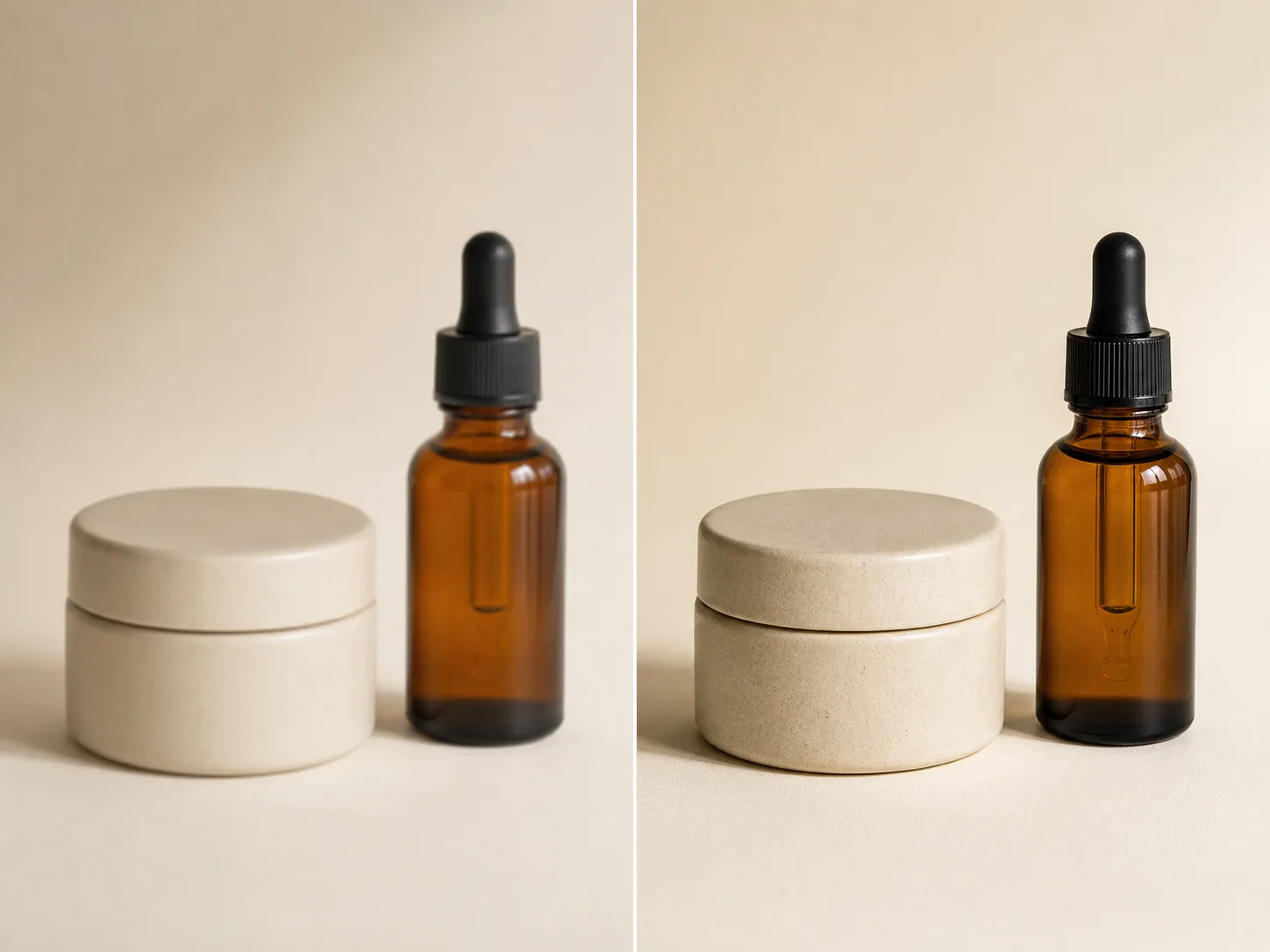
Prepare a clearer working image for product review.
Use a photo quality enhancer when an otherwise approved product source looks slightly soft, flat, or compressed in a listing draft. A cleaner working copy can make glass edges, ceramic grain, stitching, and shadow separation easier to evaluate. It cannot certify color or create missing packaging information. Compare geometry, labels, materials, reflections, and included accessories with the real product before a catalog update.
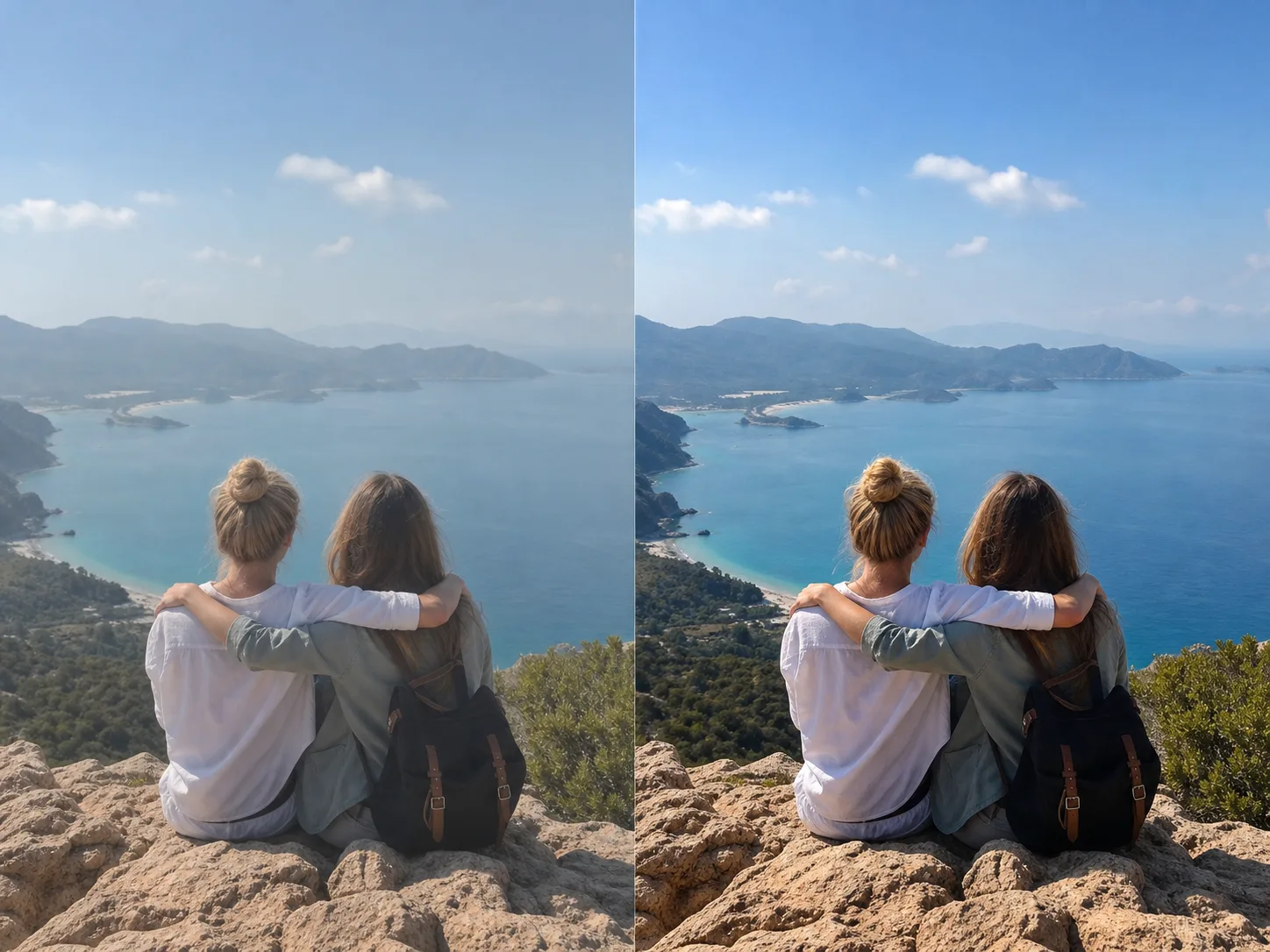
Improve a travel or phone photo before a larger placement.
Atmospheric haze, flat midtones, and compression can make a travel photo feel less legible after cropping or platform processing. Enhancement can create a cleaner draft for a feed, story, thumbnail, or presentation, but the most saturated version is not necessarily the best. Protect skin tone, sky gradients, distant coastlines, clothing texture, and the original mood rather than chasing exaggerated local contrast.
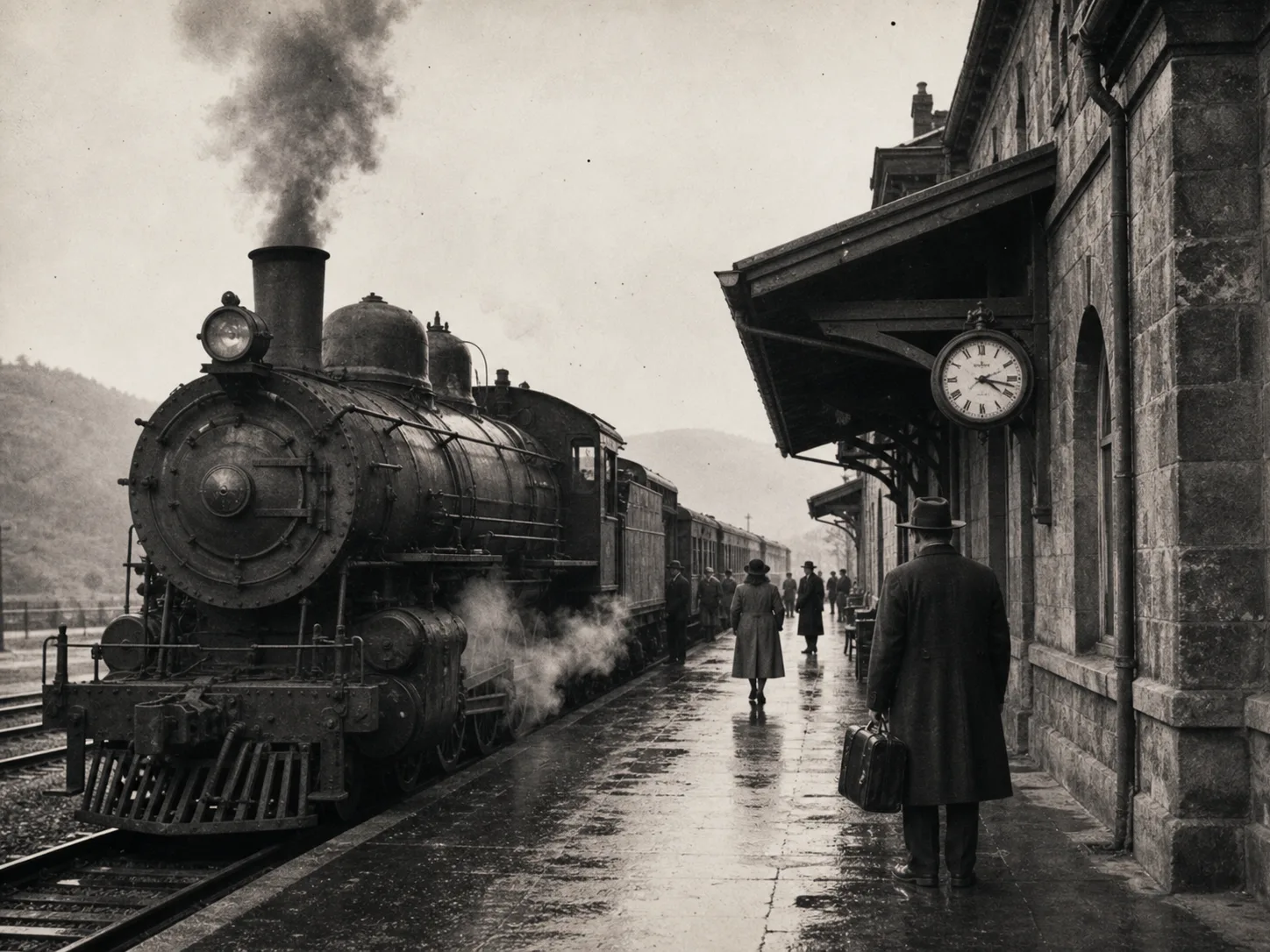
Create an interpreted working copy while preserving the record.
A restrained enhancement can make architecture, clothing silhouettes, track edges, or tonal separation easier to study in a fictional or personal scan. Keep the untouched scan as the archival record. The tool does not authenticate a photograph, repair physical damage, identify people, or prove that newly legible-looking texture existed in the original. Documentary, historical, and legal uses need source-aware human review.
Nuzza vs. Top AI Image Enhancers
| Feature / Model | Nuzza | Topaz Image | Remini | Let's Enhance |
|---|---|---|---|---|
| Enhancement Options | Nuzza, SeedVR2, or Topaz Wonder 3.5 | Unblur, denoise, relight, restore, faces, and upscale | Unblur, denoise, restore, face, and color fixes | Detail, exposure, noise, color, and upscale controls |
| Cost | Free with included credits | Paid plan | Limited free access or subscription | Free credits or subscription |
| Best For | Choosing an enhancement engine per image | Broad professional enhancement workflows | Faces and old-photo restoration | Print and e-commerce image preparation |
FAQs about AI Image Enhancer
What is Nuzza's AI Image Enhancer?
It applies an automatic quality-focused pass to one uploaded image. Choose an available processing option, then compare the result with the source because clearer-looking detail may still be estimated.
What is the best AI image enhancer?
The best AI image enhancer depends on the source and the type of improvement you need. Nuzza's AI Image Enhancer is a strong choice for an automatic, quality-focused workflow.
Is Nuzza's AI Image Enhancer free to use?
The page is free to browse. Running a task requires Credits, and the current cost is shown before you submit.
What can I use Nuzza's AI Image Enhancer for?
Nuzza's AI Image Enhancer is useful for ecommerce, social photos, and archival scans. Use a photo quality enhancer when an otherwise approved product source looks slightly soft, flat, or compressed in a listing draft. A cleaner working copy can make glass edges, ceramic grain, stitching, and shadow separation easier to evaluate. It cannot certify color or create missing packaging information. Compare geometry, labels, materials, reflections, and included accessories with the real product before a catalog update.
What inputs does Nuzza's AI Image Enhancer support?
The public upload control accepts one JPG, PNG, or WebP image up to 10 MB. Start with the least compressed original available and keep your untouched source. A larger or repeatedly saved file does not restore detail that has already been discarded.
Do I need to sign in to use Nuzza's AI Image Enhancer?
You can browse this page without signing in. Submitting a generation, storing persistent inputs, checking task status, and saving a finalized result require a Nuzza account.
What should I check in the image result?
No enhancement model can verify content that the source did not capture. It may produce plausible edges or texture around blur, noise, and compression, but plausibility is not proof. Keep the original and reject changes to faces, products, text, architecture, signatures, or documentary evidence that cannot be confirmed.
Where can I see the current enhancement cost?
The workspace shows the current Credit cost before you submit. The amount can vary with the selected processing option.
What is the difference between AI Image Enhancer and AI Image Upscaler?
AI Image Enhancer applies a more automatic quality-focused workflow. AI Image Upscaler exposes enlargement controls when the target scale matters.