

Seedream 5 Pro
Seedream 5 Pro combines deep visual reasoning with multilingual text, layer separation, interactive editing, color and material control, and natural effects. Use it on Nuzza for production-oriented generation and editing.
Why Creators Choose Seedream 5 Pro?
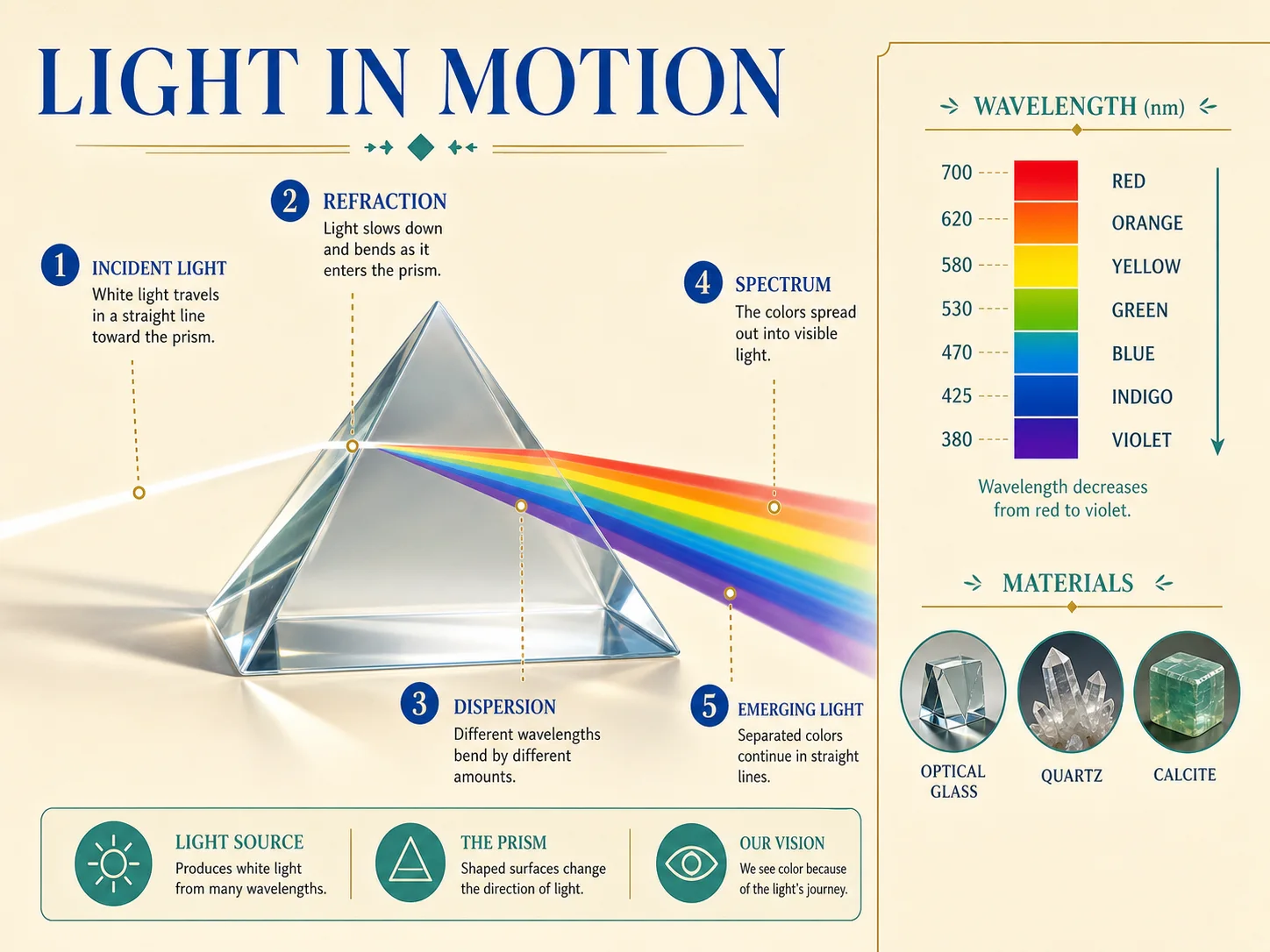
Understand Complex Design Intent
Describe hierarchy, relationships, composition, and intended visual outcome in one brief. Deep visual reasoning helps interpret the design problem before rendering the finished image.
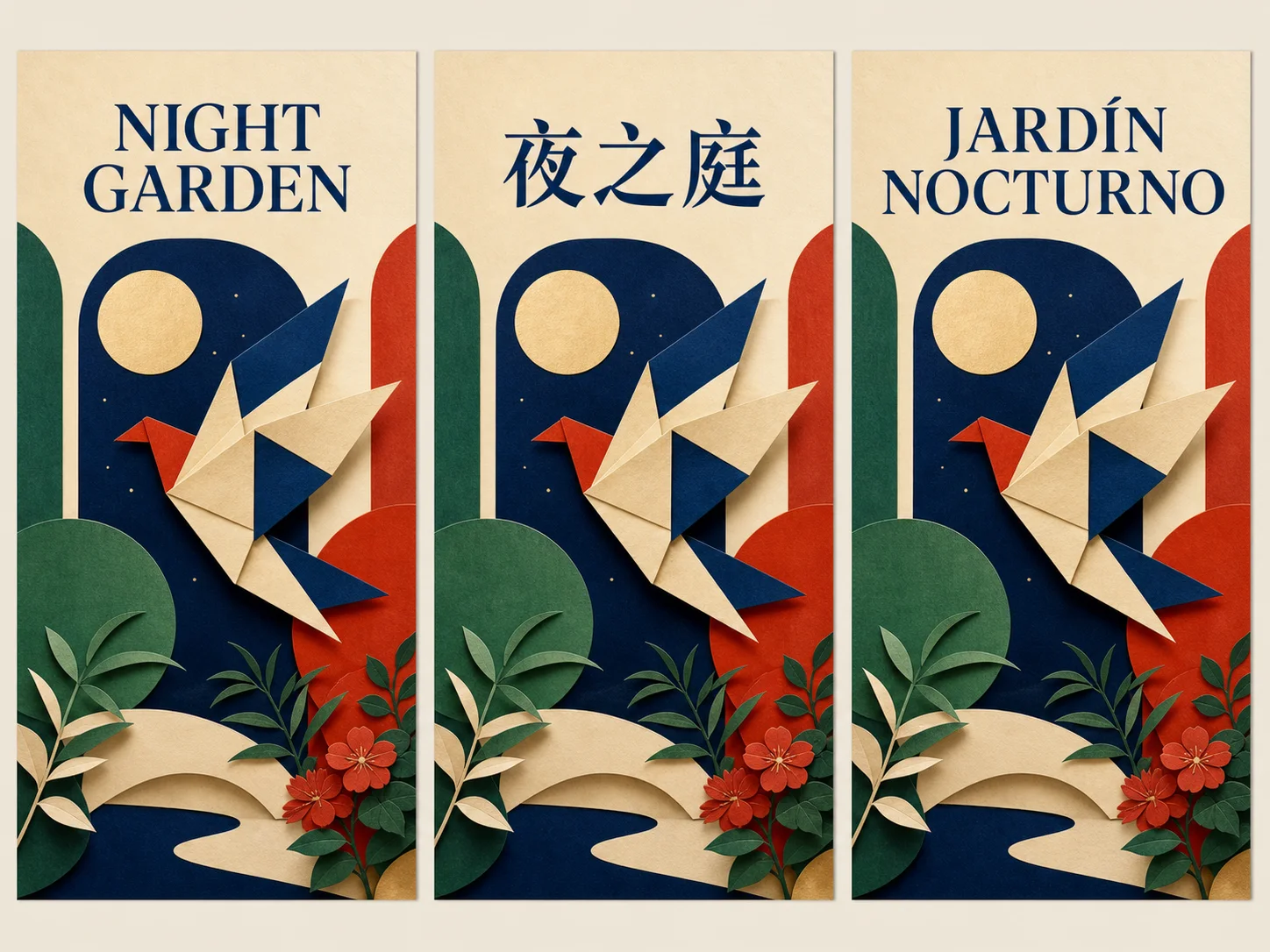
Render Native Text in 14 Languages
Create multilingual posters and layouts using BytePlus's stated fourteen-language support. Supply approved short copy, then proofread spelling, punctuation, line breaks, and cultural meaning.
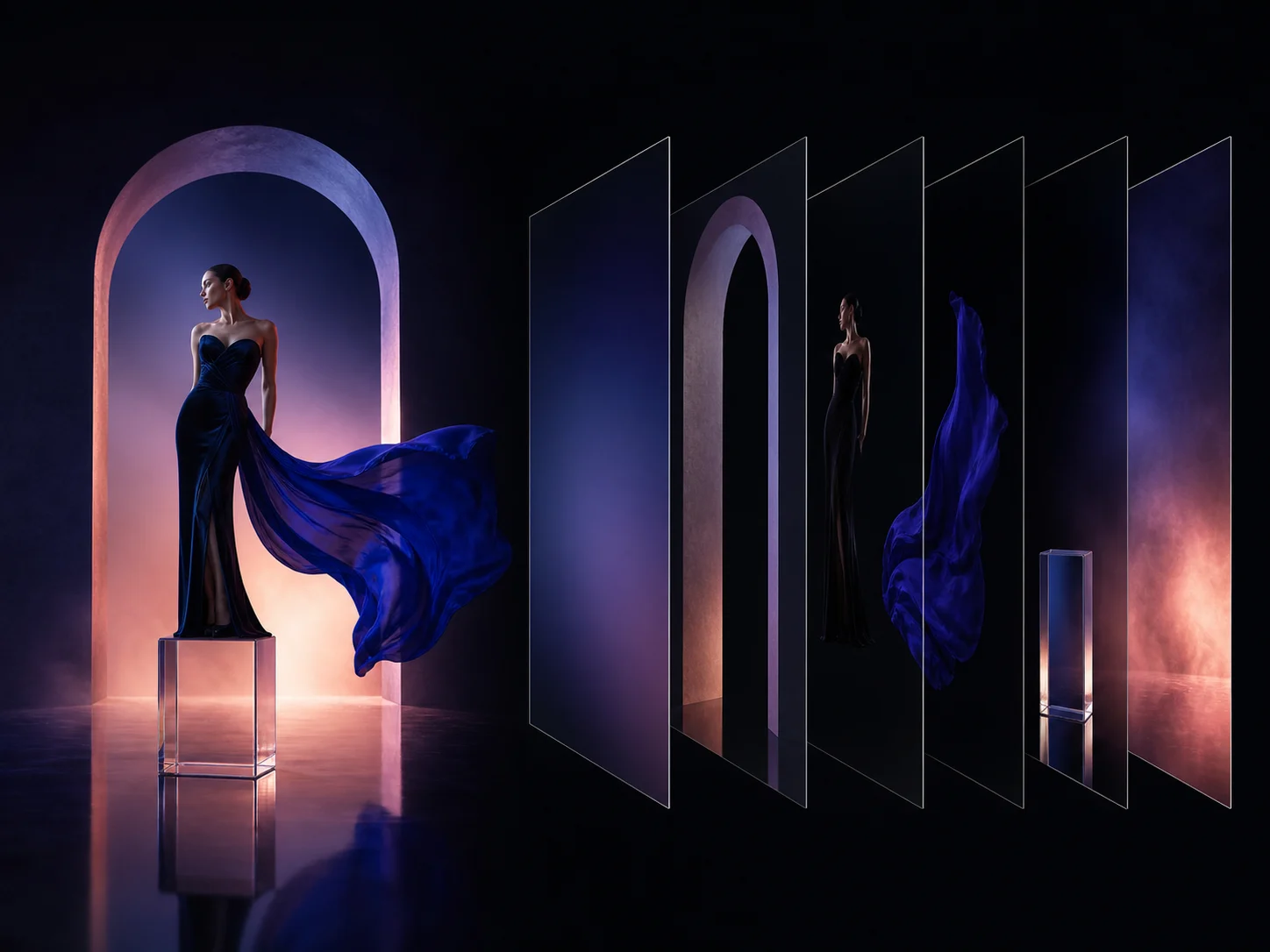
Separate Visual Elements into Editable Layers
Break a finished composition into distinct visual elements for downstream revision. Layer separation makes backgrounds, subjects, props, and effects easier to hand off or adjust independently.
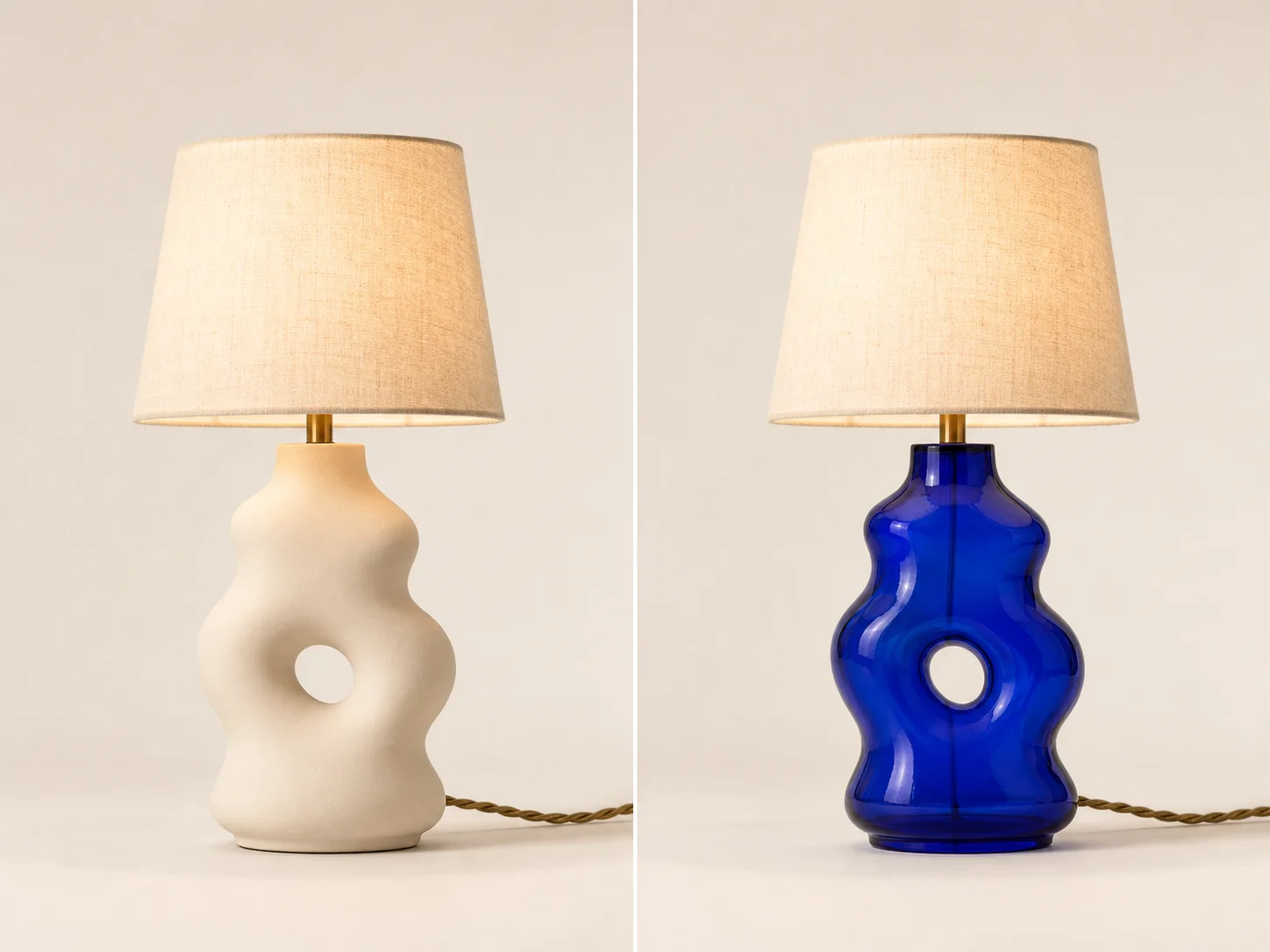
Guide Local Edits with Sketches and Coordinates
Use sketches, color blocks, selections, points, arrows, boxes, or coordinates to indicate a target. Keep the edit instruction narrow and state all unchanged details explicitly.
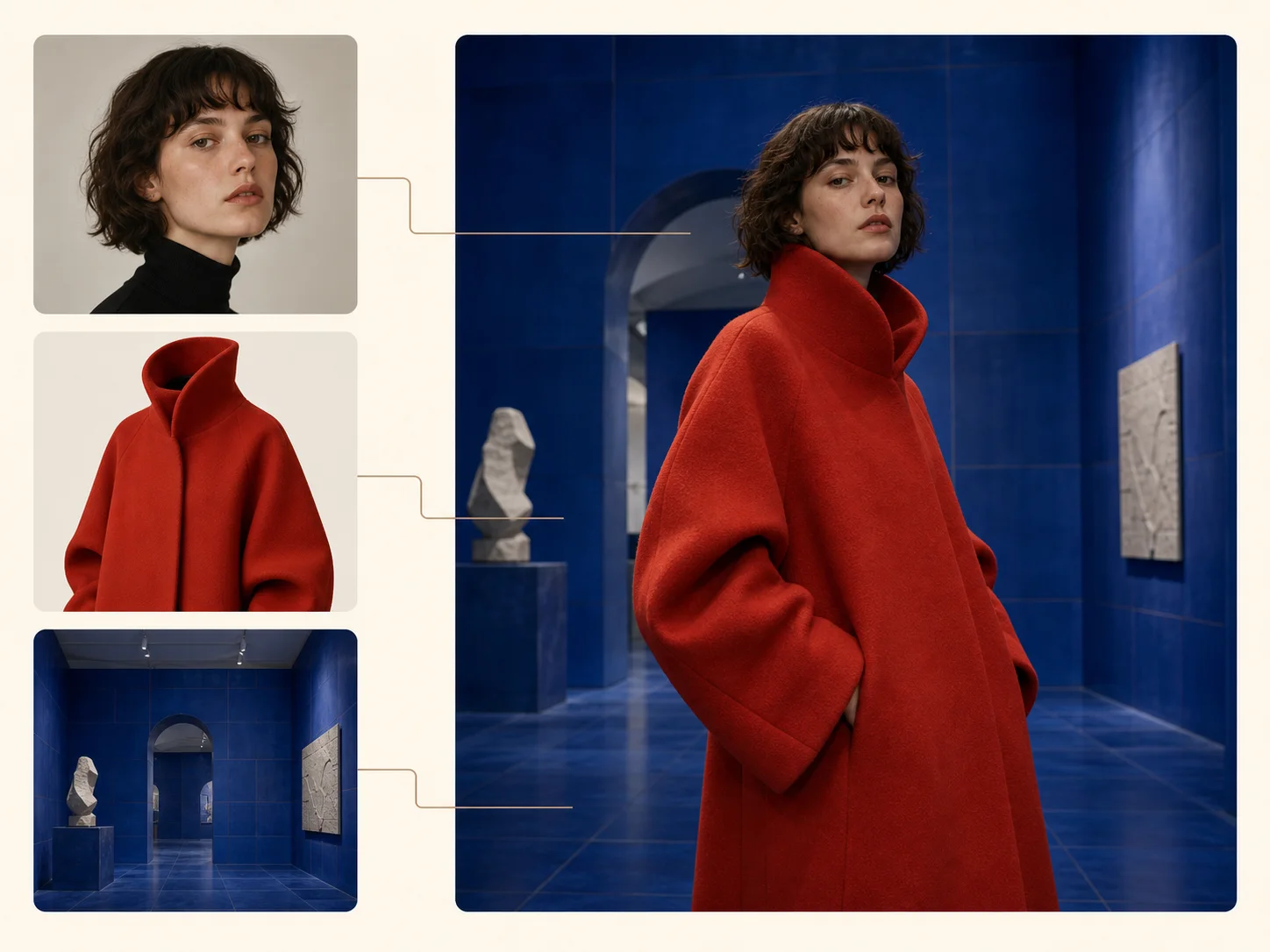
Match Exact Color Codes and Materials
Specify color values alongside texture, reflectivity, translucency, and surface behavior. Review the result under the intended lighting because perceived color changes with material response.

Create More Natural Cinematic Effects
Direct atmosphere, light, shadow, fabric, glass, skin, and reflective surfaces as connected physical details. More natural effects give product, portrait, and editorial concepts a clearer target.
What Is Seedream 5 Pro Built For?
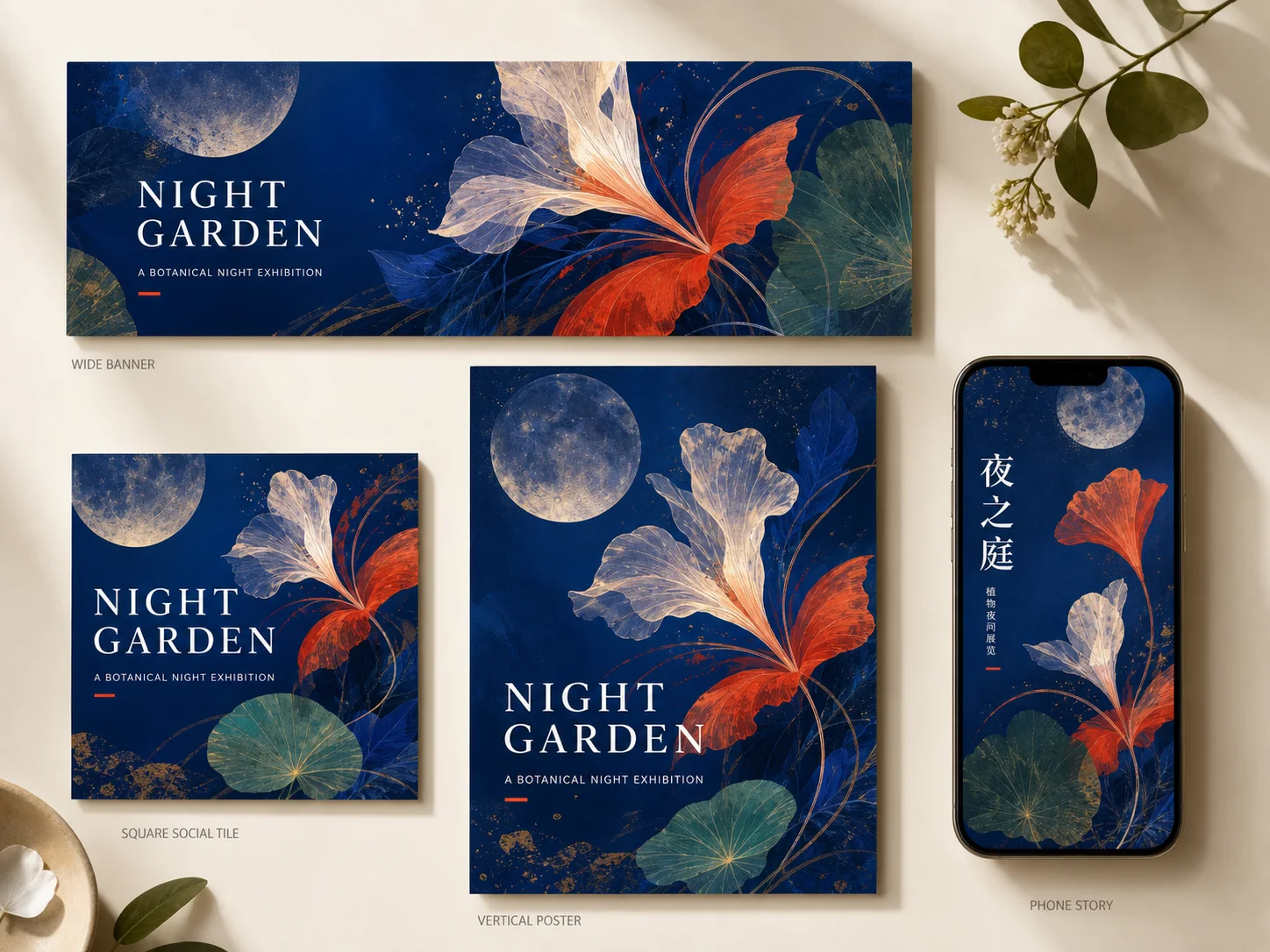
Campaign systems. Coordinate multilingual copy, exact brand colors, subjects, and materials across posters, social placements, and regional variants while preserving one visual direction.
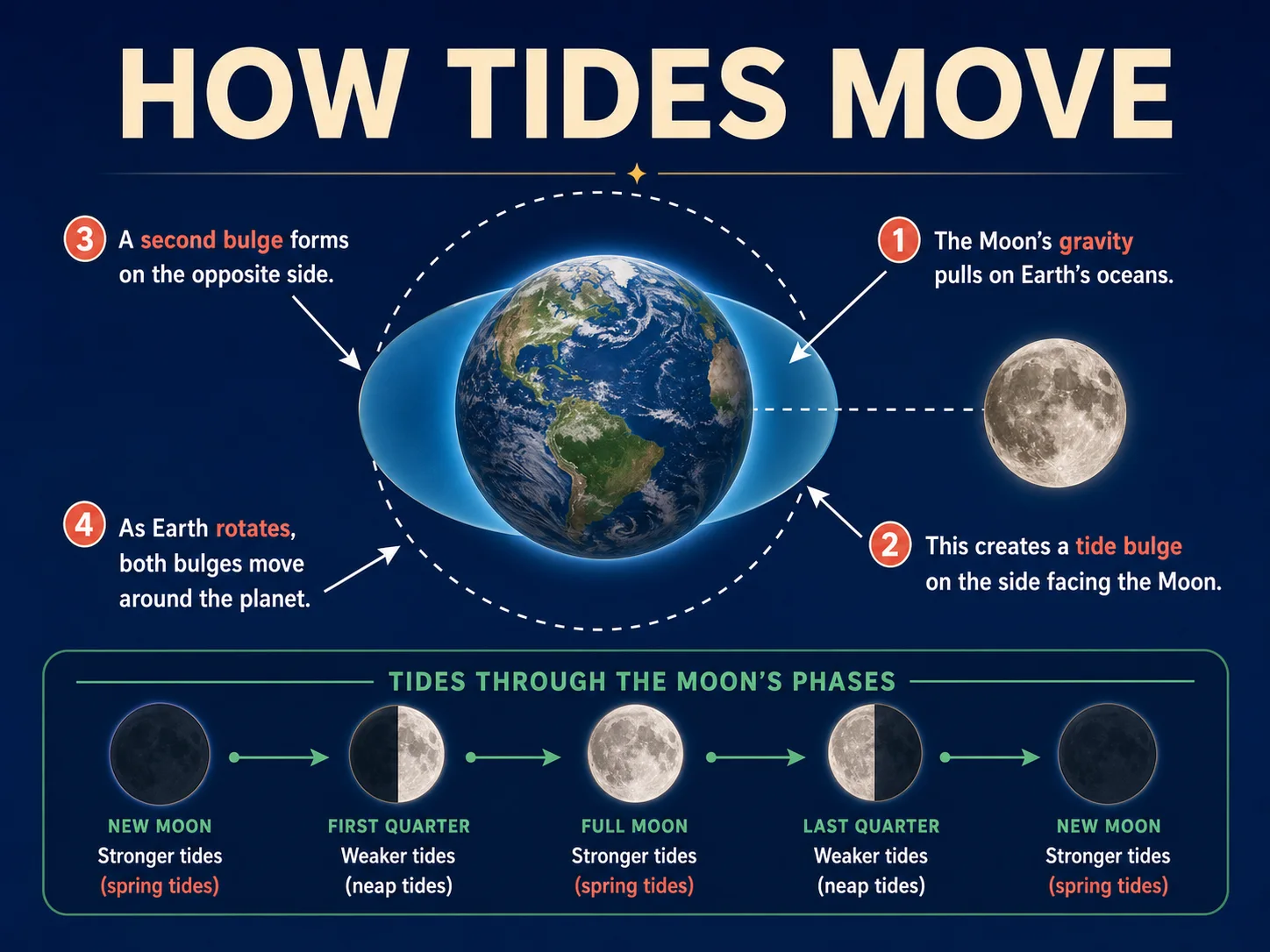
Information design. Build structured explainers and presentation visuals whose subjects, backgrounds, callouts, and effects can be reasoned about and separated for revision.

Product and portrait. Art-direct people, products, materials, light, and atmosphere with precise specifications when visual consistency and physical response affect professional approval.
How to Use Seedream 5 Pro on Nuzza AI For Free
Choose Generate or Edit
Start from a production brief, or add references when the result must preserve, combine, or selectively revise existing details.
Define Visual Specifications
State hierarchy, exact copy, reference roles, edit guidance, color values, materials, and every detail that must remain fixed.
Set Output and Inspect
Choose the available size and result count, then review text, layers, identity, geometry, colors, materials, and effects.
Seedream 5 Pro vs. Seedream 5 Lite vs. Nano Banana Pro
| Feature / Model | Seedream 5 Pro | Seedream 5 Lite | Nano Banana Pro |
|---|---|---|---|
| Best Fit | Multilingual systems, layers, guided edits, and material-specific art direction. | Explainers, current context, style transfer, and multi-subject scenes. | Infographics, multilingual campaigns, photography, and current-information visuals. |
| Design Control | Handles exact colors, materials, effects, and complex design intent. | Uses reasoning and references for structured visual outcomes. | Directs camera, focus, light, color, composition, and text. |
| Editing | Supports sketches, selections, points, boxes, arrows, and coordinates. | Supports precise local revision and style transfer. | Coordinates complex prompts and multiple visual references consistently. |
| Output Workflow | Nuzza offers 1K, 2K, and six requested results. | Nuzza offers 2K, 3K, 4K, and six results. | Supports 1K, 2K, 4K, and four results. |
| Choose When | Choose Pro for production-oriented, revisable visual systems. | Choose Lite for flexible everyday reasoning-led work. | Choose it for Google-grounded professional visual work. |
FAQs about Seedream 5 Pro
What is Seedream 5 Pro?
Seedream 5 Pro is Nuzza's catalog name for BytePlus Dola Seedream 5.0 Pro, a production-oriented image generation and editing model.
Is Seedream 5 Pro free to use?
Yes. Nuzza offers free Credits for new users to try Seedream 5 Pro. Once your free Credits are used up, you will need to subscribe to a paid plan to continue.
Which languages does Seedream 5 Pro support?
BytePlus states native multilingual text support across fourteen languages; generated copy should still be proofread before use.
What is layer separation?
Layer separation divides a generated composition into distinct visual elements so backgrounds, subjects, props, and effects can be revised independently.
How can I guide a Seedream 5 Pro edit?
BytePlus names sketches, color blocks, selections, points, arrows, boxes, and coordinates as interactive ways to identify intended changes.
Can Seedream 5 Pro match a color code?
Yes. Precise color-code and material response is an official capability, though lighting and surface properties affect perceived color.
What does more natural effects mean?
It refers to more convincing atmosphere and physical visual behavior across light, shadows, materials, fabric, glass, and similar effects.
What output controls does Nuzza provide?
Nuzza provides common shape presets, Auto 1K or 2K sizing, and one to six requested results for the current model workflow.
Move from Generation to Production with Seedream 5 Pro
Build multilingual designs, separable visual layers, guided local edits, precise materials, and cinematic effects.
Try Seedream 5 Pro