
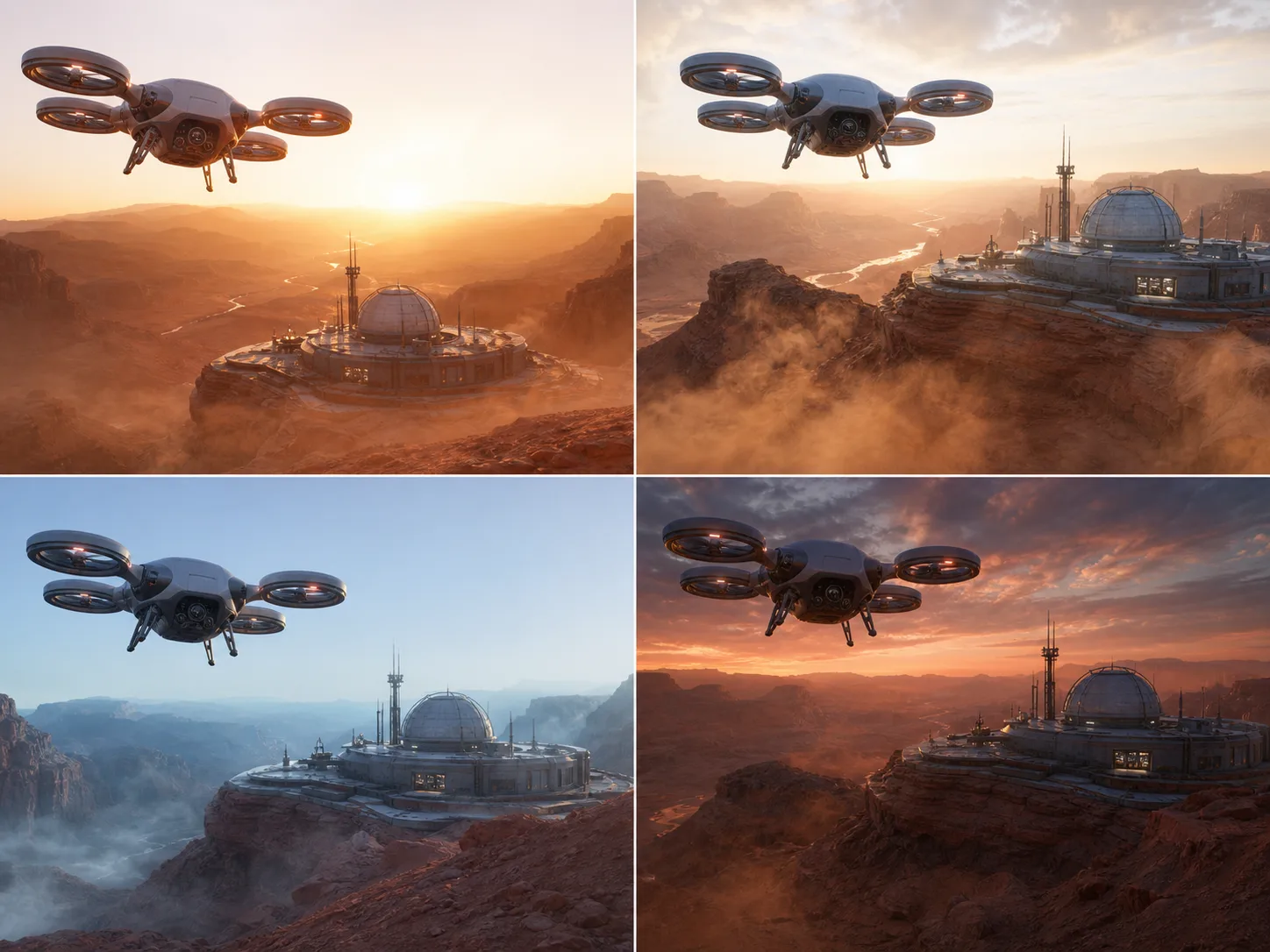
Google Veo 3.1 Lite
Google Veo 3.1 Lite is the most cost-effective tier in the Veo 3.1 family, designed for high-volume applications and rapid iteration. It creates high-resolution video with audio from text or images, while Nuzza adds start-image and first-and-last-frame workflows with practical output controls.
Why Creators Choose Google Veo 3.1 Lite?
Scale Cost-Efficient Video Generation
Use the most cost-effective Veo 3.1 tier for high-volume applications, repeated creative tests, and production pipelines that need more attempts per budget. Google positions Lite specifically for rapid iteration and scale.
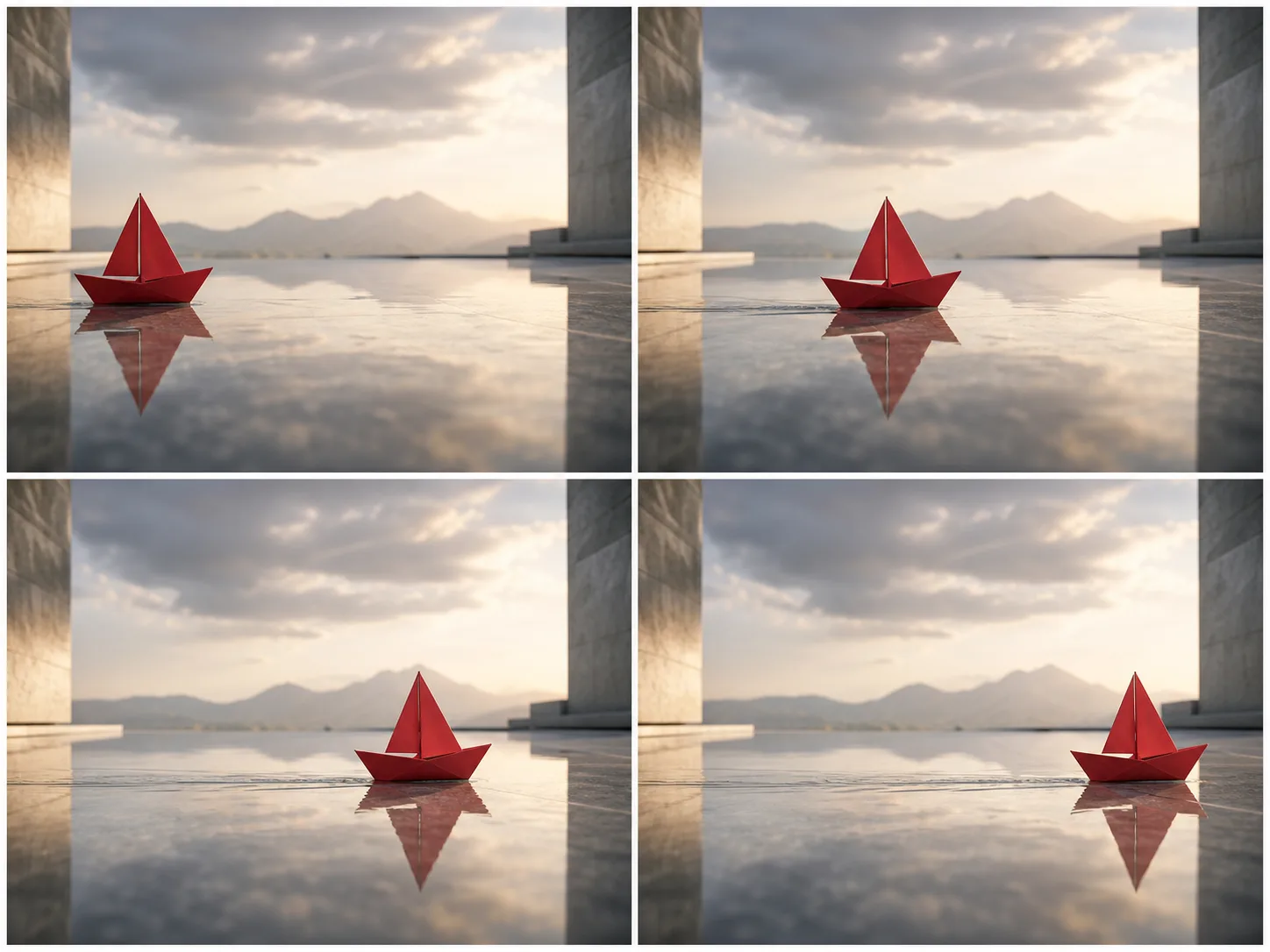
Create Video Directly from Text
Describe a subject, action, setting, camera, lighting, timing, and sound without supplying an image. Text-led generation works well for open visual exploration and repeatable prompt variations.
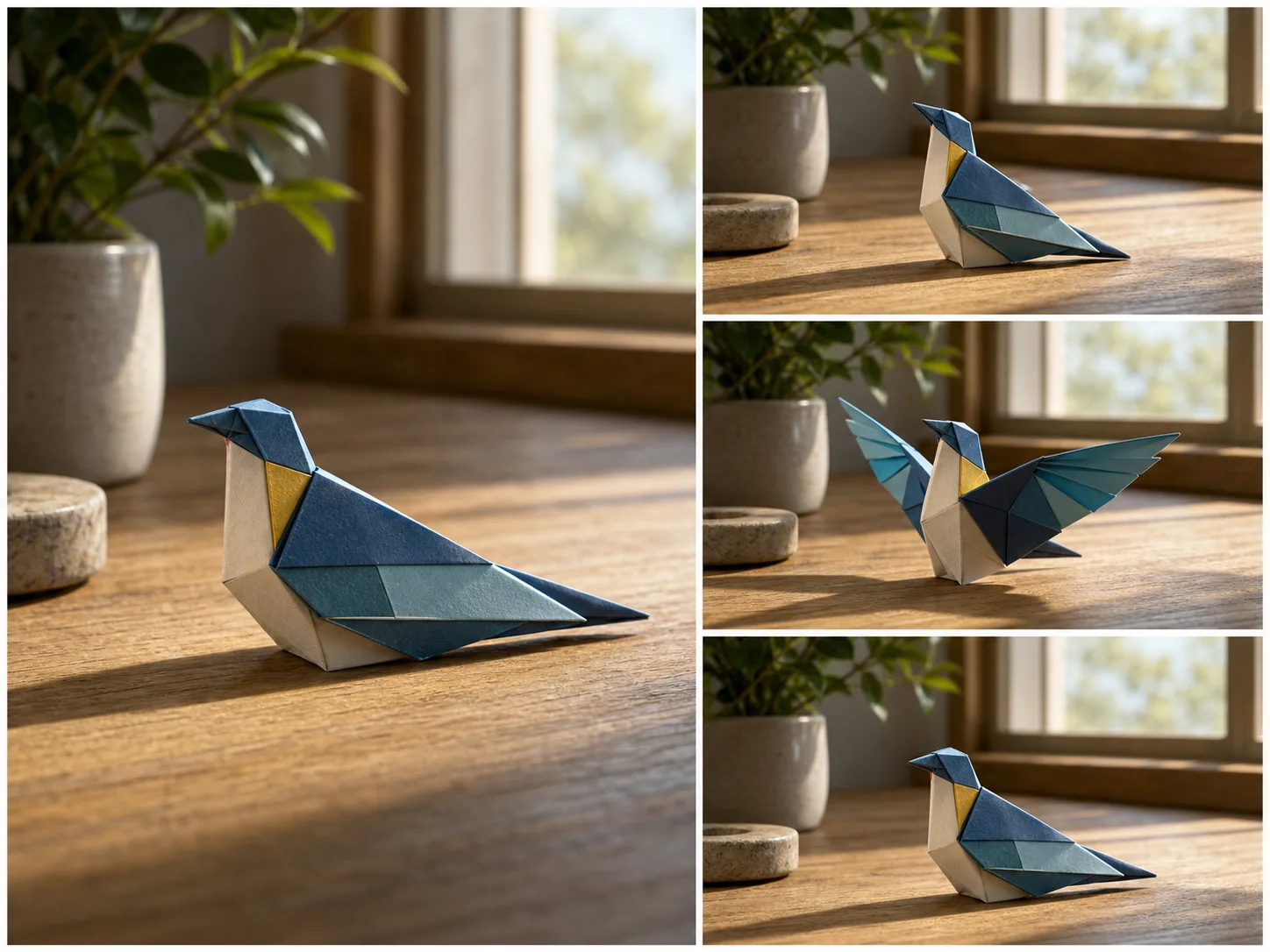
Animate One Input Image
Upload an image to anchor the opening composition, product, character, or environment. Then describe the motion and camera behavior while identifying details that should remain recognizable.
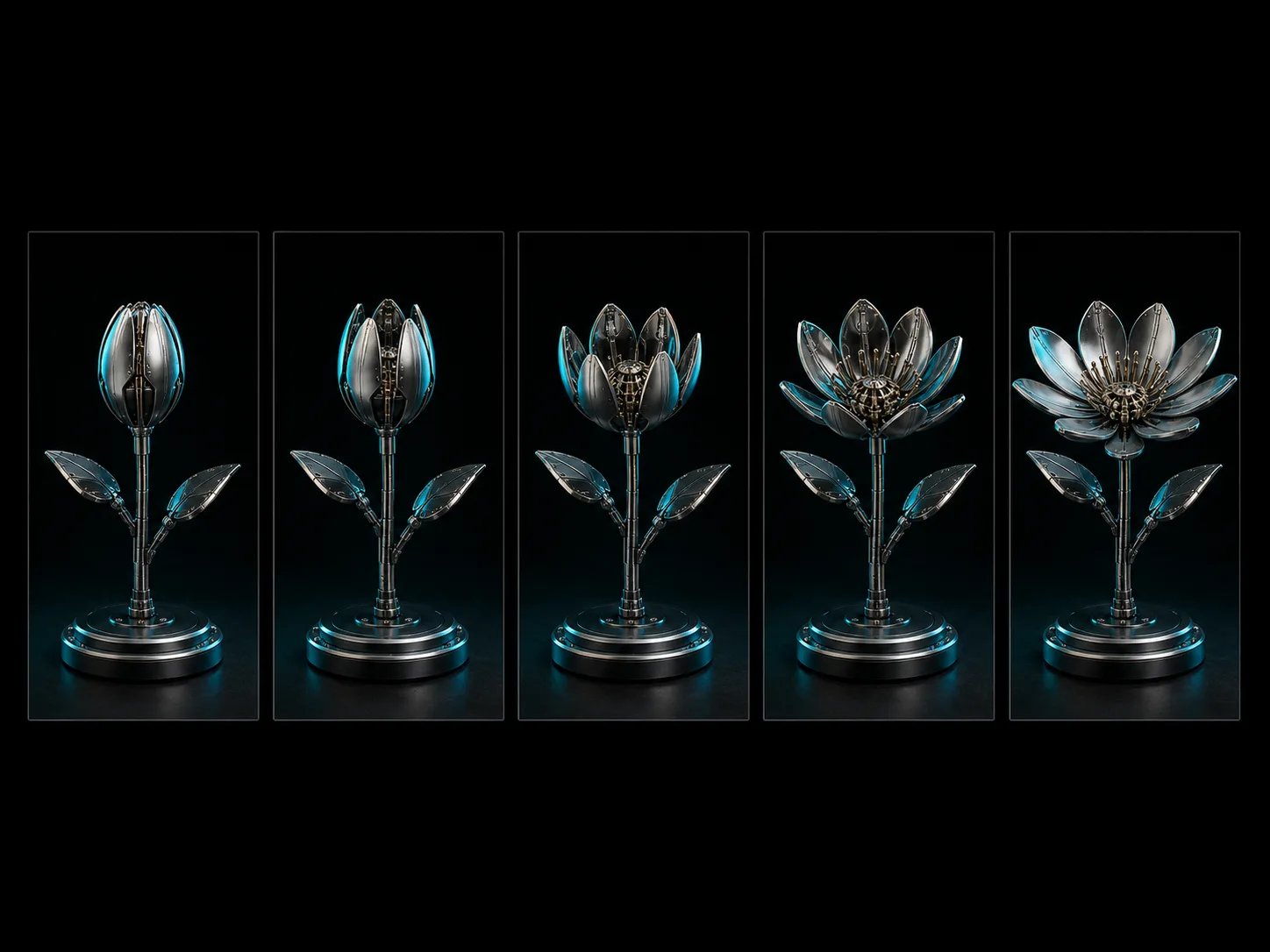
Transition Between Endpoint Frames
Provide compatible first and last images when both ends of the clip matter. Veo 3.1 Lite generates the in-between motion for concise reveals, transformations, and time-of-day changes.
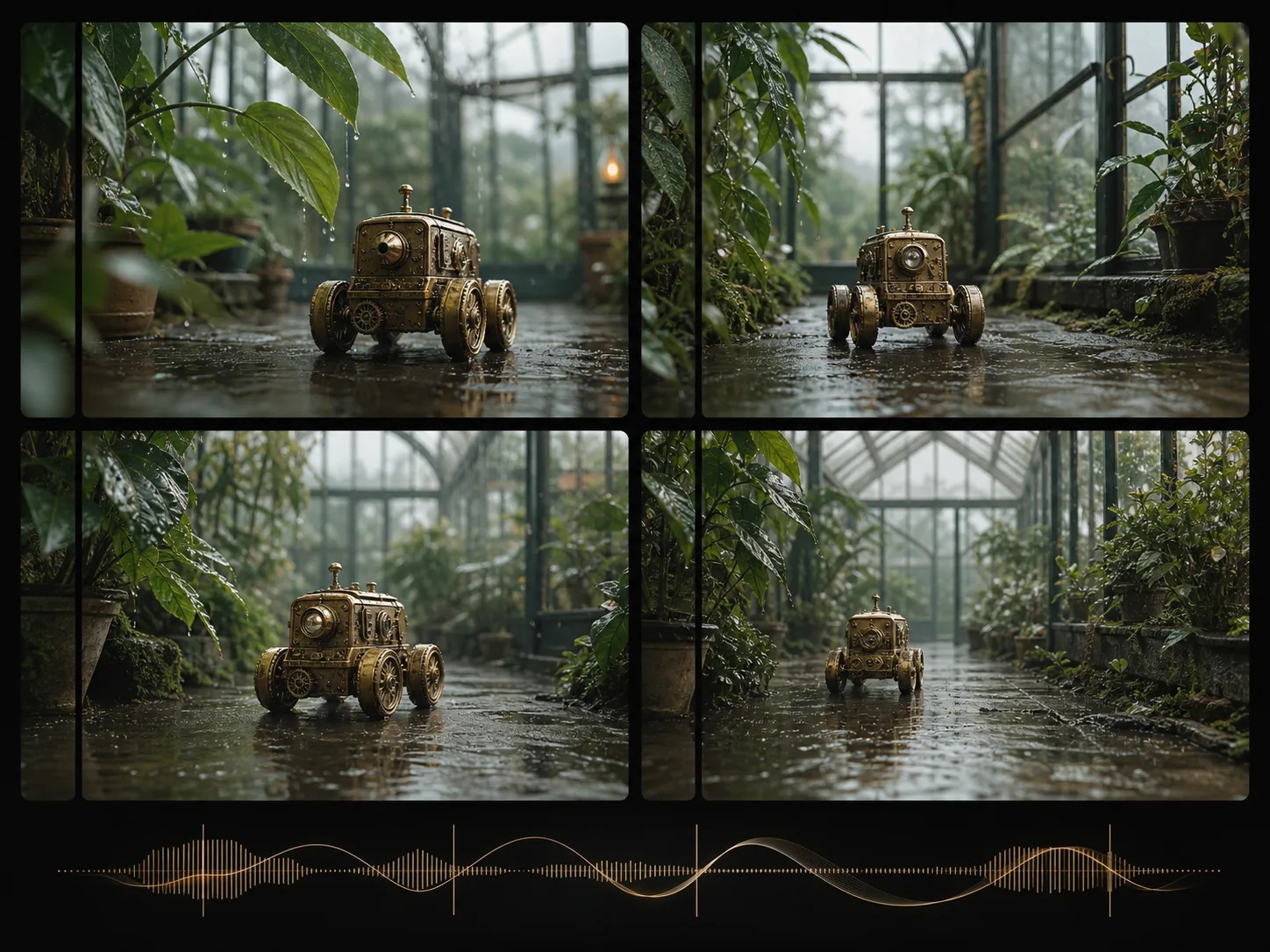
Generate Native Audio with Video
Write dialogue, ambience, music, and sound effects into the scene brief. Google confirms native audio across all Veo 3.1 tiers, including Lite, so the result arrives as one audio-visual clip.
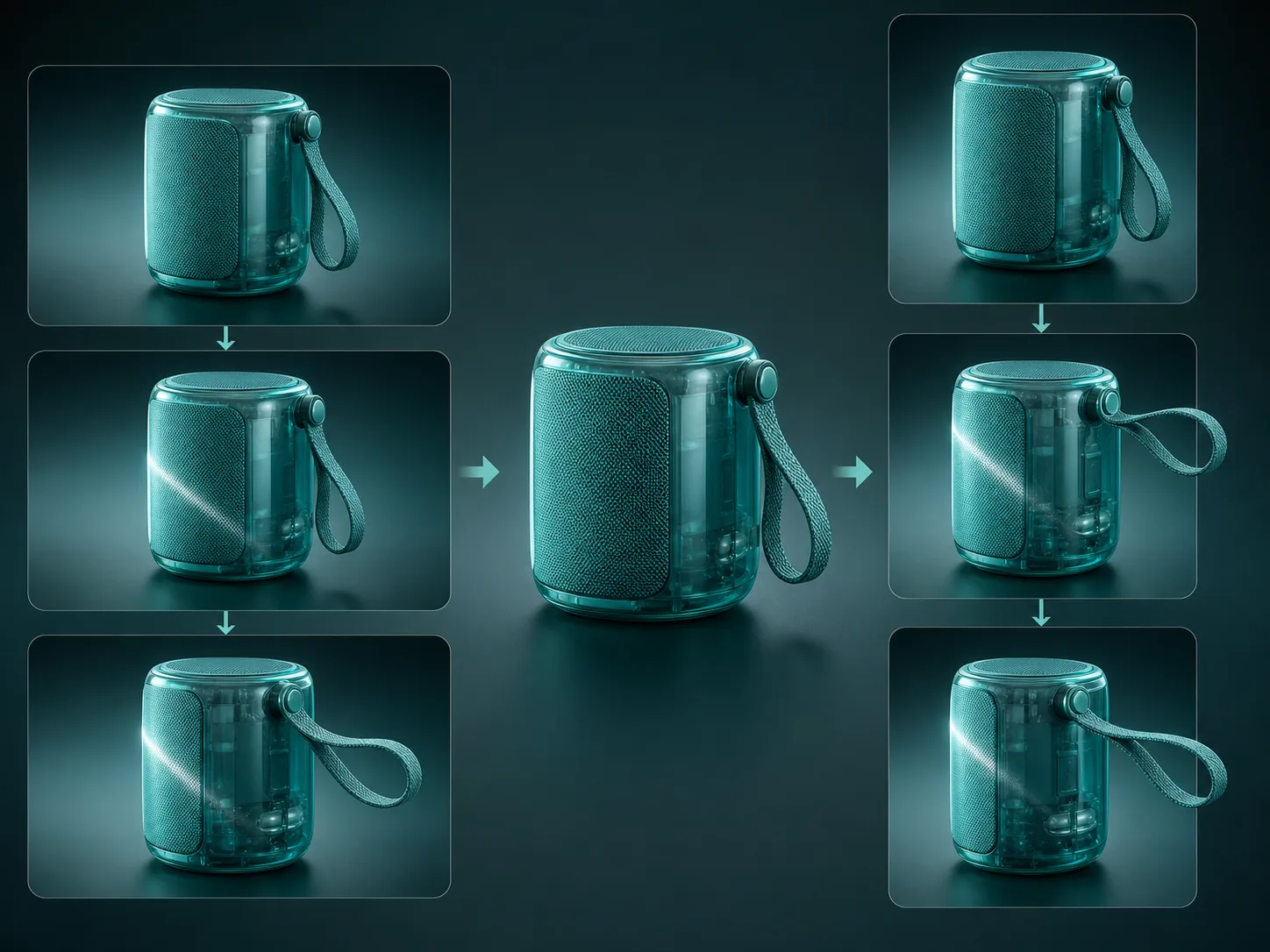
Deliver at up to 1080p
Choose 720p for routine iteration or 1080p when the current Nuzza workflow needs a sharper result. Set the target format before composing fine detail, framing, and camera distance.
What Is Google Veo 3.1 Lite Built For?
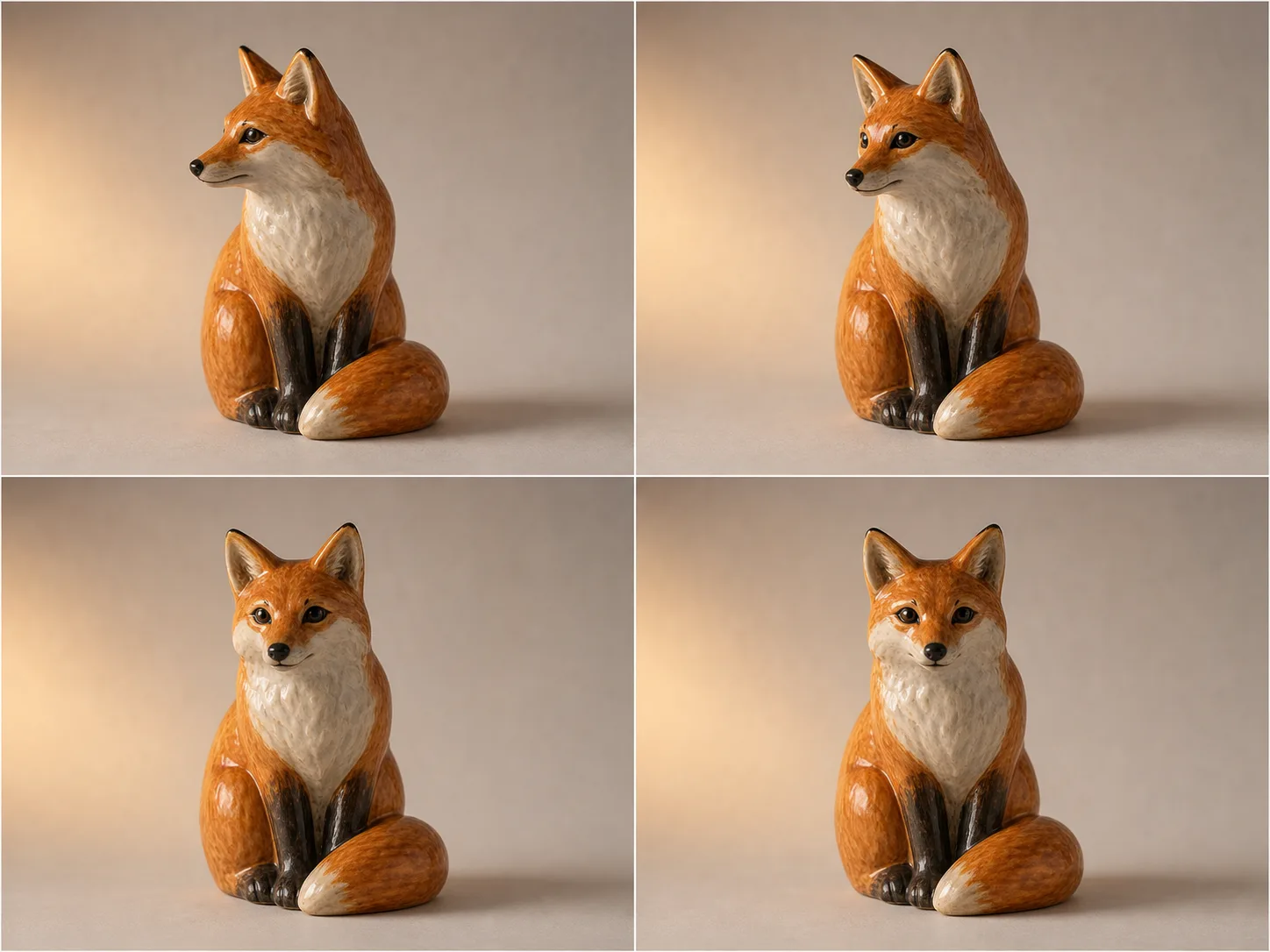
High-volume content pipelines. Produce recurring short clips, catalog motion, content variations, and localization-ready scenes when throughput and cost efficiency are central selection criteria.
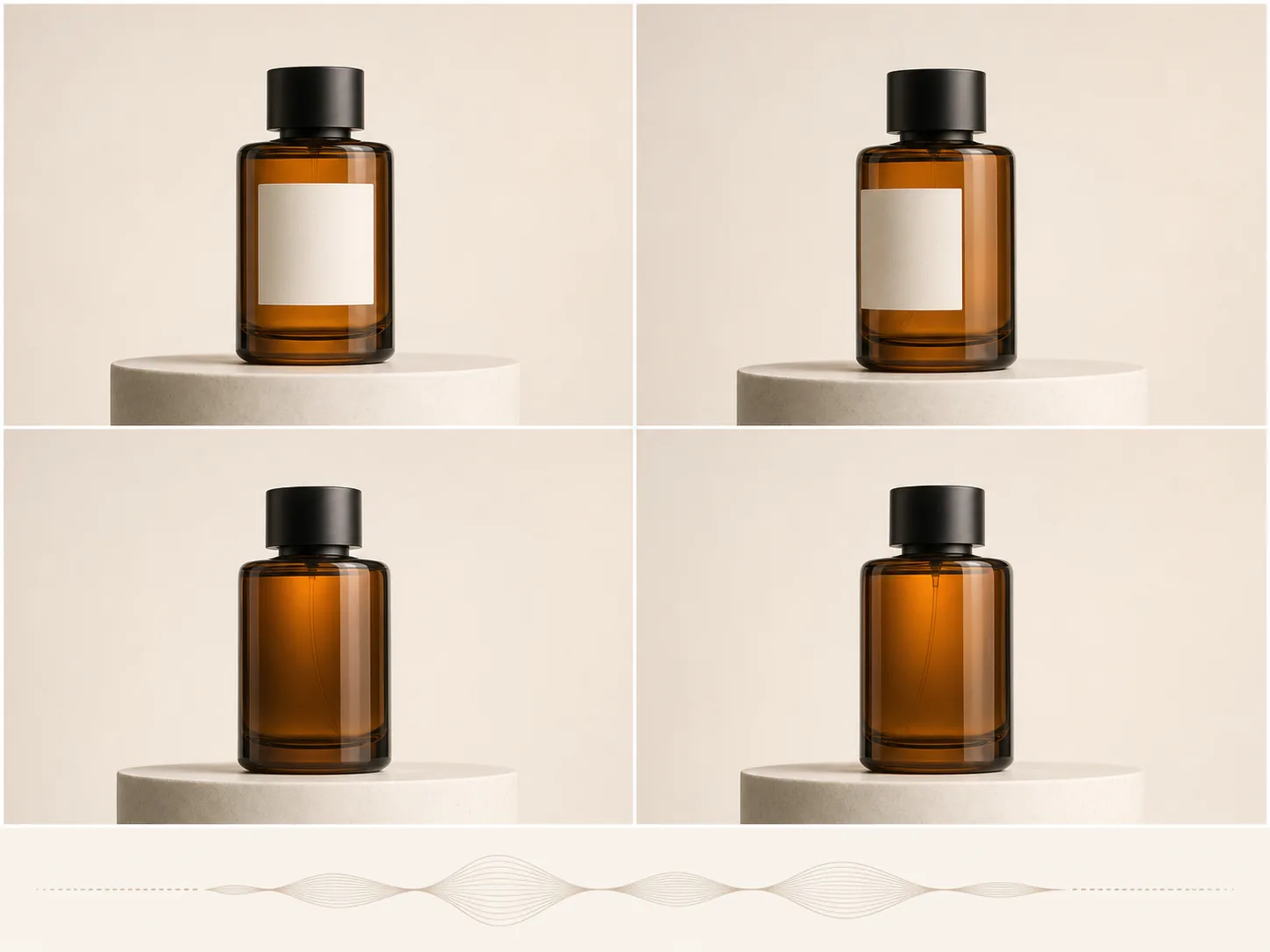
Advertising concept testing. Compare product reveals, visual hooks, camera moves, lighting treatments, and sound ideas before selecting a smaller number of directions for higher-cost production.
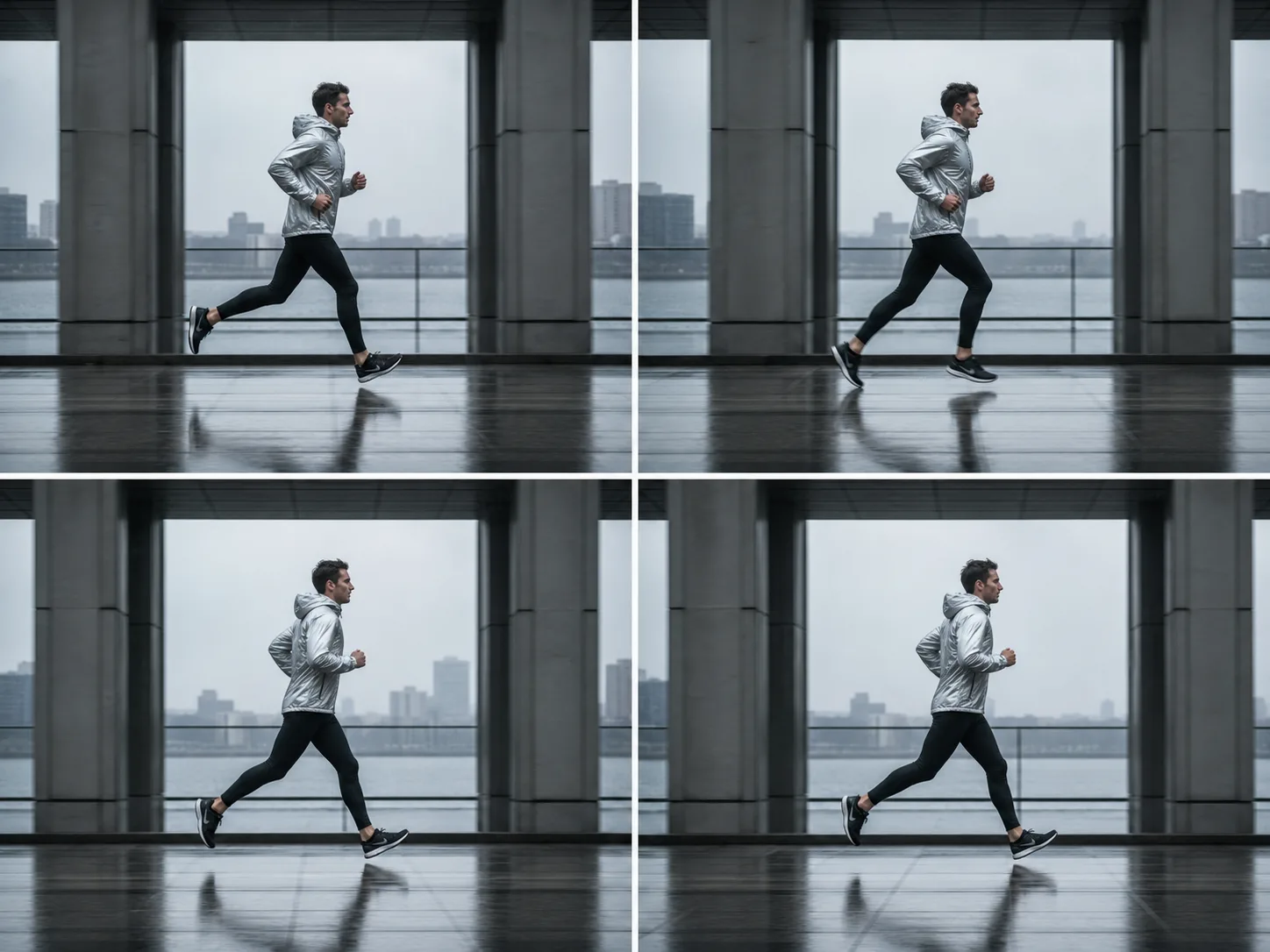
Social and creator video. Generate compact landscape or portrait clips for feeds, shorts, teasers, and creator workflows that benefit from quick text or image-led iteration.
How to Use Google Veo 3.1 Lite on Nuzza AI For Free
Try Google Veo 3.1 Lite for Free NowChoose the Starting Input
Use text for open exploration, one start image for visual anchoring, or first and last frames for a planned transition.
Set the Scene and Output
Describe action, camera, timing, light, and sound, then choose duration, aspect ratio, 720p or 1080p, and whether to generate audio.
Generate and Compare
Review motion, identity, detail, crop, speech, effects, and synchronization, then reuse the strongest brief for the next controlled variation.
Google Veo 3.1 Lite vs. Veo 3.1 Fast vs. Veo 3.1
| Feature / Model | Google Veo 3.1 Lite | Google Veo 3.1 Fast | Google Veo 3.1 |
|---|---|---|---|
| Best Fit | High-volume generation, rapid tests, and cost-sensitive video pipelines. | Everyday production work balancing speed, fidelity, control, and native audio. | Final cinematic concepts where maximum visual fidelity is the priority. |
| Max Duration | Nuzza offers four, six, or eight seconds per generation. | Nuzza offers four, six, or eight seconds per generation. | Nuzza offers four, six, or eight seconds per generation. |
| Max Resolution | Nuzza offers 720p and 1080p output choices. | Nuzza offers 720p, 1080p, and 4K output choices. | Nuzza offers 720p, 1080p, and 4K output choices. |
| Reference Inputs | Use one start image or a first-and-last-frame pair. | Use one start image or a first-and-last-frame pair. | Use one start image or a first-and-last-frame pair. |
| Audio | Google confirms native audio across every Veo 3.1 family tier. | Native dialogue, ambience, music, and effects can accompany the scene. | Native dialogue, ambience, music, and effects can accompany the scene. |
| Video Editing | The current Nuzza page focuses on generation, not source-video editing. | The current Nuzza page focuses on generation, not source-video editing. | The current Nuzza page focuses on generation, not source-video editing. |
FAQs about Google Veo 3.1 Lite
What is Google Veo 3.1 Lite?
Google Veo 3.1 Lite is Google's most cost-effective Veo 3.1 video model. It synthesizes high-resolution video with audio from text prompts or input images. Google designed it for high-volume applications, rapid iteration, and scale. Google Veo 3.1 Lite is available on Nuzza.
How is Google Veo 3.1 Lite different from Veo 3.1 Fast?
Google positions Lite as the most cost-effective tier for high-volume applications. Fast sits above it as the faster high-quality option for standard production workflows, while flagship Veo 3.1 prioritizes final visual fidelity.
What reference inputs does Google Veo 3.1 Lite support on Nuzza?
You can upload one start image or provide first and last frames for an endpoint-guided transition. Text-only generation is also available when the composition should come entirely from the brief.
What resolution and duration does Google Veo 3.1 Lite support on Nuzza?
Nuzza currently offers four, six, or eight seconds and 720p or 1080p output. Choose the delivery frame and resolution before writing detailed composition instructions.
Can Google Veo 3.1 Lite keep a character consistent?
An input image can help anchor a character, object, or scene, and the Veo family is designed for stronger consistency. Review face, clothing, props, anatomy, and continuity throughout the returned clip.
Does Google Veo 3.1 Lite generate sound?
Yes. Google states that all three Veo 3.1 tiers have native audio generation. Check dialogue, pronunciation, ambience, music, effects, and synchronization before publishing.
What aspect ratios does Google Veo 3.1 Lite support on Nuzza?
Text-led generation offers 16:9 and 9:16. Image-led modes can also use Auto to inherit the orientation of the staged frame.
Can I use Google Veo 3.1 Lite for free on Nuzza?
Yes. Nuzza offers free Credits for new users to try Google Veo 3.1 Lite. Once your free Credits are used up, you will need to subscribe to a paid plan to continue.
Create with Google Veo 3.1 Lite
Create 4–8 second Google Veo 3.1 Lite videos from text, a start image, or endpoint frames. Generate native audio at 720p or 1080p.
Try Google Veo 3.1 Lite