
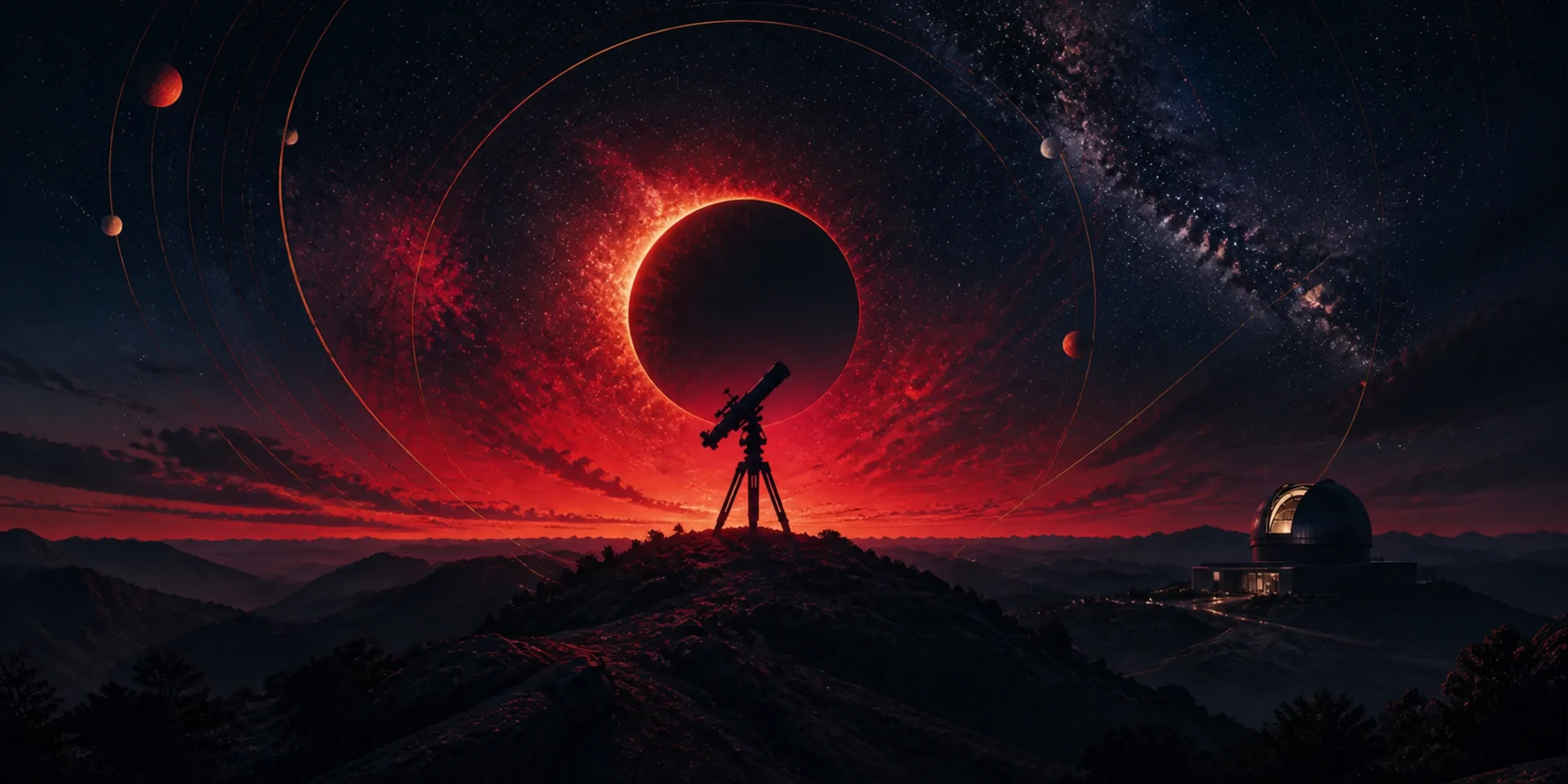
Grok Imagine
Grok Imagine's current xAI image model improves realism, text rendering, prompt following, and creative control. It supports prompt-led generation, multi-turn editing, style transfer, and editing with up to three source images across flexible aspect ratios and 1K or 2K output on Nuzza.
Why Creators Choose Grok Imagine?
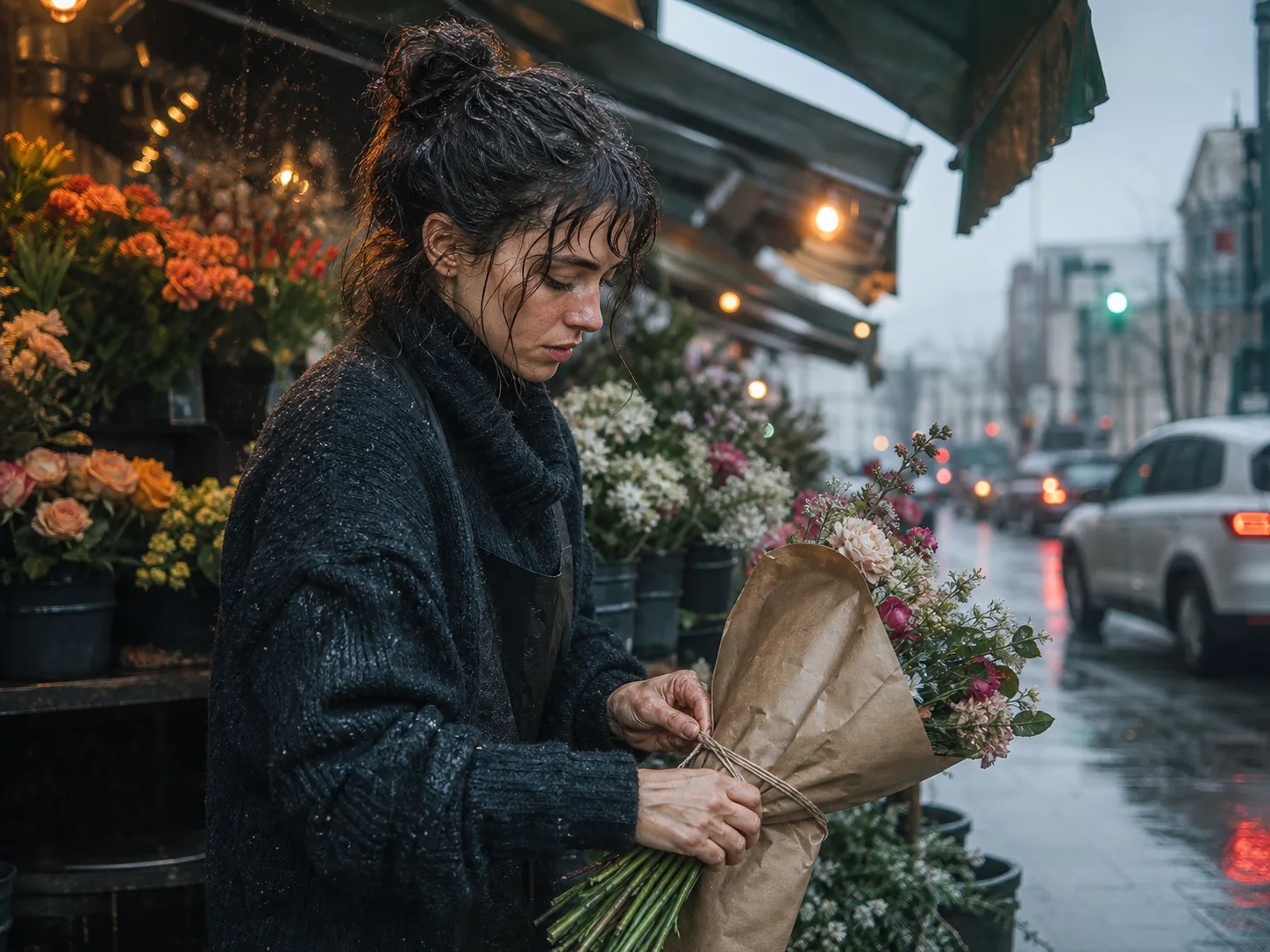
Create More Realistic Characters and Scenes
Describe natural skin, hair, fabric, rain, reflections, flowers, architecture, or product surfaces with concrete detail. xAI's current quality release emphasizes higher realism, finer textures, and more convincing characters and environments.
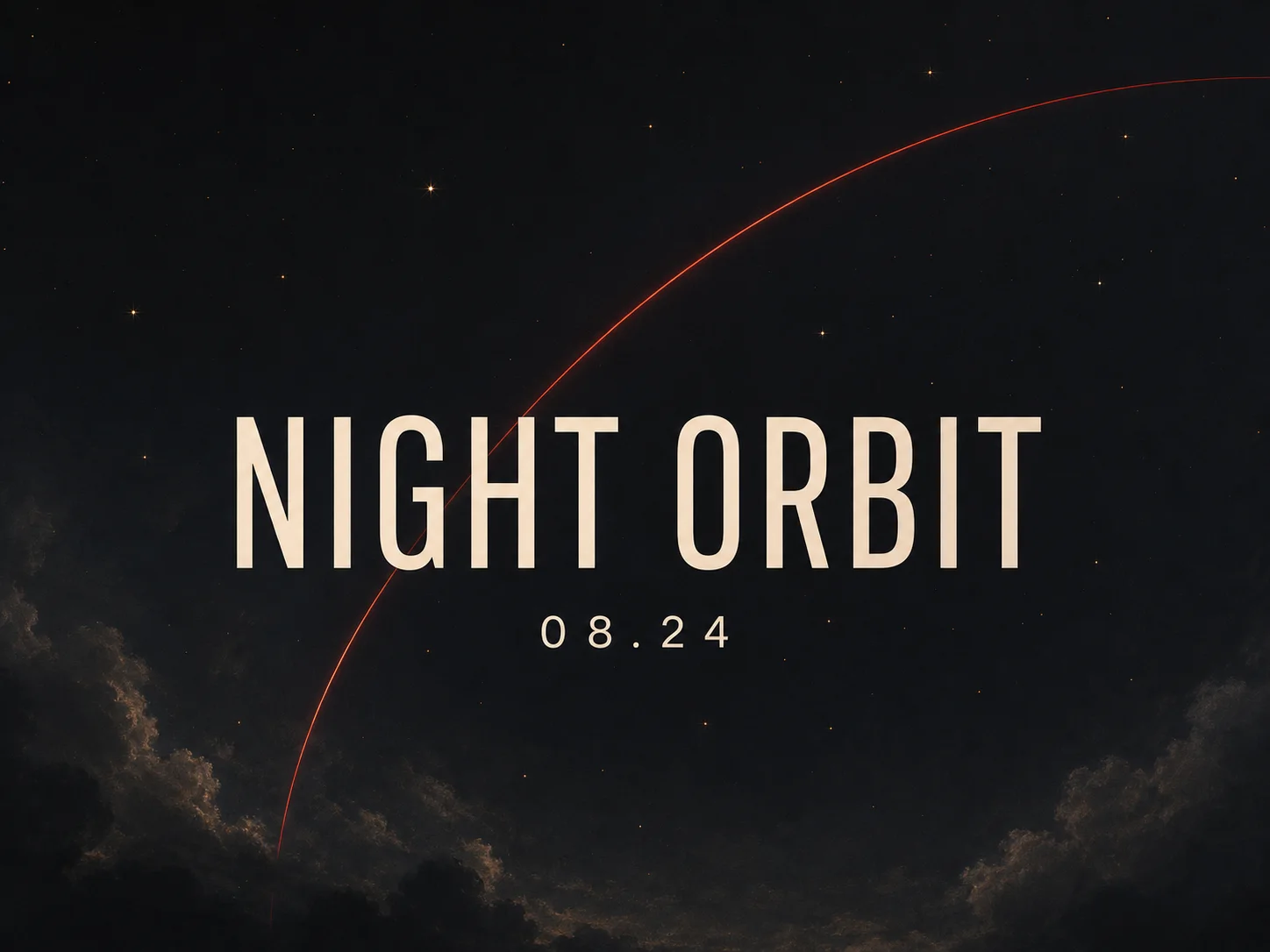
Render Stronger Text inside Graphics
Place concise visible copy inside posters, social graphics, packaging, or presentation covers. Define the exact words, type style, color, and placement; xAI highlights stronger text rendering, but every character still needs review.
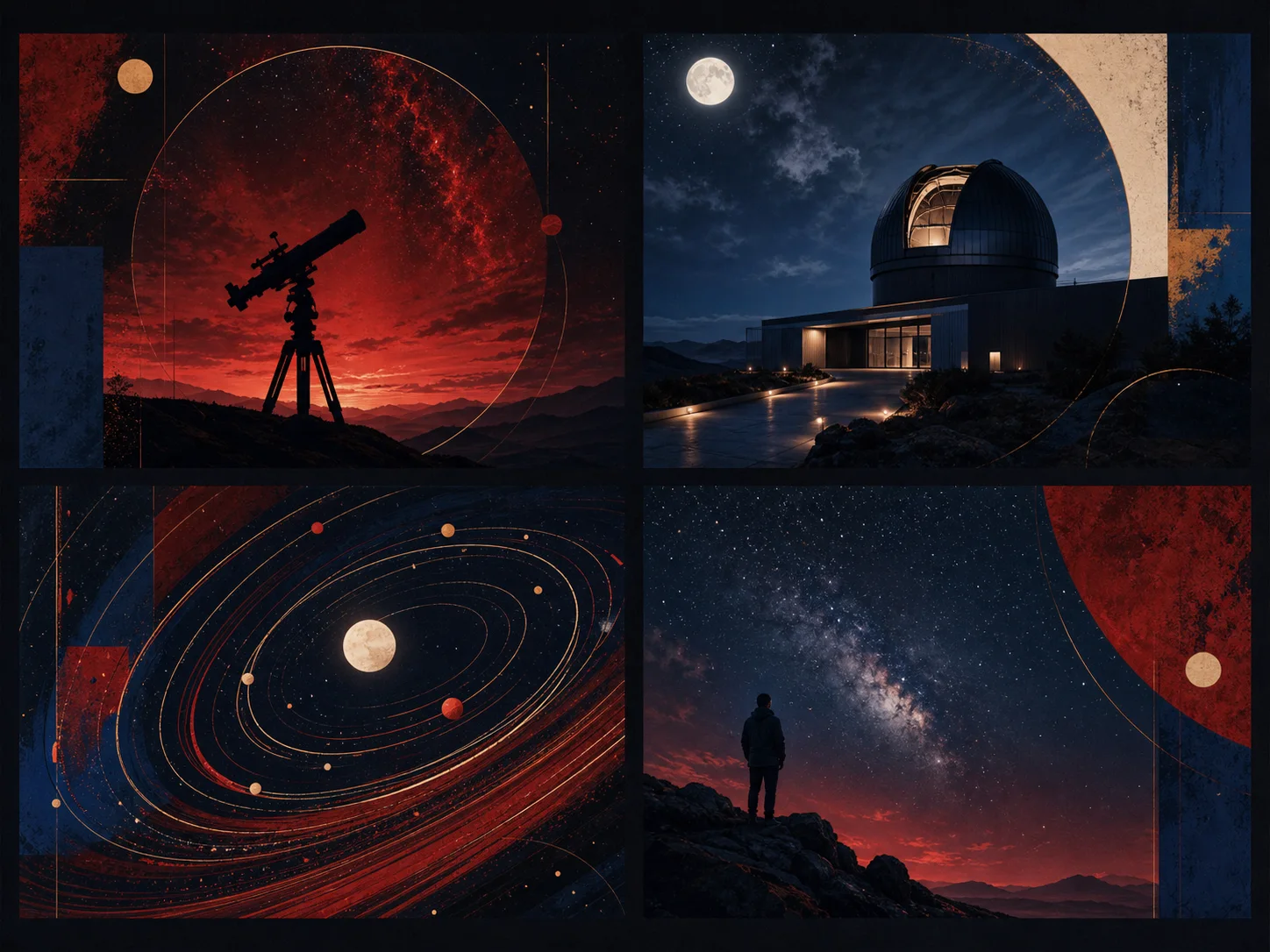
Follow Detailed Creative Direction
Connect subject, action, camera, setting, lighting, materials, mood, and exclusions in one prompt. The current model improves prompt following and scene understanding, giving complex briefs more deliberate composition and visual control.
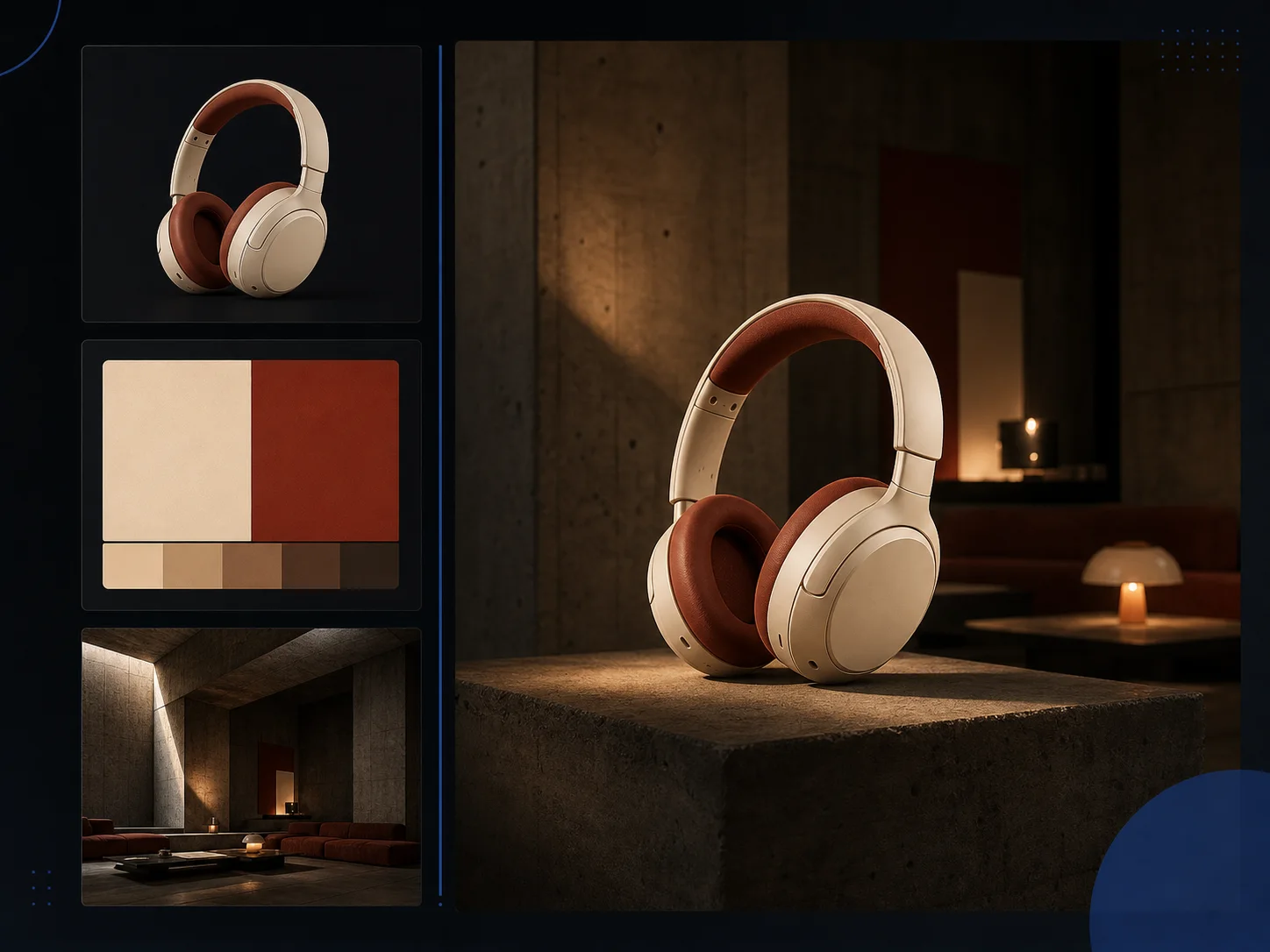
Edit Images across Multiple Turns
Start from a source image, request one focused change, then continue refining the result through later instructions. Multi-turn editing is useful when a concept needs staged decisions instead of one broad transformation.
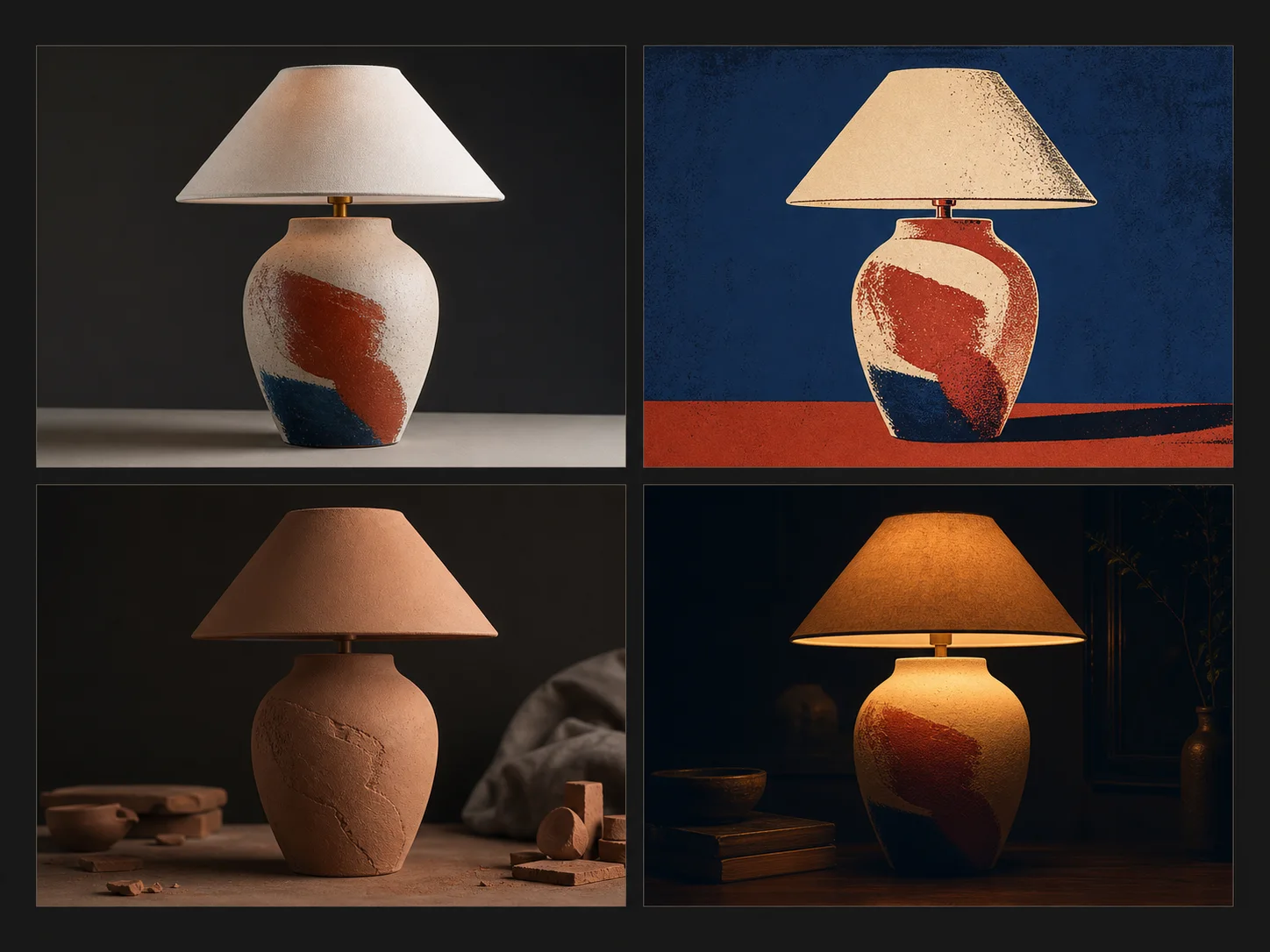
Transform Images across Visual Styles
Restyle a source as photography, anime, oil painting, pencil drawing, pop art, or watercolor while preserving the requested subject and composition. State which visual anchors must remain stable to limit drift.
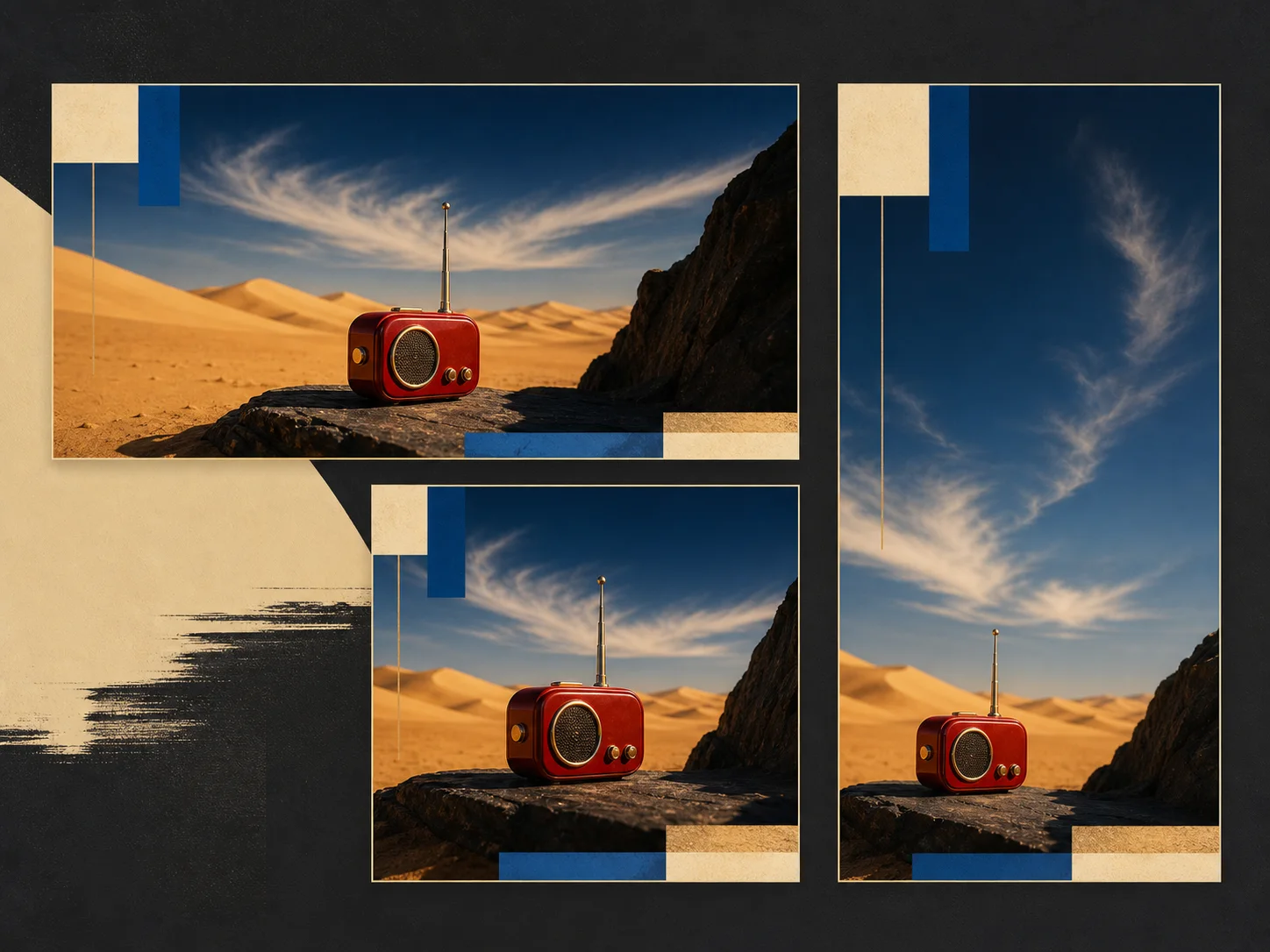
Combine Up to Three Source Images
Upload as many as three ordered references and explain each role, such as subject, product, palette, or environment. Grok Imagine can combine those inputs into one edited result while following a new aspect ratio when requested.
What Is Grok Imagine Built For?
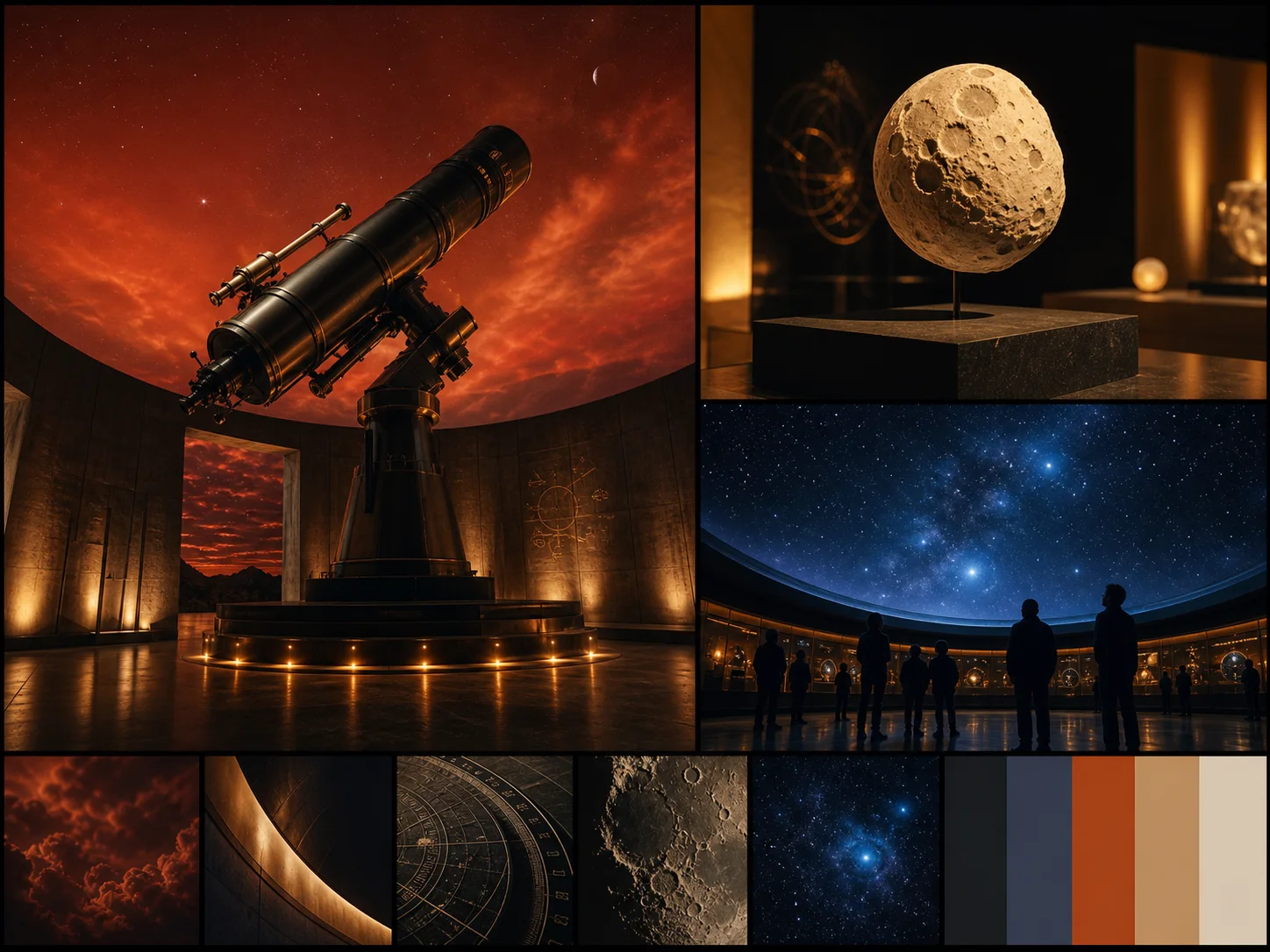
Social and campaign graphics. Create platform-ready campaign images, posters, social cards, launch visuals, and presentation covers with concise visible copy and flexible canvases.
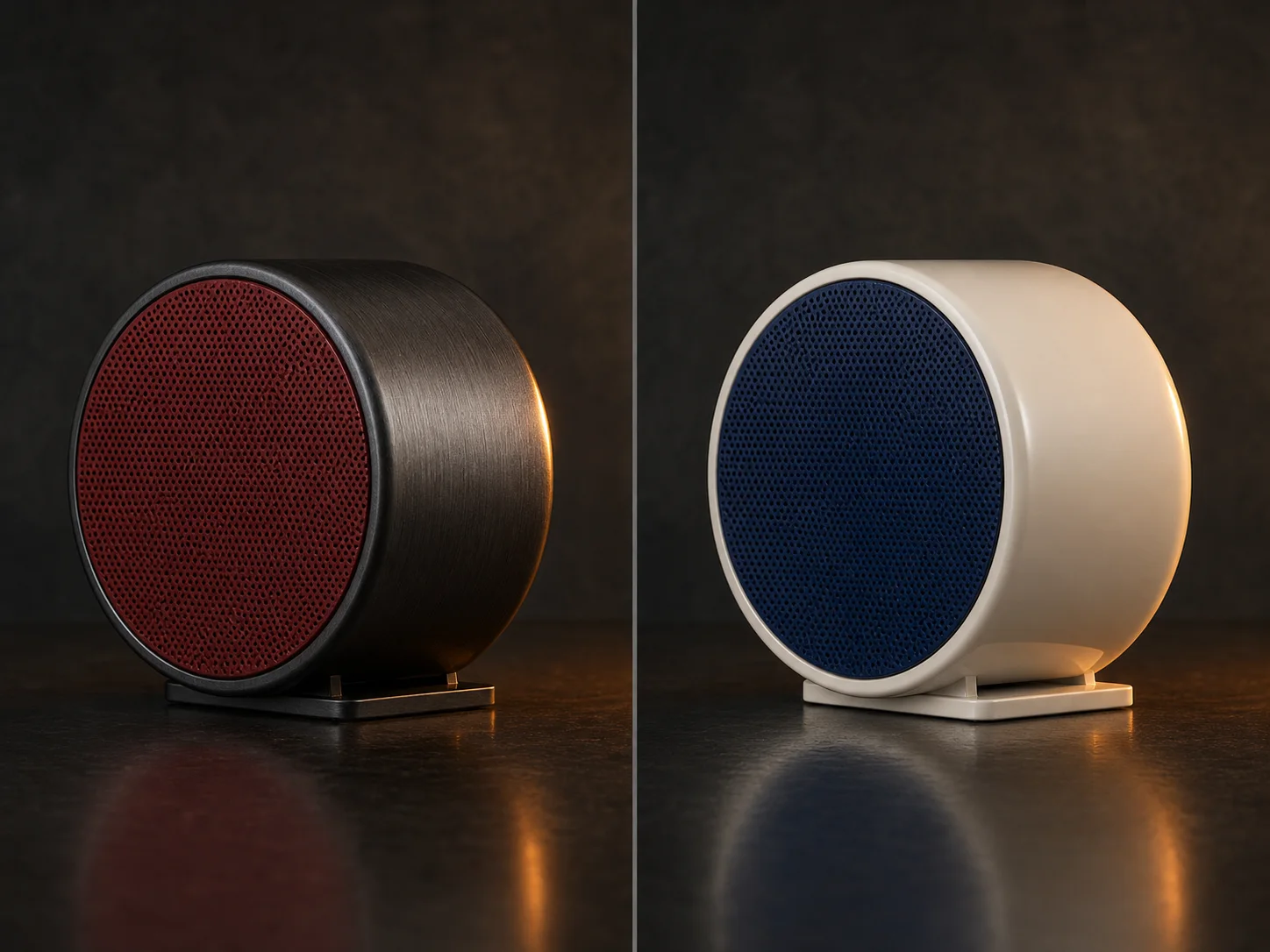
Creative image editing. Change products, materials, backgrounds, lighting, atmosphere, or styles through natural-language instructions and staged multi-turn refinement.
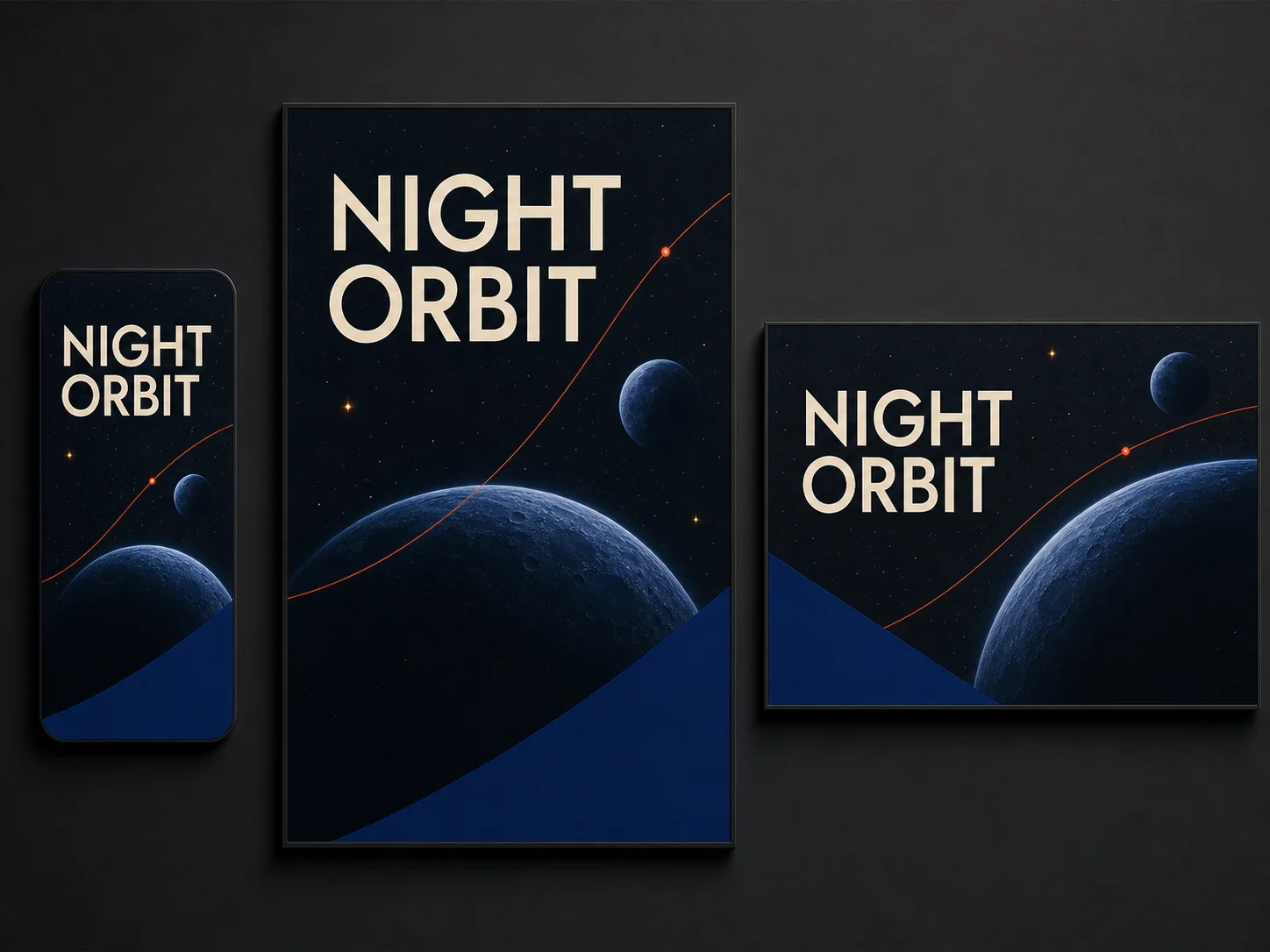
Concept art and visual exploration. Explore realistic, cinematic, illustrated, anime, painterly, and graphic directions for characters, stories, environments, and original products.
How to Use Grok Imagine on Nuzza AI For Free
Try Grok Imagine for Free NowChoose Generation or Editing
Start from a prompt for a new image, or upload up to three ordered sources when a subject, product, style, or scene must guide the edit.
Write the Creative Direction
Describe subject, action, camera, setting, light, materials, exact copy, style, and exclusions; assign each source a clear role.
Set the Output and Review
Choose the aspect ratio, 1K or 2K resolution, and output count, then inspect text, identity, geometry, hands, edges, and factual details.
Grok Imagine vs. Nano Banana 2 vs. GPT Image 2
| Feature / Model | Grok Imagine | Nano Banana 2 | GPT Image 2 |
|---|---|---|---|
| Best Fit | Realistic scenes, text-aware graphics, style transfer, and multi-turn edits. | Localized graphics, repeated edits, many references, and unusual canvas shapes. | Detailed marketing briefs, visible text, targeted edits, and inpainting. |
| Model Emphasis | Realism, stronger text, prompt following, and creative control. | Fast iteration, world knowledge, reference consistency, and 4K output. | Flexible instruction following, reference editing, and selectable quality. |
| Reference Inputs | Nuzza editing accepts one to three ordered source images. | Nuzza editing accepts one to sixteen staged source images. | Nuzza editing accepts one to sixteen staged source images. |
| Output Controls | Flexible ratios, 1K or 2K, and one to four results. | Broad ratios, 0.5K through 4K, and four results. | Flexible sizes, selectable quality, and one to four results. |
| Image Editing | Natural-language, multi-turn, style-transfer, and multi-image editing workflows. | Reference-led transformations support complex preservation and combination briefs. | Reference editing and mask-led inpainting use dedicated operations. |
FAQs about Grok Imagine
What is Grok Imagine?
Grok Imagine is xAI's generative media product for images and video. This Nuzza page covers its image model workflow. The current xAI image release improves realism, text rendering, prompt following, and creative control. It supports image generation and editing. Grok Imagine is available on Nuzza for both image workflows.
Which Grok Imagine image model is current?
xAI's current developer documentation lists grok-imagine-image-2.0. Nuzza presents the simpler public label Grok Imagine while connecting generation and editing controls for the image workflow.
Can Grok Imagine edit existing images?
Yes. xAI documents natural-language editing, multi-turn editing, style transfer, and multi-image editing. Nuzza accepts up to three ordered source images for the current edit workflow.
How many reference images can I use?
You can upload up to three source images in Nuzza's Grok Imagine edit workflow. Their order matters, so identify each source's role clearly in the prompt.
Which styles can Grok Imagine apply?
xAI demonstrates style transfer across photography, anime, oil painting, pencil drawing, pop art, and watercolor. Preserve important subject or composition details explicitly when changing styles.
What resolutions and aspect ratios does Grok Imagine support?
Nuzza offers 1K and 2K output with common square, portrait, landscape, widescreen, and tall ratios. Editing can also follow the first source image automatically.
Can Grok Imagine render text inside images?
Yes. xAI's current release highlights stronger text rendering. Keep wording concise, specify typography and placement, and inspect every character before publishing.
Can I use Grok Imagine for free on Nuzza?
Yes. Nuzza offers free Credits for new users to try Grok Imagine. Once your free Credits are used up, you will need to subscribe to a paid plan to continue.
Create and Edit Images with Grok Imagine
Generate realistic visuals, text-aware graphics, style transformations, and multi-reference edits with Grok Imagine on Nuzza AI.
Try Grok Imagine