AI Video Extender
AI Video Extender: Continue a Clip Beyond Its Last Frame
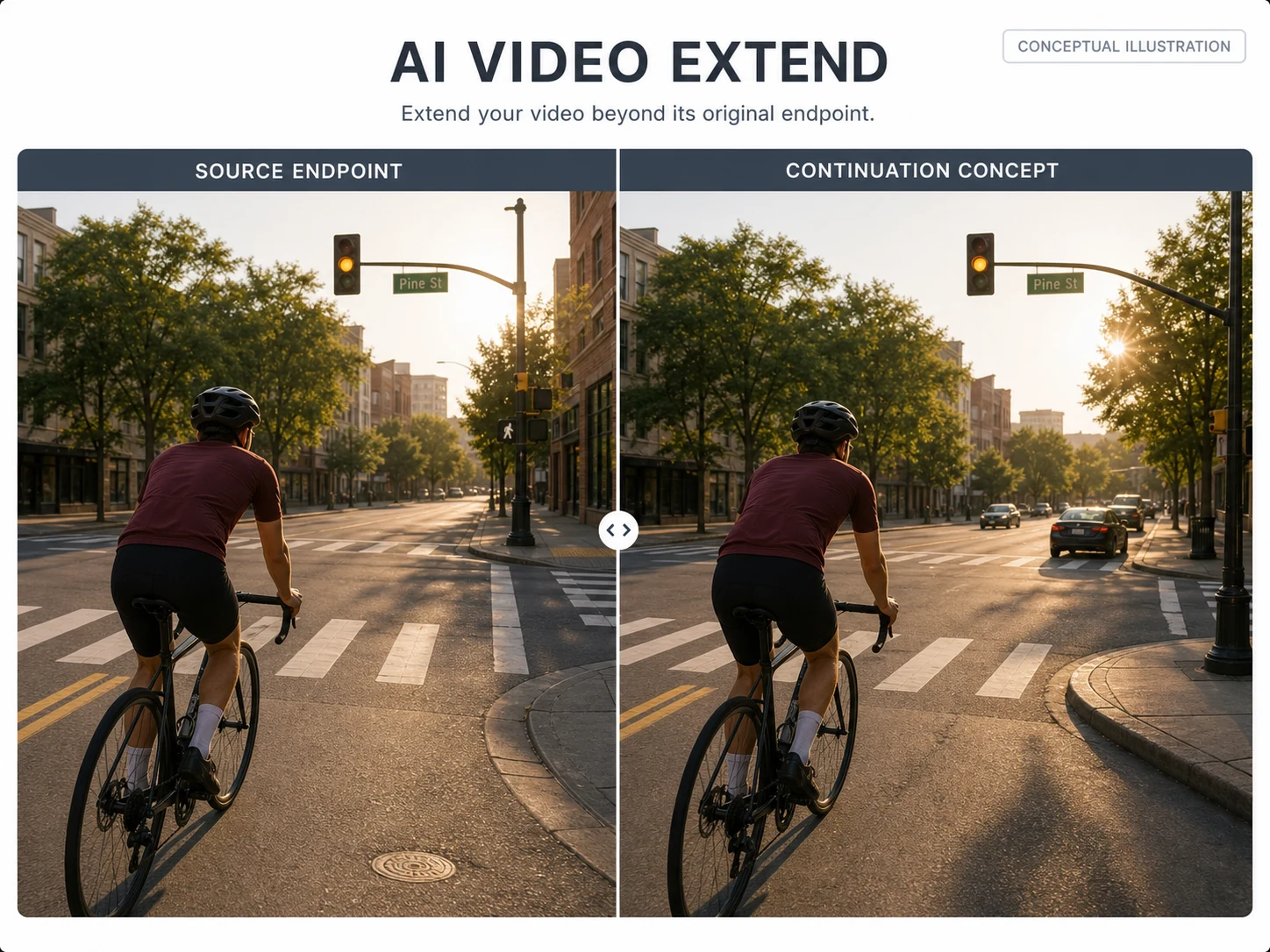
Extend a selected ending with a new visual beat guided by the source and an optional prompt, then inspect the transition for continuity.
Extend Videos with Control Over Every New Second
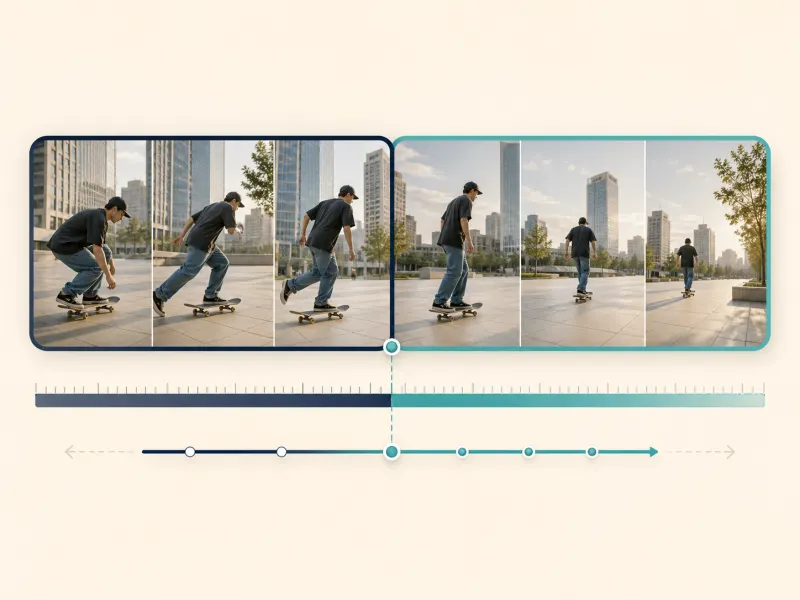
Set the Exact Extension Length
Choose how many seconds to add or set a target duration, from one additional moment to a substantially longer scene.
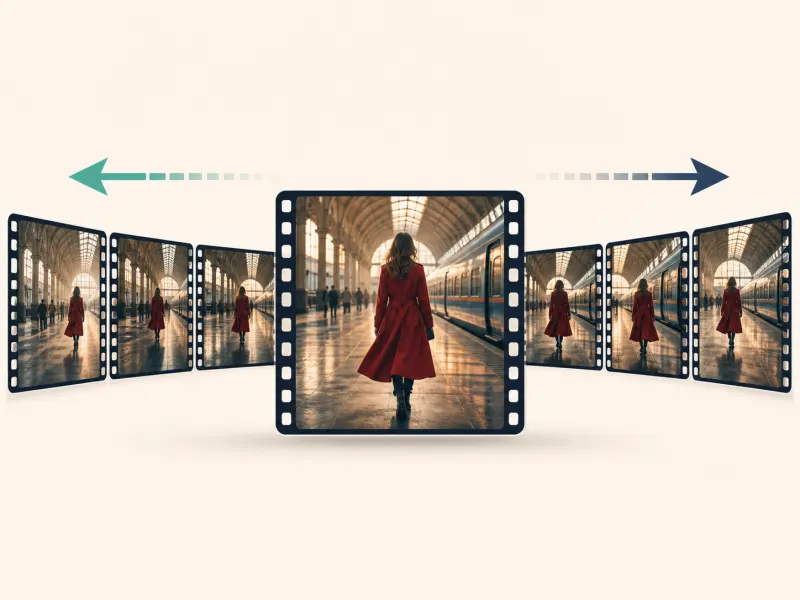
Extend Forward, Backward, or Both
Add new footage after the final frame, before the opening frame, or in both directions to expand the part of the scene you need.
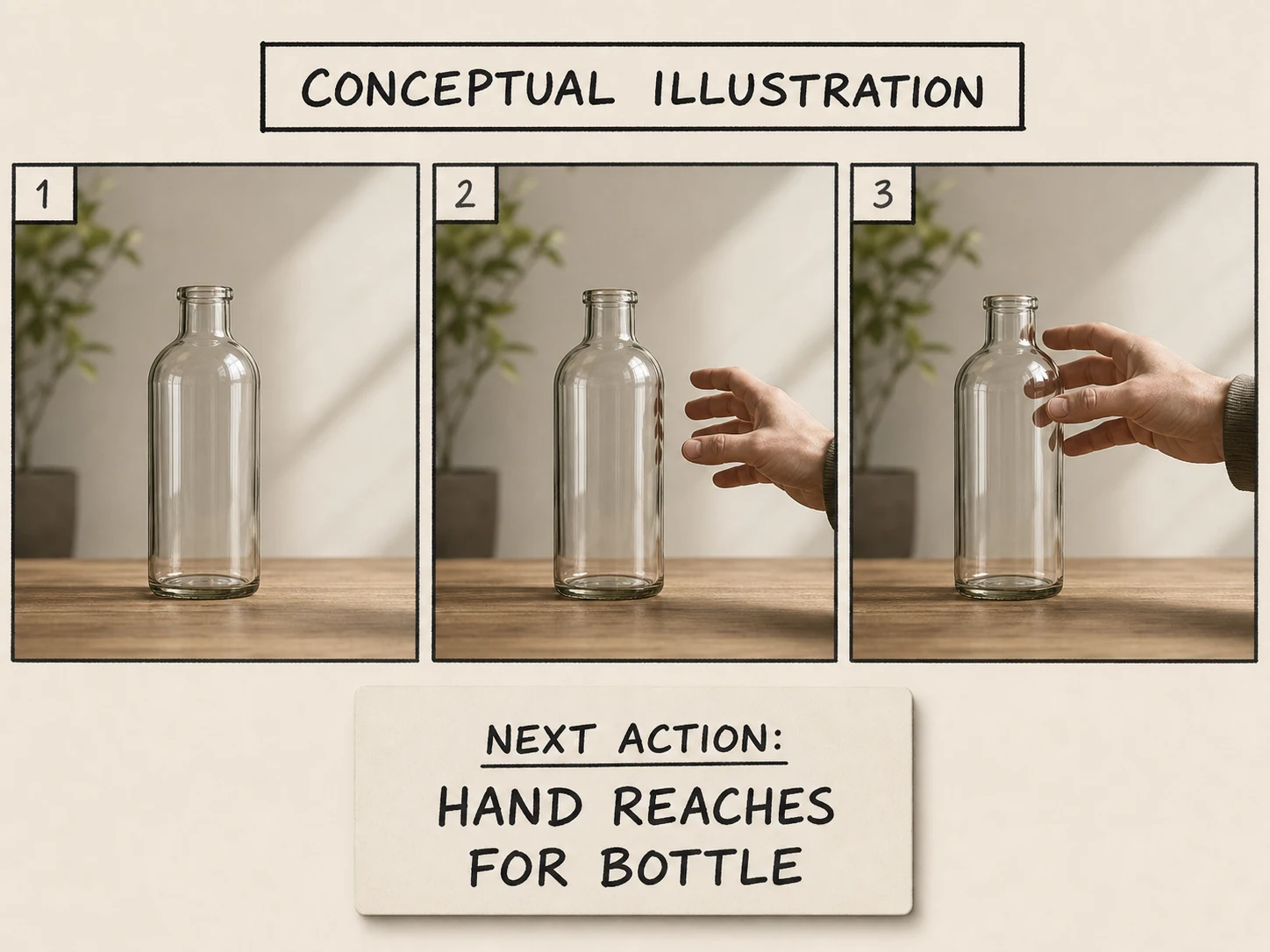
Guide the Next Scene with a Prompt
Describe the next action, subject movement, camera direction, or scene development so the generated continuation follows your creative intent.
Preserve Motion, Lighting, and Visual Style
Generate new frames that carry forward the original subject, camera motion, lighting, composition, and overall visual style.
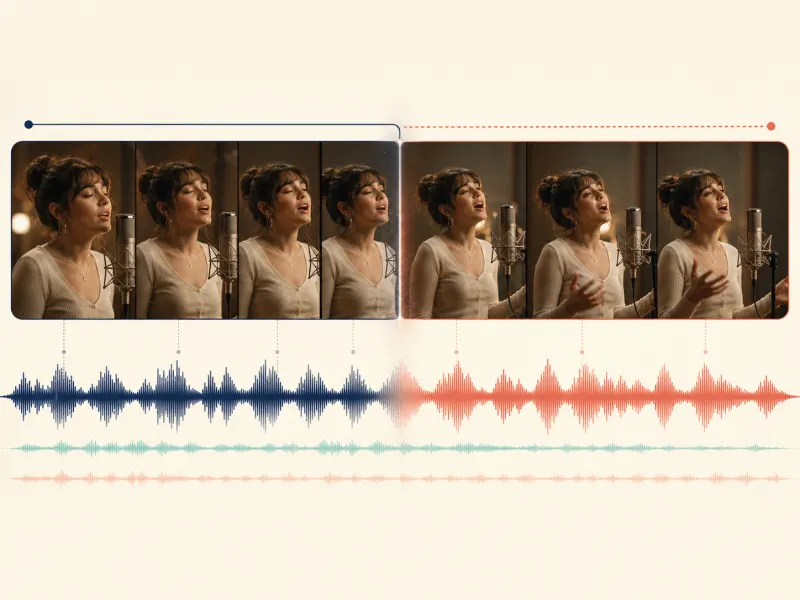
Keep Audio Synchronized with the Extension
Continue dialogue, music, ambient sound, and scene audio alongside the new footage so the extended section remains synchronized.
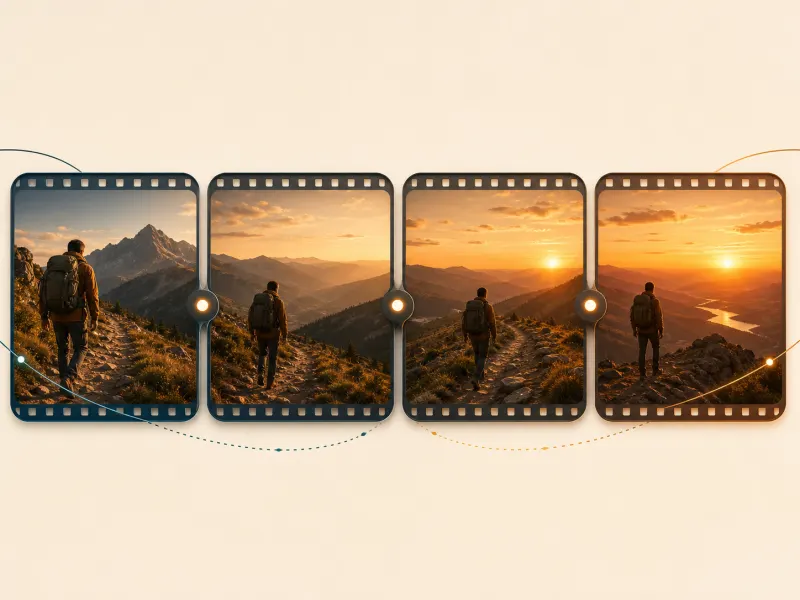
Chain Extensions into Longer Sequences
Extend the same video repeatedly while carrying forward the previous scene context, allowing short clips to grow into longer connected sequences.
How to Use the AI Video Extender
Upload an MP4 or MOV
Sign in and select one video file up to 200 MB. Start from the clearest available source because the selected endpoint is what you will use for comparison.
Trim the source and choose a model
Set a 0.5–5 second source range and choose Nuzza Extend, PixVerse V6 Extend, or LTX 2.3 Quality Extend. The workspace then limits duration, resolution, prompt, and audio settings to the selected endpoint's supported values.
Confirm the quote before submitting
Review the dynamic Credit quote, then submit the queued Fal task. Inspect any finalized video for boundary changes before using it; every model on this page now uses the same Fal Provider adapter.
Built for Clips That End Before the Story Beat Does
Social Clips That Need One More Beat
Test a continuation when a Short, Reel, TikTok, or UGC clip needs extra room for its action, caption, CTA, or ending rhythm.

Editing Room for Transitions and Voiceover
Generate a candidate continuation when a source shot ends too early for a transition, narration line, scene handoff, or pacing decision.
Product Reveals, Promos, and Ads
Continue one clear product or campaign action from a stable endpoint, then verify the object's position, reflections, text, and framing.
B-Roll, Interviews, and Motion Shots
Explore an additional beat for interview footage, travel, sports, drone, walking, cycling, or other readable motion while checking identity and scene continuity.
Nuzza vs. Top AI Video Extenders
| Feature / Model | Nuzza | Vidu AI Video Extender | Adobe Premiere Generative Extend | Filmora AI Video Extender |
|---|---|---|---|---|
| Extension Options | Vidu, PixVerse, or LTX with per-model controls | Prompt-guided continuation from an uploaded clip | Drag an edit point to add video or ambient audio | Prompted forward or backward video and audio extension |
| Cost | Free with included credits | Free trial credits or paid plan | Paid plan with generative credits | Included AI credits or paid plan |
| Best For | Comparing three continuation engines in one browser | Focused extensions inside the Vidu ecosystem | Adding a few frames inside a professional timeline | Extending clips inside an all-in-one editor |
FAQs about the AI Video Extender
What is Nuzza's AI Video Extender?
An AI Video Extender uses a selected short source range and optional prompt to generate a continuation beyond the endpoint. Treat it as a proposed next beat to review, not as a guarantee that the subject, motion, camera, light, color, or audio will remain unchanged.
What is the best AI video extender?
The best AI video extender depends on the source clip and the continuation you need. Nuzza's AI Video Extender is a strong choice for a focused source-and-prompt continuation workflow.
Is Nuzza's AI Video Extender free to use?
The page is free to browse. Running a task requires Credits, and the current cost is shown before you submit.
What can I use Nuzza's AI Video Extender for?
Nuzza's AI Video Extender is useful for product motion, interview continuity, and motion handoff. Choose a product clip when its final frame already establishes the object, surface, and camera angle, then describe one visible next action. This makes it easier to compare the object position, reflections, and framing in a proposed continuation instead of treating it as a finished product claim.
What inputs does Nuzza's AI Video Extender support?
This workspace accepts one MP4 or MOV video up to 200 MB. You must select a 0.5–5 second range before Create is enabled, and that trimmed range is used for the quote and task.
Do I need to sign in to use Nuzza's AI Video Extender?
Yes. The upload, quote, task, and status flow requires sign-in. Turning off Public Visibility keeps a result out of Explore and public Inspiration, but its CDN URL remains directly accessible. This page does not make claims about Provider retention, training use, or commercial rights.
What should I check in the video result?
The official endpoint documents stable generation of about 19 seconds at 480p, 11 seconds at 720p, and 5 seconds at 1080p when using 24 FPS and context frames. The workspace enforces those safe integer limits.
What are the Nuzza Extend defaults and controls?
Nuzza Extend starts with a 5-second extension at 720p. You can set 2–7 seconds, choose 720p or 1080p, and include an optional prompt within the workspace's 5,000-character safety cap.
How do I choose a video extension option?
Compare the duration, resolution, audio, and prompt controls shown in the workspace. Choose the option that matches the source and review the current cost before submitting.