AI Video Upscaler
AI Video Upscaler: Prepare Small Videos for Larger Displays
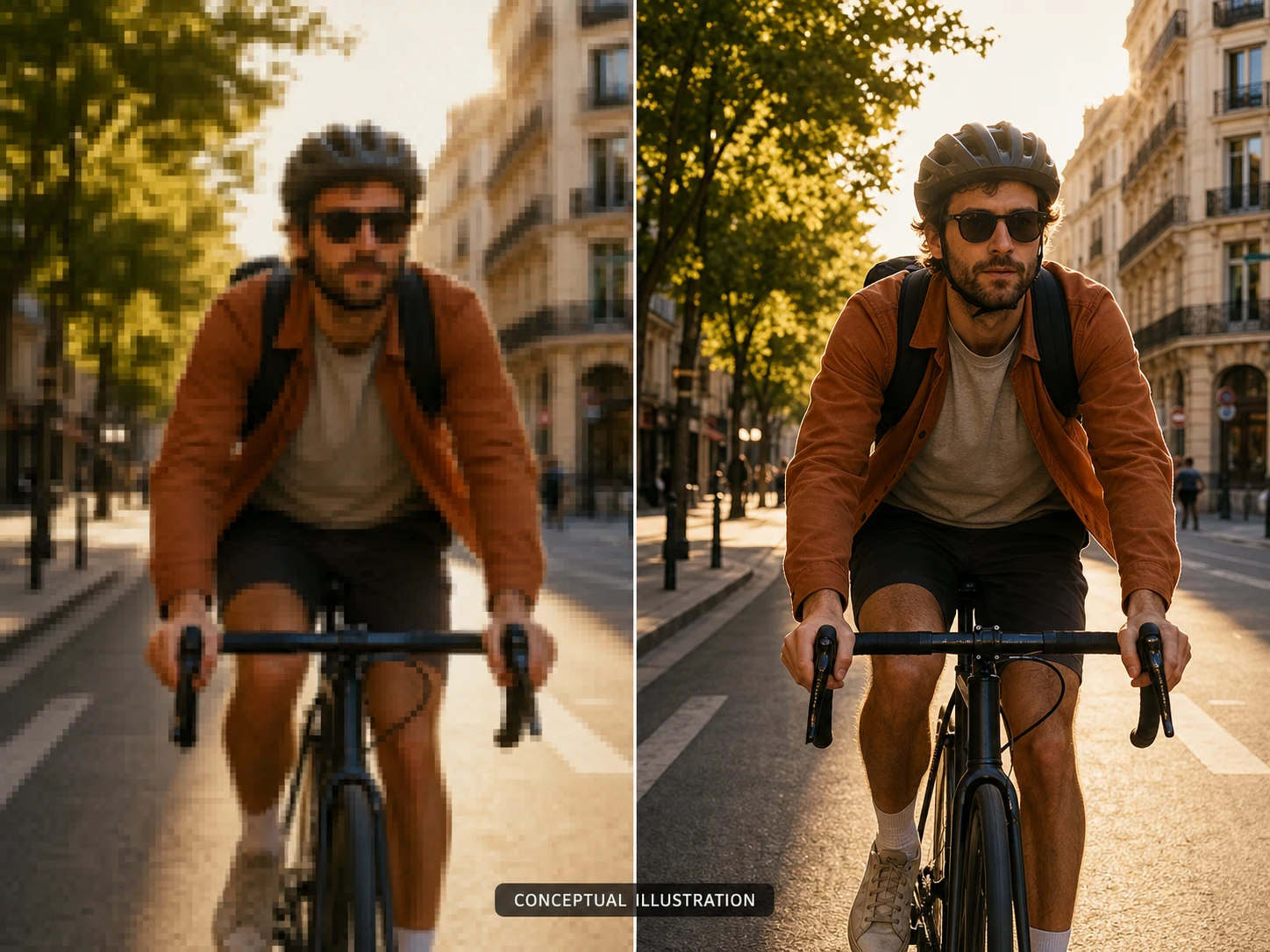
Enlarge an existing clip with AI-estimated detail, then compare faces, text, motion, and fine edges with the source before using it.
What Should You Inspect When You Upscale Video?
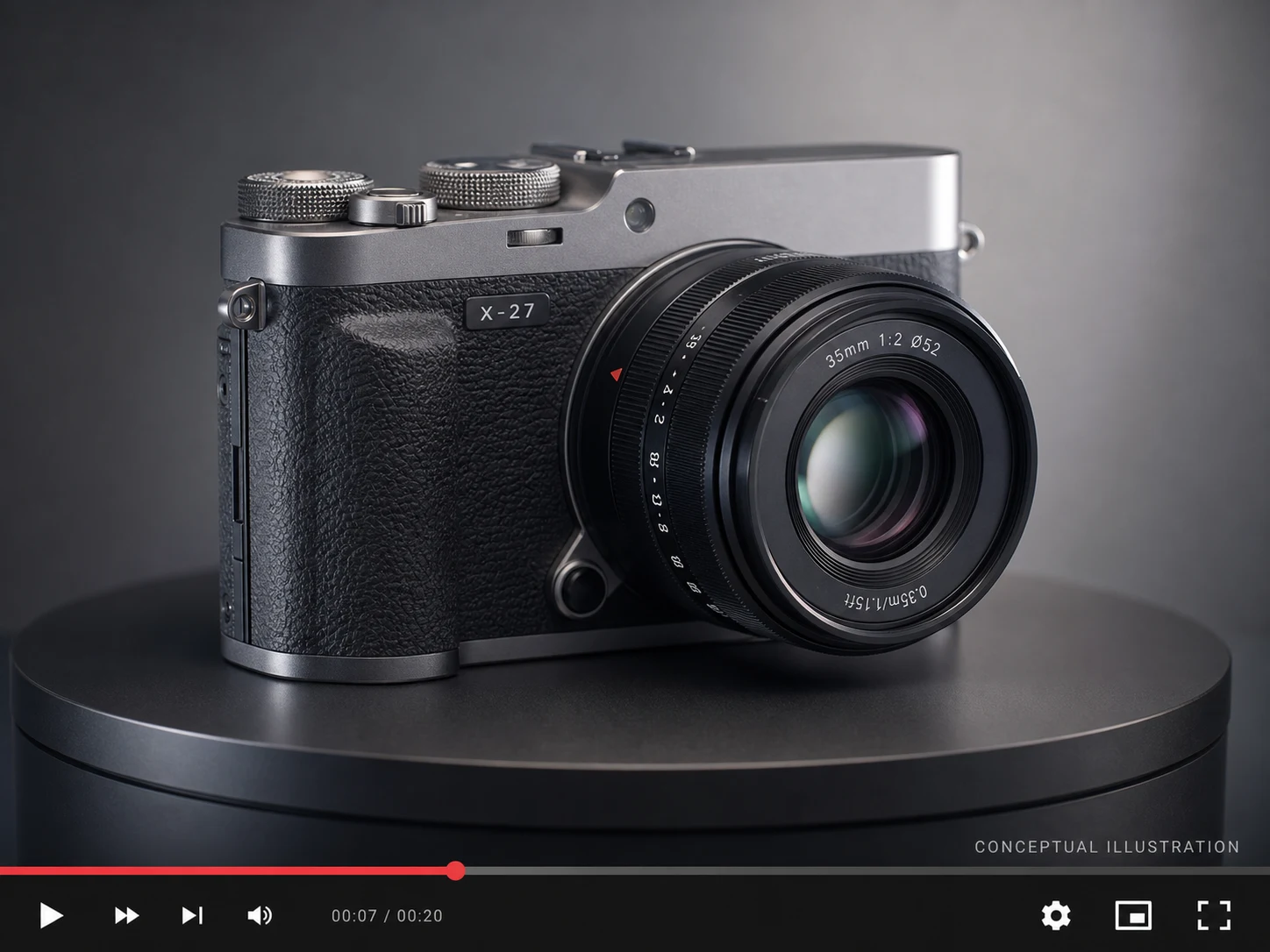
Review Product Edges Before Larger Placements
A product demonstration may look soft when a small original is reused in a larger storefront, presentation, or edit. Use a scale preset to prepare a review candidate, then compare labels, logos, engraving, seams, reflections, and repeated hardware with the source. An AI-estimated edge can look cleaner without being an authoritative product record.
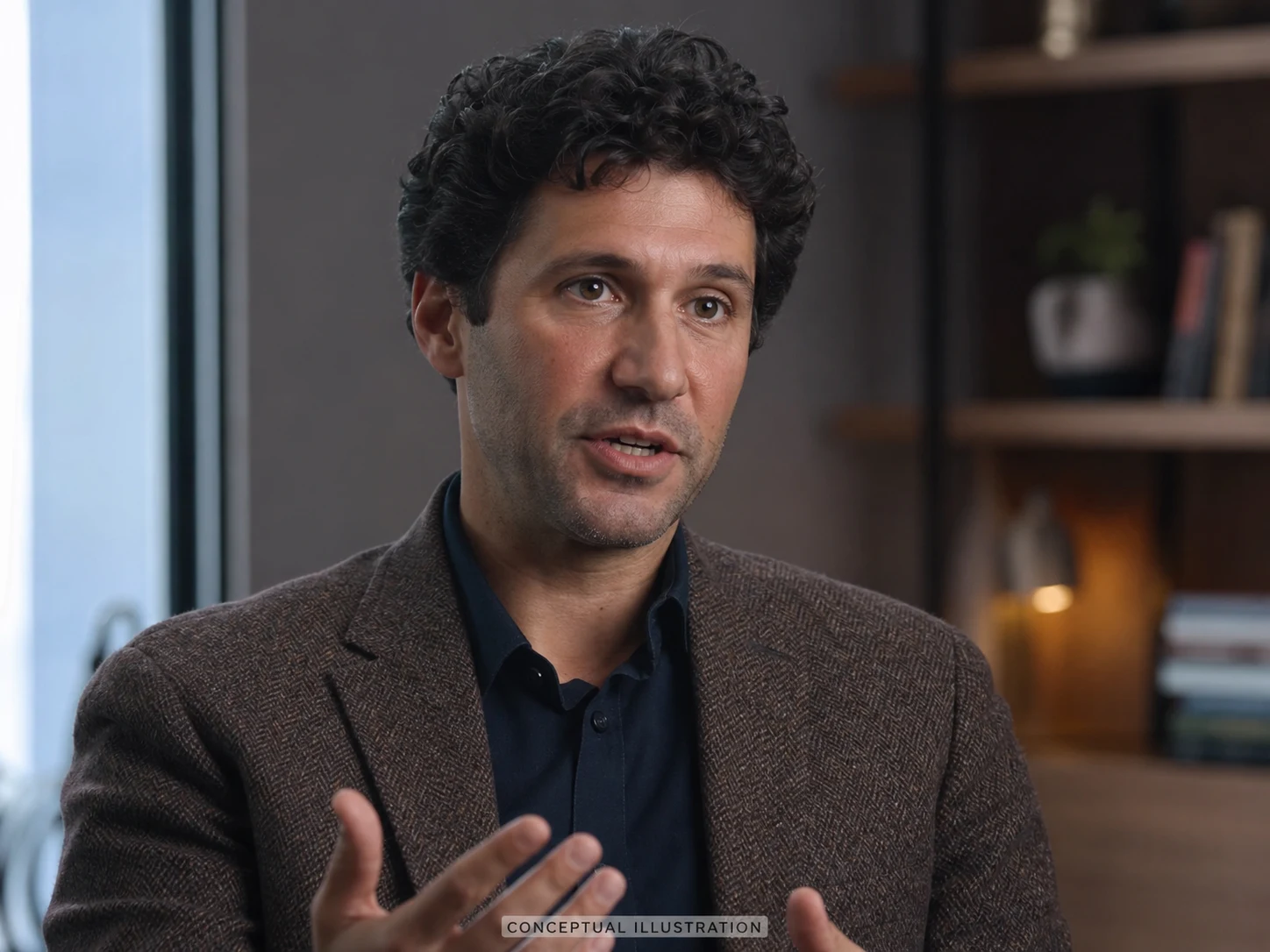
Treat Face Detail as an Identity Check
Whichever model you select, look at eye shape, hairline, expression, skin texture, fabric, and motion frame by frame rather than accepting a sharper-looking portrait automatically. Any change to a person's recognizable features should be treated as an error, not an enhancement.

Keep Generated Lines and Intentional Texture Legible
Nuzza's AIGC preset is intended for AI-generated footage. A larger scale can make outlines, color boundaries, and small background features easier to inspect, but it is not a vector conversion and can still alter deliberate roughness. Compare line weight, palette edges, signatures, and repeated patterns with the original creative file.
How to Use the AI Video Upscaler
Upload a Supported Video
Choose one MP4, MOV, or WebM source up to 200 MB. Start from the cleanest, most focused original you have; repeated compression and motion blur are difficult to resolve reliably.
Select a Model and Available Controls
Choose Nuzza Enhance 1.0 to access General, UGC, Short Series, AIGC, and Old Film, or choose Topaz Starlight 2.5 for the highest-quality model without a Mode selector. Then choose an available scale.
Understand the Current Result Boundary
The request is submitted through the generation queue to Fal. Compare any finalized result with the source before downloading or publishing it.
When Is Video Upscaling Worth a Careful Review?
Prepare a closer review of product movement and materials.
Use an upscale candidate when an approved demonstration clip must be examined in a larger placement, then verify labels, mechanical movement, surface texture, and reflected details against the source before release.
Check whether a portrait stays recognizable through the pass.
Use a careful face-detail review when interview or presentation footage needs a larger viewing scale, and compare identity, expression, lip movement, hair, and clothing texture with the original clip.
Inspect linework and palette boundaries at a larger scale.
Use Nuzza's AIGC preset when an original AI-generated or graphic clip needs close inspection, while keeping the master artwork nearby to catch altered line weight, invented texture, or shifted color edges.
Nuzza vs. Top AI Video Upscalers
| Feature / Model | Nuzza | Topaz Video | HitPaw VikPea | AVCLabs Video Enhancer AI |
|---|---|---|---|---|
| Upscale Options | Nuzza Enhance presets or Topaz Starlight 2.5 | Many restoration, upscale, stabilization, and frame models | Scene-specific enhancement and restoration models | Upscale, denoise, faces, colorize, and interpolate |
| Cost | Free with included credits | Paid subscription | Free trial or paid plan | Free trial or paid plan |
| Best For | Multi-model browser upscaling without installation | Professional local restoration workflows | One-click desktop enhancement for varied footage | Broad restoration and frame-rate workflows |
FAQs about AI Video Upscaler
What is Nuzza's AI Video Upscaler?
It is a tool for preparing an existing video at a larger scale with model-based detail estimation rather than only a mathematical resize. The result still needs source comparison because plausible detail is not proof of what was originally captured.
What is the best AI video upscaler?
The best AI video upscaler depends on the source, target size, and amount of control you need. Nuzza's AI Video Upscaler is a strong choice for a focused workflow with selectable enlargement controls.
Is Nuzza's AI Video Upscaler free to use?
The page is free to browse. Running a task requires Credits, and the current cost is shown before you submit.
What can I use Nuzza's AI Video Upscaler for?
Nuzza's AI Video Upscaler is useful for product and demo edits, talking-head footage, and original animation. Use an upscale candidate when an approved demonstration clip must be examined in a larger placement, then verify labels, mechanical movement, surface texture, and reflected details against the source before release.
What inputs does Nuzza's AI Video Upscaler support?
You can select one MP4, MOV, or WebM video up to 200 MB. Use the cleanest source available and keep an untouched copy for comparison.
Do I need to sign in to use Nuzza's AI Video Upscaler?
Yes. The persistent input upload, generation task, and status routes use the signed-in flow.
What should I check in the video result?
Compare the complete result with the source. Check faces, text, motion, frame edges, fine texture, flicker, and any detail the AI may have reconstructed.
Where can I see the current video upscale cost?
The workspace shows the current Credit cost after the source is ready and before you submit. The amount can vary with the selected processing option and settings.
Does the current workspace return a downloadable upscaled video?
A downloadable video is available only after the Provider accepts and successfully finalizes the Fal task.