
Google Veo 3.1
Google Veo 3.1 is Google DeepMind's flagship video model for prompt-aligned motion, realistic physics, and natively generated dialogue, ambience, and effects. On Nuzza, start from text, one image, or first and last frames, then choose duration, framing, resolution, and audio before generating.
Why Creators Choose Google Veo 3.1?
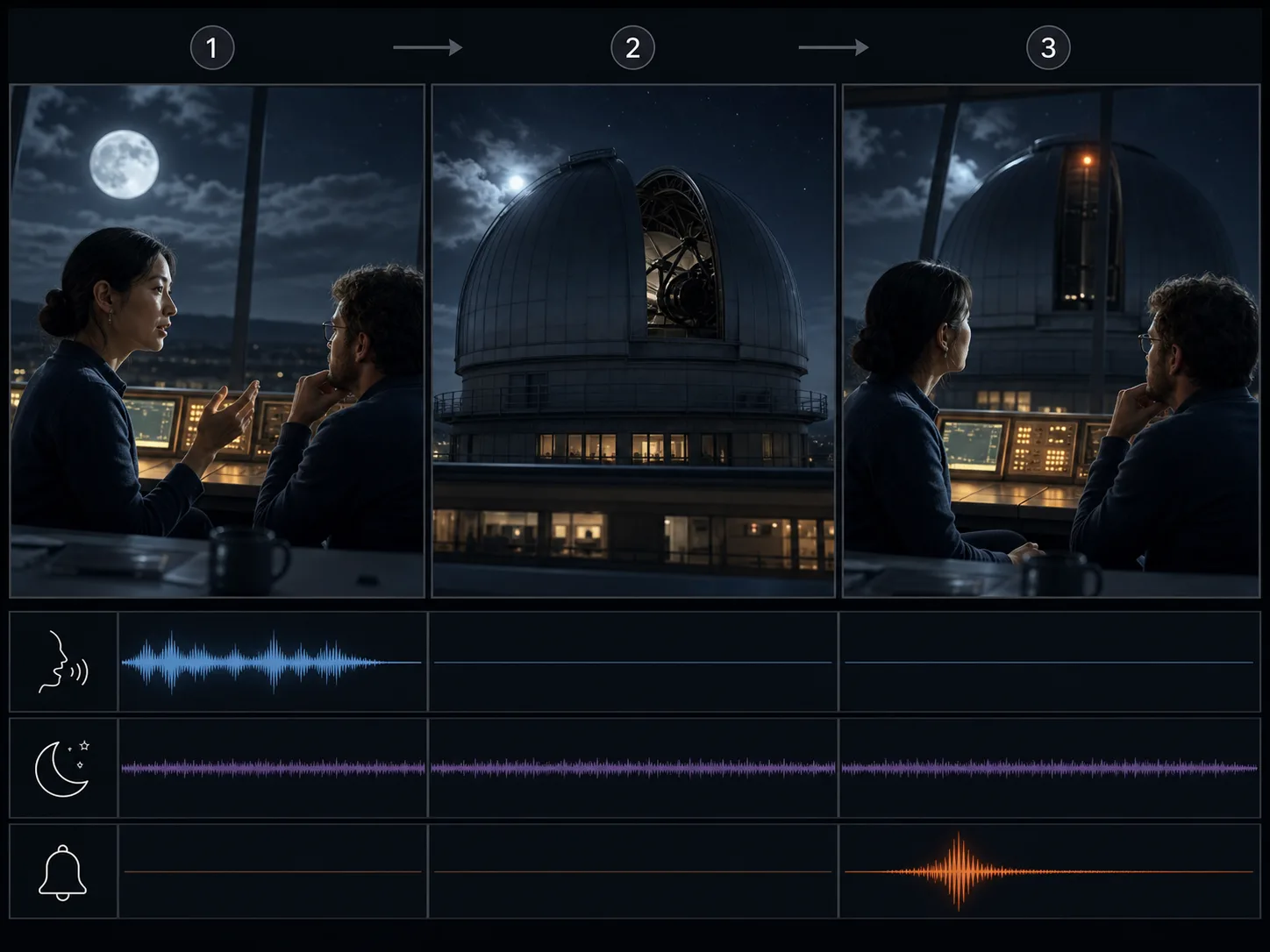
Generate Dialogue, Ambience, and Effects Natively
Write spoken lines, environmental sound, and timed effects into the same brief as the visuals. Veo 3.1 generates the soundtrack with the scene so creators can review picture, sound, and synchronization together.
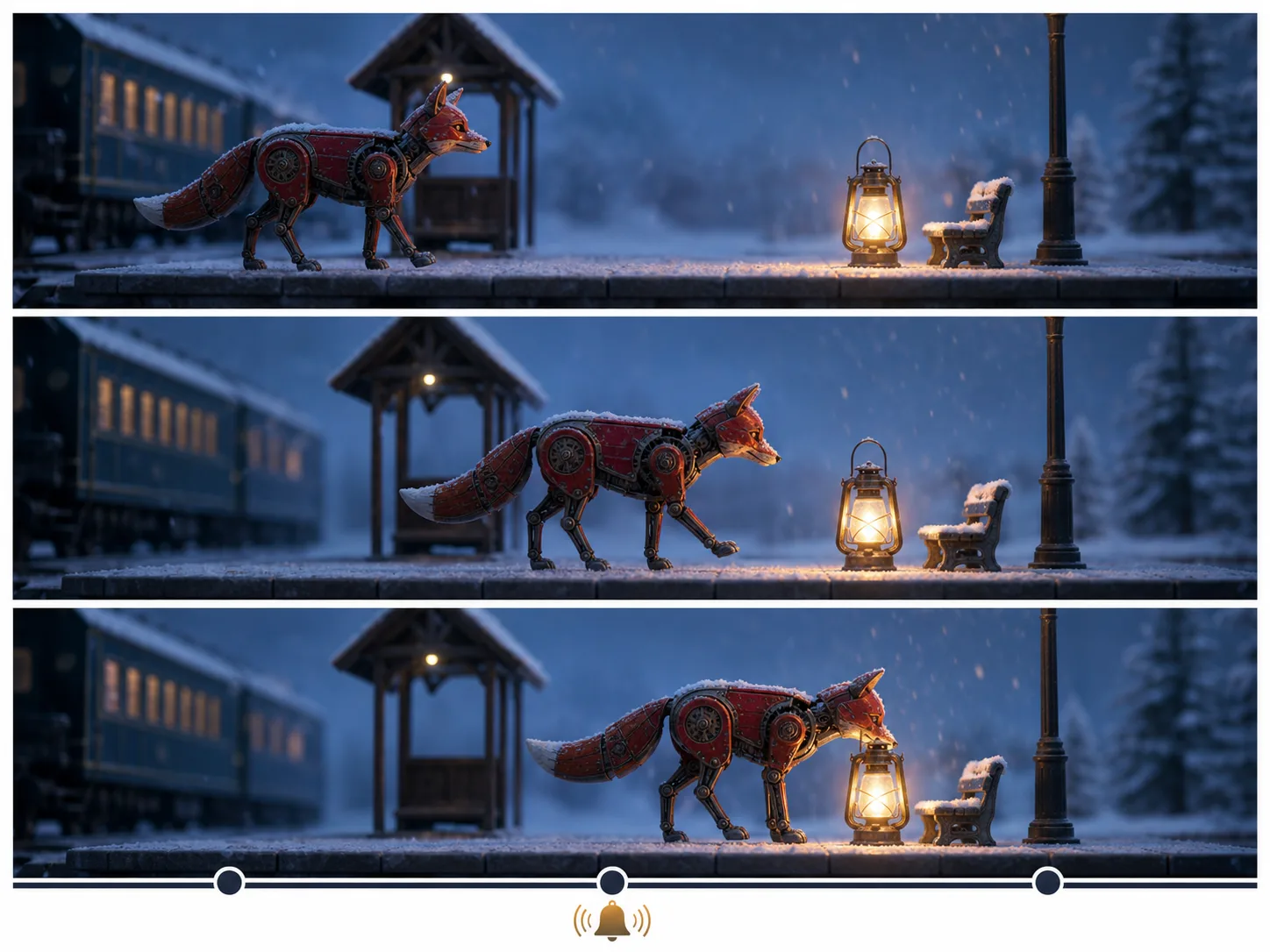
Follow Detailed Shot Instructions
Describe the subject, action, environment, lens language, camera movement, lighting, and timing in one prompt. Veo 3.1 is designed for stronger prompt adherence, helping connected directions resolve inside one coherent shot.
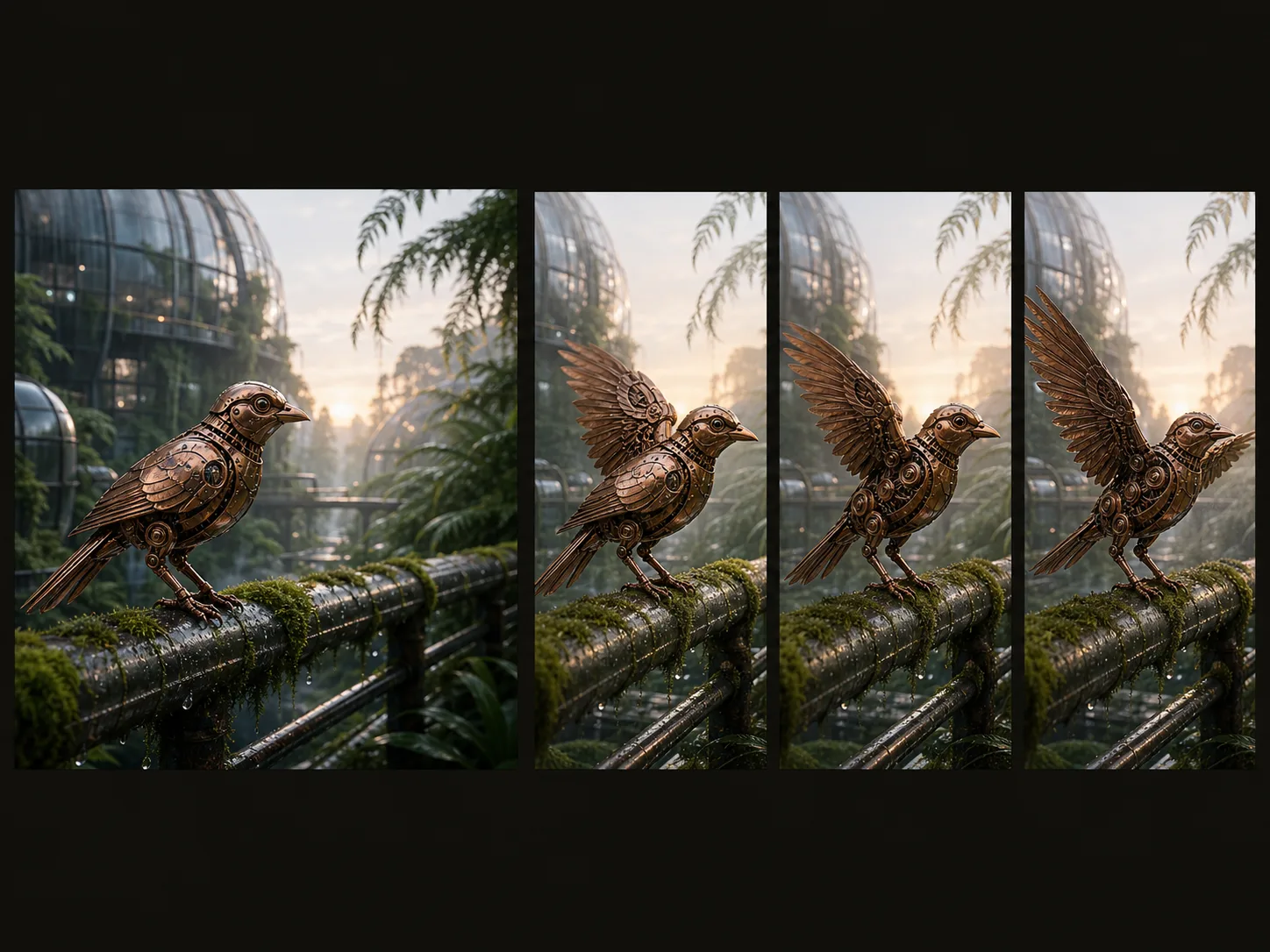
Animate a Start Image with Controlled Motion
Upload one image to establish the opening composition, character, object, or environment. Then describe what moves, how the camera behaves, and which visual details should remain recognizable as the shot develops.

Bridge First and Last Frames
Provide compatible opening and closing images when both endpoints matter. Veo 3.1 generates the in-between motion, making the workflow useful for reveals, lighting changes, transformations, and planned scene transitions.
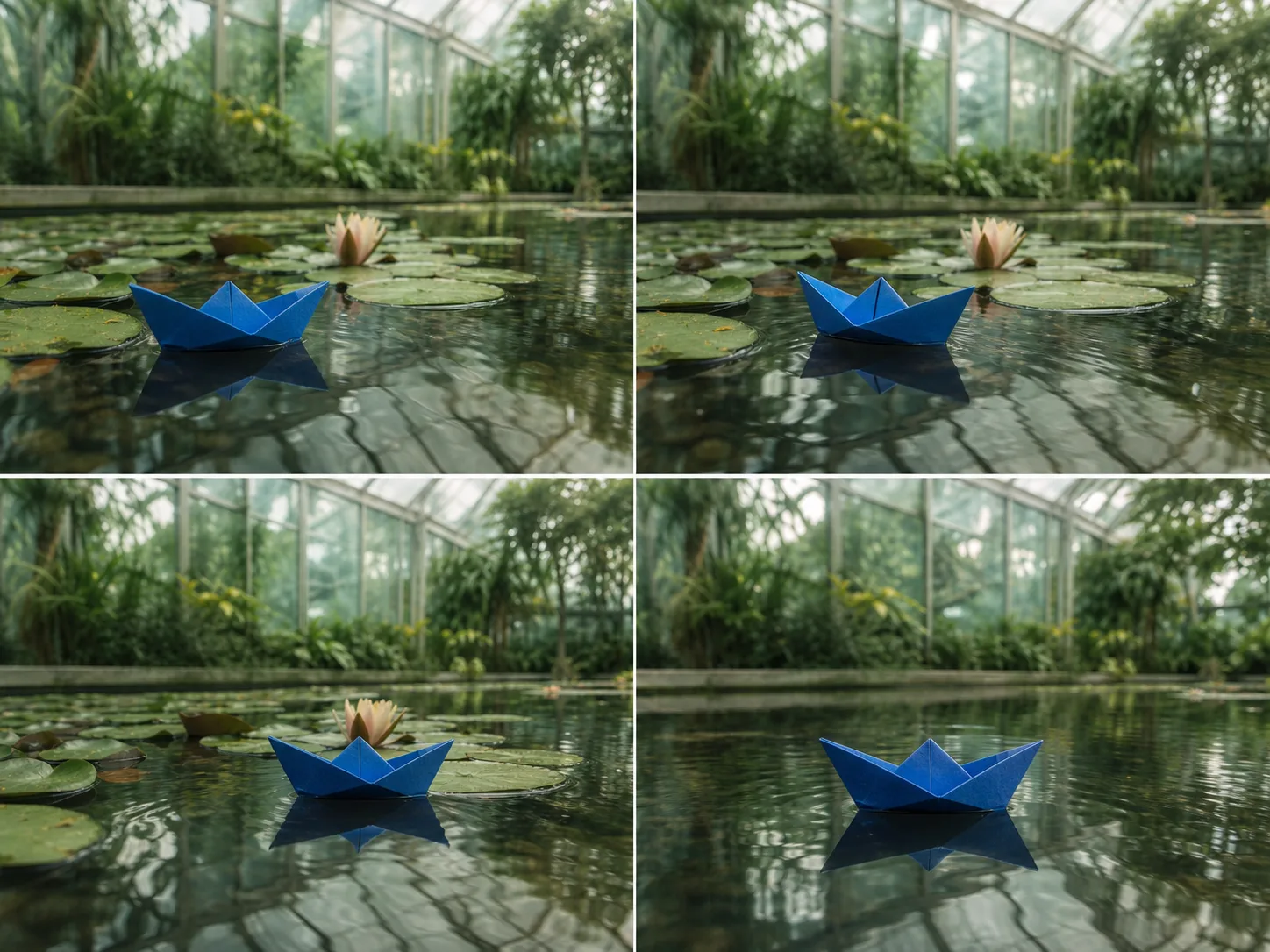
Model Motion with More Realistic Physics
Direct interactions involving bodies, objects, surfaces, weight, and momentum. Google's evaluations emphasize visually realistic physics, while every generated clip should still be checked for contact, anatomy, continuity, and unexpected artifacts.
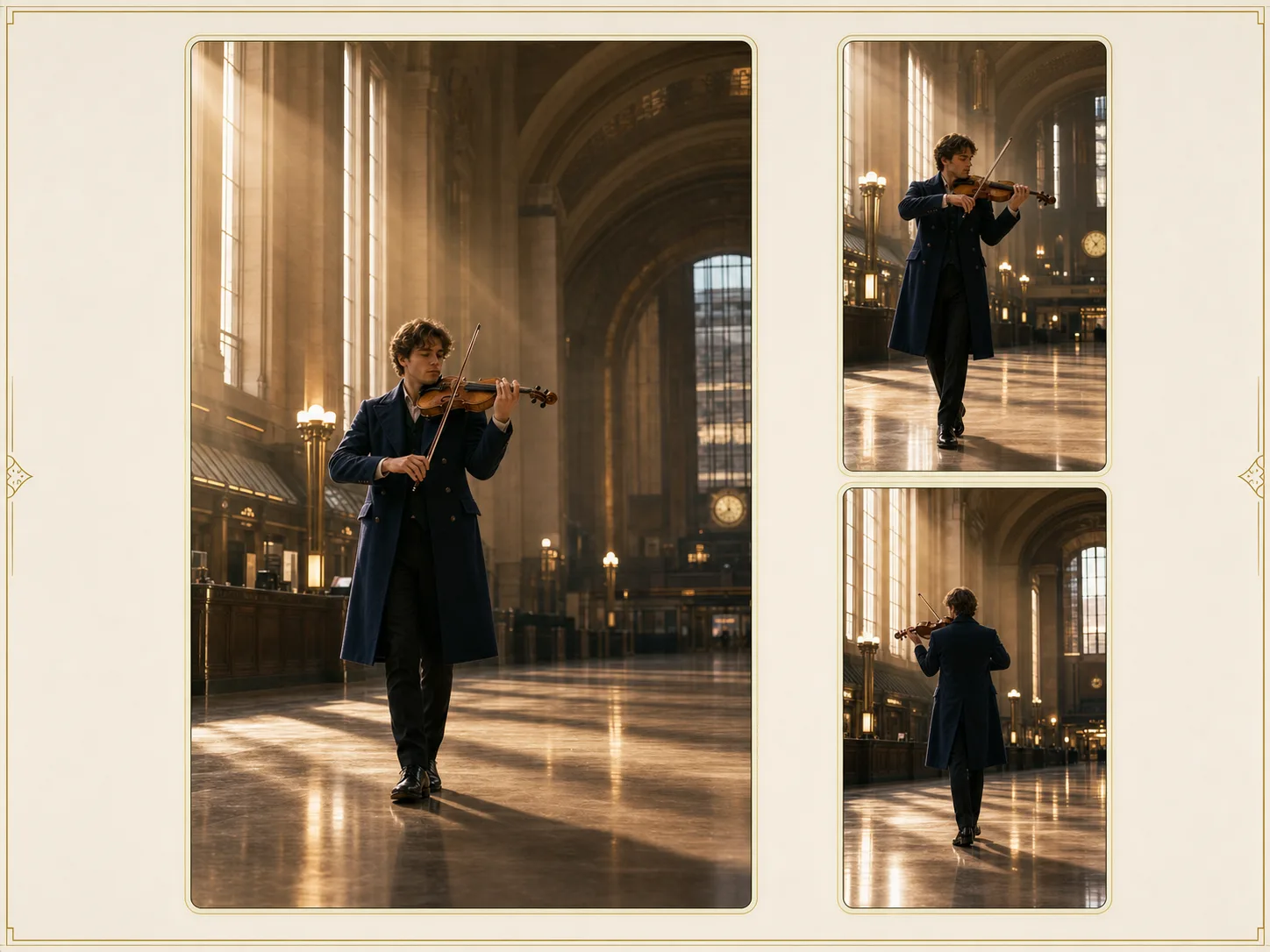
Generate up to 4K for Final Delivery
Choose 720p or 1080p for routine iteration and 4K when the current Nuzza workflow calls for more delivery detail. Match resolution to the intended edit, review, and publishing destination before submitting.
What Is Google Veo 3.1 Built For?
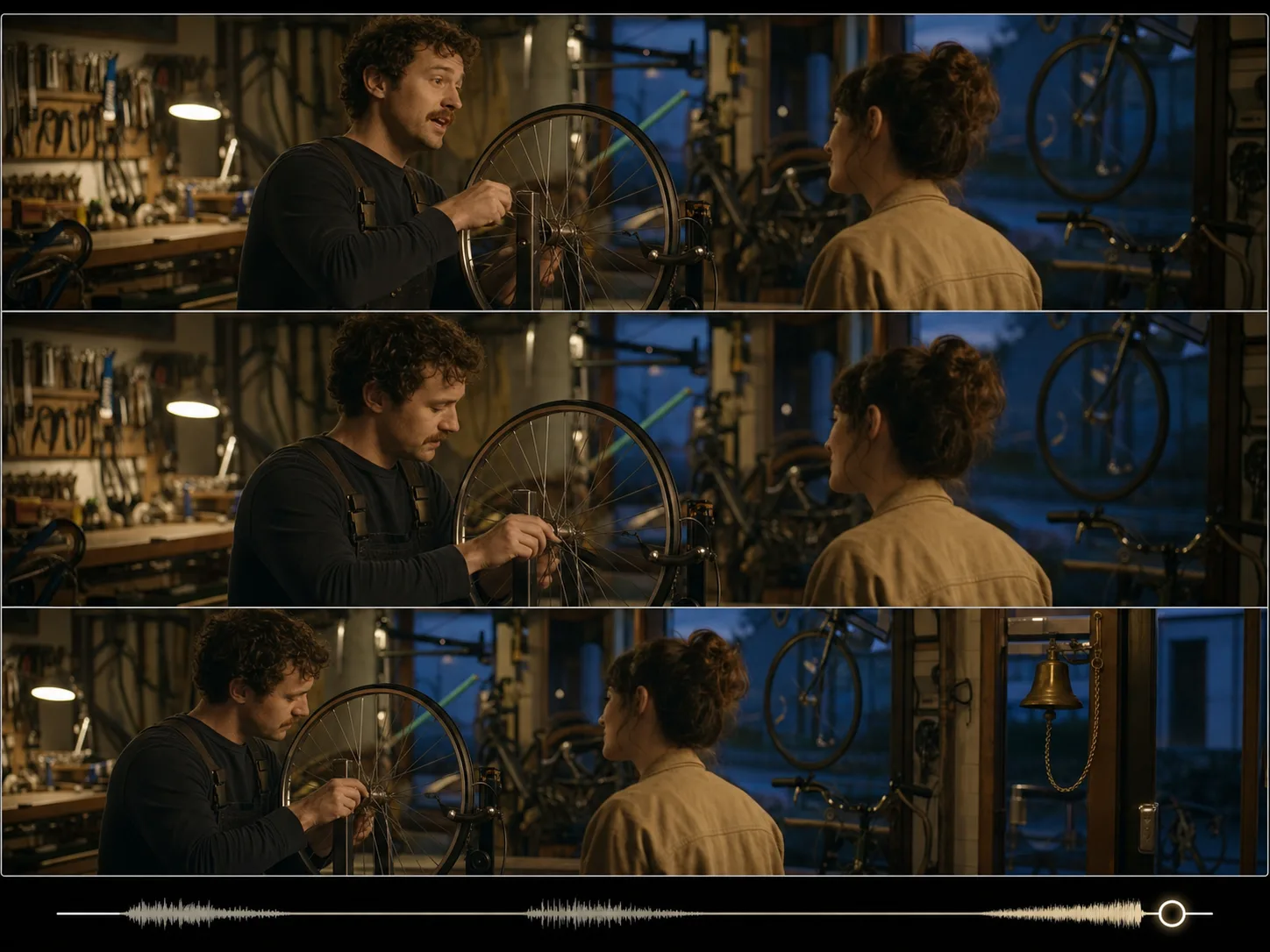
Film and story previsualization. Block cinematic scenes, camera moves, transitions, dialogue beats, and atmospheric sound before committing a concept to live-action or animation production.
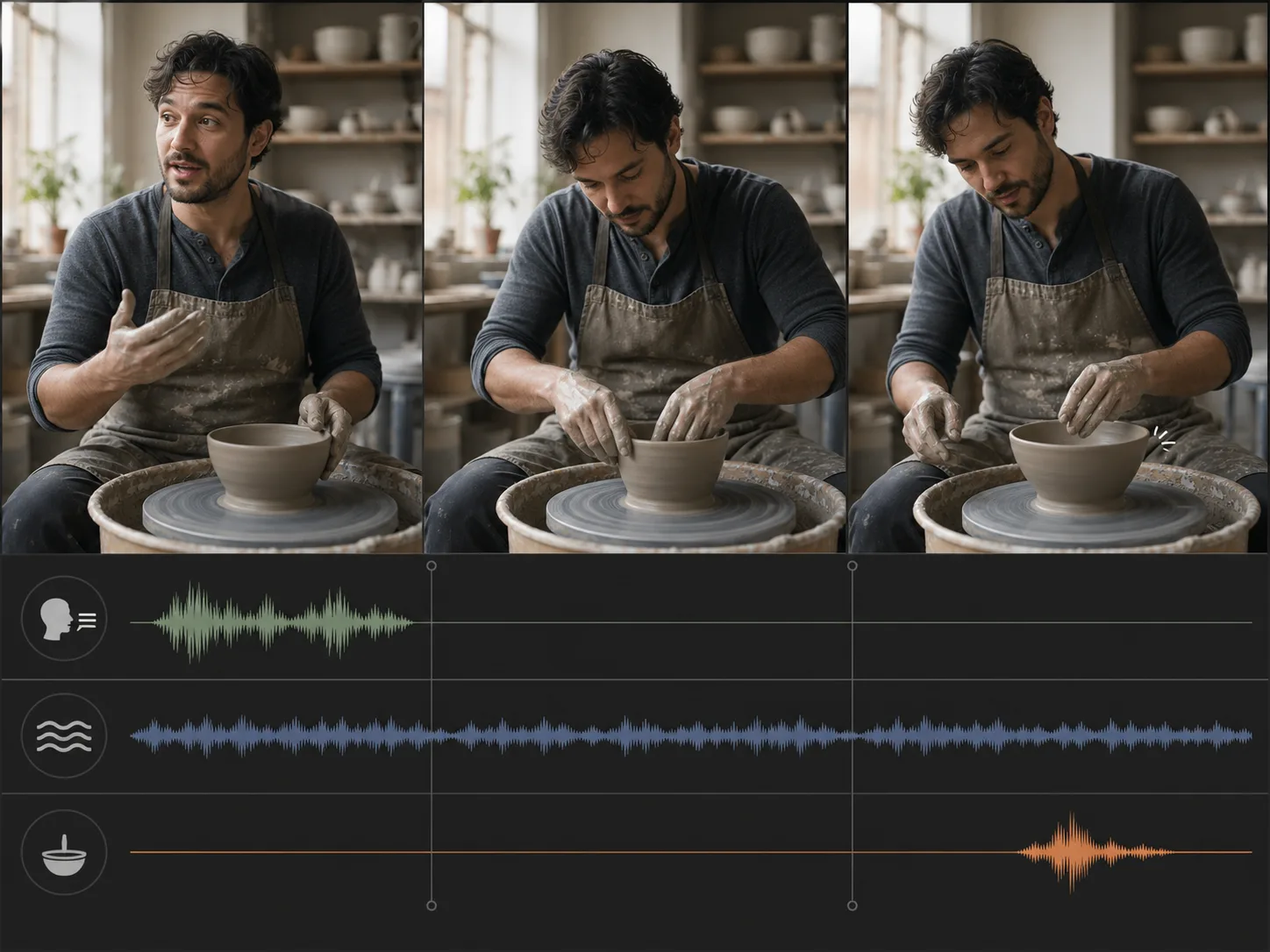
Advertising and product video. Turn approved product stills or written briefs into short reveals, mood films, and campaign concepts with deliberate framing, lighting, motion, and sound.
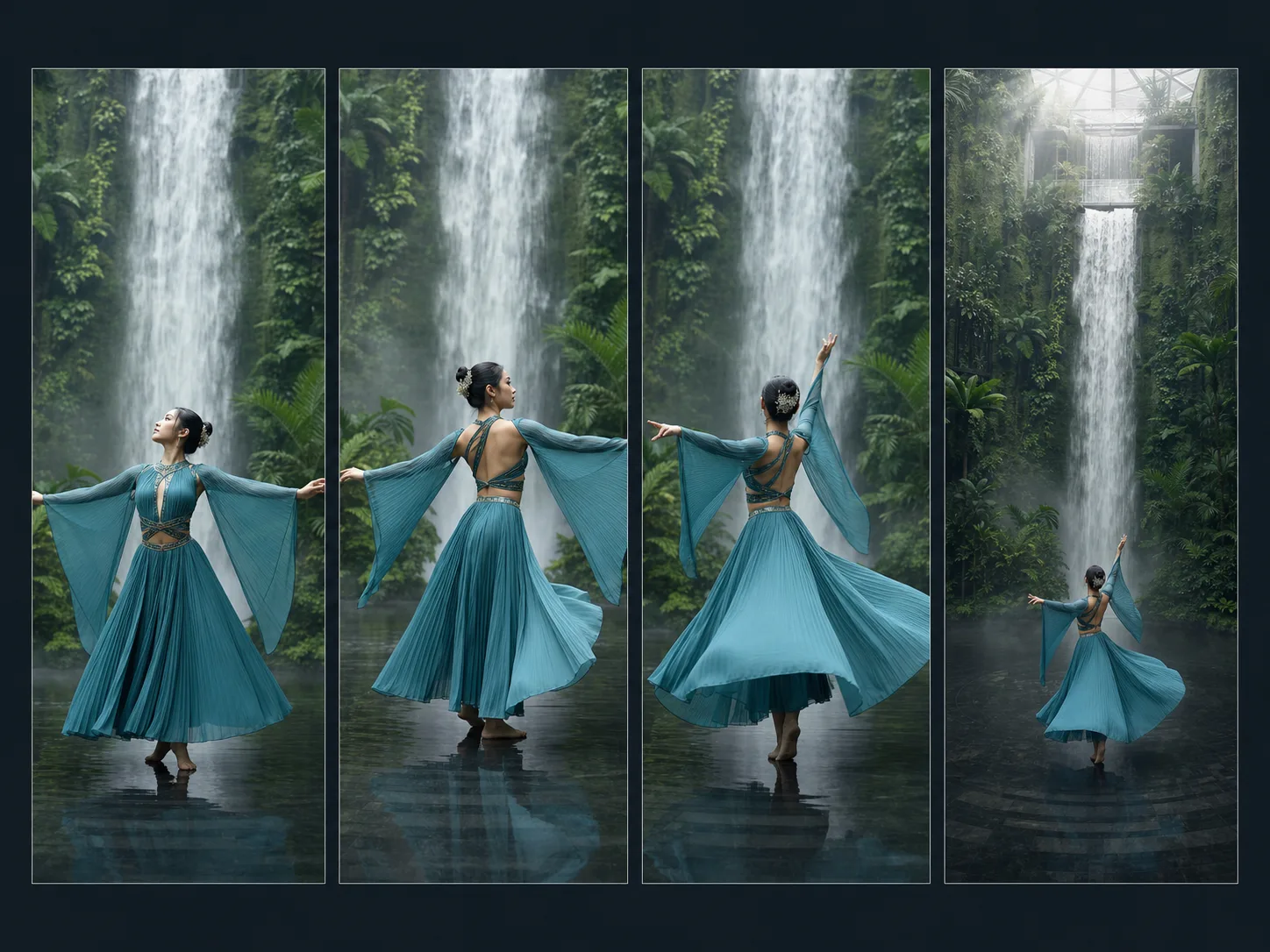
Social and vertical storytelling. Create compact portrait or landscape scenes for feeds, shorts, teasers, and launch moments while composing the action for the destination frame from the start.
How to Use Google Veo 3.1 on Nuzza AI For Free
Try Google Veo 3.1 for Free NowChoose a Starting Mode
Begin with text, upload one start image, or add compatible first and last frames depending on how tightly you need to define the shot.
Direct Picture and Sound
Describe subject action, camera behavior, timing, lighting, dialogue, ambience, and effects, then choose duration, ratio, resolution, and audio.
Generate and Inspect
Review motion, physics, identity, crop, fine details, spoken audio, effects, and synchronization before refining one important instruction at a time.
Google Veo 3.1 vs. Veo 3.1 Fast vs. Veo 3.1 Lite
| Feature / Model | Google Veo 3.1 | Google Veo 3.1 Fast | Google Veo 3.1 Lite |
|---|---|---|---|
| Best Fit | High-fidelity cinematic shots, audio-led scenes, and final production concepts. | Production iteration that balances turnaround, fidelity, control, and native audio. | Rapid tests, scaled content pipelines, and cost-sensitive production batches. |
| Max Duration | Nuzza offers four, six, or eight seconds per generation. | Nuzza offers four, six, or eight seconds per generation. | Nuzza offers four, six, or eight seconds per generation. |
| Max Resolution | Nuzza offers 720p, 1080p, and 4K output choices. | Nuzza offers 720p, 1080p, and 4K output choices. | Nuzza offers 720p and 1080p output choices. |
| Reference Inputs | Use one start image or a first-and-last-frame pair. | Use one start image or a first-and-last-frame pair. | Use one start image or a first-and-last-frame pair. |
| Audio | Native audio can include dialogue, ambience, music, and effects. | Google confirms native audio across all three Veo 3.1 tiers. | Google confirms native audio across all three Veo 3.1 tiers. |
| Video Editing | The current Nuzza page focuses on generation, not source-video editing. | The current Nuzza page focuses on generation, not source-video editing. | The current Nuzza page focuses on generation, not source-video editing. |
FAQs about Google Veo 3.1
What is Google Veo 3.1?
Google Veo 3.1 is Google DeepMind's flagship video generation model. It creates video from text or images, follows detailed creative direction, models realistic motion and physics, and generates audio with the visuals. Google positions it as the highest-fidelity tier in the Veo 3.1 family. Google Veo 3.1 is available on Nuzza.
What is new in Google Veo 3.1?
Google highlights stronger control, consistency, prompt adherence, realistic physics, and native audio. The wider Veo 3.1 capability set also includes image ingredients, first-and-last-frame generation, camera and motion controls, outpainting, object insertion, and high-resolution output, although the controls available depend on the product integration.
What reference inputs does Google Veo 3.1 support?
Veo 3.1 supports text-to-video and image-guided generation. On Nuzza, you can use one start image or provide first and last frames to define both endpoints of a transition.
What resolution and duration does Google Veo 3.1 support on Nuzza?
Nuzza currently offers four, six, or eight seconds and 720p, 1080p, or 4K output. Choose the delivery format before writing composition and camera direction.
Can Google Veo 3.1 keep characters consistent?
Veo 3.1 is designed for stronger consistency and can use visual references to guide characters, objects, and scenes. Results remain generative, so inspect identity, clothing, props, anatomy, and continuity across the full clip.
Does Google Veo 3.1 generate sound?
Yes. Veo 3.1 can generate dialogue, sound effects, ambience, and music with the video. Keep spoken lines short and review pronunciation, speaker identity, timing, and audio-video synchronization.
What aspect ratios does Google Veo 3.1 support on Nuzza?
Nuzza offers 16:9 and 9:16 for text-led generation. Image-led modes can also inherit the staged frame through the Auto option.
Can I use Google Veo 3.1 for free on Nuzza?
Yes. Nuzza offers free Credits for new users to try Google Veo 3.1. Once your free Credits are used up, you will need to subscribe to a paid plan to continue.
Create with Google Veo 3.1
Create 4–8 second Google Veo 3.1 videos from text, a start image, or endpoint frames. Choose 720p, 1080p, or 4K with native audio.
Try Google Veo 3.1