AI Object Remover
AI Object Remover: Remove Distractions Without Rebuilding the Whole Image
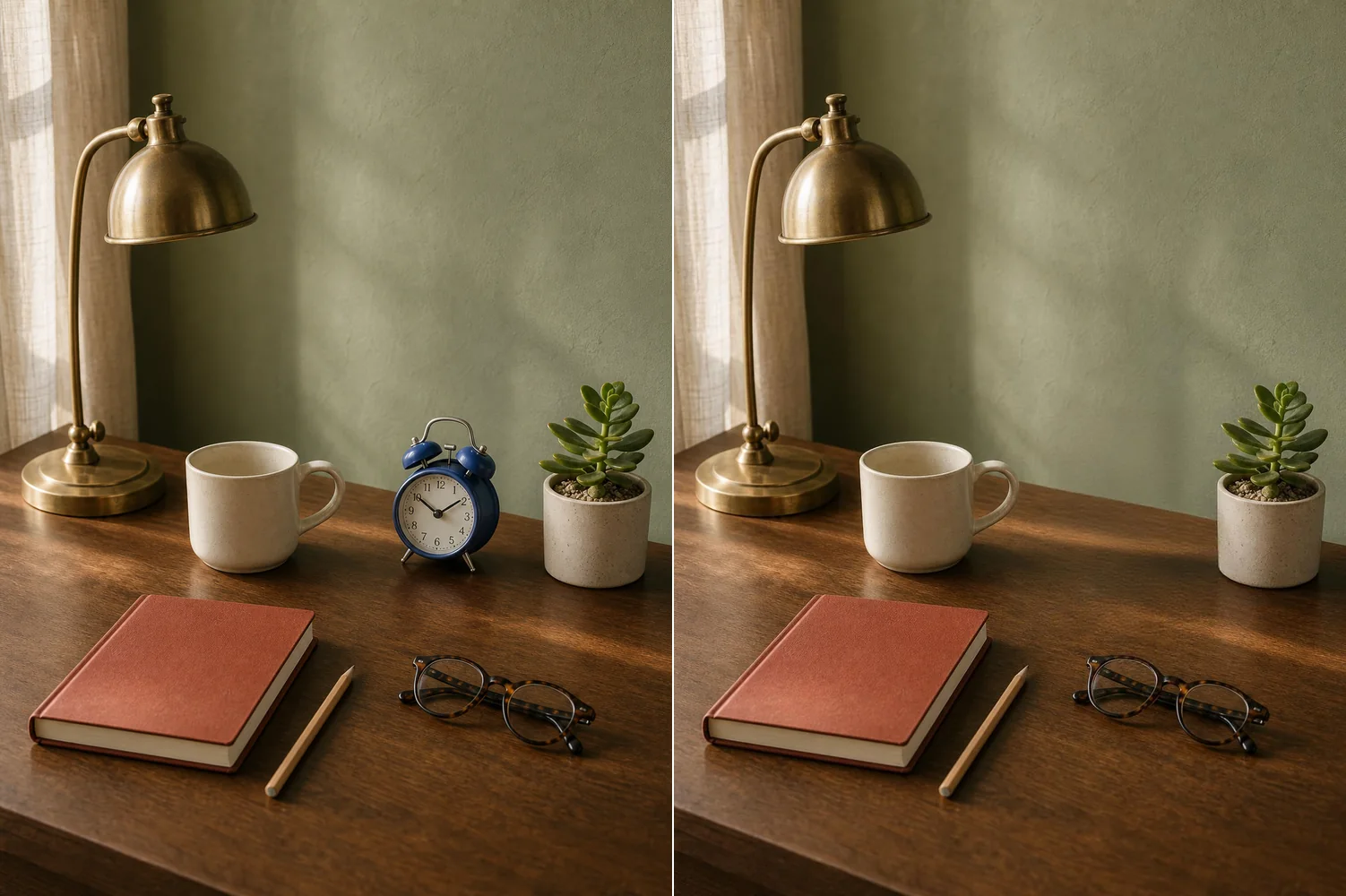
Paint over an unwanted person or object and generate a replacement from the surrounding scene while keeping the rest of the image as context.
What Can You Remove with the AI Object Remover?
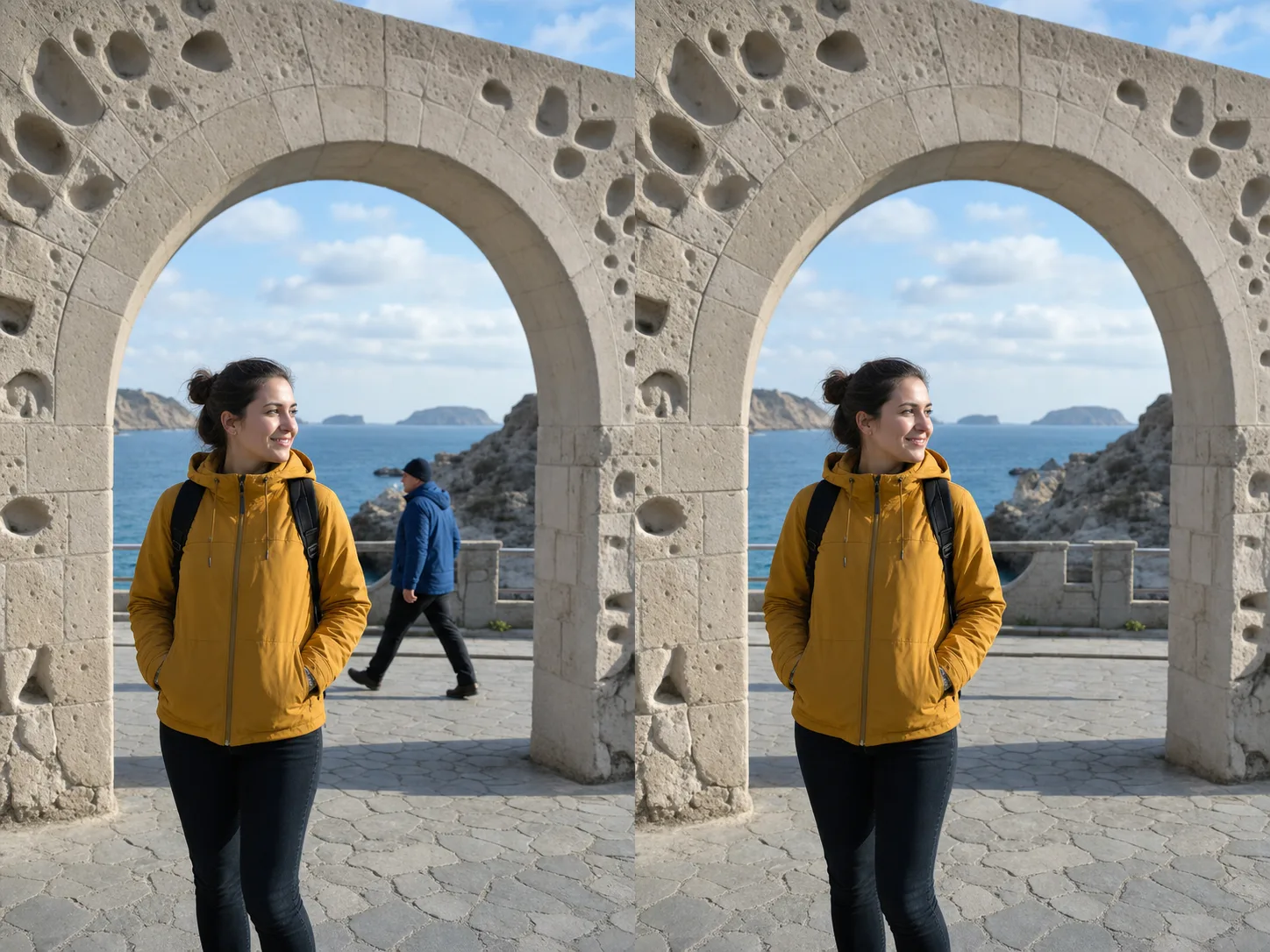
Remove a Photobomber from a Travel Portrait
Paint over a passerby who entered the background while leaving the intended person and composition in place. Include the complete figure, shoes, carried objects, and cast shadow when they belong to the distraction. Reconstruction is usually easier when the person covers a predictable surface such as pavement, sky, or distant scenery; intersections with hair, hands, railings, or unique landmarks require closer review.
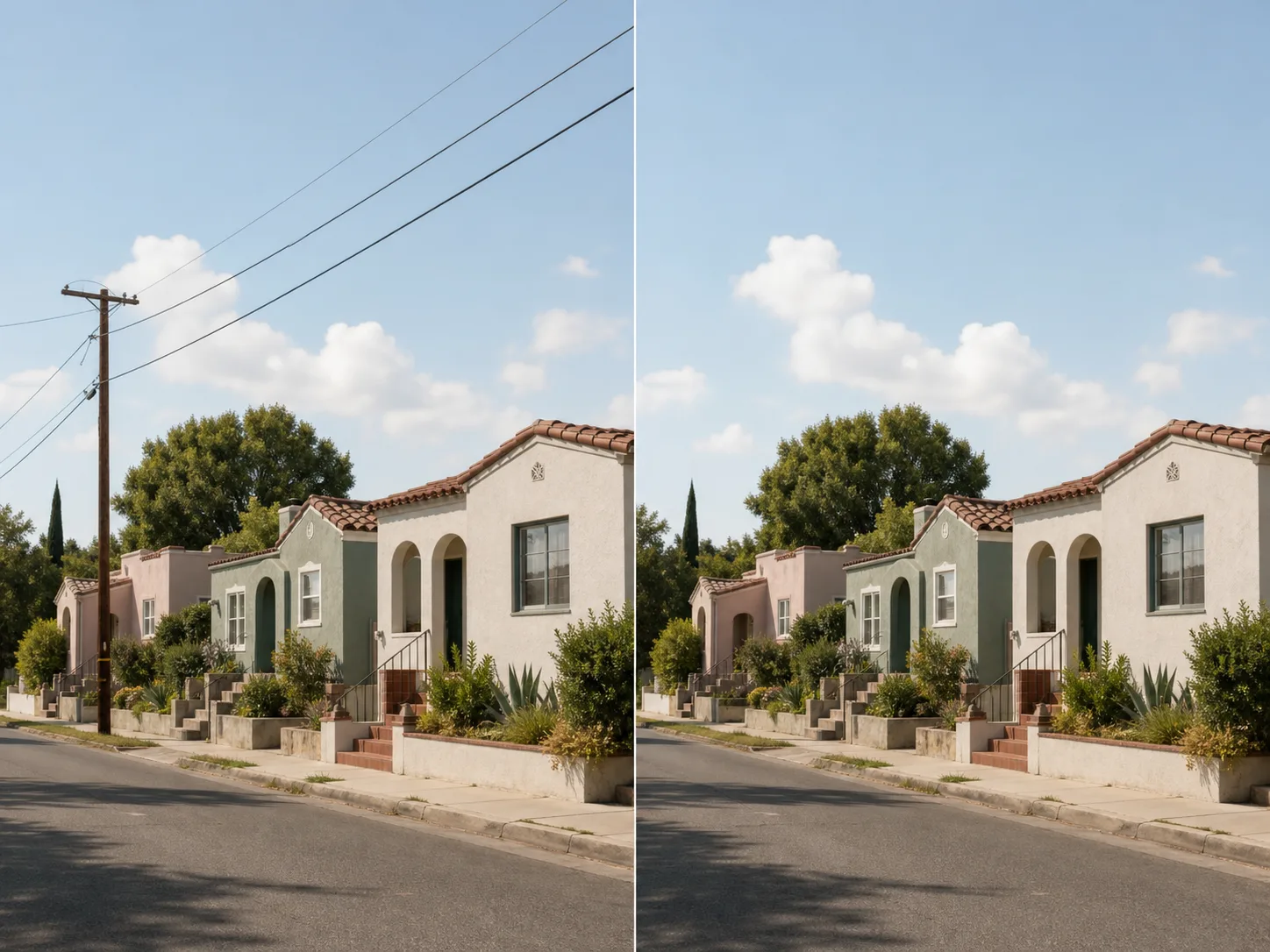
Clear Wires and Poles from an Outdoor Scene
Remove a utility pole or overhead wire when it interrupts a clean sky or architectural view. Zoom in and use a smaller brush along narrow lines so the mask covers the entire wire without consuming unnecessary roof, cloud, or foliage detail. Inspect every crossing point afterward because thin objects can span several different textures and the model must rebuild each one consistently.
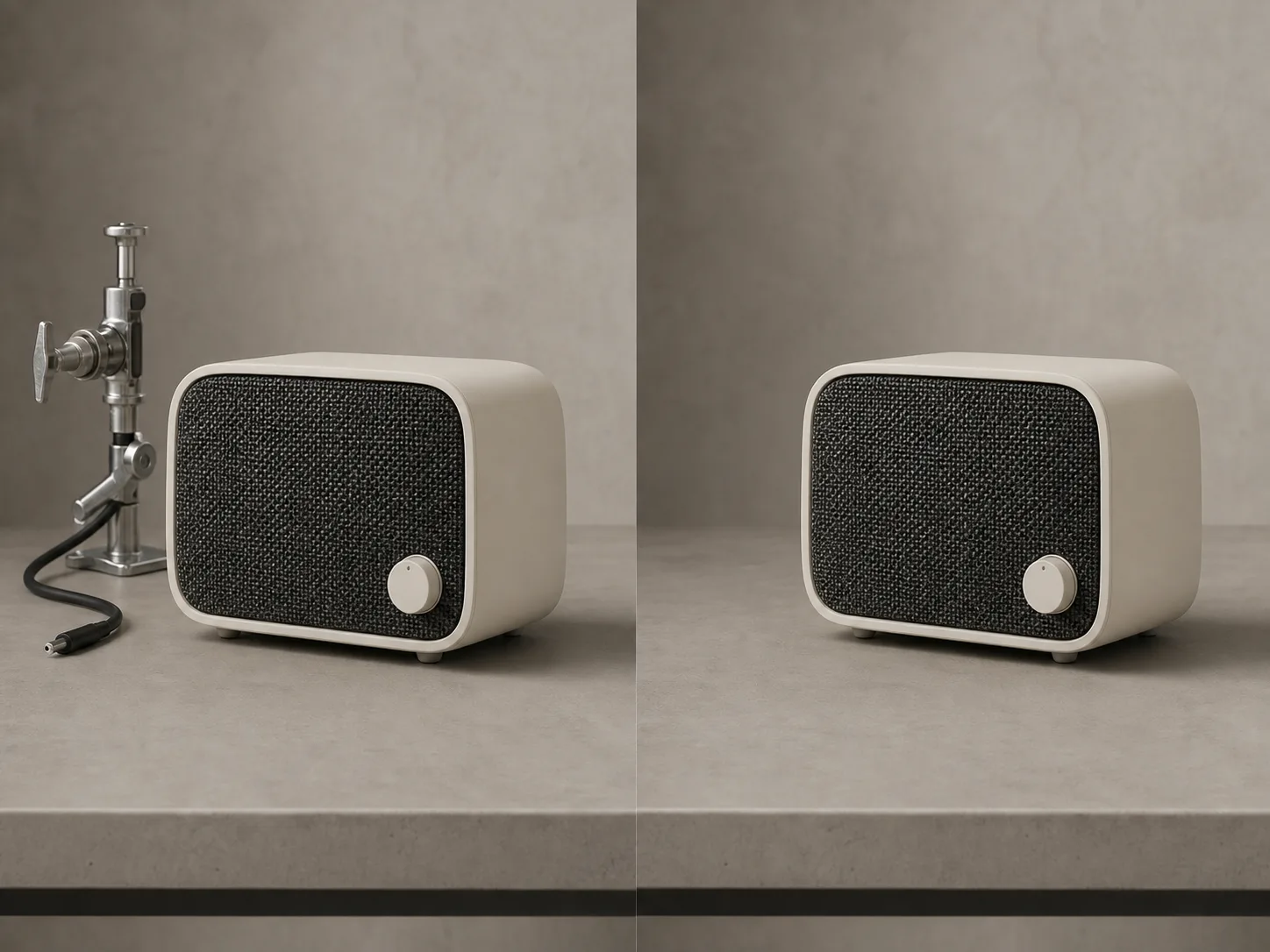
Clean Supports and Cables from Product Photos
Erase a clamp, cable, styling support, or temporary prop that should not appear in the final product composition. Keep the product itself outside the mask, especially along feet, handles, reflective edges, and contact shadows. Removing production clutter can simplify a draft, but the cleaned result should still represent the real item accurately and meet the policies of the channel where it will appear.
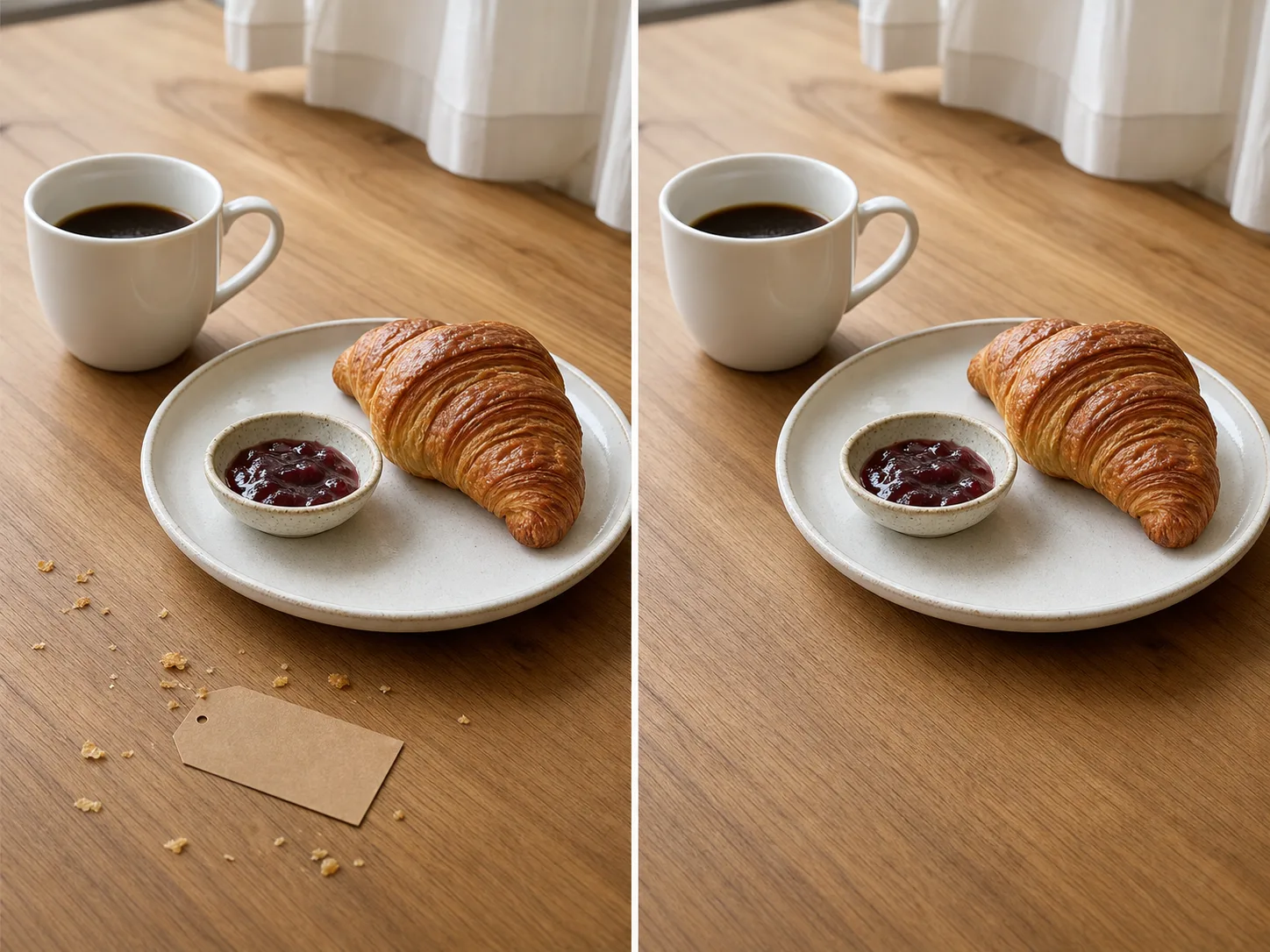
Remove Small Debris from Textured Surfaces
Clean crumbs, tags, scraps, or other small distractions from a tabletop while preserving the intended food, product, and surface. A tight mask gives the model more surrounding wood grain, stone, fabric, or paper texture to learn from. Review the repaired area for repeated streaks, softened grain, mismatched perspective, or a missing contact shadow that makes the edit noticeable.
How to Use the AI Object Remover
Upload One Supported Source
Choose one JPG, PNG, or WebP image up to 10 MB. Start with the sharpest available source and keep enough visible context around the unwanted object for the model to infer the hidden surface.
Paint a Complete, Controlled Mask
Use Erase mode to cover the object and any attached distraction that should disappear. Adjust the brush from 12 to 120 px, switch to Move to navigate, zoom from 50% to 200%, and use Undo, Redo, or Clear Mask until the coverage follows the target without spreading far into useful background.
Run the Task and Inspect the Repair
Sign in if the workspace asks you to, review the model-specific server quote, and submit the queued task. Compare the result with the source at full size, focusing on object edges, straight lines, repeating texture, shadows, reflections, and any important detail that crossed the mask before downloading.
Where Can Object Removal Improve a Photo?
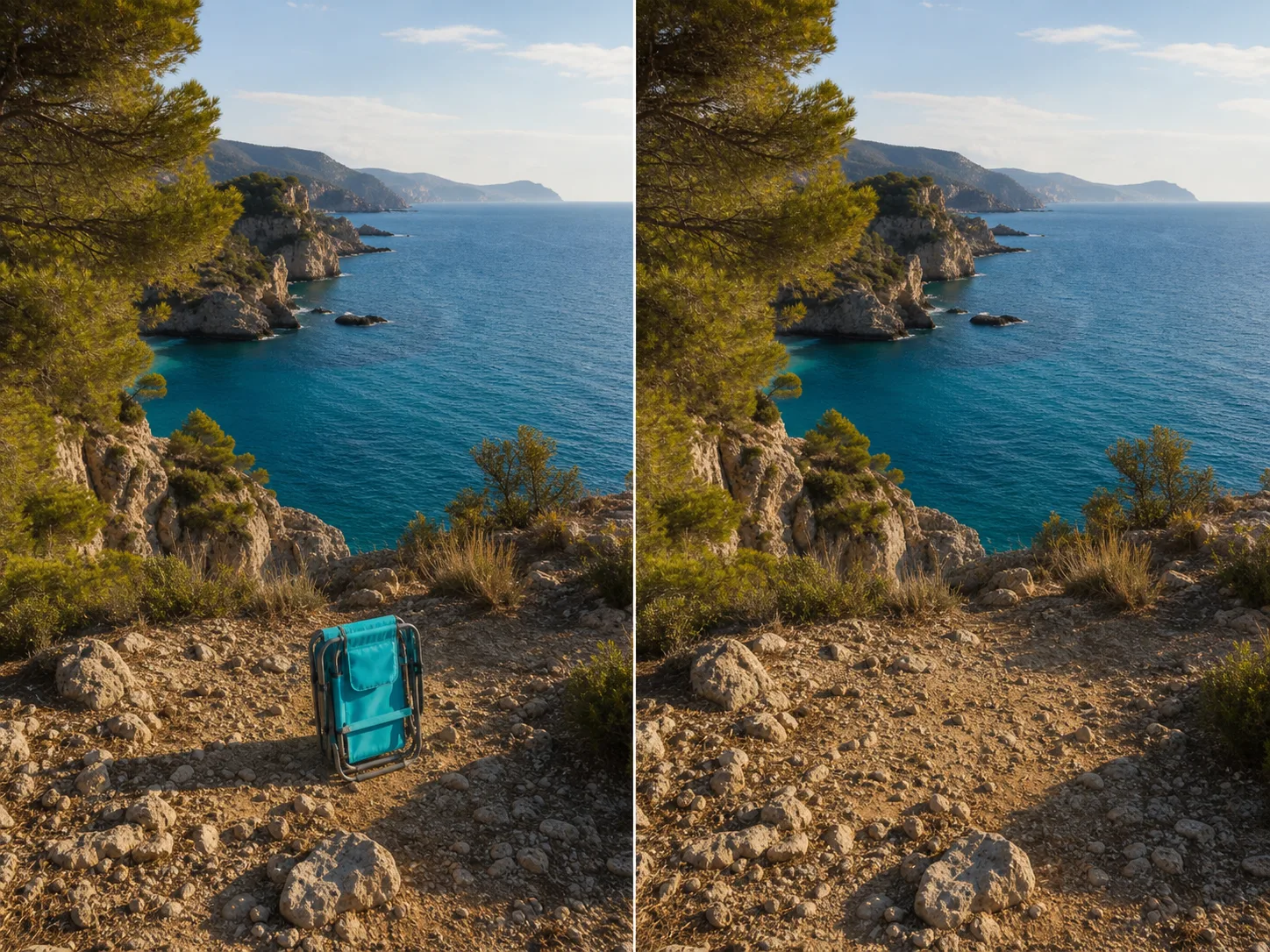
Keep the destination while clearing an accidental distraction.
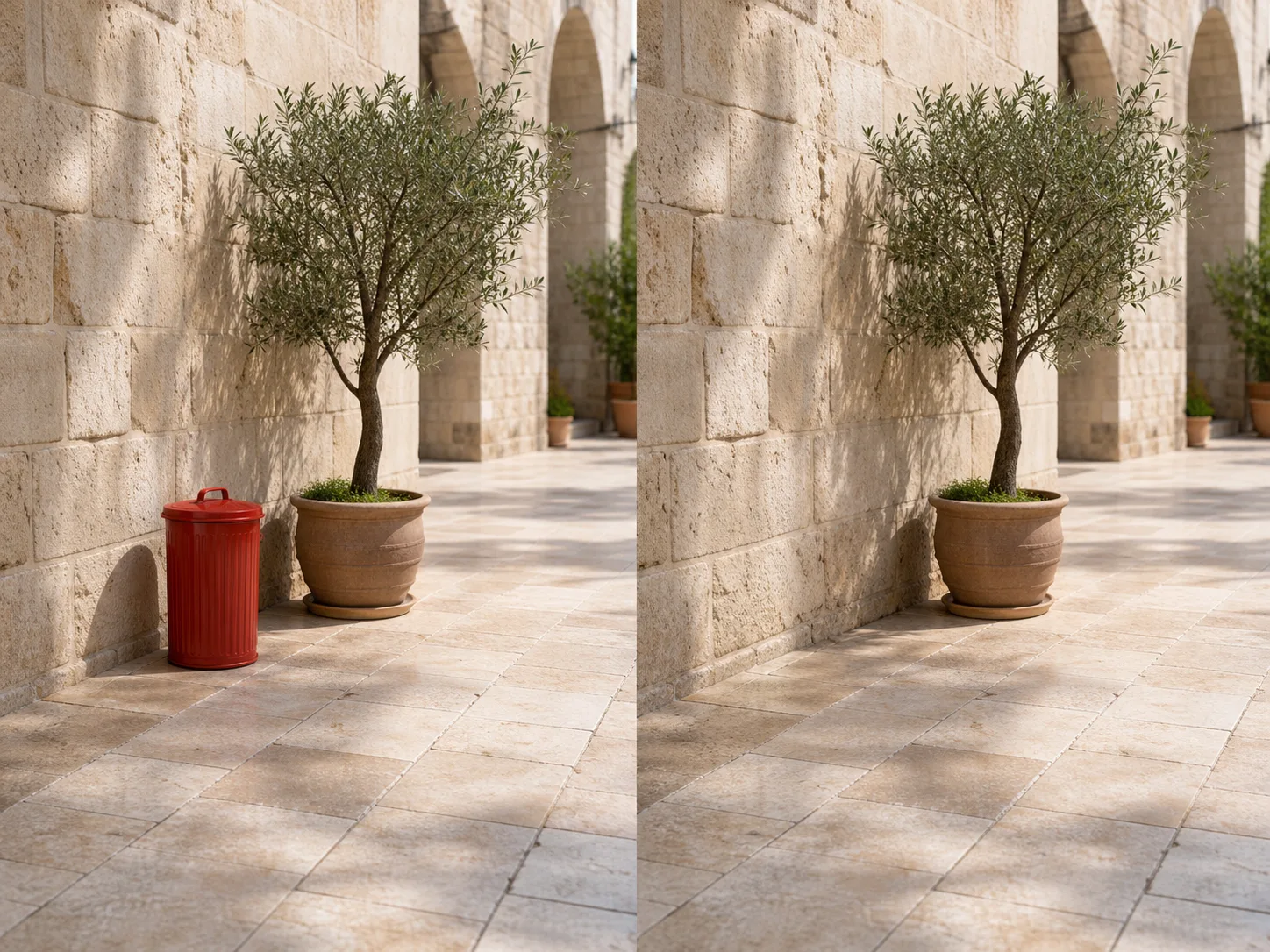
Remove an unattended chair, bin, cone, sign, or passerby that draws attention away from a landscape or memory. Preserve the horizon, landmark, intended people, and natural foreground rather than tightening the crop. Open sky, water, gravel, and vegetation can provide useful context, but irregular rocks and fine branches still deserve close inspection after reconstruction.
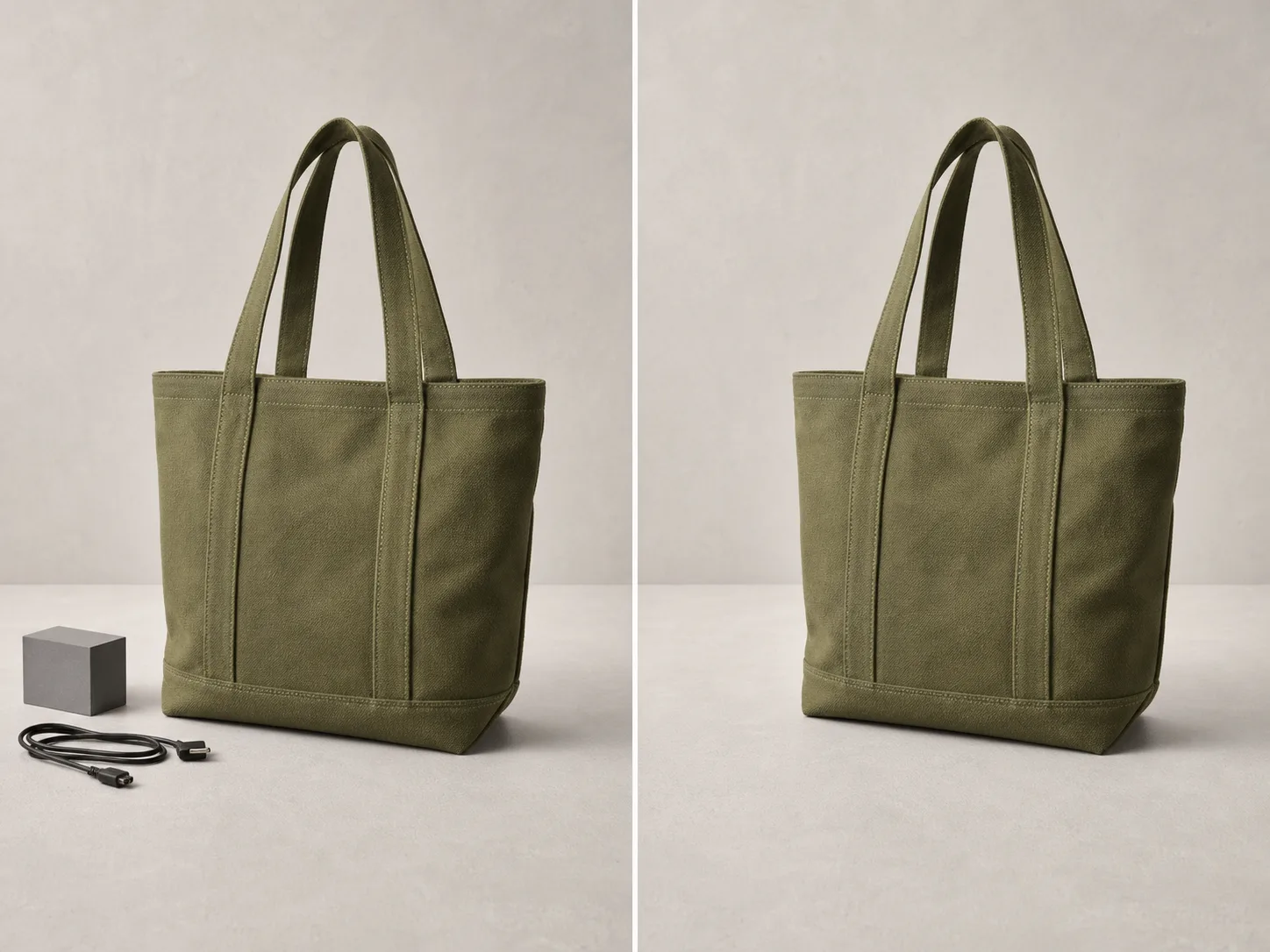
Clean temporary styling pieces from a product composition.
Remove a cable, positioning block, price-card placeholder, or studio support that remained beside an otherwise finished product. Paint only the unwanted setup items and protect the product silhouette, seams, materials, and real features. The tool can simplify visual cleanup, but it does not verify marketplace compliance or authorize changes that misrepresent what a customer receives.
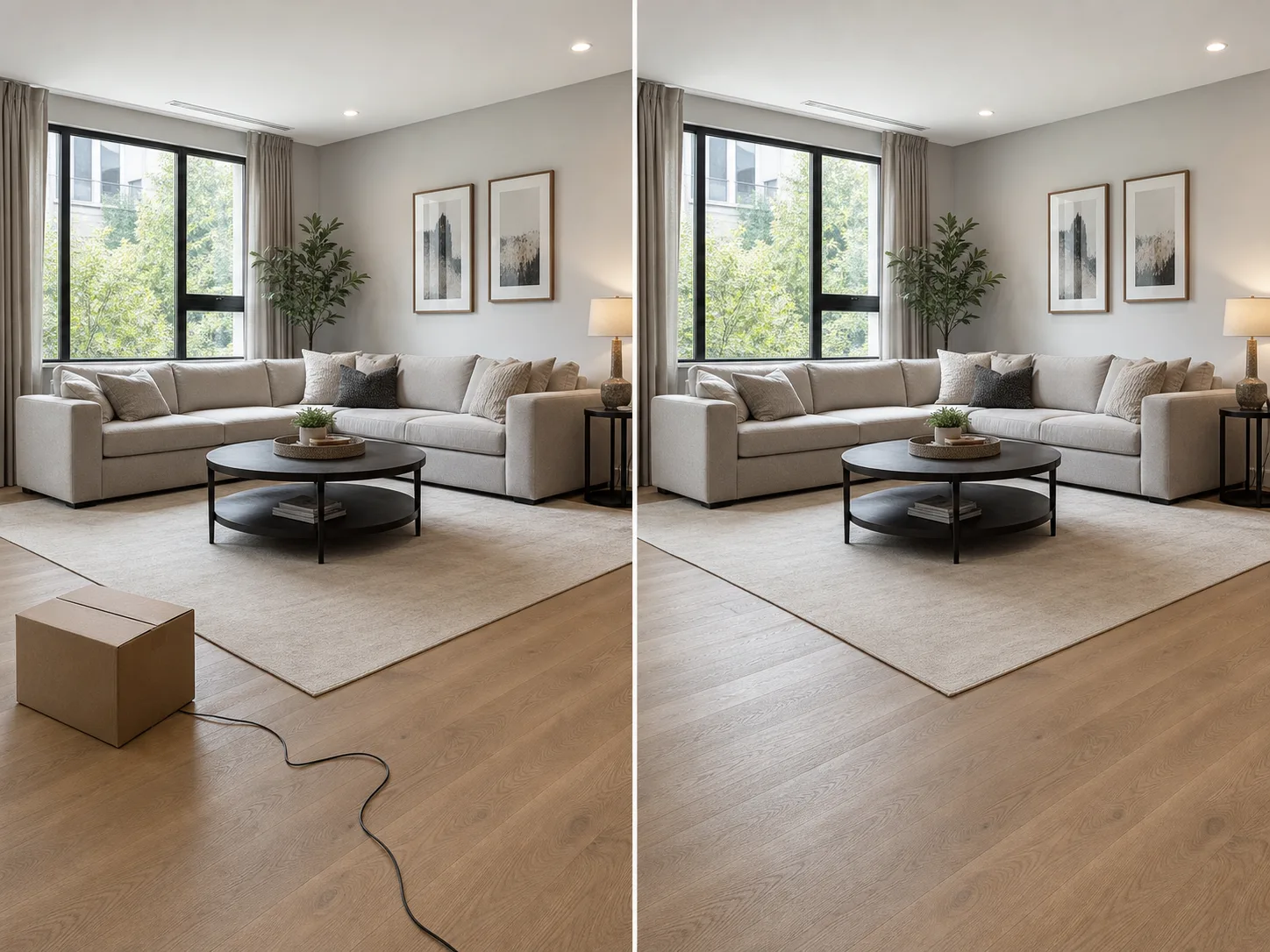
Remove small move-in clutter without changing the room itself.
Clean a stray box, cable, cleaning item, or temporary object from a room photo when the underlying floor or wall is visible elsewhere. Keep permanent fixtures, room dimensions, windows, furniture, and material conditions truthful. Large furniture removal or edits that invent structural space carry more reconstruction risk and can mislead viewers, so use local cleanup conservatively.
Nuzza vs. Top AI Object Removers
| Feature / Model | Nuzza | Cleanup.pictures | Canva Magic Eraser | Adobe Express Remove Object |
|---|---|---|---|---|
| Removal Options | 3 models with mask, zoom, undo, and redo | Brush removal with optional API access | Brush removal inside Canva's photo editor | Brush an object and choose from generated results |
| Cost | Free with included credits | Free or Pro | Canva Pro | Free plan or Premium |
| Best For | Controlled multi-model object removal | Fast browser cleanup and integrations | Cleanup inside social and design projects | Removal followed by design editing |
FAQs about AI Object Remover
What is Nuzza's AI Object Remover?
It is an image-editing tool that replaces a selected object by estimating what the surrounding scene might look like behind it. Nuzza uses your painted mask to define the local area that should be reconstructed.
What is the best AI object remover?
The best AI object remover depends on the input, intended result, budget, and controls you need. Nuzza's AI Object Remover is a strong choice for mask-guided local reconstruction through a signed-in queued task.
Is Nuzza's AI Object Remover free to use?
The page is free to browse. Running a task requires Credits, and the current cost is shown before you submit.
What can I use Nuzza's AI Object Remover for?
Nuzza's AI Object Remover is useful for travel photos, ecommerce, and real estate. Remove an unattended chair, bin, cone, sign, or passerby that draws attention away from a landscape or memory. Preserve the horizon, landmark, intended people, and natural foreground rather than tightening the crop. Open sky, water, gravel, and vegetation can provide useful context, but irregular rocks and fine branches still deserve close inspection after reconstruction.
What inputs does Nuzza's AI Object Remover support?
You can upload one JPG, PNG, or WebP image up to 10 MB for each task.
Do I need to sign in to use Nuzza's AI Object Remover?
You can prepare the source, mask, and model selection in the workspace, but task submission requires sign-in.
What should I check in the image result?
Compare the result with the source or prompt at full size. Check faces, text, product geometry, repeated patterns, edges, and any detail the AI may have reconstructed.
How precisely can I paint the object mask?
The editor provides Erase and Move modes, a brush size from 12 to 120 px, 50–200% zoom, Undo, Redo, and Clear Mask. Cover the full target and its attached edges without painting a much larger background area than necessary.
Will object removal work on complex backgrounds?
It can attempt them, but quality depends on how much trustworthy context remains around the mask. Repeating pavement or open sky is generally easier to infer than faces, readable text, reflections, railings, unique artwork, or several crossing shadows. Always inspect the result.