
Kling 3.0 Turbo
Kling 3.0 Turbo is the streamlined, speed-oriented tier of the Kling 3 family. Nuzza connects text-to-video and one-start-image workflows with 3–15 second duration and optional multi-prompt shot planning, while keeping the currently exposed control set intentionally compact.
Why Creators Choose Kling 3.0 Turbo?
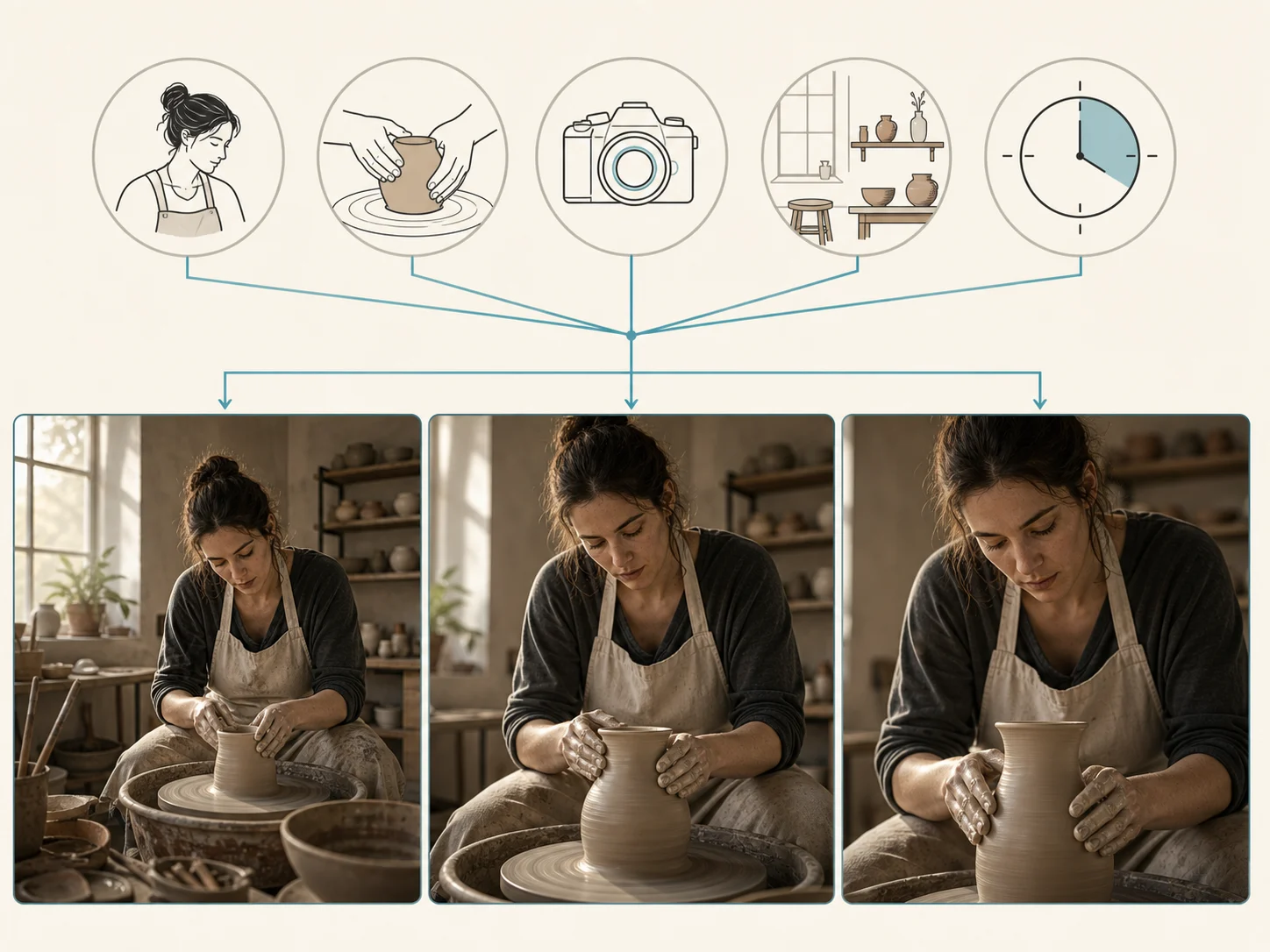
Iterate with a Speed-Oriented Kling 3 Tier
Kling 3.0 Turbo is positioned for faster, more cost-efficient generation than the full Kling 3.0 tier. Use that positioning for drafts and variation passes, while treating actual queue time and Credits as request-time product facts rather than fixed promises.
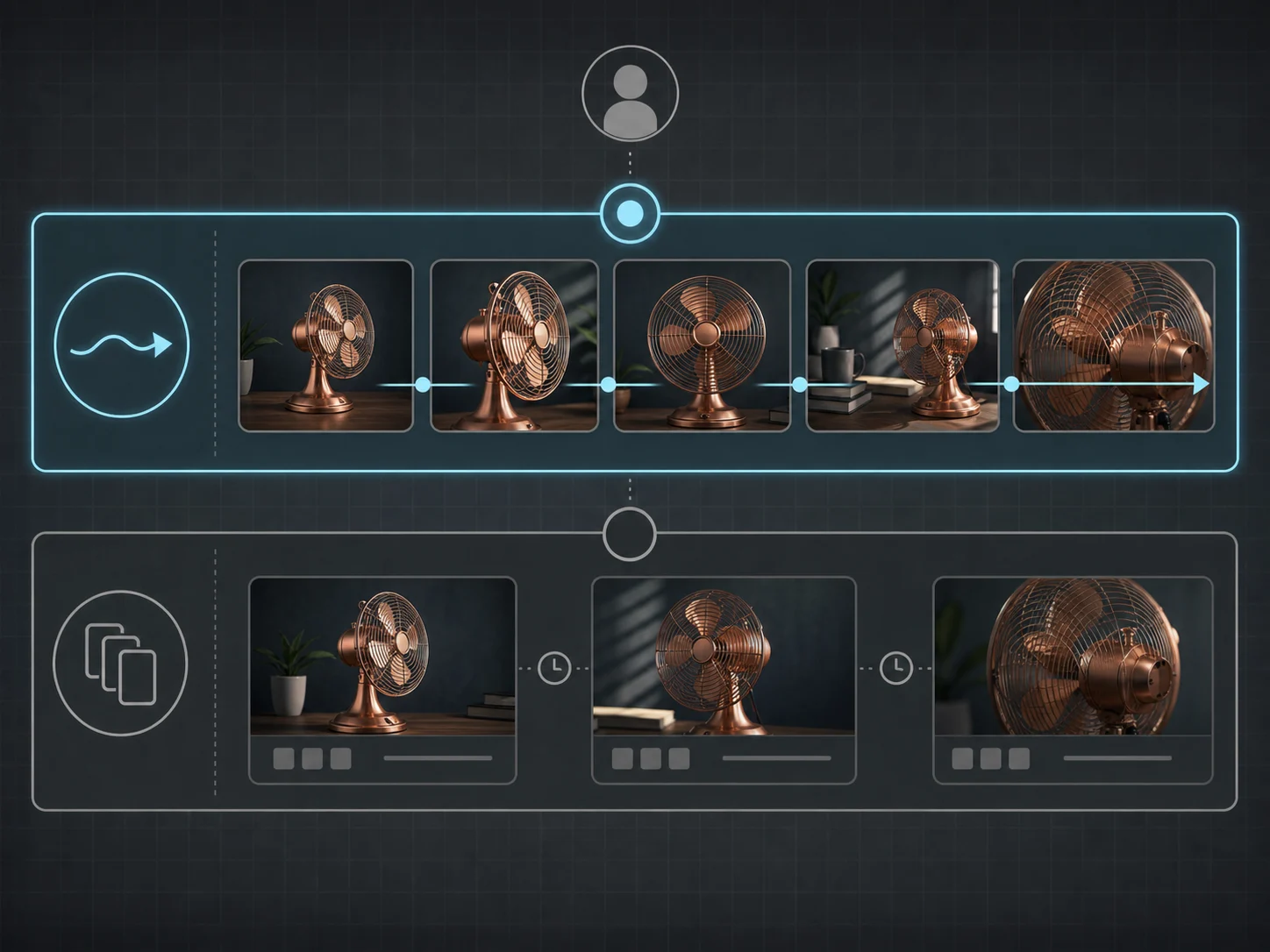
Create Directly from a Text Brief
Describe the subject, environment, action, camera, light, and timing as one readable shot. A focused direction makes it easier to compare generations and identify which creative variable should change in the next pass.
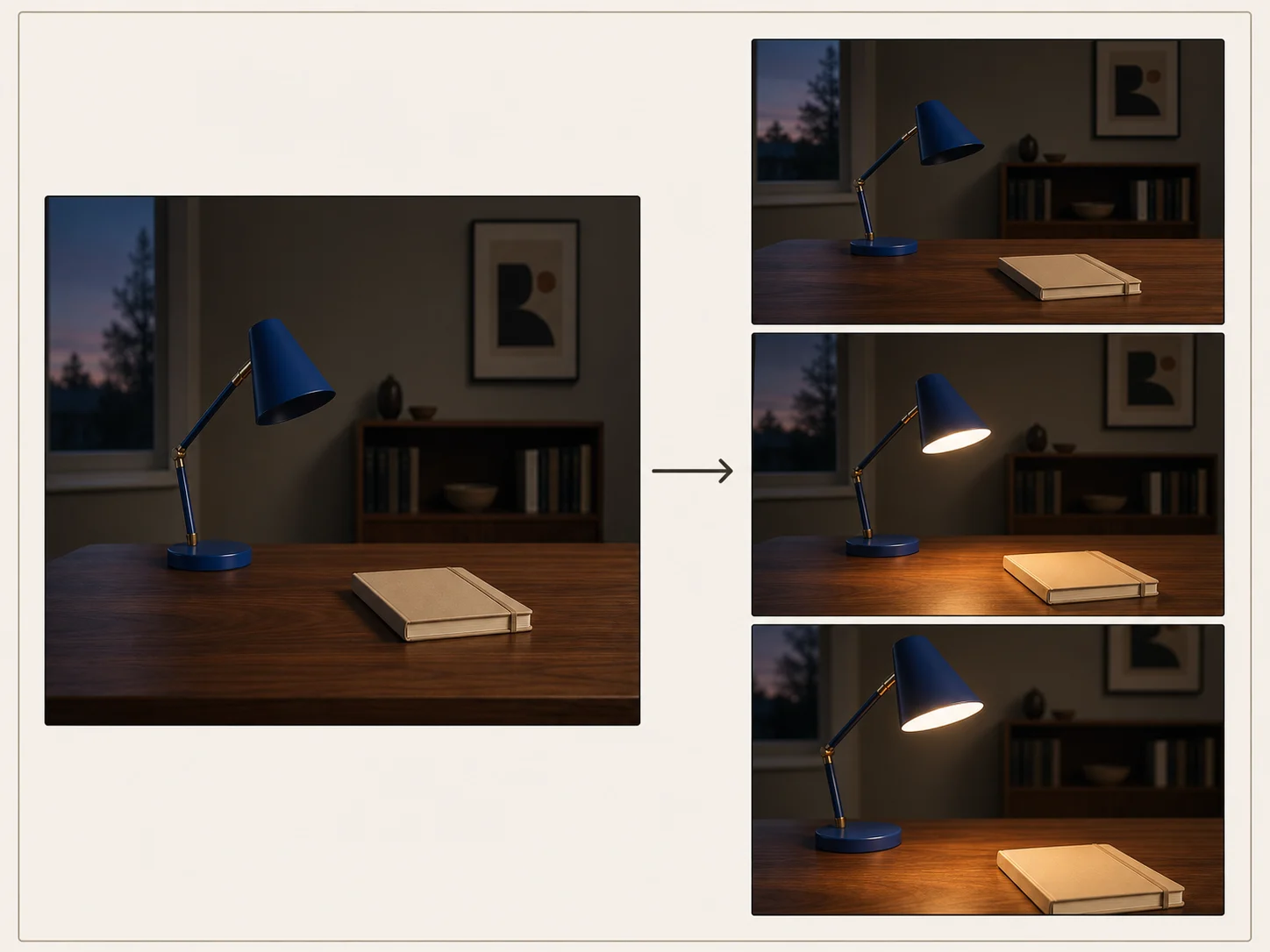
Animate One Approved Opening Image
Upload one image when the initial composition, subject, product, or visual style already matters. Explain what should move and what should remain recognizable, then review identity, geometry, lighting, and crop against the source.
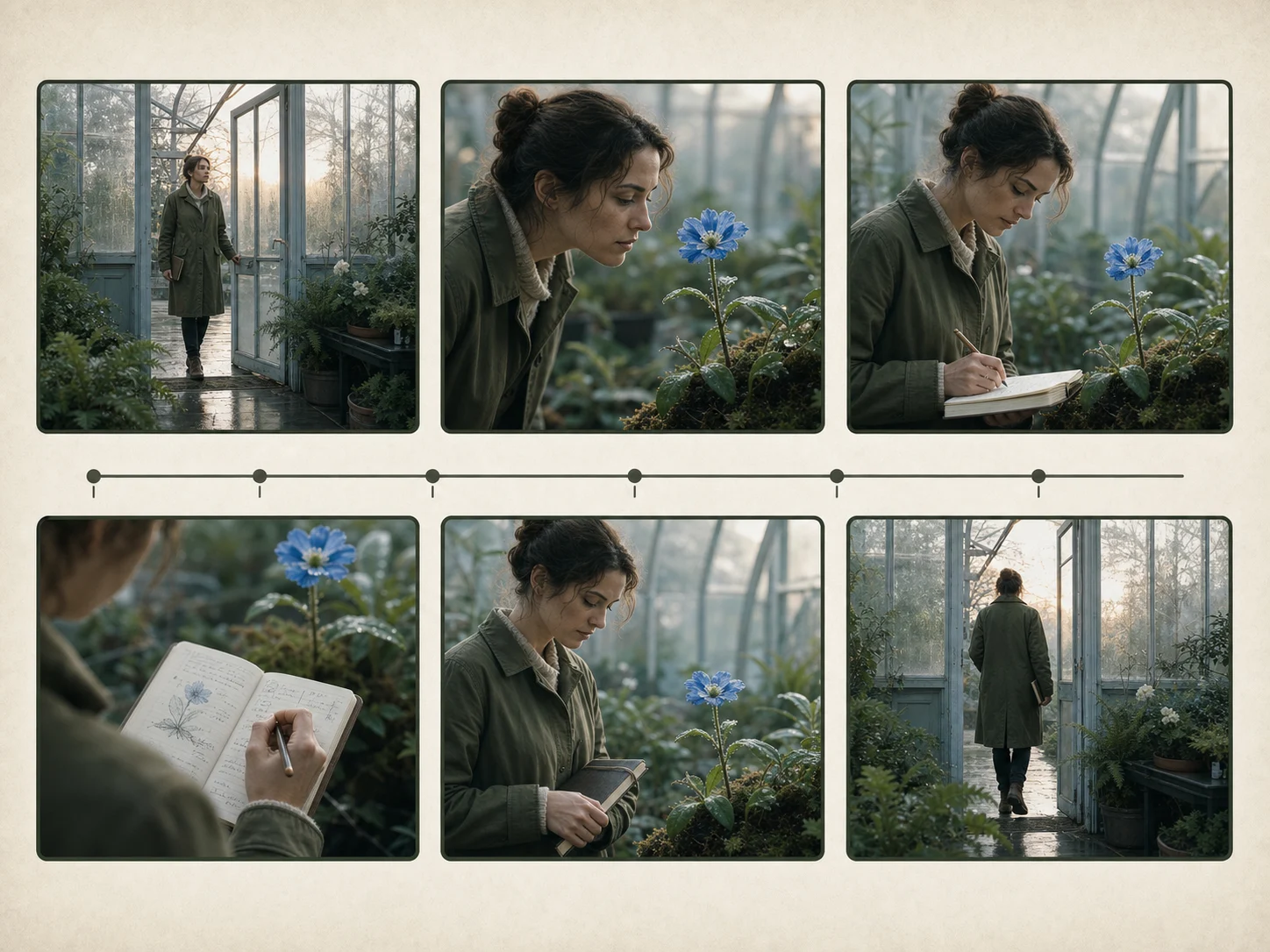
Plan Up to Six Timed Shots
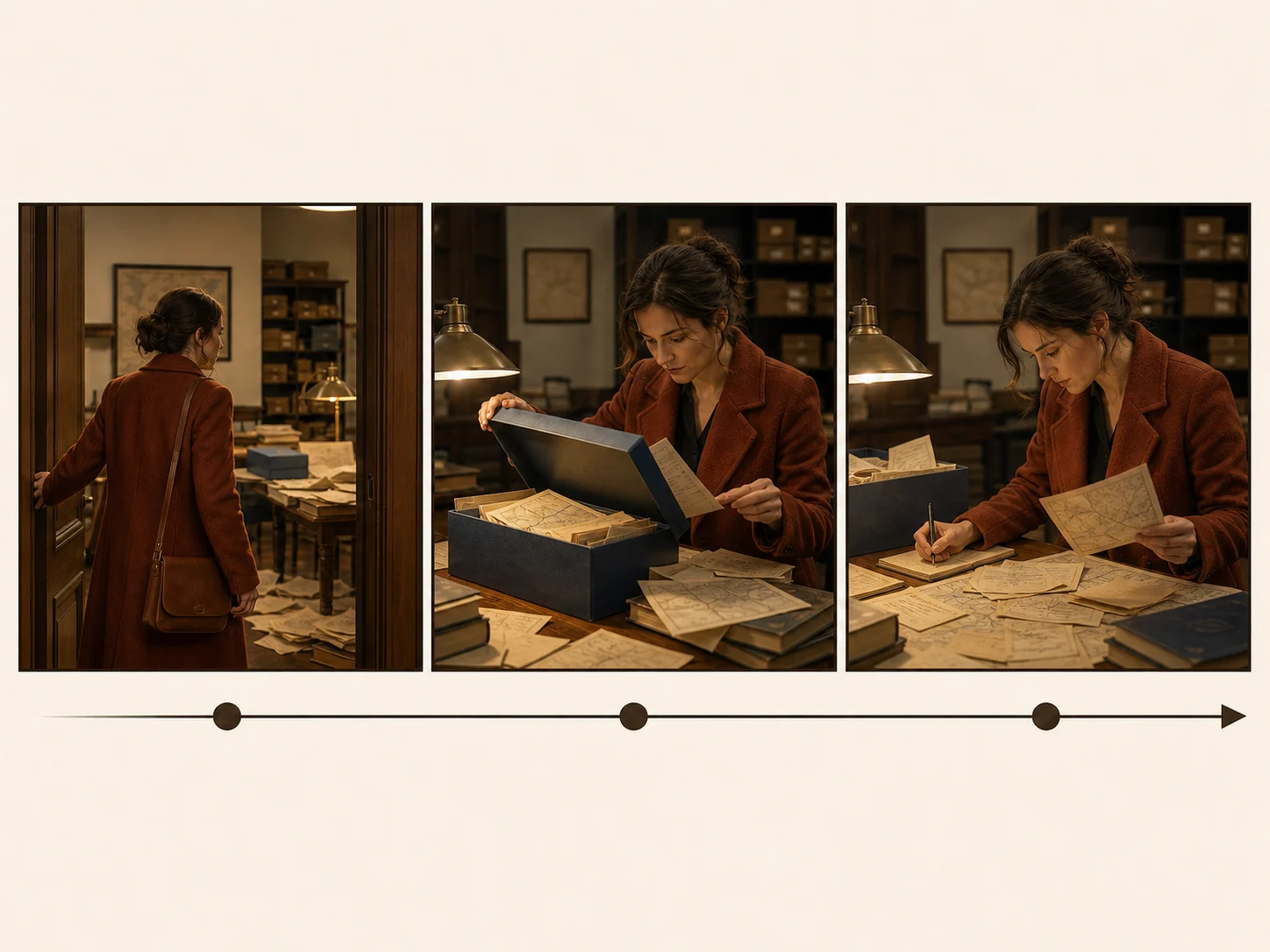
Switch to Multi Prompt when the idea needs distinct beats instead of one uninterrupted action. Define one to six entries, give each a focused action and duration, and keep their total within the selected 15-second maximum.
Choose Any Whole-Second Length from 3 to 15
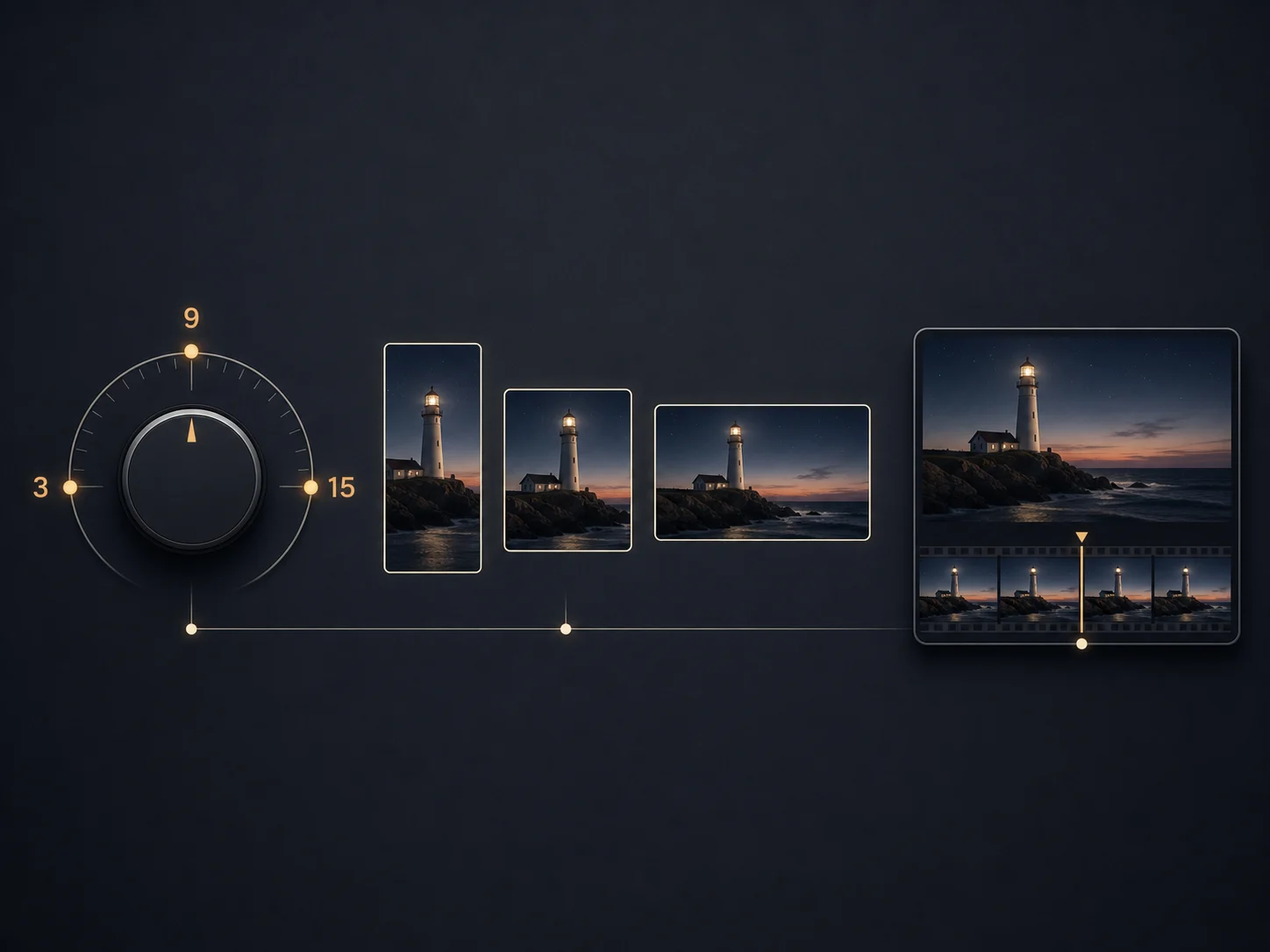
Match the clip length to the action instead of forcing every concept into a five-second default. Longer requests need tighter shot allocation because more beats do not automatically produce stronger pacing or continuity.
Prepare Landscape, Portrait, or Square Video
Text-to-video exposes 16:9, 9:16, and 1:1 framing for different destinations. Image-to-video follows the opening image, so crop and compose the source for the intended delivery shape before generation.
What Is Kling 3.0 Turbo Built For?
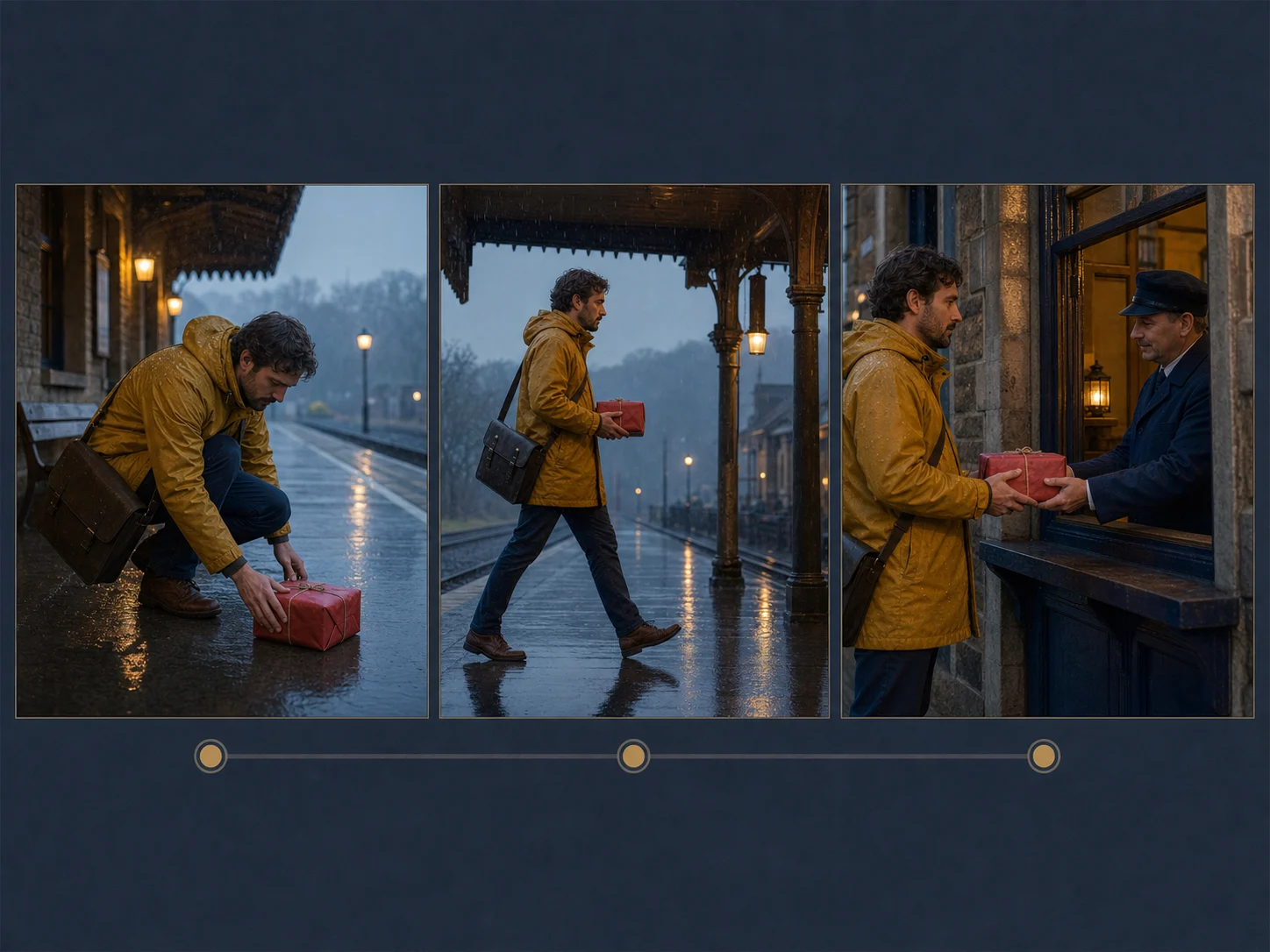
Rapid concept variations. Test alternate actions, camera directions, pacing, and framing from one brief before committing to a heavier final-generation workflow.
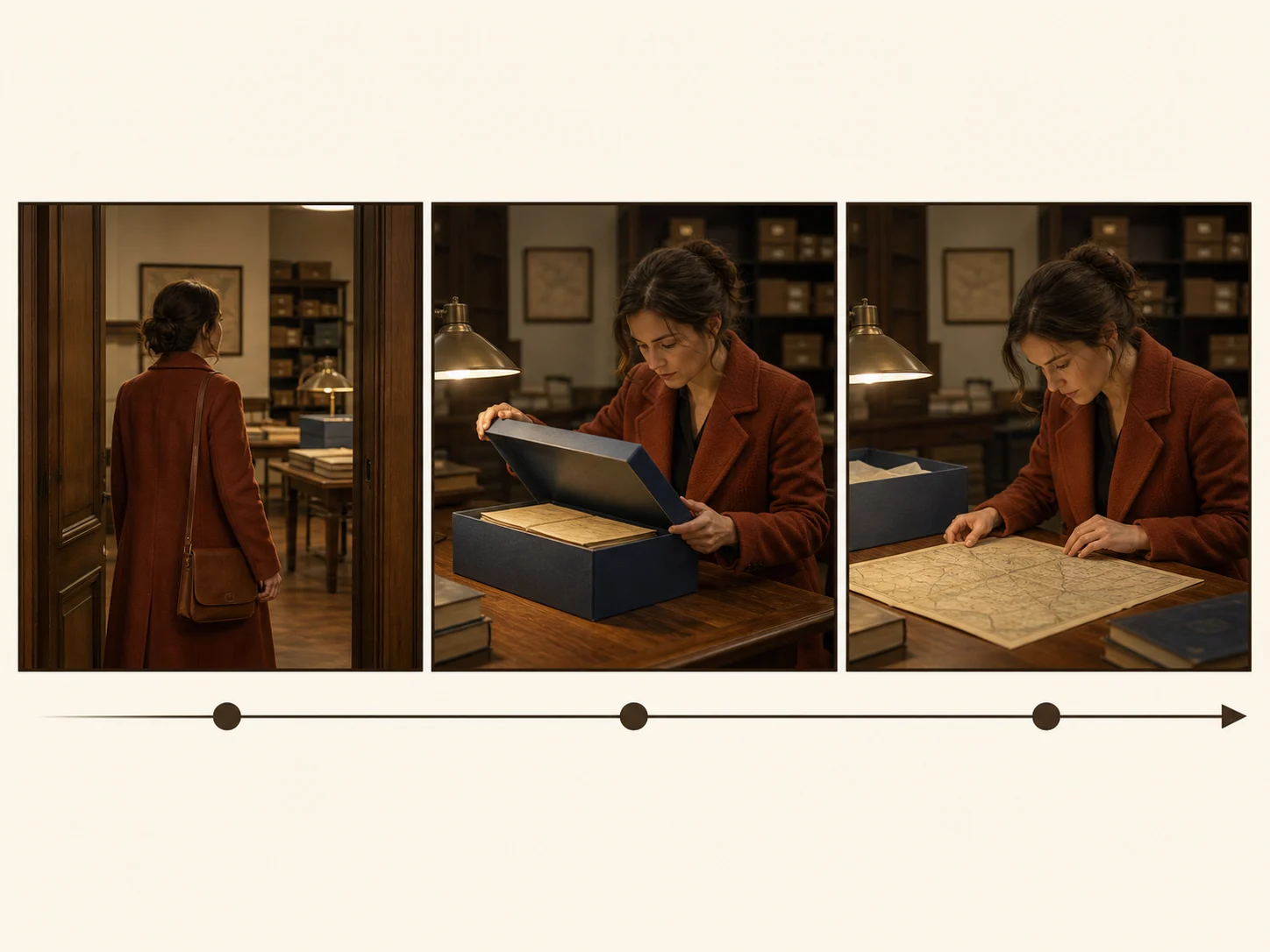
Storyboard-driven social clips. Turn up to six concise shot ideas into one vertical, square, or landscape sequence with explicit timing for each beat.
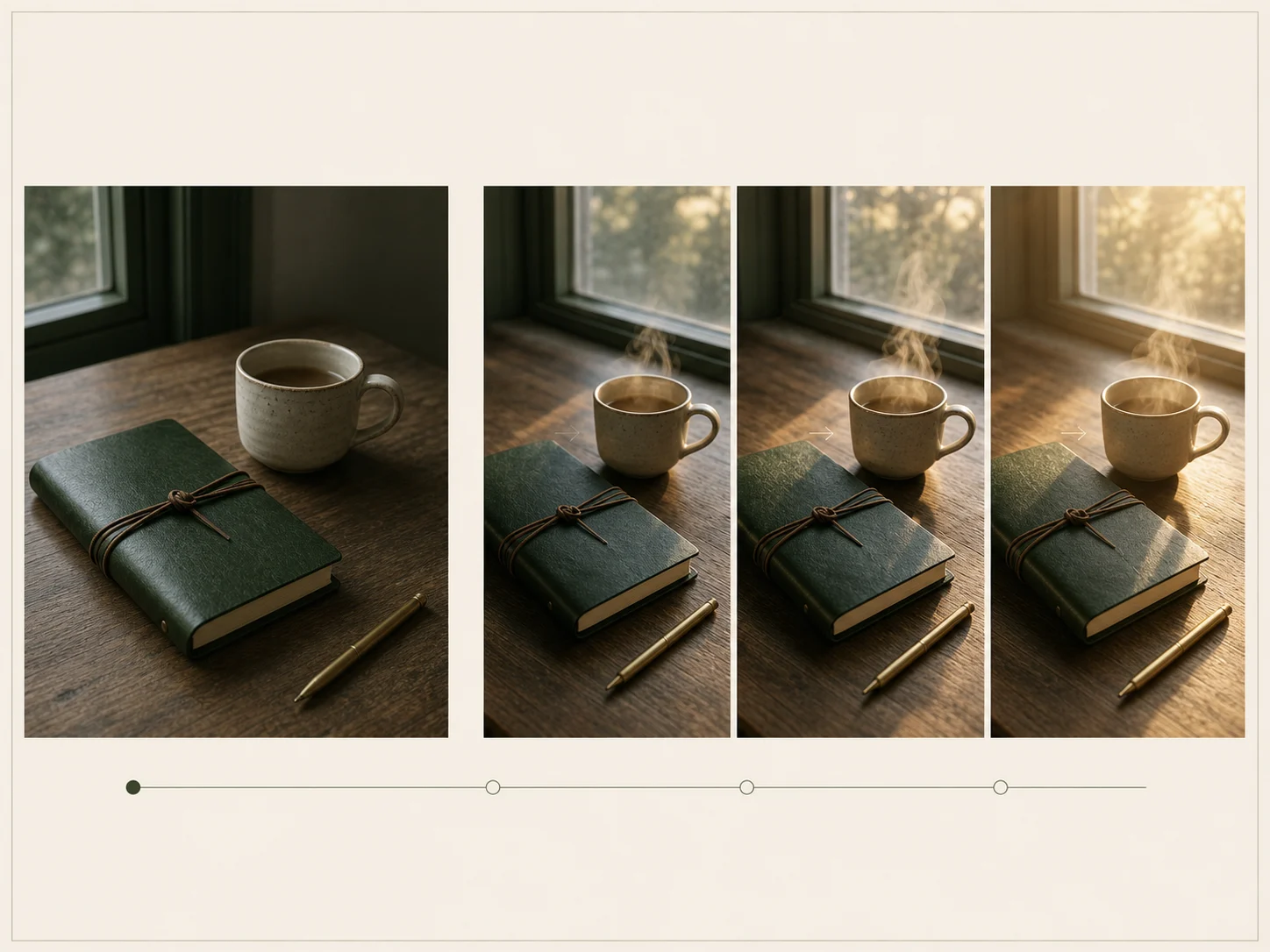
Start-image animation. Animate approved product, character, campaign, or illustration stills while preserving the opening composition as the visual anchor.
How to Use Kling 3.0 Turbo on Nuzza AI For Free
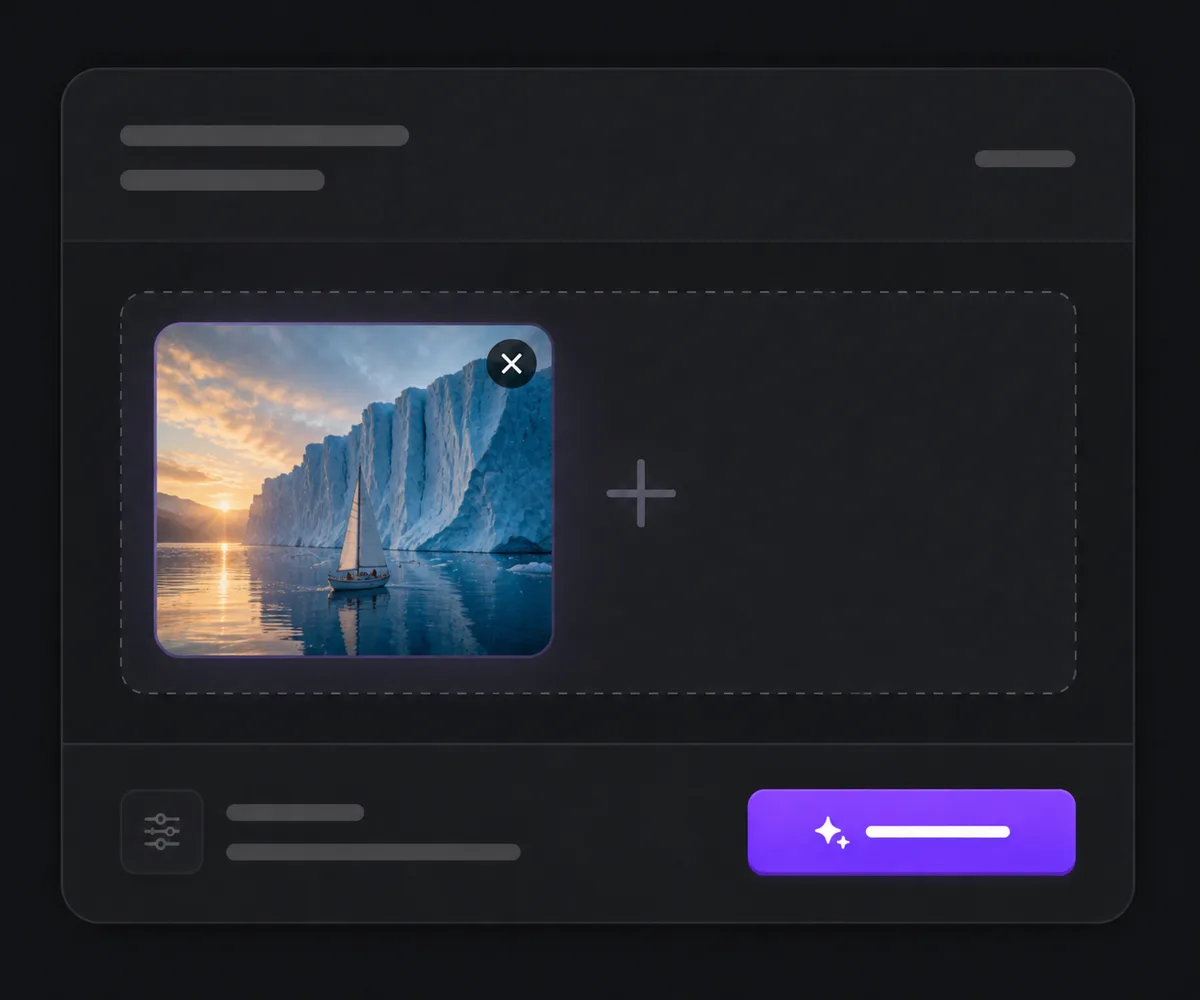
Choose Text or One Start Image
Begin from a written idea or upload one image to anchor the first frame and visual direction.
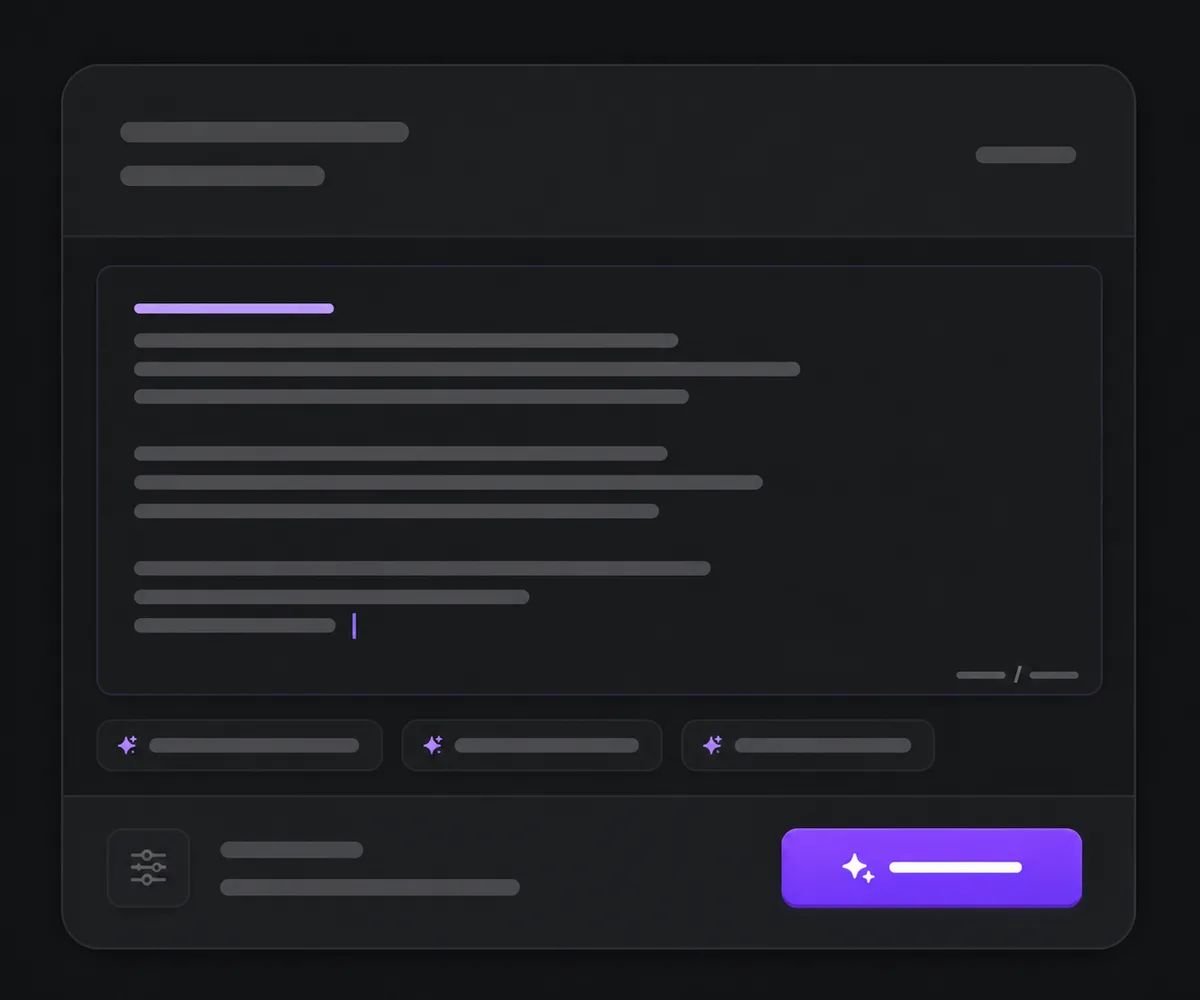
Write One Shot or Up to Six Timed Beats
Use a normal prompt for continuous action or Multi Prompt for ordered shots, then set duration and framing where exposed.
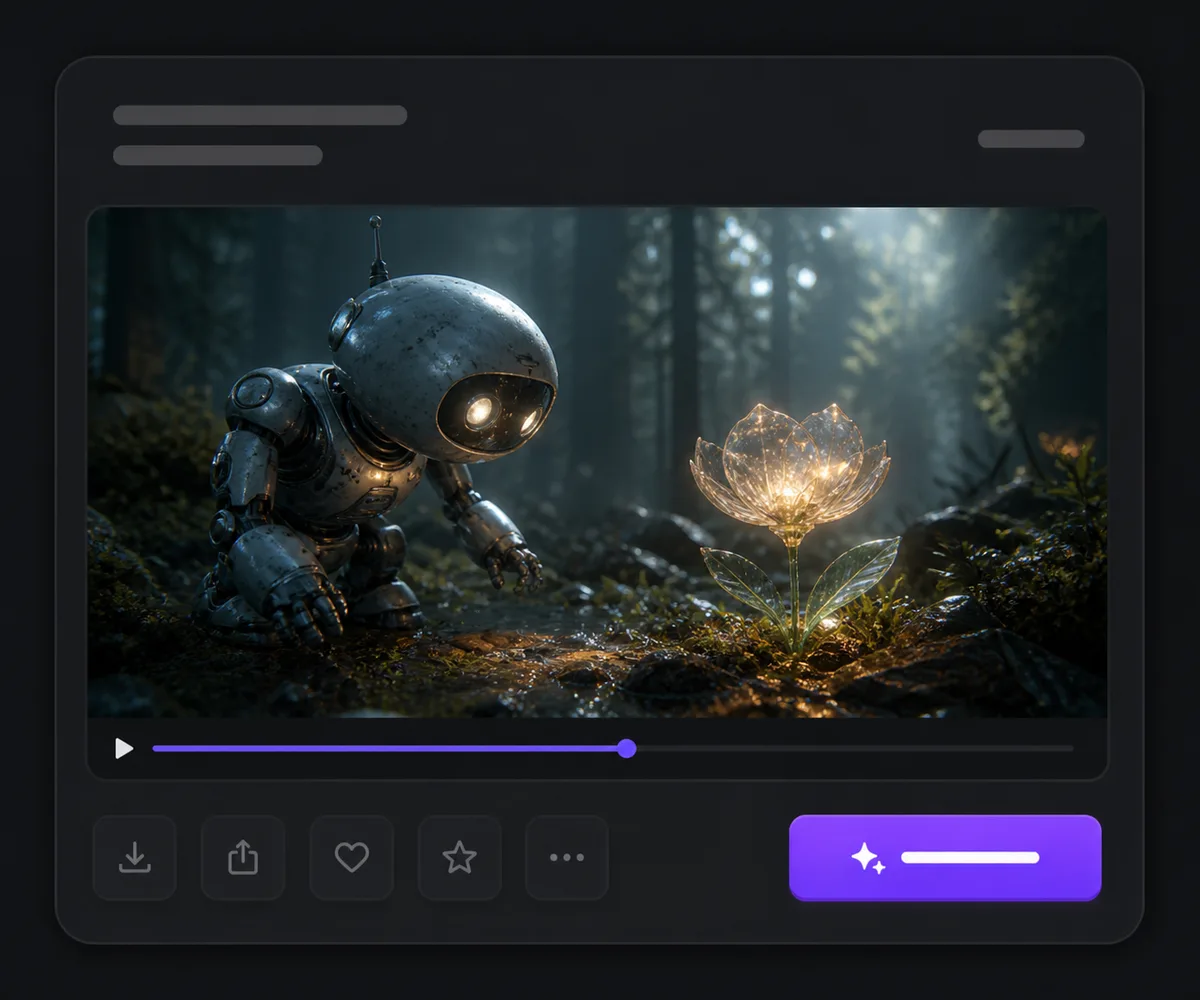
Generate, Compare, and Refine
Review motion, identity, crop, timing, transitions, and overall continuity, then change one variable for the next iteration.
Kling 3.0 Turbo vs Kling 3.0 vs Hailuo 2.3 Pro
| Feature / Model | Kling 3.0 Turbo | Kling 3.0 | Hailuo 2.3 Pro |
|---|---|---|---|
| Best Fit | Rapid text or start-image iteration and timed short-form storyboards. | Multi-shot audiovisual stories and endpoint-frame transitions. | One polished motion beat, expressive close-up, or stylized start-image scene. |
| Starting Inputs | Text or one opening image. | Text, one start image, or first and last frames. | Text or one start image. |
| Duration | 3–15 seconds. | 3–15 seconds. | The current Pro mapping does not expose a duration selector. |
| Shot Direction | One continuous prompt or up to six timed prompt entries. | Multi-prompt plus shot type, guidance, and endpoint controls. | One focused prompt with optional prompt optimization. |
| Exposed Audio | No separate audio control is exposed in the current Nuzza mapping. | Generated-audio control is available. | No generated-audio control is exposed. |
FAQs about Kling 3.0 Turbo
What is Kling 3.0 Turbo?
Kling 3.0 Turbo is the speed-oriented tier of Kuaishou's Kling 3 video family. Nuzza connects text-to-video and one-start-image generation with 3–15 second duration and optional multi-prompt planning.
Is Kling 3.0 Turbo free to use?
Yes. Nuzza offers free Credits for new users to try Kling 3.0 Turbo. Once your free Credits are used up, you will need to subscribe to a paid plan to continue.
What inputs does Kling 3.0 Turbo support on Nuzza?
You can generate from text or upload exactly one image as the opening frame.
How long can Kling 3.0 Turbo videos be?
The current Nuzza workflows expose every whole-second duration from 3 through 15 seconds.
Can Kling 3.0 Turbo create multiple shots?
Yes. Multi Prompt accepts one to six shot entries. Their combined durations must fit within the selected clip length and cannot exceed 15 seconds.
Does Kling 3.0 Turbo generate audio on Nuzza?
Native audio is part of public Turbo positioning, but the current Nuzza mapping does not expose a separate audio control. Do not assume an audio setting that is not visible in the composer.
Can I add first and last frames?
The current Nuzza Turbo entry accepts one start image and does not expose a separate first-and-last-frame workflow. Use the full Kling 3.0 entry when endpoint control is required.
Which aspect ratios are available?
Text-to-video offers 16:9, 9:16, and 1:1. Image-to-video follows the source image rather than exposing a separate ratio field.
What should I review before publishing?
Check motion, subject identity, shot timing, transitions, crop, frame edges, and any audio present in the delivered result.
Plan a Compact Story without a Heavy Control Stack
Choose text or one opening image, write one continuous shot or up to six timed beats, and generate a short sequence for review.
Try Kling 3.0 Turbo for Free Now