AI Video Enhancer
AI Video Enhancer: Improve Clarity Across the Whole Clip
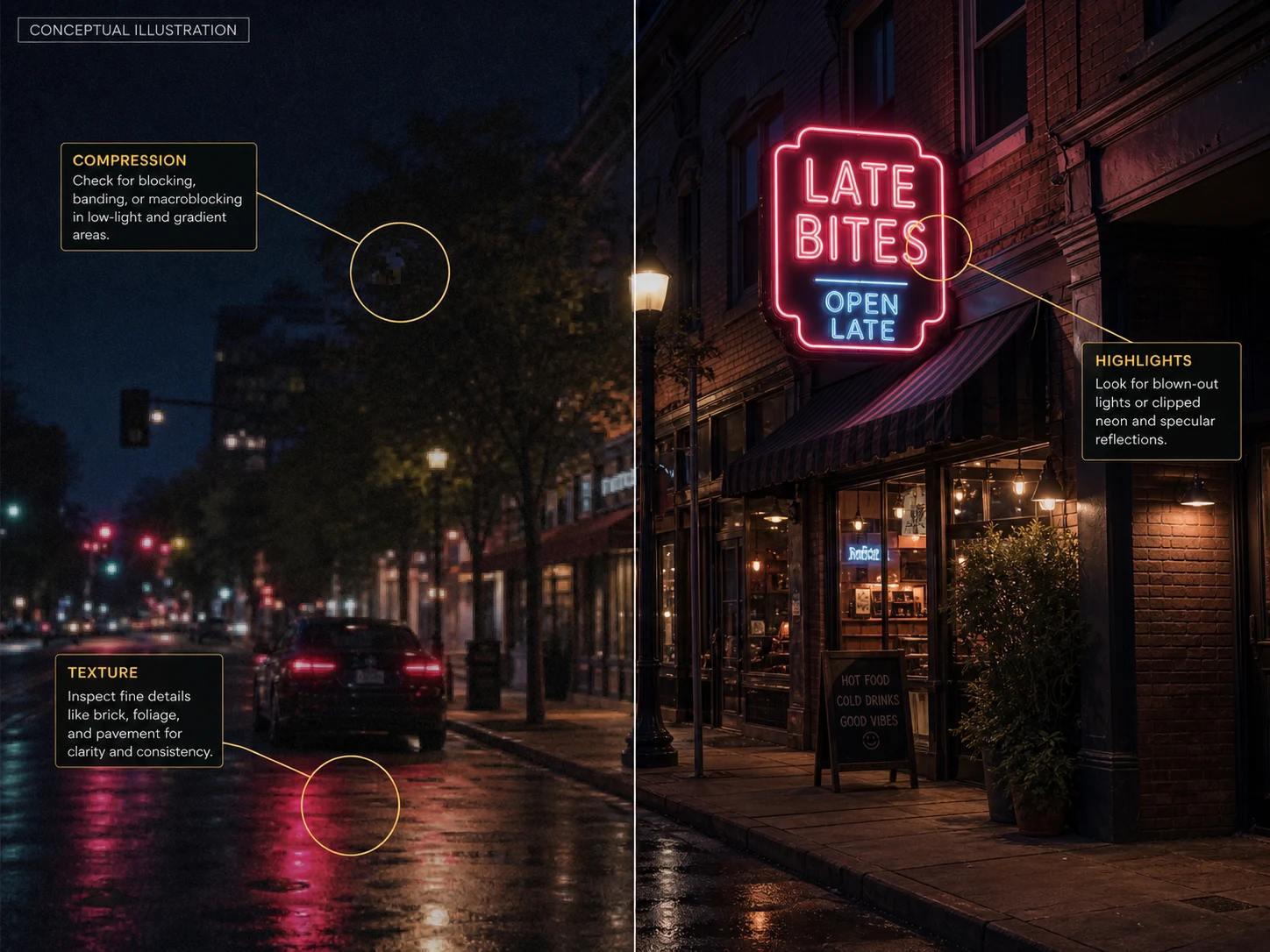
Enhance an existing video to make soft detail, compression artifacts, and texture easier to review while preserving the original as your reference.
What Should You Inspect Before You Submit a Video Task?
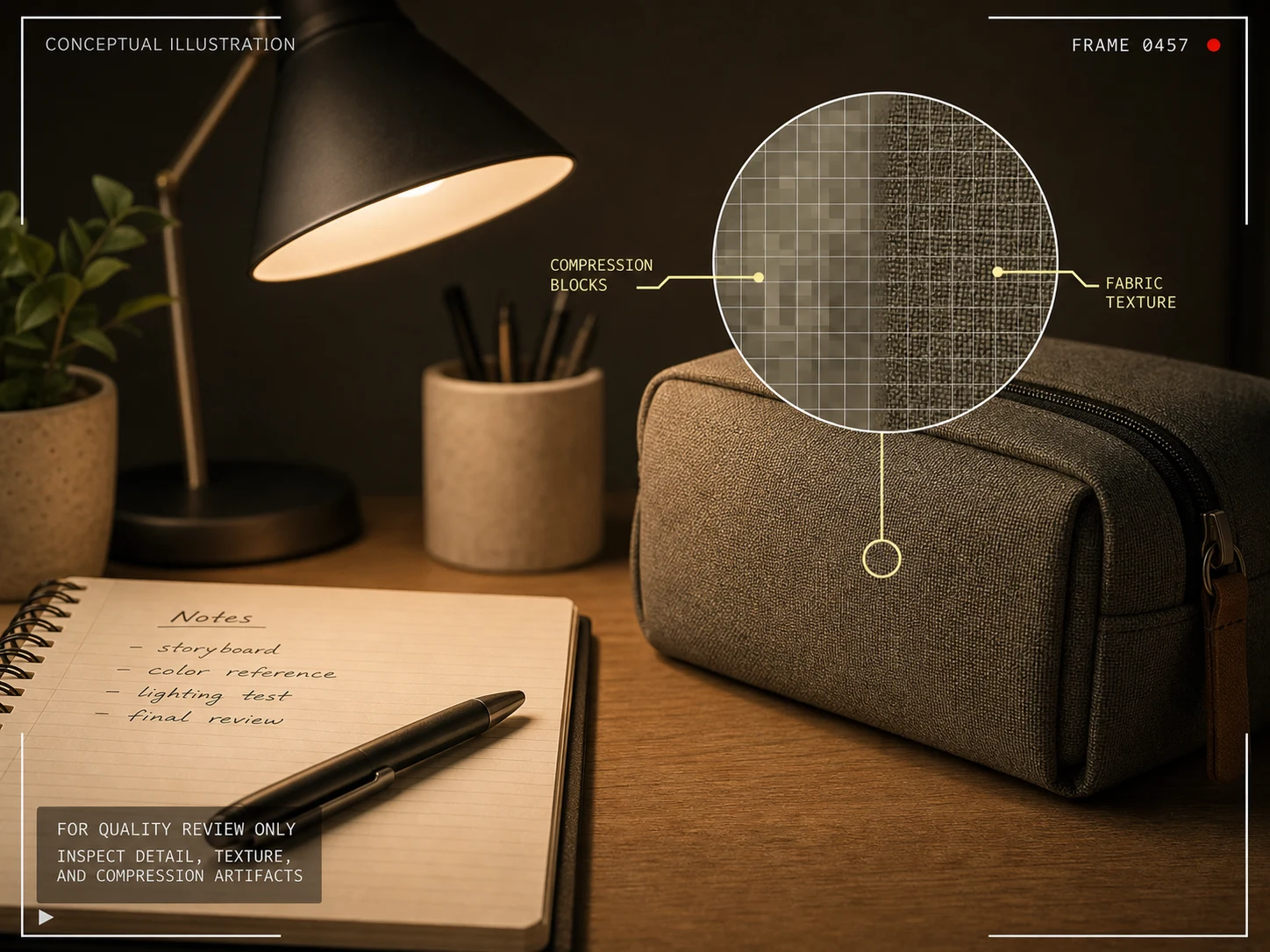
Mark Compression and Texture Details
Compressed creator footage can make foliage, fabric, small type, product labels, and repeated patterns hard to evaluate. Identify the areas where artifacts or soft detail matter to the intended use, then compare those areas with any finalized candidate. The current operation does not let you select a denoise, sharpen, or detail-recovery setting, so it is important not to infer one from the task name.
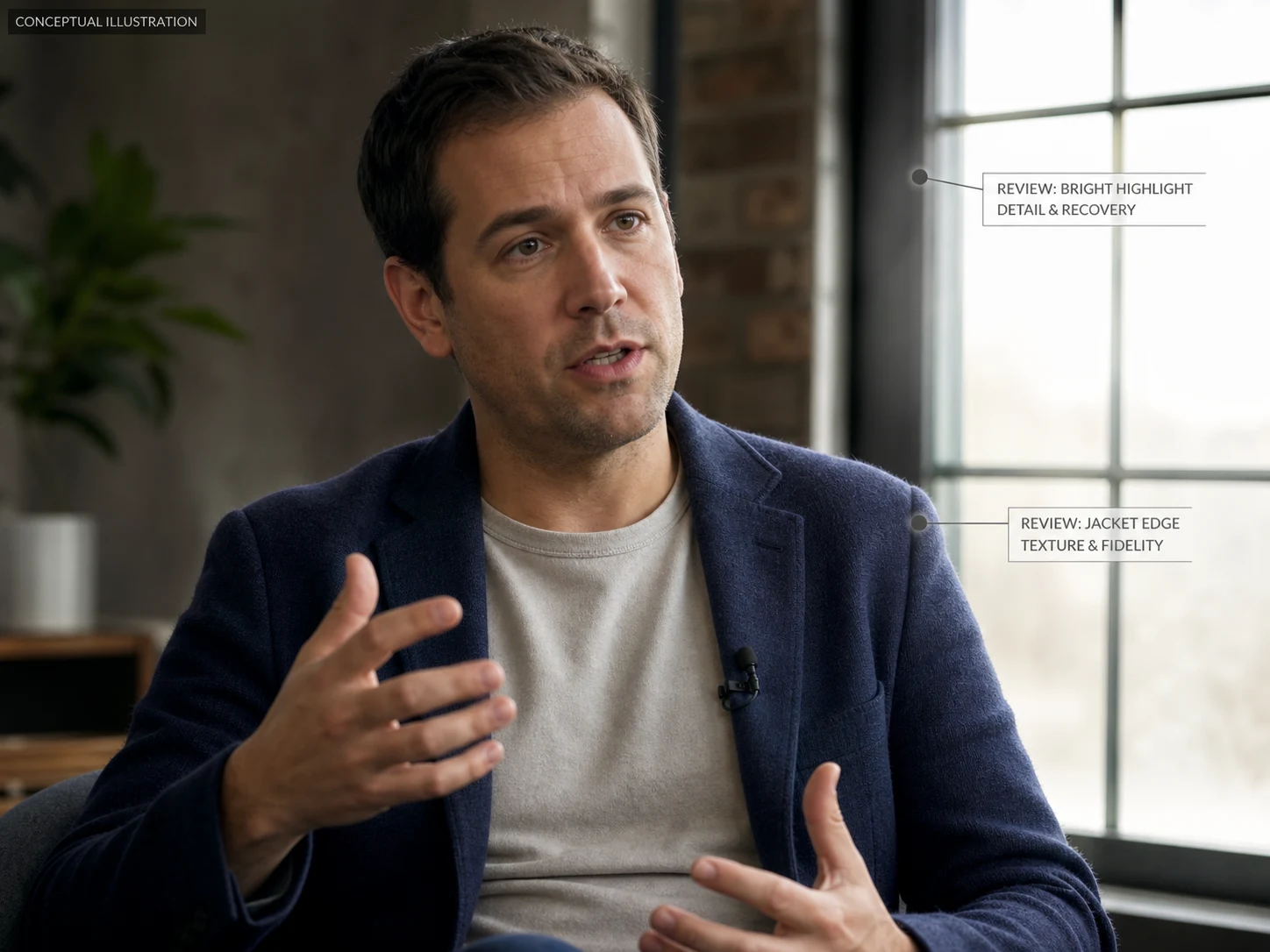
Check Edges and Bright Areas
An interview, screen recording, or product clip may make jacket edges, window highlights, hair, signage, and fine outlines important to the final edit. Keep a source reference so these details can be inspected if the task finalizes. This page does not expose lighting, color, or exposure adjustments and does not promise a particular correction.
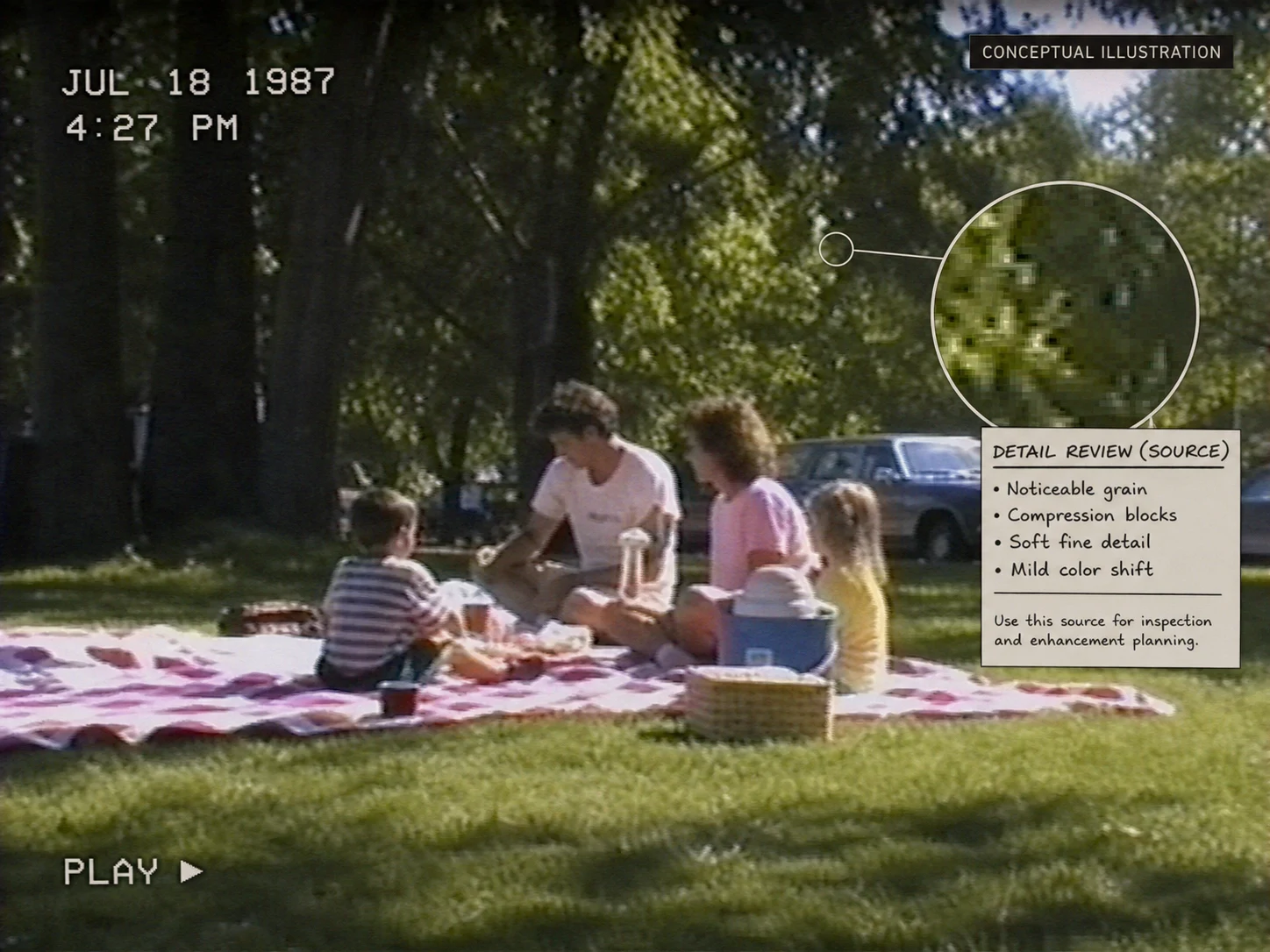
Treat Older Sources as Review Material
Older home videos and archived clips can contain grain, block artifacts, soft fine detail, or color shifts that deserve a clear source record. Upload only the file you intend to assess, then inspect any result against the original instead of presenting it as a factual restoration. The operation offers no archive, frame-rate, stabilization, or audio-repair control in this workspace.
How to Use AI Video Enhancer
Upload an MP4 or MOV source
Sign in and choose one video up to 200 MB. Use the clearest available copy so the source remains useful when you inspect fine details later.
Choose Nuzza Enhance or Topaz Starlight
Select Nuzza Enhance 1.0 or Topaz Starlight 2.5. The source-only workspace has no prompt or low-level parameter controls.
Inspect any finalized candidate
Compare texture, edges, compression, and bright areas with the upload before using any finalized video.
When Should You Use an AI Video Enhancer Task?
Prepare a detail checklist for a product or desk clip
Use a stable product or desk frame when texture, small edges, and compression blocks affect whether the clip can be reused. The conceptual image is a checklist for review, not proof that the task changes those details.
Compare visible boundaries in a recorded speaker clip
Use a talking-head source when you need to inspect bright window areas, clothing edges, and facial detail in relation to the original. Do not assume the source-only task provides lighting, color, or portrait controls.
Create a source reference before considering an older clip
Use an archived or heavily compressed clip when you need a documented reference for grain, blocks, soft detail, and color shifts. Compare any result with the source rather than calling the task a restoration or preservation process.
Nuzza vs. Top AI Video Enhancers
| Feature / Model | Nuzza | Topaz Video | HitPaw VikPea | AVCLabs Video Enhancer AI |
|---|---|---|---|---|
| Enhancement Options | Nuzza Enhance or Topaz Starlight 2.5 | Upscale, denoise, sharpen, stabilize, and interpolate | Scene, portrait, repair, and AI-video models | Upscale, denoise, faces, colorize, and interpolate |
| Cost | Free with included credits | Paid subscription | Free trial or paid plan | Free trial or paid plan |
| Best For | Simple multi-model enhancement without manual tuning | Professional restoration with detailed controls | One-click enhancement across varied source types | Broad restoration and frame-rate workflows |
FAQs about AI Video Enhancer
What is Nuzza's AI Video Enhancer?
Nuzza's AI Video Enhancer applies an automatic quality-focused pass to an existing clip. Choose an available processing option, submit the source, and compare the result with the original.
What is the best AI video enhancer?
The best AI video enhancer depends on the source and the type of improvement you need. Nuzza's AI Video Enhancer is a strong choice for a focused, source-only enhancement workflow.
Is Nuzza's AI Video Enhancer free to use?
The page is free to browse. Running a task requires Credits, and the current cost is shown before you submit.
What can I use Nuzza's AI Video Enhancer for?
Nuzza's AI Video Enhancer is useful for creator footage, interview review, and archive planning. Use a stable product or desk frame when texture, small edges, and compression blocks affect whether the clip can be reused. The conceptual image is a checklist for review, not proof that the task changes those details.
What inputs does Nuzza's AI Video Enhancer support?
The client accepts one MP4 or MOV video up to 200 MB. WebM is not supported by the actual upload policy, even though generic route copy previously listed it.
Do I need to sign in to use Nuzza's AI Video Enhancer?
Yes. Uploading the source, retrieving the quote, creating the task, checking its status, and reading its output require the signed-in generation flow.
What should I check in the video result?
Compare the complete result with the source. Check faces, text, motion, frame edges, fine texture, flicker, and any detail the AI may have reconstructed.
How is AI Video Enhancer different from AI Video Upscaler?
AI Video Enhancer applies a more automatic quality-focused workflow. AI Video Upscaler exposes enlargement controls when the target scale matters.
Will this page fix lighting, color, blur, noise, motion, frame rate, or audio?
The current route exposes no verified control or result claim for those changes. Keep the source available and inspect any finalized candidate for the details relevant to your use instead of assuming a particular fix.