Image to Image
Transform or restyle a source image while preserving the identity, layout, and details that matter. Try Image to Image AI for free now!
All-in-One Free Image to Image
Compare models by preservation, instruction following, multi-image support, text editing, and the amount of visual change they introduce.

Choose what should change and what should stay
Image-to-image work ranges from broad restyling to tightly focused edits. Select the transformation that matches the boundary of your task.
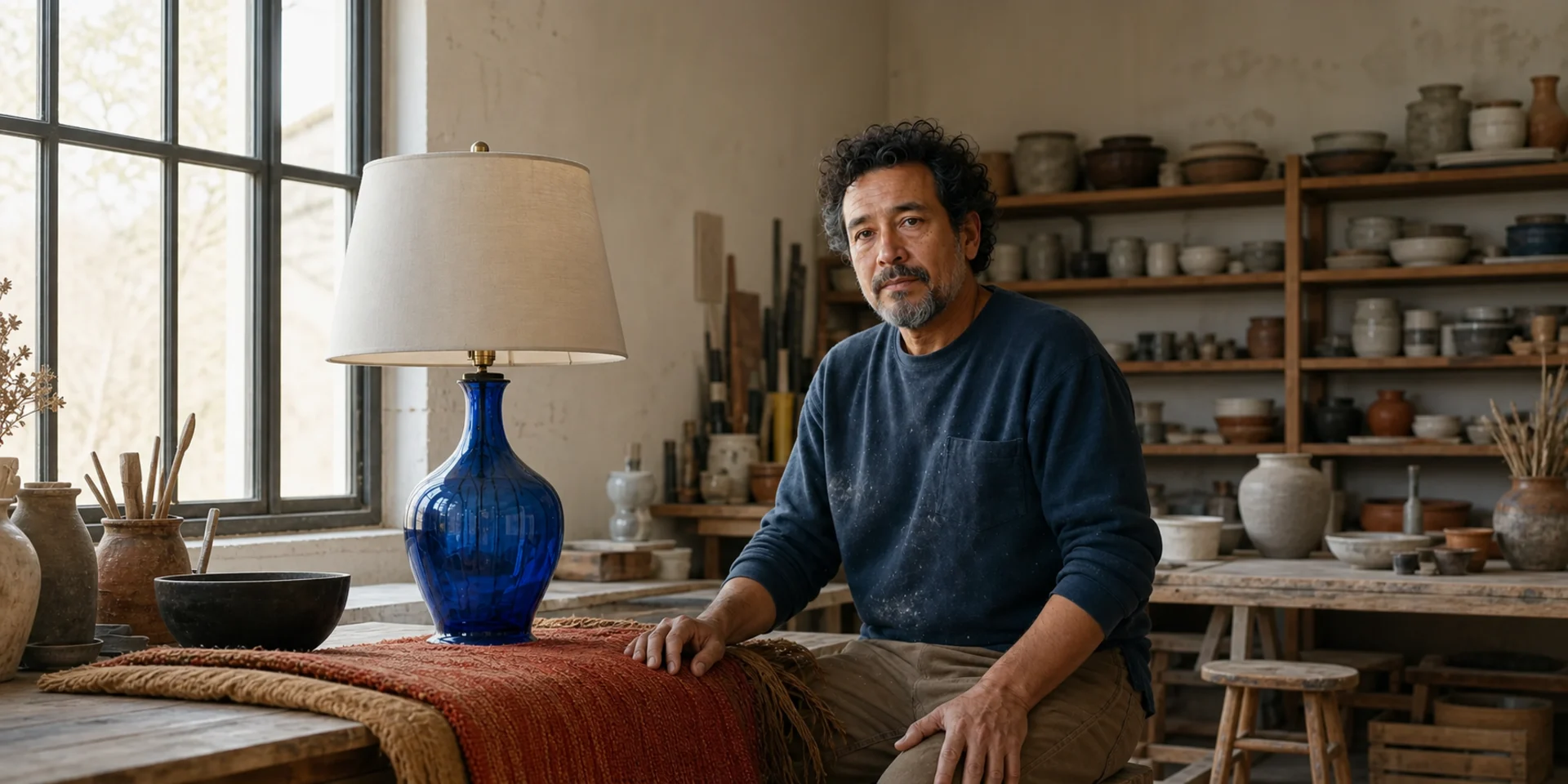
Restyle an Image

Replace a Background
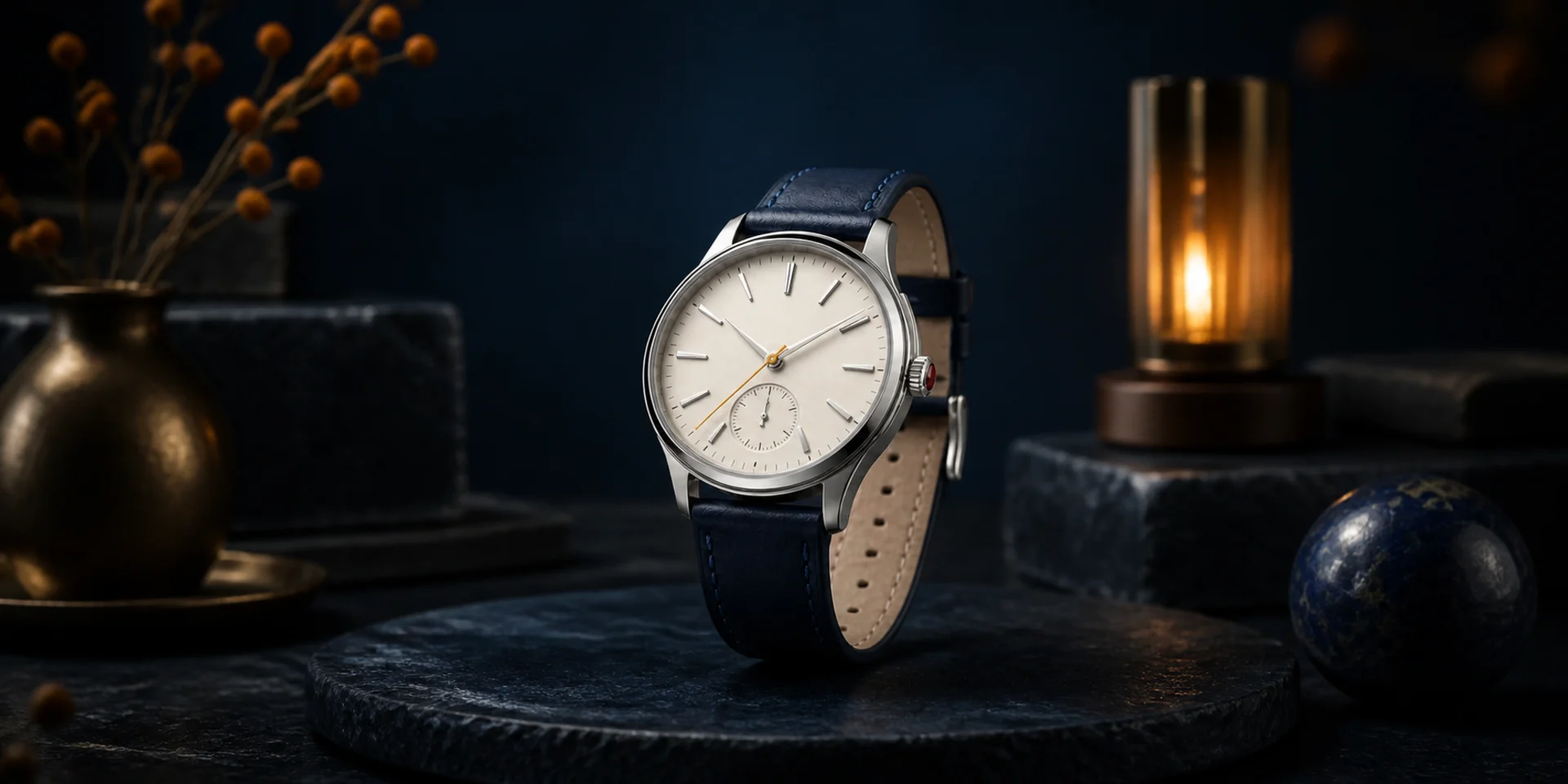
Inpaint a Region
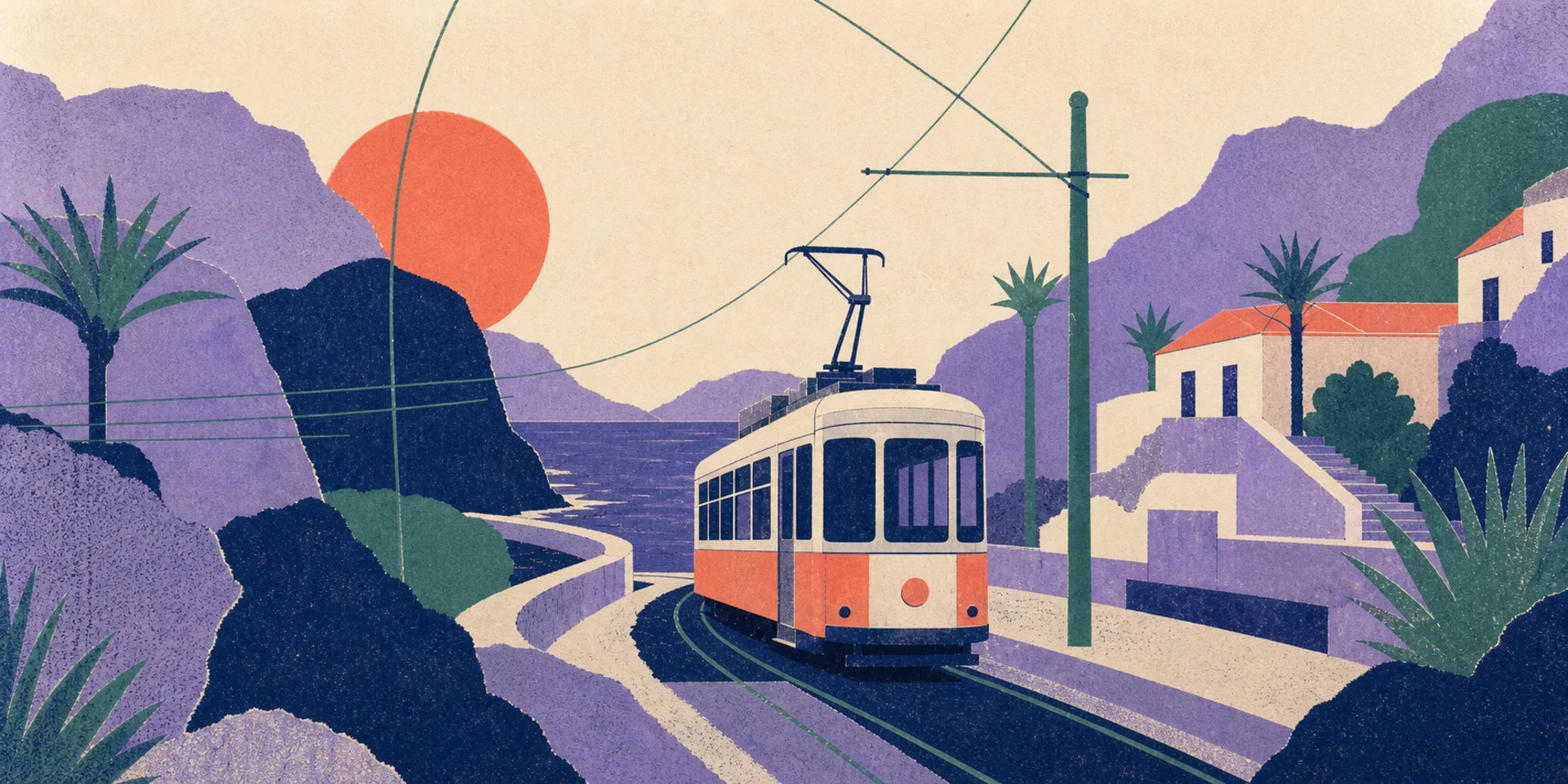
Remove an Object
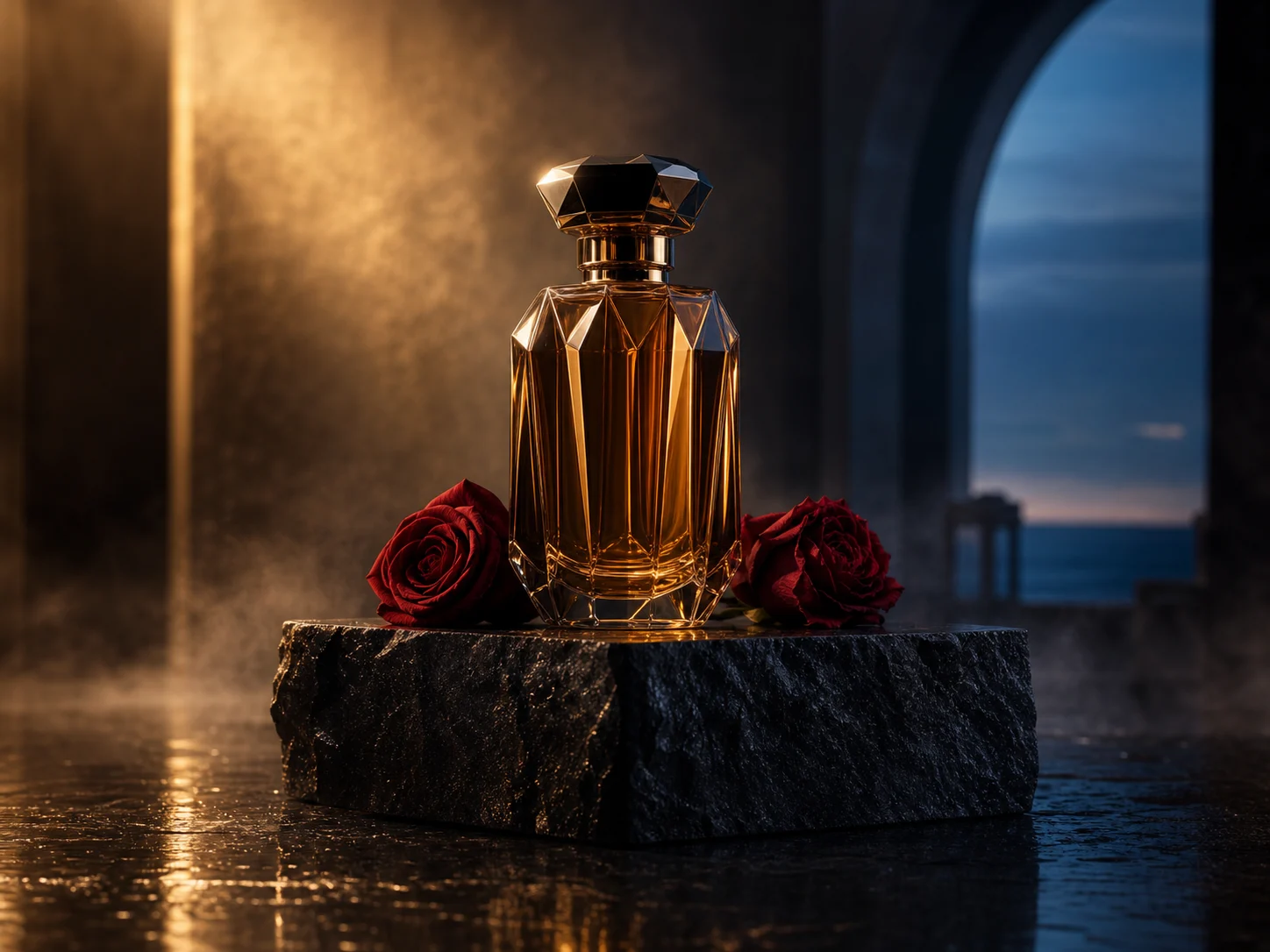
Expand the Frame
Create Variations
What Can You Do with Image to Image?
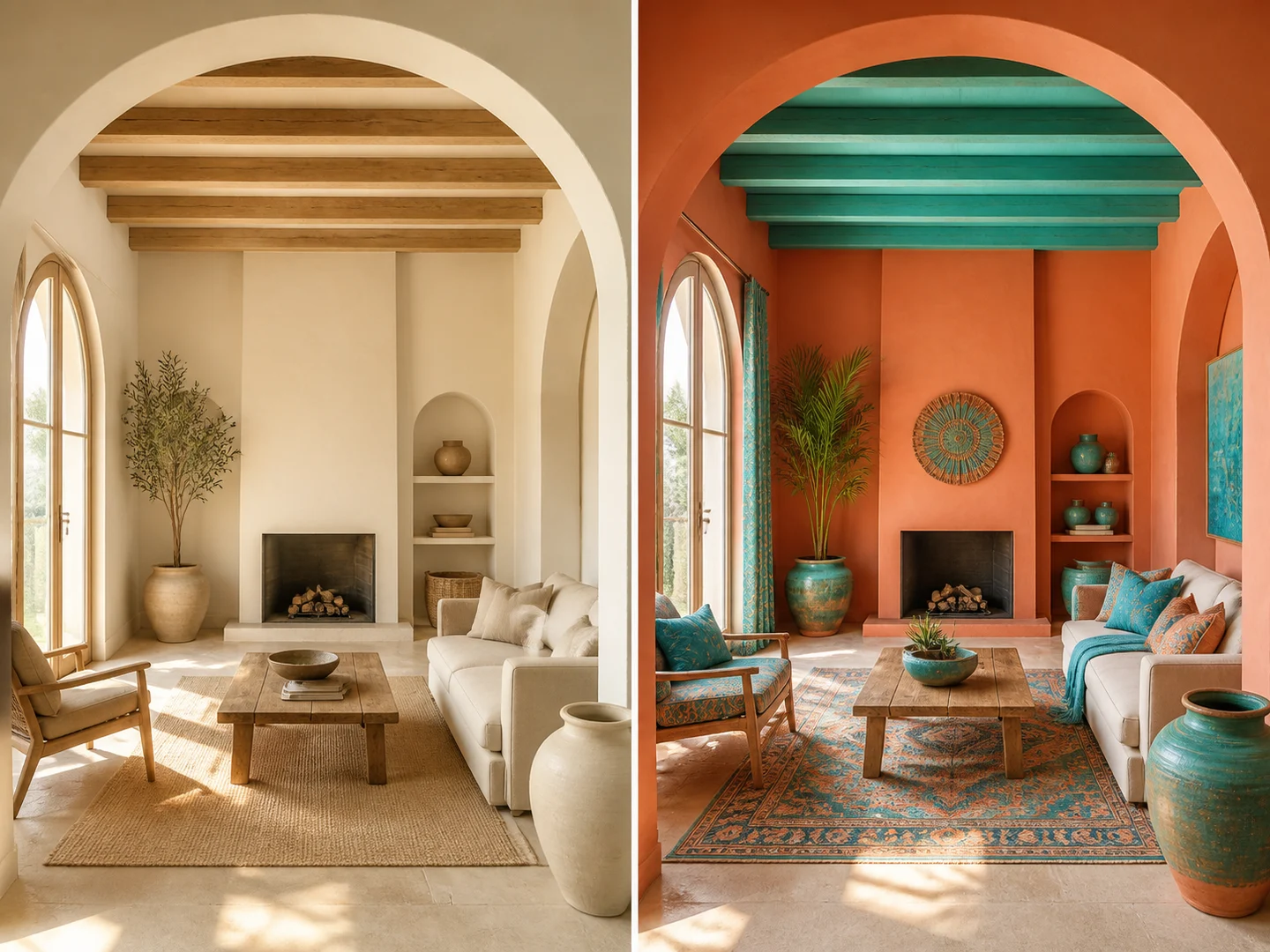
Transform a source image
Use an existing visual as the anchor and explain the focused change in a written instruction.
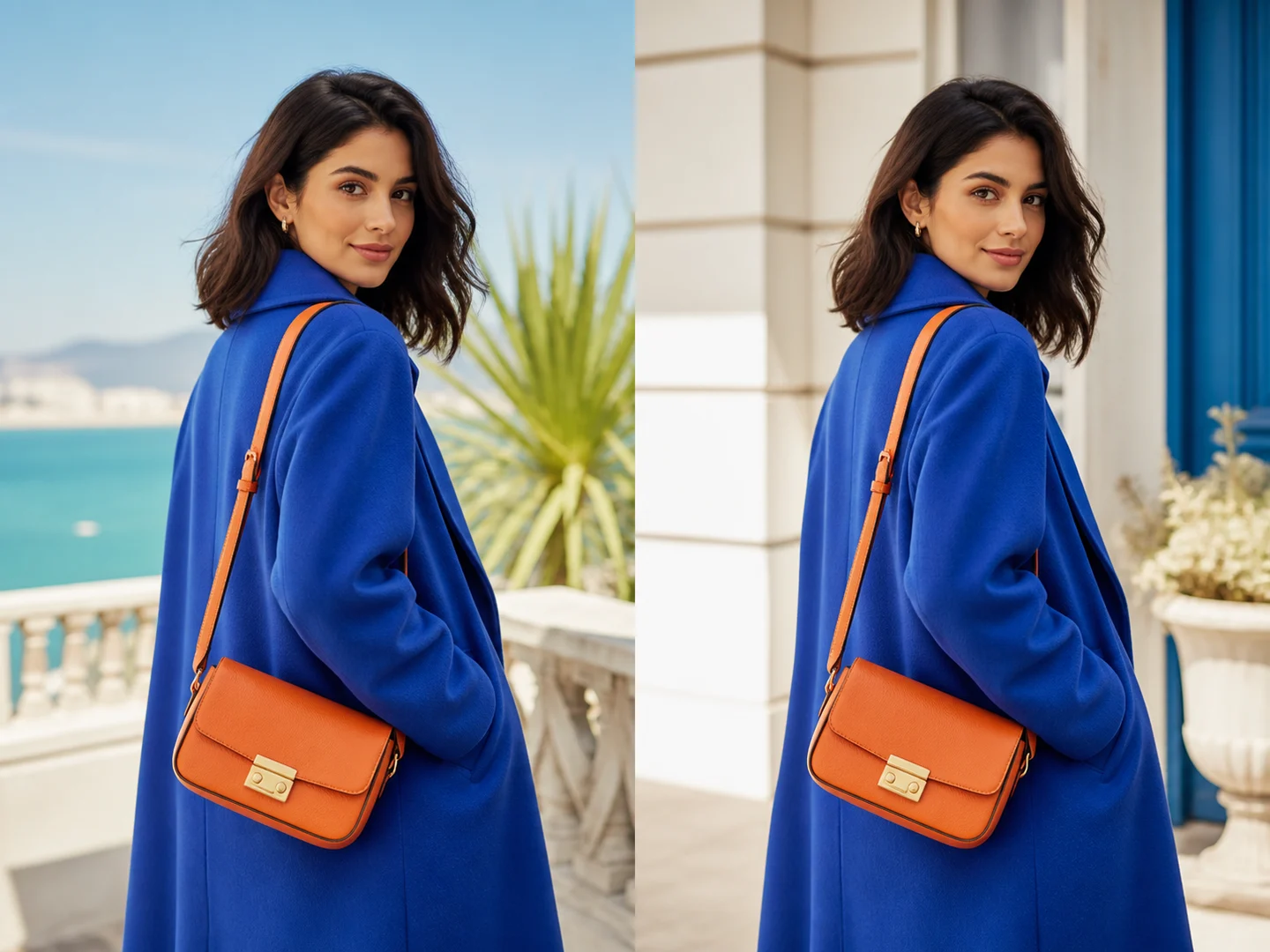
Preserve important details
Name the identity, framing, text, product features, or composition that should remain unchanged.
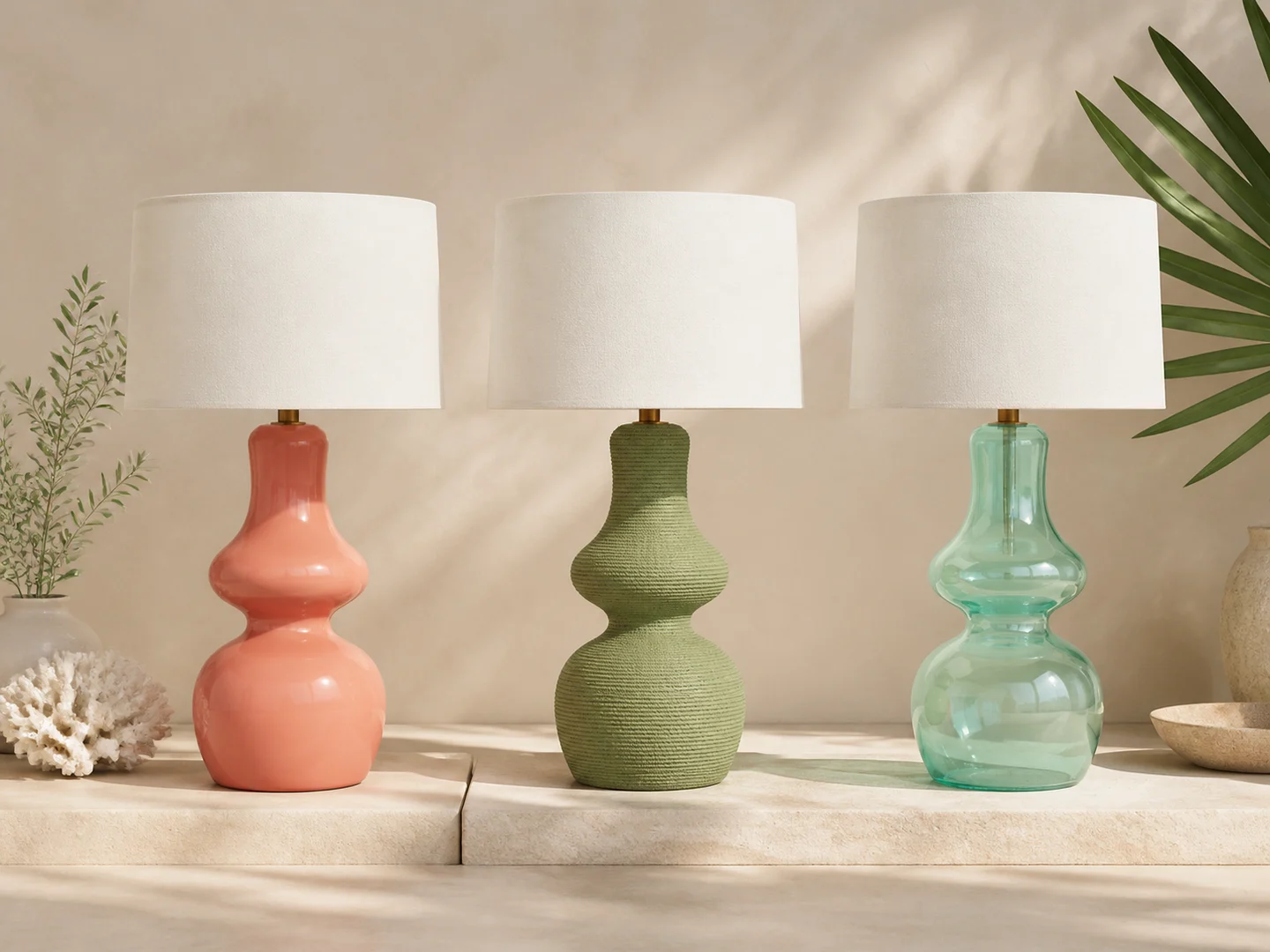
Create related variations
Keep the source concept while testing a new palette, environment, material, crop, or finish.

Work from broad to focused edits
Use image-to-image for a complete transformation, then switch to inpaint, background, uncrop, object, or text tools for narrower changes.
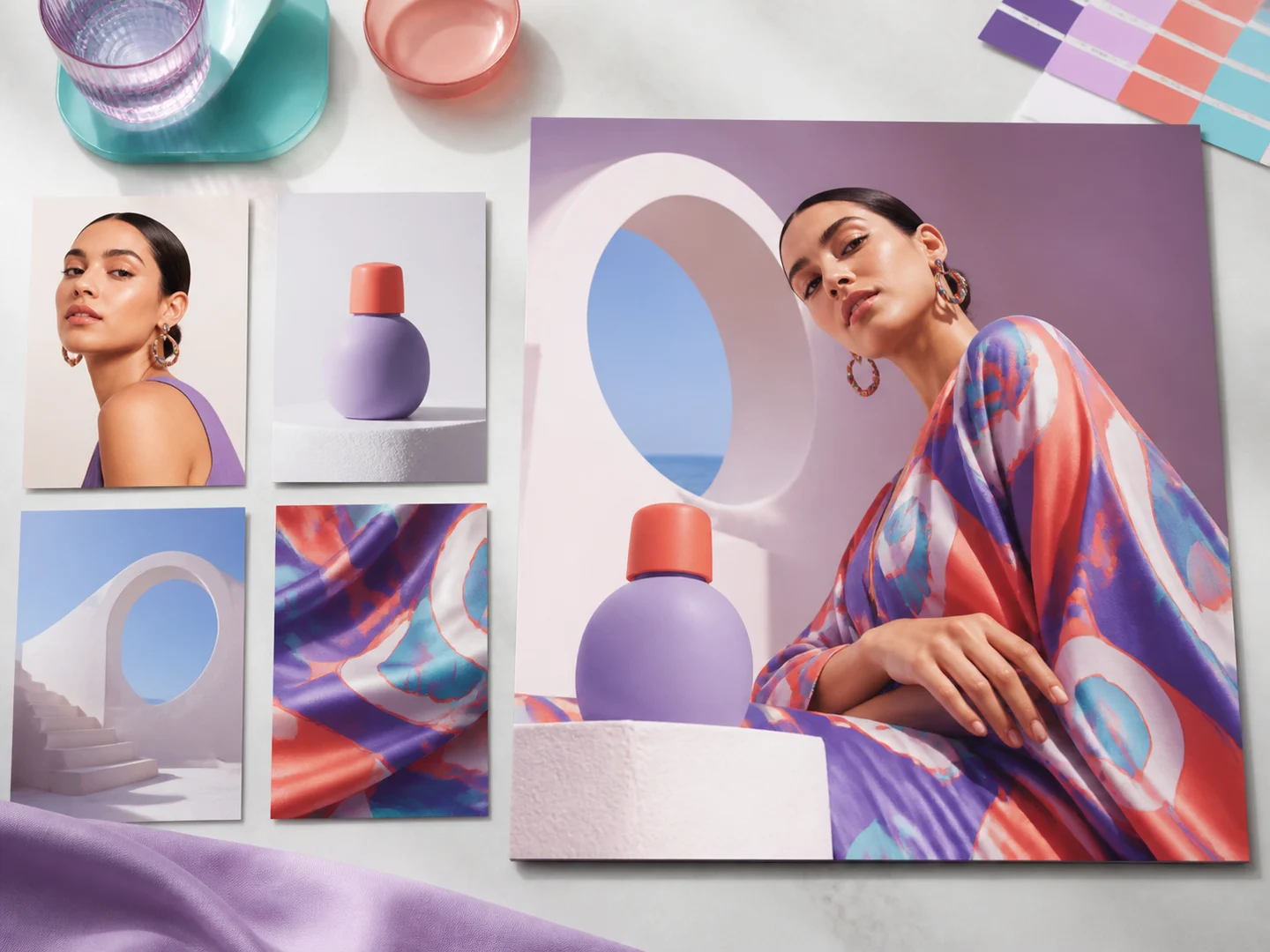
Use several source images when supported
Combine subject, product, style, or composition references with models that accept multi-image editing.
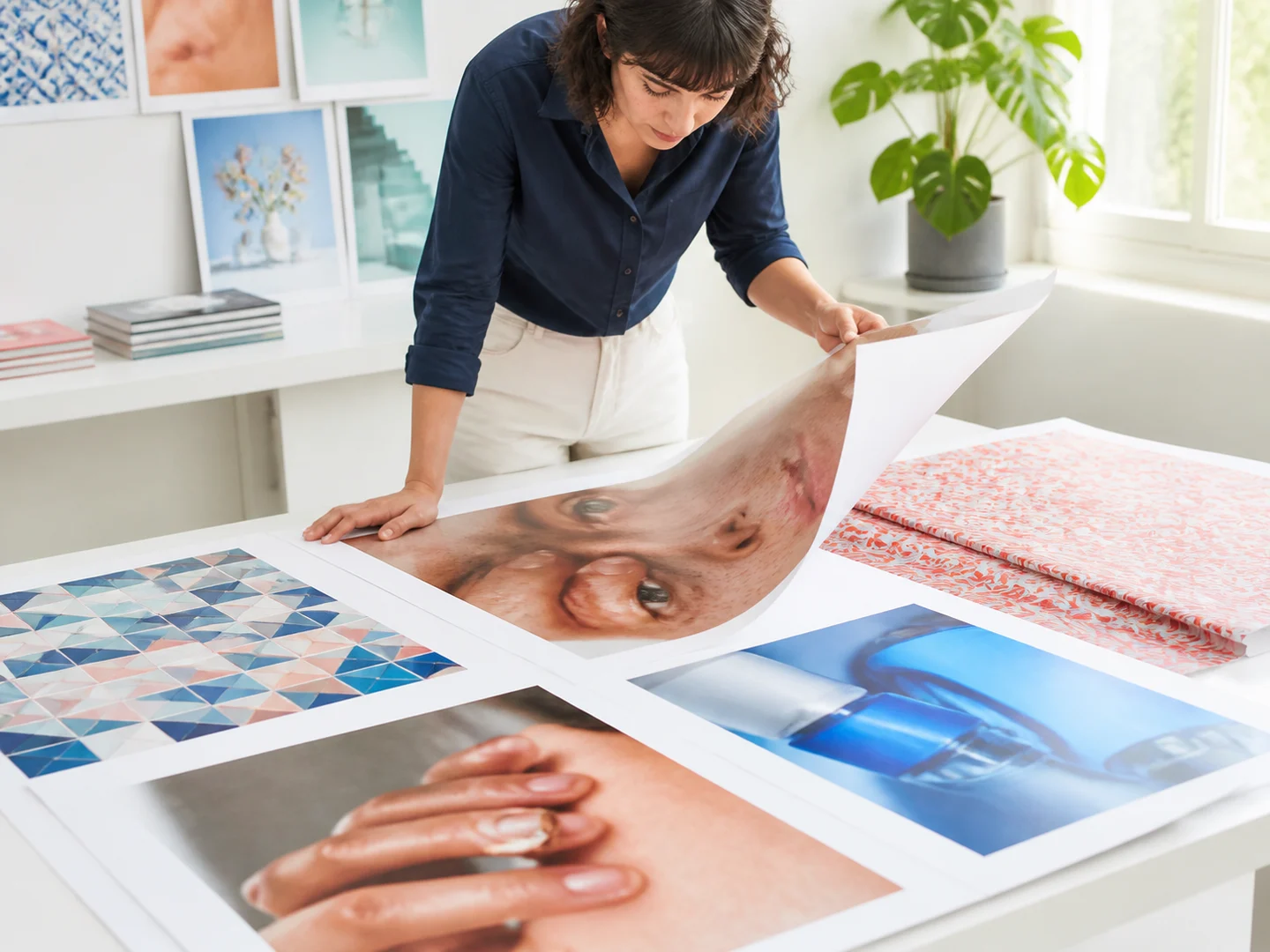
Review preservation and reconstruction
Check faces, text, logos, geometry, edges, patterns, and areas the model had to invent before publishing.
How to Transform an Image
Choose an editing pattern
Find a gallery study with a transformation similar to the change you need.
Add the source image
Stage the original and any useful supporting references in the composer.
Define change and preservation
Rewrite the prompt, then review the model, ratio, and output count.
Ways to Use Image to Image
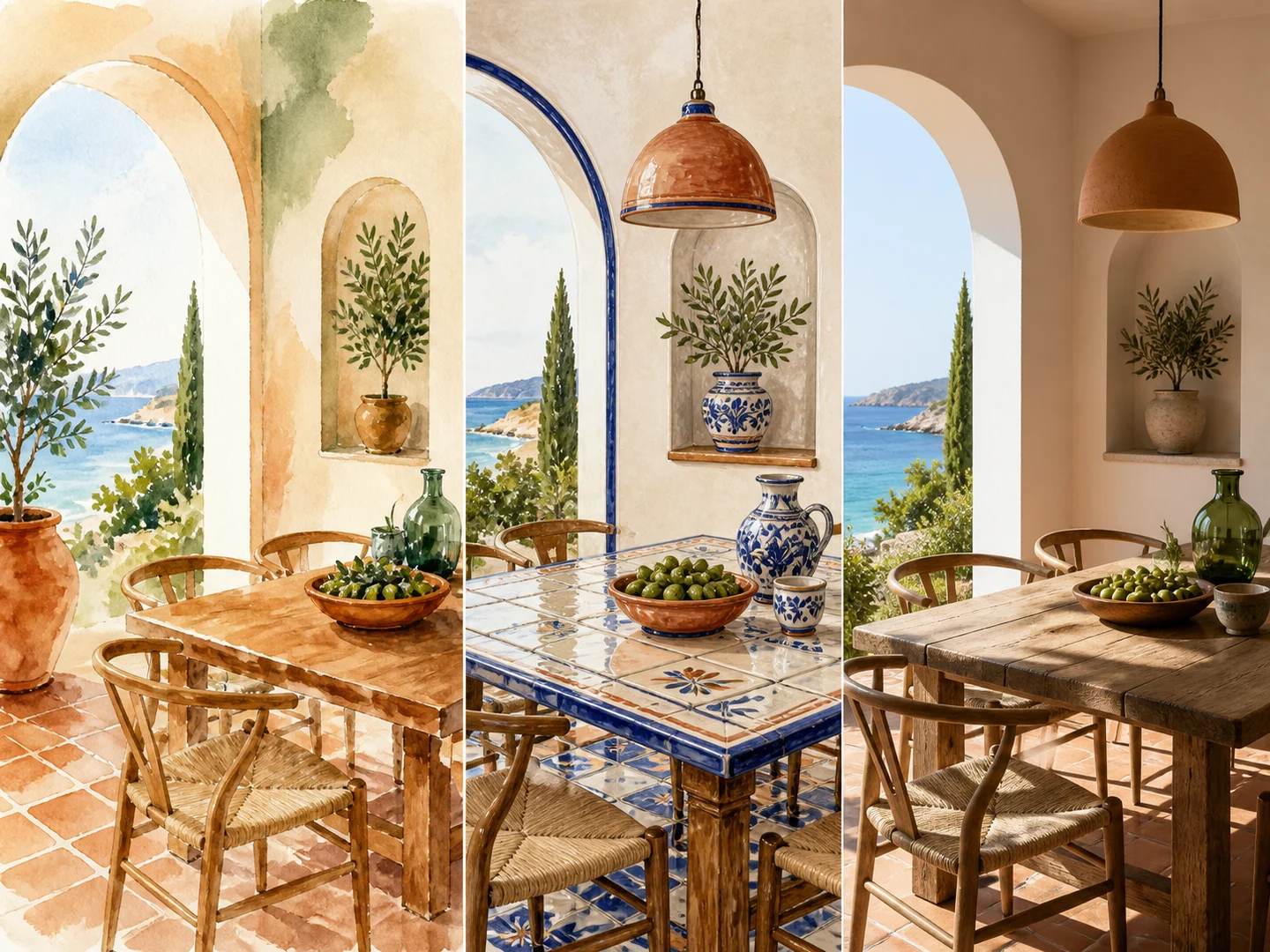
Restyle an existing image
Keep the scene and subject while changing palette, material, lighting, medium, or art direction.
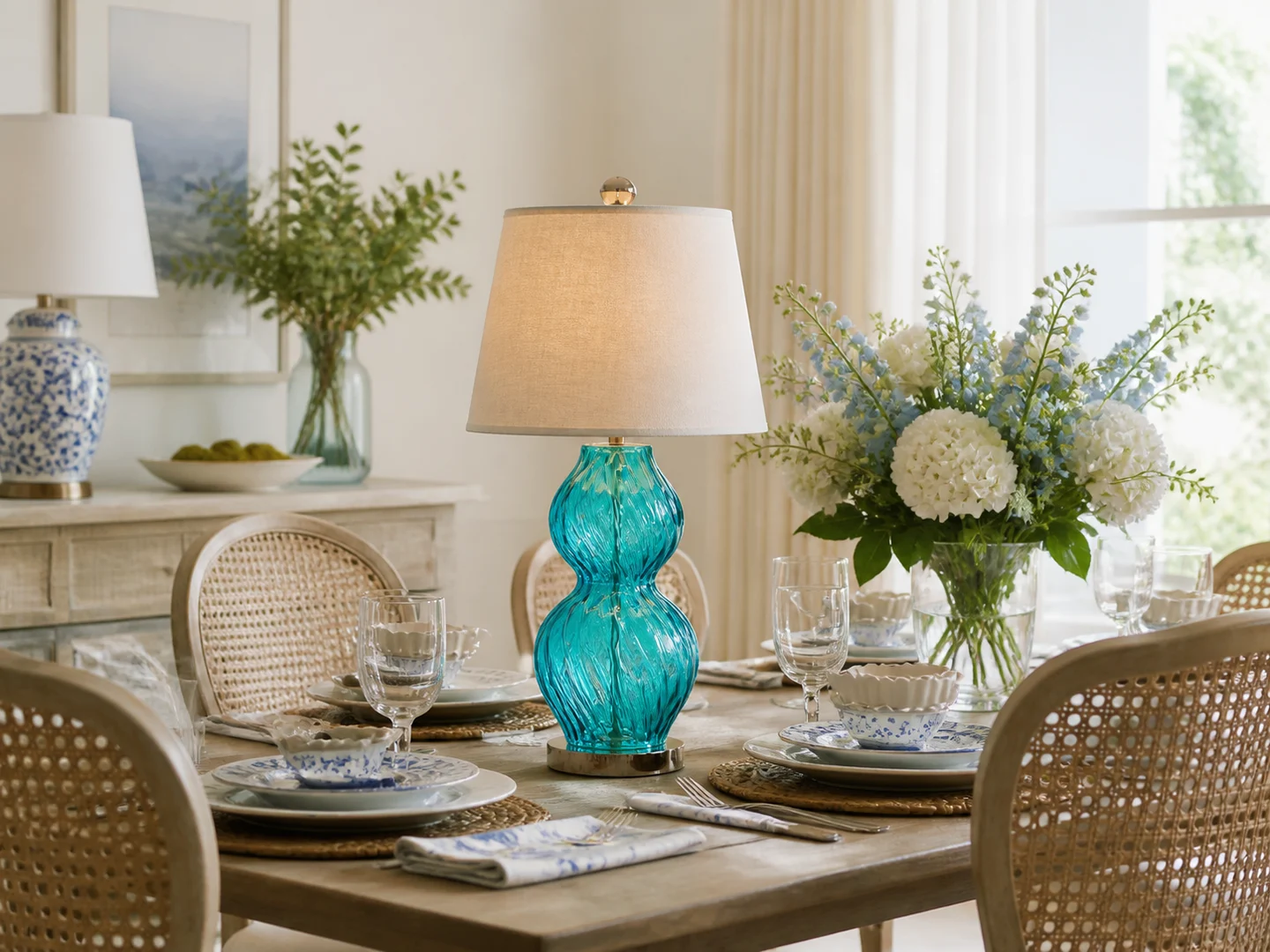
Replace one visual element
Name the element to change and describe the surrounding details that must remain stable.
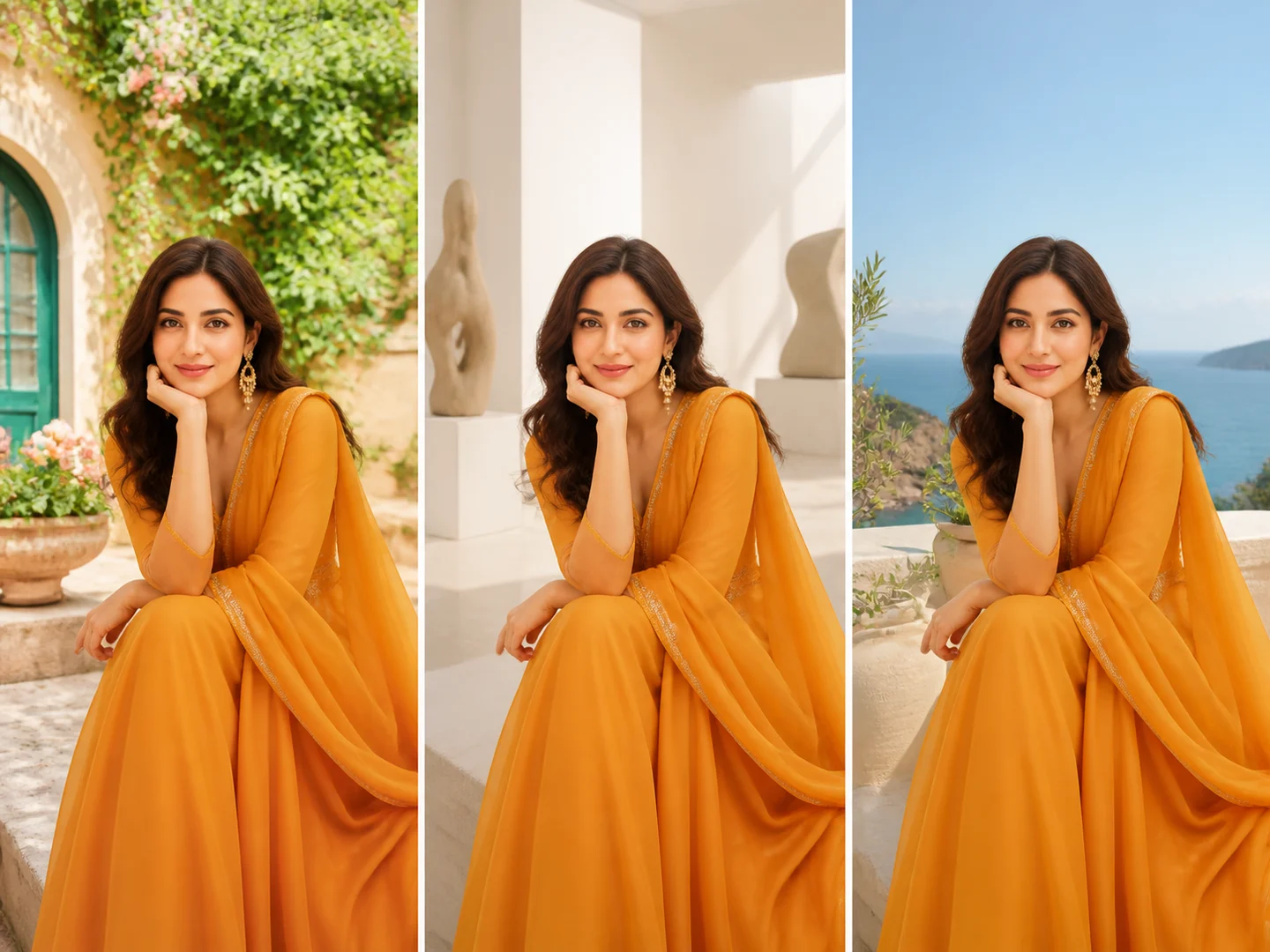
Create controlled variations
Use the same source to explore crop, environment, styling, or finish without rebuilding the concept.
Image to Image or Text to Image?
| Feature / Model | Image to Image | Text to Image |
|---|---|---|
| Source image anchor | Start from an existing subject, composition, or visual identity. | Create the visual directly from a written brief. |
| Explicit preservation | Explain which source details should remain recognizable. | Define subject, setting, framing, and treatment together. |
| Focused transformation | Use the prompt mainly to describe the intended change. | Explore unrelated directions without preparing images. |
Frequently Asked Questions About Image to Image
What is Nuzza's Image to Image?
Image to Image combines a visual source with written instructions. The source anchors identity, composition, or content, while the prompt explains what should change and what must remain untouched.
What is the best image-to-image generator?
The best image-to-image generator depends on the input, intended result, budget, and controls you need. Nuzza's Image to Image is a strong choice for a source-led transformation workflow.
Is Nuzza's Image to Image free to use?
The page is free to browse. Running a task requires Credits, and the current cost is shown before you submit.
What can I use Nuzza's Image to Image for?
Use Nuzza's Image to Image to restyle an existing visual, replace a focused element, change palette or material, move a subject into a new environment, or create controlled variations while preserving important source details.
What inputs does Nuzza's Image to Image support?
Image to Image requires a supported source image plus written instructions describing what should change and what should remain stable. Adding the source switches the shared Composer from image generation to an image-editing request.
Do I need to sign in to use Nuzza's Image to Image?
You can browse this page without signing in. Submitting a generation, storing persistent inputs, checking task status, and saving a finalized result require a Nuzza account.
What should I check in the image result?
State what must remain unchanged as explicitly as the transformation itself, including identity, framing, text, or product features.
Does the page alter my uploaded image?
No. The original file is staged as an input; a completed provider request returns a separate output.
Is a source image required for Image to Image?
Yes. The source image anchors the subject, composition, or visual identity. If you want to create a complete visual from language without a source, use Text to Image instead.