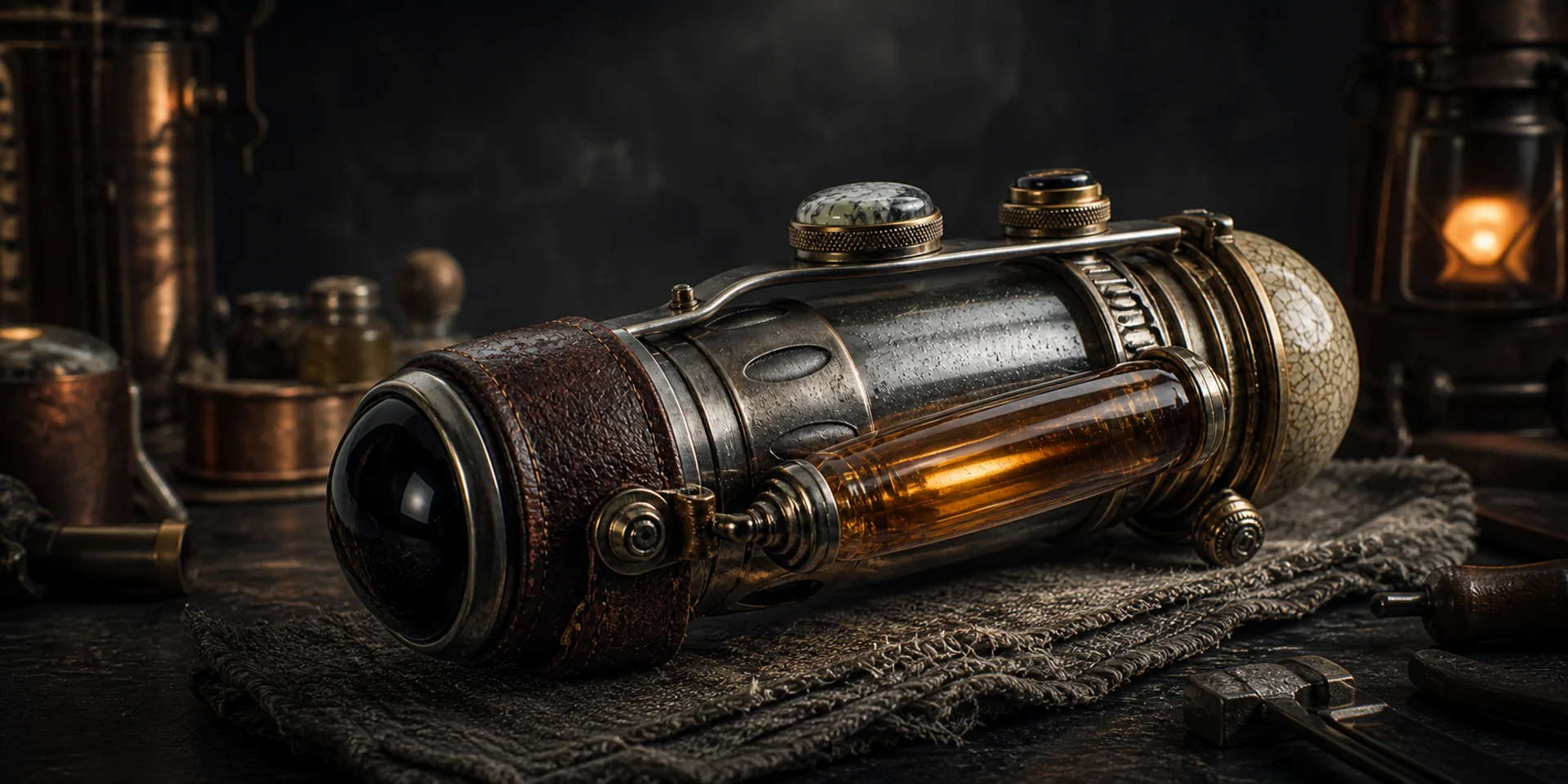
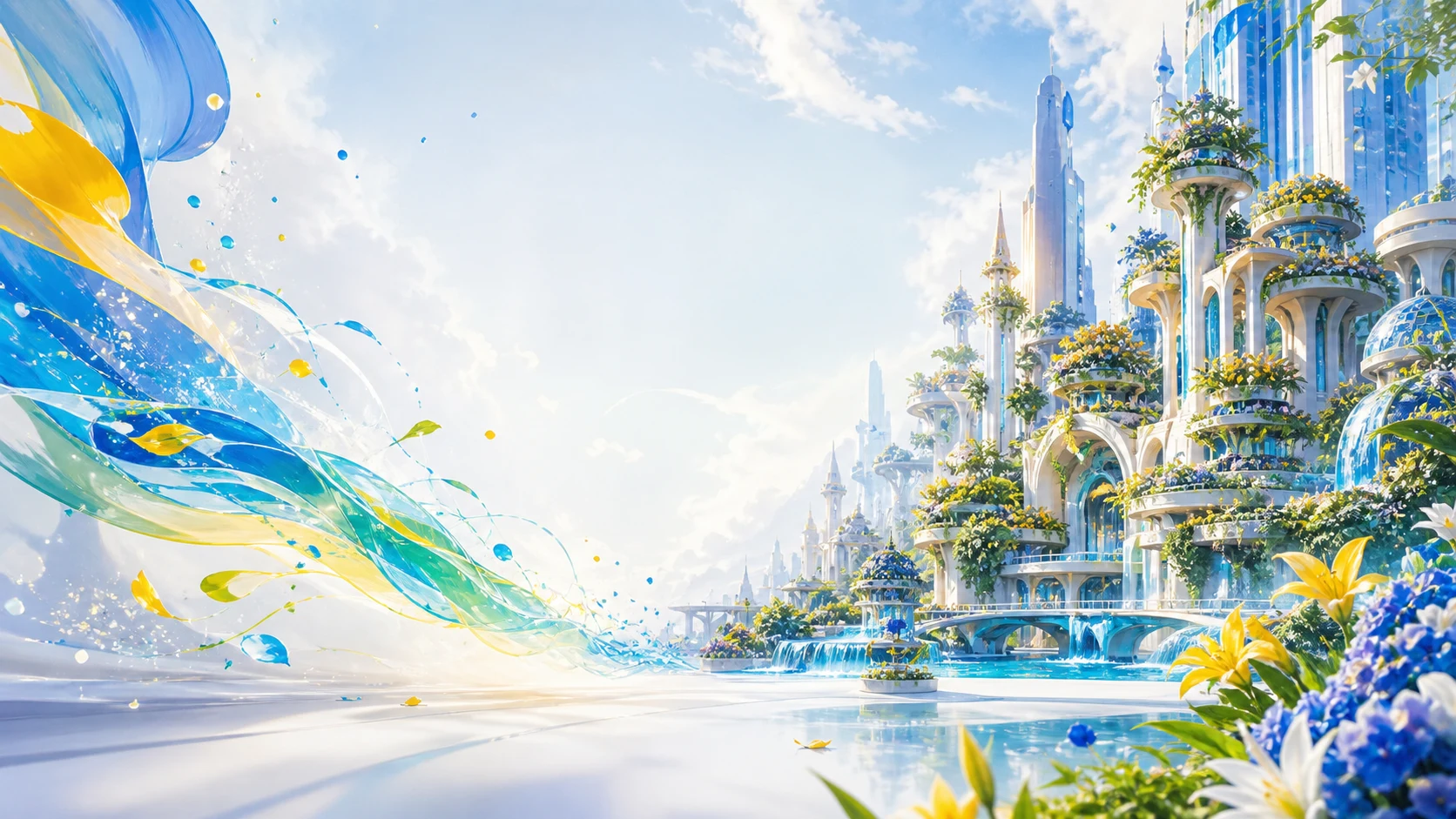
Text to Image
Turn a written prompt into an image by directing the subject, setting, composition, lighting, color, and visual style. Try Text to Image AI for free now!
All-in-One Free Text to Image
Use the model collection to compare prompt interpretation, text rendering, photorealism, illustration, and output control.
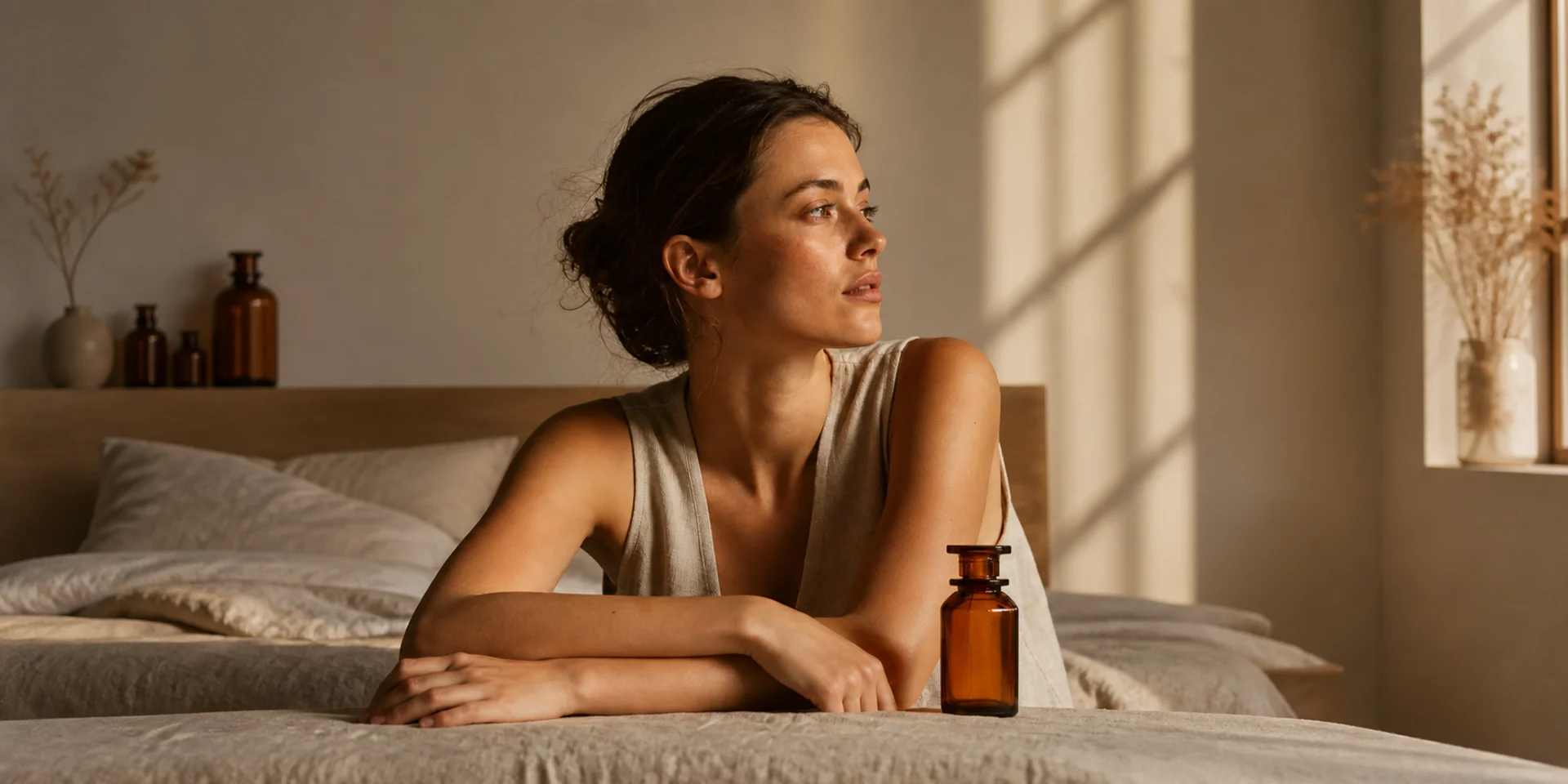
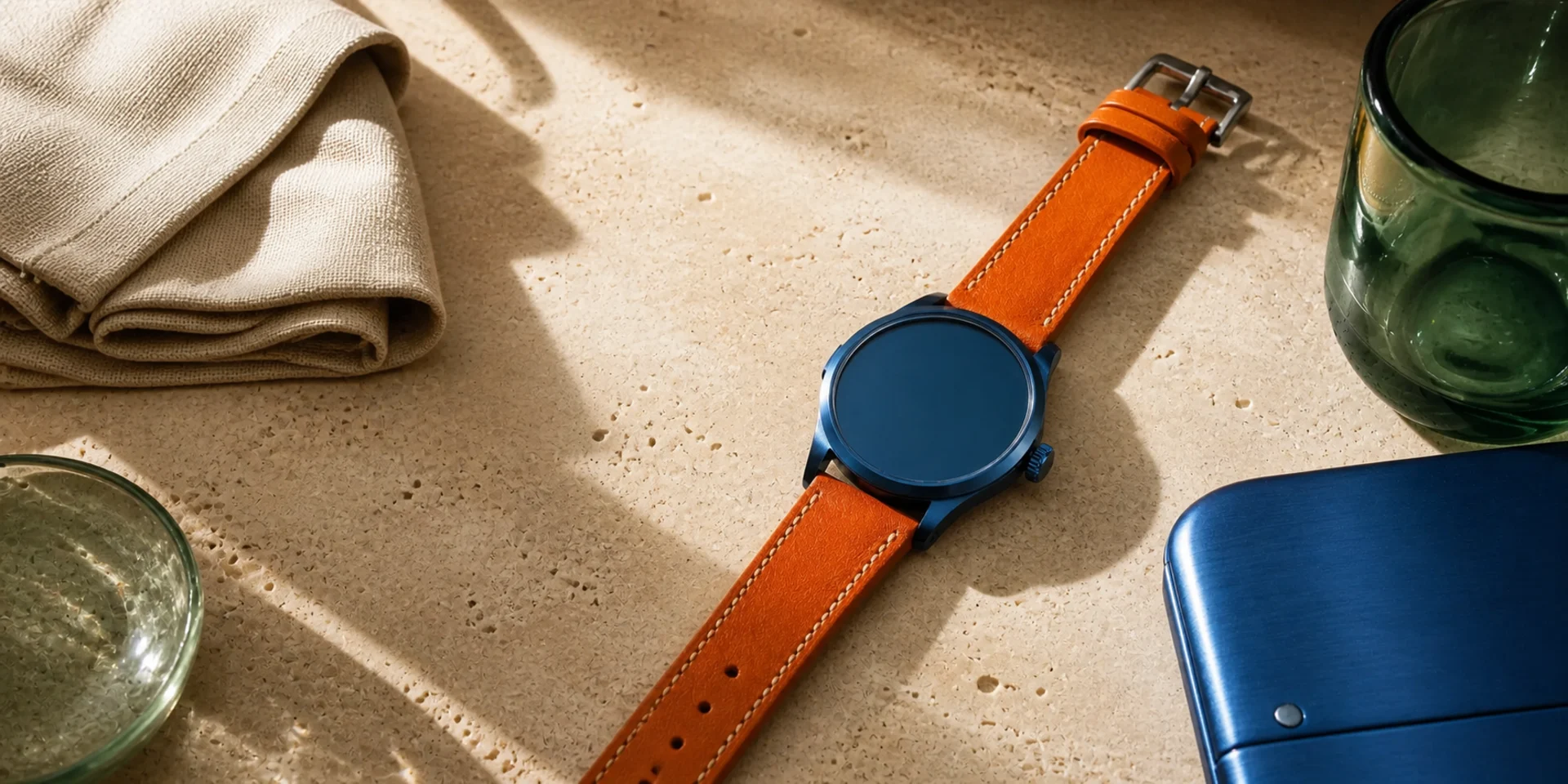
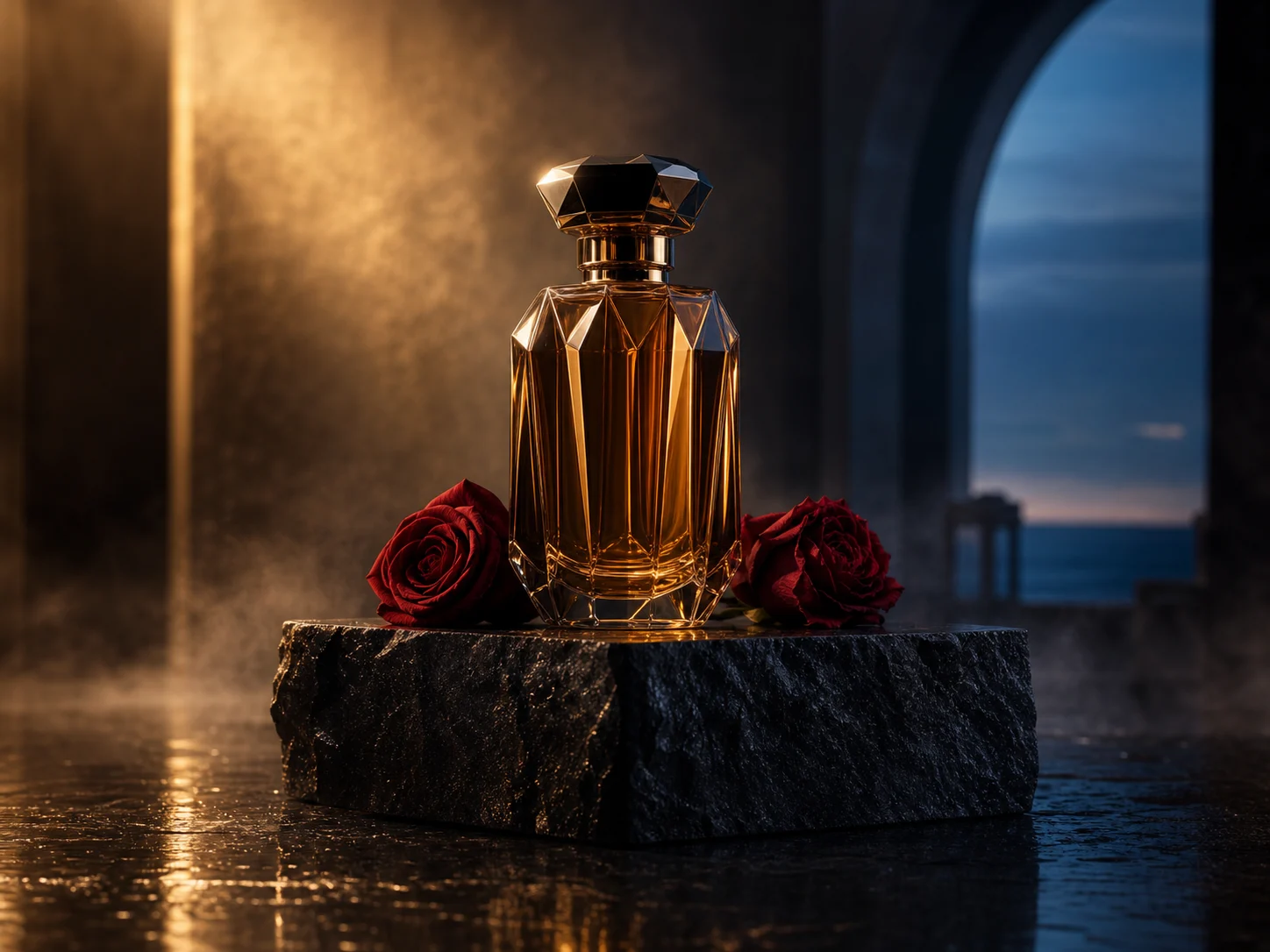
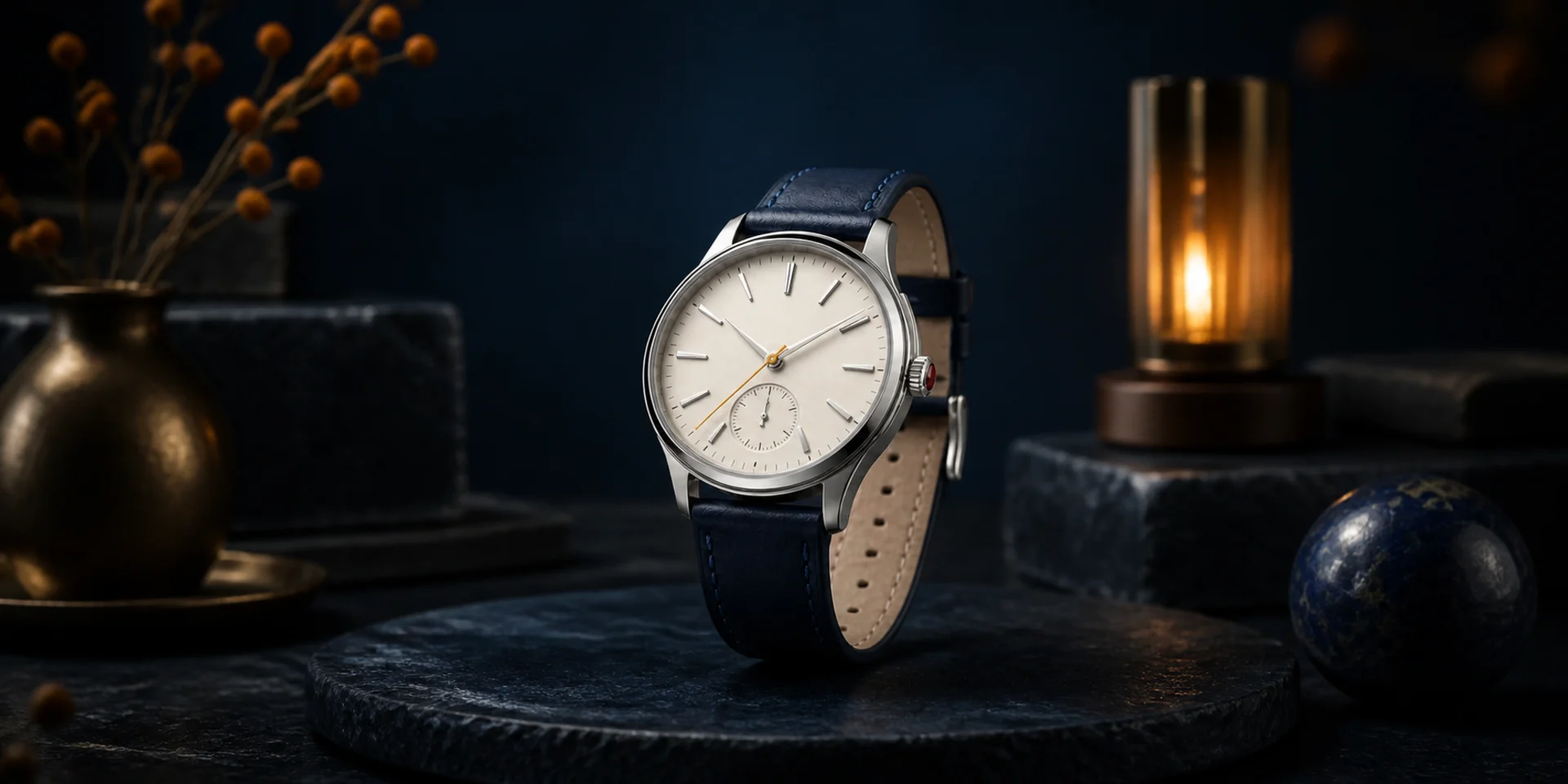
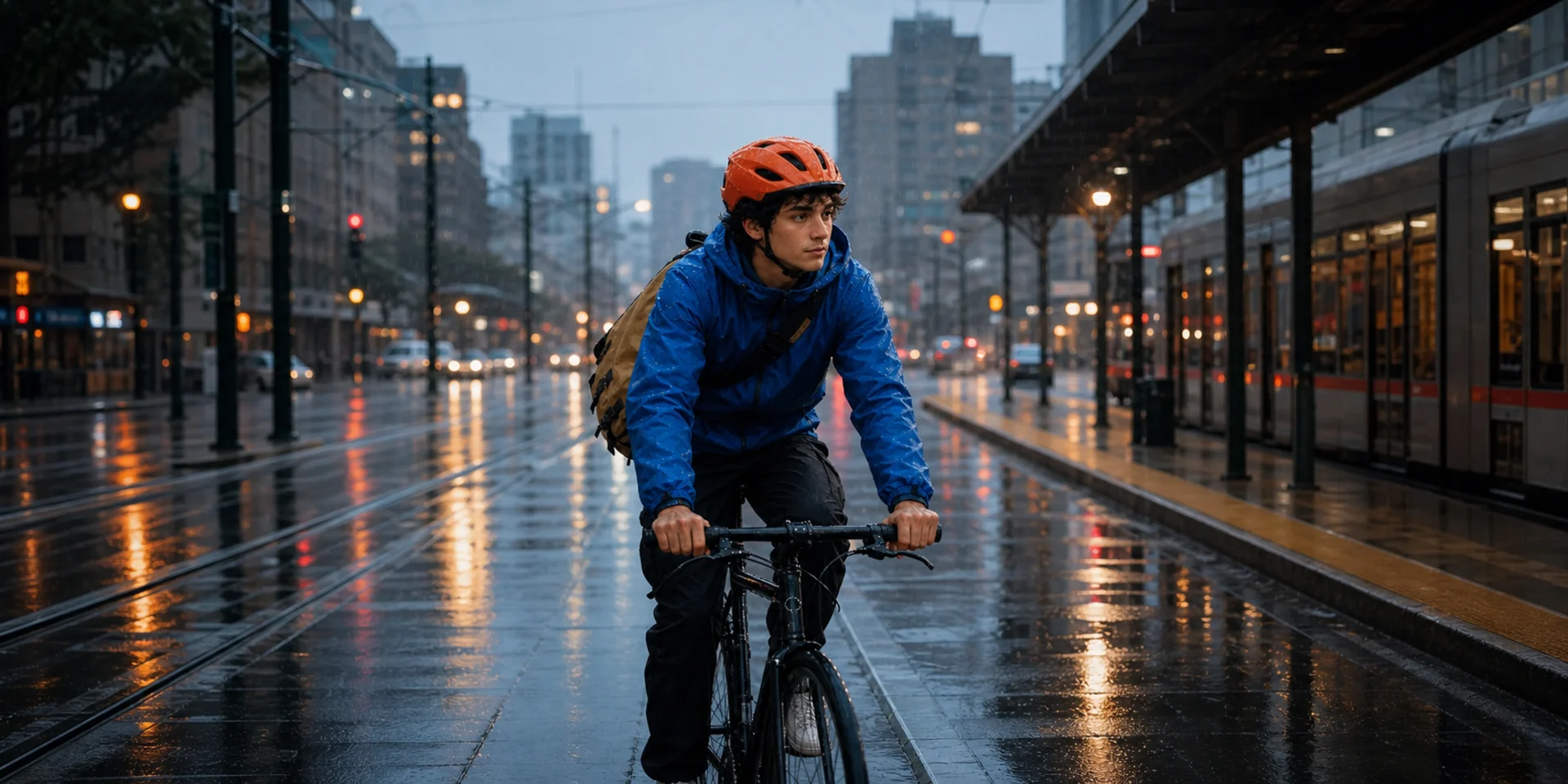
Turn a written brief into the right kind of image
Start with the visual job, then define the subject, composition, lighting, material, typography, and finish that job requires.
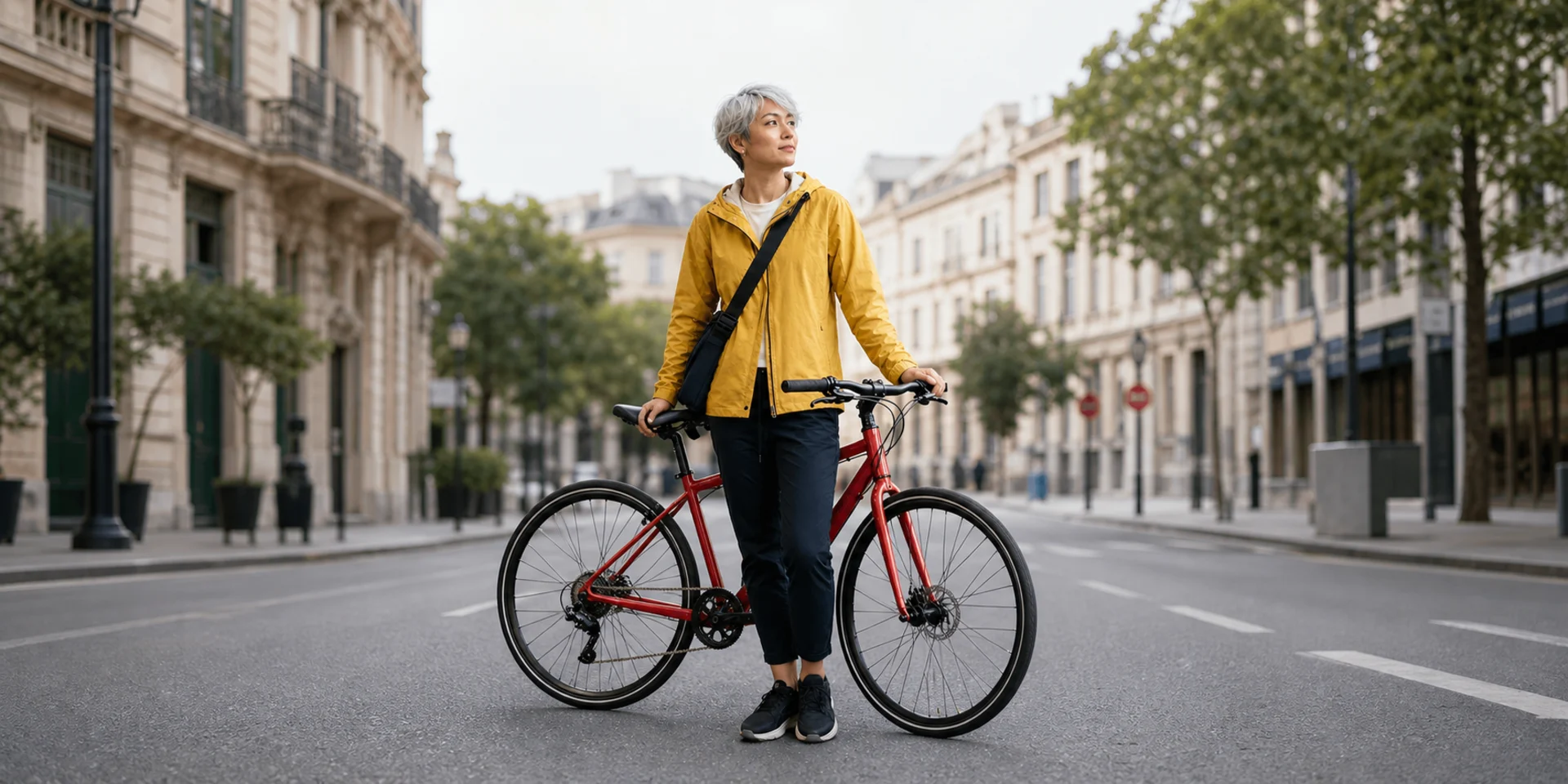
Product Images
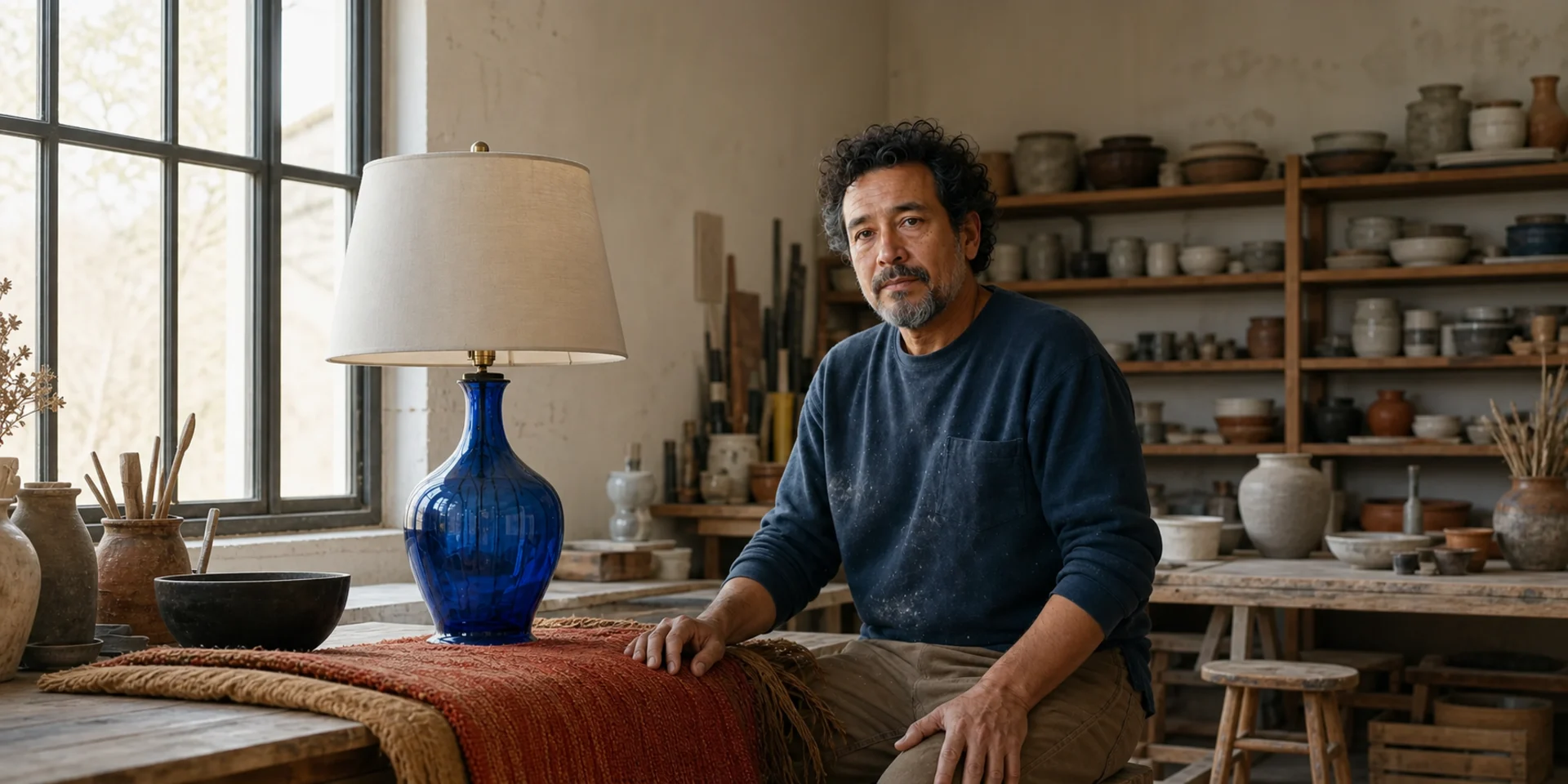
Social Graphics
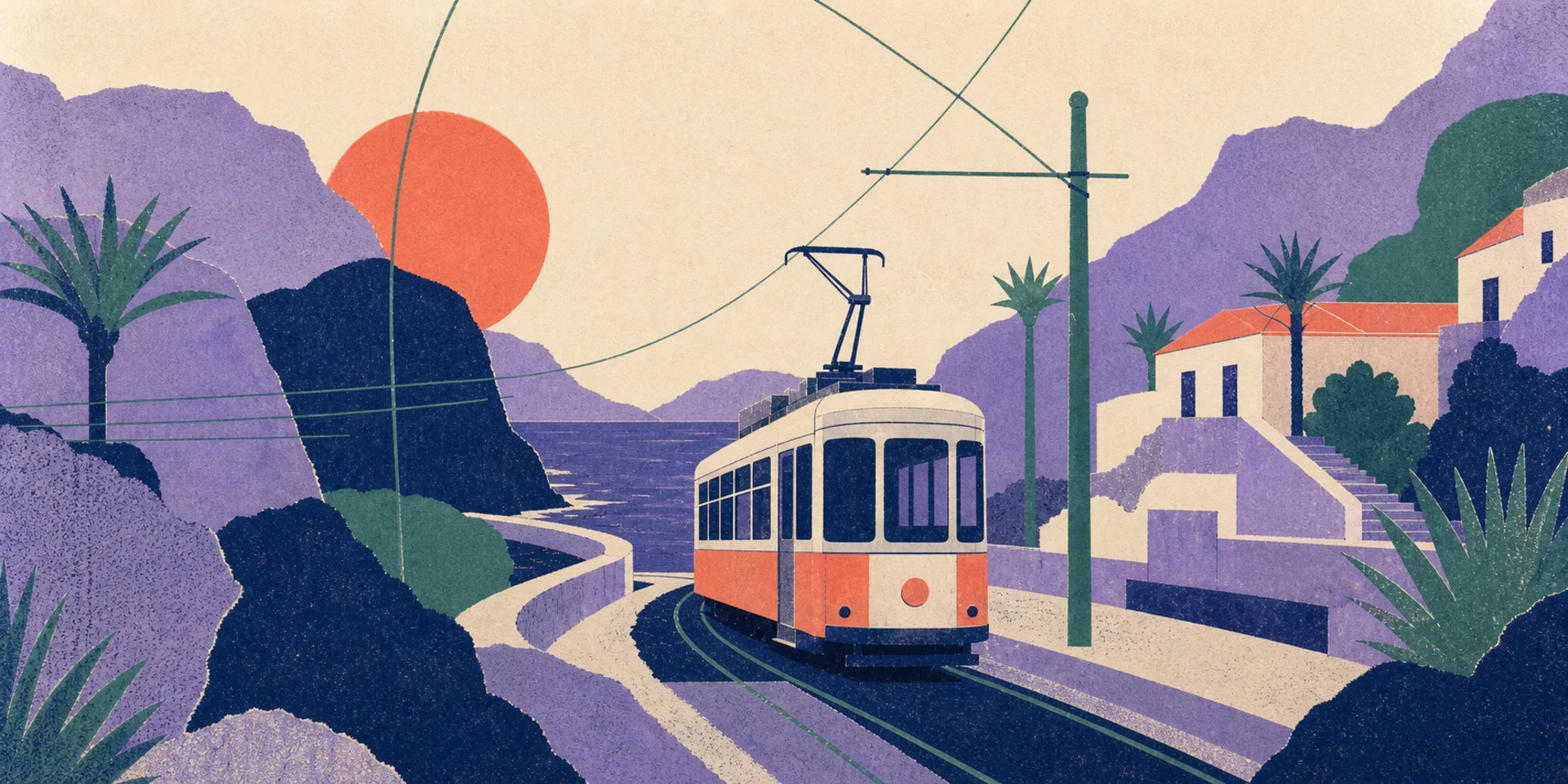
Character Concepts
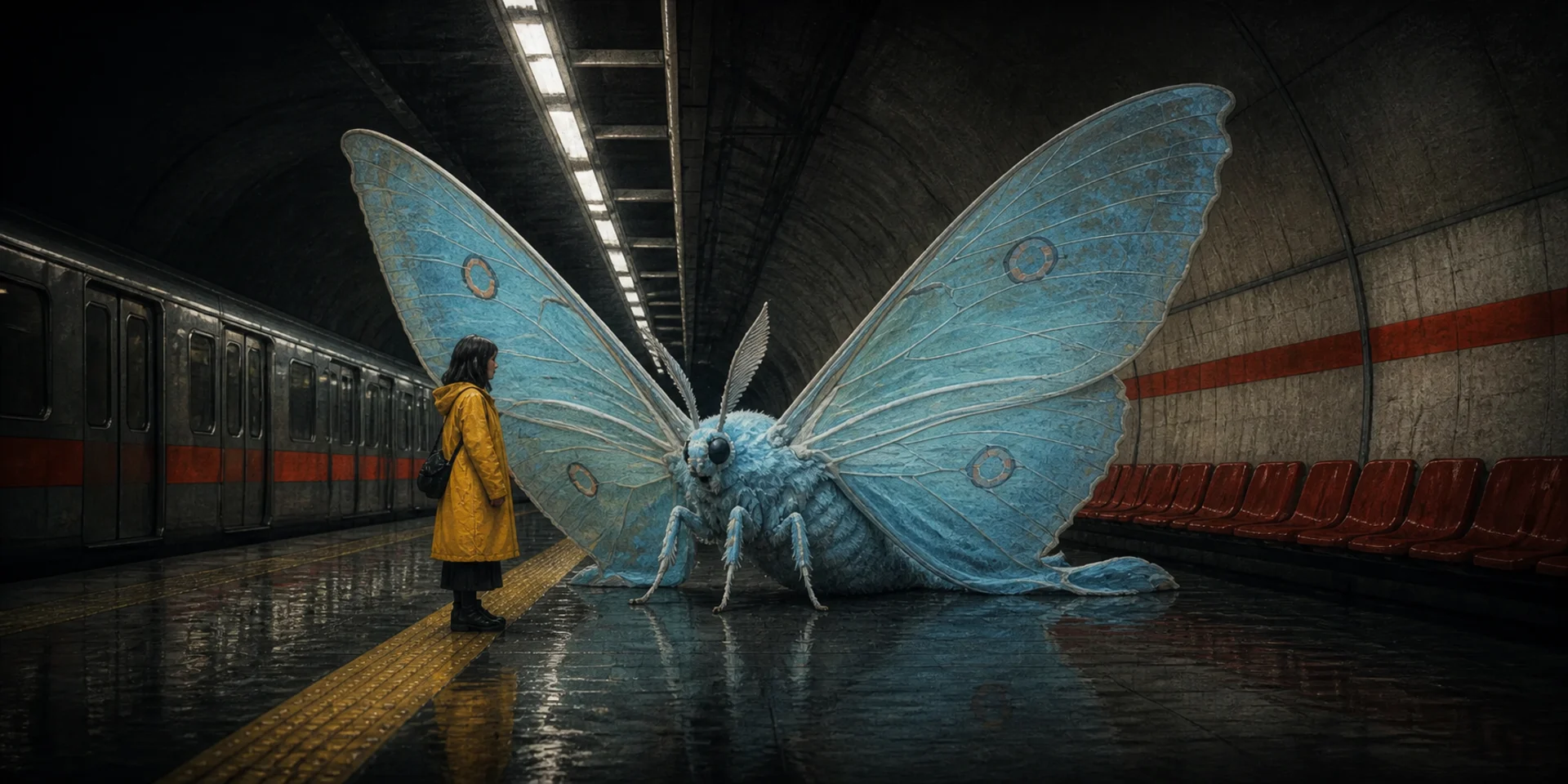
Illustrations
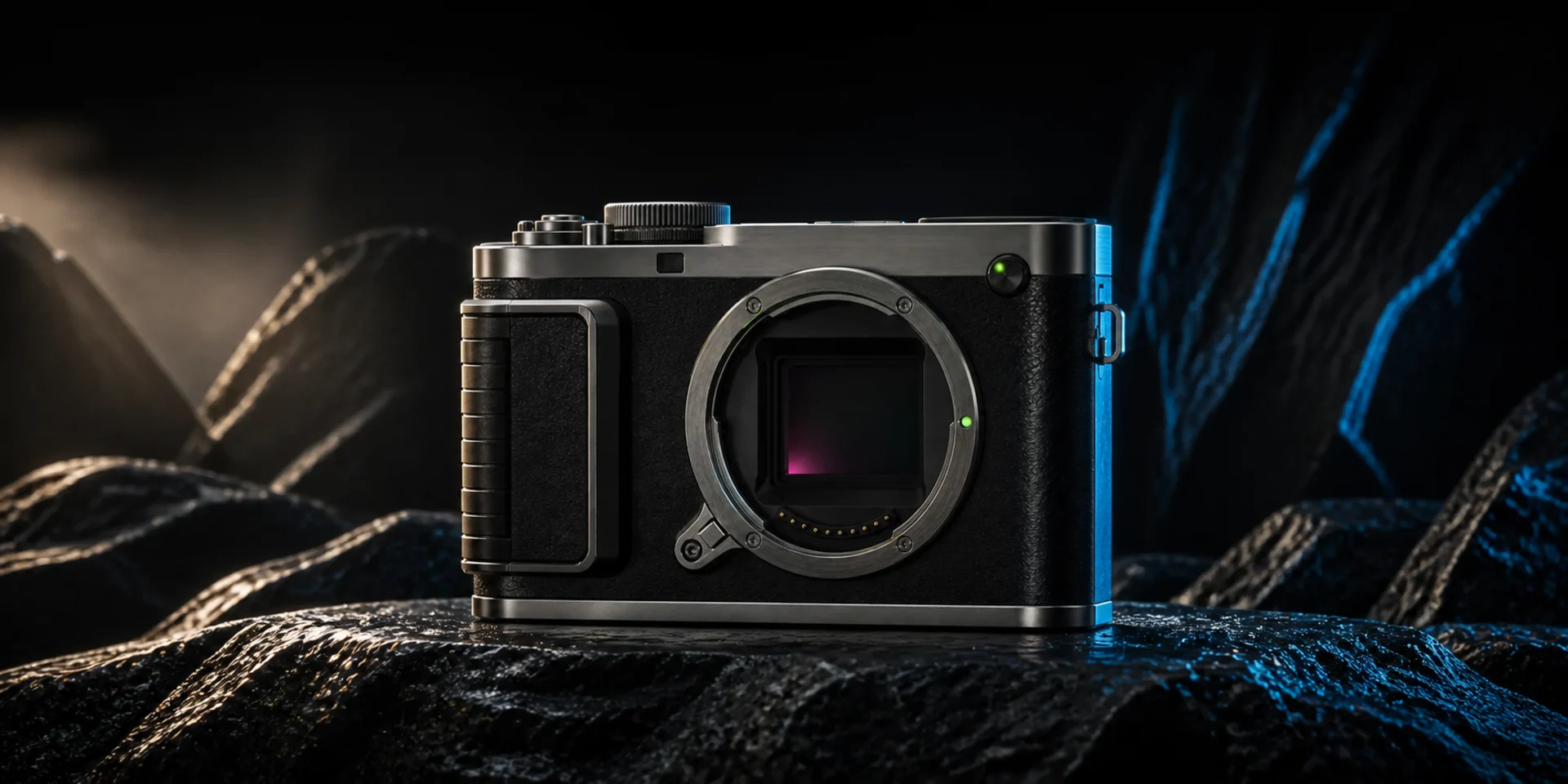
Posters and Key Art
Concept Design
What Can You Create with Text to Image?
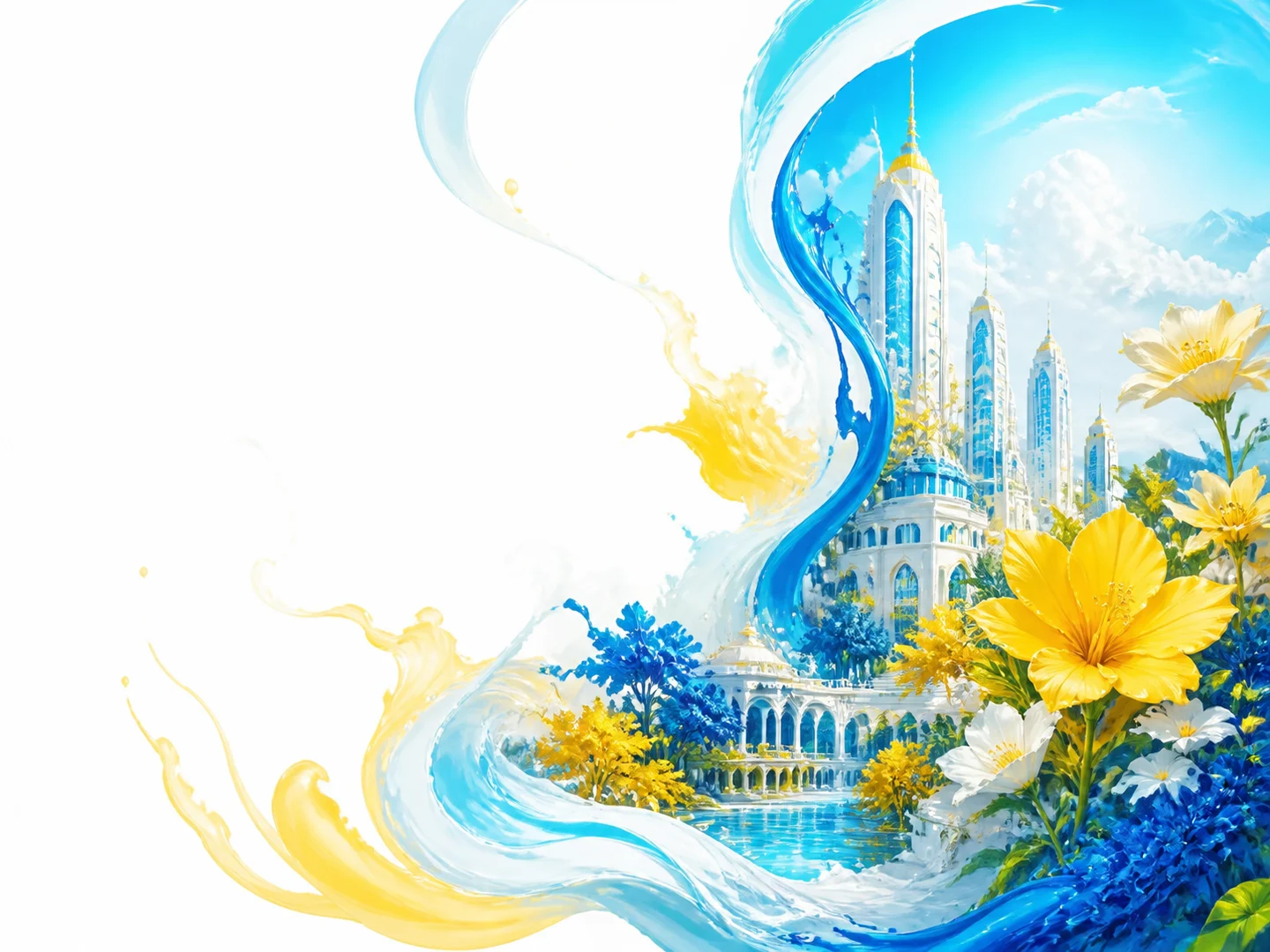
Prompt-only image concepts
Create a complete visual direction from language without requiring a source image.
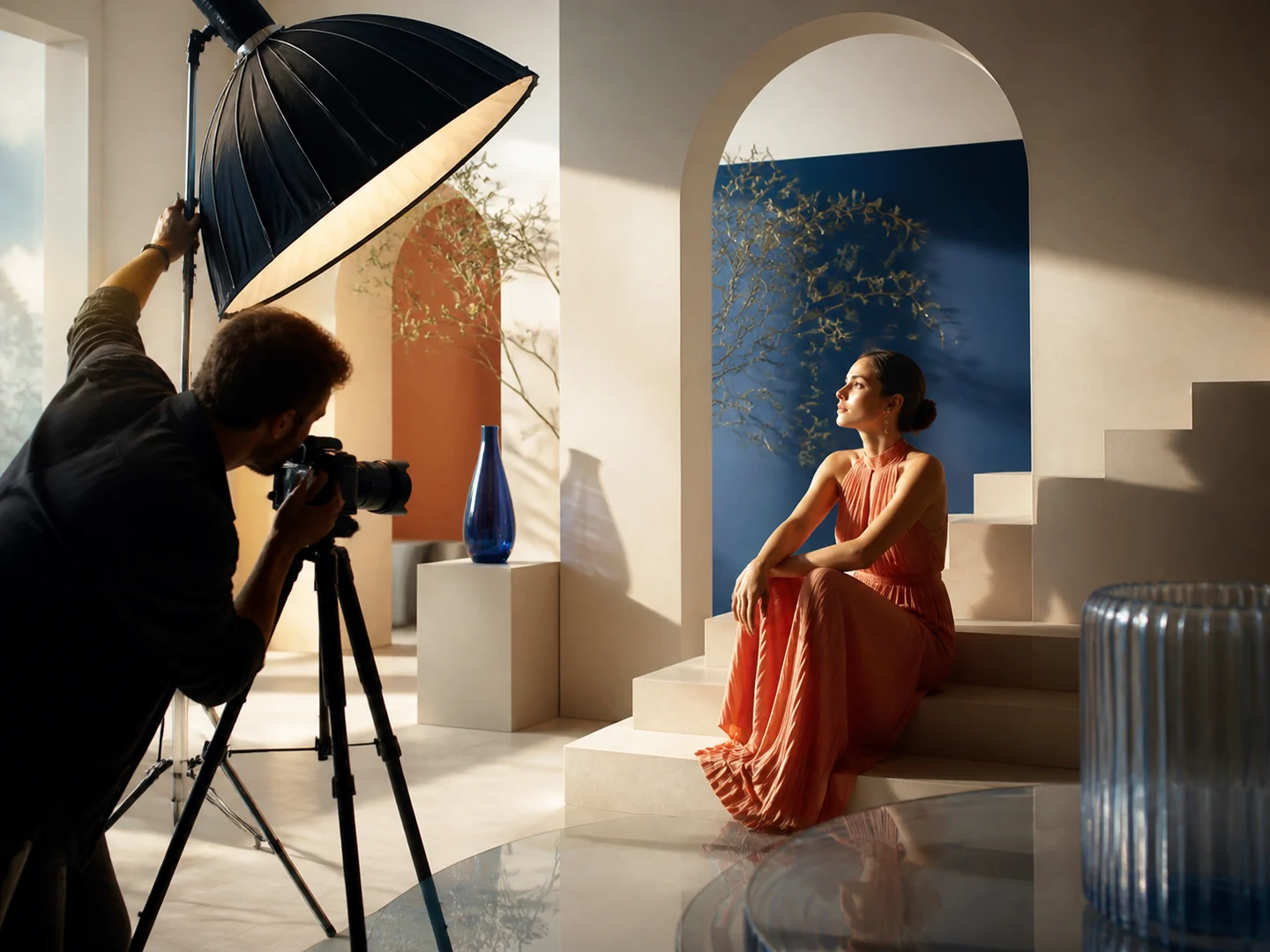
Composition and lighting control
Describe the focal subject, framing, perspective, light, palette, and surrounding elements.
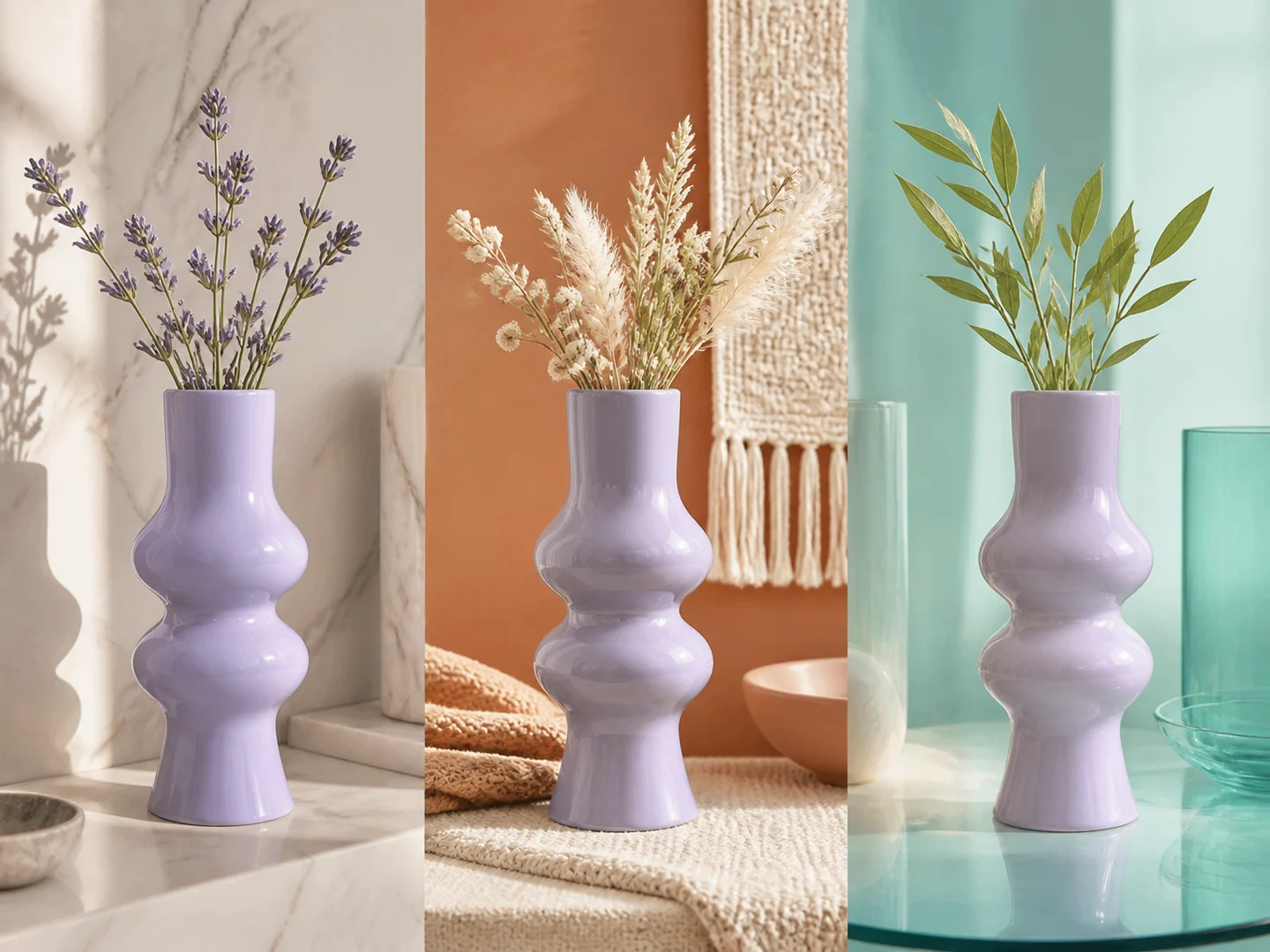
Rapid visual variations
Keep the concept stable while changing treatment, material, era, mood, or output shape.
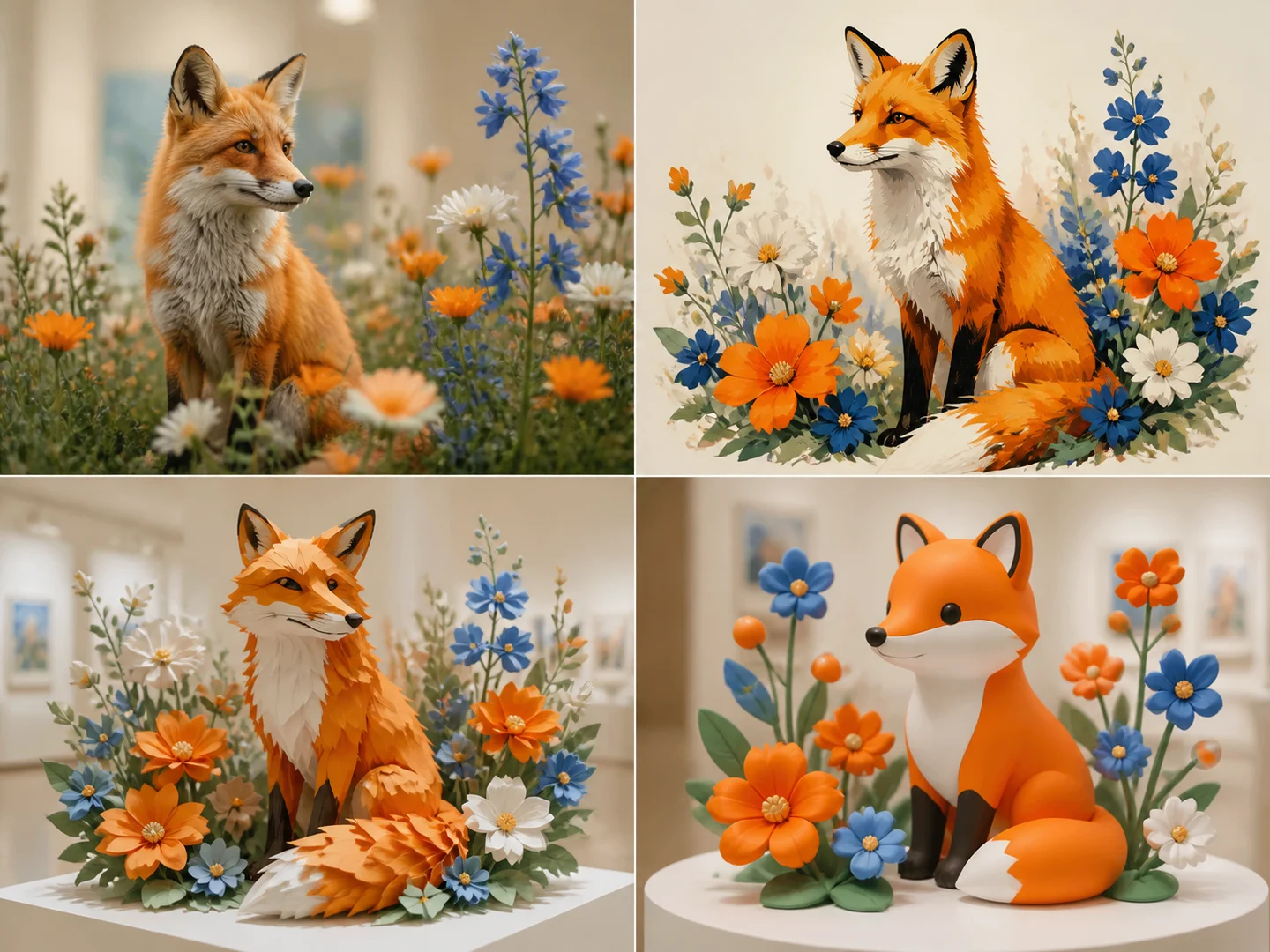
Compare model strengths
Choose between models for photorealism, illustration, text rendering, prompt adherence, speed, or output size.
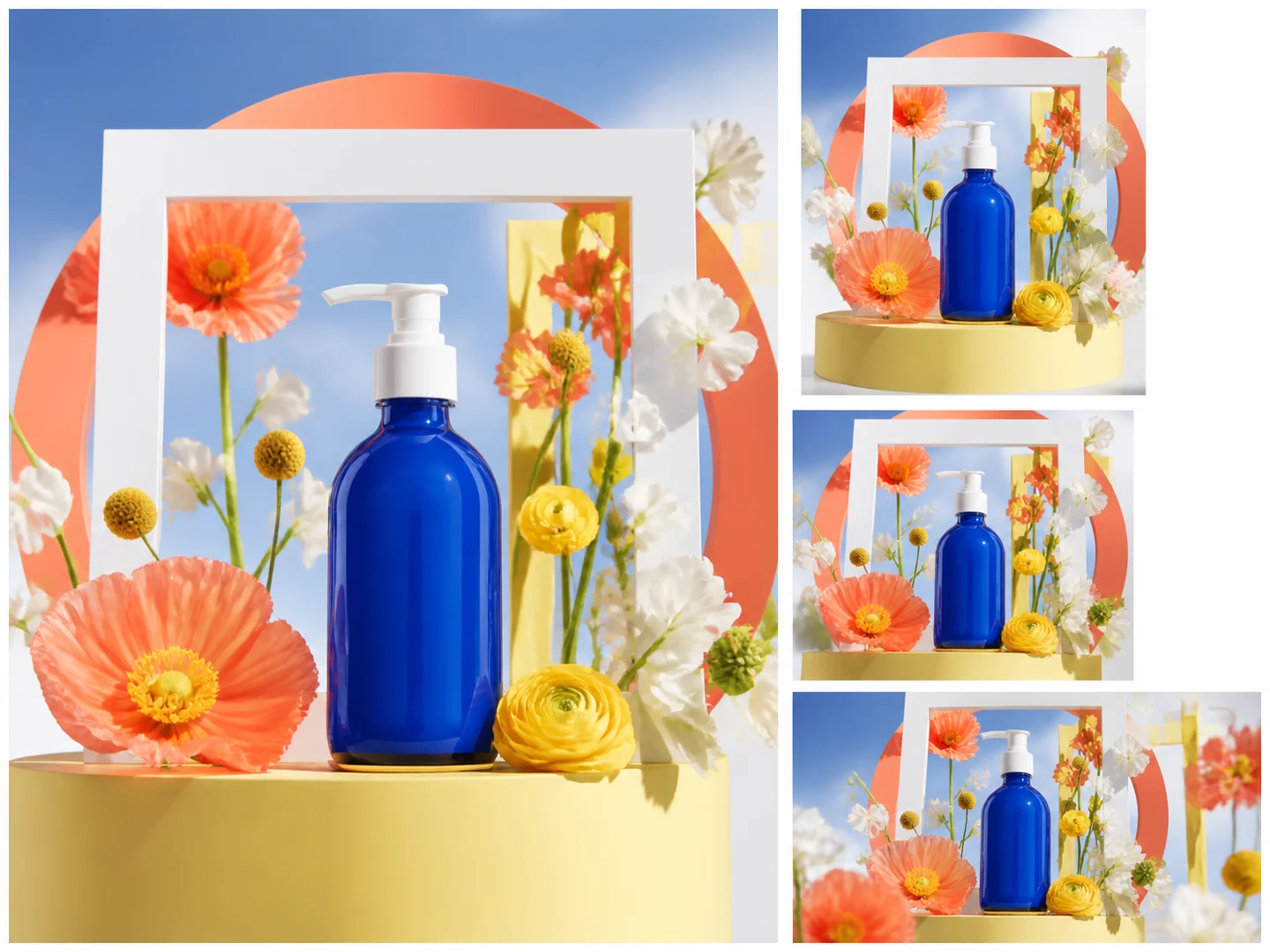
Design for a target format
Write the prompt around the intended poster, product image, social crop, editorial frame, or character sheet.
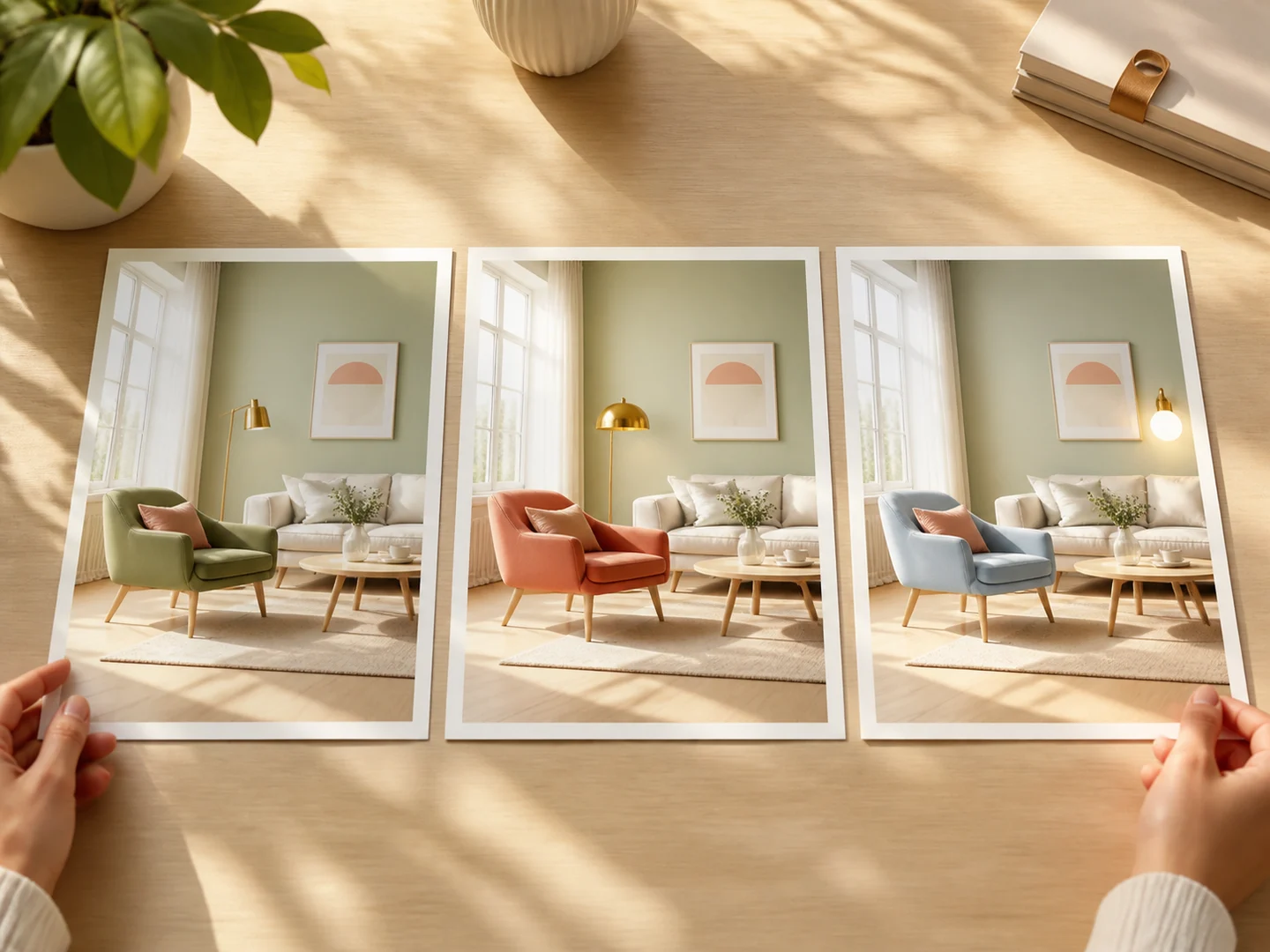
Revise one variable at a time
Adjust subject, layout, lighting, color, medium, or finish separately so each new result answers a clear creative question.
How to Create an Image from Text
Choose a visual structure
Select a study with a useful subject, composition, or treatment.
Rewrite the prompt
Replace the example subject or scene and keep only the relevant visual language.
Set the output
Choose a compatible model, output shape, image count, and visibility.
Ways to Use Text to Image
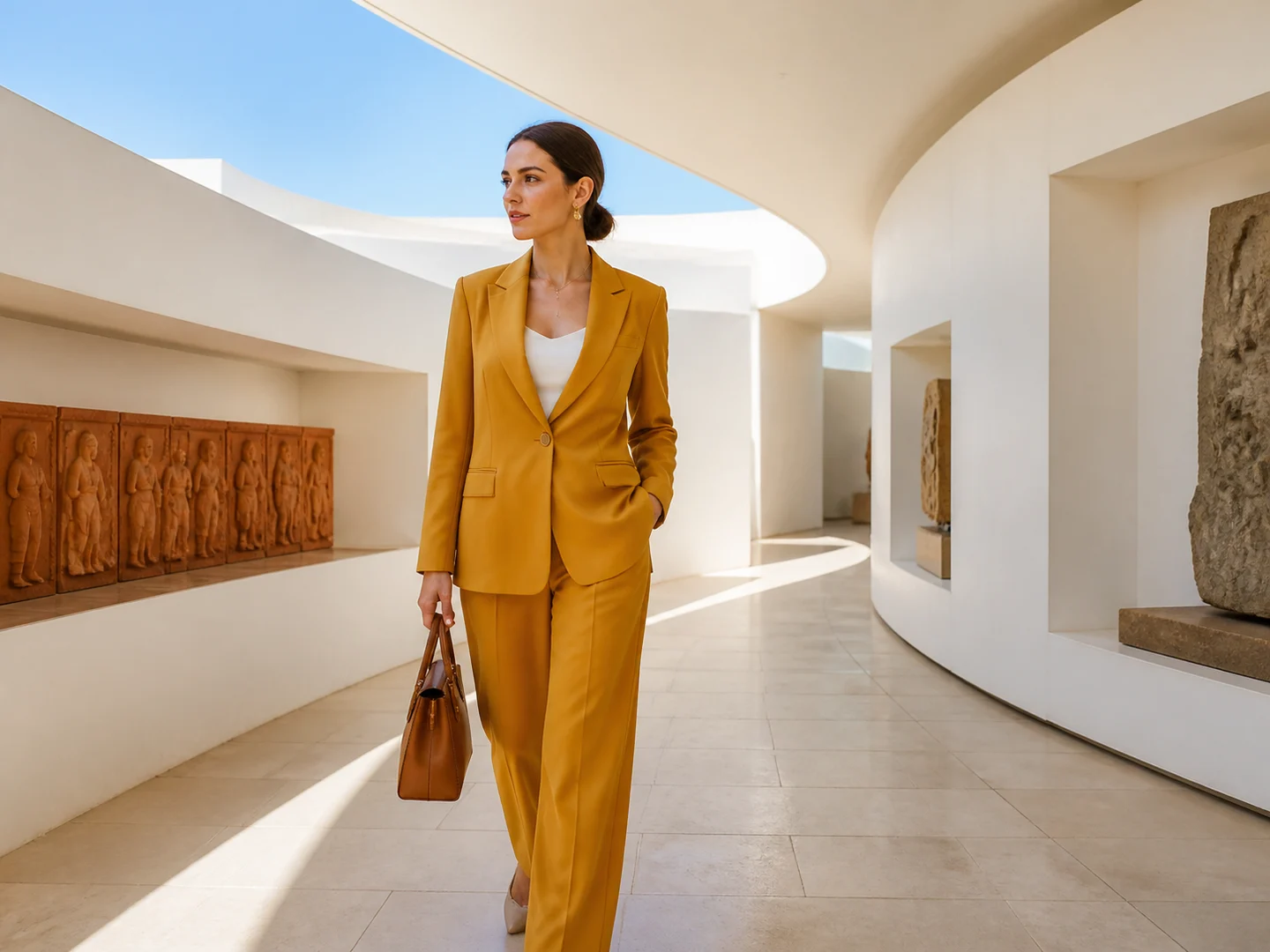
Build an editorial frame
Describe the subject, styling, environment, lens feel, light, and color treatment as one visual brief.
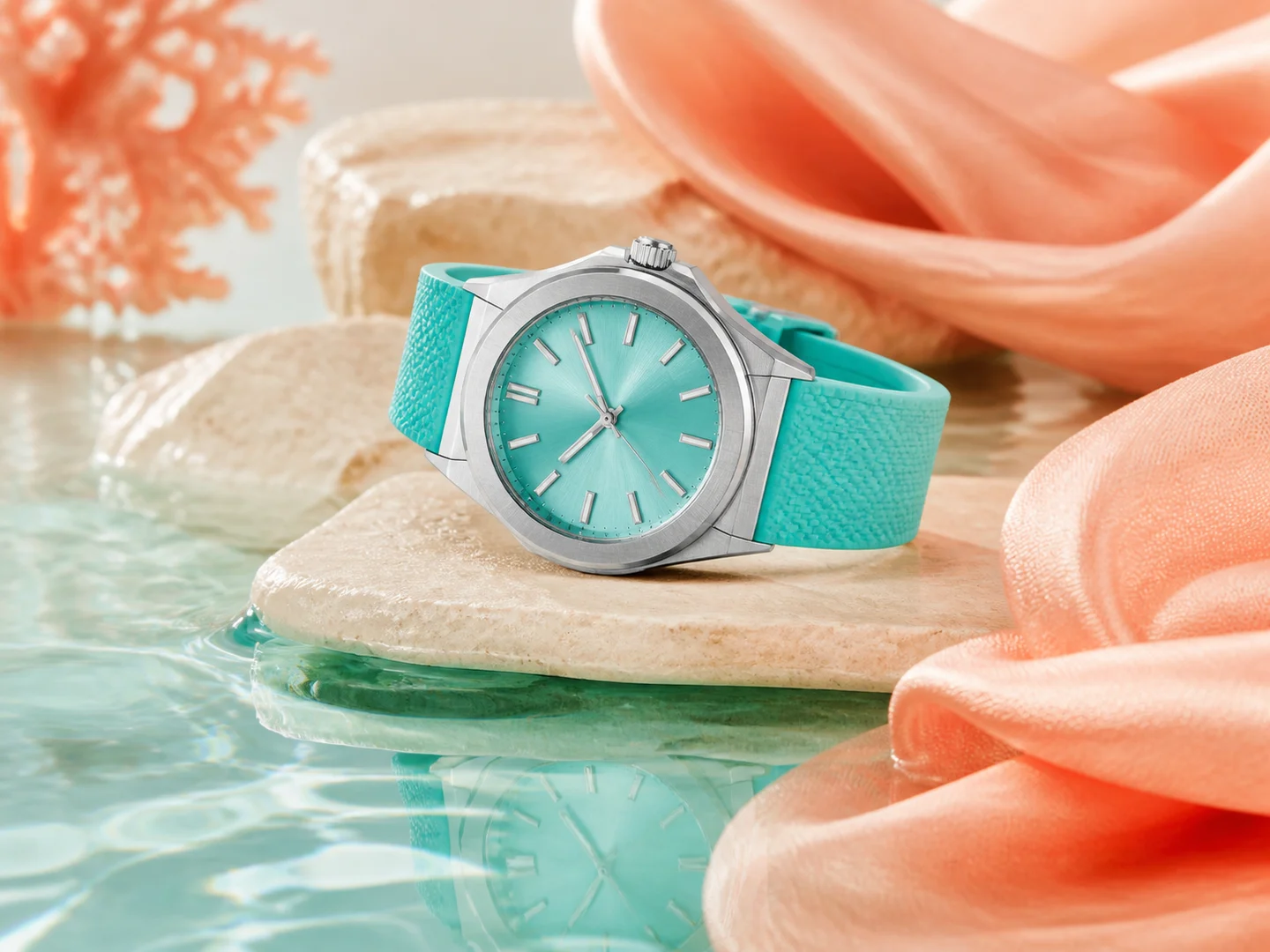
Prepare a product concept
Define material, surface, camera position, backdrop, and the intended commercial finish.
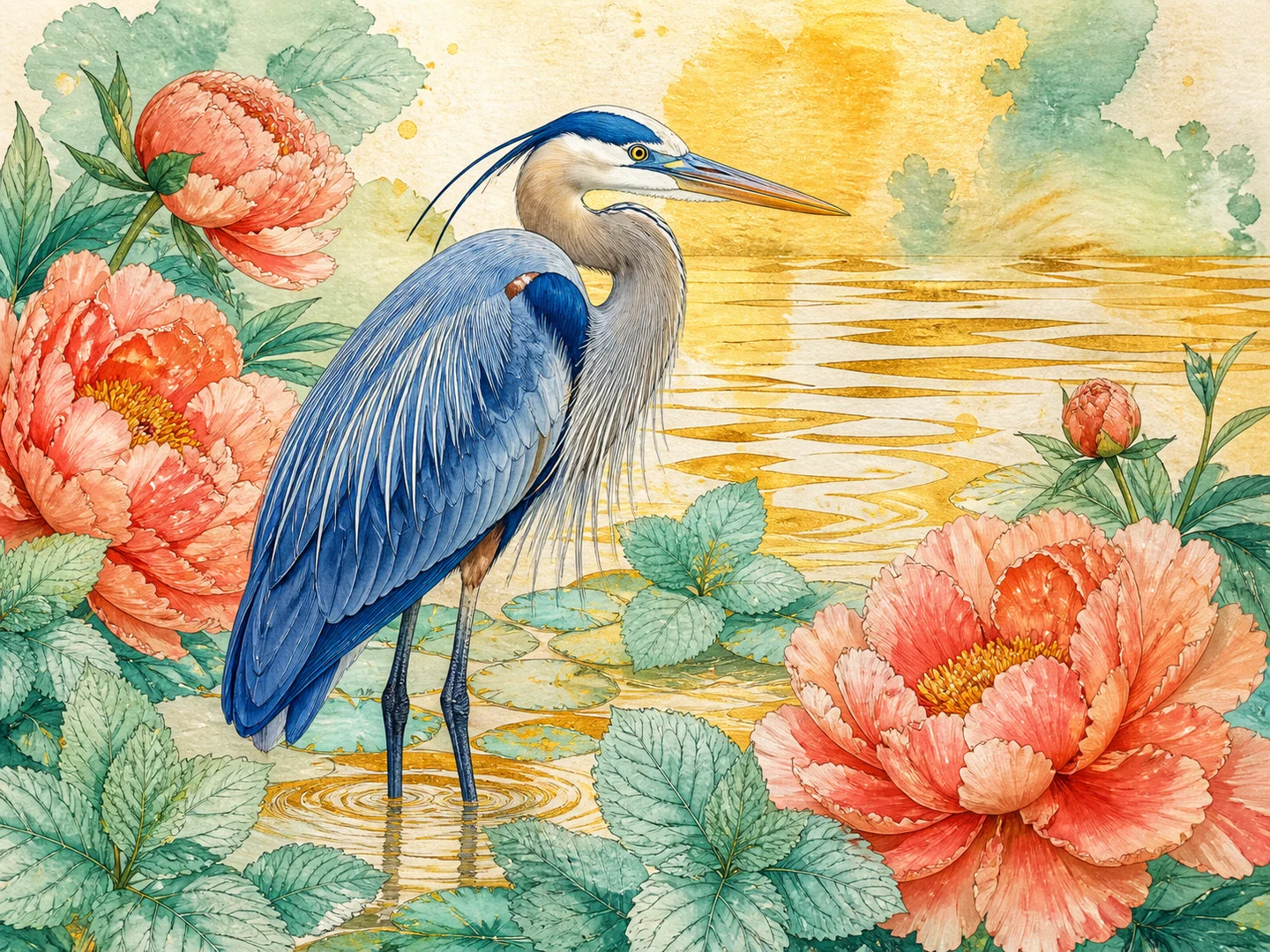
Explore an illustration style
Keep the scene content stable while changing medium, texture, line, palette, or rendering language.
Text to Image or Image to Image?
| Feature / Model | Text to Image | Image to Image |
|---|---|---|
| No source required | Begin directly from a written visual brief. | Anchor the task to an existing visual. |
| Open composition | Define the subject, setting, framing, and treatment in language. | Name the identity, composition, or details to keep. |
| Broad concept exploration | Create unrelated visual directions without preparing references. | Concentrate the instruction on what should change. |
Frequently Asked Questions About Text to Image
What is Nuzza's Text to Image?
Text to Image begins with language alone. A strong prompt makes the subject, setting, composition, lighting, palette, material, and visual treatment easy to understand.
What is the best text-to-image generator?
The best text-to-image generator depends on the input, intended result, budget, and controls you need. Nuzza's Text to Image is a strong choice for a prompt-only image creation workflow.
Is Nuzza's Text to Image free to use?
The page is free to browse. Running a task requires Credits, and the current cost is shown before you submit.
What can I use Nuzza's Text to Image for?
Use Nuzza's Text to Image to create campaign concepts, product scenes, illustrations, social graphics, and alternate visual directions directly from a written brief.
What inputs does Nuzza's Text to Image support?
No. Text-to-image can start from a written prompt without a source file.
Do I need to sign in to use Nuzza's Text to Image?
You can browse this page without signing in. Submitting a generation, storing persistent inputs, checking task status, and saving a finalized result require a Nuzza account.
What should I check in the image result?
Compare the result with the source or prompt at full size. Check faces, text, product geometry, repeated patterns, edges, and any detail the AI may have reconstructed.
How detailed should the prompt be?
Include only the details that materially shape the image, but make subject, composition, light, and visual treatment unambiguous.
Can I reuse a gallery prompt?
Yes. Recreate transfers it directly, and Edit prompt lets you revise it first.