AI Image Generator
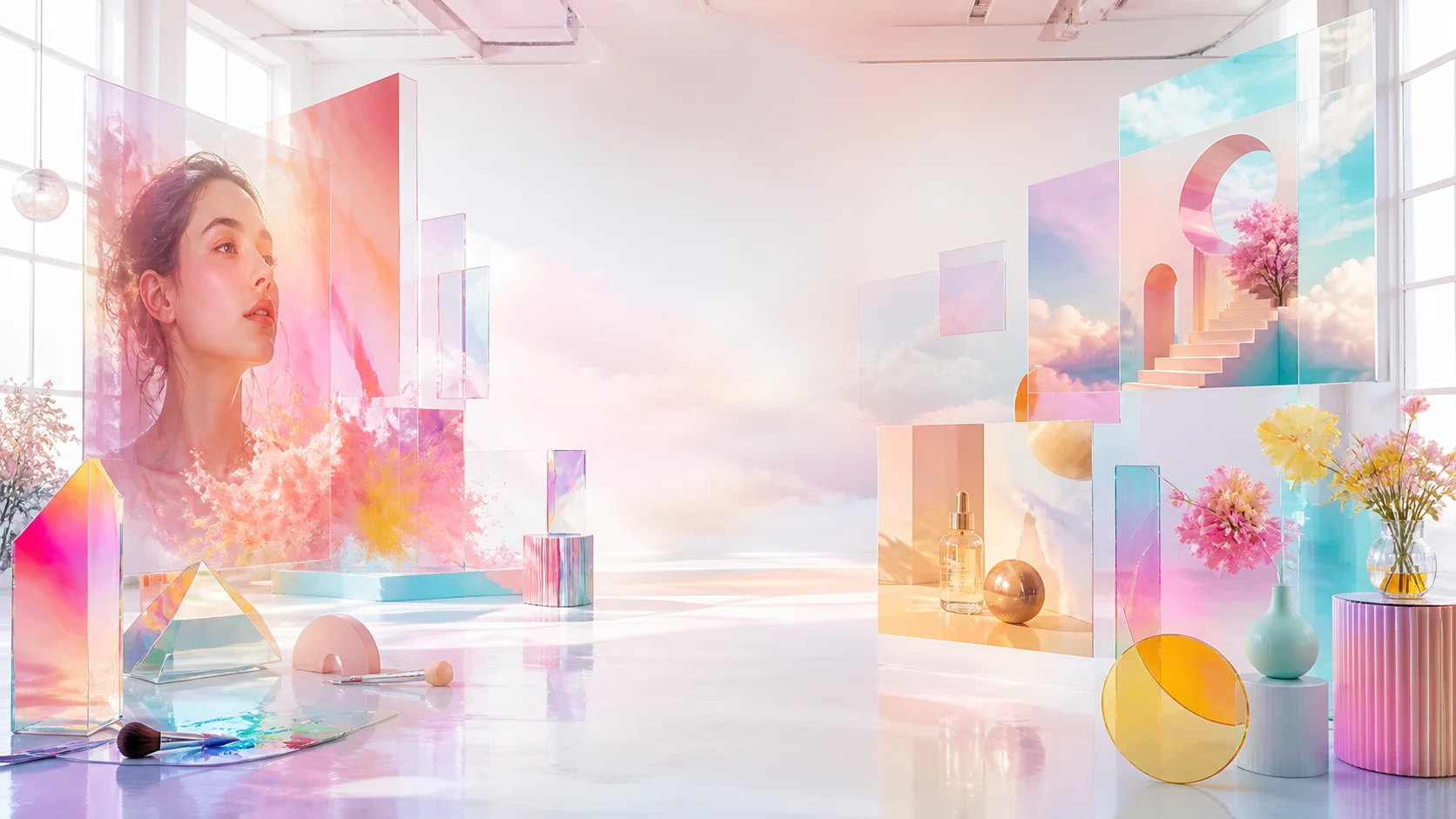
Create and transform images from text or visual references with flexible controls for composition, style, aspect ratio, and output. Try the AI Image Generator for free now!
All-in-One Free AI Image Generator
Compare models by prompt adherence, editing strength, text rendering, visual style, resolution, and reference support.
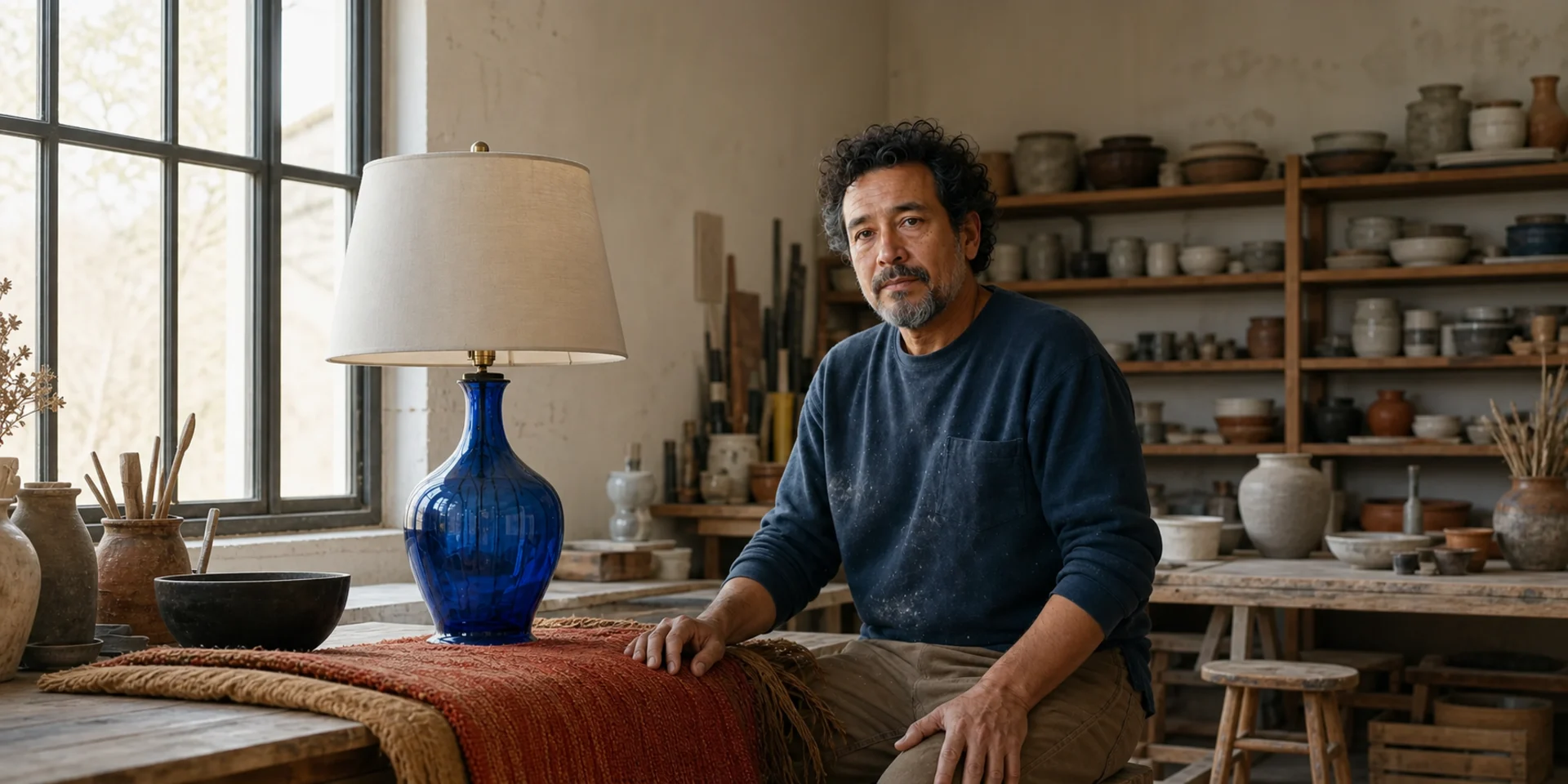
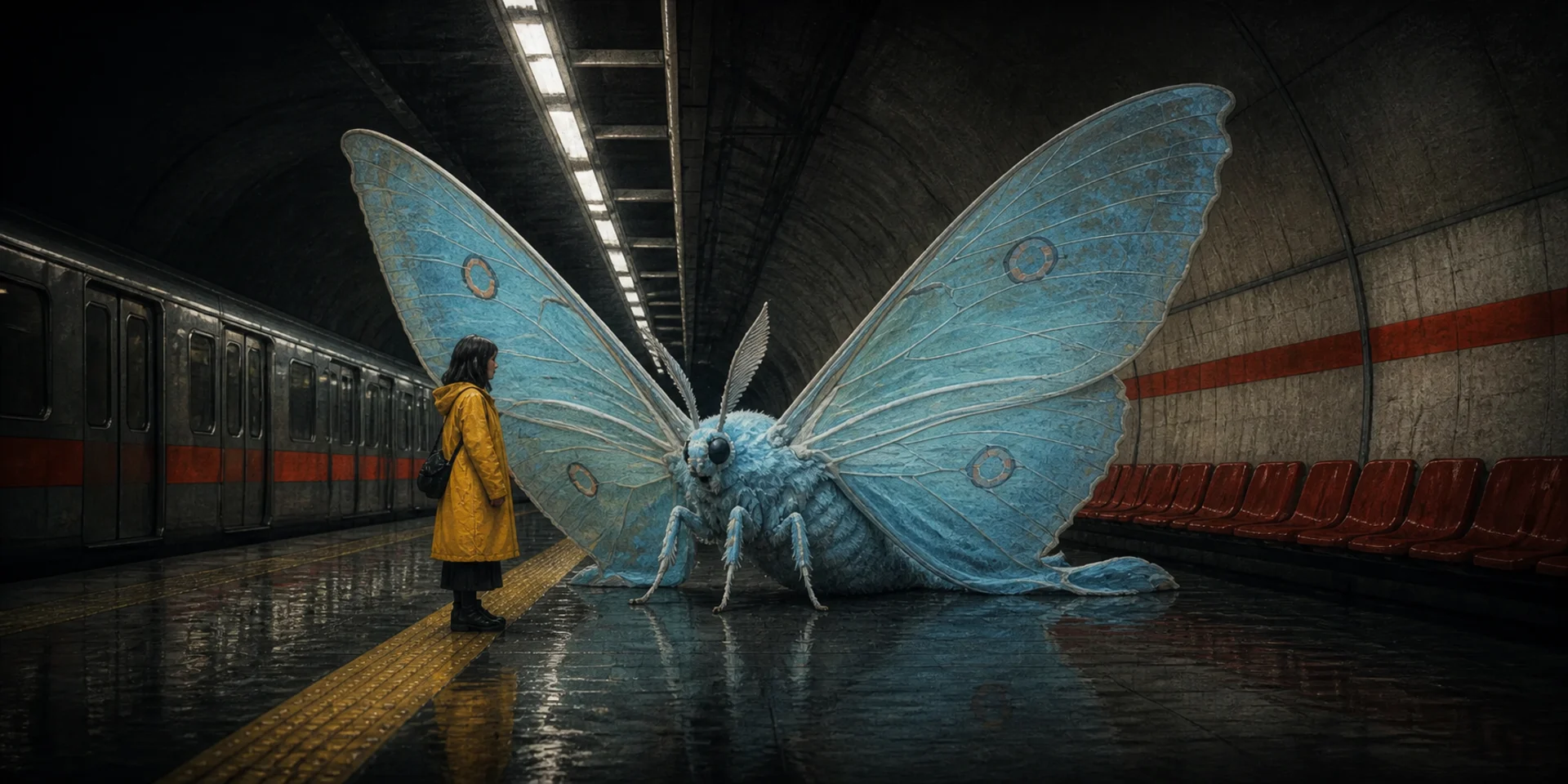
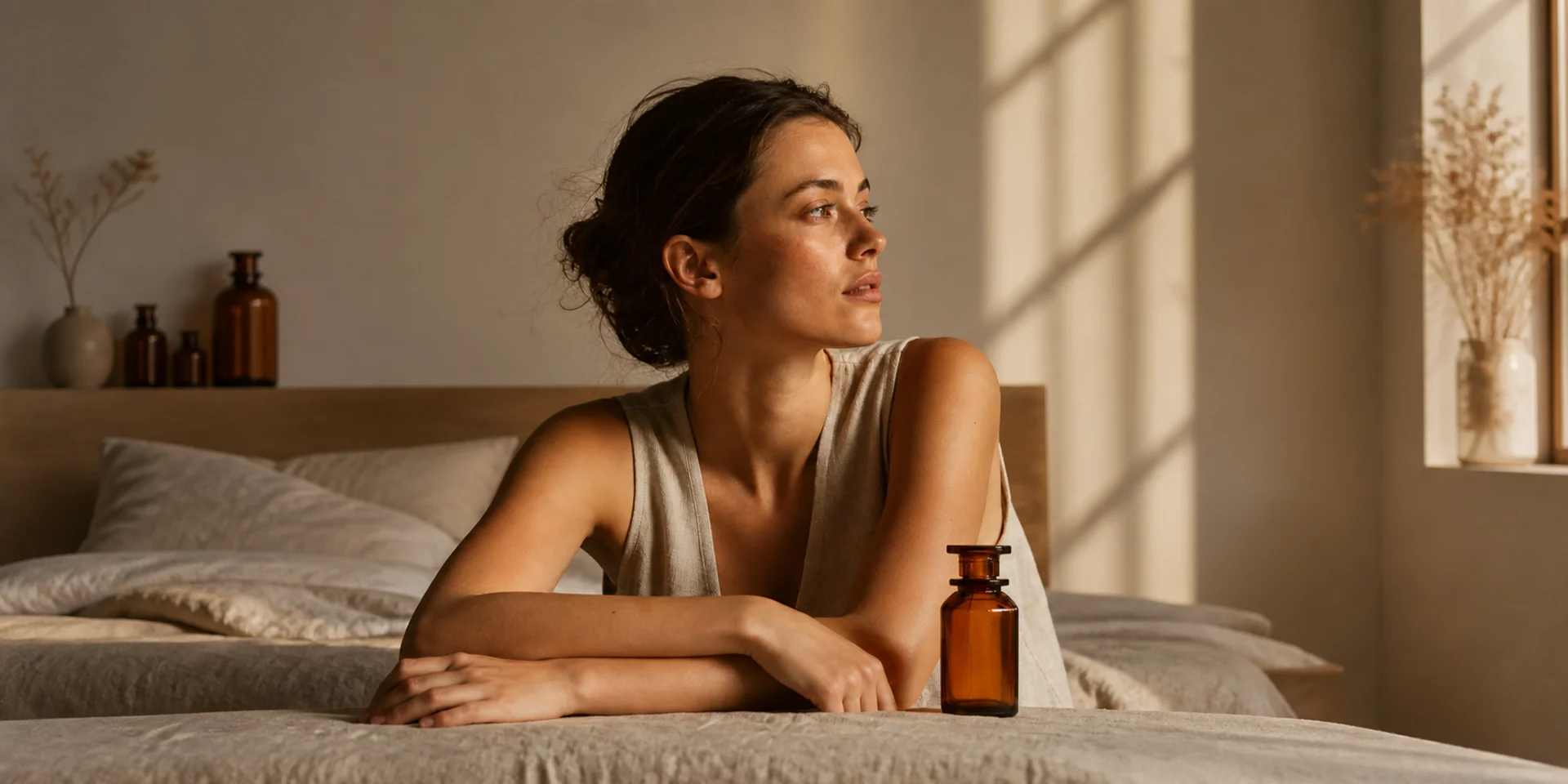
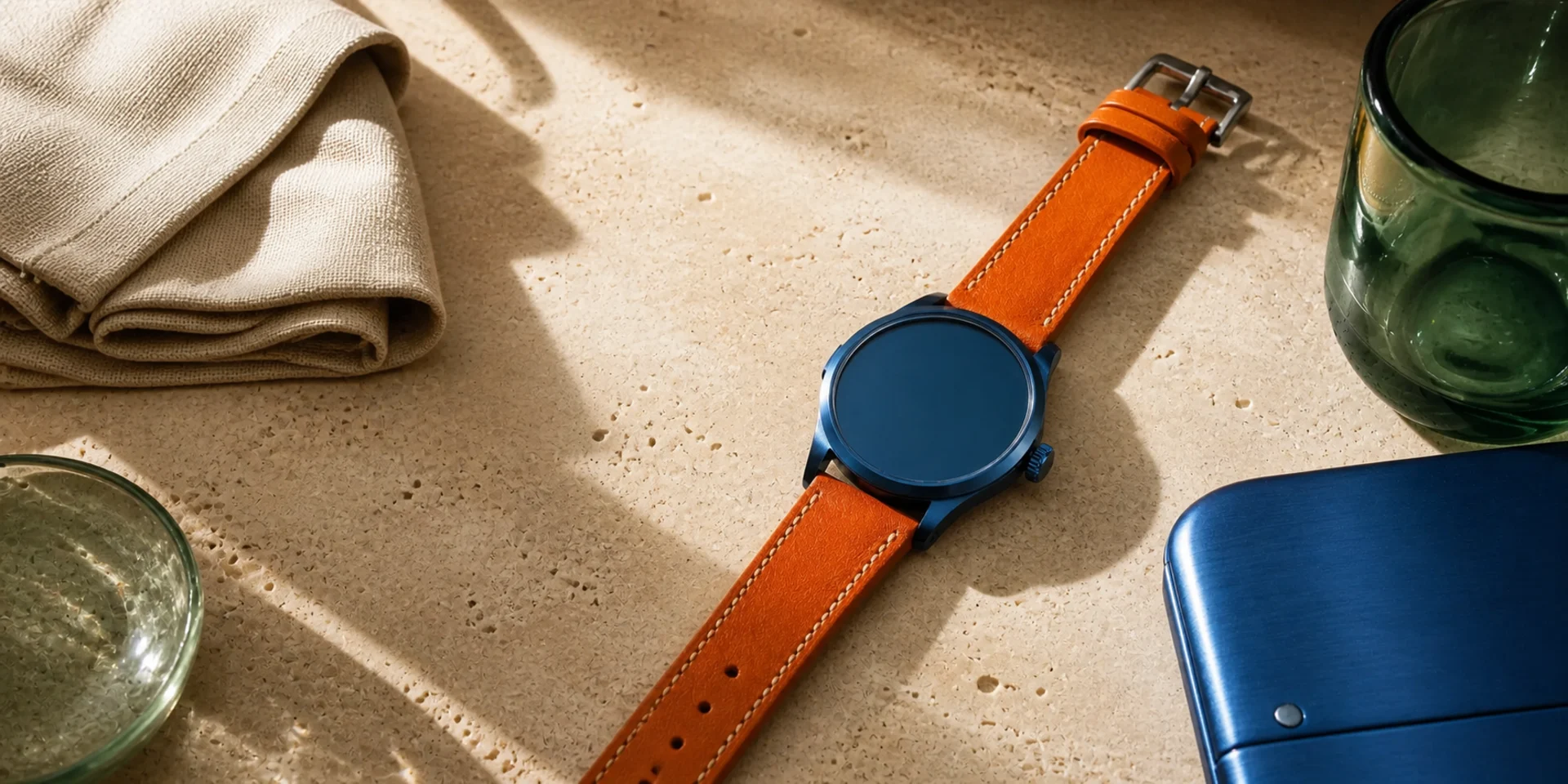
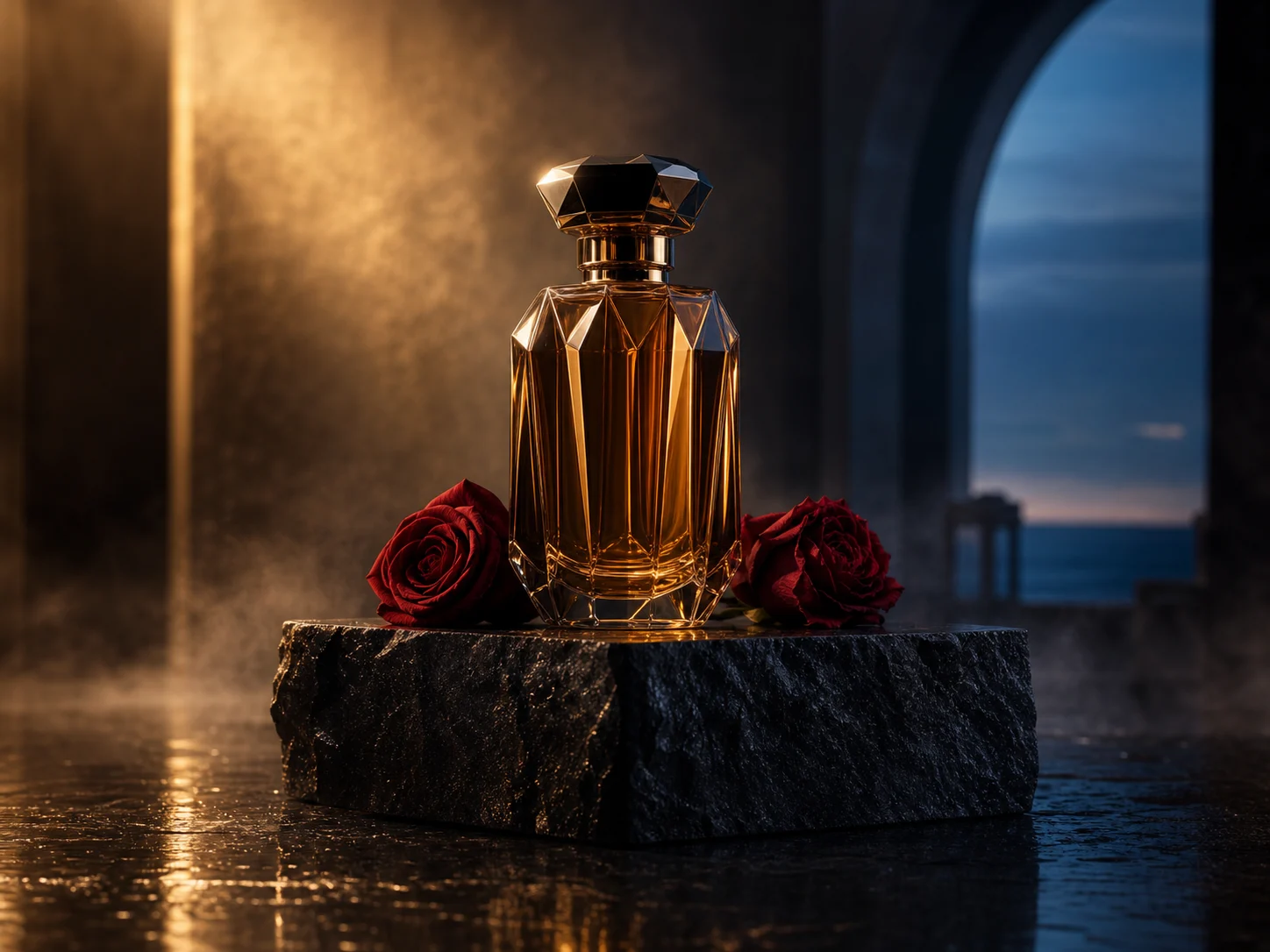
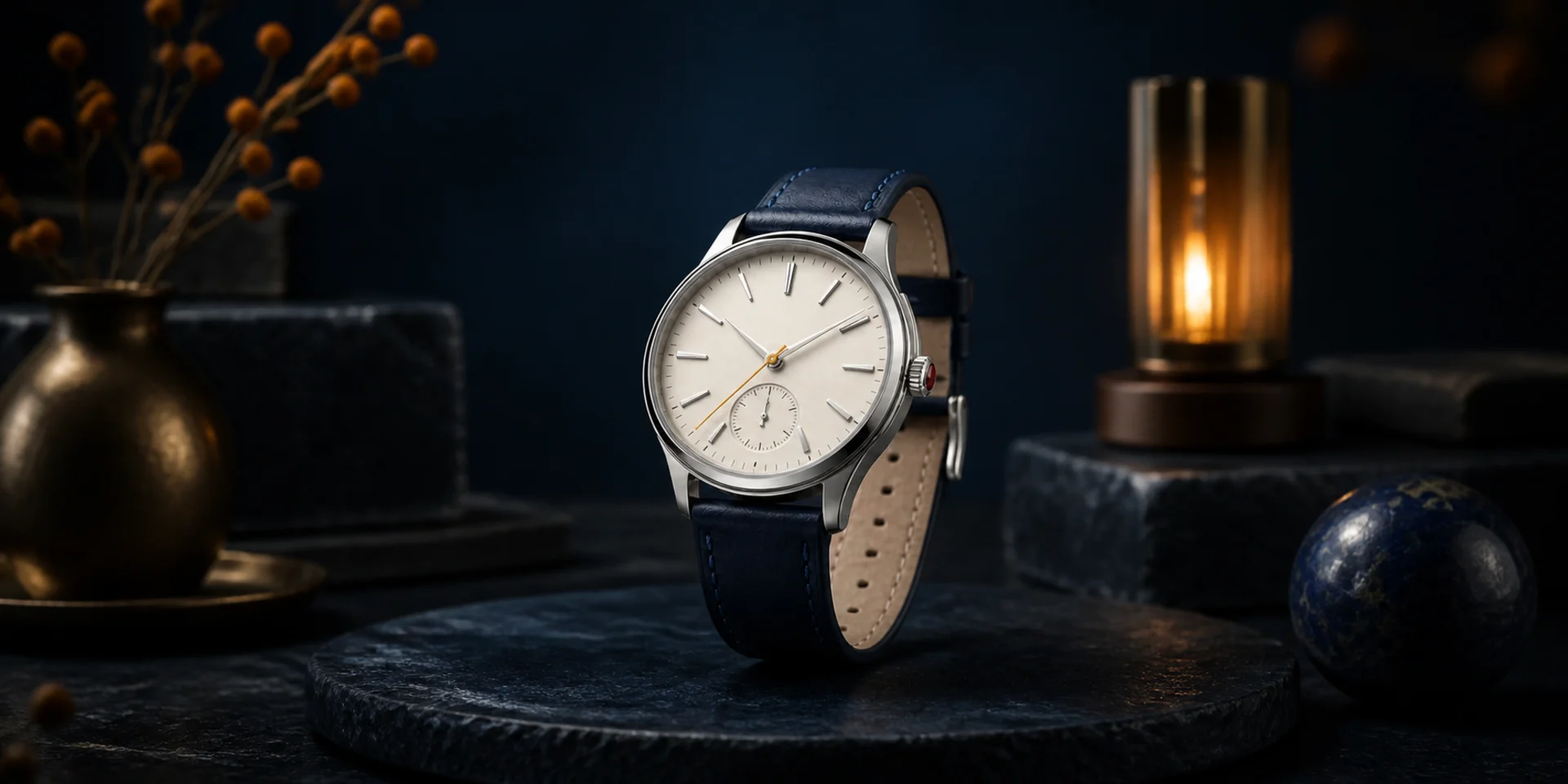
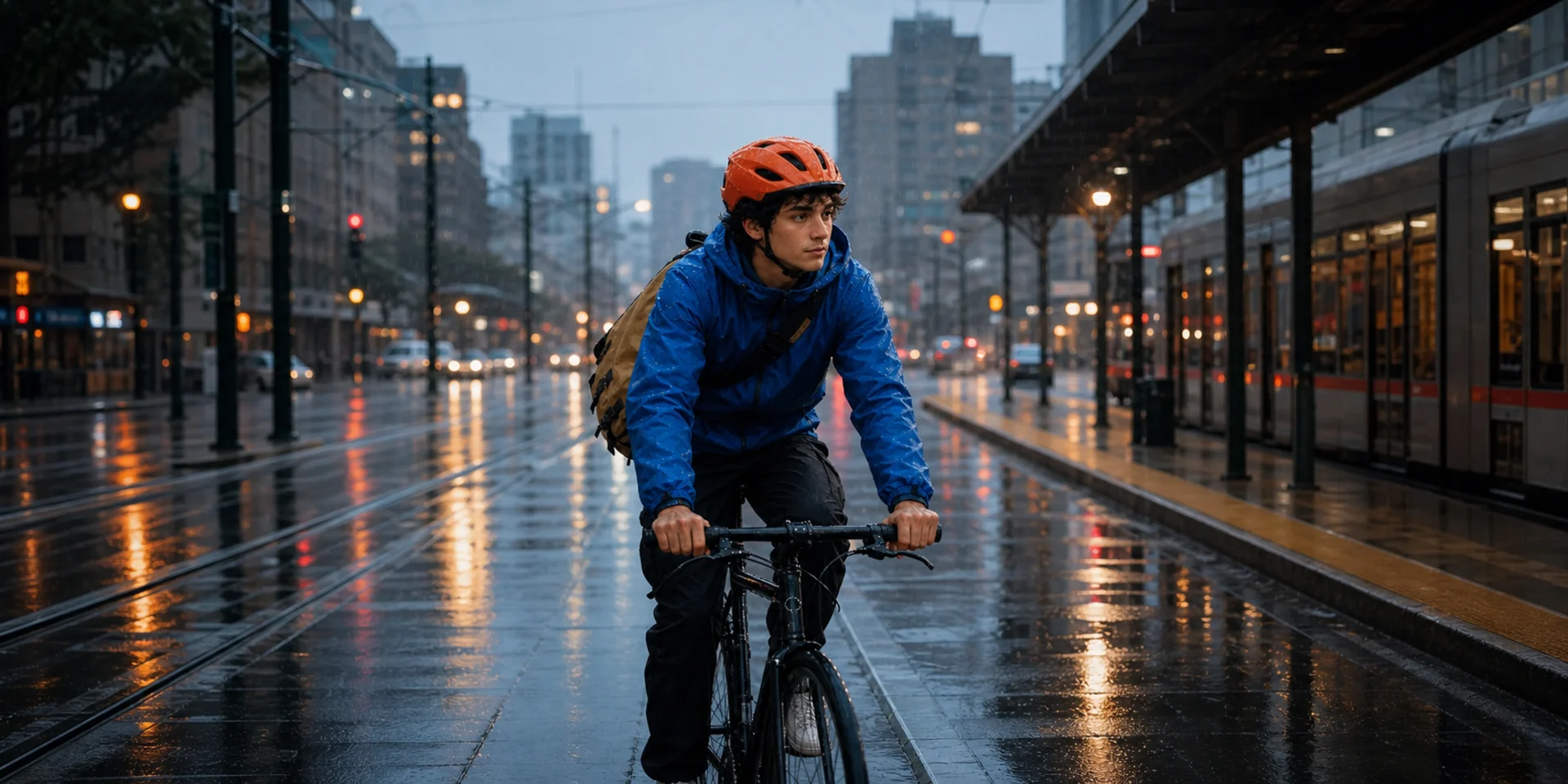
Create, transform, and refine images in one place
Choose the workflow by whether you are beginning with language, an existing image, or a focused editing task.
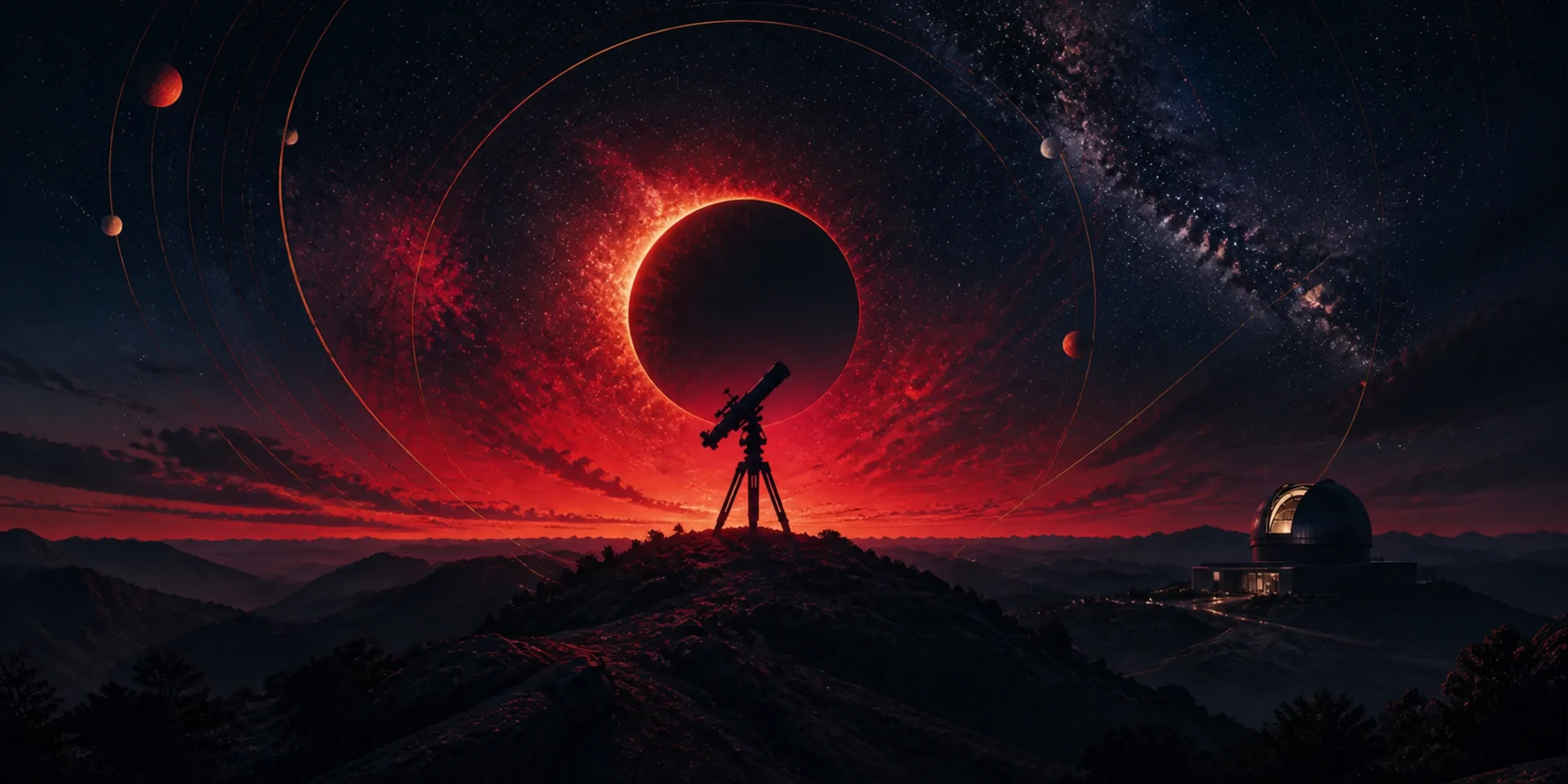
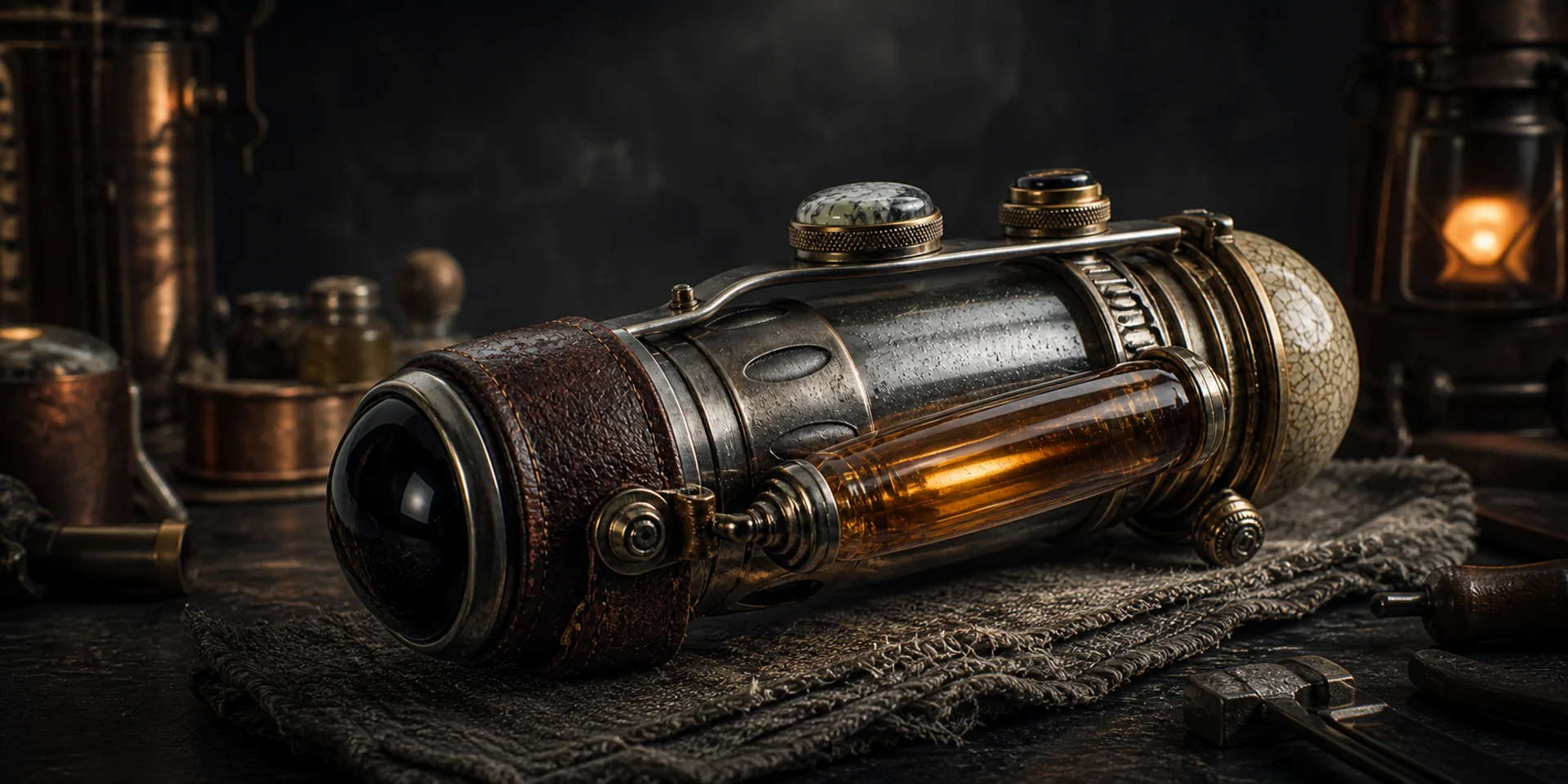
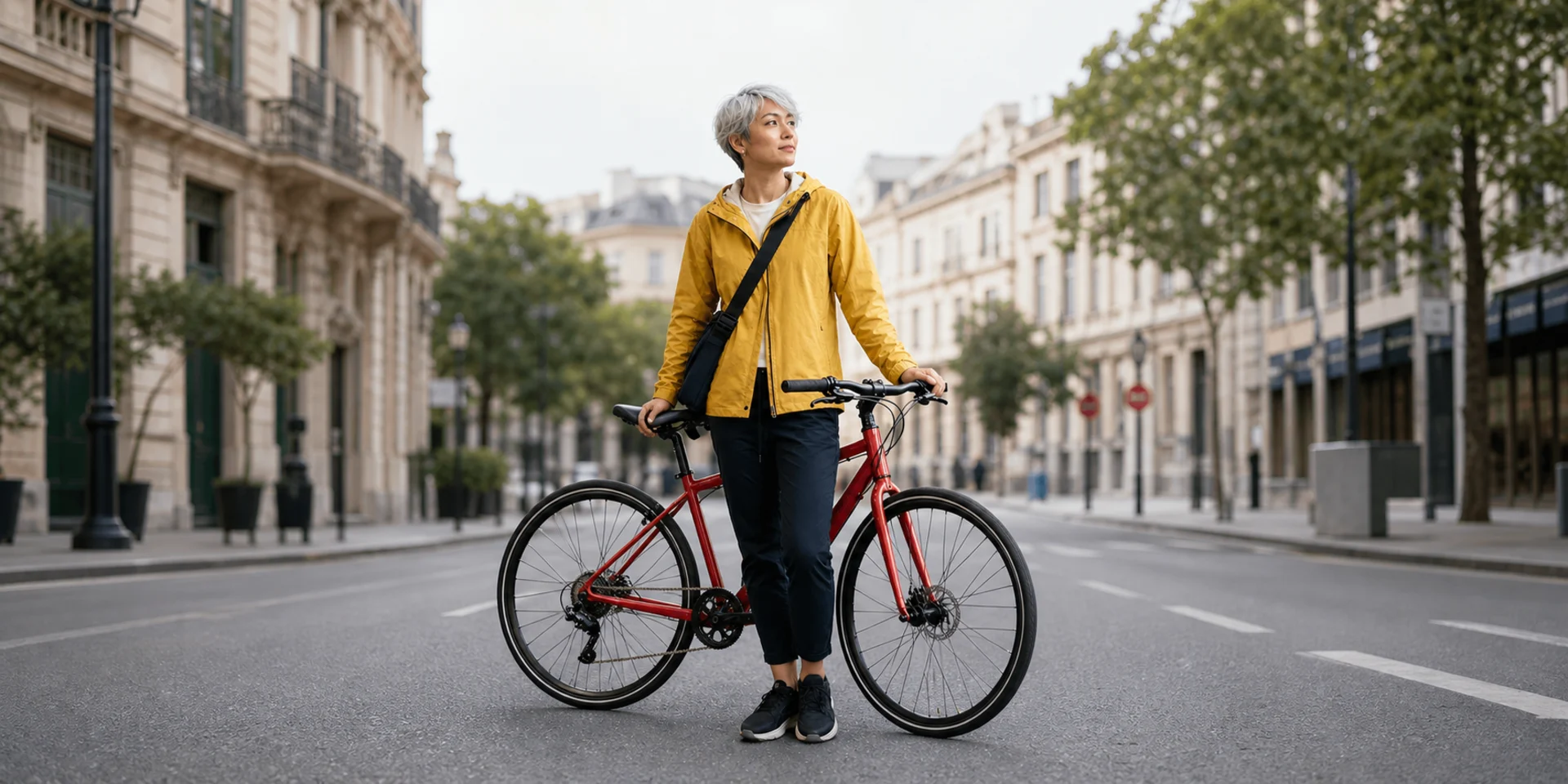
What Can You Do with the AI Image Generator?
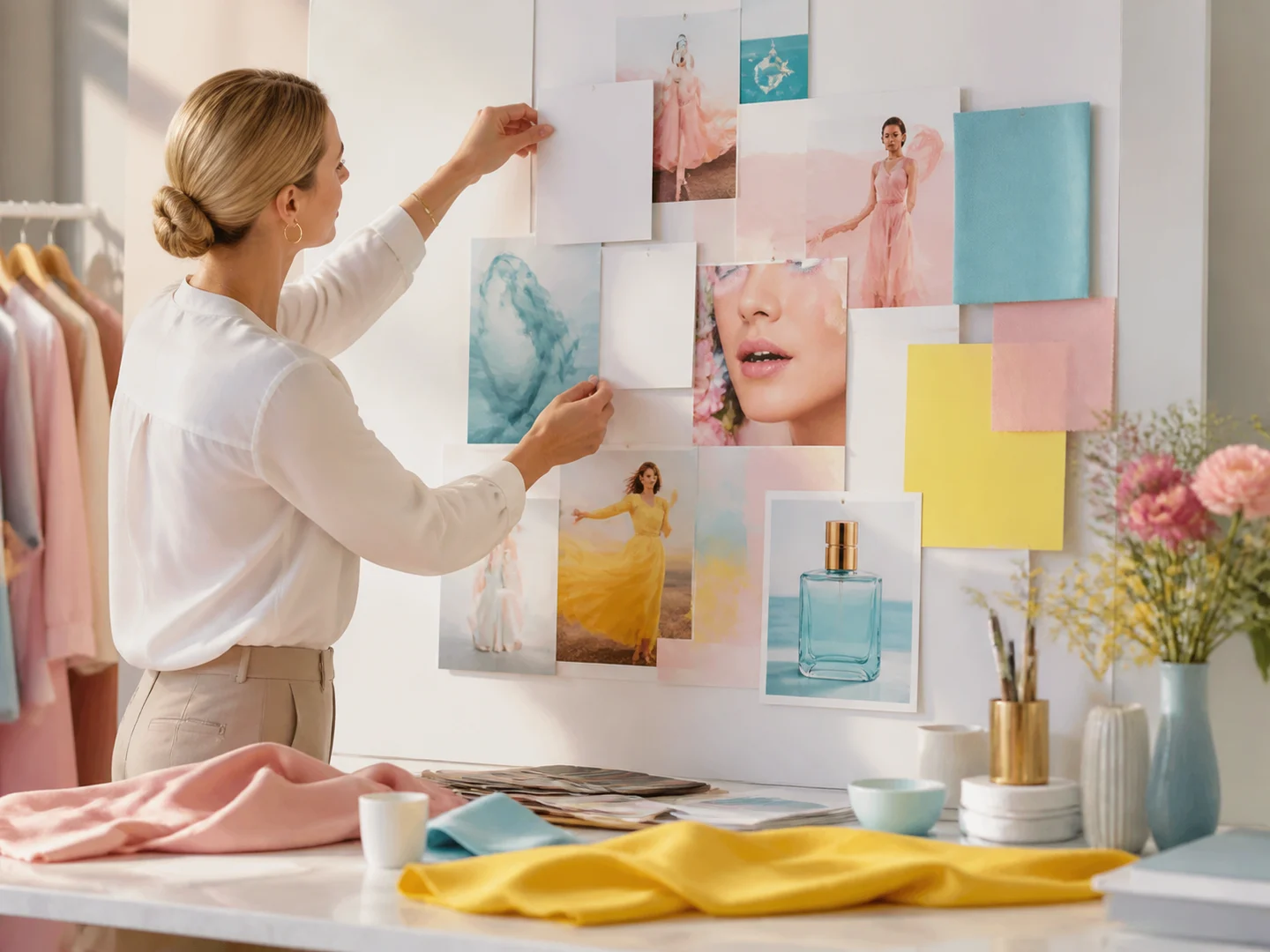
Create from text or references
Prepare a prompt-only concept or stage supported images when a compatible model accepts them.
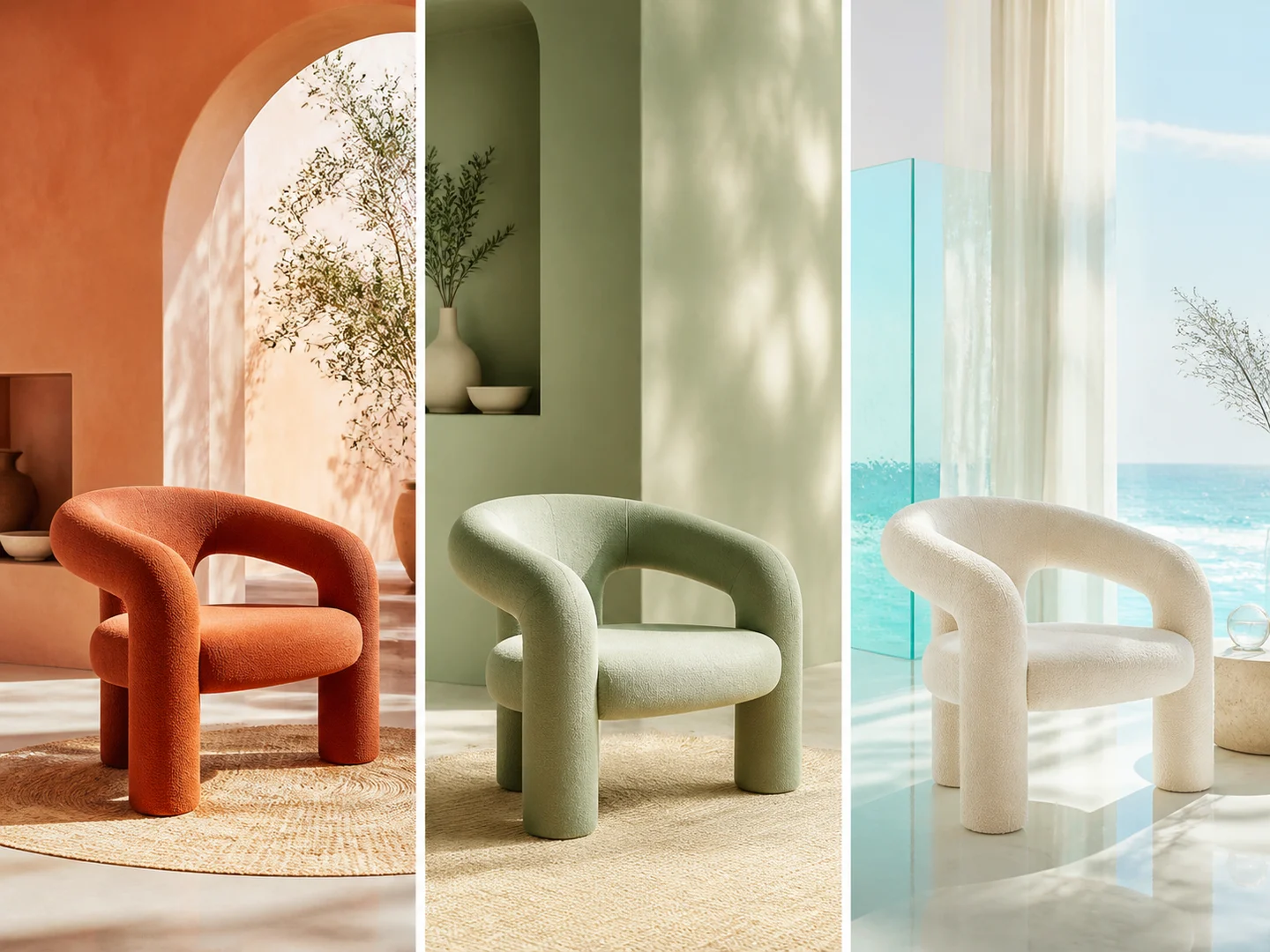
Reuse editable visual directions
Adapt the subject, composition, lighting, color, material, or finish without rebuilding the complete brief.
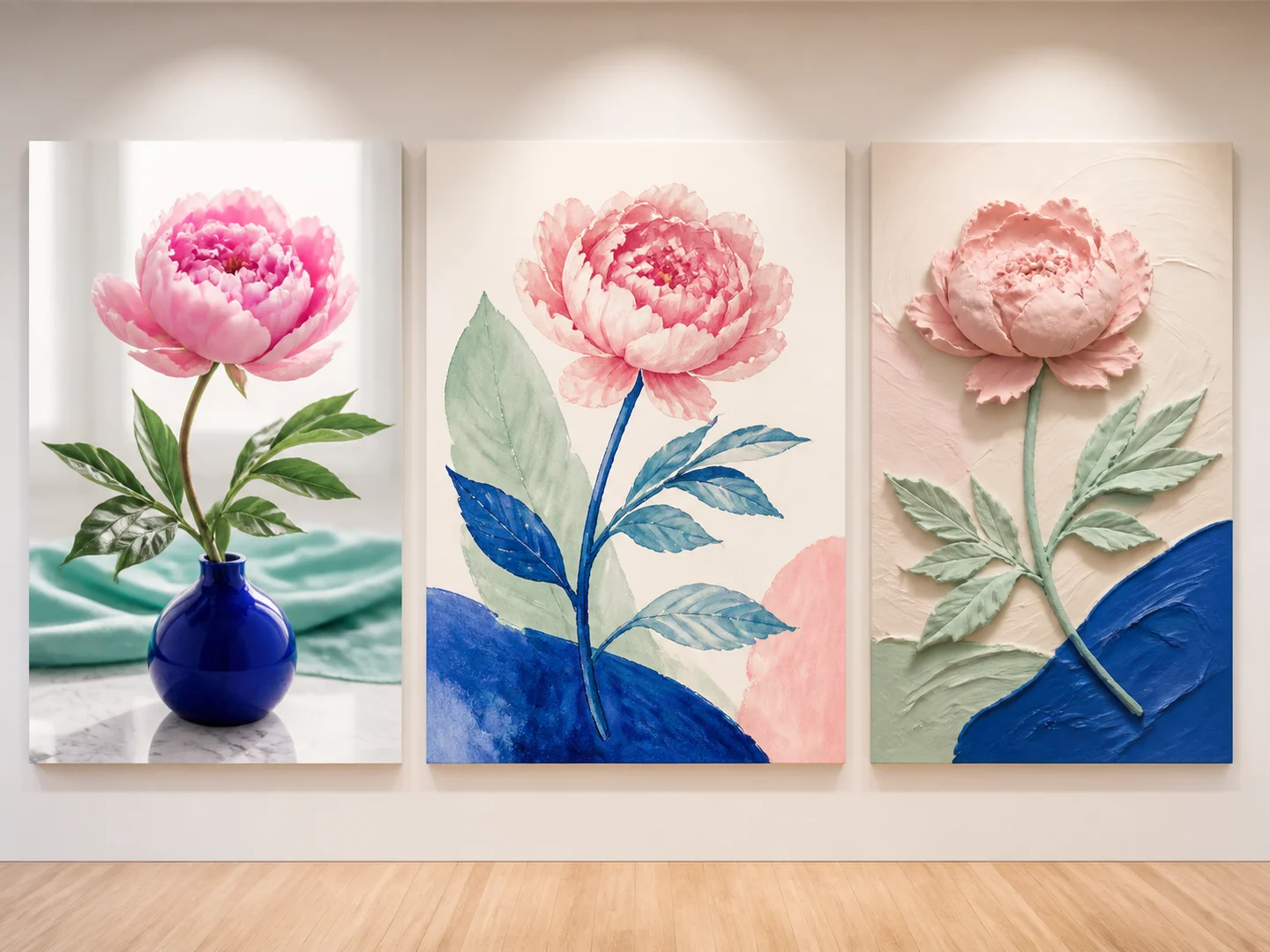
Compare image models
Keep the working brief visible while selecting a compatible model, ratio, and output count.
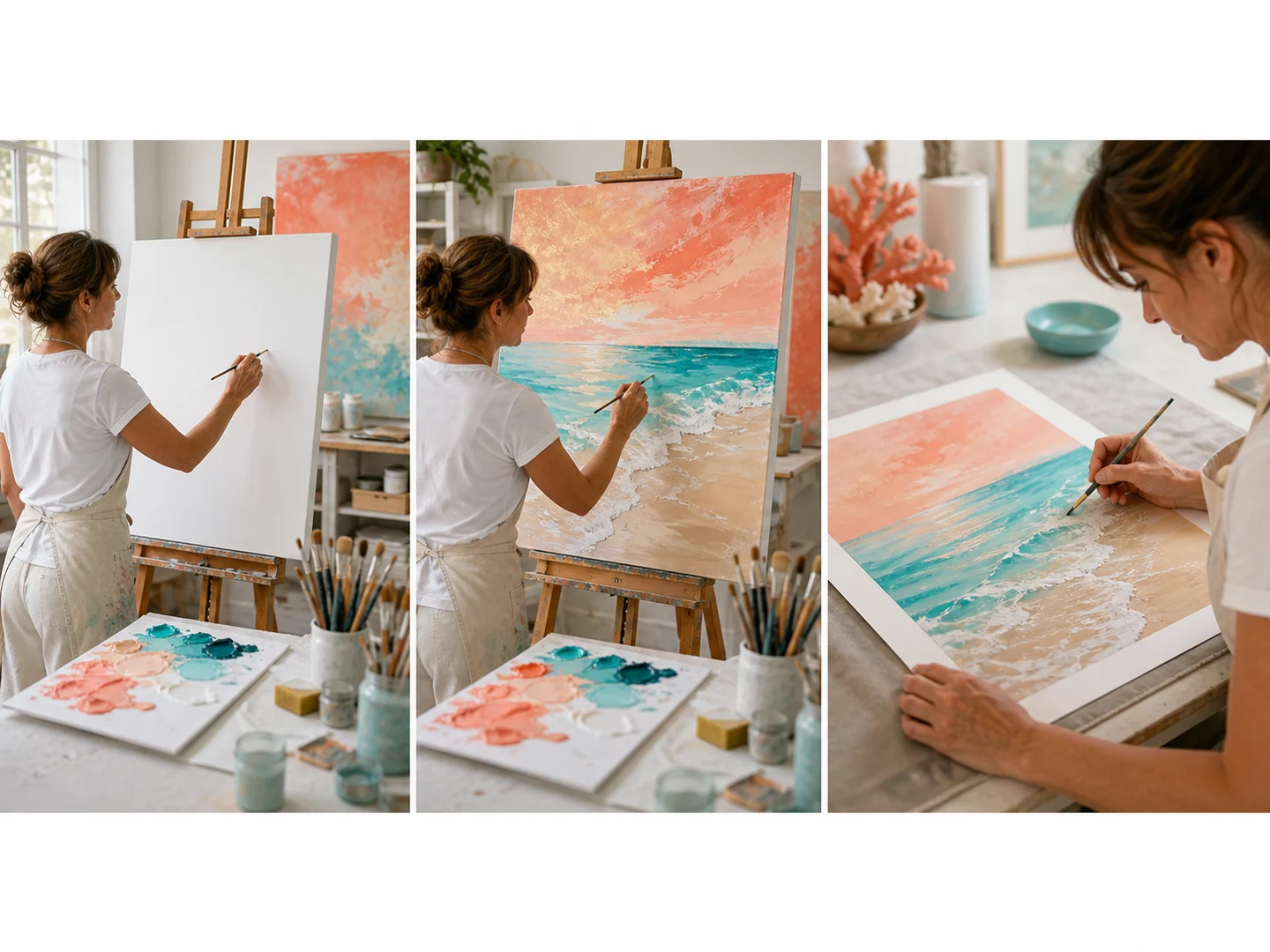
Move from creation to editing
Start from language, transform a source image, or continue into focused inpaint, background, uncrop, and cleanup tools.
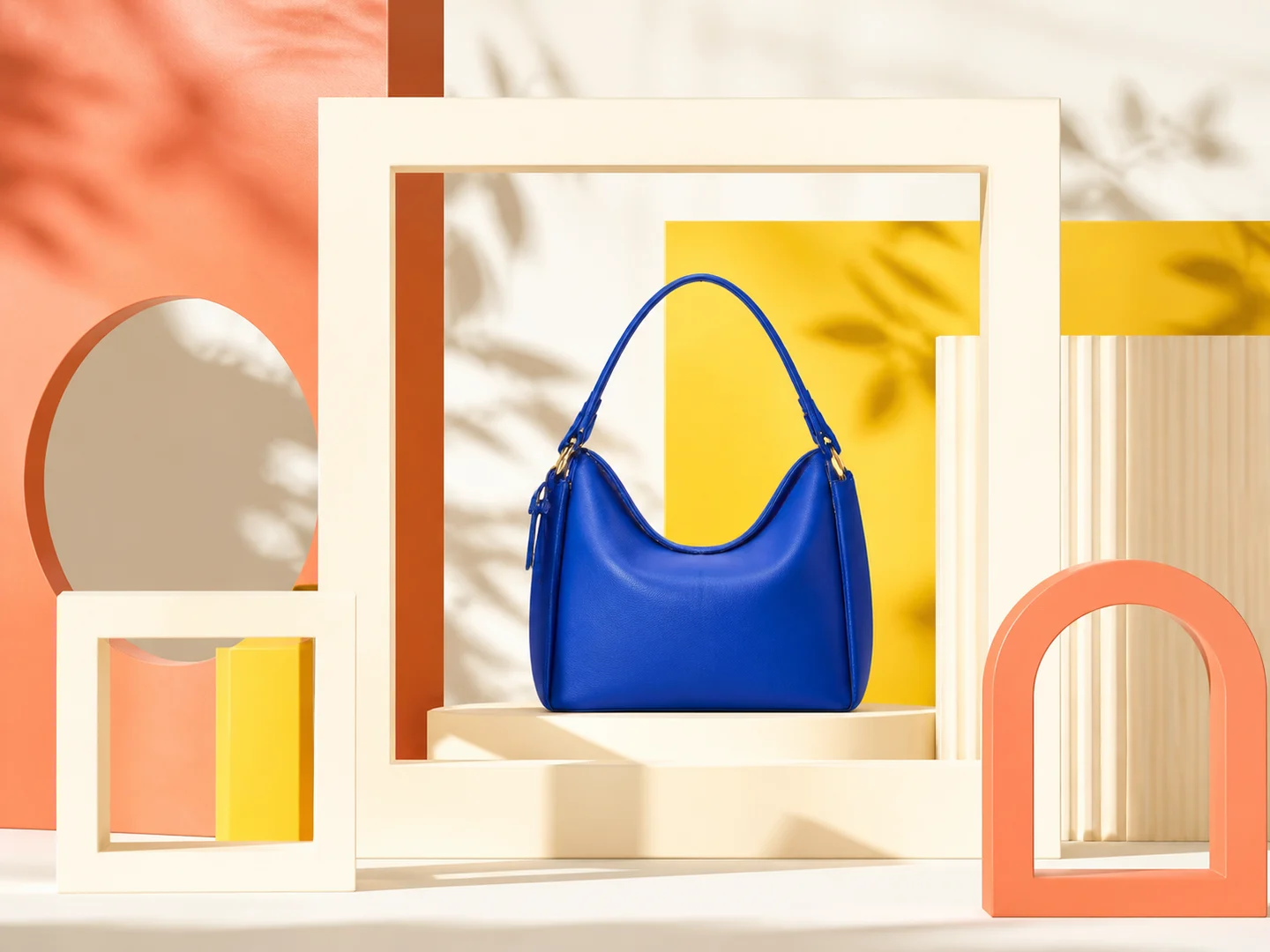
Control format and output
Choose compatible aspect ratio, dimensions, resolution, number of results, and visibility after the visual direction is ready.
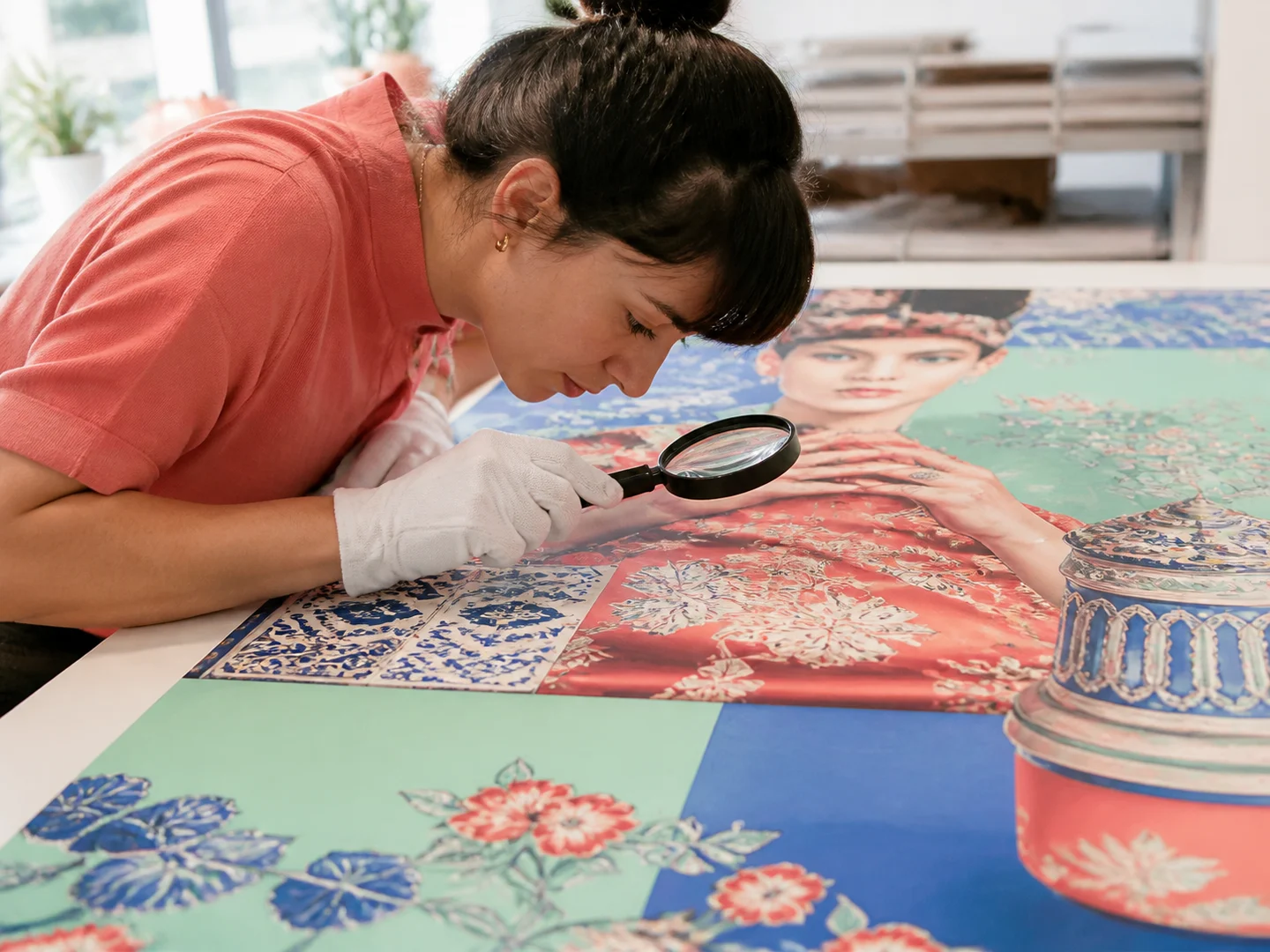
Evaluate difficult details
Review faces, hands, text, product geometry, repeated patterns, edges, and any detail the model may have reconstructed.
How to Use the AI Image Generator
Choose a visual direction
Find a gallery study close to the subject, composition, or treatment you need.
Adapt the prompt
Open the study and revise its subject, setting, light, palette, or finish.
Complete the setup
Add references if needed, then select the model, ratio, output count, and visibility.
Ways to Use the AI Image Generator
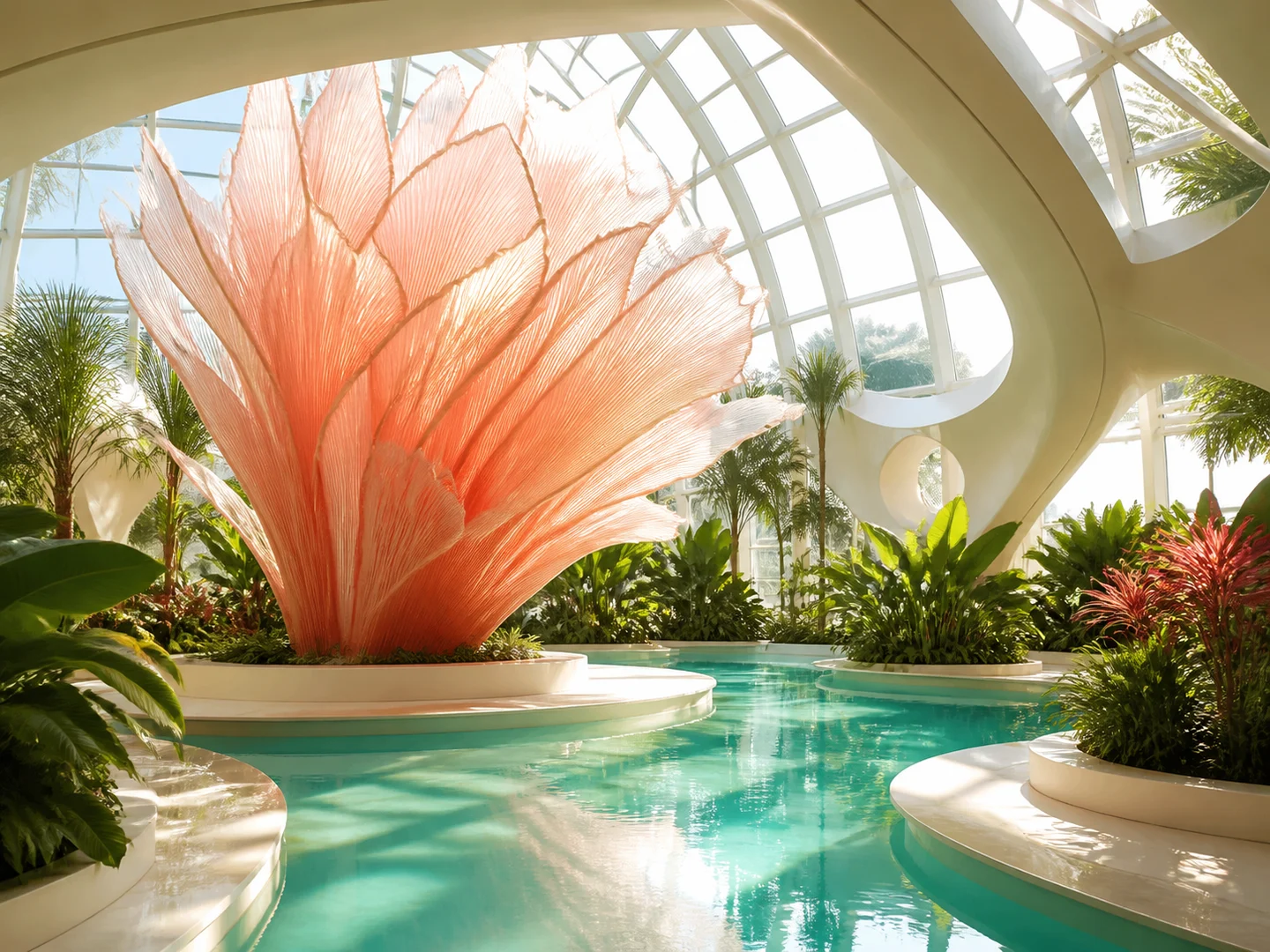
Create a new visual concept
Define the subject, setting, composition, light, palette, and intended finish in one coherent brief.
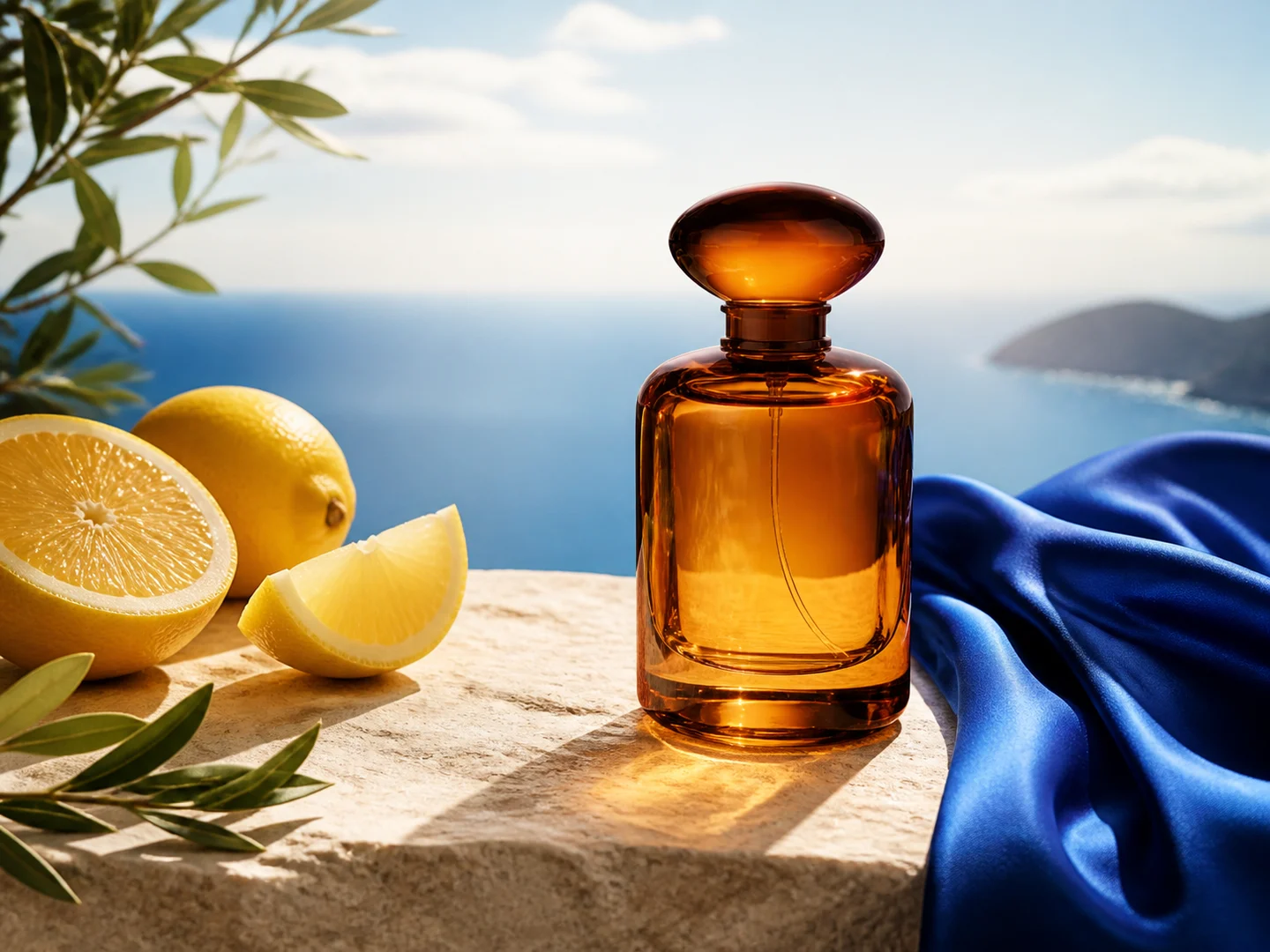
Develop campaign imagery
Reuse a visual structure while adapting the product, audience, format, and brand direction.
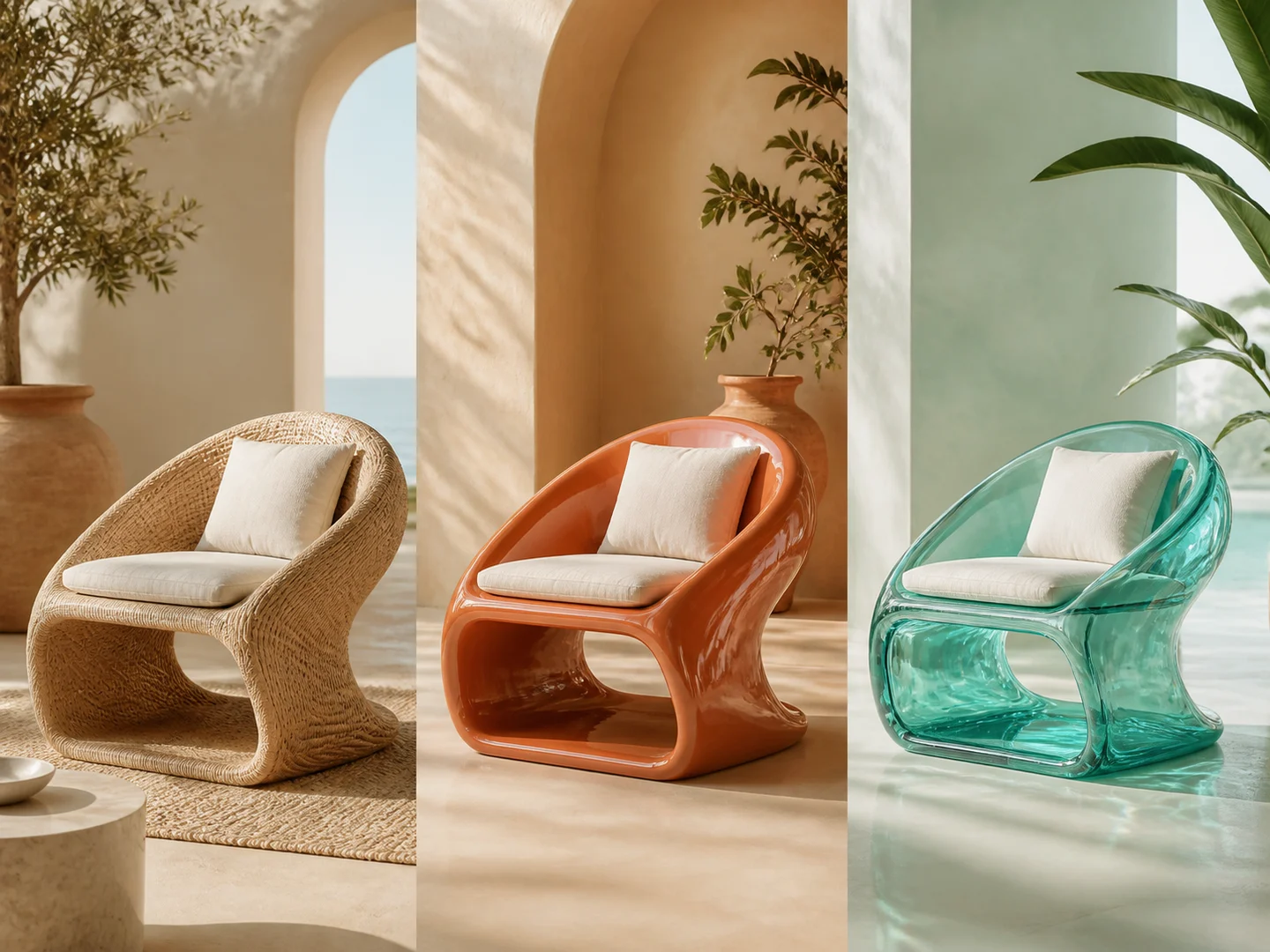
Explore art direction
Hold the core idea steady while changing medium, era, material, color, or atmosphere.
Which AI Image Workflow Should You Use?
| Feature / Model | AI Image Generator | Specific model page |
|---|---|---|
| Shared inspiration gallery | Explore reusable composition, lighting, and style directions. | Open the composer with that page's model already active. |
| Model selection | Choose a compatible image model after refining the brief. | Browse directions written for a particular image workflow. |
| Mixed inputs | Prepare prompt-only or supported reference-led requests. | Read practices and FAQs scoped to that model. |
Frequently Asked Questions About AI Image Generation
What is Nuzza's AI Image Generator?
Nuzza brings image inspiration, prompt editing, references, and output settings into one page. The gallery helps you choose a useful direction before refining subject, composition, light, palette, and finish.
What is the best AI image generator?
The best AI image generator depends on the input, intended result, budget, and controls you need. Nuzza's AI Image Generator is a strong choice when you want a flexible multi-model image workspace.
Is Nuzza's AI Image Generator free to use?
The page is free to browse. Running a task requires Credits, and the current cost is shown before you submit.
What can I use Nuzza's AI Image Generator for?
Use Nuzza's AI Image Generator to develop campaign concepts, product visuals, illustrations, social assets, and alternate art directions from text or supported visual references.
What inputs does Nuzza's AI Image Generator support?
The shared Composer accepts a written prompt and, when the selected model supports editing or reference-led generation, supported image inputs. The visible formats, reference limits, ratio, resolution, and output controls change with the selected model and operation.
Do I need to sign in to use Nuzza's AI Image Generator?
You can browse this page without signing in. Submitting a generation, storing persistent inputs, checking task status, and saving a finalized result require a Nuzza account.
What should I check in the image result?
Compare the result with the source or prompt at full size. Check faces, text, product geometry, repeated patterns, edges, and any detail the AI may have reconstructed.
Can I create from text and images?
Yes. The shared image composer can prepare prompt-only requests or use supported image references with compatible models.
Will editing a prompt change the gallery item?
No. Your edit becomes a local working copy and only updates the composer when you choose an action.