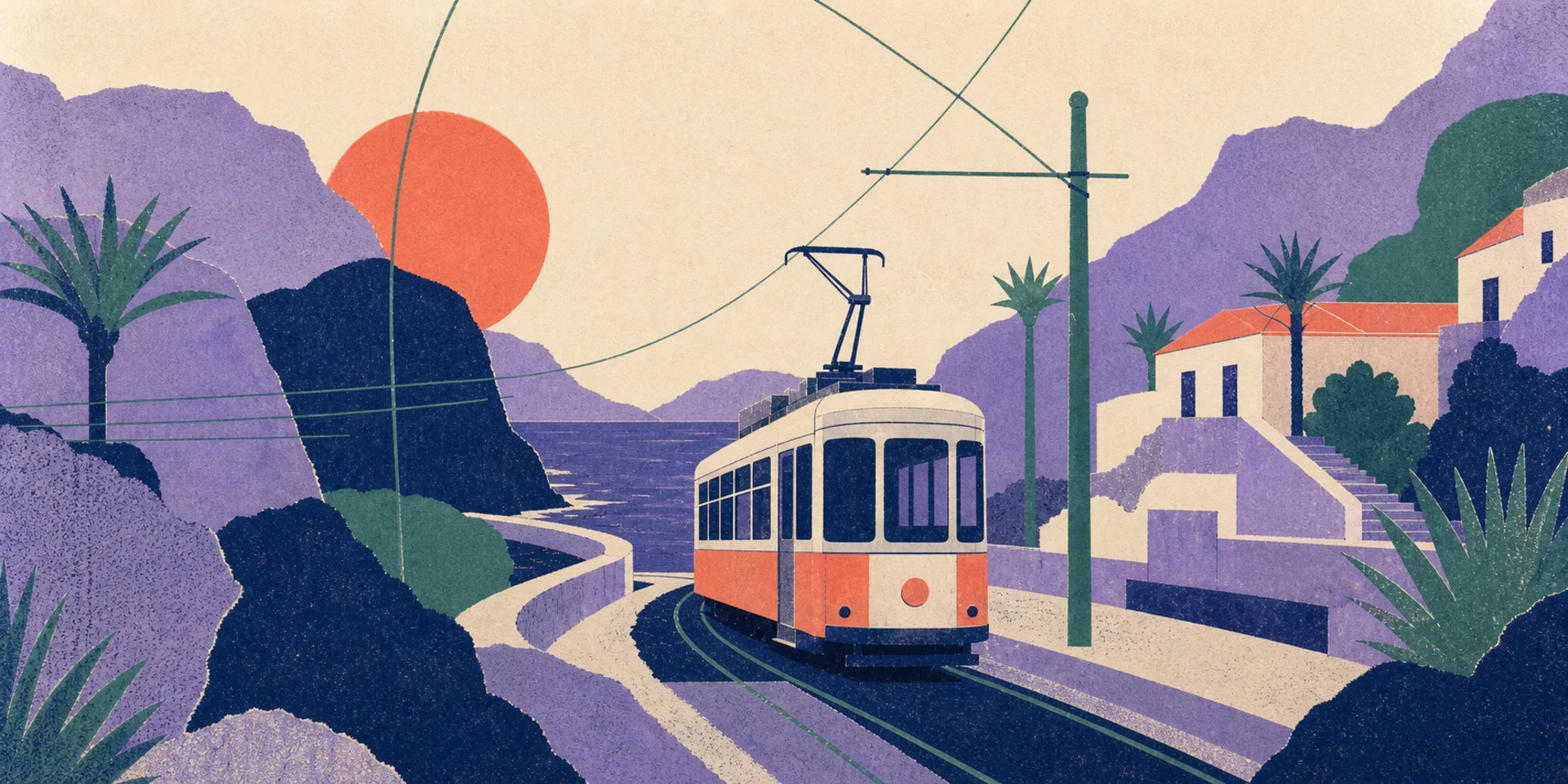
Image to Video
Animate still images with guided subject and camera motion while keeping important visual details recognizable. Try Image to Video AI for free now!
All-in-One Free Image to Video
Compare how models handle identity, camera movement, prompt adherence, duration, sound, and source-image preservation.
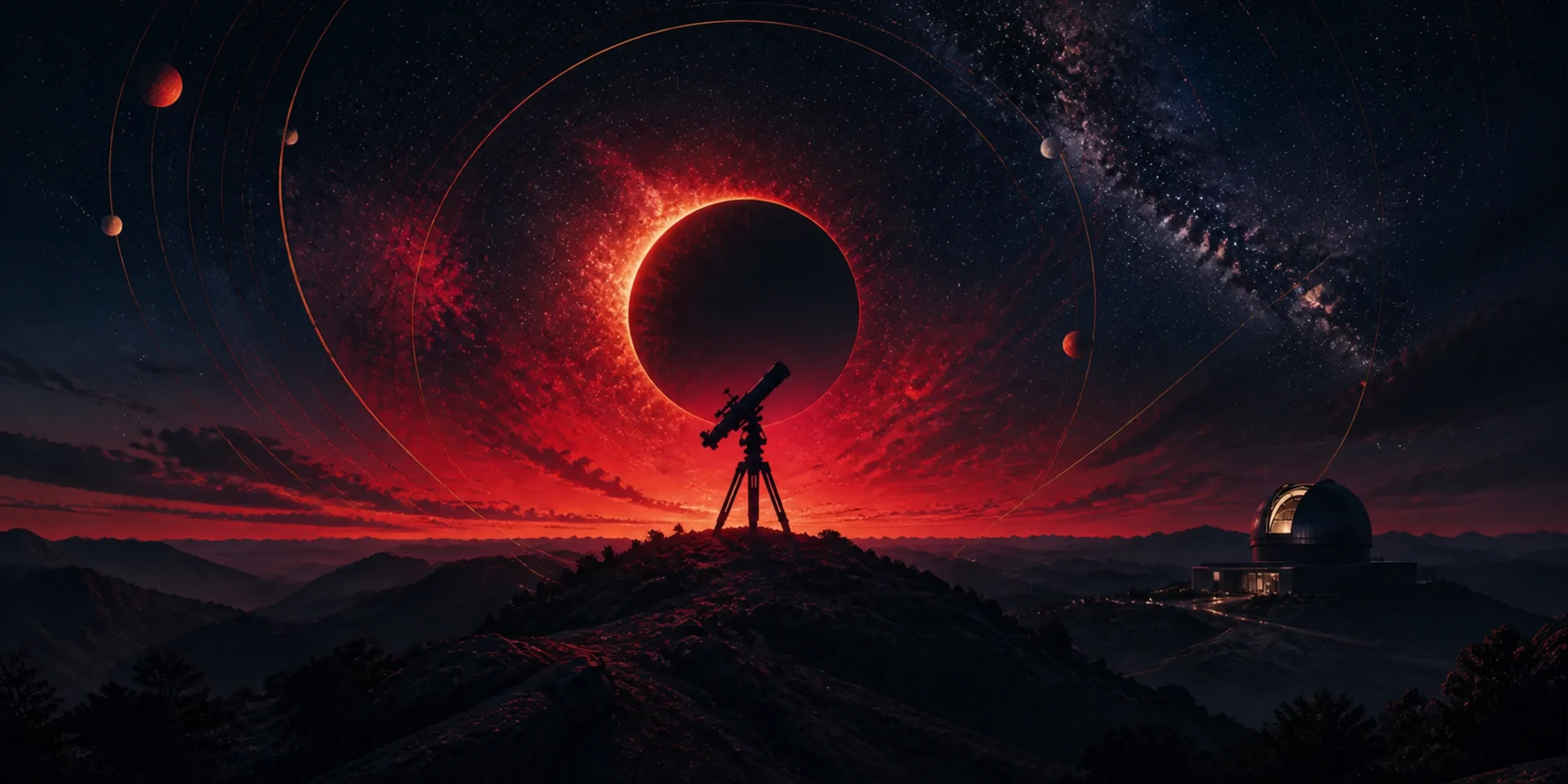

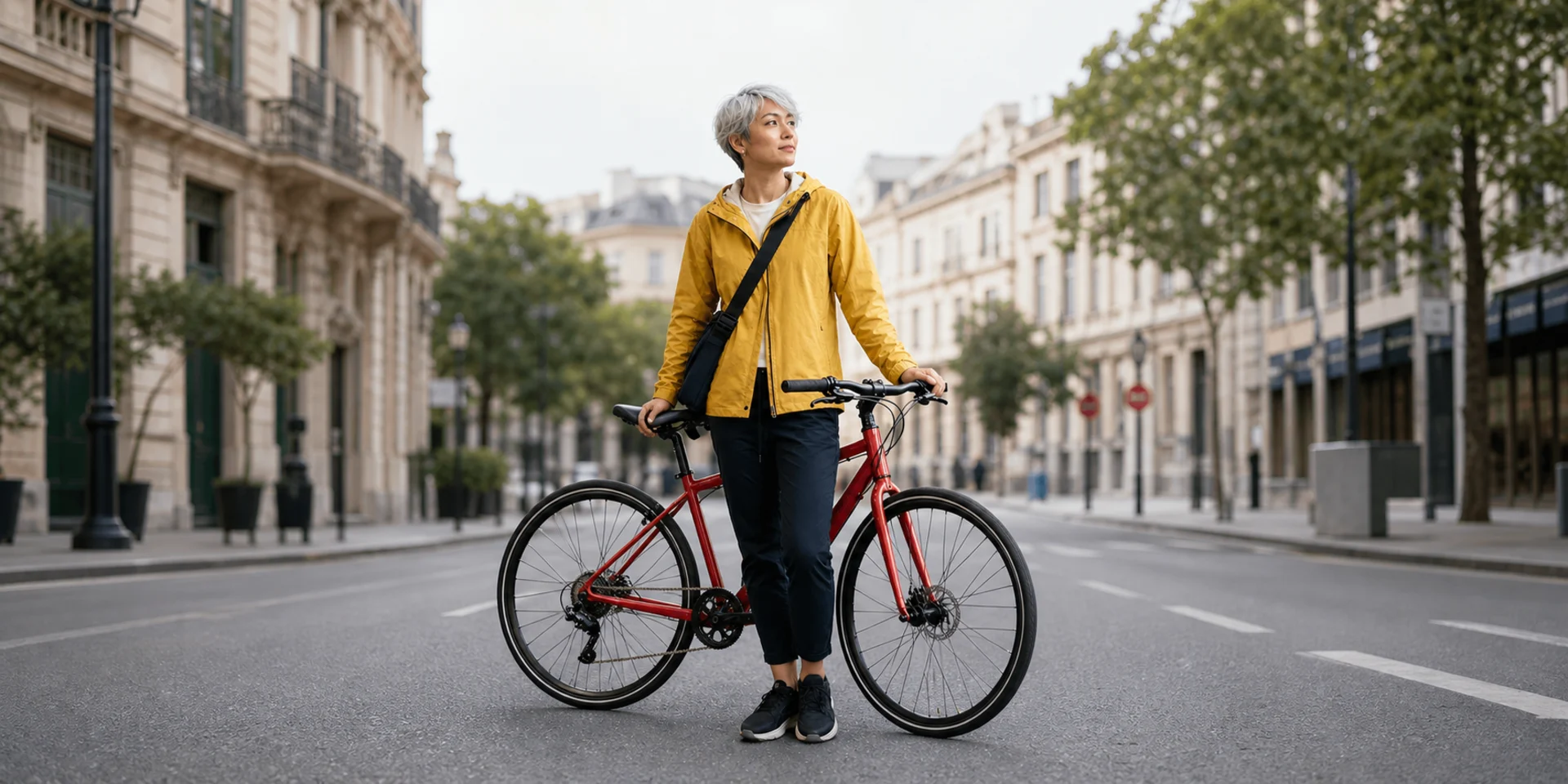
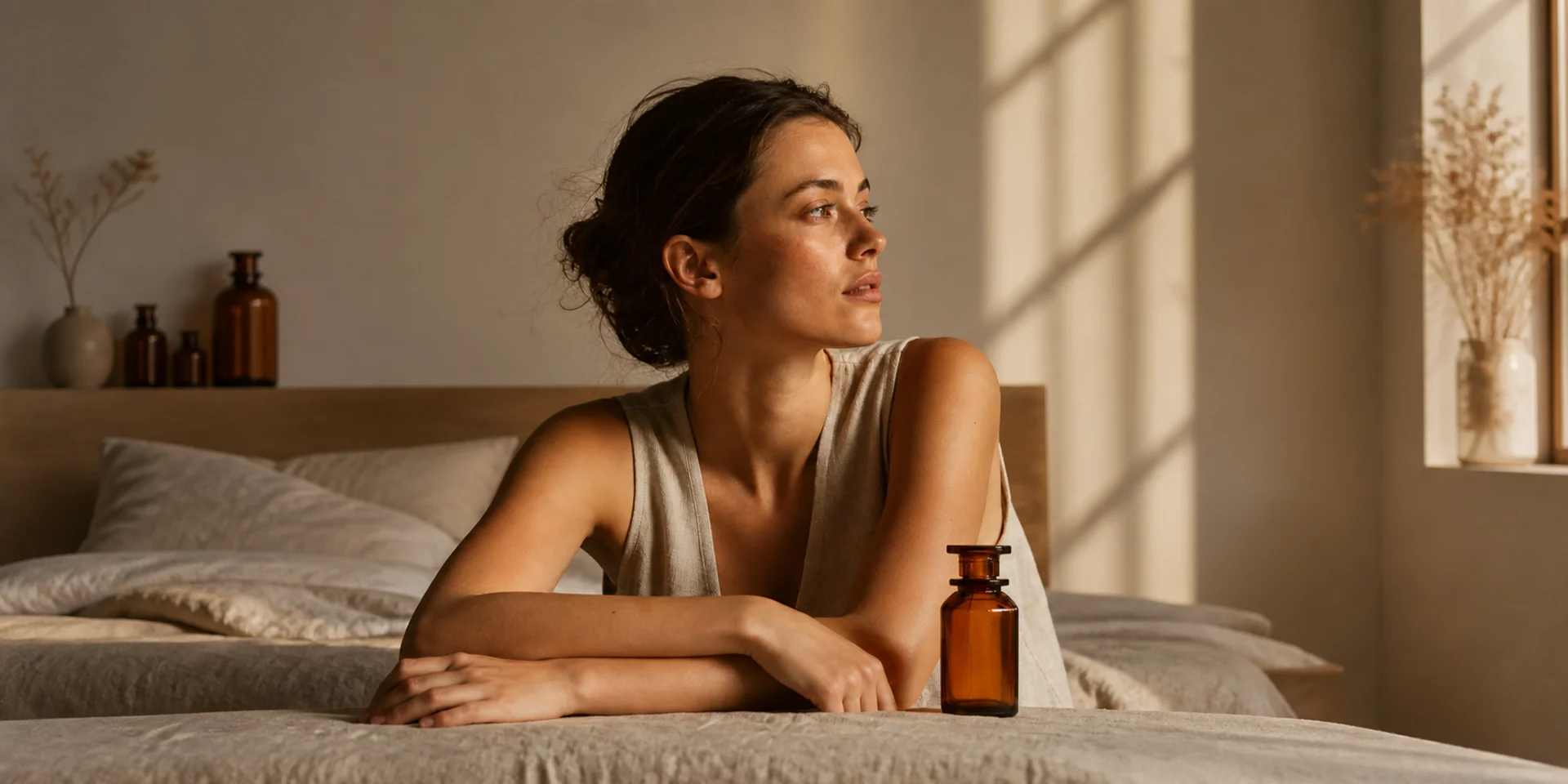
Choose how the still image should come alive
Different source images need different motion plans. Select a direction that preserves the important visual anchor while adding the right movement.
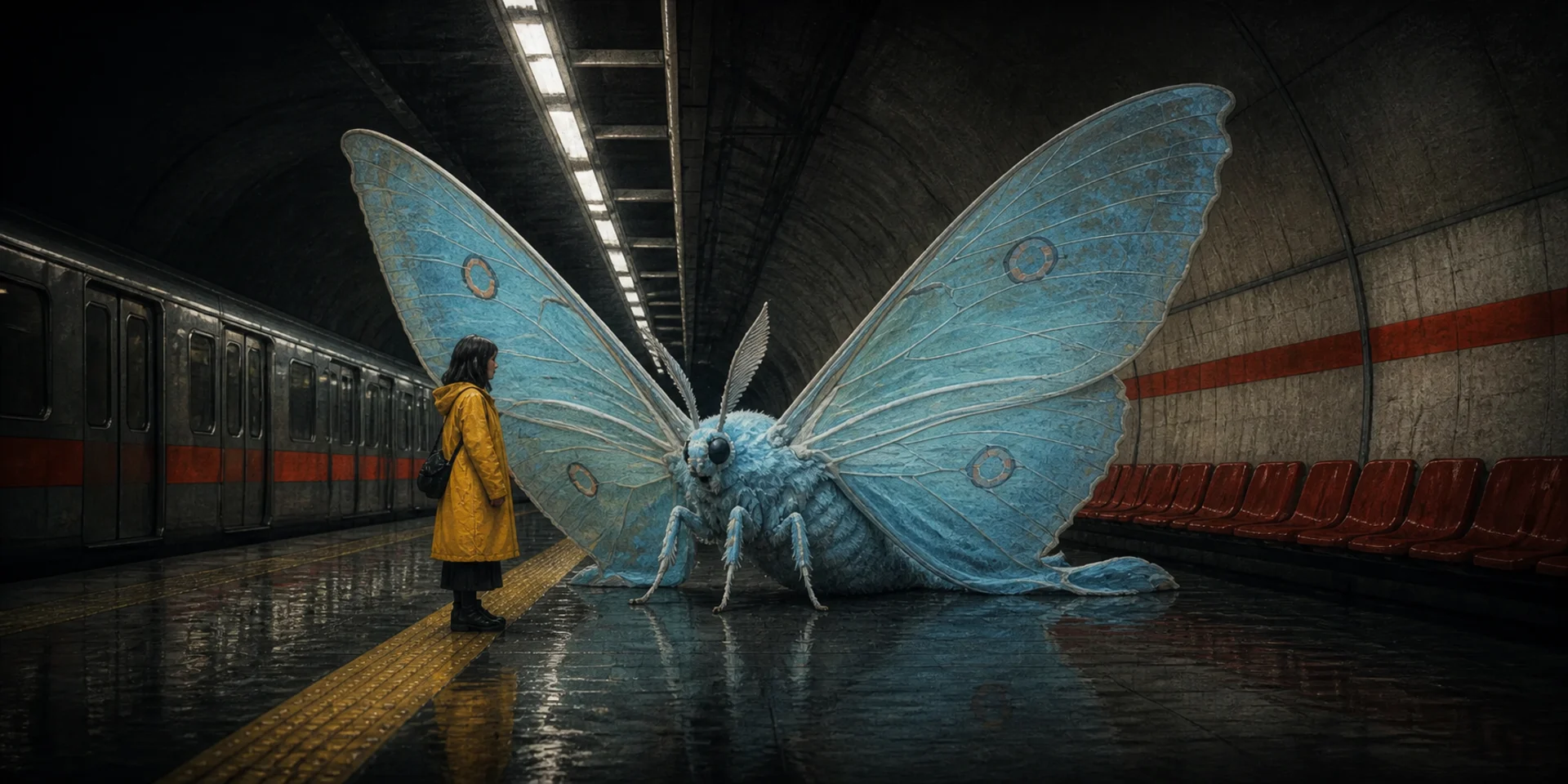
Portrait Animation
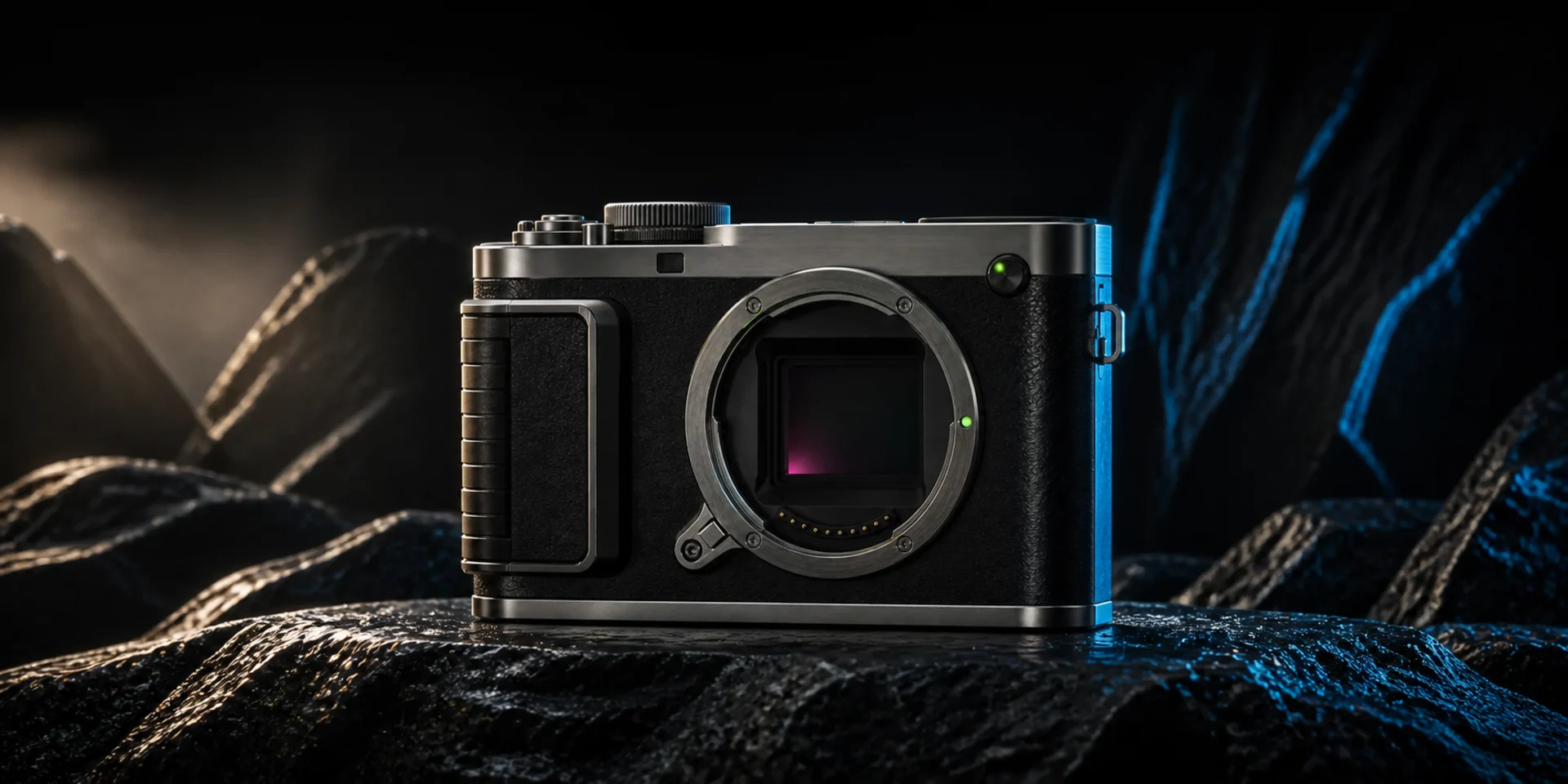
Product Motion
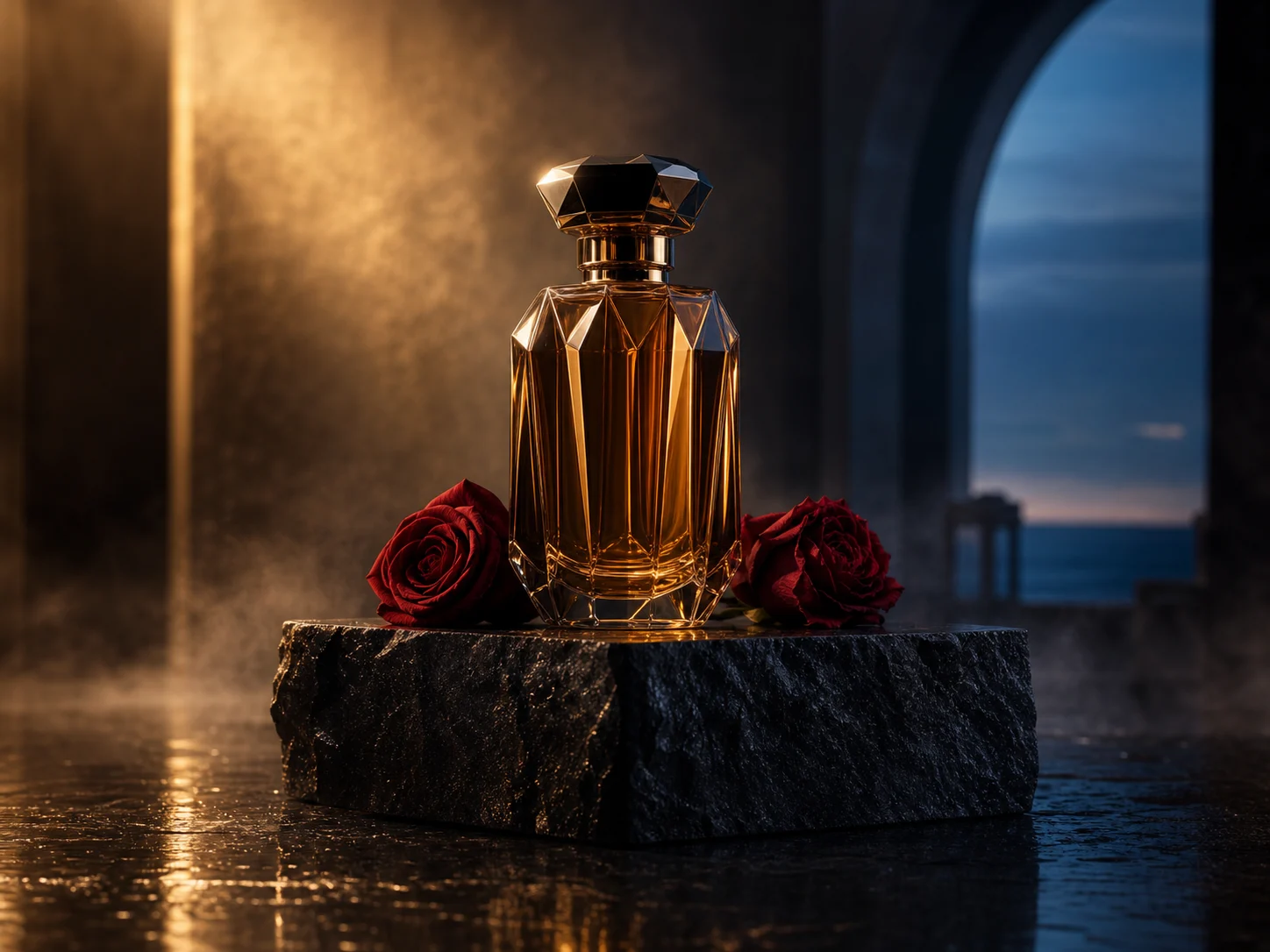
Artwork Animation
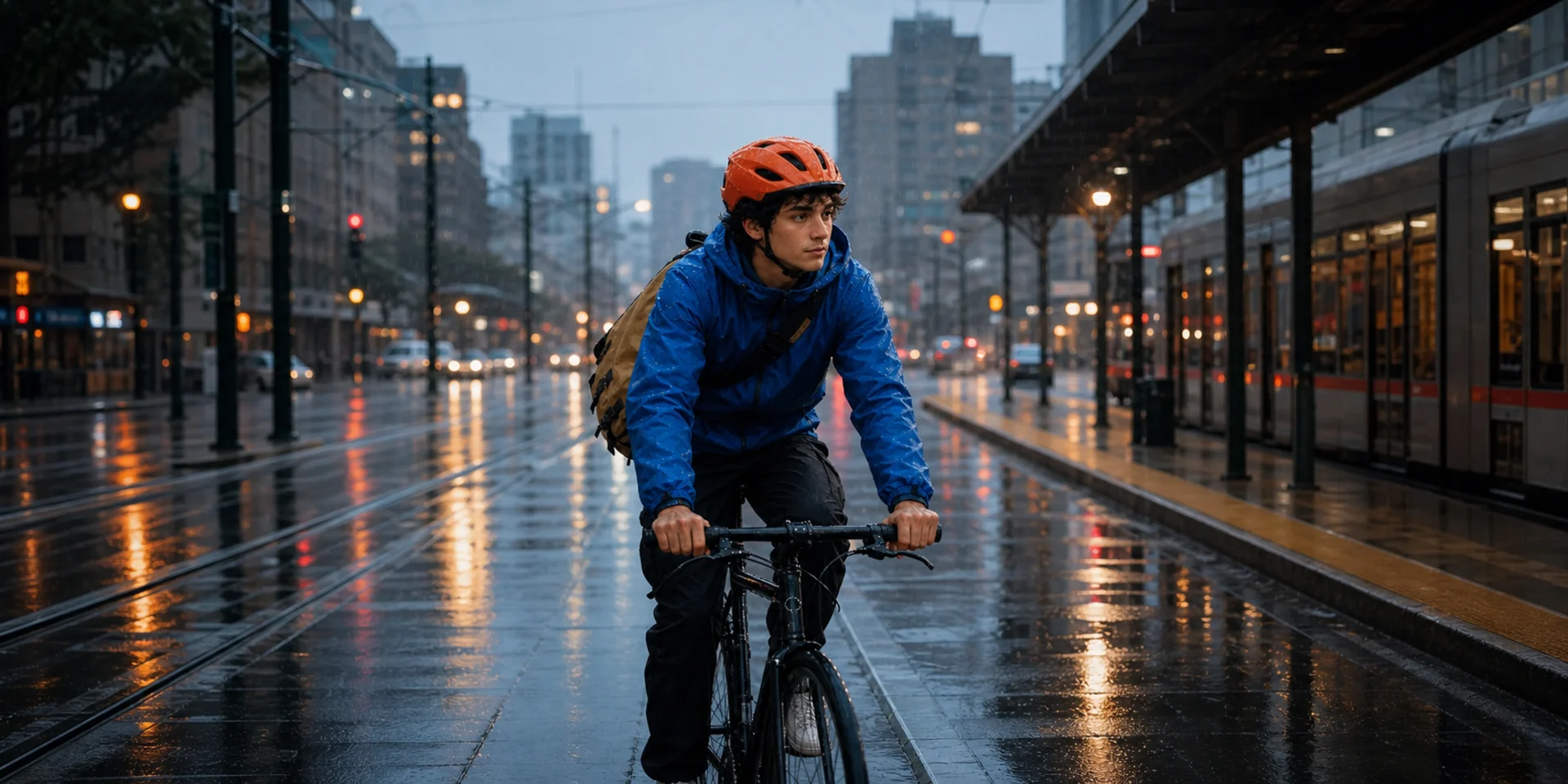
Photo to Cinematic Shot
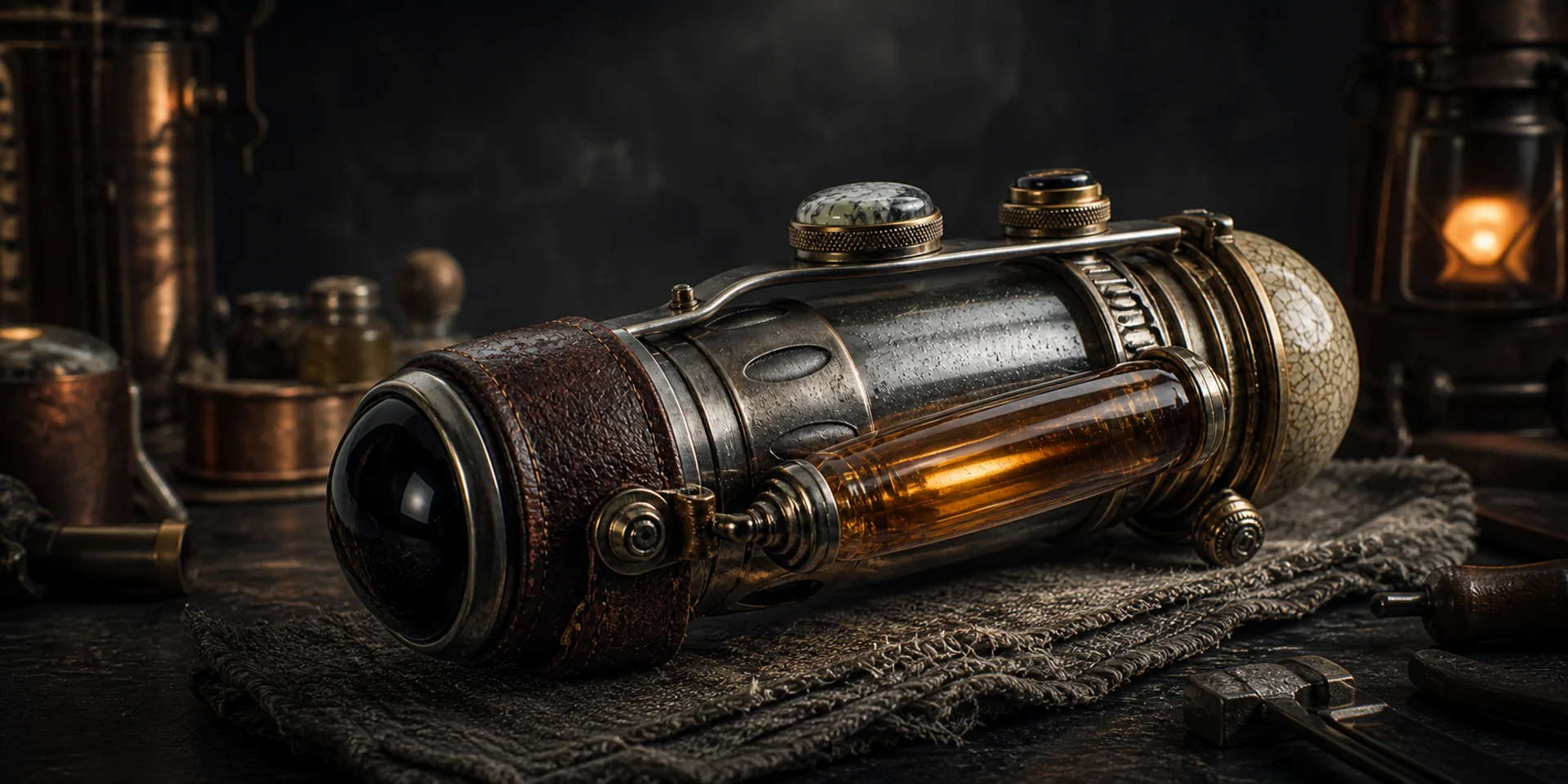
Logo and Graphic Motion
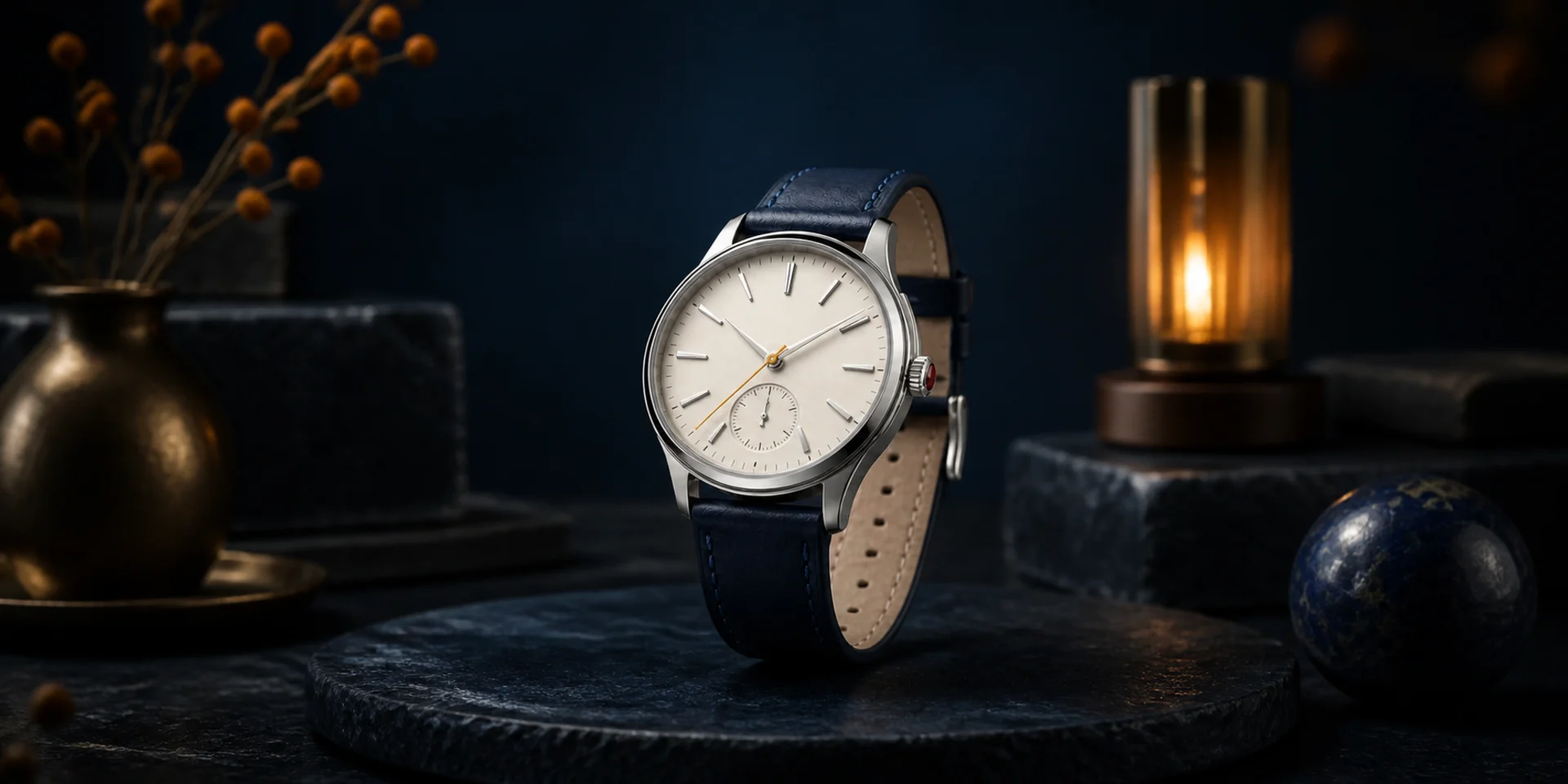
Before-and-After Motion
What Can You Create with Image to Video?
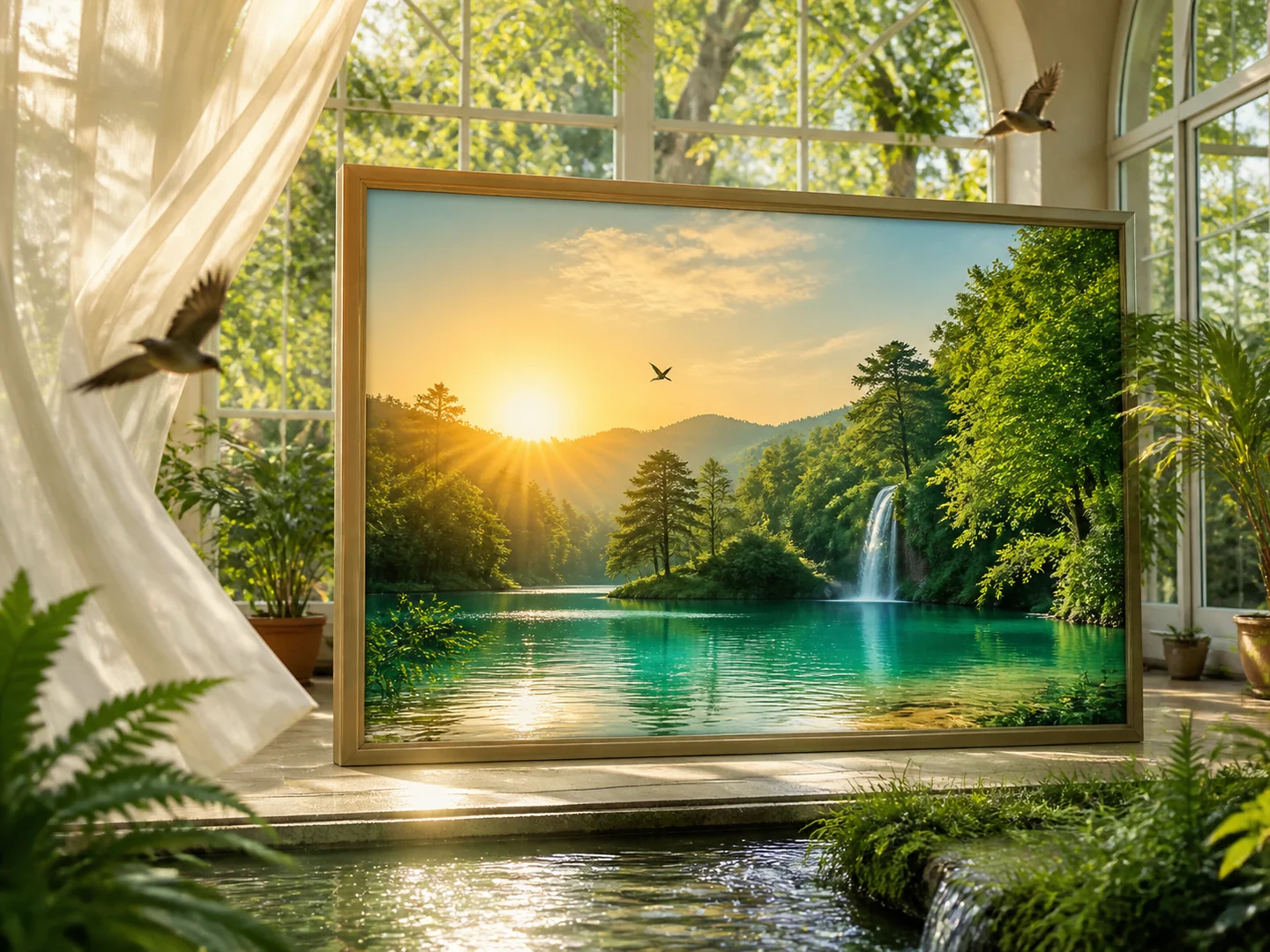
Source-led motion
Anchor the request to a still image and use the prompt to direct movement rather than redesign the frame.
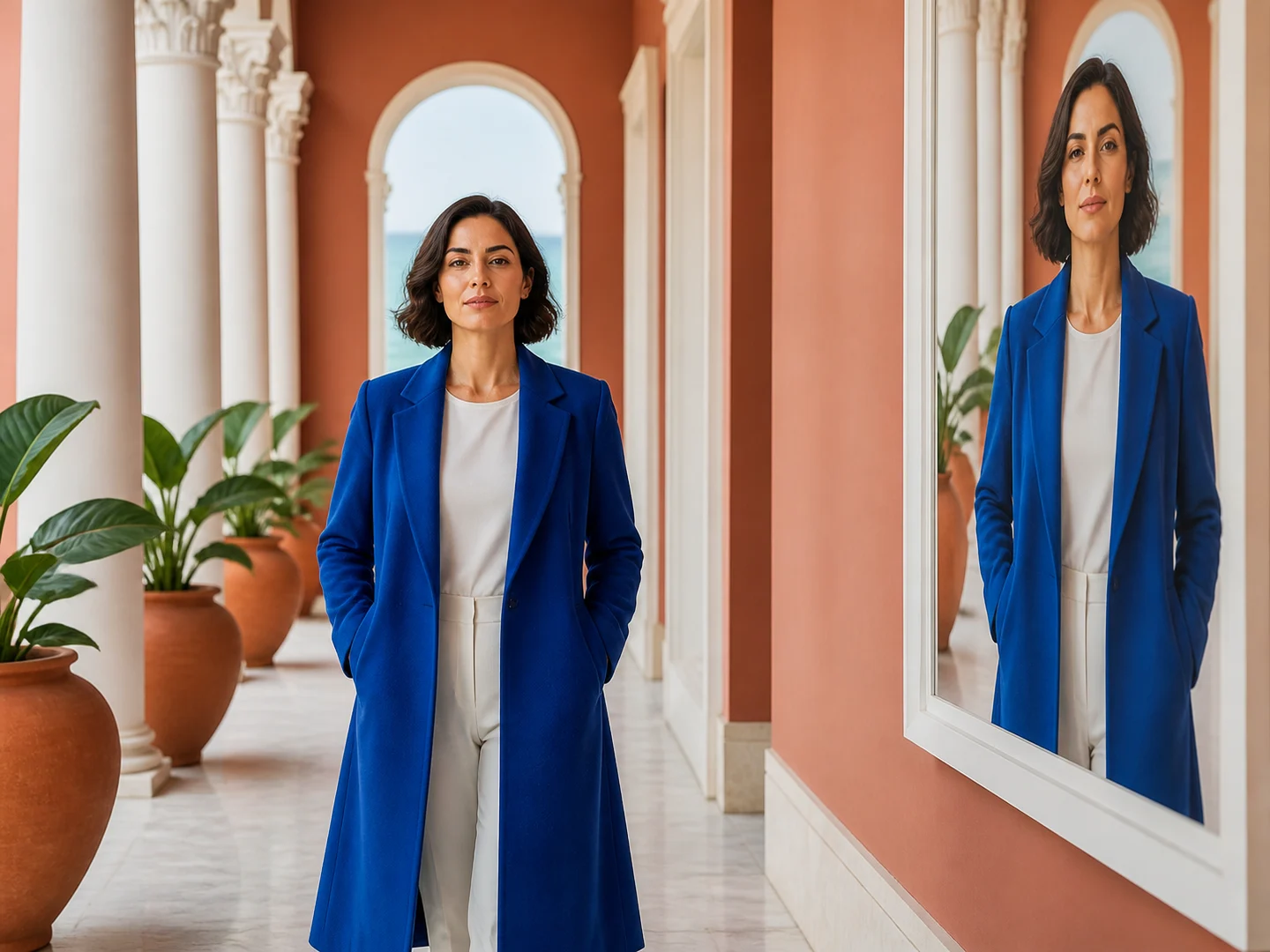
Identity and composition preservation
Name the subject, framing, text, product, or artwork details that need to remain recognizable.
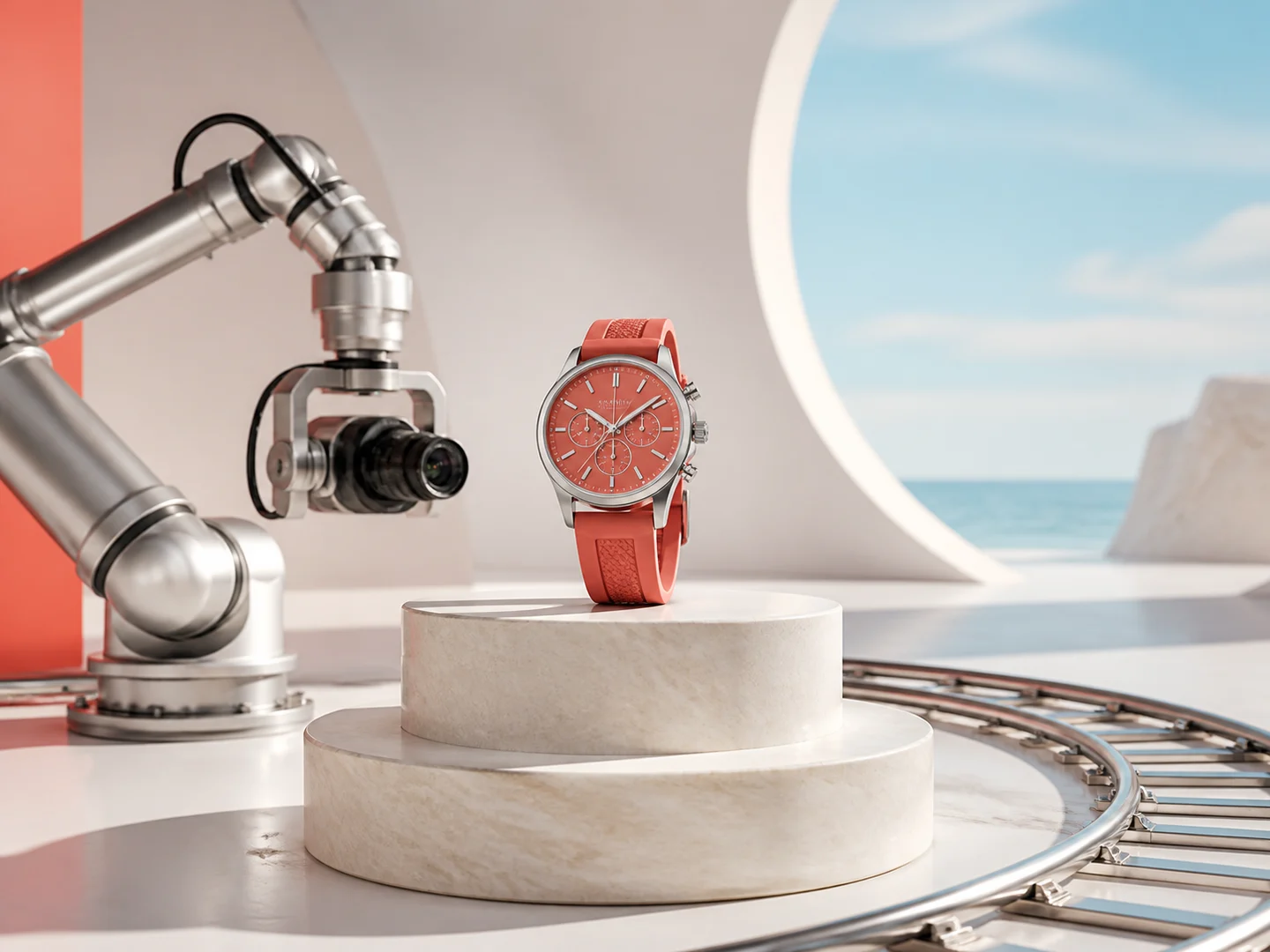
Measured camera movement
Add a push-in, orbit, pan, tilt, or parallax direction that supports the existing frame.
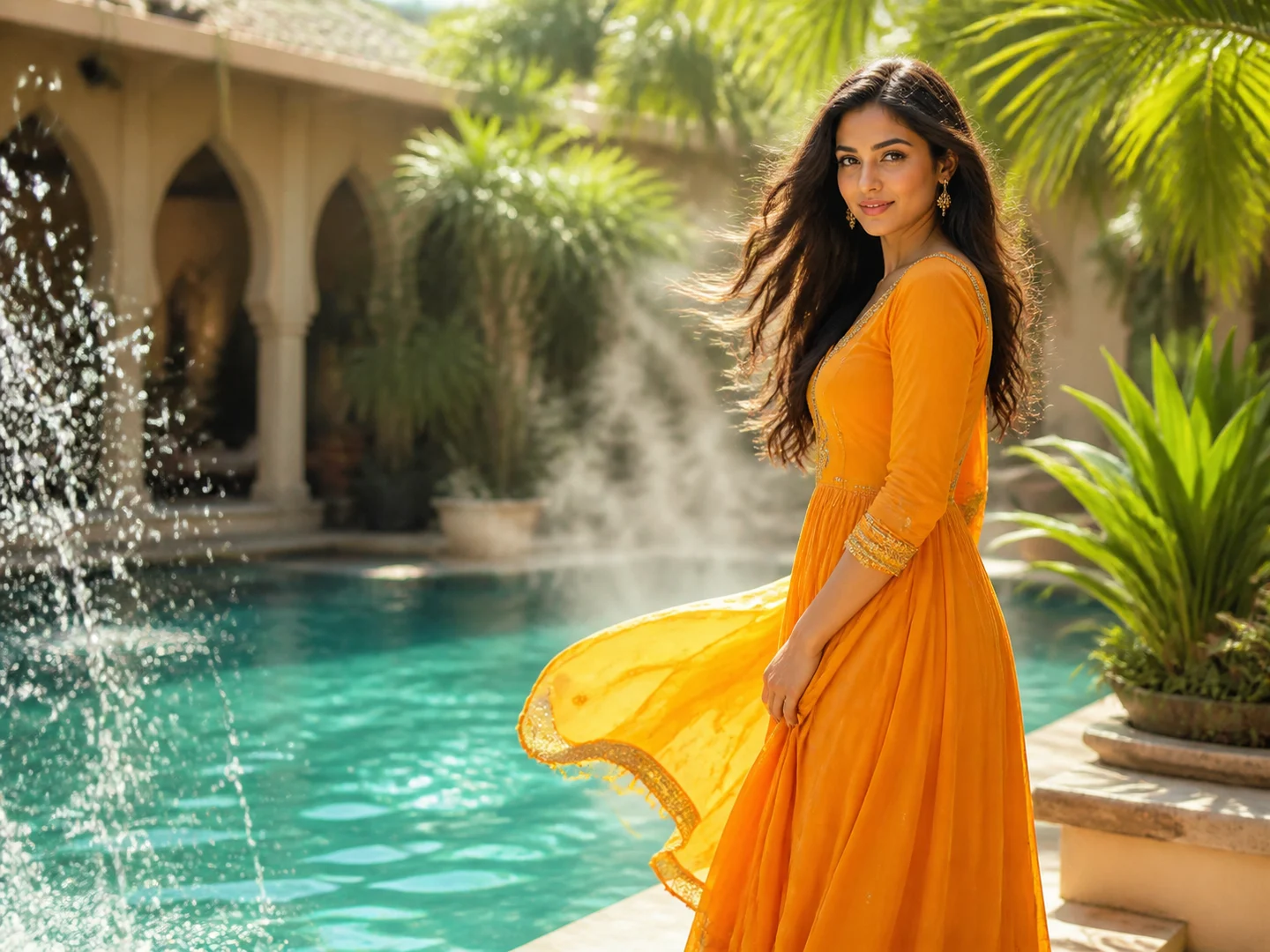
Subject-level animation
Direct expression, pose, fabric, water, smoke, lighting, or product movement without replacing the complete scene.
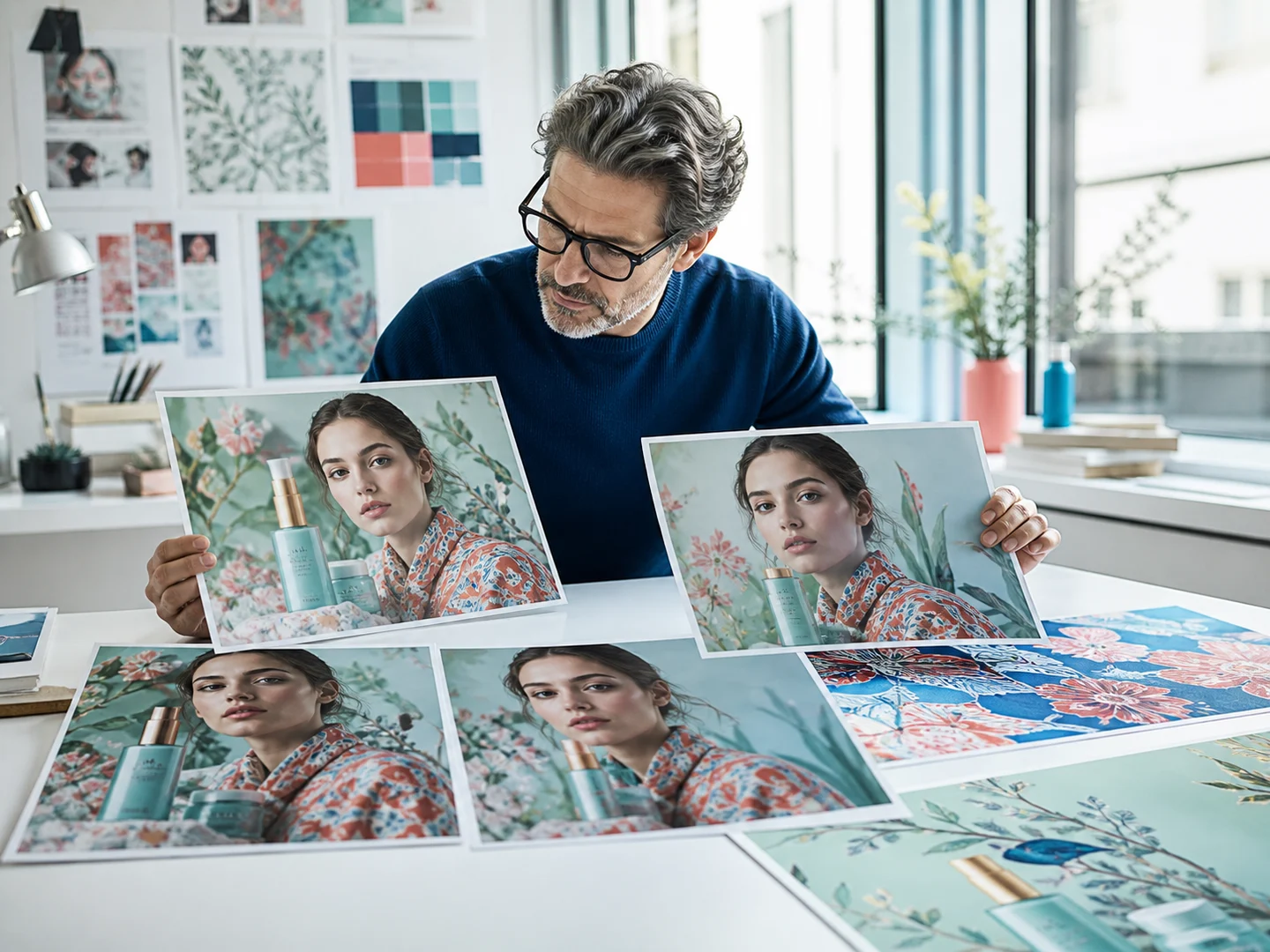
Model-aware source handling
Choose a model by how well it preserves identity, geometry, text, style, and source-image detail.
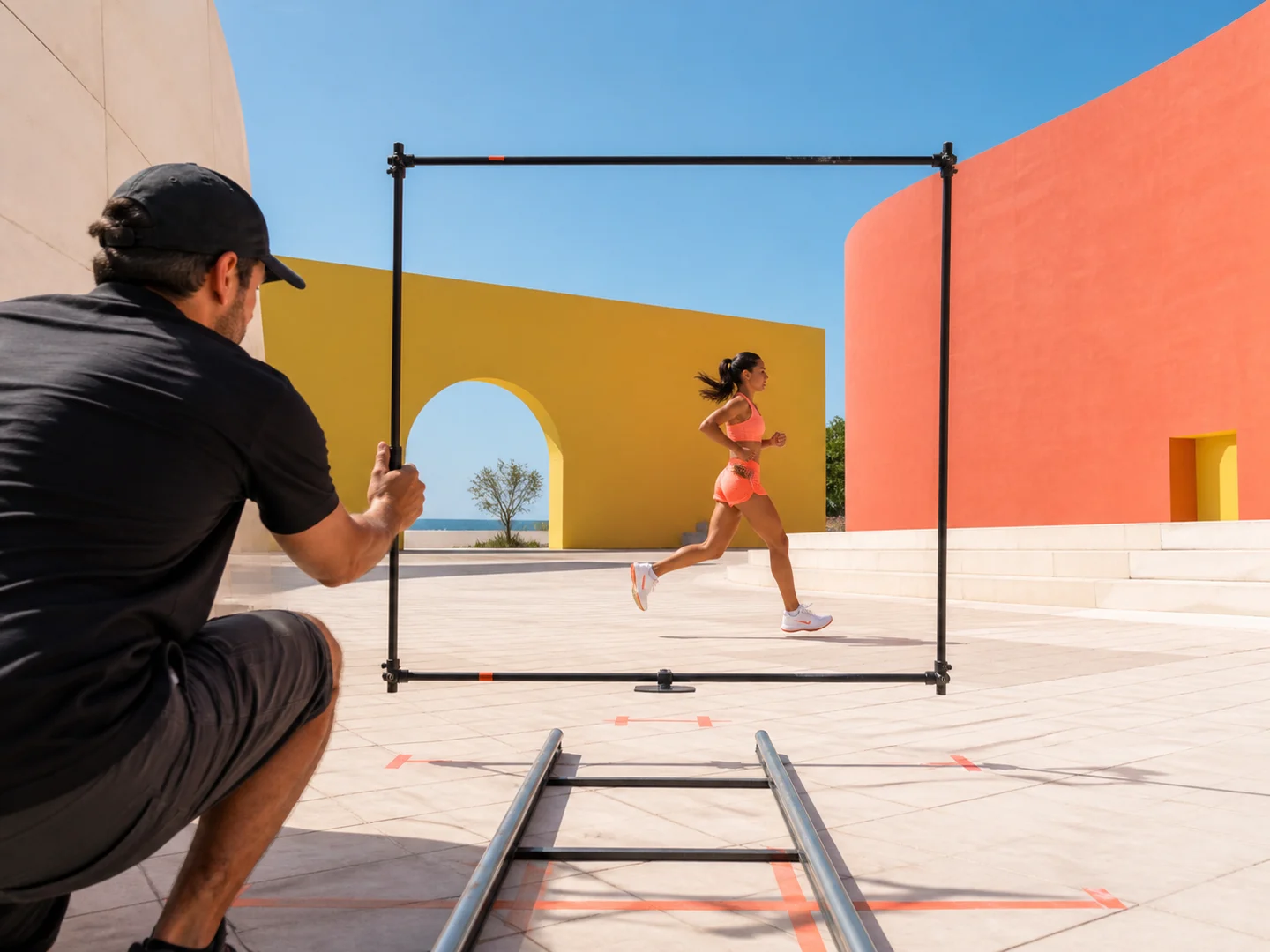
Output-ready framing
Match duration, camera pace, aspect ratio, and ending composition to the channel where the clip will be used.
How to Turn an Image into a Video
Choose a motion direction
Find a gallery prompt with a movement pattern close to the intended result.
Add the source image
Stage your supported still image in the video composer.
Set movement and output
Rewrite the motion prompt, then confirm the model, duration, and ratio.
Ways to Use Image to Video
Image to Video or Text to Video?
| Feature / Model | Image to Video | Text to Video |
|---|---|---|
| Still image anchor | Start from an existing subject, composition, or visual identity. | Create the scene directly from a written brief. |
| Preservation guidance | Explain which source details must remain recognizable. | Define subject, environment, composition, and movement together. |
| Motion-focused prompt | Use the text mainly to direct subject and camera movement. | Explore unrelated scene ideas without preparing images. |
Frequently Asked Questions About Image to Video
What is Nuzza's Image to Video?
Image to Video uses a still image as the visual anchor for a moving result. The prompt should explain how the subject and camera move while naming the details that must remain stable.
What is the best image-to-video generator?
The best image-to-video generator depends on the input, intended result, budget, and controls you need. Nuzza's Image to Video is a strong choice for a source-led animation workflow.
Is Nuzza's Image to Video free to use?
The page is free to browse. Running a task requires Credits, and the current cost is shown before you submit.
What can I use Nuzza's Image to Video for?
Use Nuzza's Image to Video to animate a still composition, add focused subject or camera motion, create a product reveal, or explore alternate movement while keeping the source image as the visual anchor.
What inputs does Nuzza's Image to Video support?
Image to Video requires a supported source image and accepts a written motion prompt. The selected model determines any additional reference, ratio, duration, or output controls shown in the Composer.
Do I need to sign in to use Nuzza's Image to Video?
You can browse this page without signing in. Submitting a generation, storing persistent inputs, checking task status, and saving a finalized result require a Nuzza account.
What should I check in the video result?
Watch the complete result and compare it with the source image and prompt. Check subject identity, composition, motion, camera continuity, frame edges, text, and any source detail that should remain stable.
How do I keep the source recognizable?
State what must remain unchanged, keep motion instructions focused, and avoid asking for unrelated scene replacements.
Does selecting a gallery card upload that image?
No. Gallery studies provide prompt direction only. Add your own supported source image in the composer.