AI Video Generator
Create videos from text prompts or image references, then refine motion, framing, duration, format, and model choice in one workspace. Try the AI Video Generator for free now!
All-in-One Free AI Video Generator
Keep the creative brief stable while comparing models with different motion, reference, editing, duration, and audio capabilities.
Every starting point for AI video creation
Move from a broad idea to the workflow that matches the material you already have, from a prompt-only scene to reference-led generation and source-video editing.
What Can You Do with the AI Video Generator?
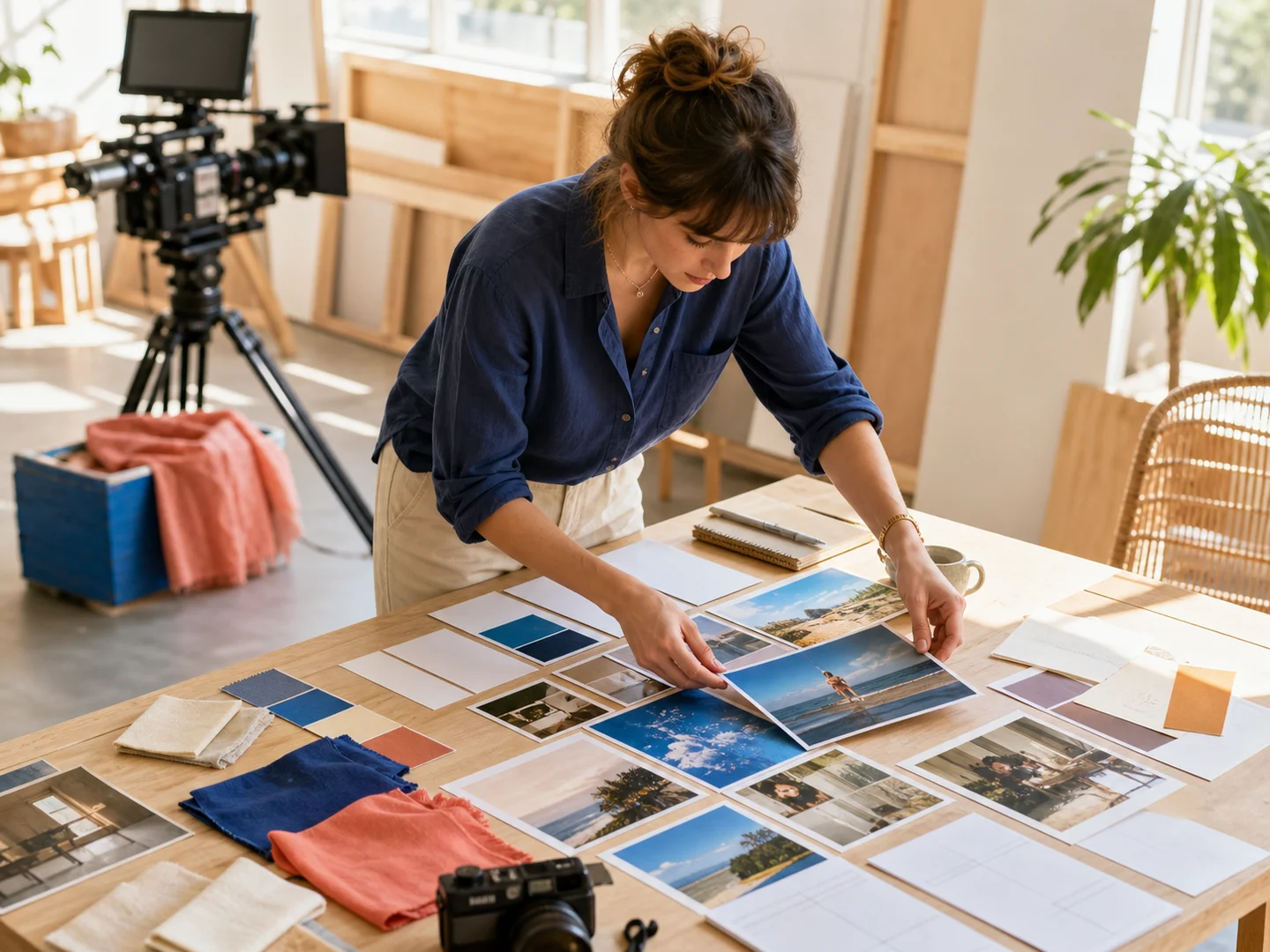
Plan from text or references
Start with a written scene, supported visual references, or both when the selected model accepts them.
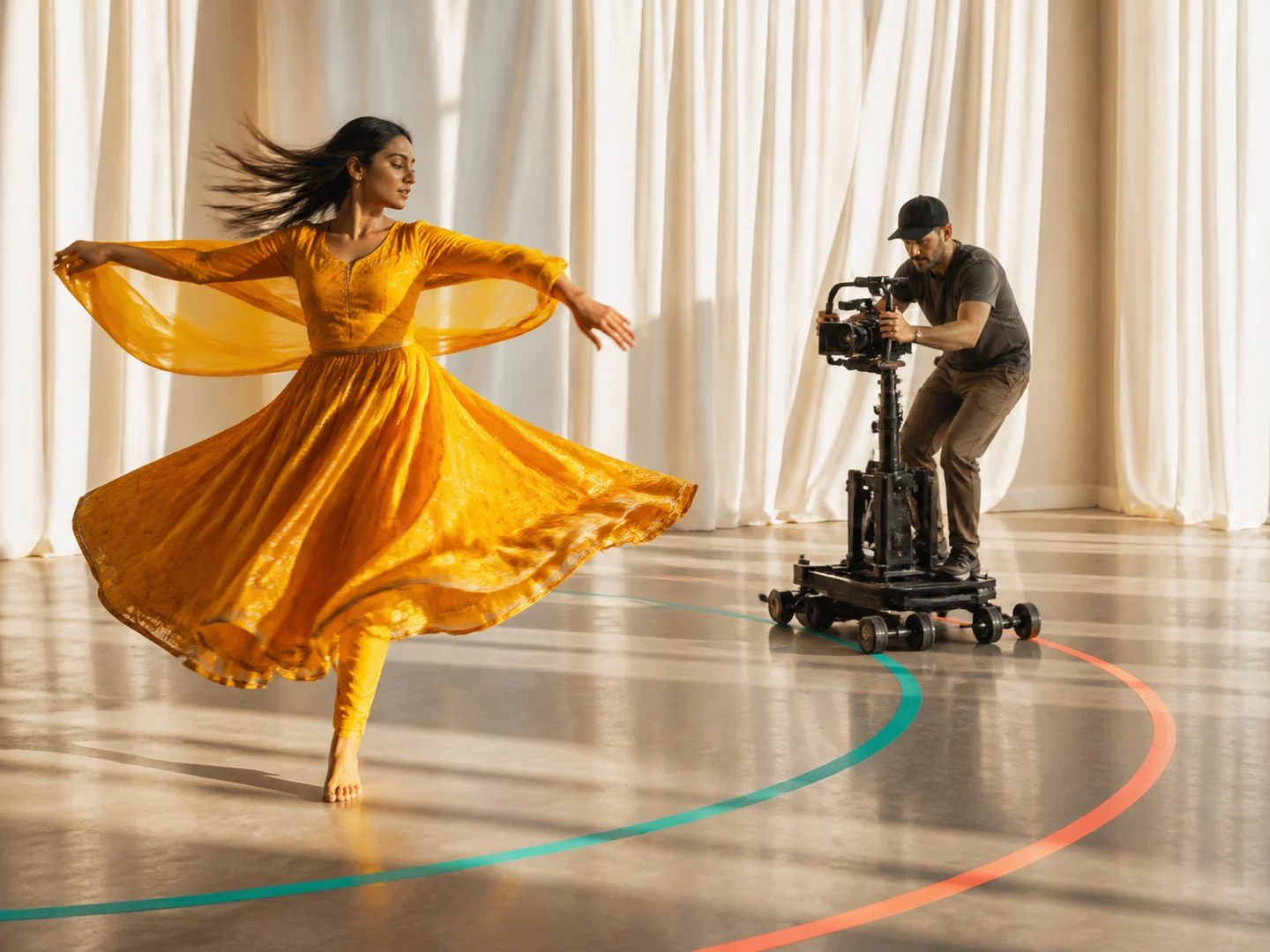
Reuse motion language
Adapt prompts that connect subject action, camera behavior, timing, and the intended ending.
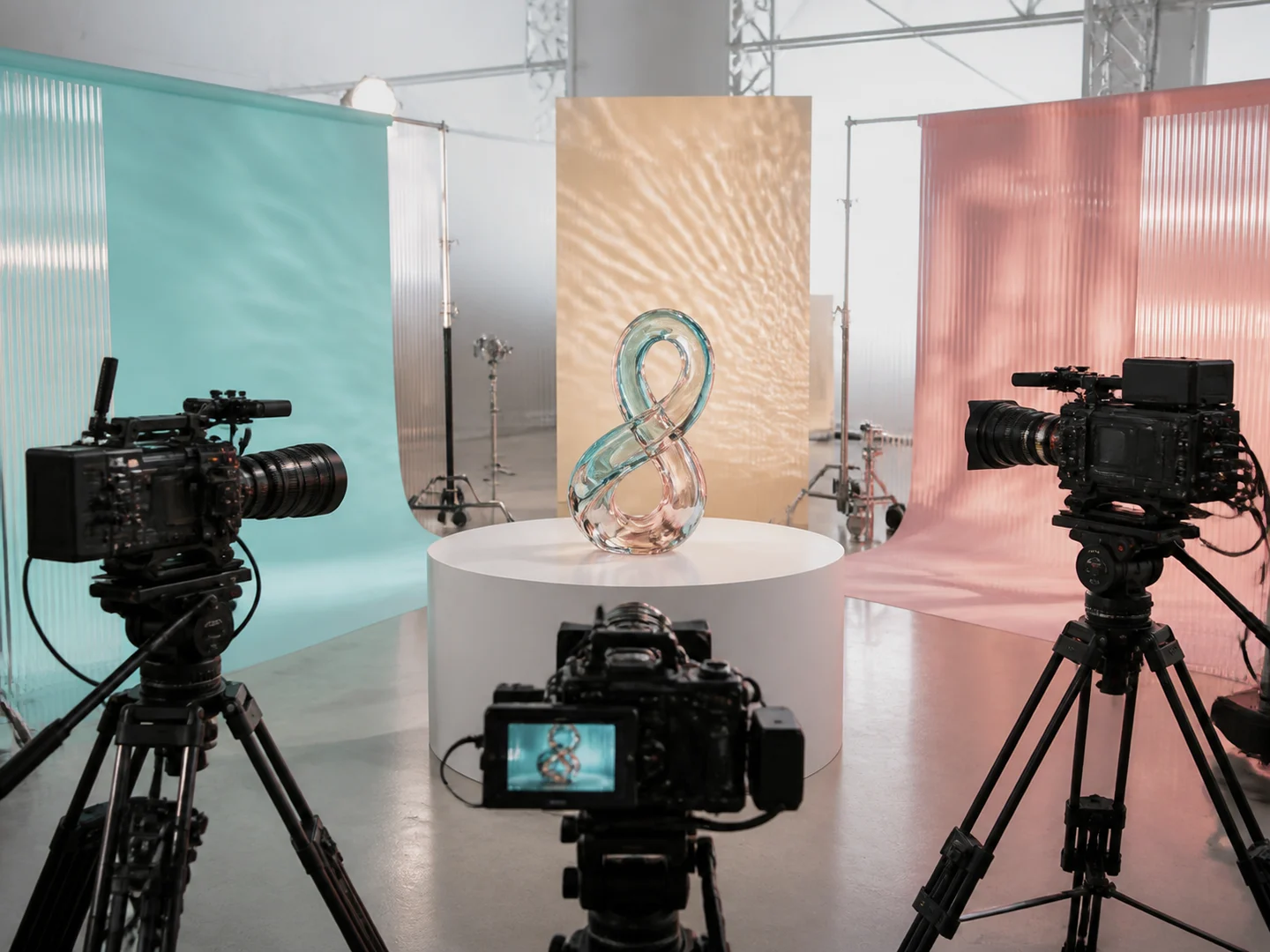
Compare model directions
Keep one brief in the composer while choosing a compatible video model and output settings.
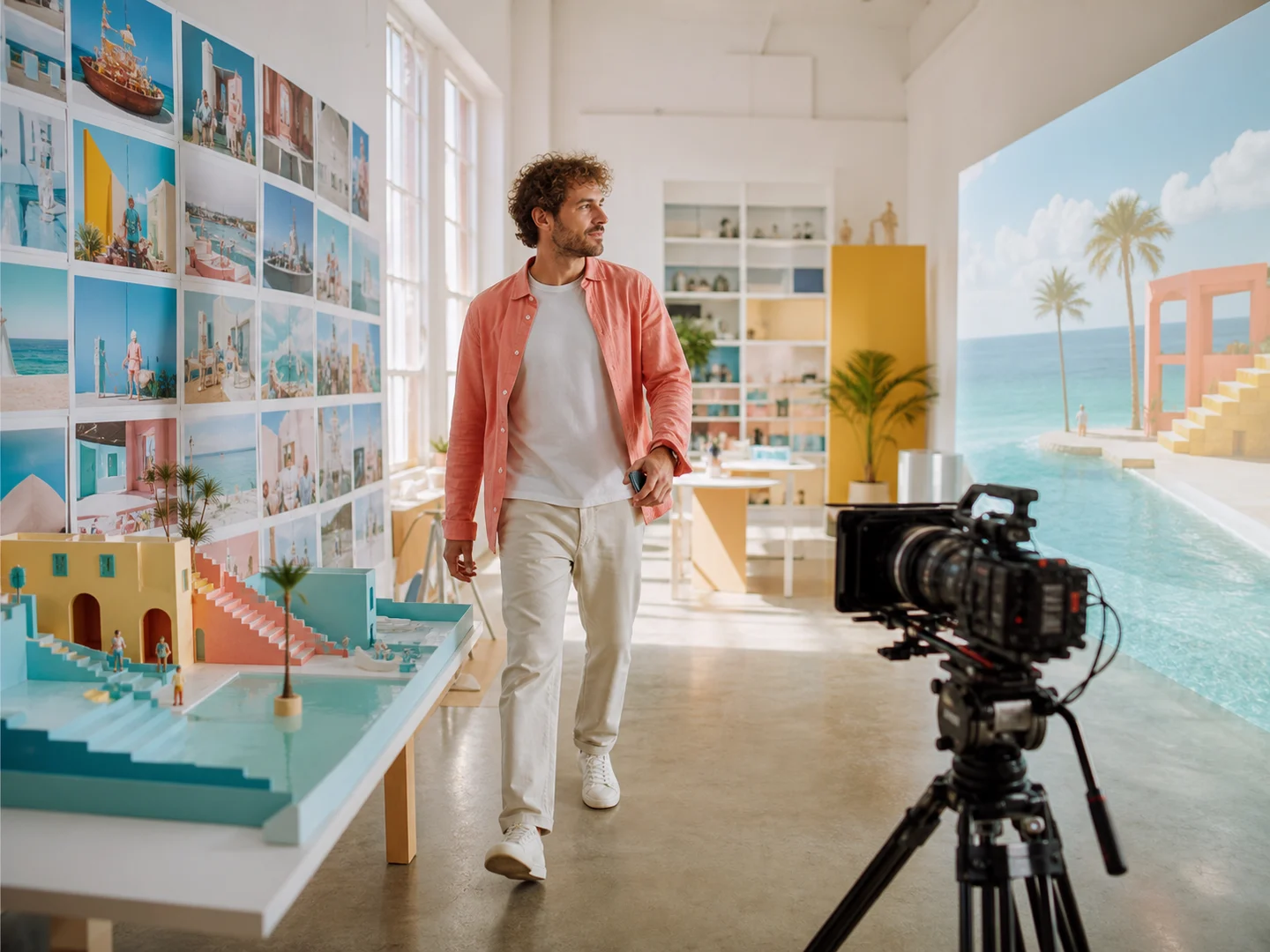
Move between input workflows
Begin with text, one image, several references, endpoint frames, or a source video without leaving the broader video workspace.
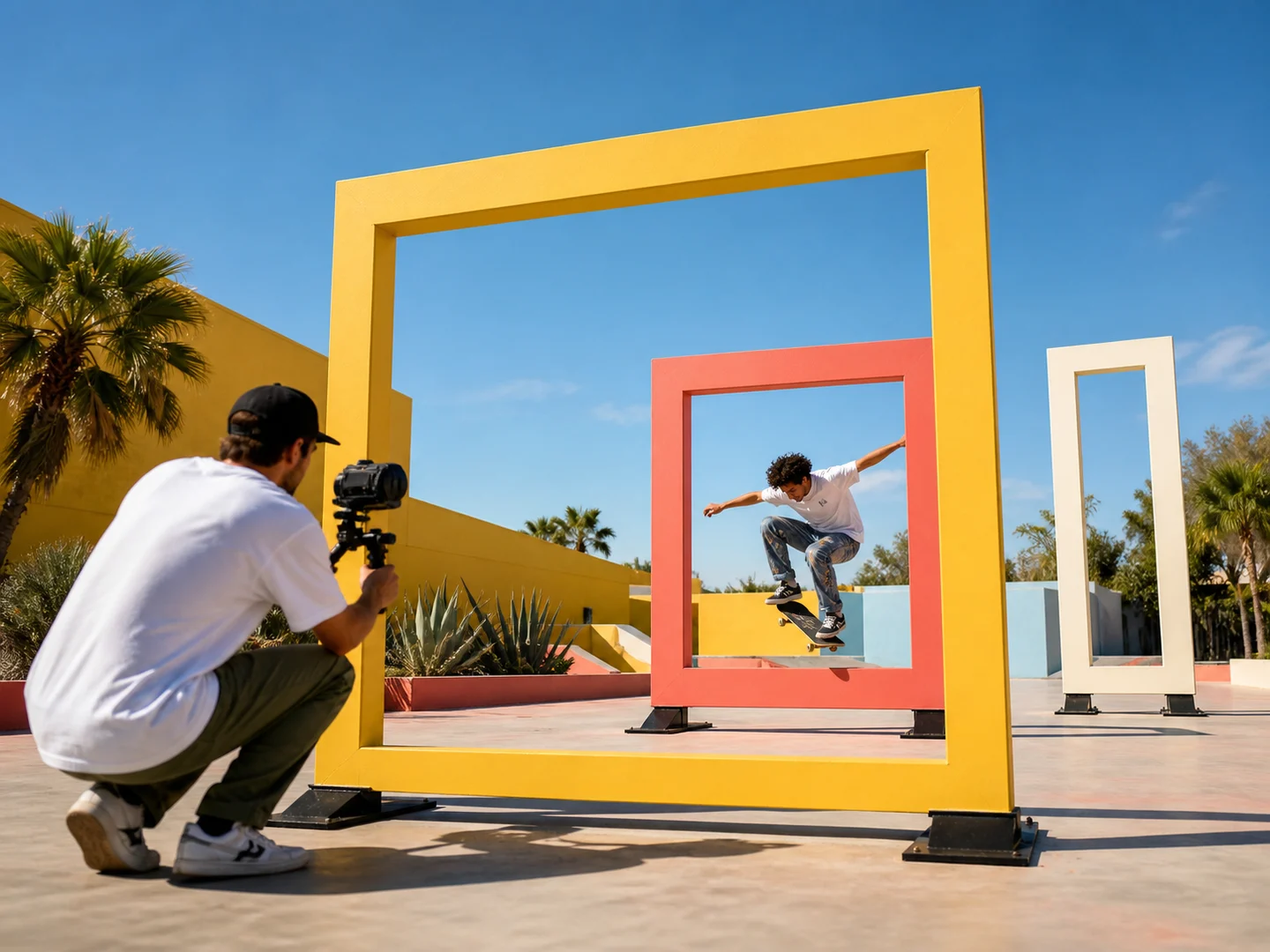
Control the publishing format
Choose compatible duration, framing, resolution, sound, visibility, and output settings after the creative direction is clear.
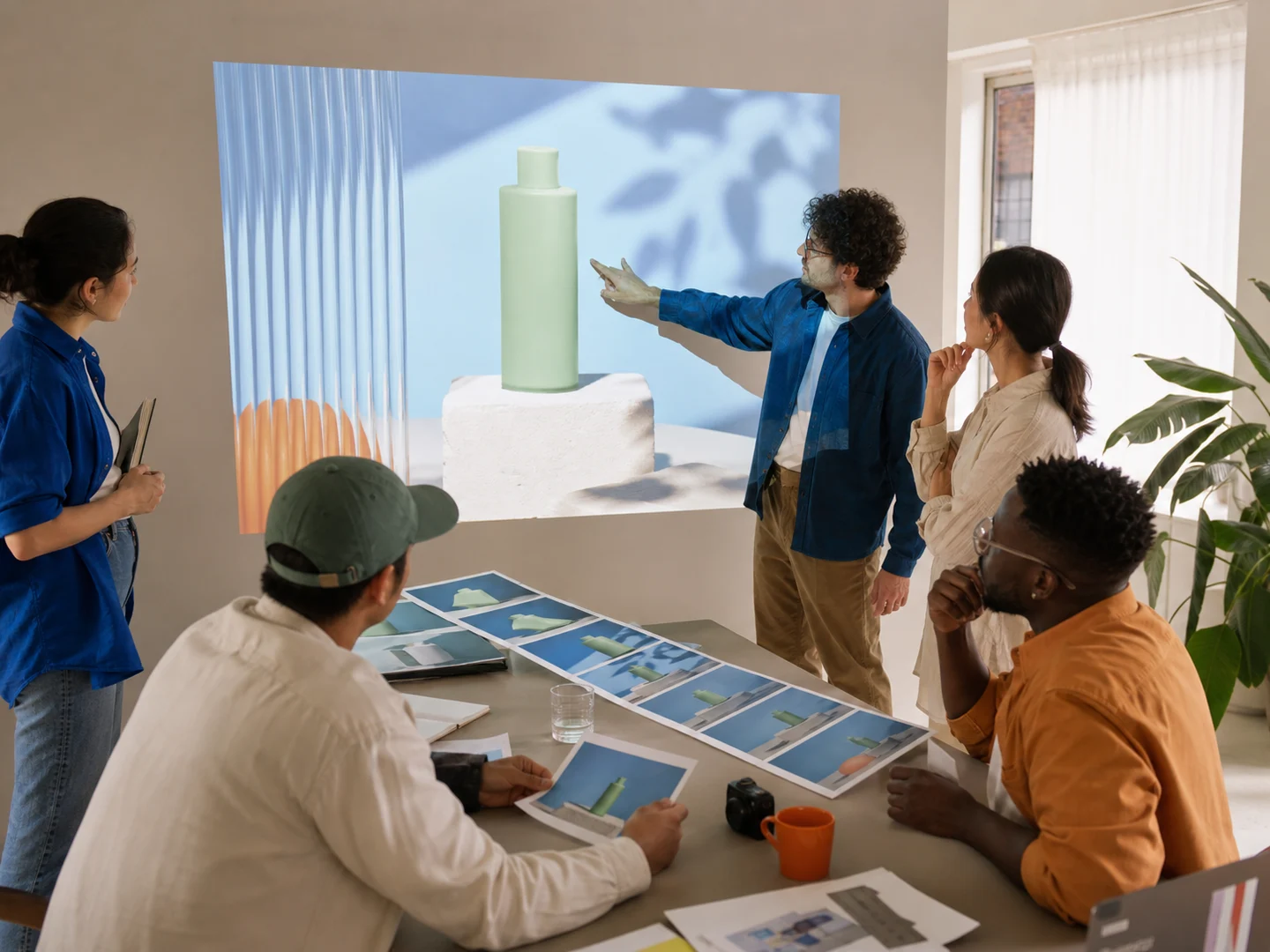
Review before the next iteration
Check identity, motion, camera continuity, text, product form, and audio before adjusting one specific part of the request.
How to Use the AI Video Generator
Choose a direction
Find a gallery study with a useful composition, action, or camera pattern.
Adapt the prompt
Open the study and rewrite its subject, setting, movement, or finish.
Complete the request
Add useful references, choose a compatible model, and review the output settings.
Ways to Use the AI Video Generator
Which AI Video Workflow Should You Use?
| Feature / Model | AI Video Generator | Specific model page |
|---|---|---|
| Shared inspiration gallery | Explore reusable scene, motion, and camera directions. | Open the composer with that page's model already active. |
| Model selection | Choose a compatible video model after refining the brief. | Browse directions written for a particular workflow. |
| Mixed inputs | Prepare prompt-only or supported image-led requests. | Read practices and FAQs scoped to that model. |
Frequently Asked Questions About AI Video Generation
What is Nuzza's AI Video Generator?
Nuzza's AI Video Generator is a multi-model workspace for creating video from a written prompt, supported image references, or both. It keeps inspiration, prompt editing, model selection, motion direction, and output settings in one workflow.
What is the best AI video generator?
The best AI video generator depends on the input, intended result, budget, and controls you need. Nuzza's AI Video Generator is a strong choice for a flexible text and reference-led video workspace.
Is Nuzza's AI Video Generator free to use?
The page is free to browse. Running a task requires Credits, and the current cost is shown before you submit.
What can I use Nuzza's AI Video Generator for?
Use Nuzza's AI Video Generator to develop short campaign concepts, animate visual references, explore alternate takes, and compare prompt-led or image-led video directions across compatible models.
What inputs does Nuzza's AI Video Generator support?
The shared Composer supports prompt-led video requests and can use supported images when the selected model accepts them. The visible input fields and limits change with the selected model and operation.
Do I need to sign in to use Nuzza's AI Video Generator?
You can browse this page without signing in. Submitting a generation, storing persistent inputs, checking task status, and saving a finalized result require a Nuzza account.
What should I check in the video result?
Watch the complete result and compare it with the prompt or source. Check subject identity, motion, camera continuity, frame edges, text, and audio synchronization before publishing.
Are the gallery items finished AI videos?
No. The current gallery uses reserved preview assets while production media is reviewed separately.
What does Recreate do?
Recreate copies the example direction into your Composer without changing the gallery study, so you can adapt the prompt and settings for a new request.