
Text to Video
Turn a written prompt into video with clear direction for the subject, scene, action, camera movement, and output format. Try Text to Video AI for free now!
All-in-One Free Text to Video
The same prompt can produce very different pacing, framing, realism, and sound, so choose the model that matches the intended shot.
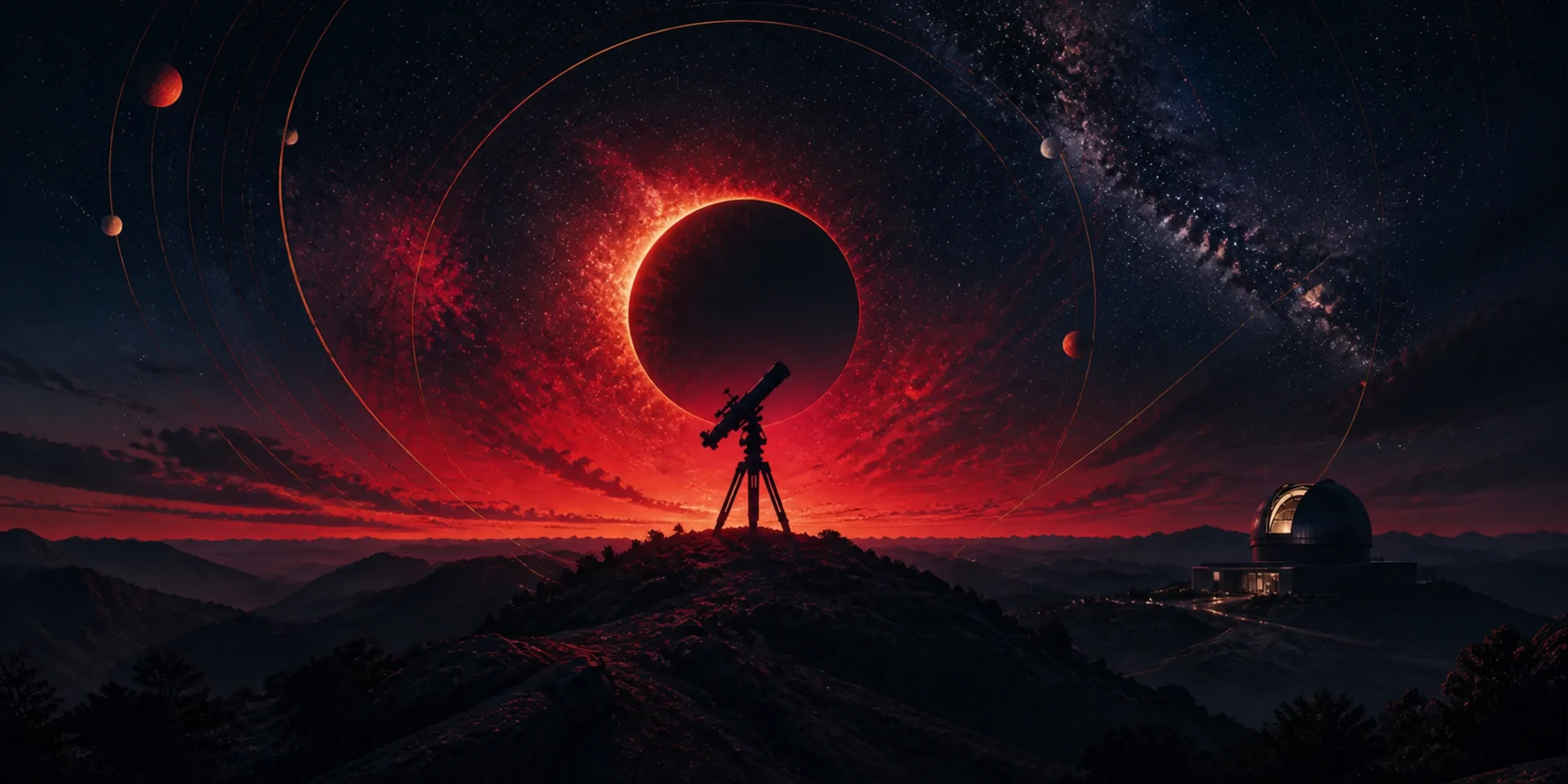
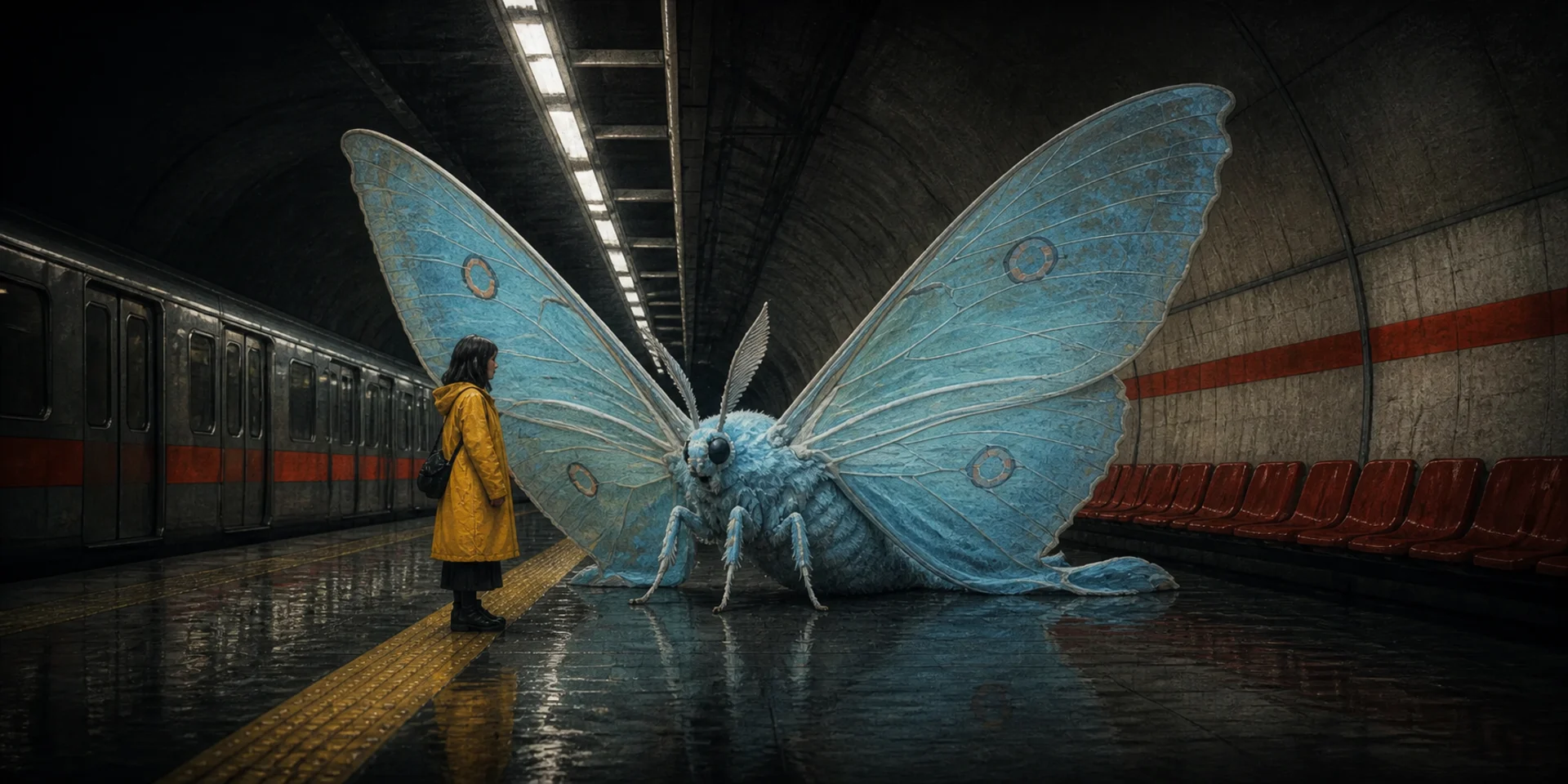
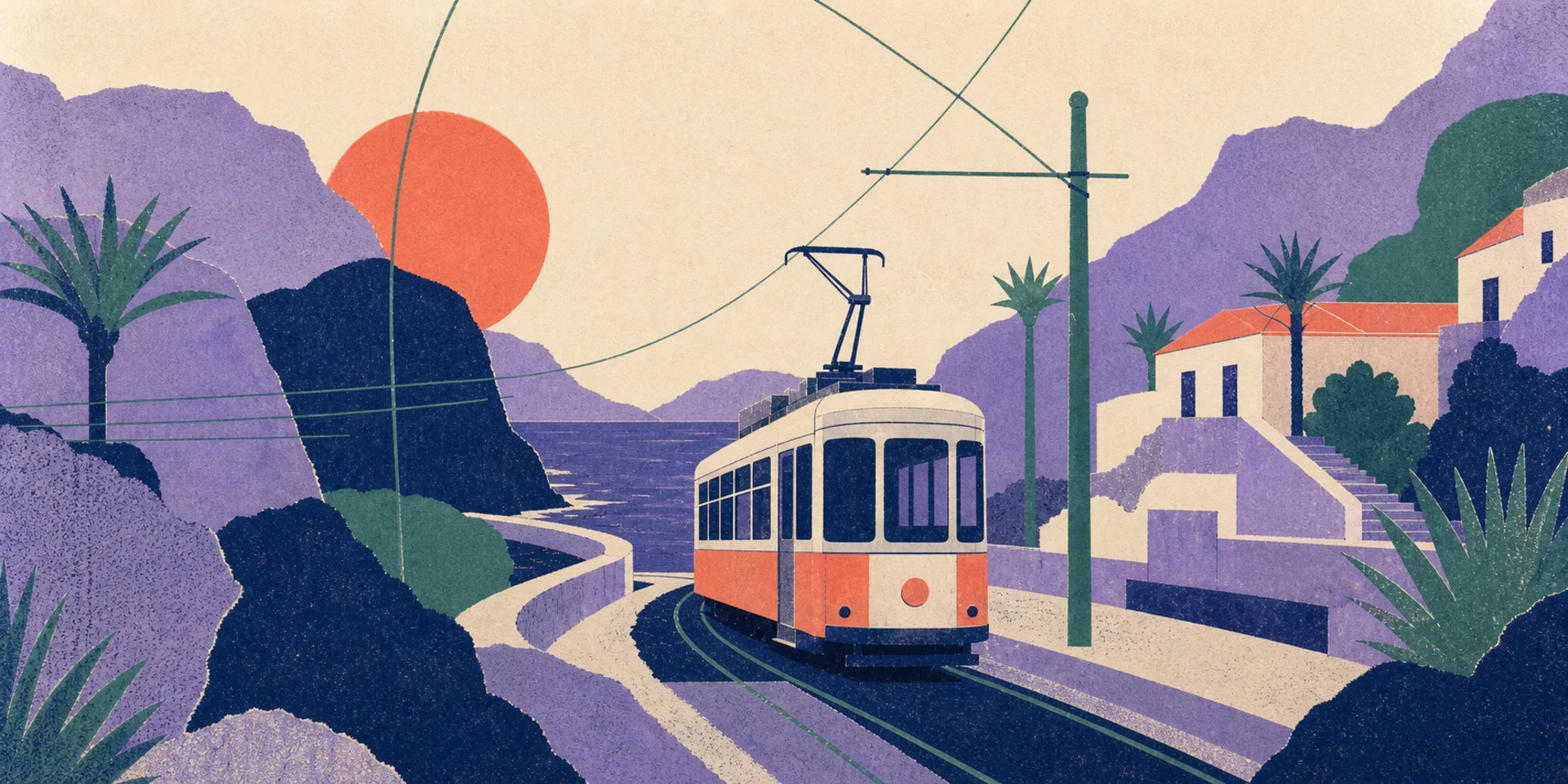
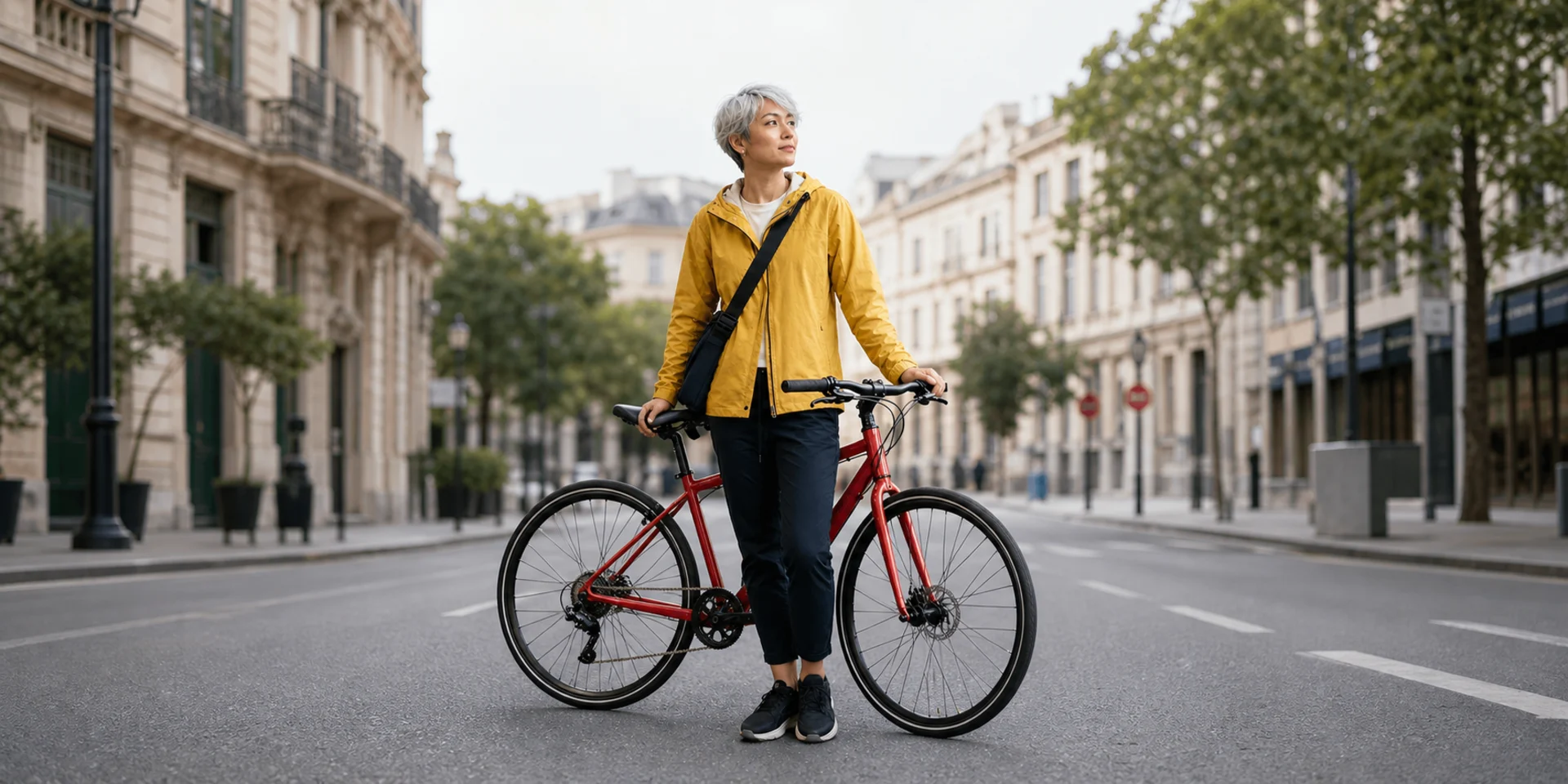
Turn one written direction into many kinds of video
Start with the publishing goal, then write a scene with the right subject, pacing, camera language, and ending for that format.
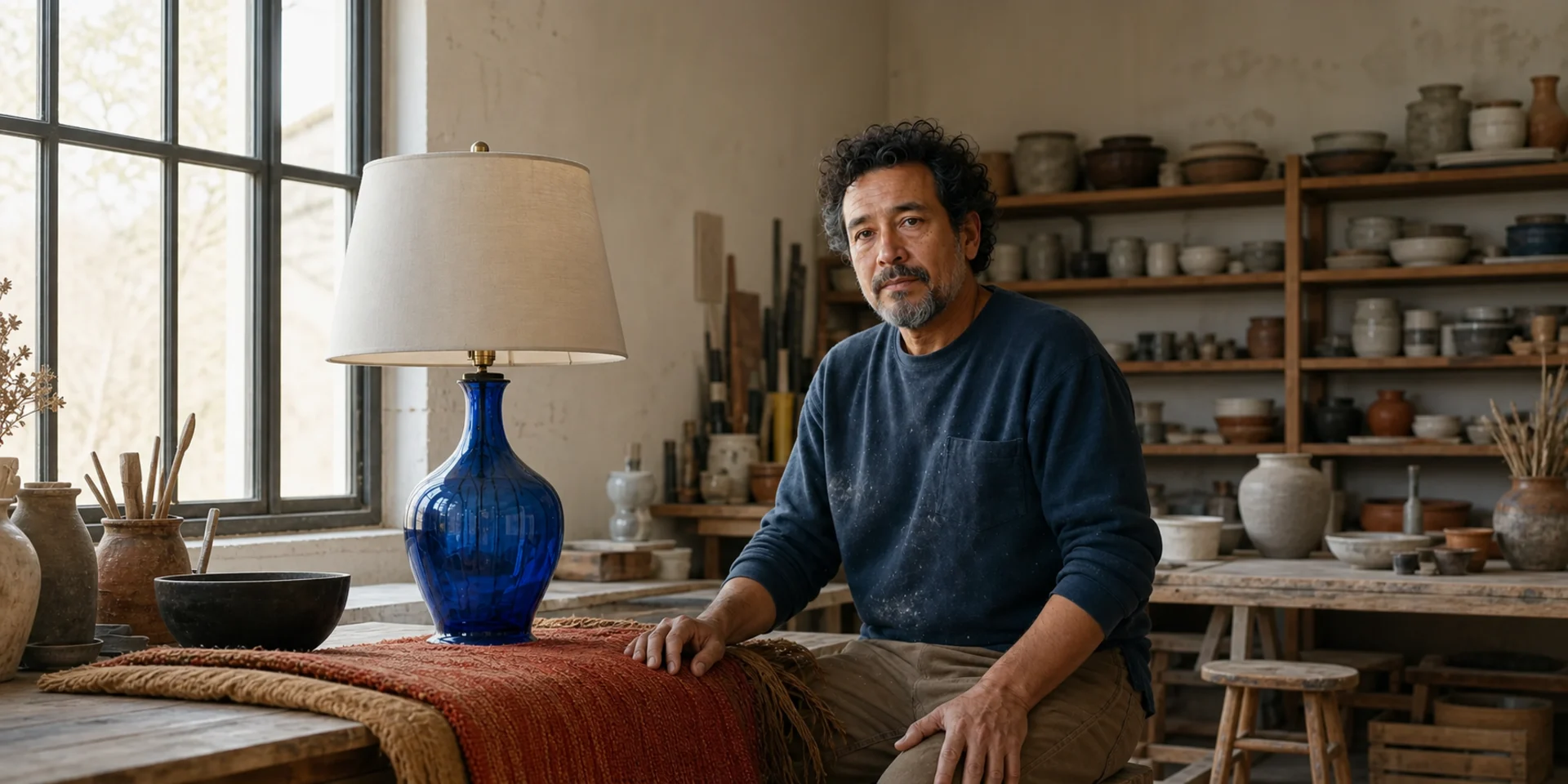
Cinematic Scenes
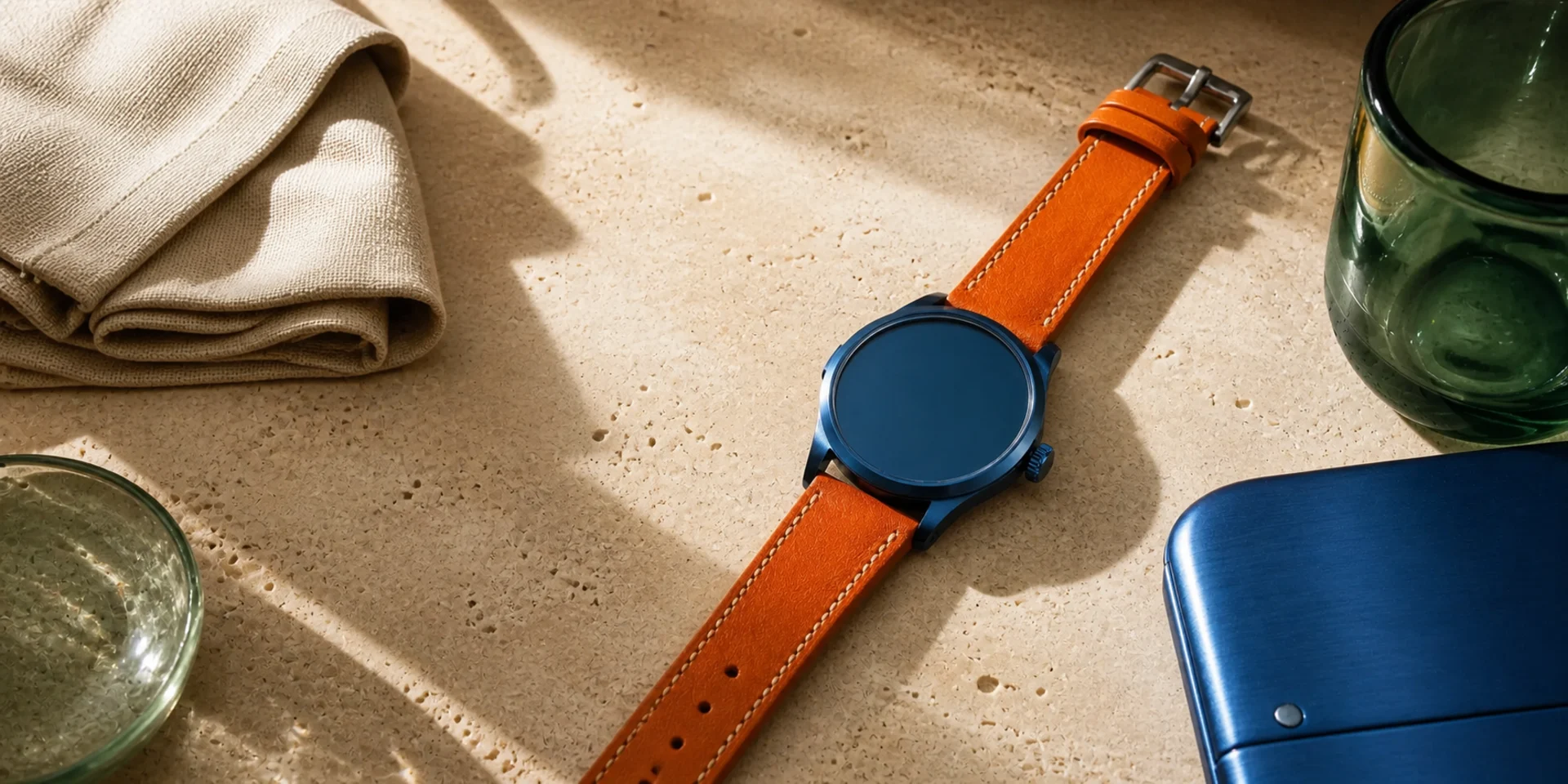
Product Videos
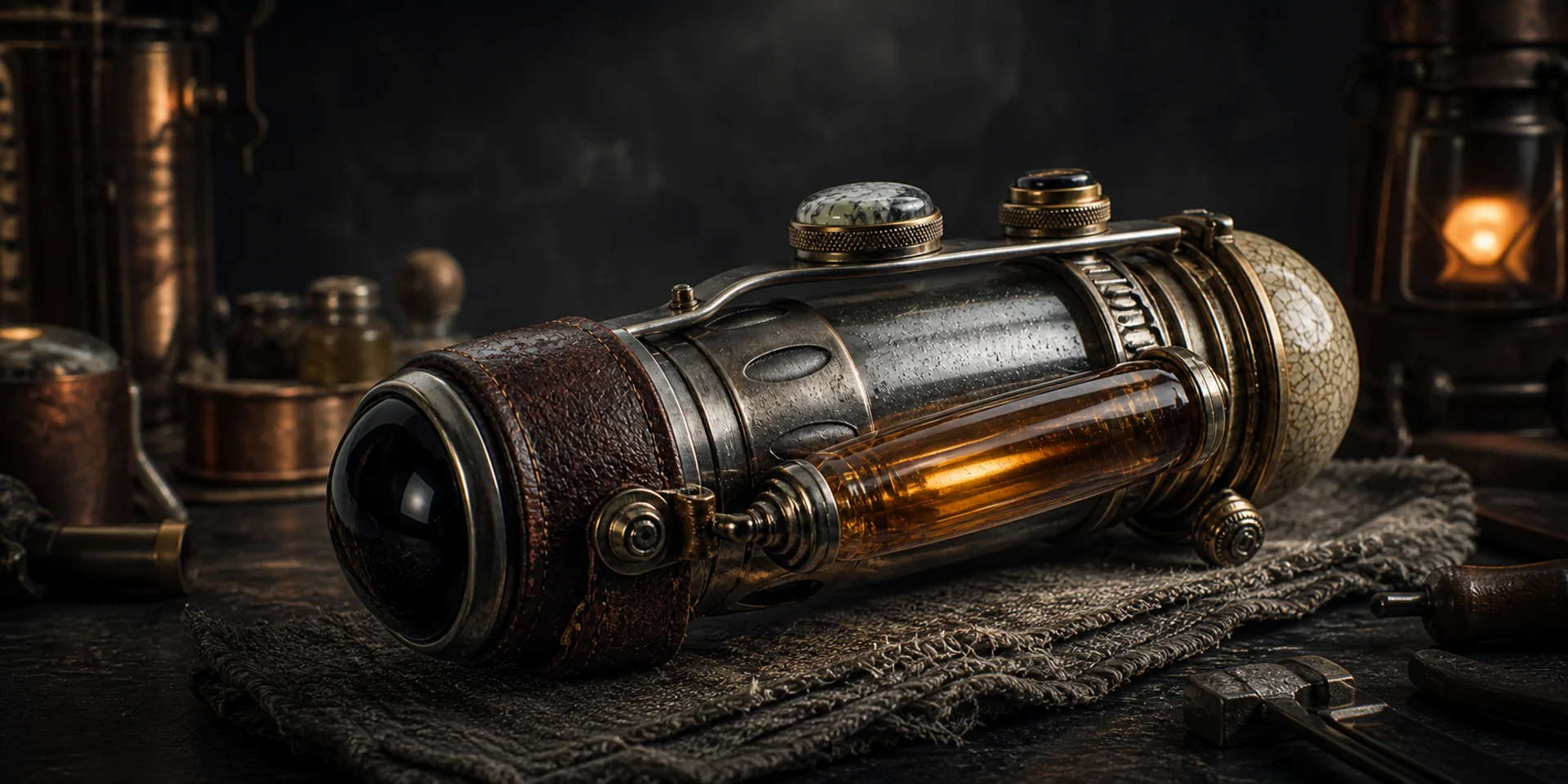
Social Clips
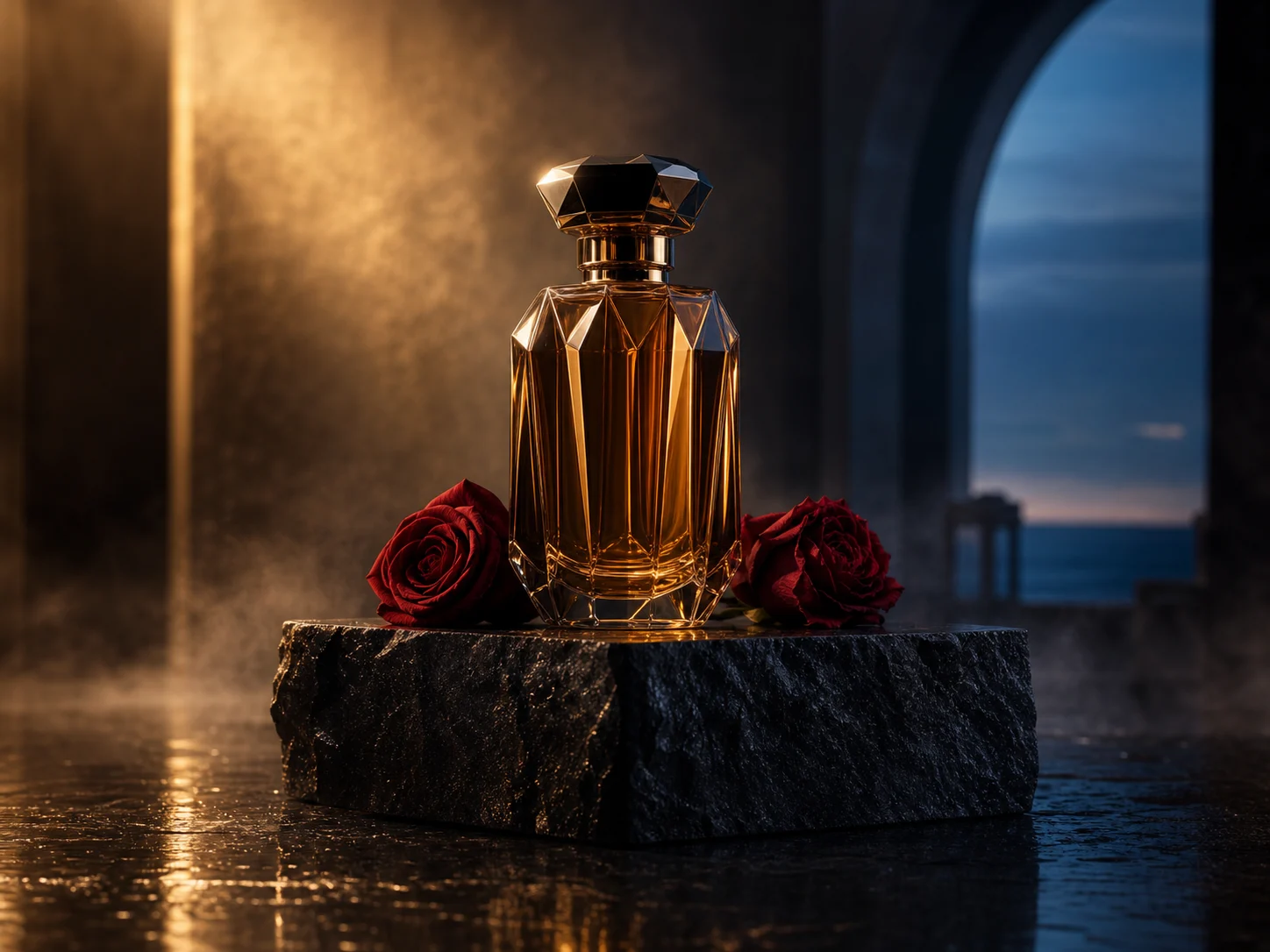
Ad Concepts
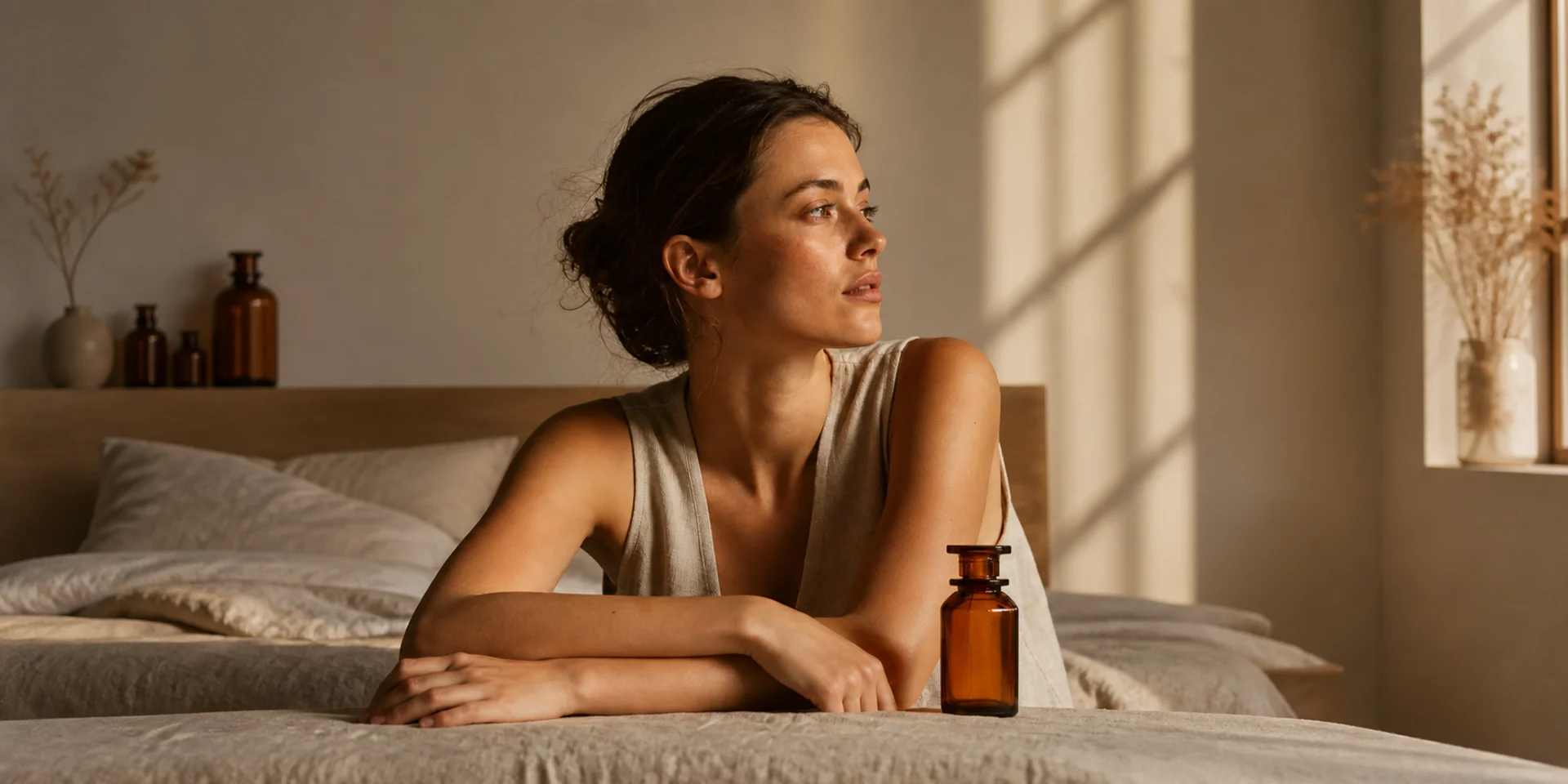
Story Videos
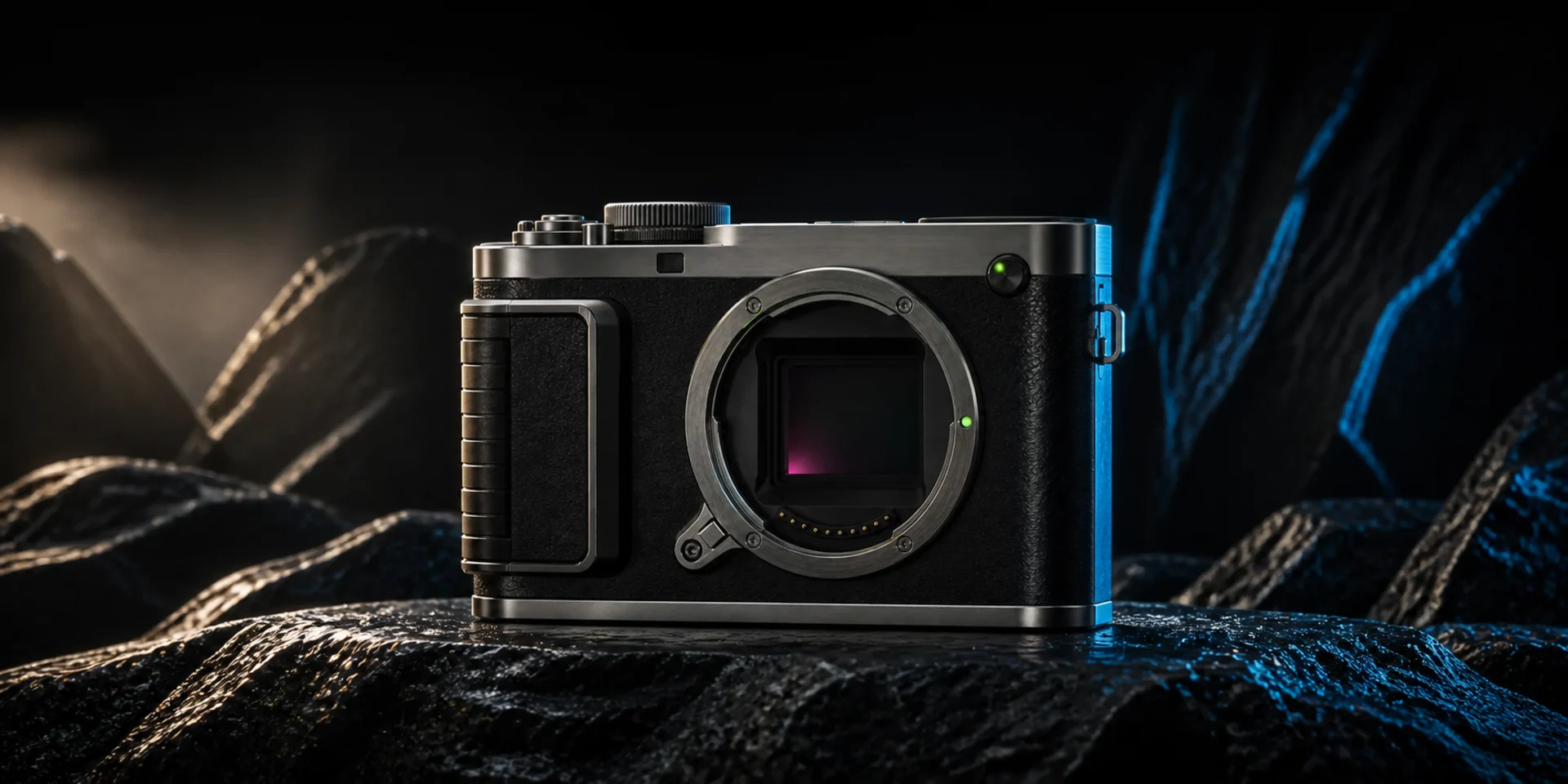
Explainer Visuals
What Can You Create with Text to Video?
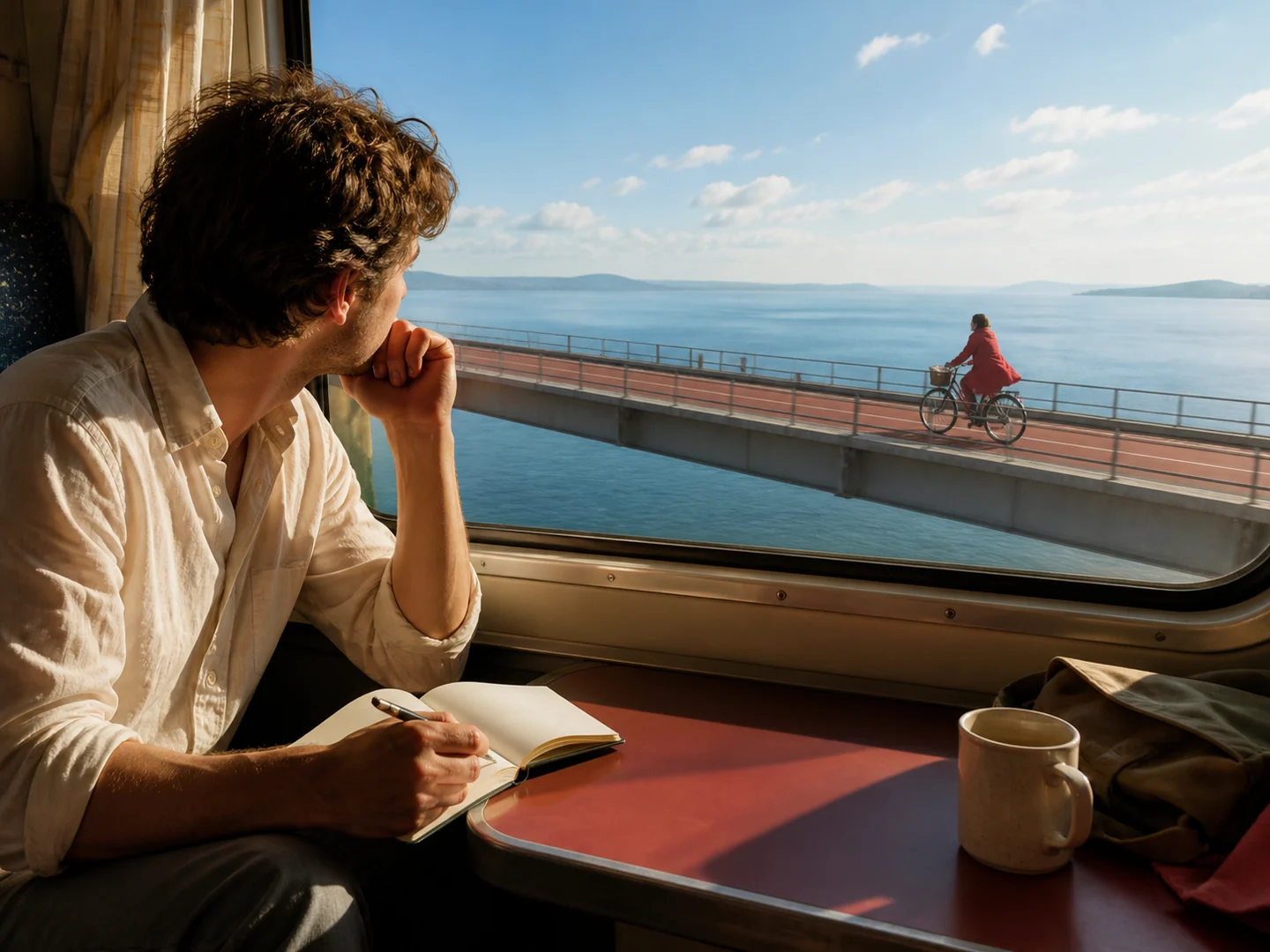
Prompt-only video concepts
Build a moving scene from language without requiring a source image.
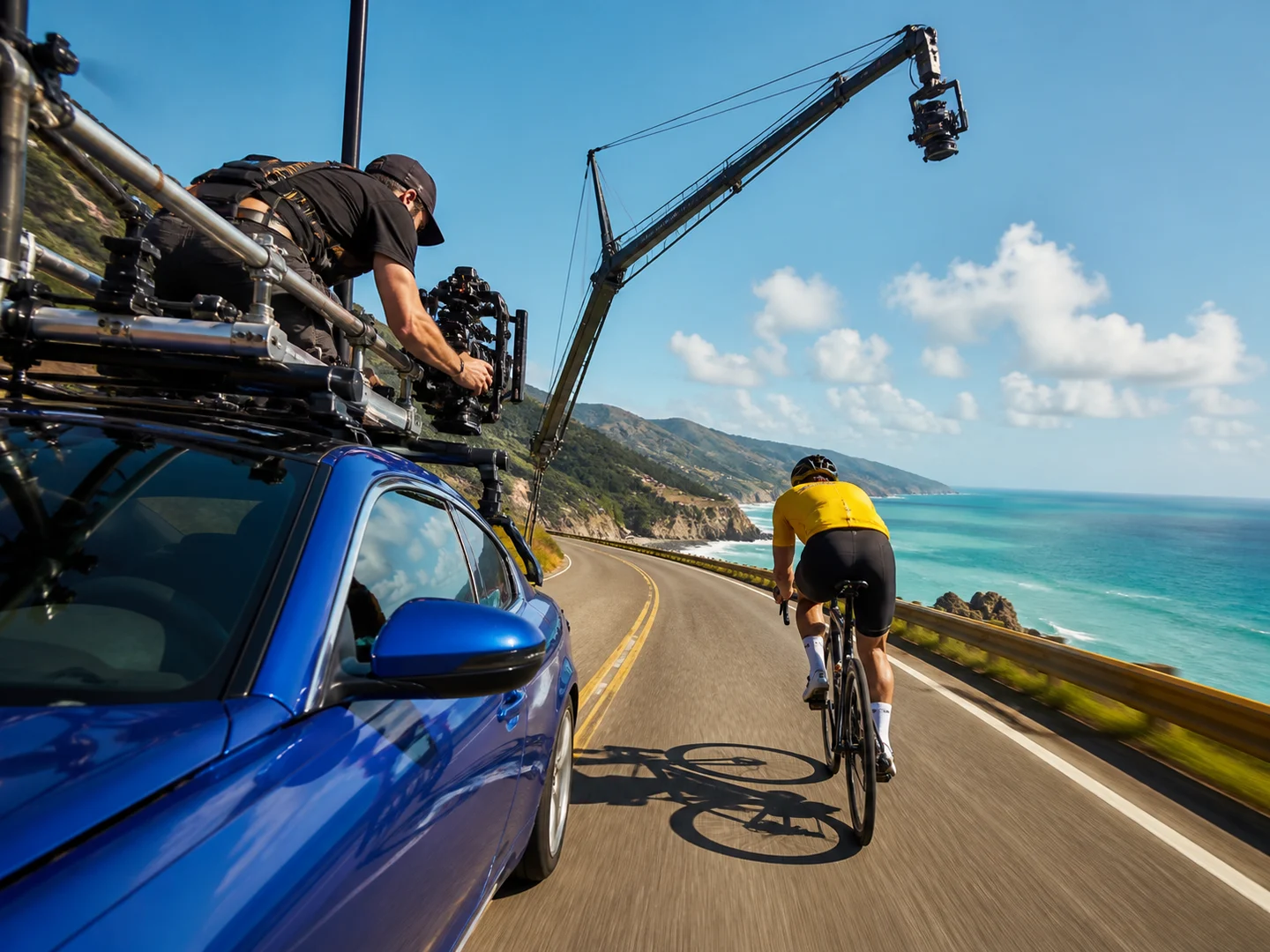
Explicit camera and subject motion
Describe what moves, how the camera responds, and where the shot should end.
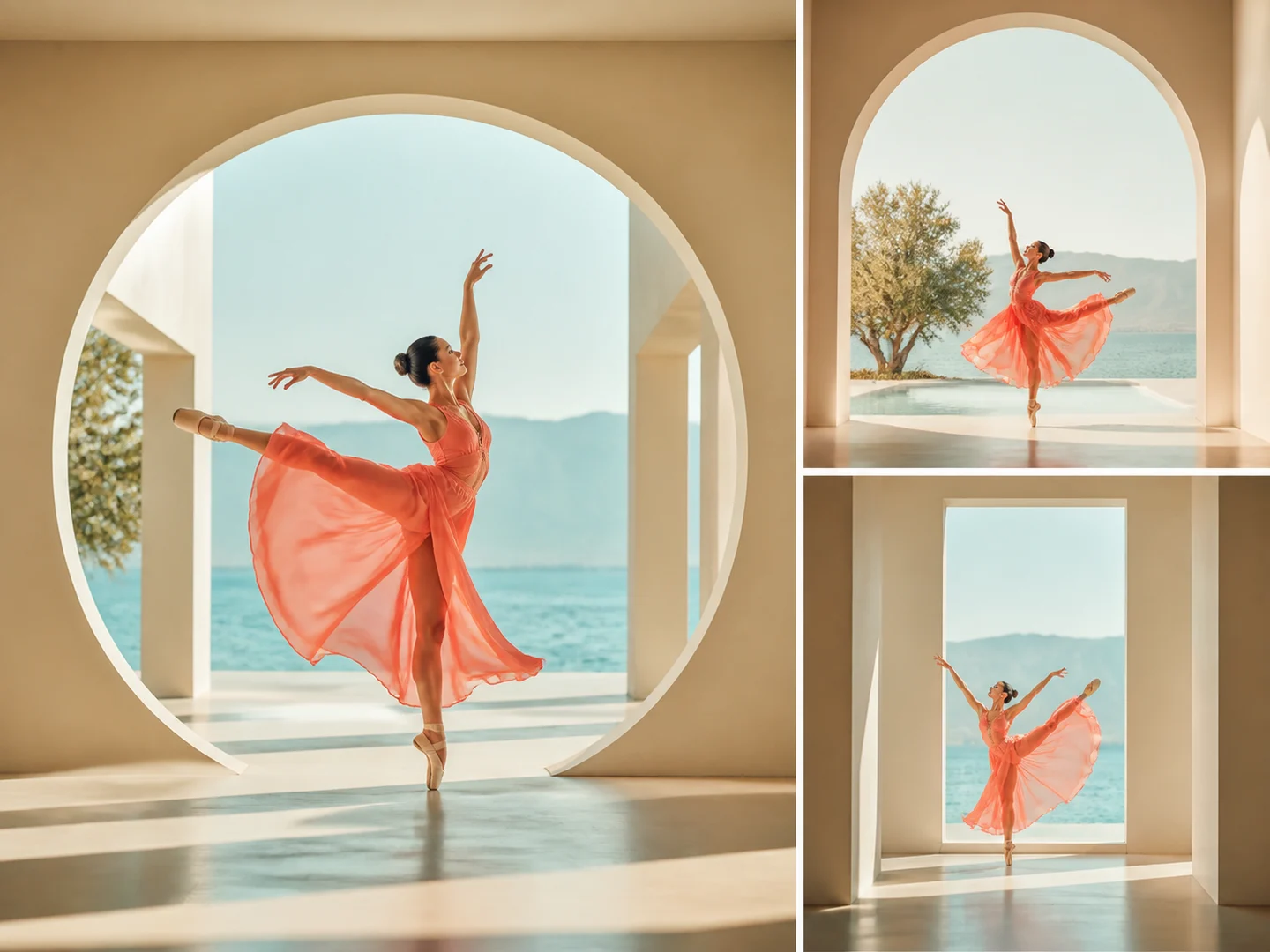
Format-specific variations
Adapt one scene for landscape, square, or vertical framing by changing composition and pacing.
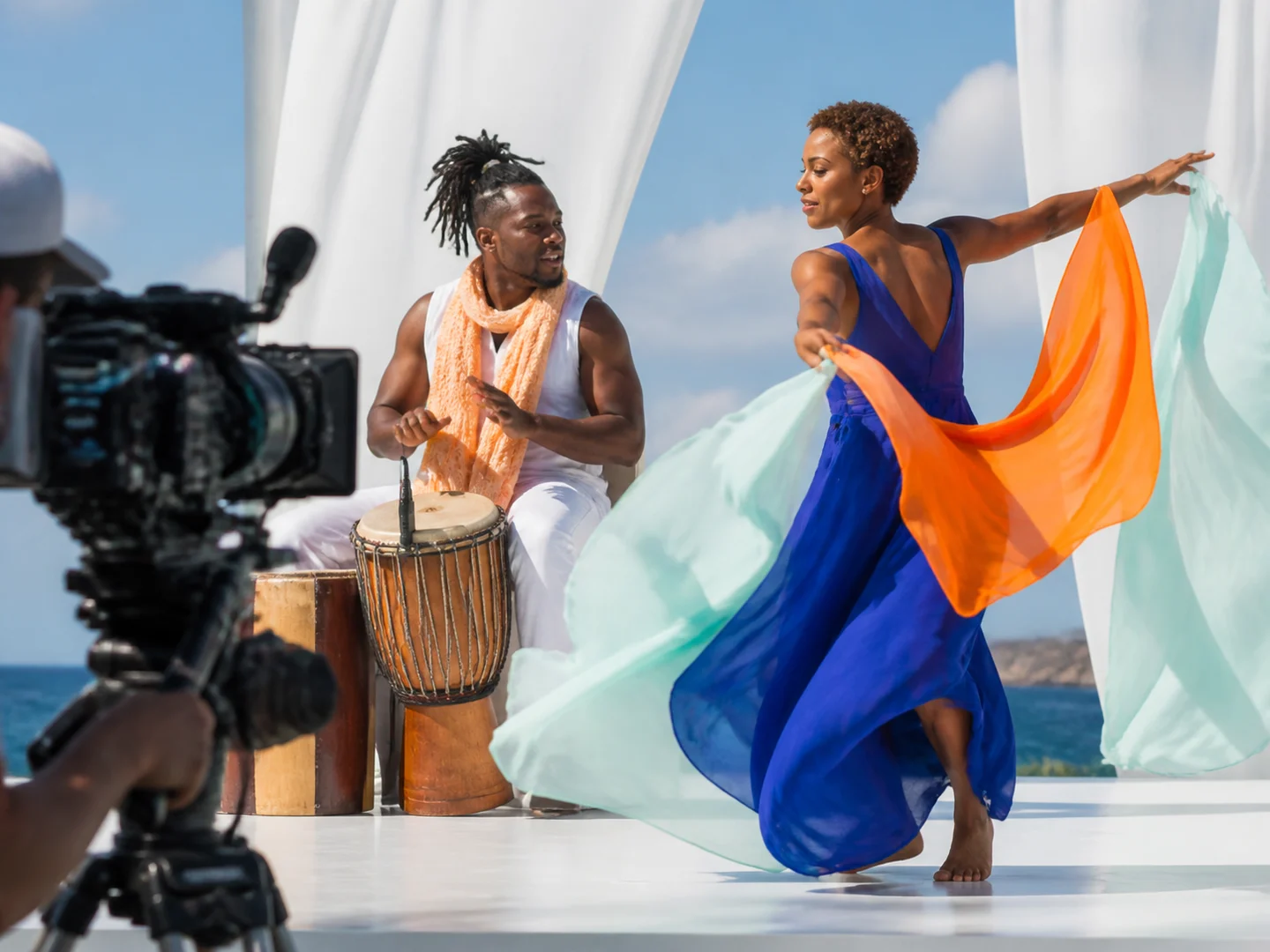
Model-specific motion and sound
Compare models after the shot is written to find the right balance of movement, realism, duration, and native audio.
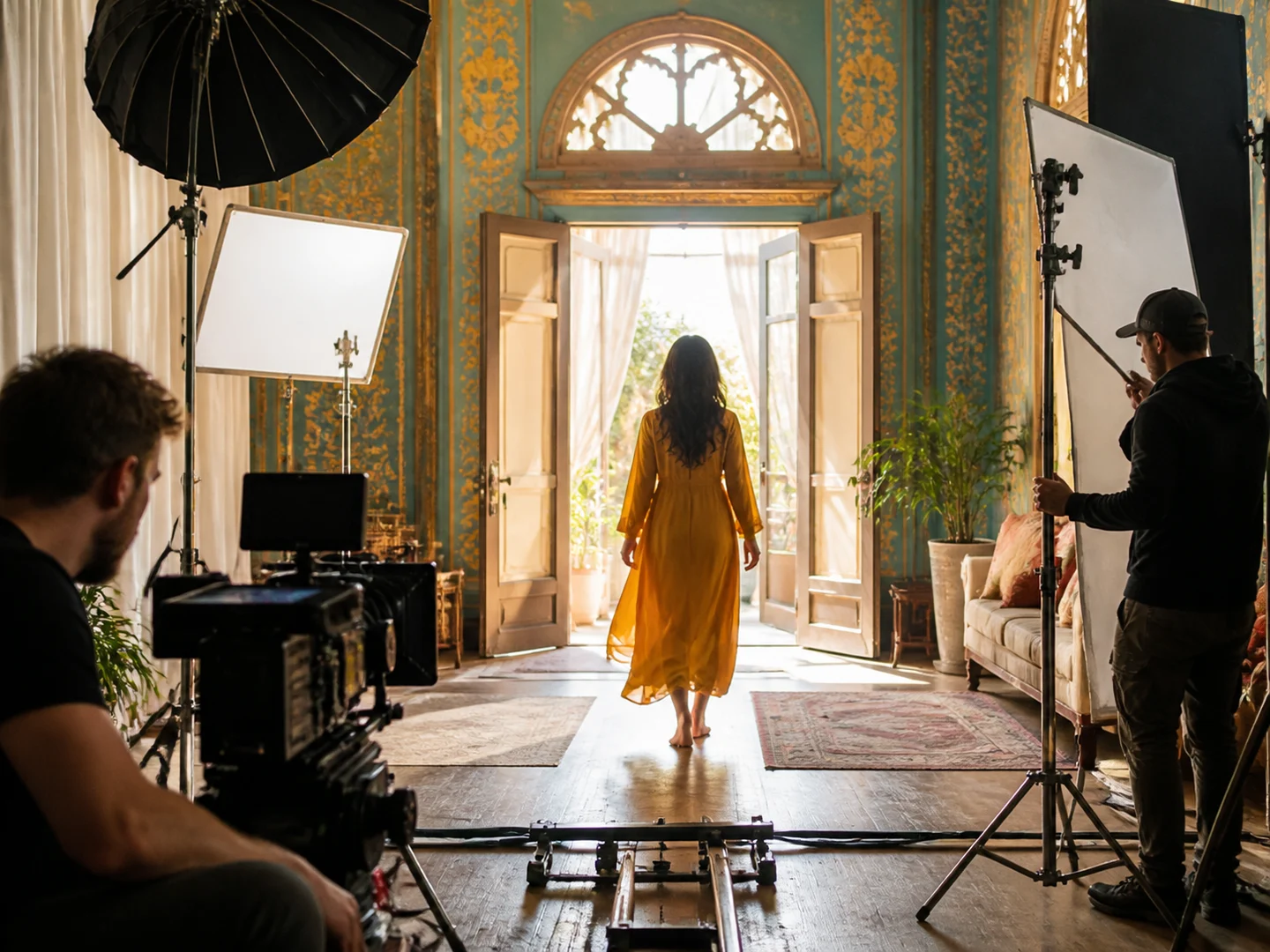
Repeatable prompt structure
Keep subject, action, environment, camera, lighting, pace, and ending distinct enough to revise independently.
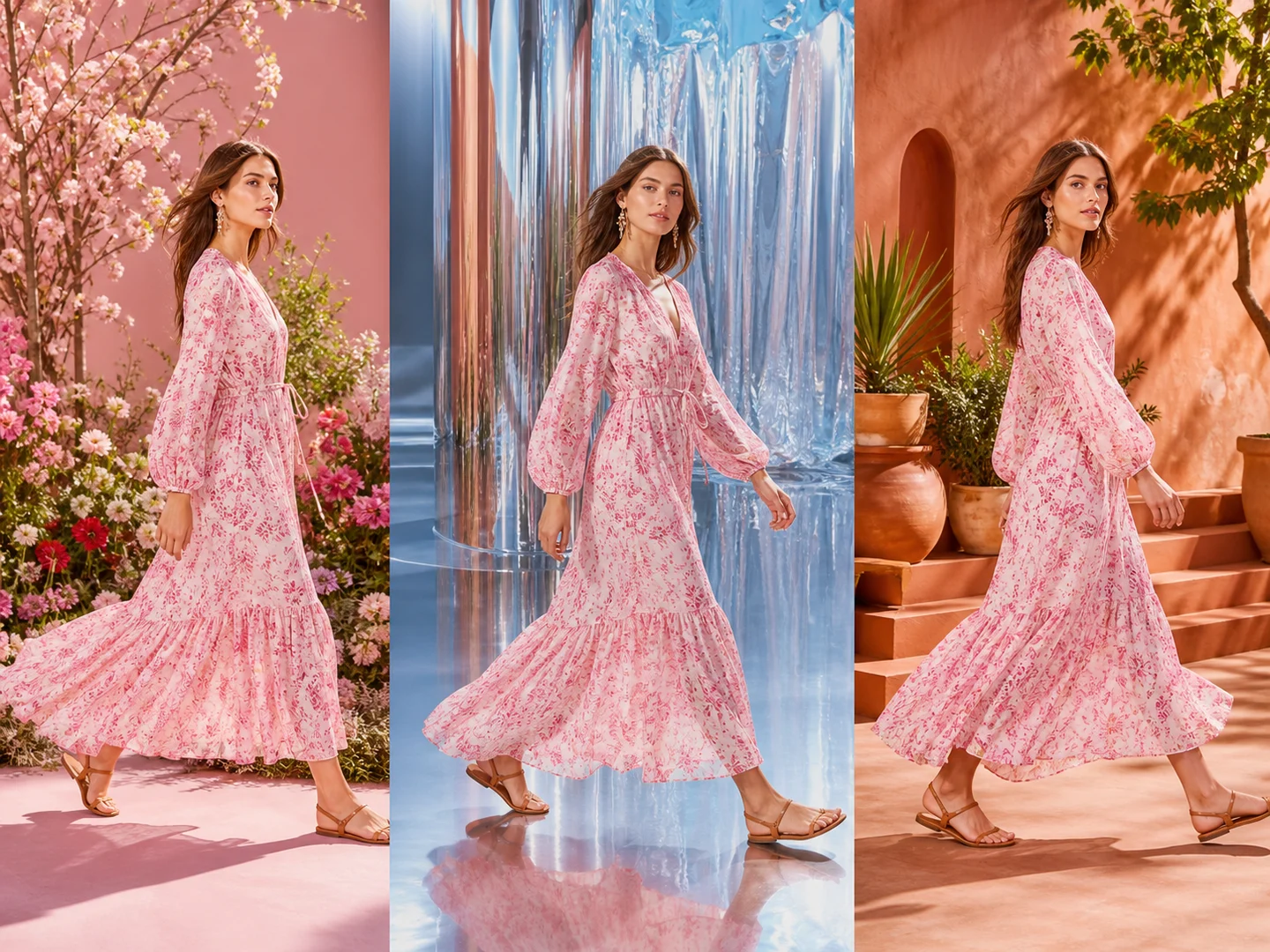
Fast concept variation
Hold the core message steady while changing composition, pacing, visual treatment, or publishing format.
How to Create a Video from Text
Choose a shot pattern
Begin with one shot pattern that matches the result you want: a slow push-in for emphasis, a tracking shot for movement, an orbit for a product reveal, or a locked frame for controlled action. Study where the subject begins, what changes during the shot, and what the final composition needs to communicate. A focused shot is easier to direct and evaluate than several unrelated events compressed into one prompt.
Rewrite the scene
Replace the example subject, setting, and movement with a concrete visual brief. Identify who or what appears, the action they perform, the surrounding environment, the camera response, the lighting, the pace, and the intended ending. Use observable verbs such as walks, turns, opens, rises, or follows. When timing matters, describe the action in order instead of combining every instruction into one abstract sentence.
Set the output
Choose a compatible model after the scene direction is clear, then confirm duration, aspect ratio, visibility, and any available sound or reference controls. Match the shot to its destination: landscape framing can preserve environmental scale, while square or vertical output usually needs a more central subject and simpler lateral movement. Review the current Credit quote before submitting, and leave enough duration for the opening, action, and final frame to read naturally.
Ways to Use Text to Video
Text to Video or Image to Video?
| Feature / Model | Text to Video | Image to Video |
|---|---|---|
| No source required | Begin directly from a written visual and motion brief when you do not have a finished image to preserve. The prompt can establish the subject, setting, action, camera behavior, light, and final frame together. | Anchor the opening composition to an existing subject, product, artwork, or environment. The source already determines much of the framing, color, and visual identity before motion is added. |
| Open composition | Define the complete scene and framing in language instead of inheriting the perspective, crop, background, or visual mistakes of an existing image. This provides greater freedom but also requires more precise direction. | Name the faces, product geometry, artwork, text, clothing, or background relationships that must remain recognizable. Clear preservation priorities help separate required details from areas that may change. |
| Fast ideation | Explore substantially different subjects, locations, shot types, and art directions without preparing new source images for every attempt. Keep one creative variable stable when you want the variations to remain comparable. | Concentrate the instruction on subject movement, environmental motion, camera direction, pace, and the ending instead of redescribing every visible detail already supplied by the source image. |
Frequently Asked Questions About Text to Video
What is Nuzza's Text to Video?
Text to Video starts with a written shot brief rather than a source image. A useful prompt connects subject, environment, action, camera movement, timing, and the final frame.
What is the best text-to-video generator?
The best text-to-video generator depends on the input, intended result, budget, and controls you need. Nuzza's Text to Video is a strong choice for a prompt-only moving-scene workflow.
Is Nuzza's Text to Video free to use?
The page is free to browse. Running a task requires Credits, and the current cost is shown before you submit.
What can I use Nuzza's Text to Video for?
Use Nuzza's Text to Video to develop short campaign scenes, product moments, cinematic concepts, social clips, and alternate takes when the moving scene should begin from language rather than a source image.
What inputs does Nuzza's Text to Video support?
A text-to-video request can begin with a written prompt only. Images remain optional when the selected model supports them, and the visible duration, ratio, audio, or reference controls change with the model and operation.
Do I need to sign in to use Nuzza's Text to Video?
You can browse this page without signing in. Submitting a generation, storing persistent inputs, checking task status, and saving a finalized result require a Nuzza account.
What should I check in the video result?
Watch the complete result and compare it with the prompt. Check subject identity, motion, camera continuity, timing, frame edges, text, and audio synchronization before publishing.
What should a text-to-video prompt include?
Name the subject, action, environment, camera behavior, light, pace, and intended ending as clearly as the scene requires.
Can I change models after choosing a prompt?
Yes. The model selector remains available in the composer, and only compatible runtime choices can complete a request.
How long should a text-to-video prompt be?
A useful prompt is long enough to remove ambiguity but short enough to preserve one coherent shot. Start with the subject, action, environment, camera behavior, lighting, pace, and ending. Add details only when they affect what should appear or move. Long lists of decorative adjectives can compete with the main action, while an extremely short prompt may leave composition and motion to chance. When a result misses the brief, revise the specific instruction that failed instead of rewriting everything at once.
How can I make text-to-video results more consistent?
Keep the subject description, wardrobe, environment, time of day, palette, and camera language stable across related prompts. Give each clip one main action and avoid asking the subject, background, lighting, and visual style to transform simultaneously. For multi-shot work, generate the opening, development, and ending as separate briefs and repeat the details that must carry between them. If exact identity or product form is essential, consider an image-led or reference-led workflow instead of relying on text alone.
Can a text-to-video prompt control camera movement and sound?
You can describe camera behavior such as a push-in, pan, tilt, orbit, tracking move, crane rise, or locked frame, but the available control depends on the selected model. State how the camera relates to the subject and where the shot should end rather than listing several moves without order. Some compatible models also accept sound direction or generate native audio. When audio matters, describe the source, timing, atmosphere, and relationship to the visible action, then check synchronization across the full result.
Why does the generated video sometimes differ from my prompt?
Text describes a desired result but does not lock every pixel, so the model still interprets composition, appearance, timing, and motion. Conflicting instructions, several simultaneous actions, vague camera language, or an overloaded scene can increase variation. Review which part drifted: subject identity, environment, movement, camera path, lighting, or ending. Then simplify that part, make the action observable, and hold the rest of the prompt steady so the next generation answers one clear creative question.